Enrol members in classes
Add members to a class slot from the Schedule board, hold places with reservation notes, move people between slots and remove them.
Members are enrolled by your staff on the Schedule board. Members cannot book or cancel a place themselves: they see the slots you put them in, on the portal and in their reminders. Enrolment is for a weekly slot, so a member added to Monday 07:00 CrossFit is in that class every Monday until you remove them.
Before you start
- You need the Manage classes and enrolment permission.
- The member must already exist in this facility, see Add a member.
- The class and its slot must exist, see Build your class timetable.
Add a member to a slot
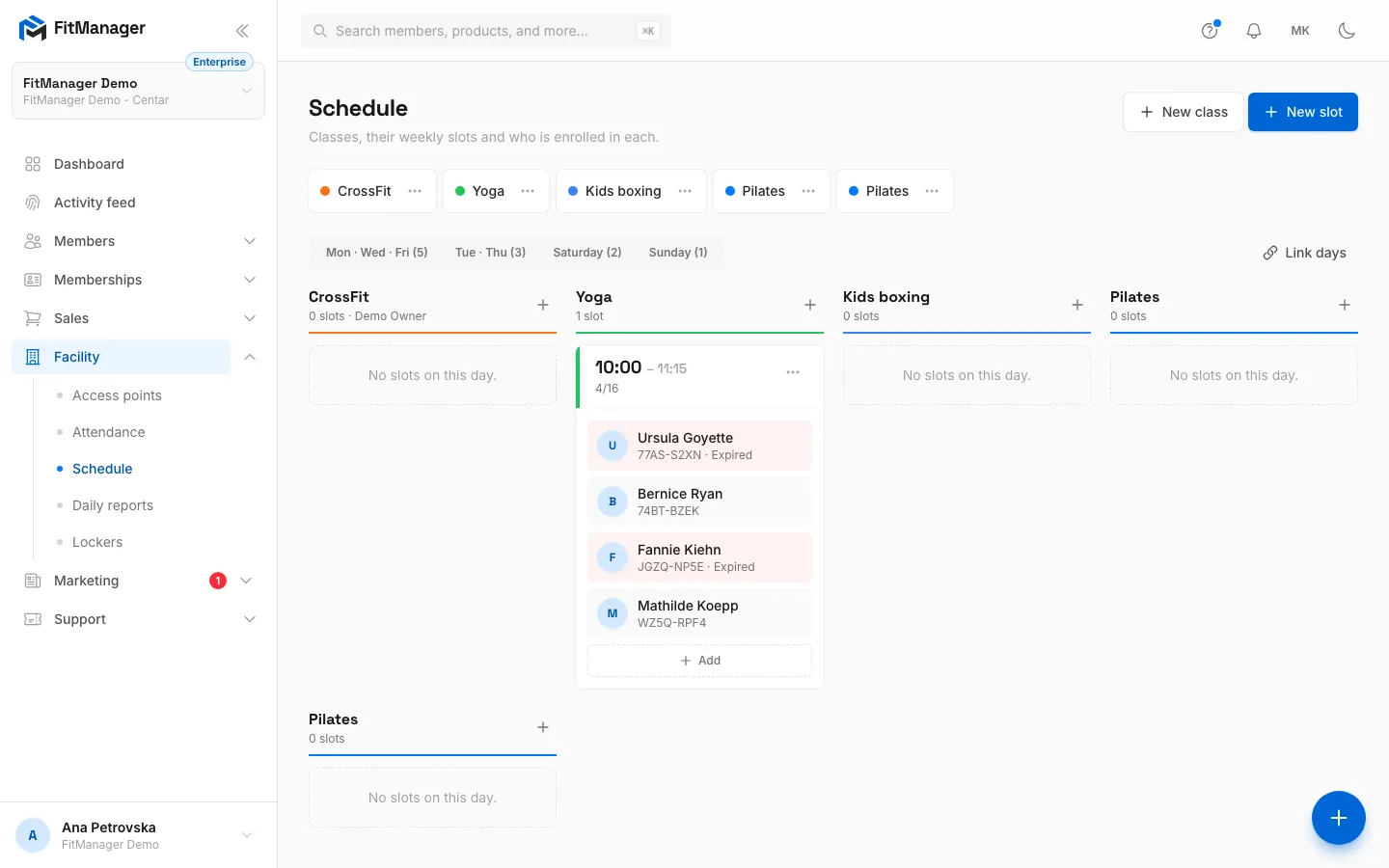
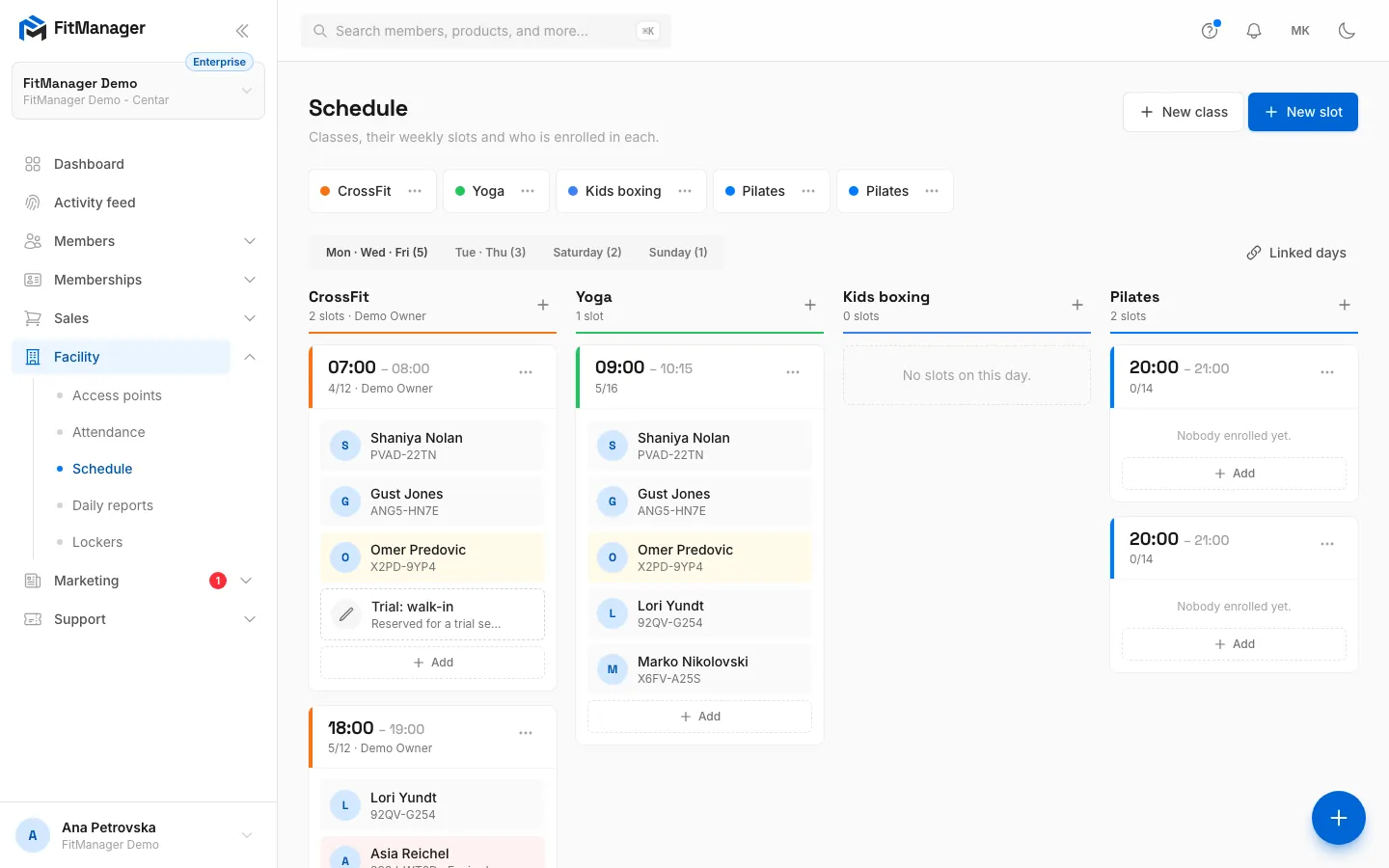
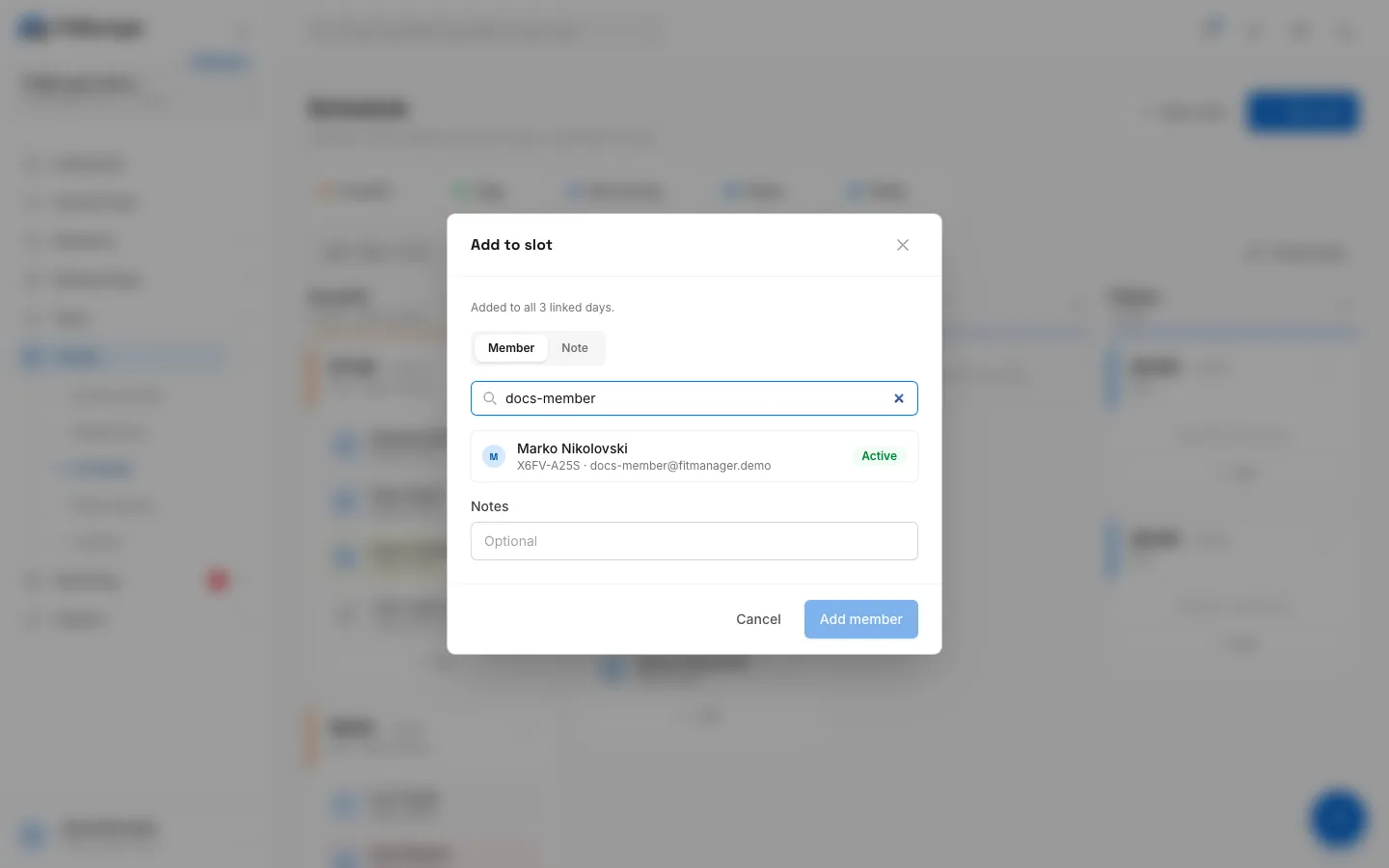
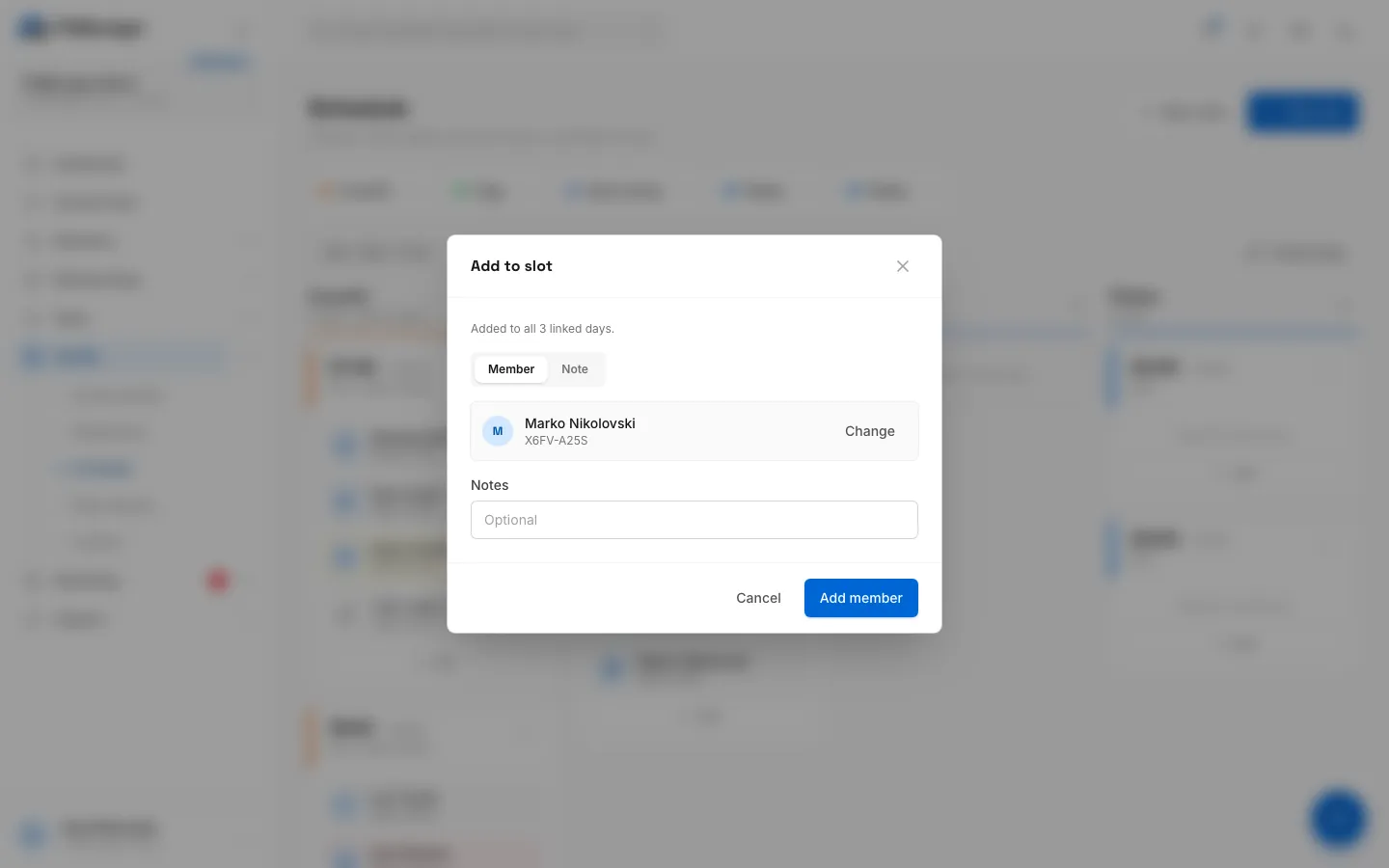
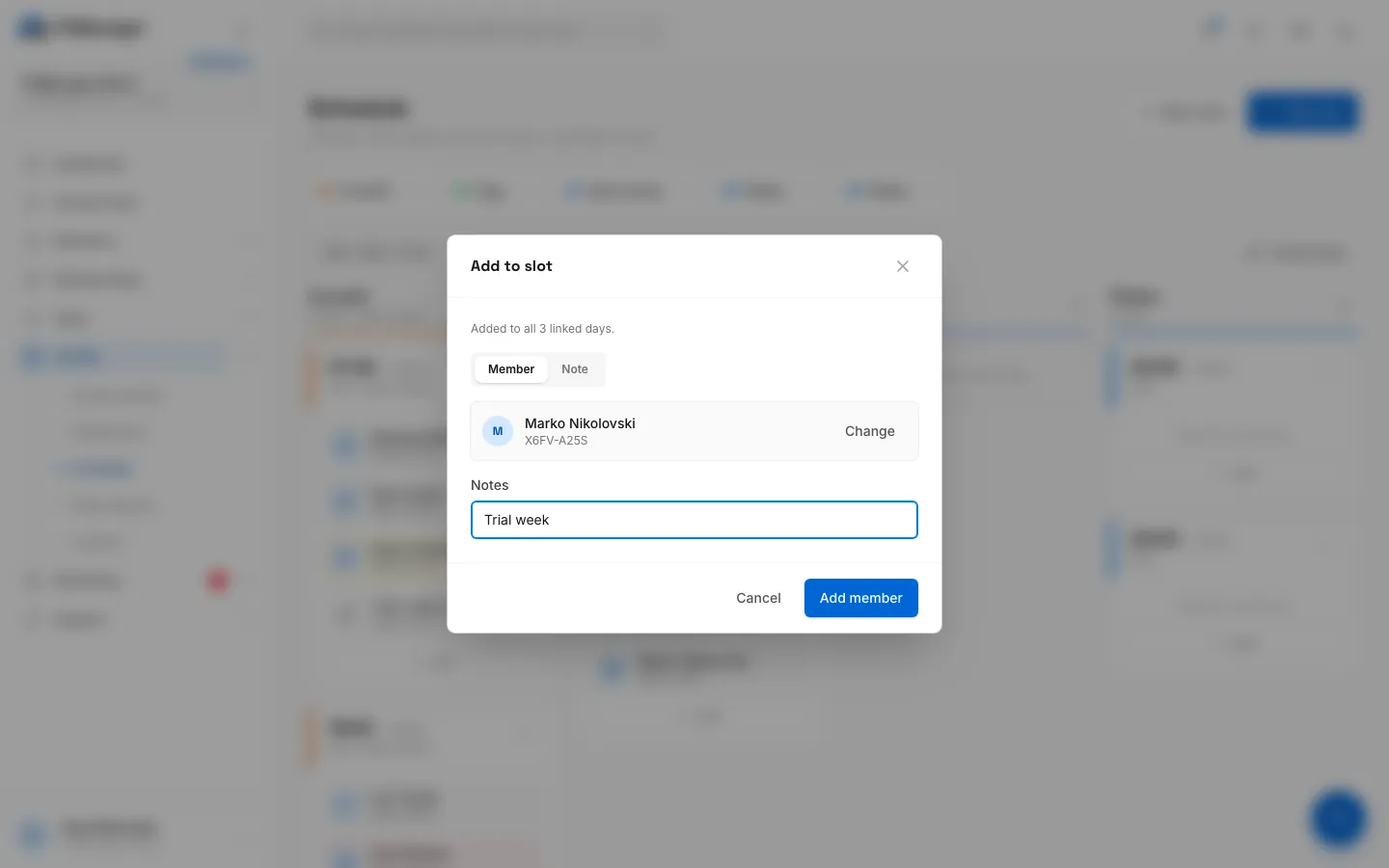
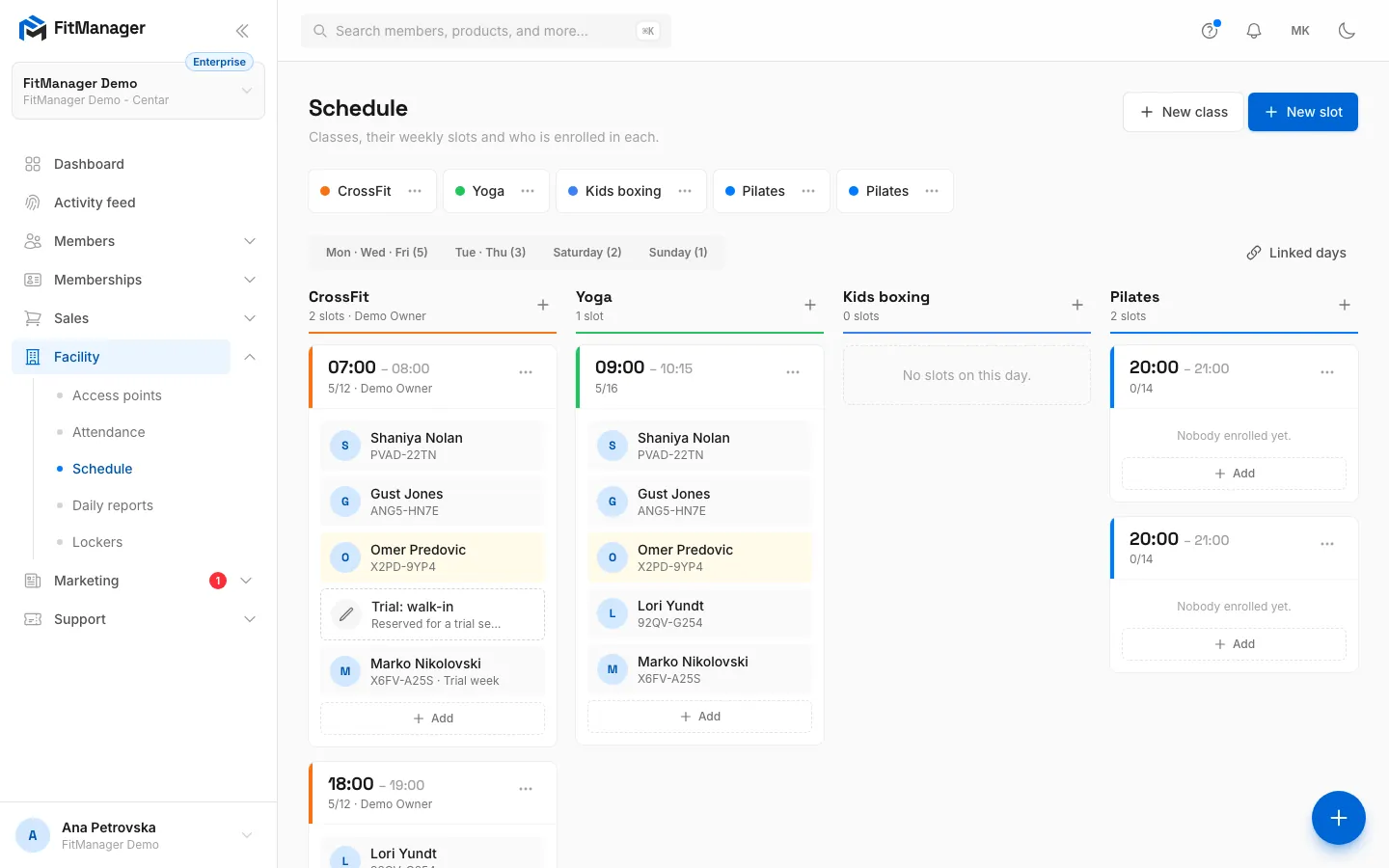
- Step 1: On the Schedule page, open the day row with the class.
- Step 2: Under the slot, click Add.
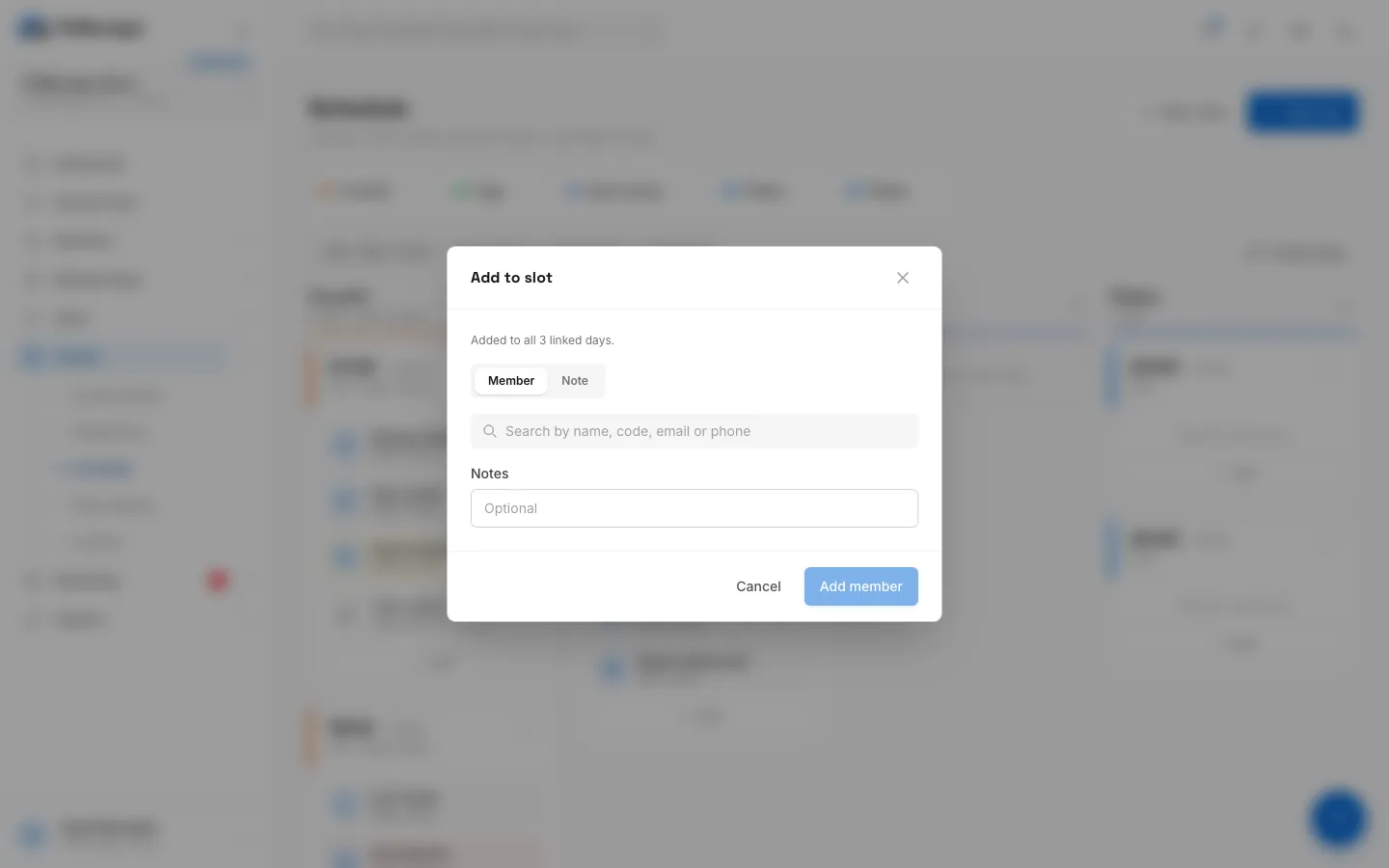
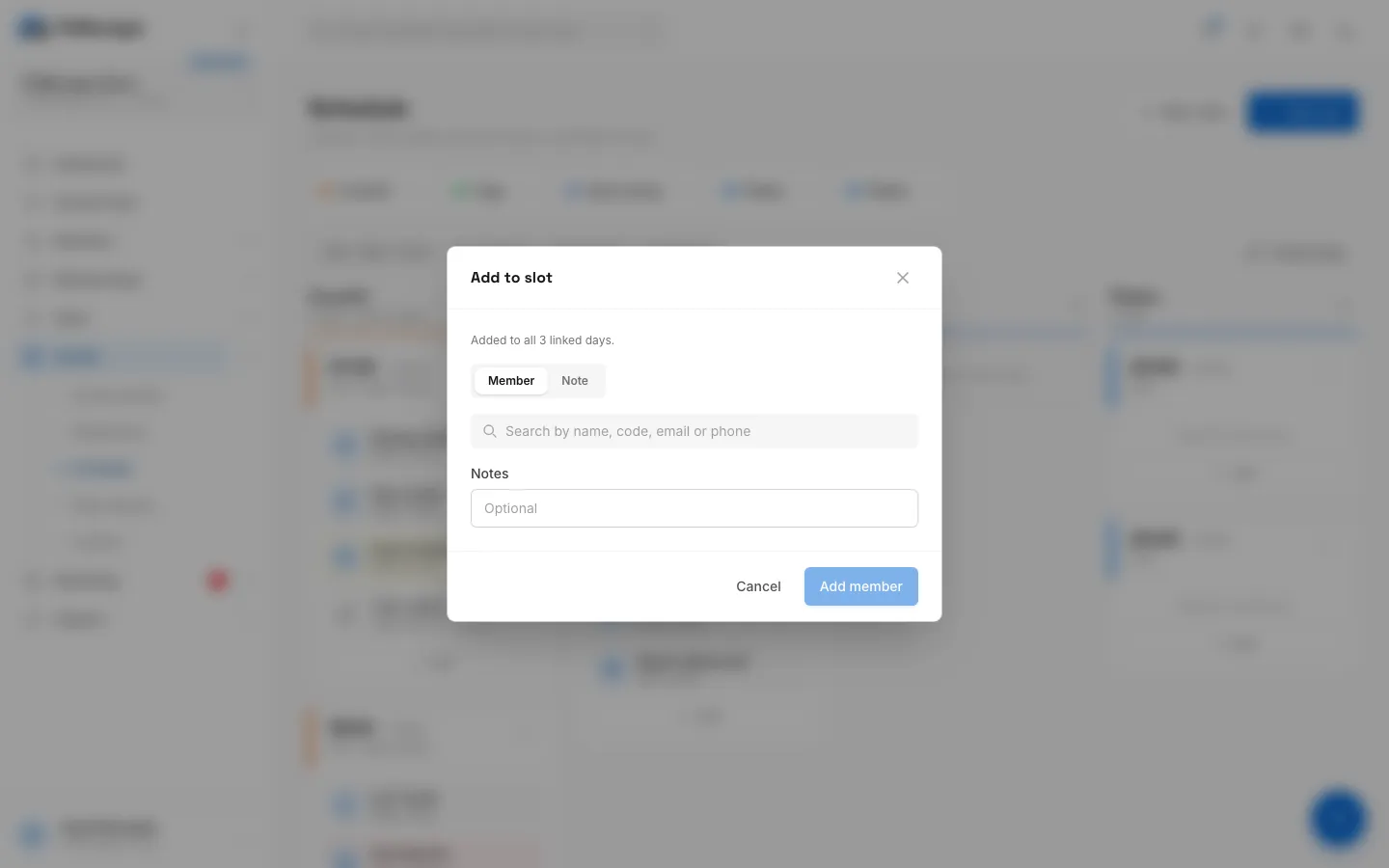
- Step 3: Keep Member selected. Use Note to hold a spot for someone who is not a member yet.
- Step 4: Search by name, member code, email or phone.
- Step 5: Click the member in the results.
- Step 6: Add an optional note. It shows on the member's card in the slot.
- Step 7: Click Add member.
- Step 8: The member is enrolled on every linked day of the slot and gets class reminders.
- Open Facility > Schedule and click the day tab the class runs on.
- Under the slot, click Add (or choose Add from the slot's ... menu).
- Keep Member selected and search by name, member code, email or phone. Type at least two characters.
- Click the member in the results. Each result shows the member's status badge, so you can spot an expired membership before you enrol.
- Optionally fill in Notes, for example "Trial week" or "Bad knee". The note shows on the member's card in the slot.
- Click Add member.
On a linked row (such as Mon · Wed · Fri) the member is added to the same slot on every linked day, and the form says so ("Added to all 3 linked days").
Hold a place with a note
Use a note when someone who is not a member yet has a place, for example a trial visitor.
- Click Add under the slot and switch to Note.
- Enter a Label such as "Trial: Ana" and, if you like, Notes.
- Click Add note.
Notes take a place just like members do, so they count towards the slot's capacity.
Reading the cards
| Card | Meaning |
|---|---|
| Grey | The member's membership is active. |
| Amber | The membership ends within five days. |
| Red with Expired or Inactive | The membership has ended, or the member is set to inactive. They stay enrolled until you remove them. |
| Dashed border with a pencil | A reservation note, not a member. |
Click a member's name to open their profile. The count on the slot, such as 11/12, turns red when the slot is full.
Move, reorder and remove
- Move to another slot: drag the card onto another slot of the same row. The member keeps their notes. On linked rows the move applies to every linked day.
- Reorder inside a slot: drag the card above another card. Members and notes share one order.
- Remove: hover the card and click the x, then confirm with Remove. On a linked row the member is taken off every linked day of that slot.
Removing someone does not send them a message. Moving or archiving the whole slot does, see Build your class timetable.
What the member gets
- The slot appears under Next class on their portal home and on the portal Schedule page, see What members see.
- Before each session they get a class reminder if you have reminders switched on, see Class reminders.
Troubleshooting
"The Monday slot is full (12)."
The slot has reached its capacity, counting both members and notes. Remove someone, or raise Capacity on the slot with ... > Edit. On a linked row, any one full day blocks the whole enrolment.
"Already enrolled on Monday."
The member is already in this slot on that day. Nothing was changed.
The member does not appear in the search
The search only finds members of the facility you are working in, and needs at least two characters. Check the facility switcher at the top of the sidebar.
Can members book classes themselves?
No. Enrolment is done by staff only. The public Classes page tells visitors to ask the front desk for a spot.
Was this page helpful?
Related articles
Still stuck?
Write to us and we will get back to you within one working day.