Work with several facilities
Switch between your gym's locations, see what is kept per facility and what is shared by the whole gym, and add a new location.
In FitManager each location of your gym is a facility. The dashboard always works in one facility at a time: the members, sales and reports you see belong to the facility named on the workspace card at the top of the sidebar. This article shows how to switch, and what changes when you do.
Switch to another facility
- Click the workspace card at the top of the sidebar. It shows the facility you are in.
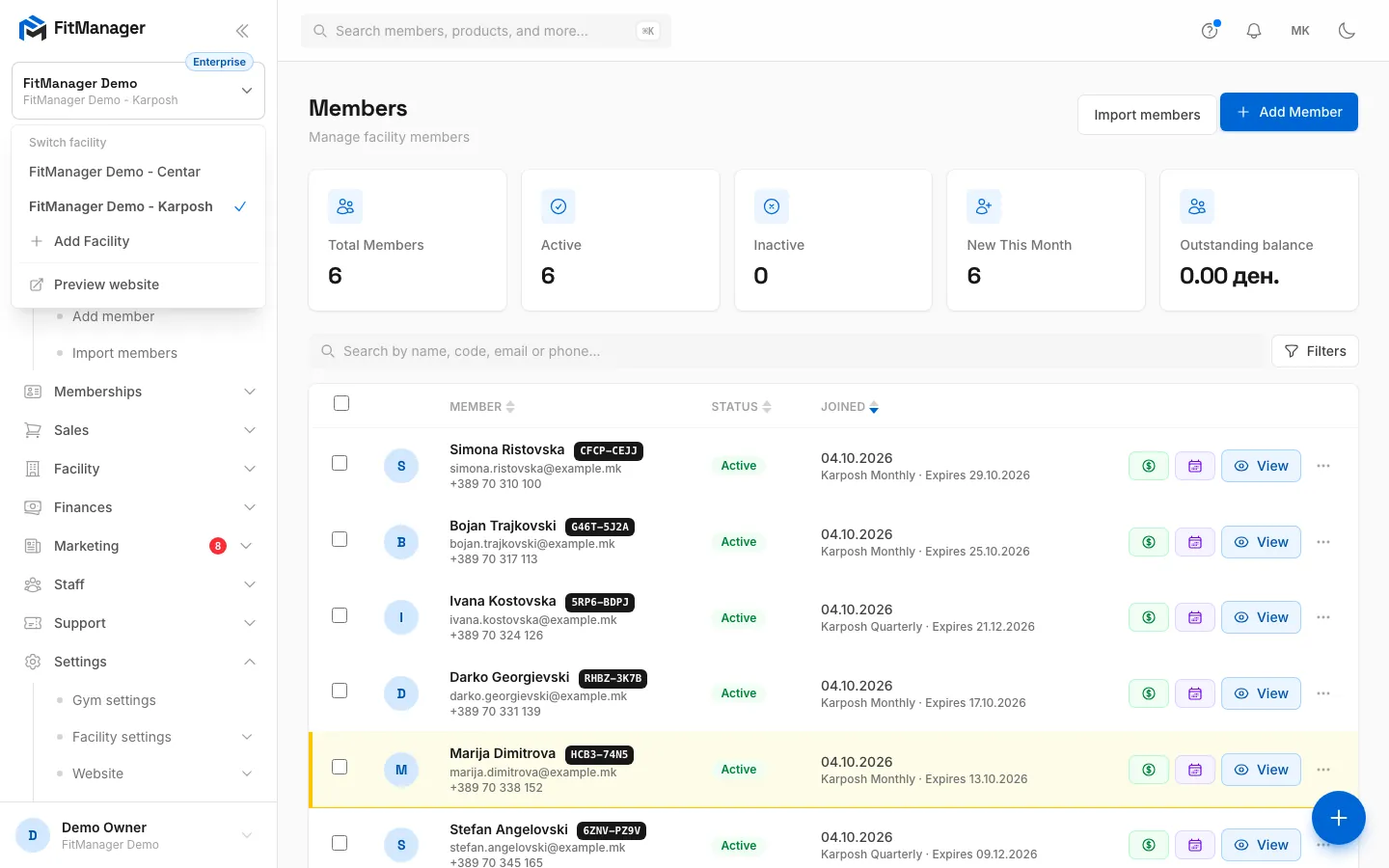
- Under Switch facility, click the location you want. A tick marks the current one.
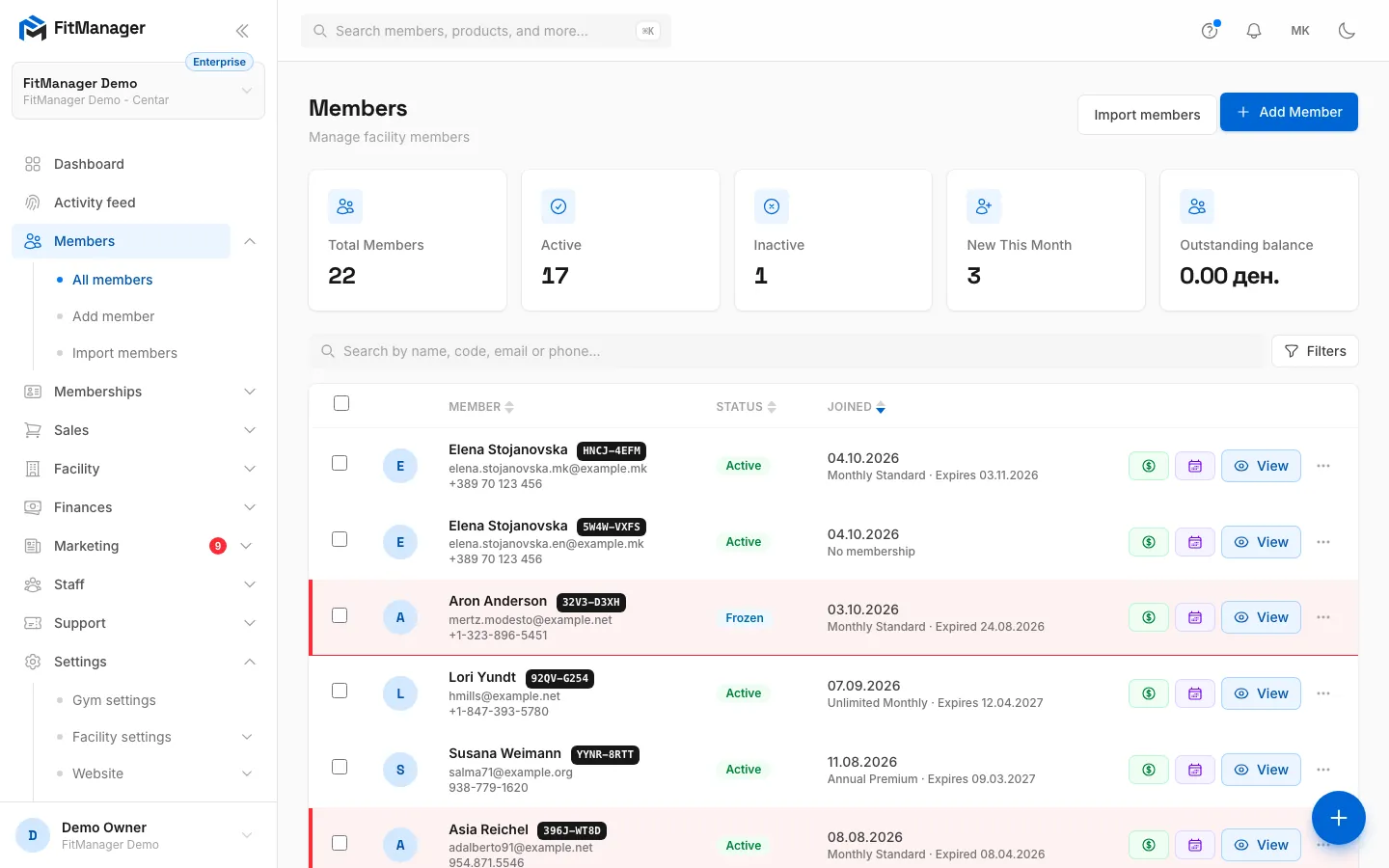
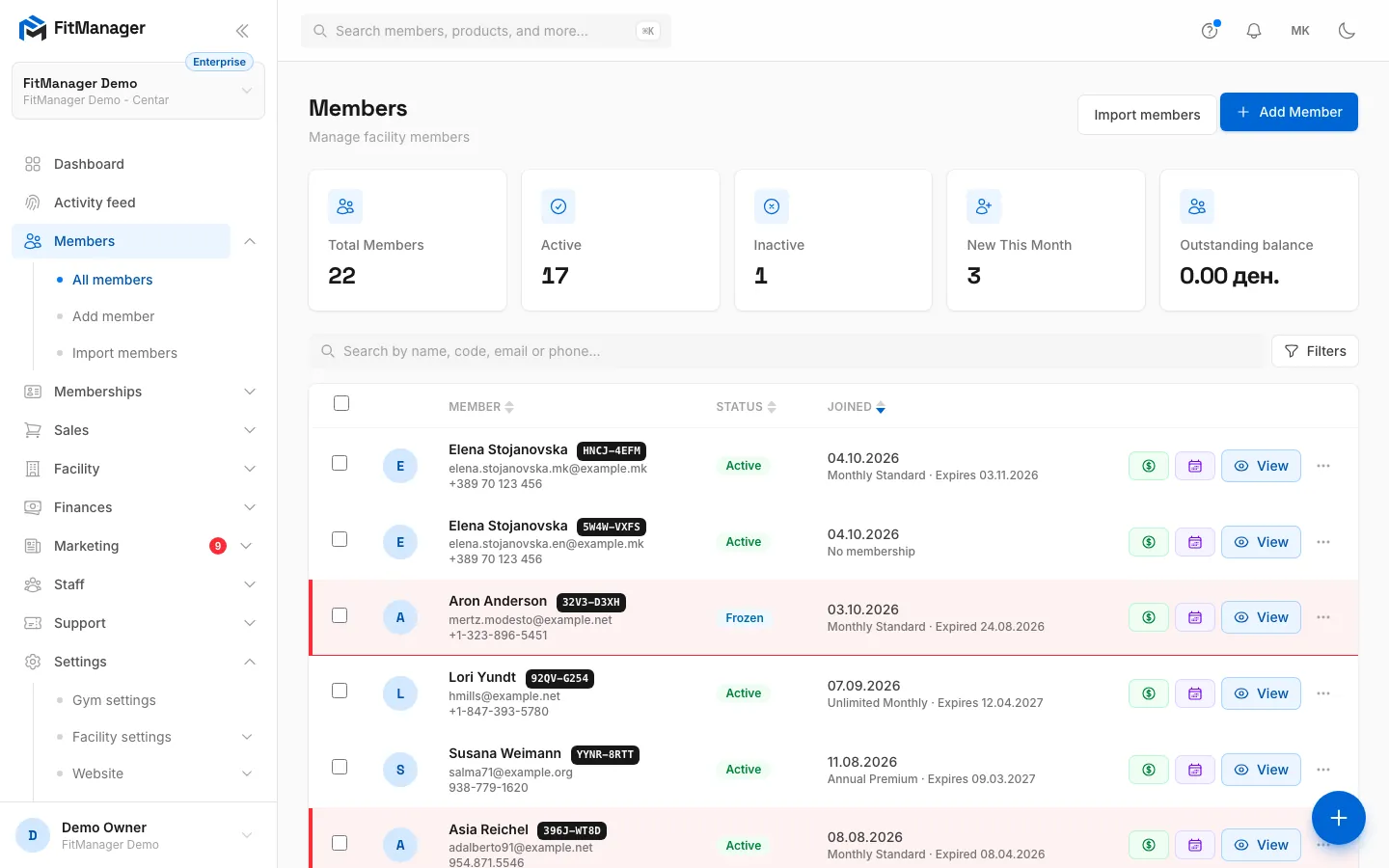
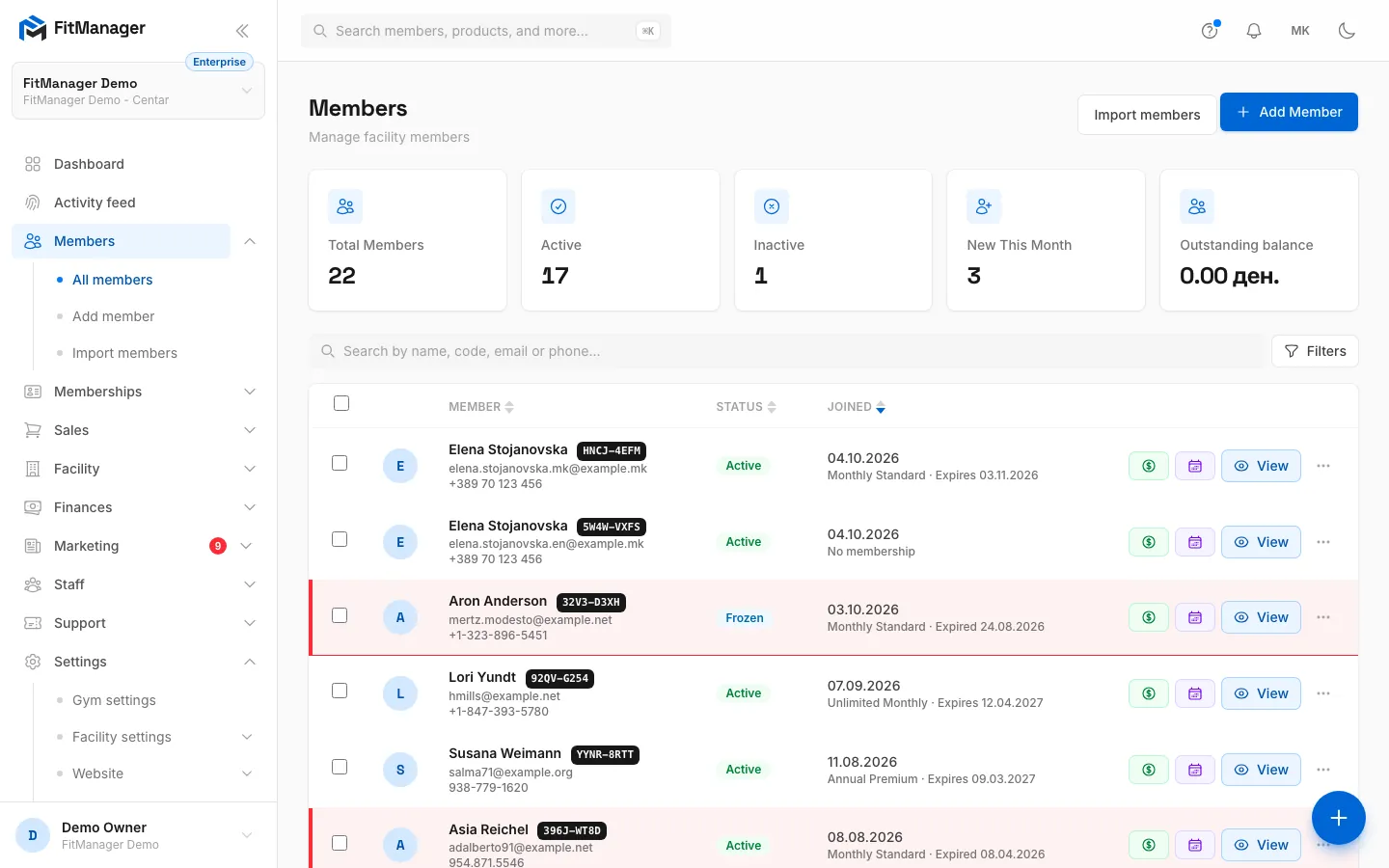
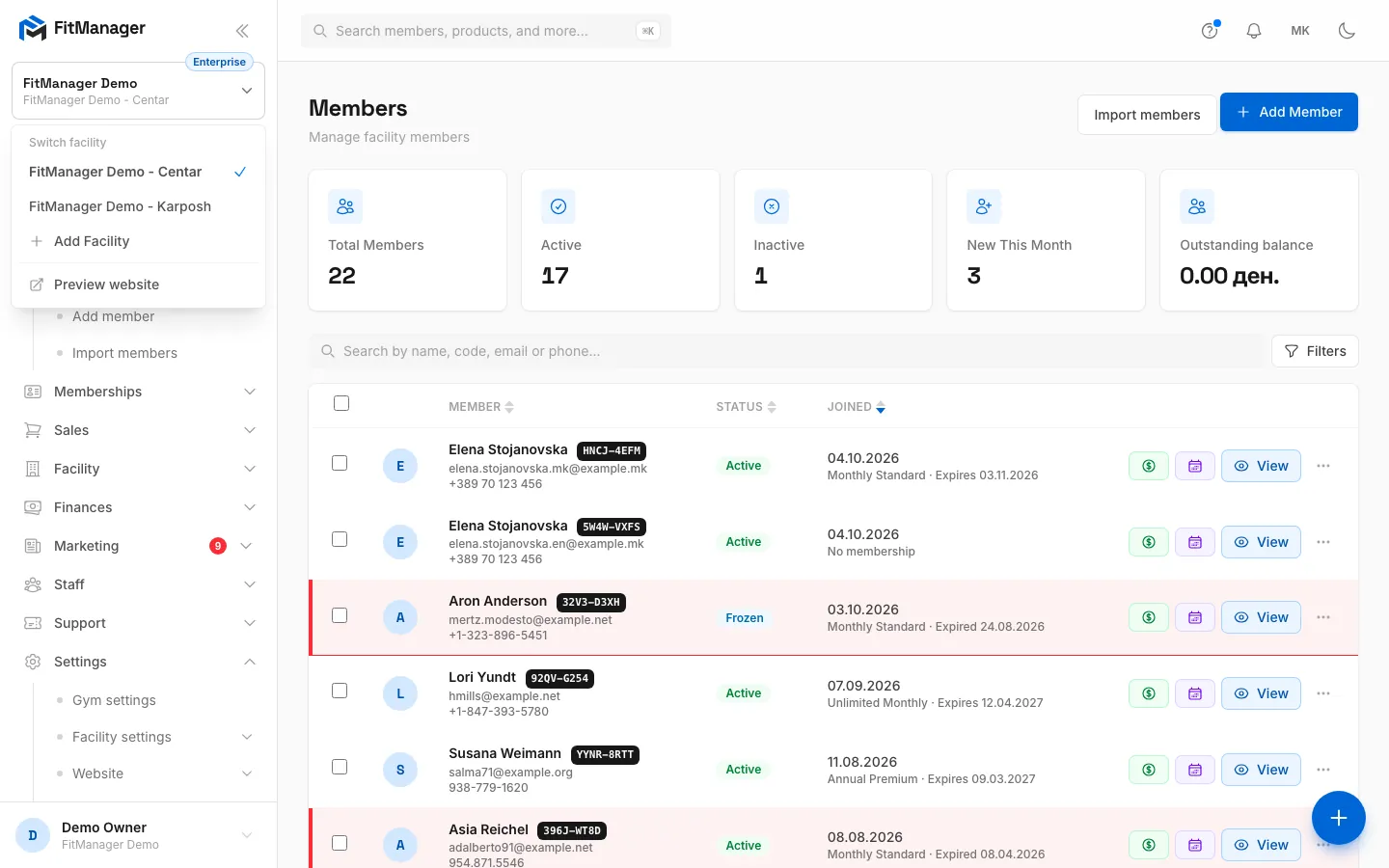
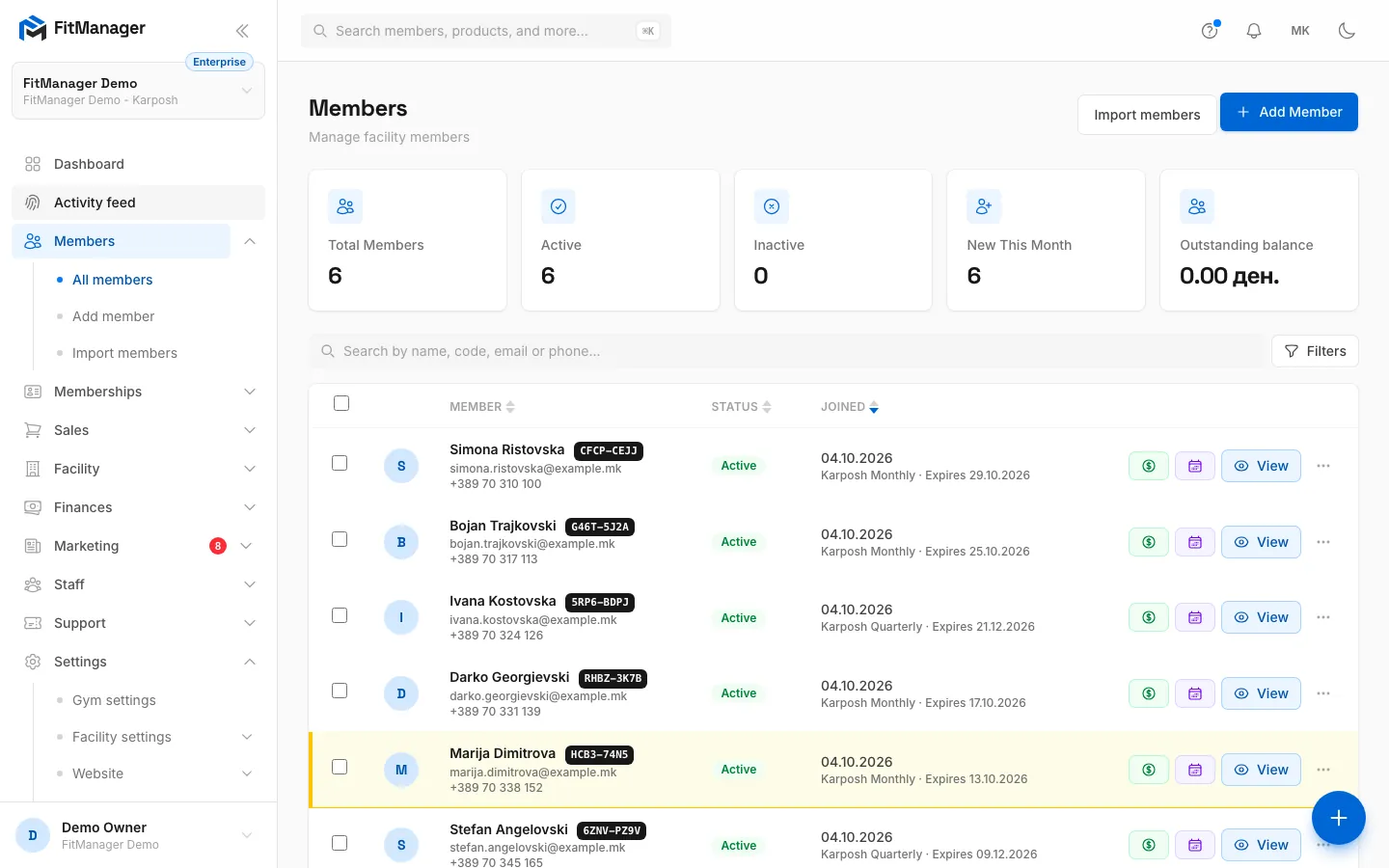
- Step 1: The card under the logo shows the facility you are working in.
- Step 2: Every page shows the data of that facility only, here its members.
- Step 3: Click the card to open the workspace menu.
- Step 4: Under Switch facility, click the location you want to work in.
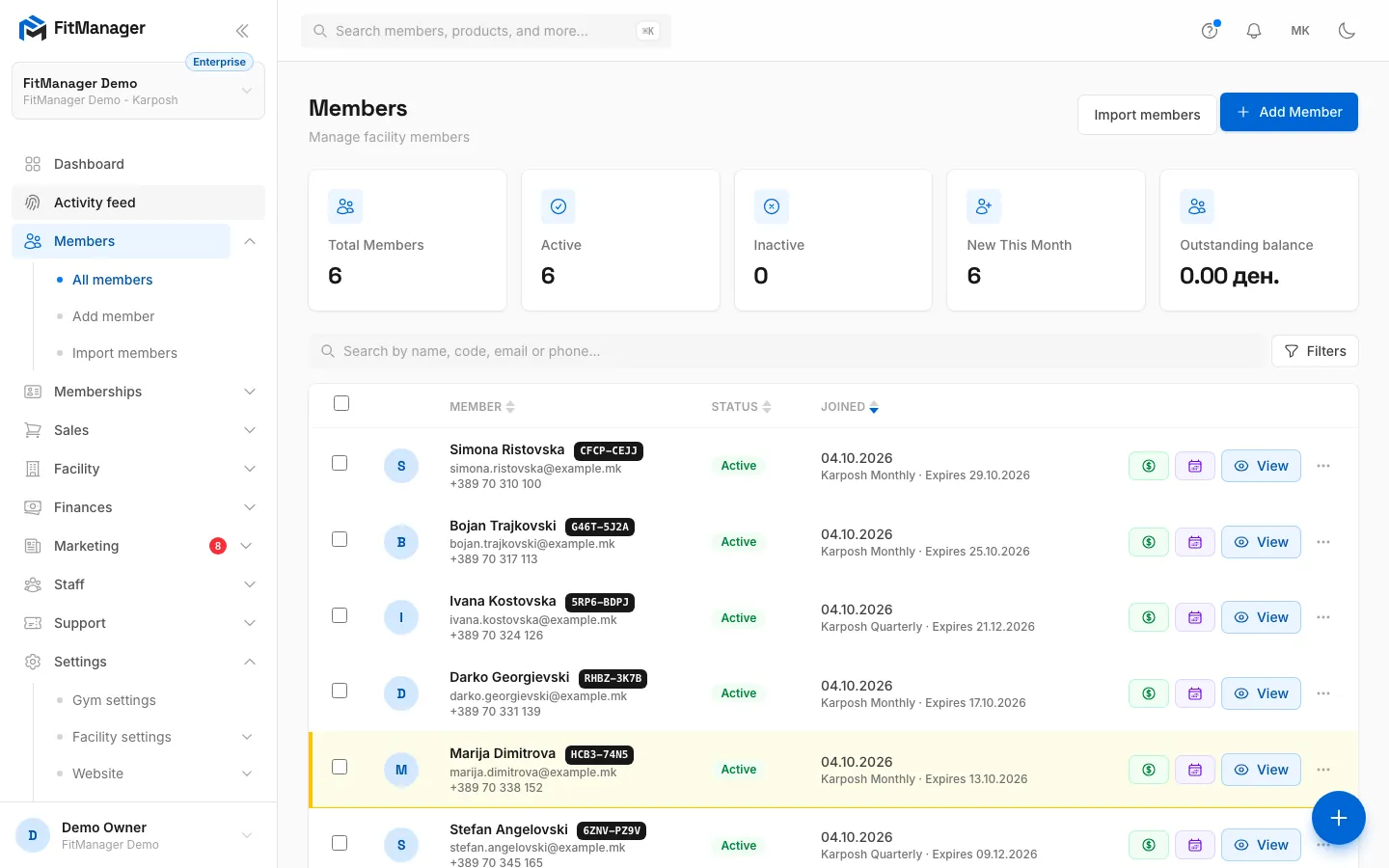
- Step 5: The same page now lists the members of the other facility.
- Step 6: To go back, open the card again.
- Step 7: Pick the first facility. FitManager remembers your choice for the next sign in.
The page reloads in the new facility. You can also click Switch facility at the top of the Overview, which opens Select a Facility with a search box, handy when you run many locations.
Your choice is saved on your account, so the next time you sign in, on any device, you start in the facility you used last.
With a single facility, the card just names it under Facility, without a list. Facilities set to Inactive never appear in the switcher.
What belongs to a facility, and what to the gym
| Kept per facility | Shared by the whole gym |
|---|---|
| Members and their memberships | The FitManager plan, add-ons and billing |
| Membership plans, categories and subscriptions | Currency, date and time formats |
| Products, purchases, gift cards and coupons | Logo, icon and brand colour |
| Check-ins, access points, access rules and lockers | The website, its domains and the member portal address |
| The timetable and its classes | Email sending through Brevo, and the newsletter |
| Expenses, daily reports and the monthly report | API keys, webhooks and online payment gateways |
| Reminder settings and the SMS prepaid balance | Employees' permissions |
| Fiscal printers, card terminals and kiosks |
So a member of your Centar location does not appear in search while you are in your Aerodrom location, and each location builds its own plans and price list. Adding a plan in one location does not add it to the others.
Who sees which facilities
- Owners see every active facility of the gym.
- Employees see only the facilities they were invited to. Their permissions are the same in every facility they work in, while their position, start date and status are kept per facility.
An employee is invited into the facility you are working in. To have someone work in a second location, switch to that location and invite them again from Staff, Employees with the same email address. See Invite an employee.
Add a facility
You need the Manage settings permission.
- Open Settings, Facility settings, Facilities, or click Add Facility in the workspace card menu.
- Click Add Facility. A panel opens.
- If you own more than one gym, pick the Gym the location belongs to.
- Fill in the Location details: Name (required), Address, City, Country, Phone, Email and a Short description. Members see these on your website and in the portal.
- Pick the Timezone. It decides when "today" starts for check-ins and reports.
- Under Opening hours, switch on Set opening hours for this location and set the hours per day. Members and door controllers follow them. Off means open around the clock.
- Under Busyness meter, enter the number of people inside at which each of the levels ends. Members never see a head count, only the level. The numbers must go up from left to right.
- Click Create.
You are added to the new facility automatically. Switch to it to start adding plans, products and members.
Each location needs a licence
FitManager is priced per location. If your plan covers fewer locations than you want to run, you see "Your plan is licensed for 1 location(s). Add a location licence on the Billing page first." Add a location on the Billing page and try again.
Edit, pause or delete a facility
On the Facilities page:
- Edit opens the same panel to change the details, hours or busyness meter. Click Save Changes.
- Click the Status badge to switch a facility between Active and Inactive. An inactive facility disappears from the switcher but keeps its data.
- Delete removes the facility and everything in it, members and sales included. It cannot be undone, so export what you need first. See Export your data.
Common questions
I switched facility and my member is gone
The member belongs to the other facility. Switch back, or search there. Members cannot be shared between facilities.
Can one membership work at all my locations?
No. A membership belongs to the facility that sold it, and the doors of other facilities do not accept it.
Why does my employee not see the new location?
A new facility is only added to the person who created it. Switch to the new facility and invite the employee there from Staff, Employees.
Was this page helpful?
Related articles
Still stuck?
Write to us and we will get back to you within one working day.