Add a member
Create a member profile, decide how they get their portal password, and get them ready for their first membership.
Every person who trains at your gym is a member of one facility. Adding them takes under a minute: a name and an email are the only required fields, and FitManager can email them a link to set up their own portal password.
Before you start
- You need the Add members permission. Owners have it, and employees get it by default.
- The member is added to the facility you are working in right now (the name on the workspace card at the top of the sidebar). To add them somewhere else, switch facility first.
- Adding many people at once? Use CSV import instead.
Add the member
- Open Members and click Add Member. You can also use Members > Add member in the sidebar, or New member in the quick actions.
- Fill in First Name, Last Name and Email.
- Decide about the password (see Password and welcome email below). In most cases, leave it empty.
- Add a Phone number if you want to send SMS reminders.
- Fill in any other details you have, then click Save Member.
The member's profile opens with the message Member created. From there you assign their first membership.
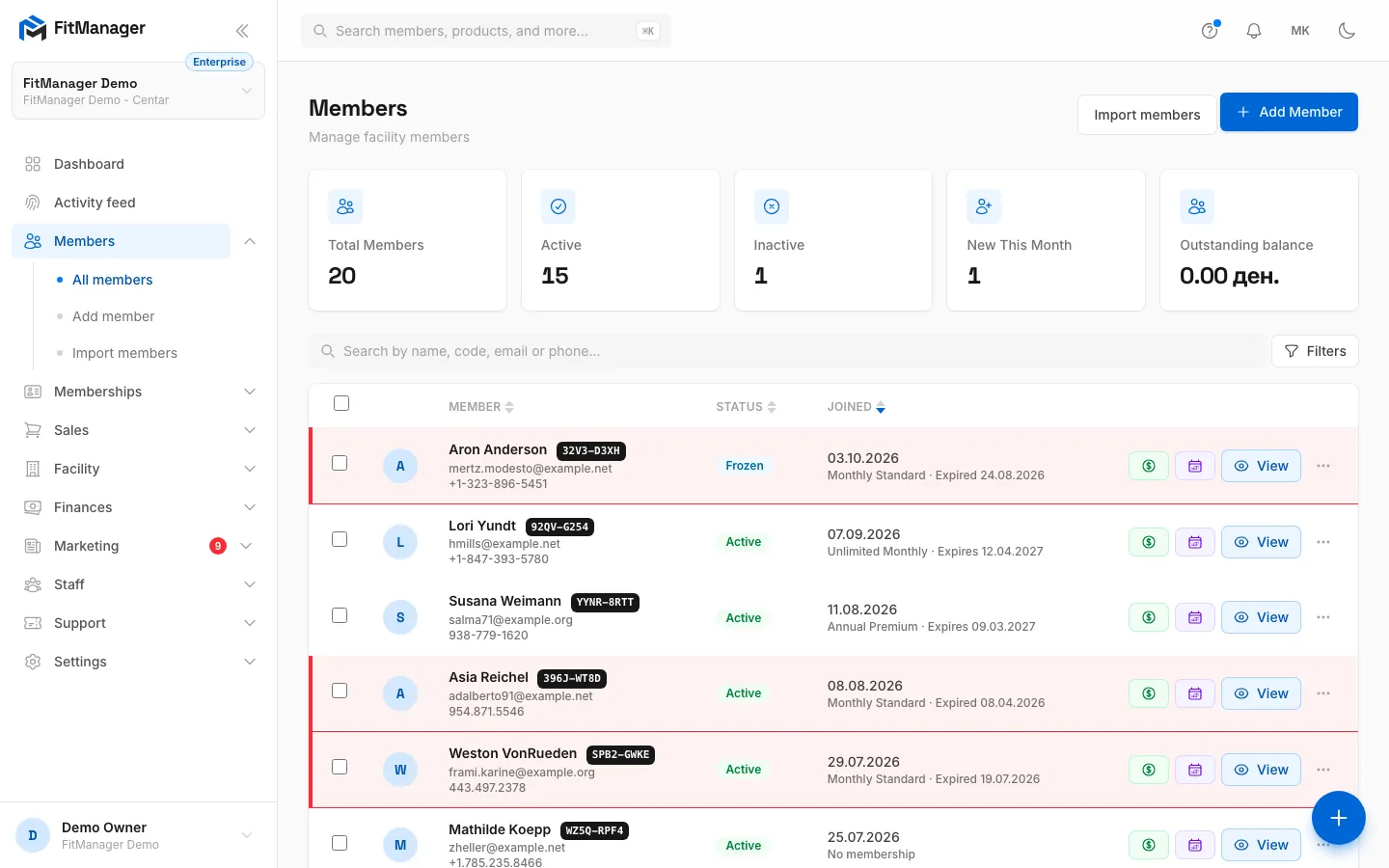
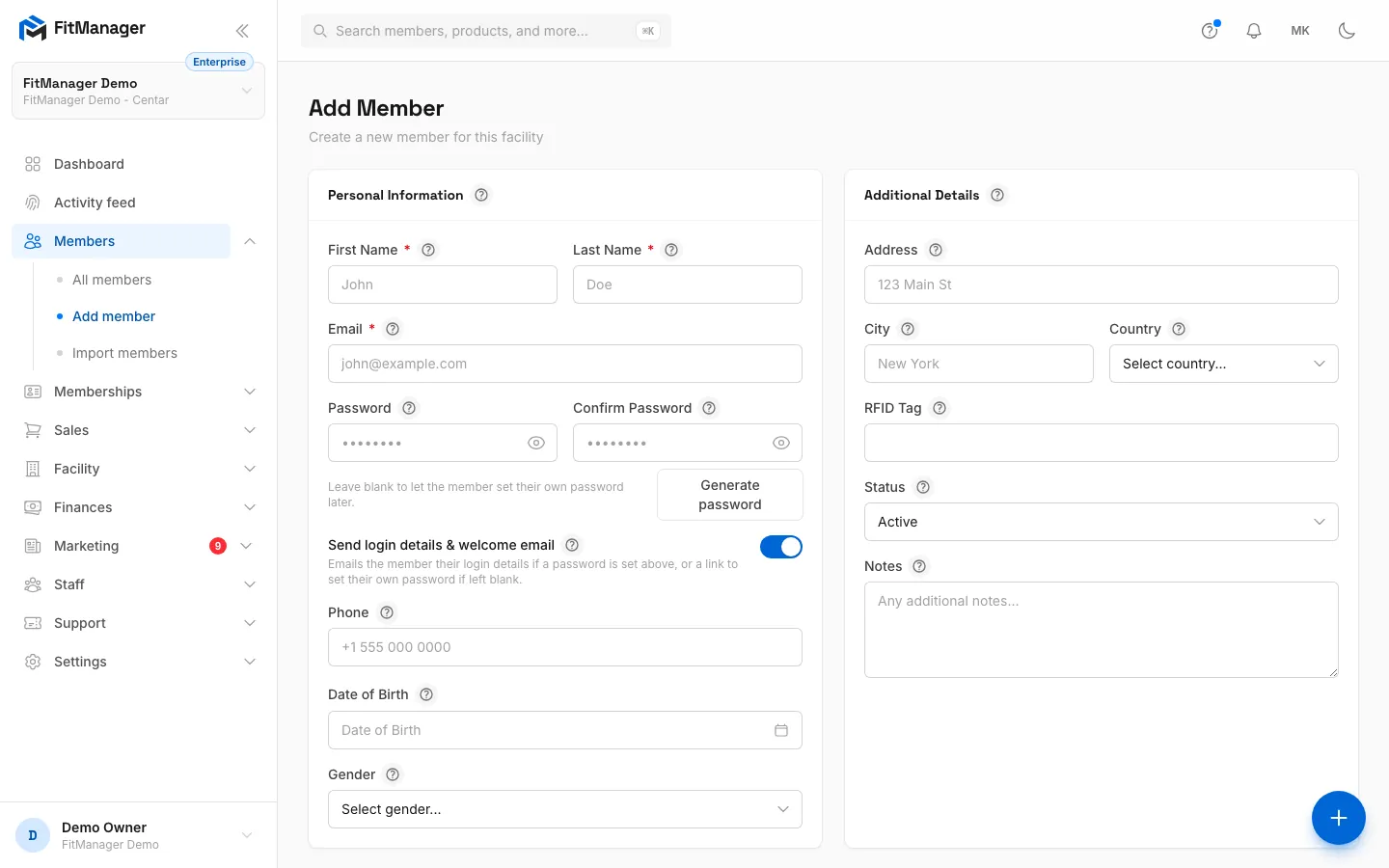
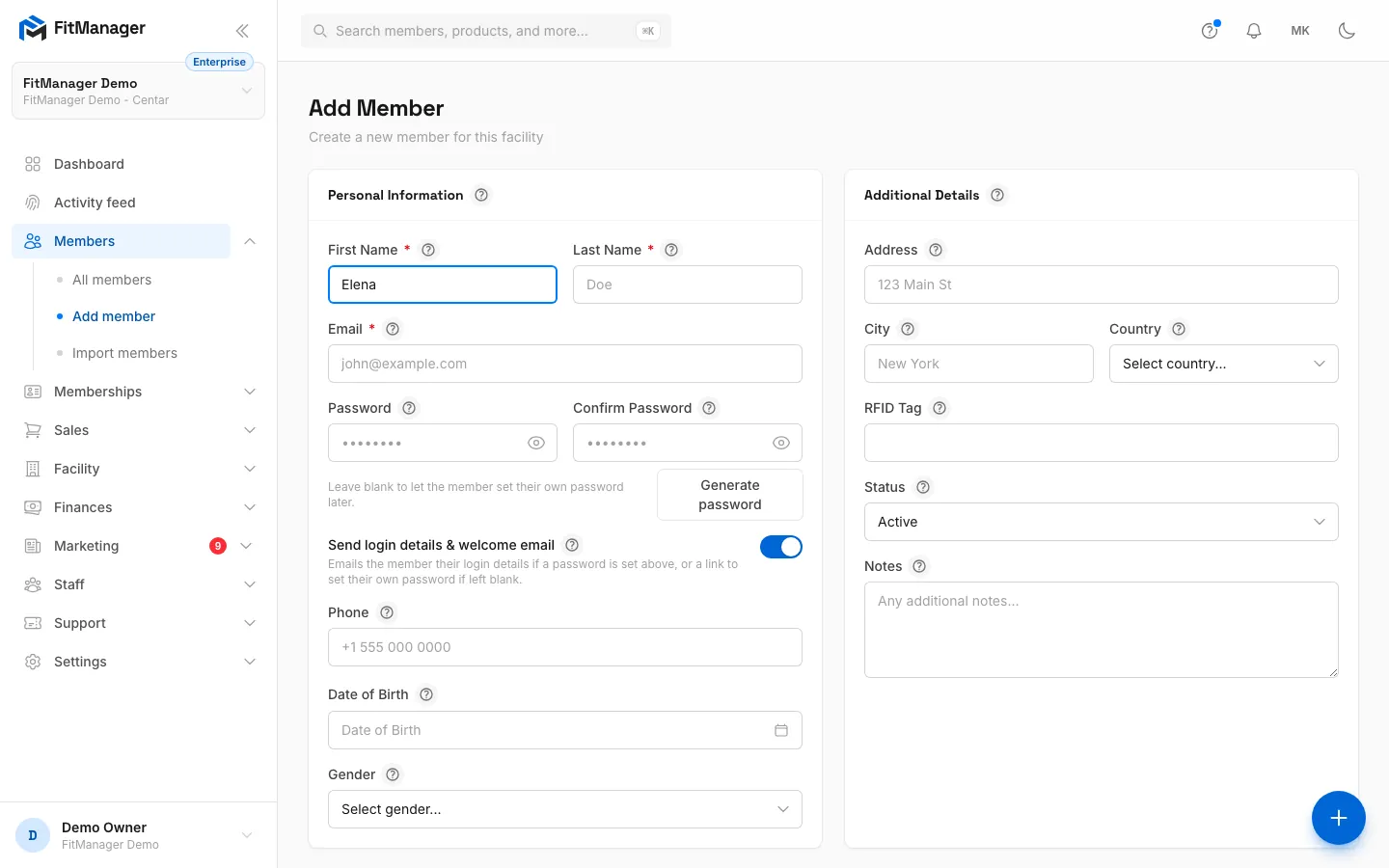
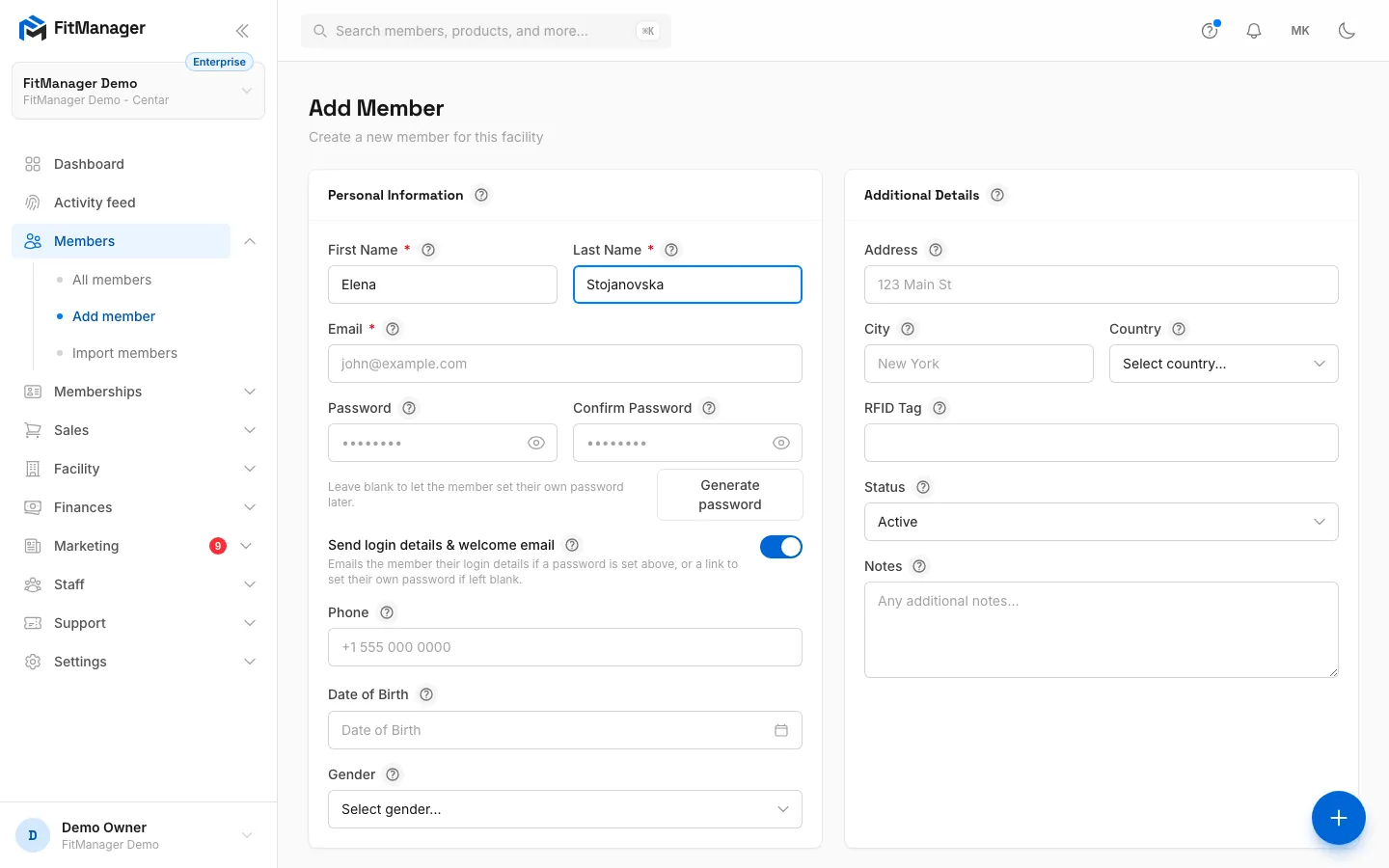
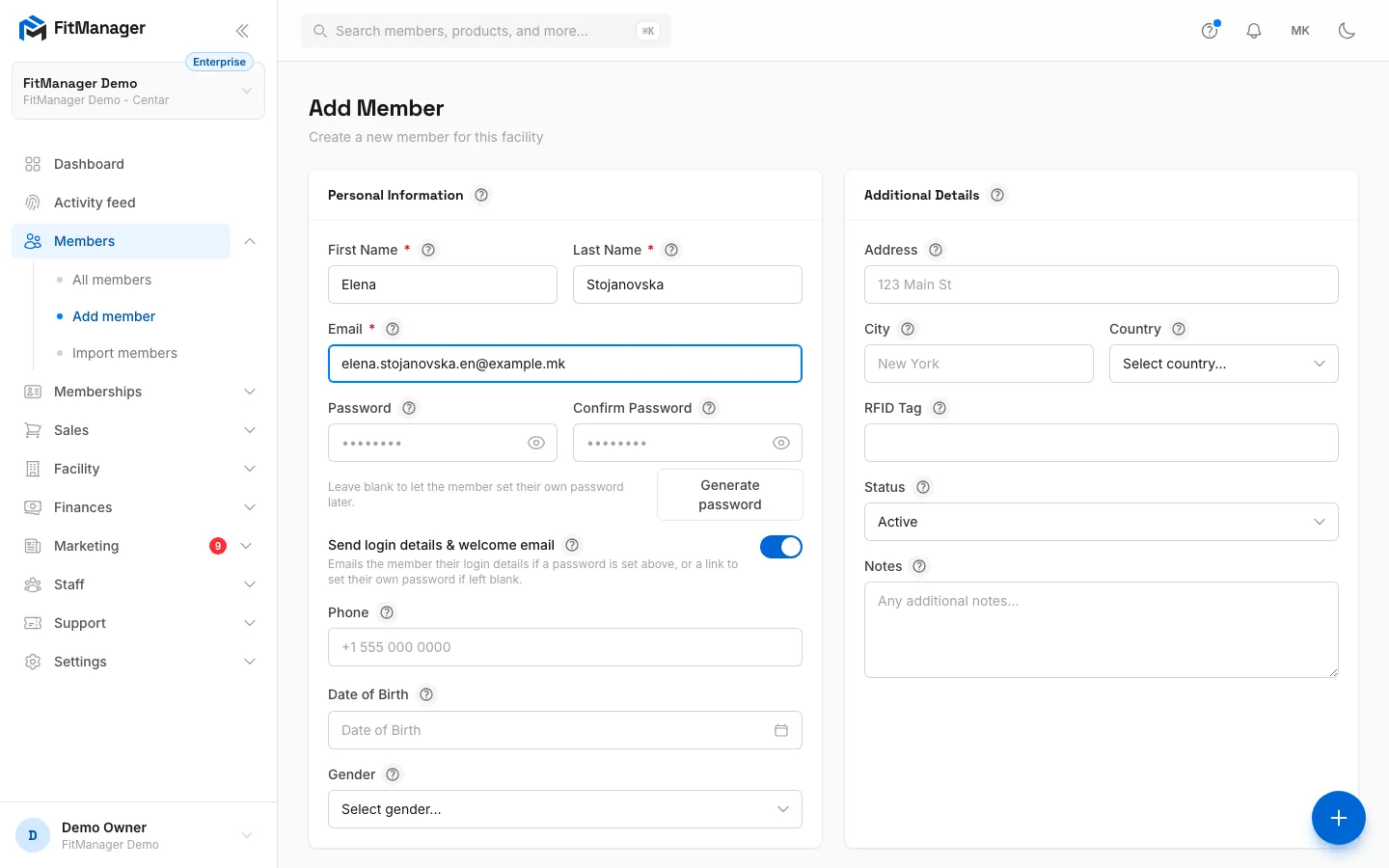
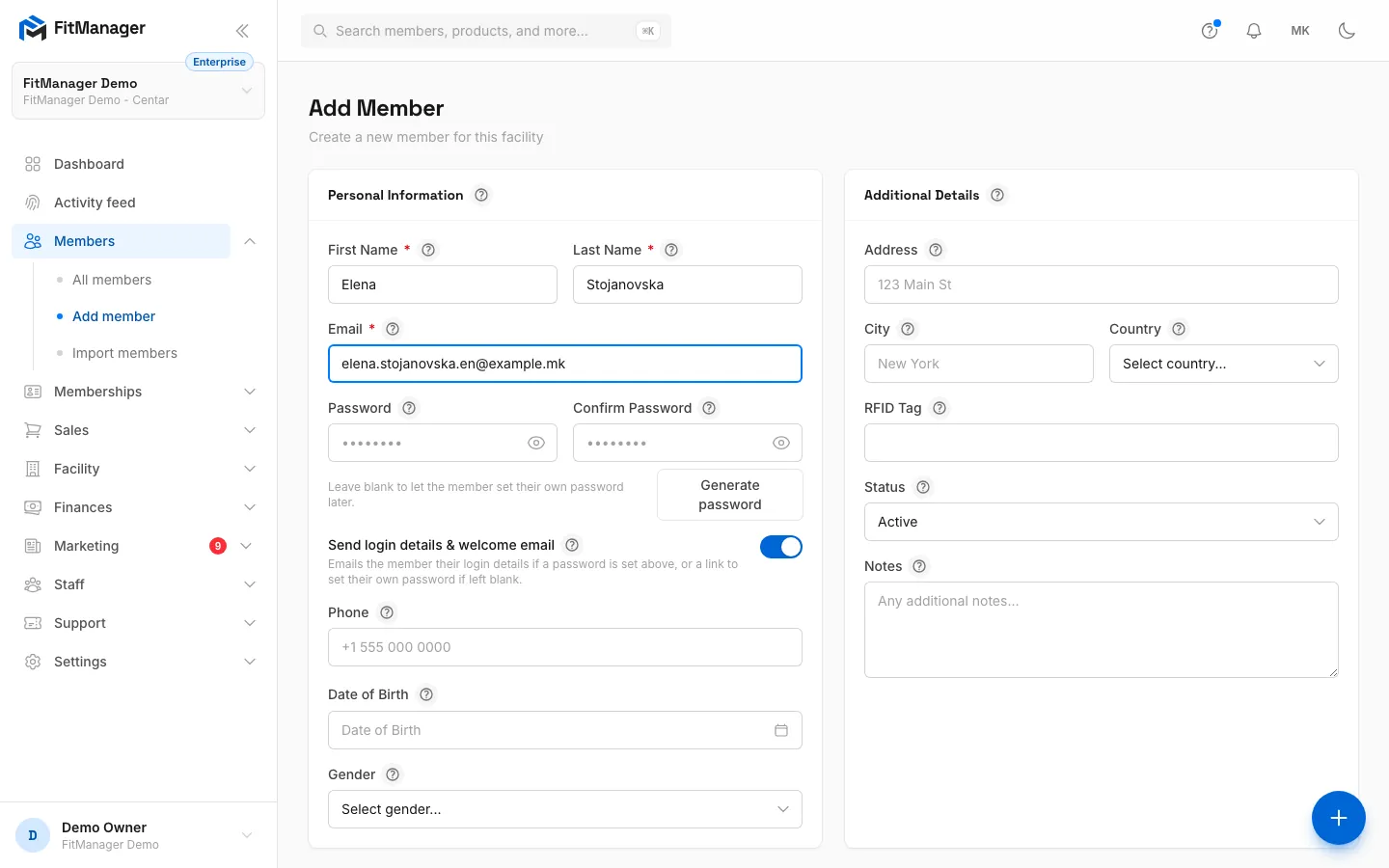
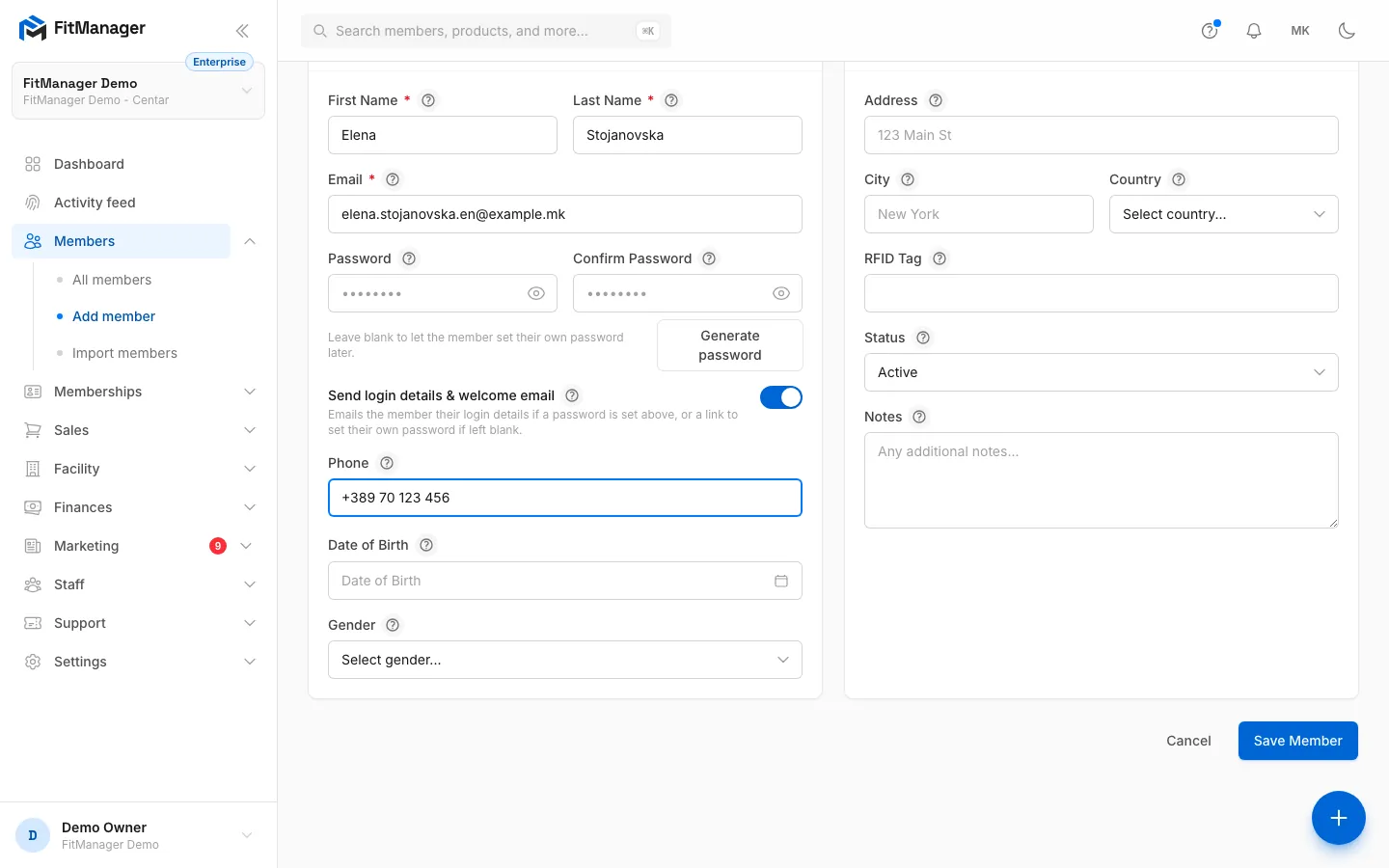
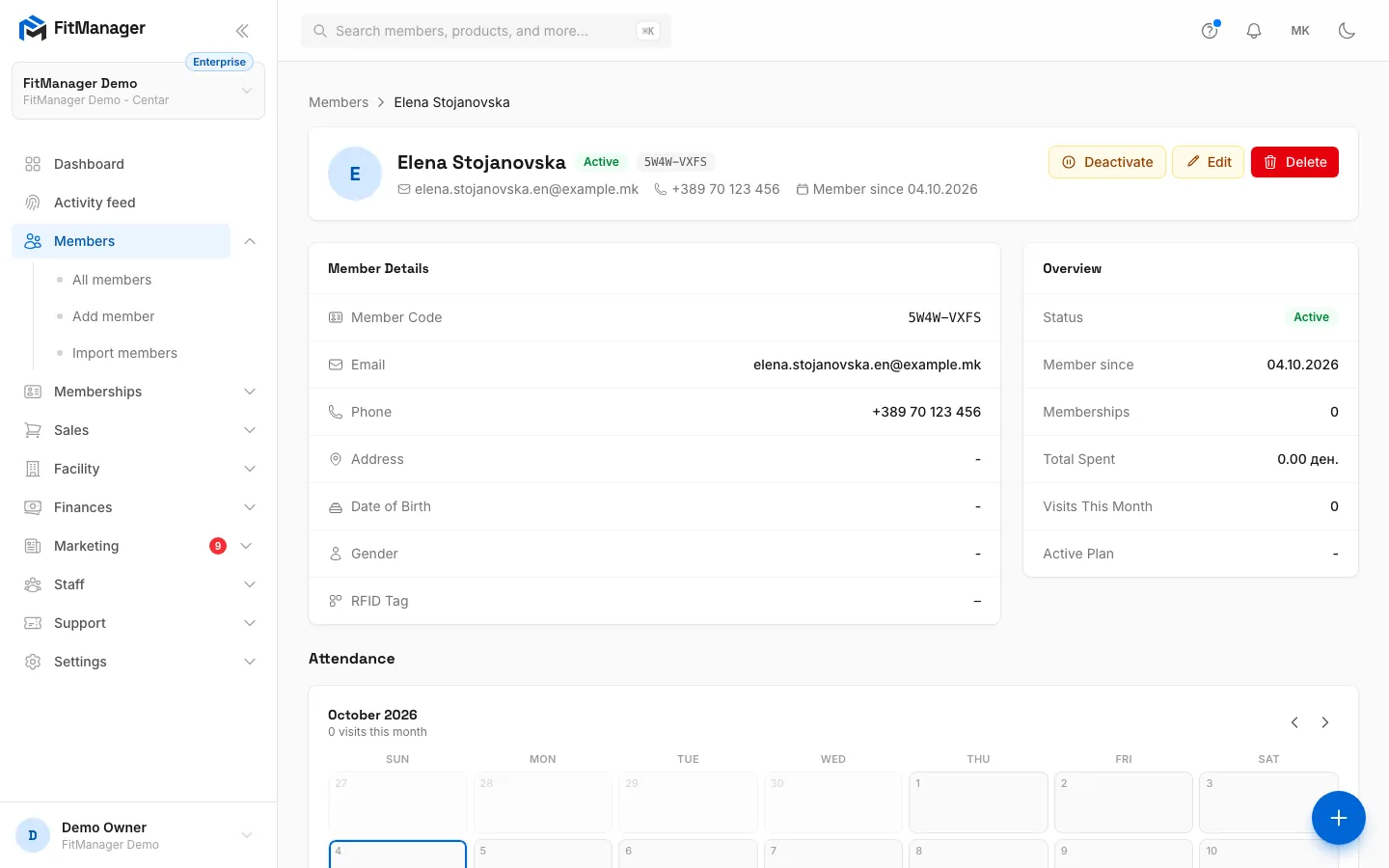
- Step 1: On the Members page, click Add Member.
- Step 2: Type the member's first name.
- Step 3: Then their last name.
- Step 4: Add their email. Members sign in to the portal with it and get their receipts there.
- Step 5: Leave the password empty and the member gets a link to set their own. Or set one here, or click Generate password.
- Step 6: A phone number is optional, but you need it for SMS reminders.
- Step 7: Click Save Member.
- Step 8: The member's profile opens. From here you assign their first membership.
The fields
Personal Information
| Field | Required | What it is for |
|---|---|---|
| First Name, Last Name | Yes | Up to 100 characters each. Shown everywhere the member appears. |
| Yes | The member's portal login and where receipts and reminders go. It must be unique within the facility. | |
| Password, Confirm Password | No | Sets the portal password yourself. Both must match. |
| Send login details & welcome email | No | On by default. Emails the member when you save. |
| Phone | No | Up to 30 characters. Needed for SMS reminders. |
| Date of Birth | No | Used for the age-based curfew in access rules. |
| Gender | No | Male, Female or Other. You can filter the member list by it. |
Additional Details
| Field | Required | What it is for |
|---|---|---|
| Address, City, Country | No | Contact details. Country is picked from a list. |
| RFID Tag | No | The number of the card or key fob the member taps at the door. See Codes, cards and QR. |
| Status | Yes | Active by default. Only active members get through the door. |
| Notes | No | Free text for staff only. Members never see it. |
You do not type a member code. FitManager generates one automatically when you save (eight characters, shown as ABCD-EF23).
Password and welcome email
The Send login details & welcome email switch and the password fields work together:
| Password field | Switch | What happens |
|---|---|---|
| Empty | On | The member gets a welcome email with a Set up my account link. They choose their own password. The link works for 7 days. |
| Filled in | On | The member gets an email with their email address and the password you set, plus a sign-in button. |
| Empty or filled | Off | No email is sent. You can hand out the details yourself. |
Generate password fills both password fields with a strong random password of 14 characters. Click the eye icon to read it before you save.
Leaving the password empty is the safest choice: you never handle the member's password, and they set one they will remember. If the link expires, the member can use Forgot password? on the portal sign-in page. See Portal access.
Requires: Member portal
The emails point to your member portal, where members see their digital card, visits, payments and news.
Emails go out from your own address when you have connected Brevo, otherwise from FitManager's own sending address.
Next step: give them a membership
A new member has no membership, so the door will not let them in yet. On their profile, click Assign Membership, pick a plan and record the payment. See Assign a membership.
Troubleshooting
An error says the email has already been taken. Another member of this facility already uses that email. Search for it on the Members page, because the person may already be in your list. Deleted members also keep their email reserved, so a person you deleted cannot be added again with the same address.
An error says the password confirmation does not match. Password and Confirm Password are different. Retype both, or use Generate password, which fills both.
The password is rejected as too weak. Passwords must be at least 12 characters with upper and lower case letters, numbers and symbols, and must not appear in known data breaches. Generate password always meets these rules.
The member did not get the email. Ask them to check spam. If you use Brevo, check the email log. The member can always request a new link with Forgot password? on the portal sign-in page.
Is there a keyboard shortcut? Press Ctrl + Enter (Cmd + Enter on a Mac) to save the form. If you close or reload the tab with unsaved changes, your browser asks you to confirm first.
Was this page helpful?
Related articles
Still stuck?
Write to us and we will get back to you within one working day.