Set opening hours, curfew and door alerts
Decide when members can scan in, keep younger members out at night and choose when a silent door counts as offline.
Access rules holds the facility-wide rules every door scan is checked against: the opening hours, a night curfew for minors and how quickly a door that stops responding is reported. The rules apply to the facility you have selected, so set them for each facility separately.
Before you start
- You need the settings.manage permission. Owners have it.
- Open the page from Settings > Facility settings > Access rules.
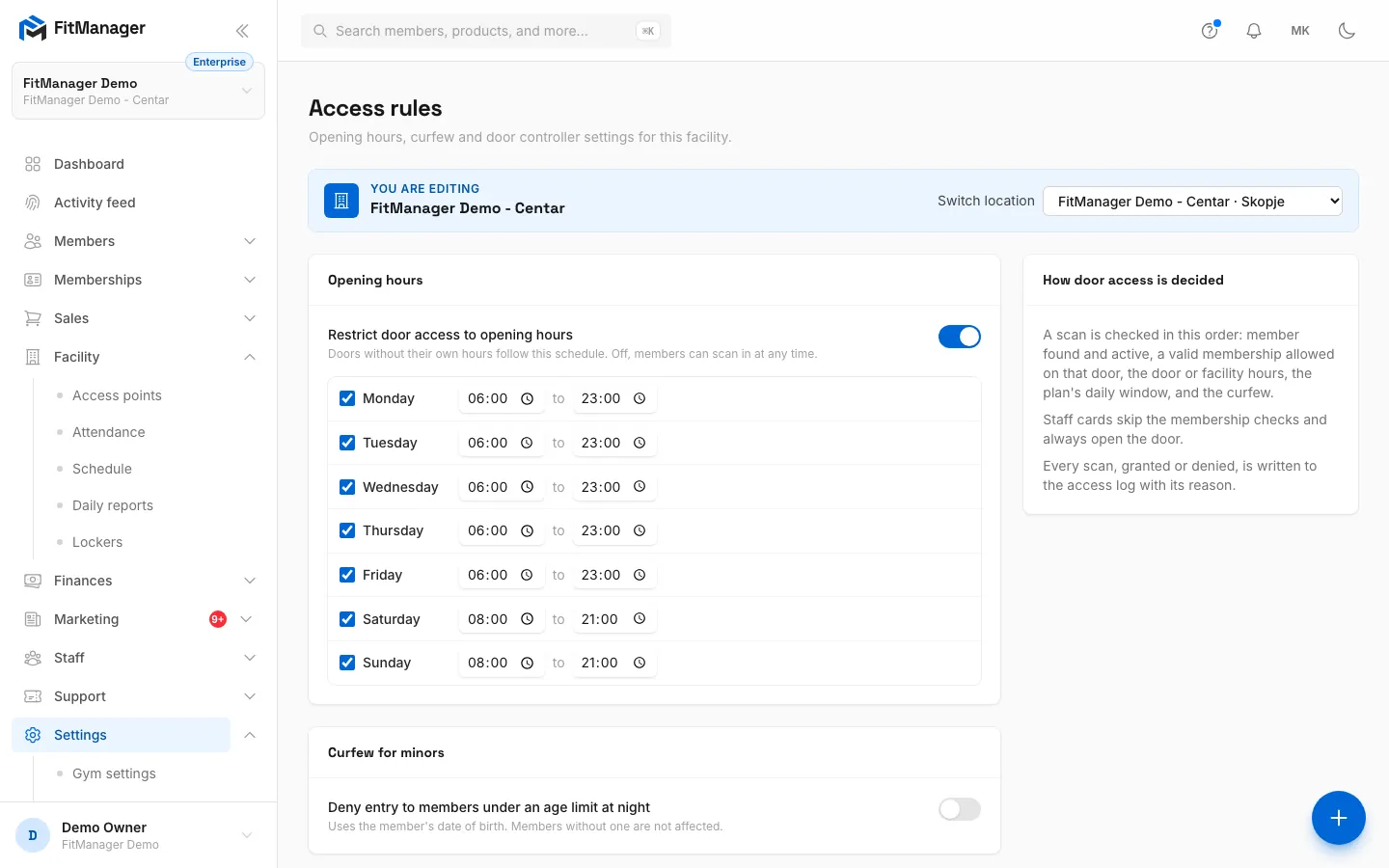
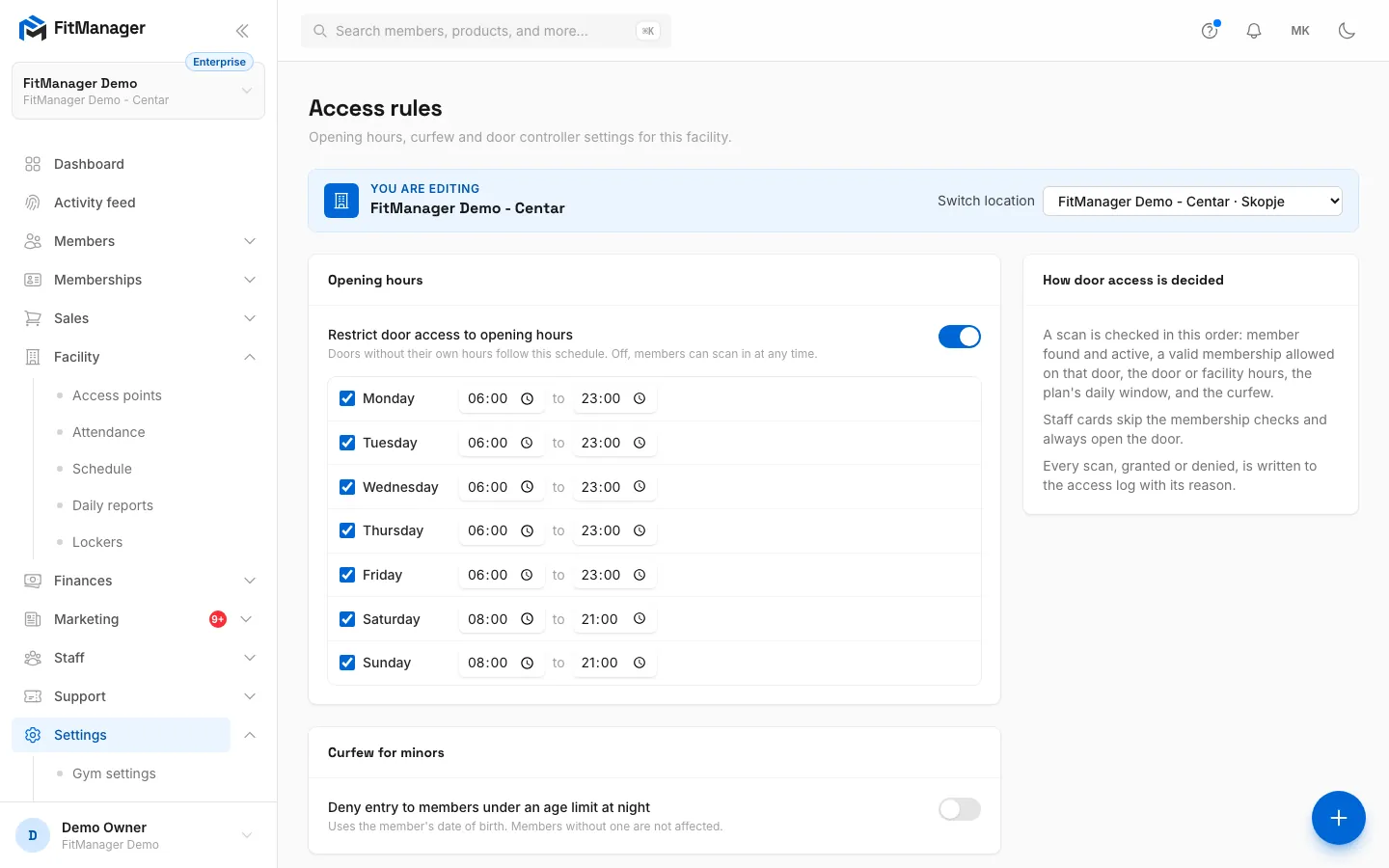
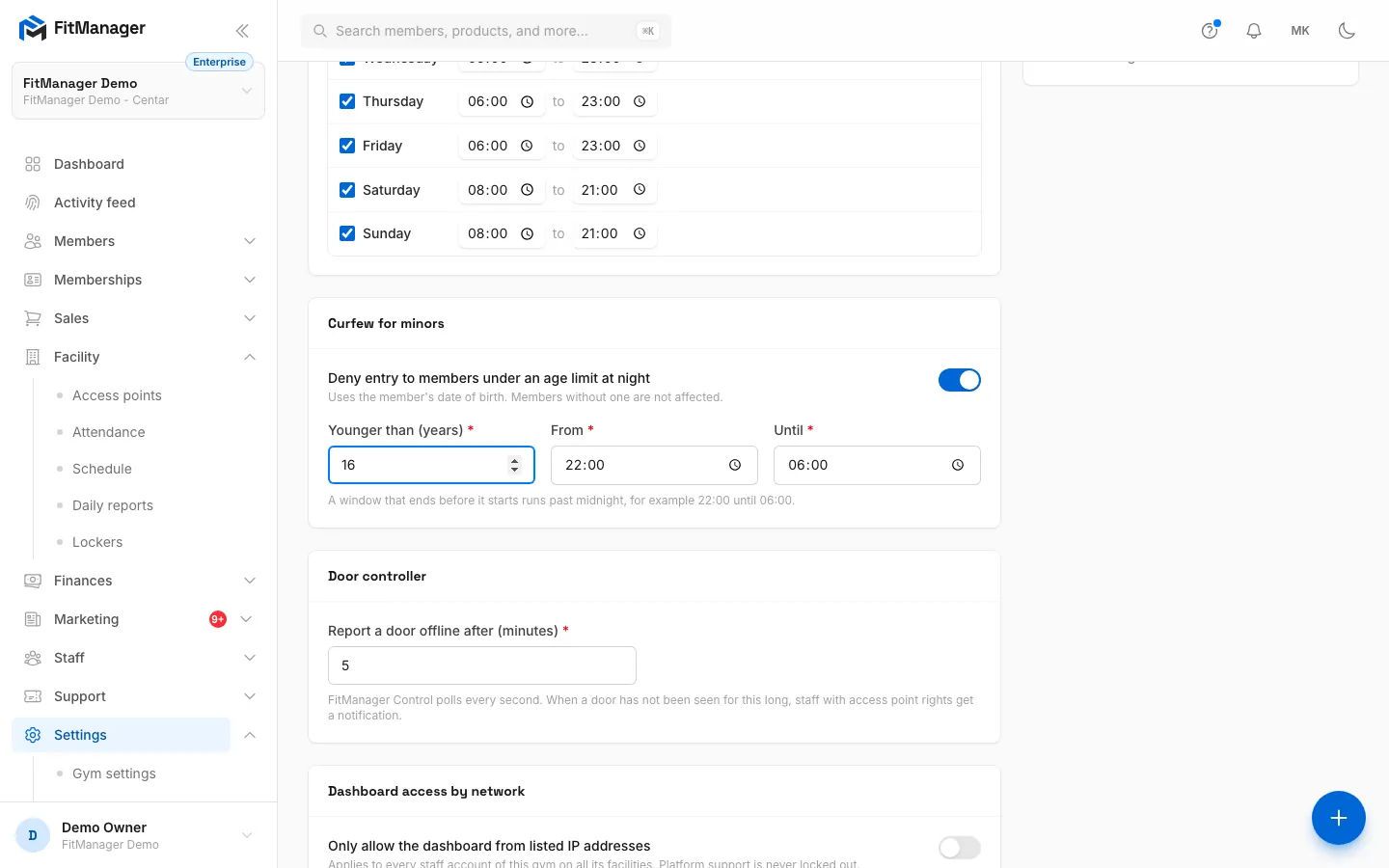
- Step 1: With this on, members can only scan in during the opening hours below.
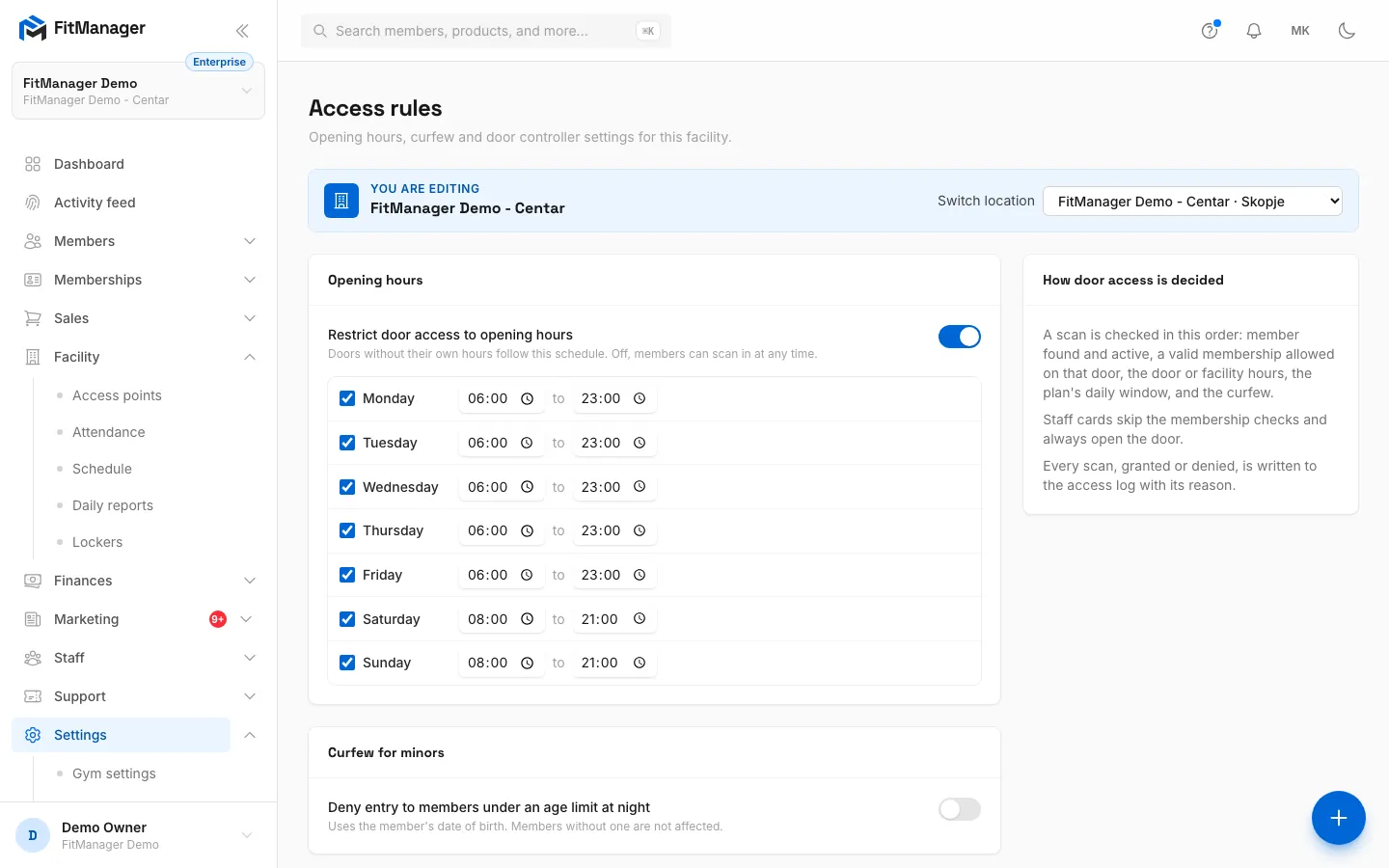
- Step 2: Set the hours for each day. Untick a day to keep the doors closed.
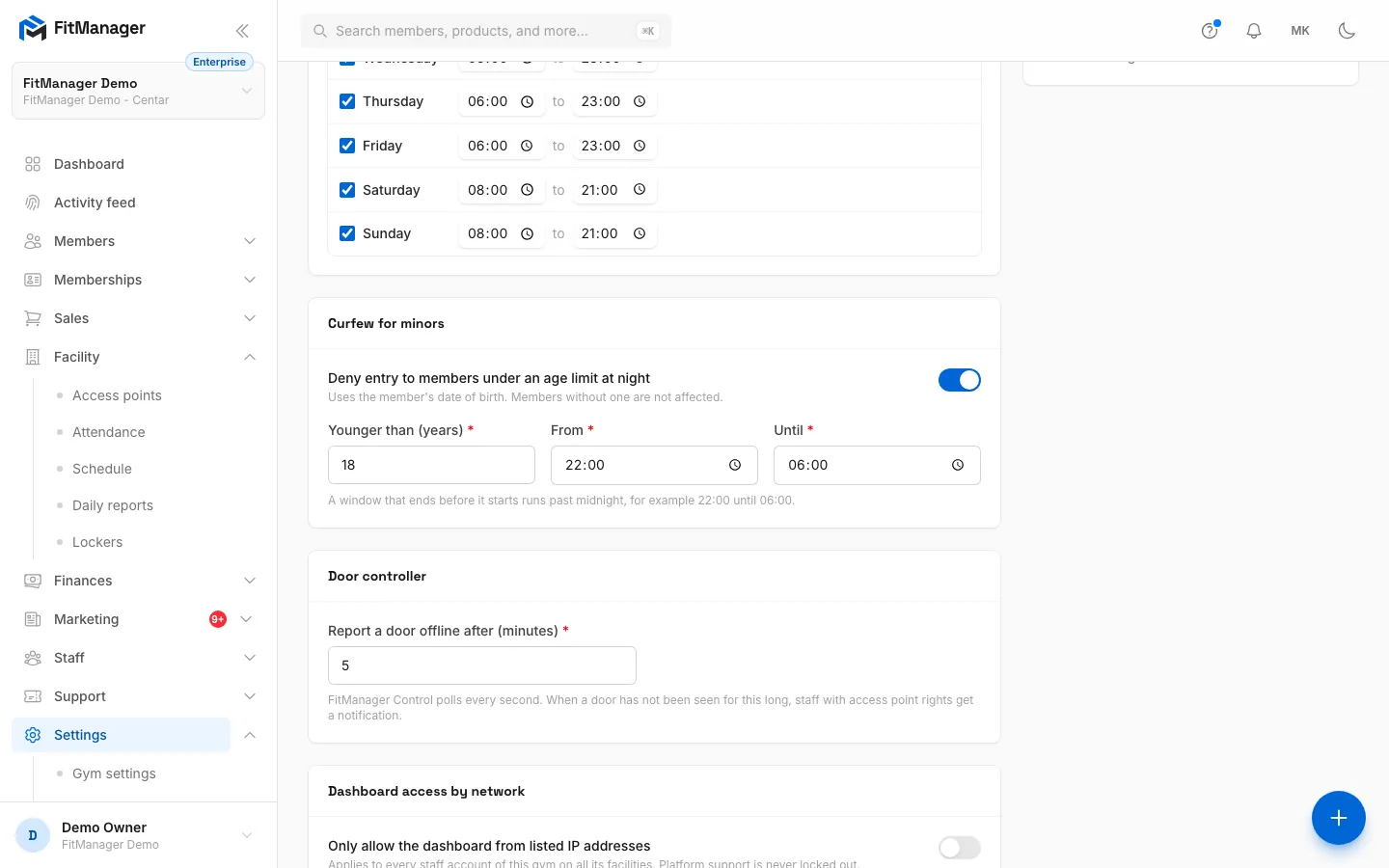
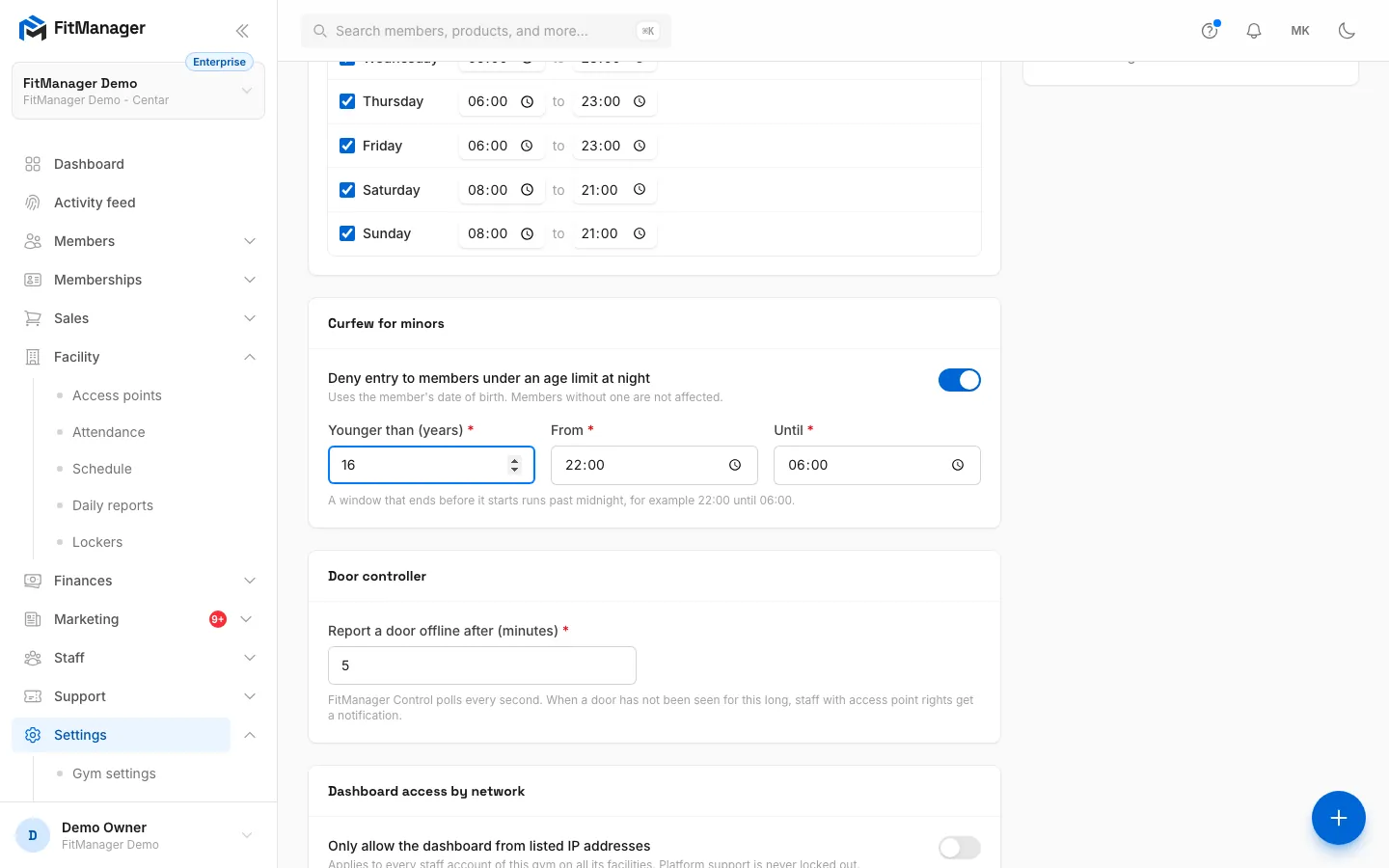
- Step 3: Turn on the curfew to keep younger members out at night.
- Step 4: Enter the age limit. Members younger than this are refused in the window.
- Step 5: Set when the curfew starts and ends. It can run past midnight.
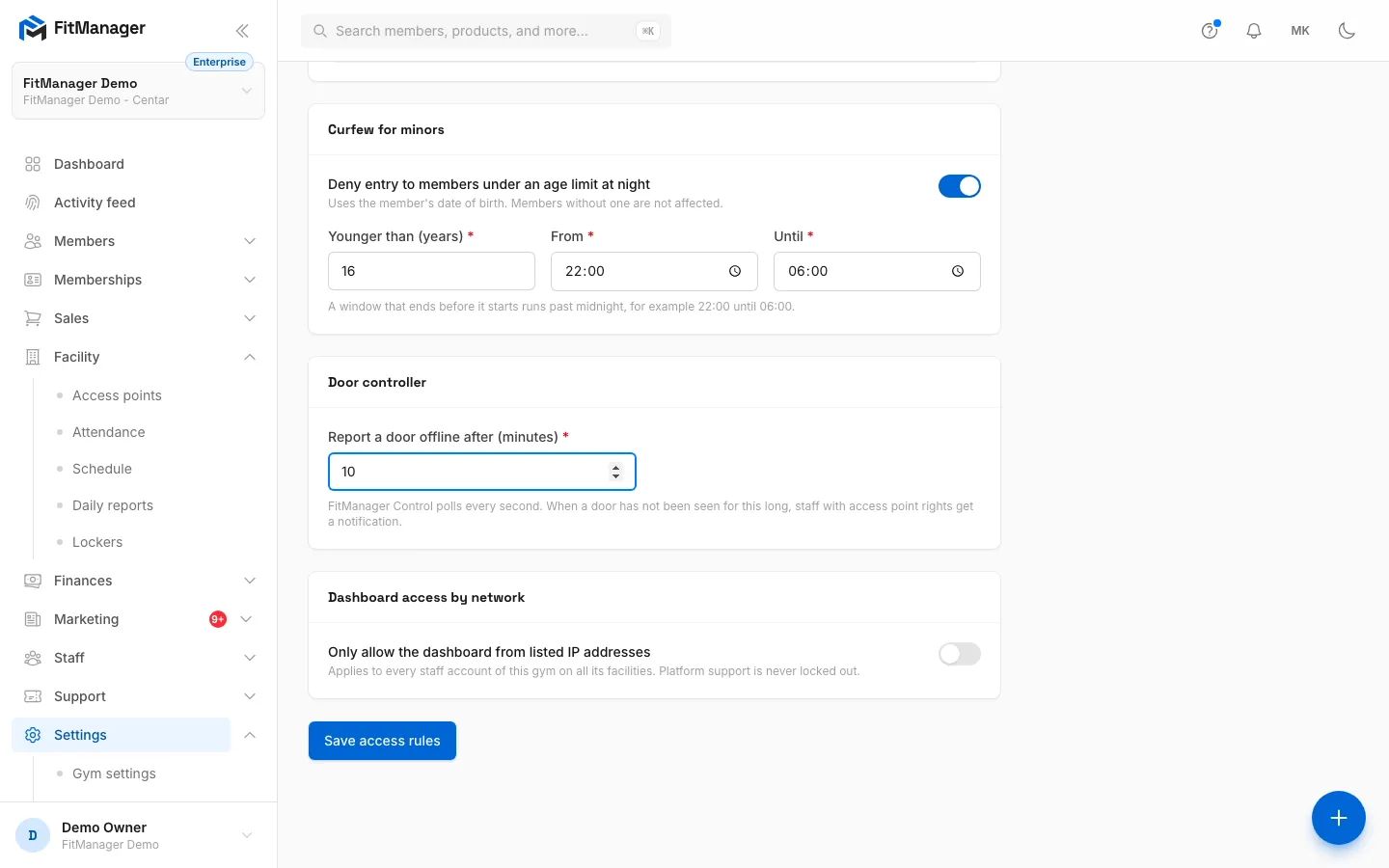
- Step 6: Choose after how many minutes without contact a door counts as offline.
- Step 7: Click Save access rules. The new rules apply to the next scan.
Opening hours
- Turn on Restrict door access to opening hours.
- For each day, tick the day and set the opening and closing time. A day that is not ticked shows Closed, and every scan that day is refused.
- Click Save access rules.
With the switch off, members can scan in at any time of day.
These hours apply to every door that does not have its own. To give a single door different hours (a sauna that closes earlier, for example), turn on Custom opening hours for this door on that door, see Access points.
A scan outside the hours is refused with Outside opening hours.
Plan hours are separate
A plan can also have its own daily window, for example an off-peak plan valid until 17:00. That is set on the plan, see Create a membership plan, and a scan outside it is refused with Outside the plan's hours.
Curfew for minors
- Turn on Deny entry to members under an age limit at night.
- In Younger than (years), enter the age limit, from 1 to 30. A member younger than this is refused.
- Set From and Until. A window that ends before it starts runs past midnight, for example 22:00 until 06:00.
- Click Save access rules.
The curfew uses the member's date of birth. Members without a date of birth on their profile are never affected, so make sure it is filled in for younger members. A refused scan shows Minor after curfew.
Door controller
Report a door offline after (minutes) sets how long a door may go without contact before it counts as offline. The default is 5 minutes and you can choose from 1 to 1440.
FitManager Control checks in every second. When a door has not been seen for this long, staff with the access_points.manage permission get a notification and an email, once per outage. A short value catches problems quickly; a longer one avoids alerts when the reception PC restarts or the internet drops for a moment.
Dashboard access by network
The last card, Dashboard access by network, limits the staff dashboard to your own network. It is explained in Restrict the dashboard to your network.
How a scan is decided
Every scan is checked in this order, and the first rule that fails gives the deny reason:
- The door exists and is active.
- The card or QR code belongs to a member of this facility, and the member is active and not banned.
- The member has a membership allowed on this door, and it is not frozen, not expired and, for a visit pack, has visits left.
- The time is within the door's or the facility's opening hours.
- The time is within the plan's daily window.
- The curfew does not apply to the member right now.
Staff cards skip the membership checks and always open the door. Every scan, granted or denied, is written to the Activity feed with its reason. What to do about each reason is in Troubleshooting doors.
Troubleshooting
The rules did not save
Check the message at the top of the page. The age limit must be between 1 and 30, the times must be valid and the offline minutes between 1 and 1440.
"Your current address ... is not on the list, so this would lock you out"
This comes from the network restriction, not the door rules. See Restrict the dashboard to your network.
Members are refused after closing even though staff are still there
That is the opening hours working as intended. Extend the hours for that day, or turn the restriction off.
Was this page helpful?
Related articles
Still stuck?
Write to us and we will get back to you within one working day.