Record expenses
Keep track of what the facility costs to run, with your own categories, vendors and notes, and see the totals next to your earnings.
Finances, Expenses is where you write down what the facility costs: rent, utilities, salaries, equipment, cleaning. The totals show next to your income on Earnings and in the monthly report, so you see the month's result in one place.
Before you start
You need the Finances feature on your plan and the View expenses permission. Owners have it. Anyone with this permission can add, change and delete expenses.
Add an expense
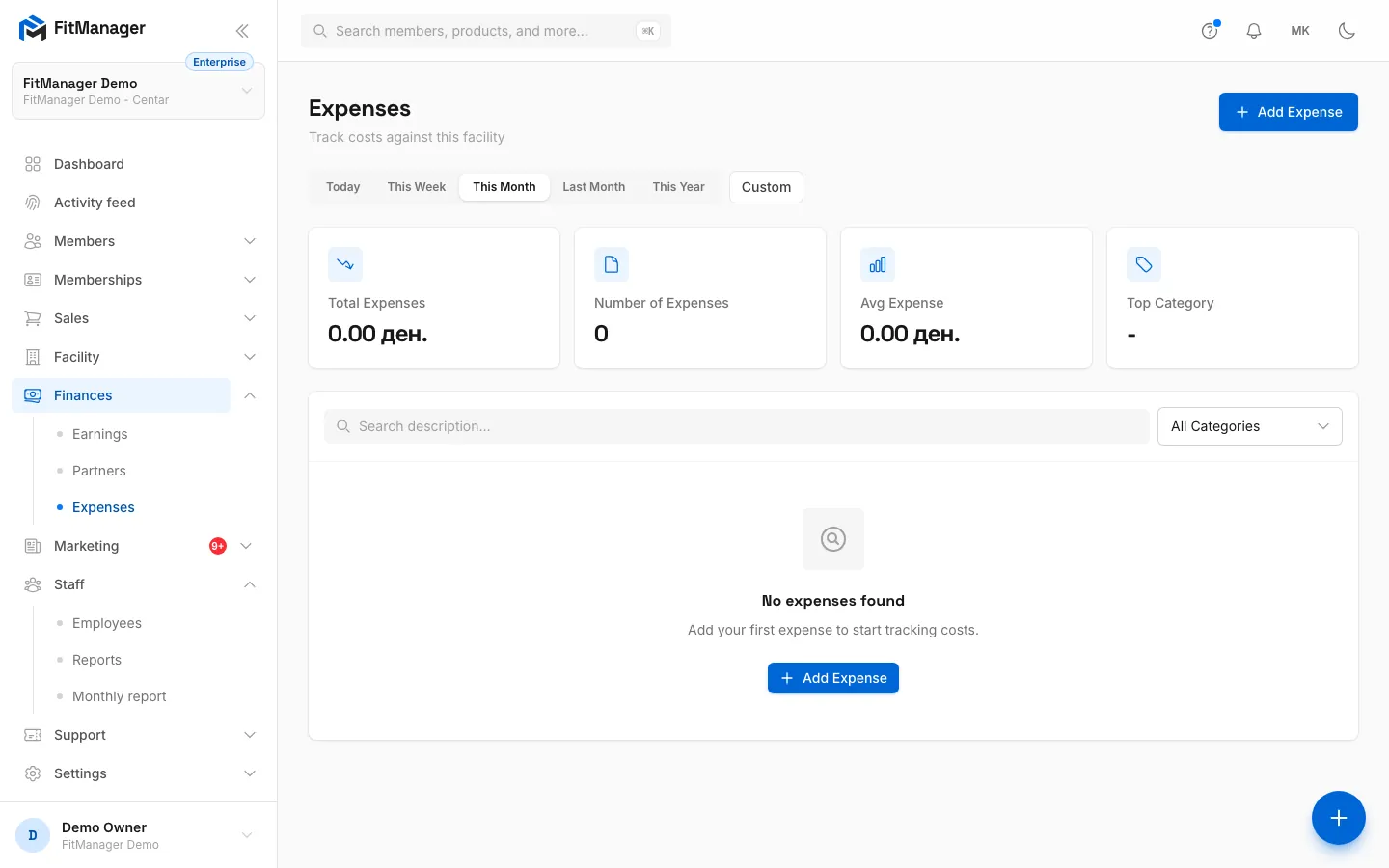
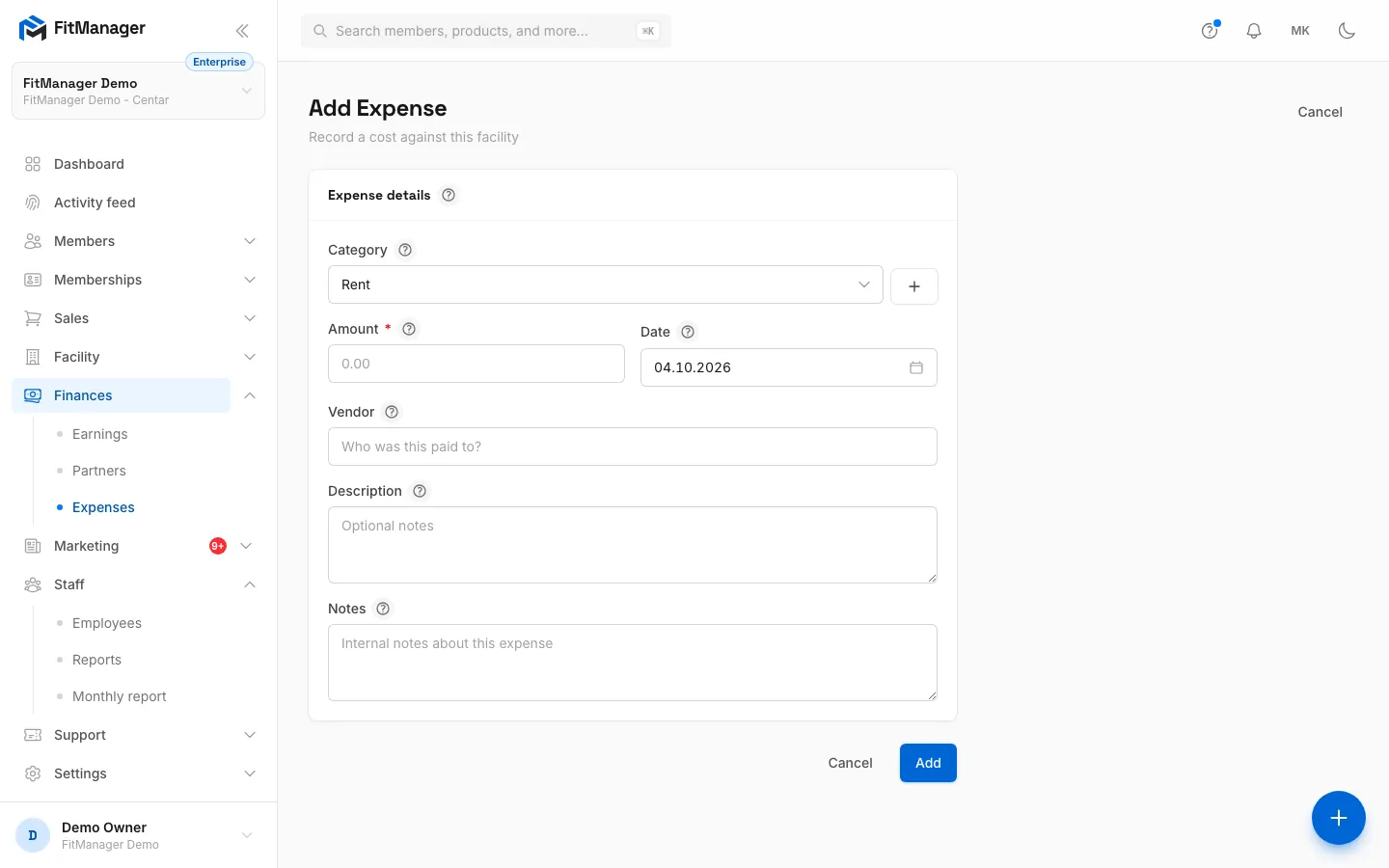
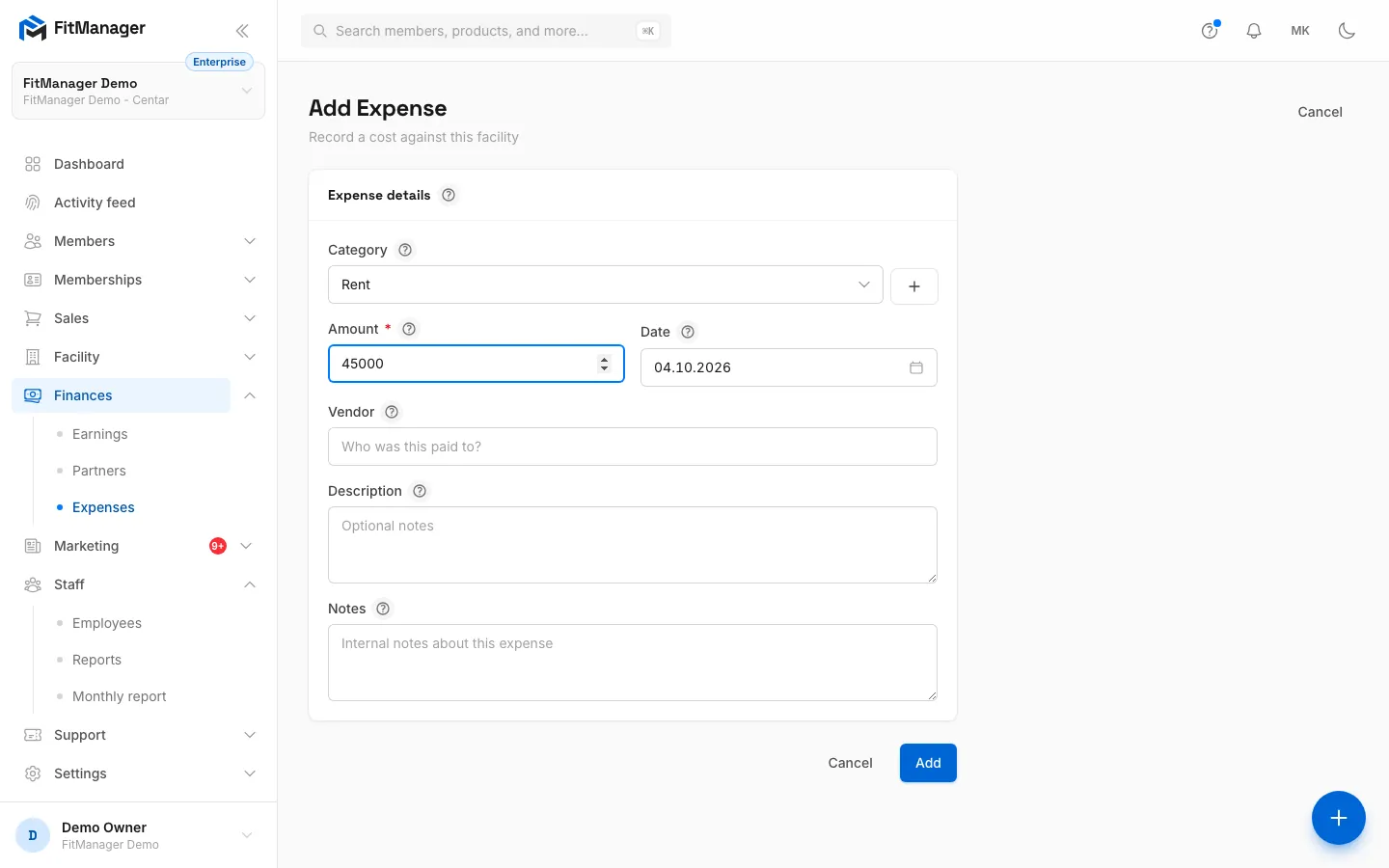
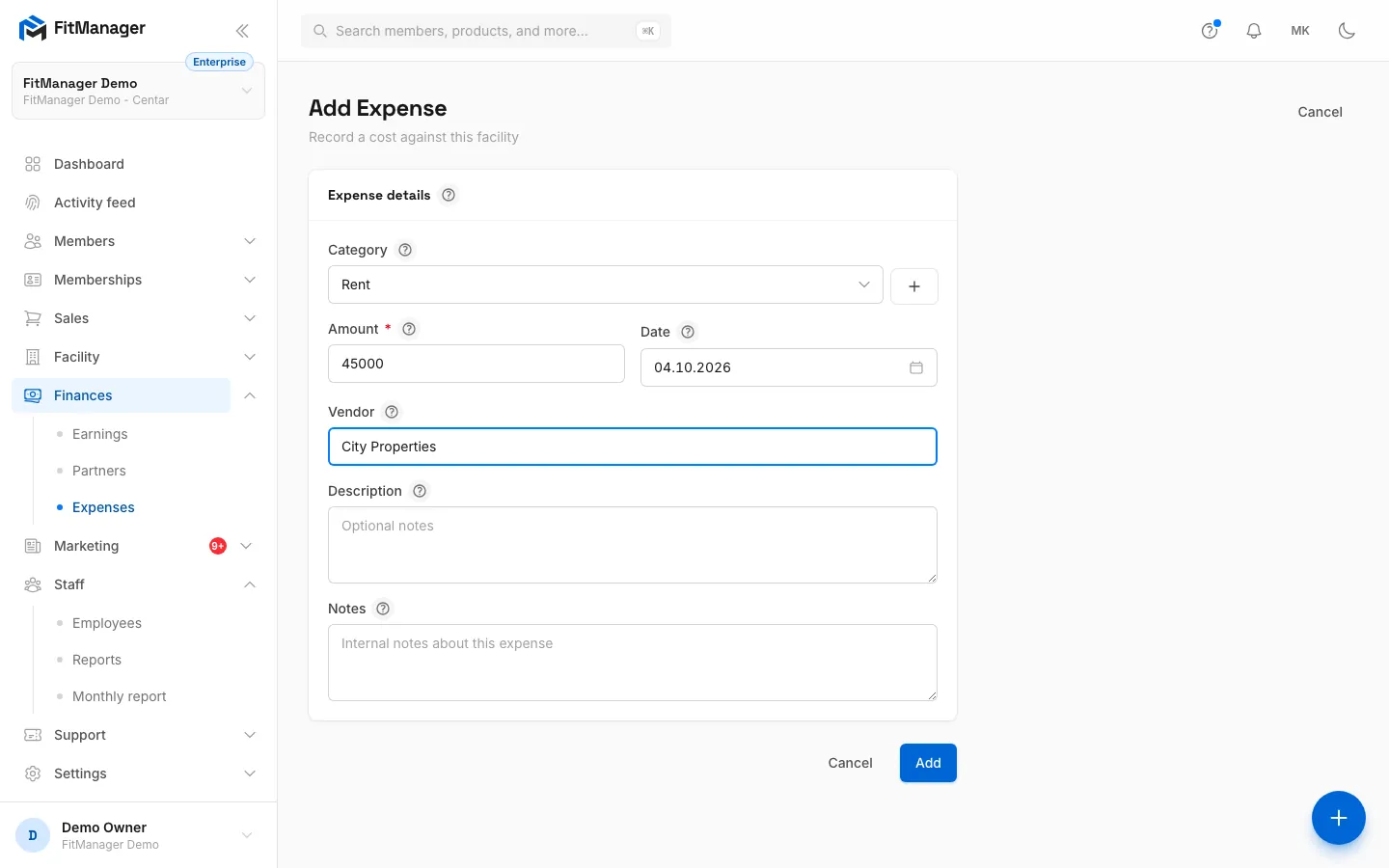
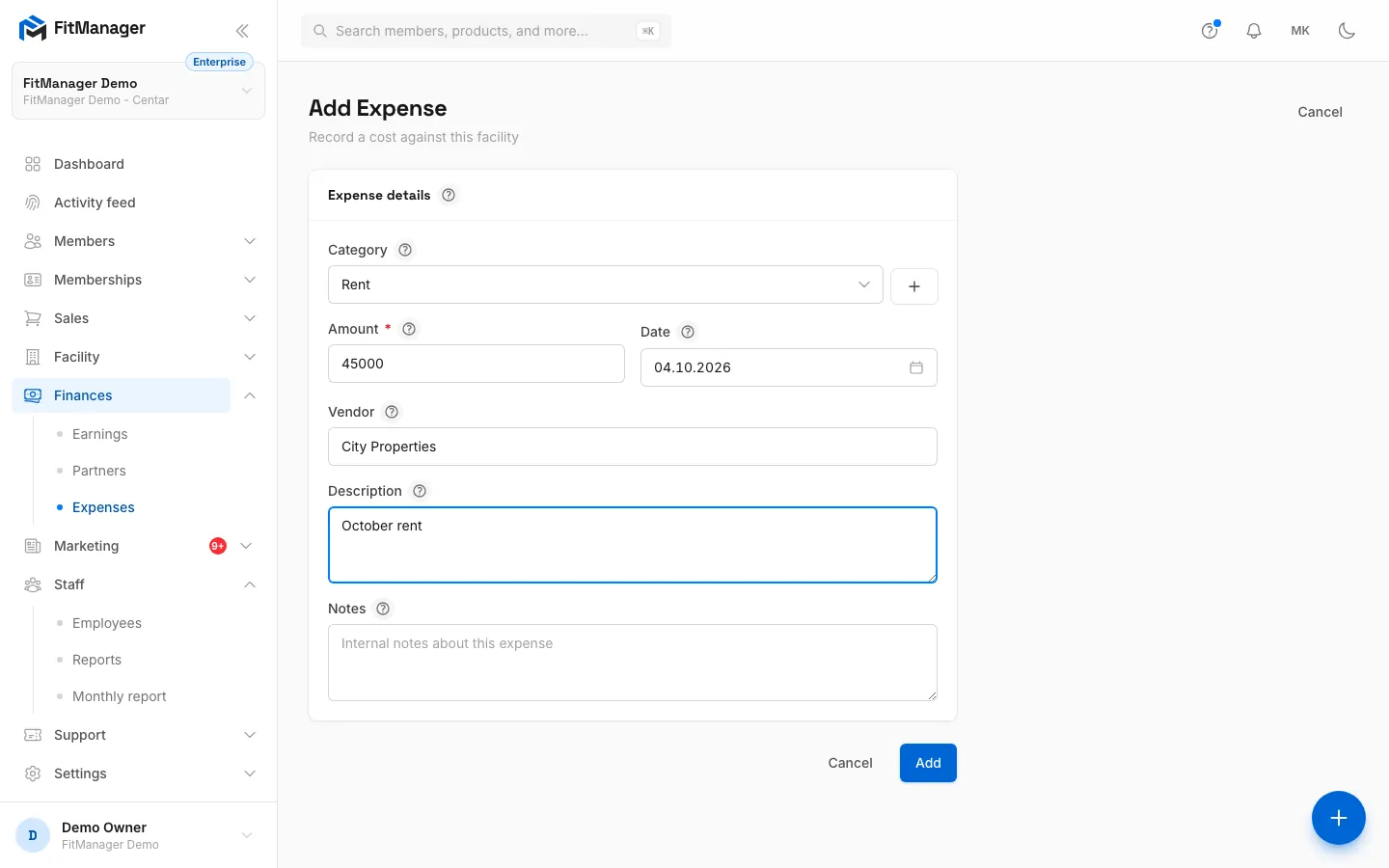
- Step 1: Under Finances, Expenses, click Add Expense.
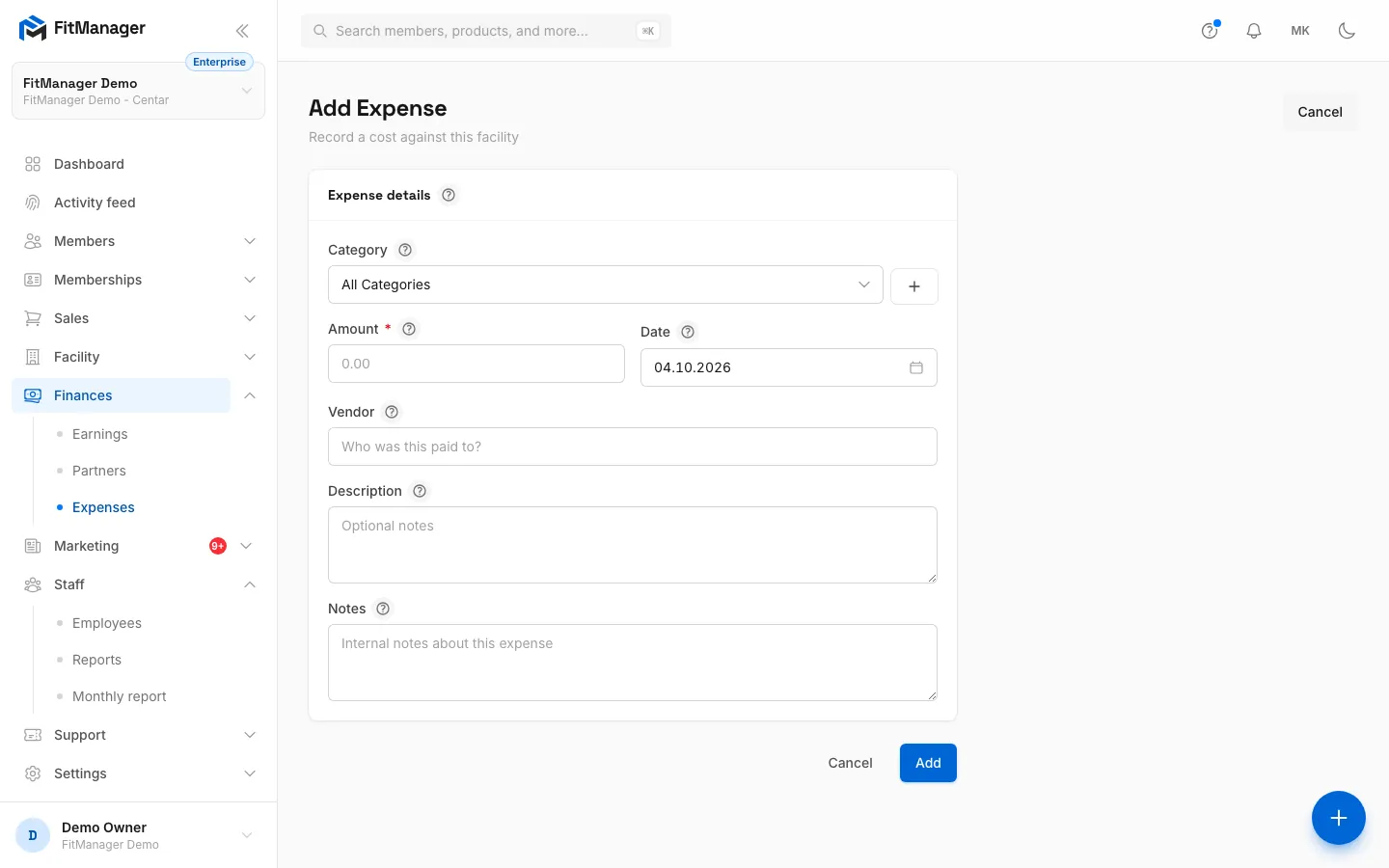
- Step 2: The first time, create a category with the + button next to Category.
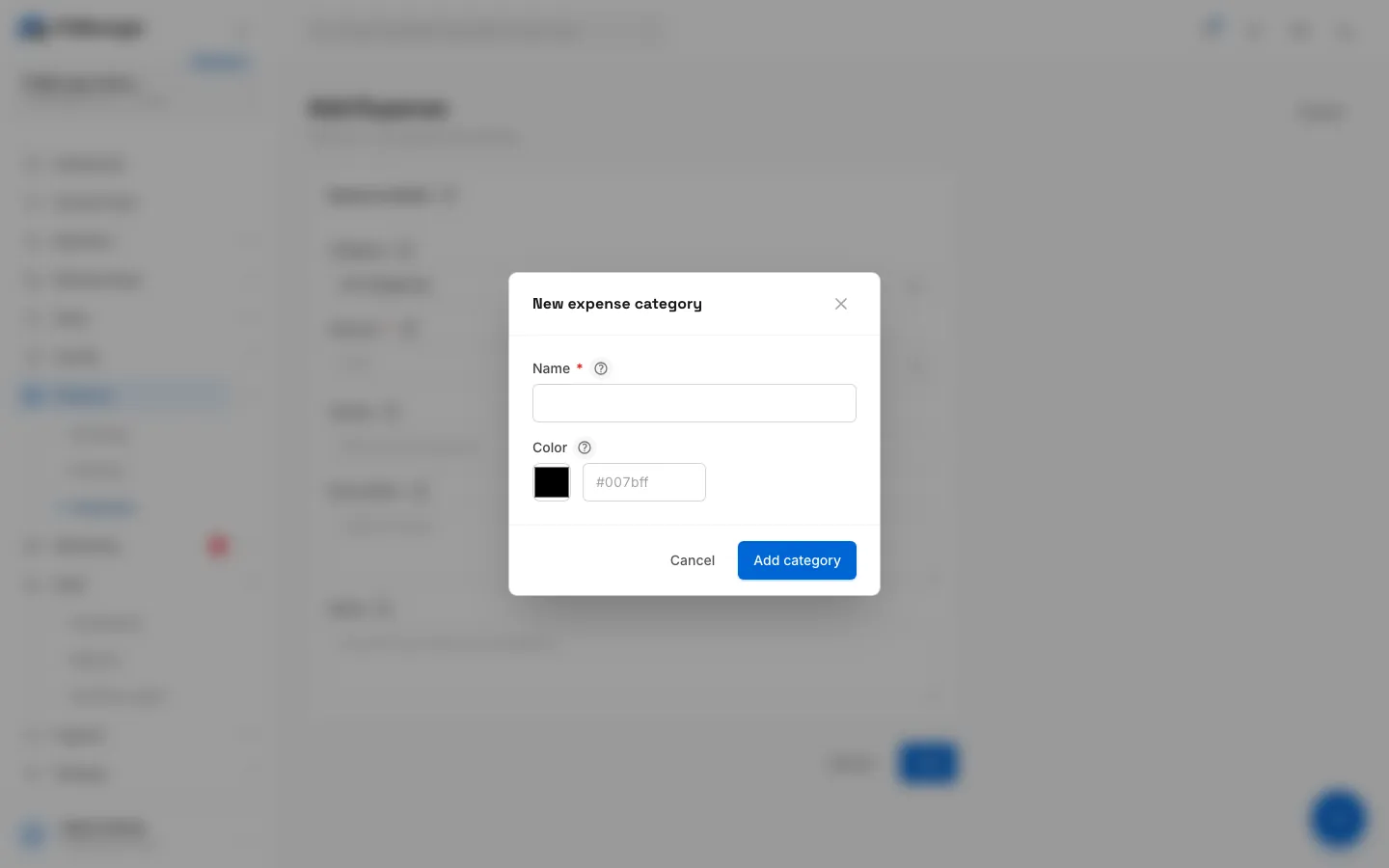
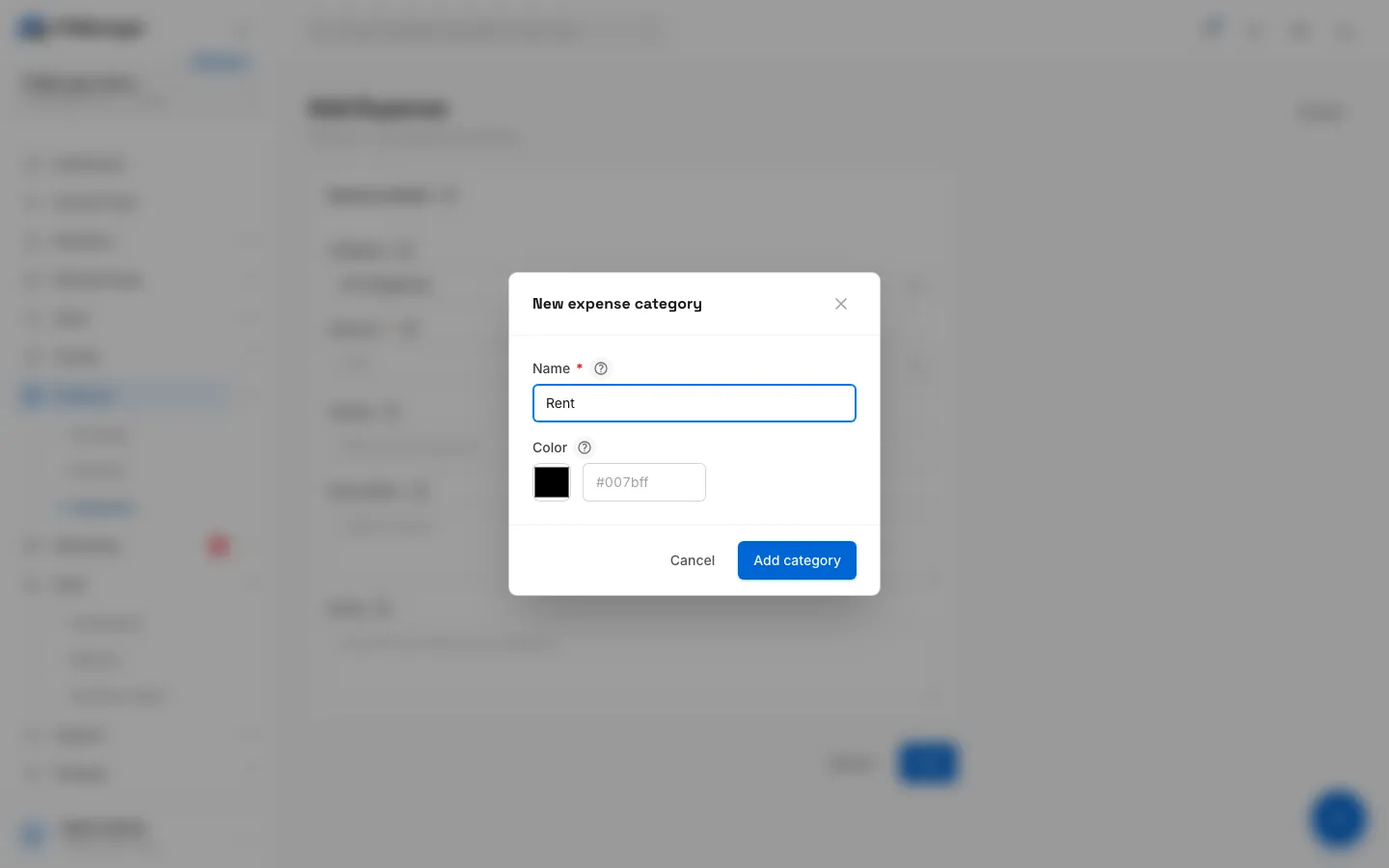
- Step 3: Name the category, and pick a colour if you like.
- Step 4: Click Add category. It is selected for this expense straight away.
- Step 5: Enter the amount.
- Step 6: Add who you paid. The date is today unless you change it.
- Step 7: A short description helps when you search later.
- Step 8: Click Add.
- Step 9: The expense is in the list and in the totals for its month.
- Open Finances, Expenses.
- Click Add Expense.
- Choose a Category. The first time, click the + button next to it to create one (see below).
- Enter the Amount. It must be more than zero.
- Check the Date. It is today by default. Use the day the cost belongs to, because totals are counted by this date, not by the day you typed it in.
- Optionally, add the Vendor you paid, a Description and internal Notes.
- Click Add.
You return to the list and the expense is counted in its period.
Categories
A new facility has no expense categories, so you set up the ones that fit you, for example Rent, Utilities, Salaries, Equipment, Maintenance and Marketing.
- On the expense form, click the + next to Category.
- Enter a Name and optionally pick a Color.
- Click Add category. It is selected for the expense you are writing.
Expenses without a category are allowed.
The expenses list
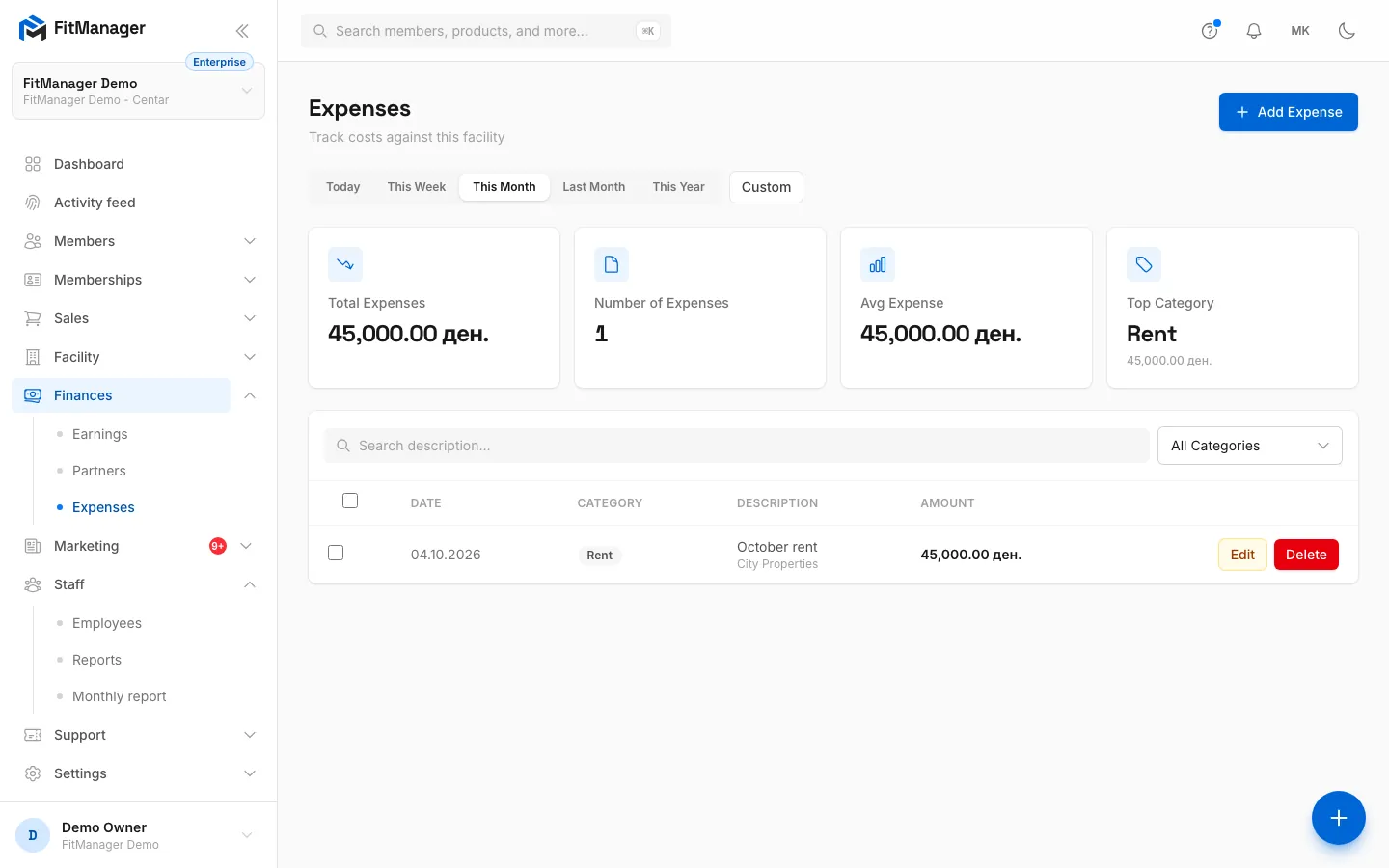
At the top you see Total Expenses, Number of Expenses, Avg Expense and the Top Category for the selected period.
- Pick a period: Today, This Week, This Month, Last Month, This Year, or Custom for your own dates.
- Search by description or vendor, and filter by category.
- Edit opens an expense to change it, and Update saves it.
- Delete removes an expense after you confirm. This cannot be undone.
- Tick several expenses to Export them to a file or Delete them together.
Common questions
Why does an expense not show in this month's total?
Its Date is in another month. Open it and correct the date.
Do expenses affect the sales figures?
No. Expenses are shown next to income as Total Expenses but never change revenue. The monthly report lists them in their own section.
Was this page helpful?
Related articles
Still stuck?
Write to us and we will get back to you within one working day.