Your gym website
What your public gym website contains, where it lives, and which settings shape it.
Every gym on FitManager gets a public website, built from the data you already keep in the dashboard: your plans, your timetable, your locations and opening hours, your blog. There is nothing to install or host. You decide what it says and how it looks; FitManager keeps it running.
Before you start
- Your plan needs the website. Without it, your website address sends visitors straight to the member login instead.
- Only staff who can manage settings (owners, and employees with the Manage settings permission) can change the website.
Find your website address
Open the workspace menu at the top of the sidebar (the card with your gym and location name) and choose Preview website. The site opens in a new tab exactly as a visitor sees it. The Website & app page also has an Open website button at the top.
The address depends on how the platform serves gym websites, and uses your gym's slug (shown under Slug in Settings, Gym settings):
| Mode | Address | Example |
|---|---|---|
| Path | fitmanager.com/{slug} |
fitmanager.com/irongym |
| Subdomain | {slug}.fitmanager.com |
irongym.fitmanager.com |
| Your own domain | any domain you own | www.irongym.mk |
You do not choose between path and subdomain: the platform decides that for every gym, and links in emails and the portal always follow it.
Requires: Connected domains
You can also serve the website, and separately the member portal, on a domain you own. FitManager checks your DNS and issues the security certificate for you. See Connect your own domain.
What is on the site
| Page | What visitors see | Where the content comes from |
|---|---|---|
| Home | A stack of sections: hero, about, facilities, classes, plans, hours, blog, app and a call to action | Sections and themes, plus your own text edited in place |
| Classes | The weekly timetable of the chosen location, with how full each slot is (never who is booked) | Your public classes in the timetable |
| Membership | Your plans and subscriptions, with online checkout | Your plans and online payments |
| Blog | Your published posts | Blog |
| Contact | Address, phone, email and a contact form | Contact details on Website & app; messages land in Inquiries |
| Check membership | A member types their member or card number and sees until when their membership is valid | Your members' memberships |
| App | Store badges for your own app | Branded app |
The header also links to Member Login (the member portal) and the footer to Staff Login, so your team can sign in from the gym's own address. Every site also serves its own sitemap.xml, robots.txt and web app manifest, so search engines and phones pick it up without any work from you.
A few pages appear only when your plan includes the matching feature:
Requires: Blog
The Blog page, the blog section on the home page and the News tab in the member portal.
Requires: Contact forms
The Contact page with its form, and the Contact Us button in the header.
Requires: Own branded app
The App page and the app section on the home page, once at least one store link is set.
If online payments are not set up, the Membership page still lists your plans and tells visitors that plans can be bought at the front desk.
How a visitor joins online
With online payments switched on, a visitor can become a member without coming to the desk:
- On your website, the visitor opens Membership in the menu.
- If you have more than one location, they pick one under Location, then tap Choose duration under a plan and pick a duration.
- On Checkout they enter Your email (required) and Your name. Someone who is already a member also enters their Member code, so the plan lands on their existing profile. Someone else buys the plan as a gift.
- They tap Continue to payment and pay on the payment page.
- Payment successful confirms the plan. A new member can set a password right there under Create your account and go straight to the member portal.
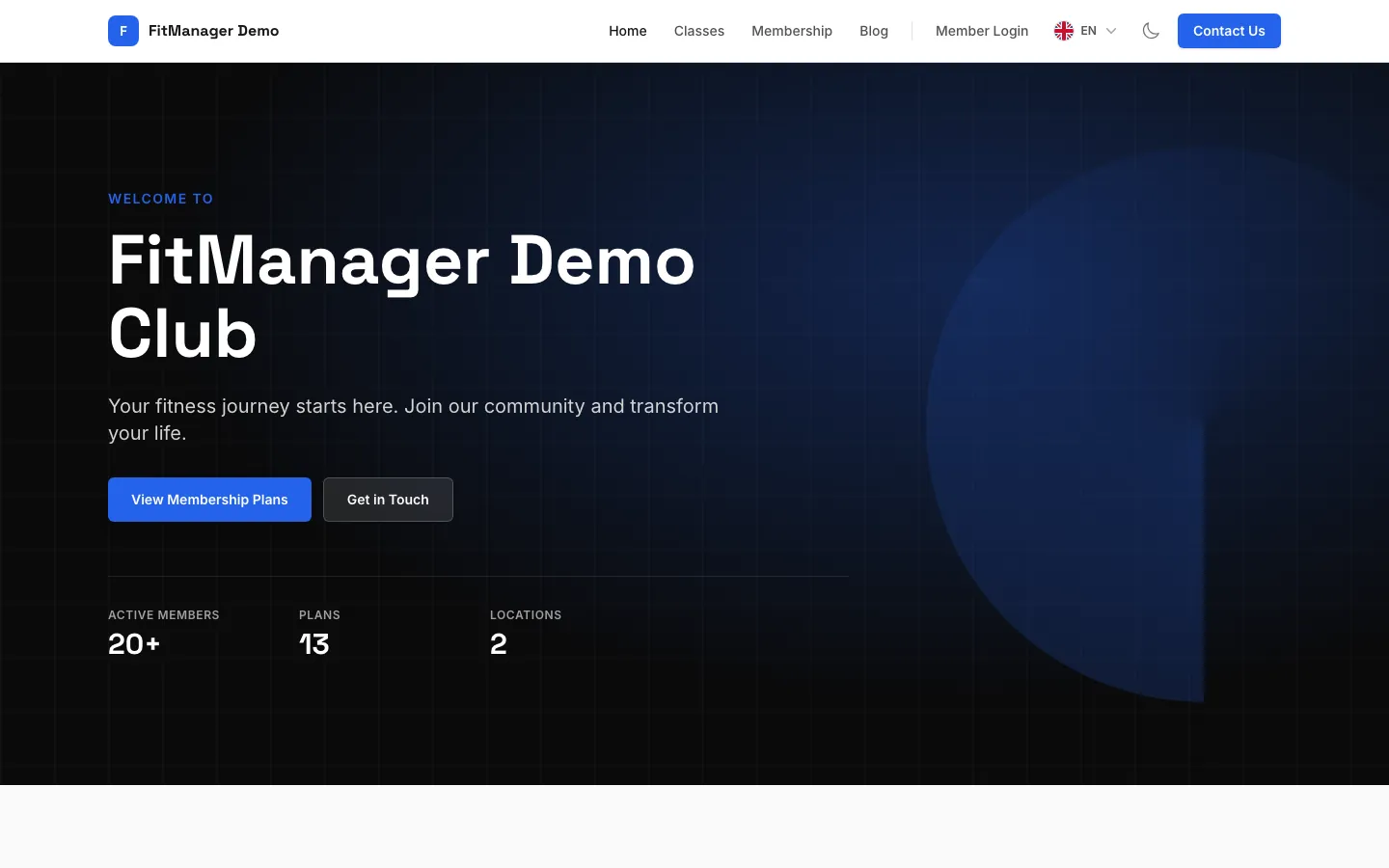
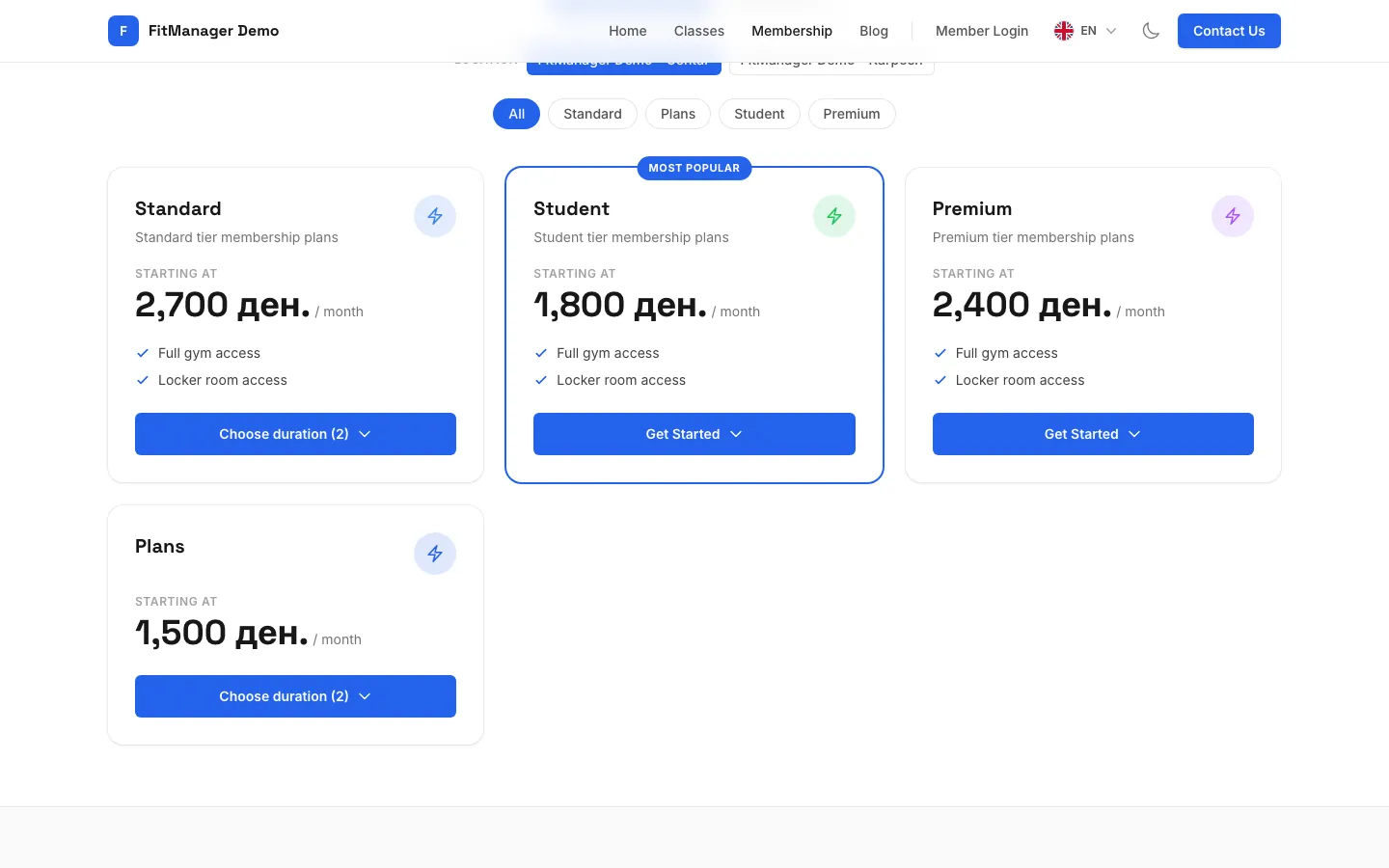
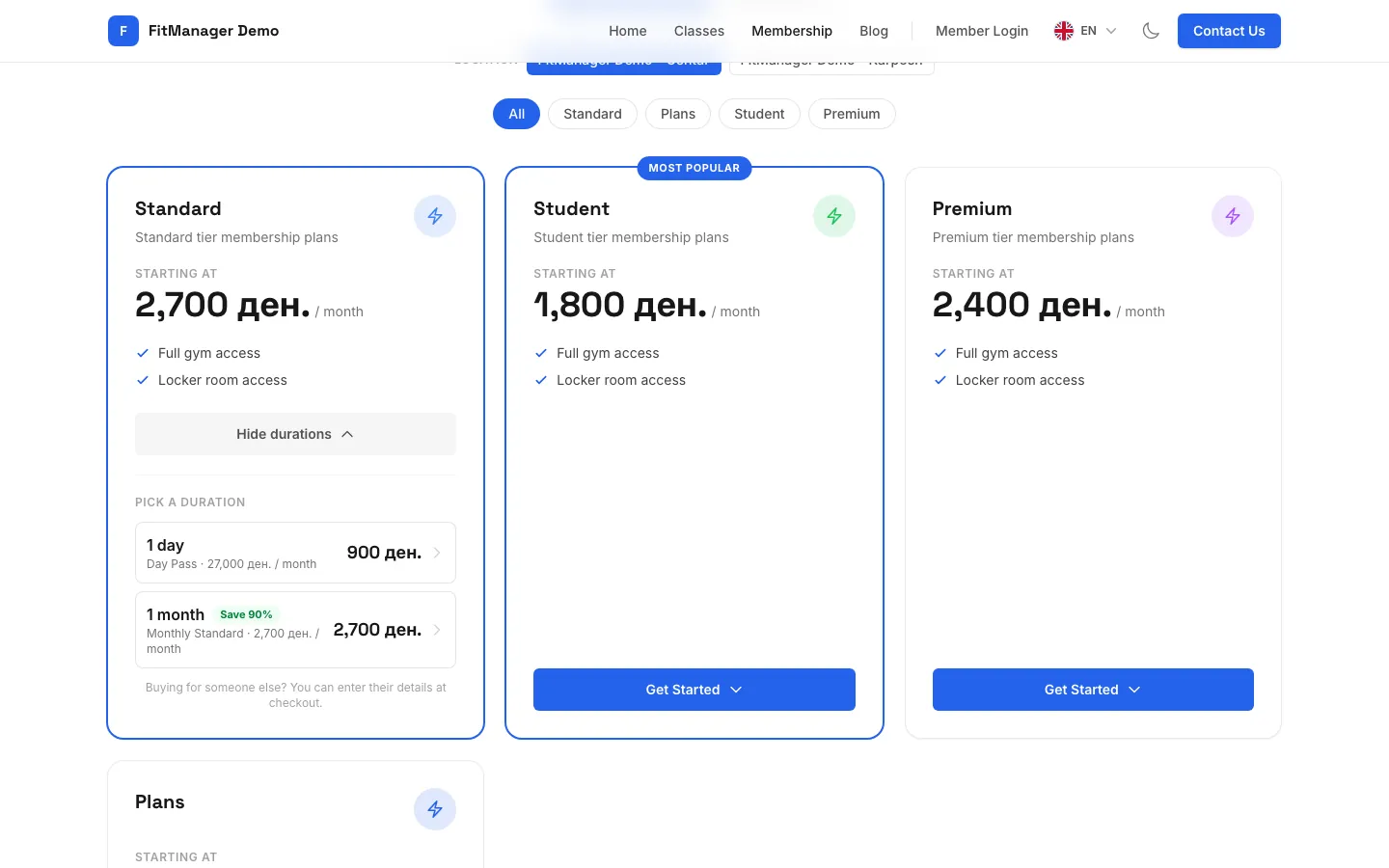
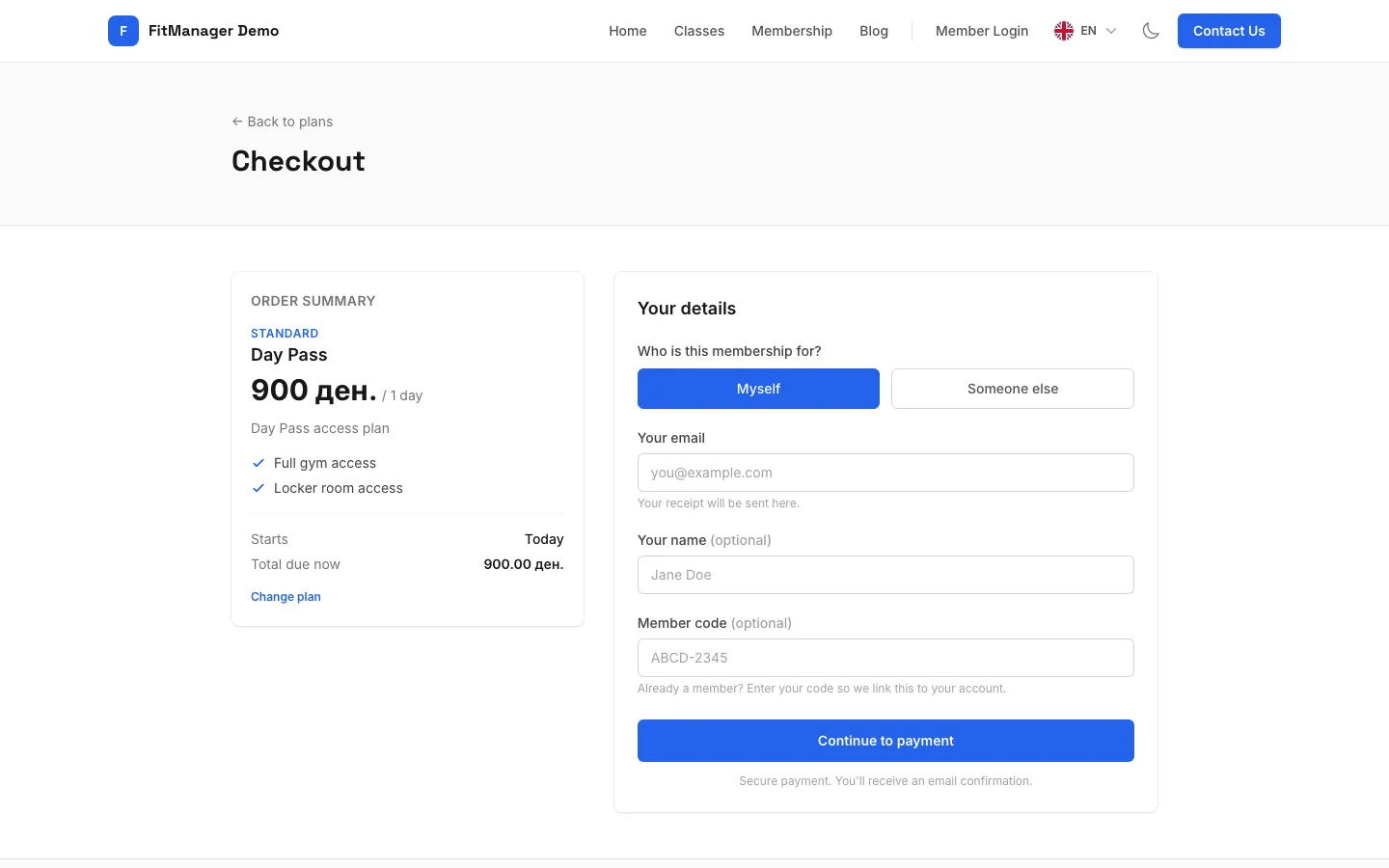
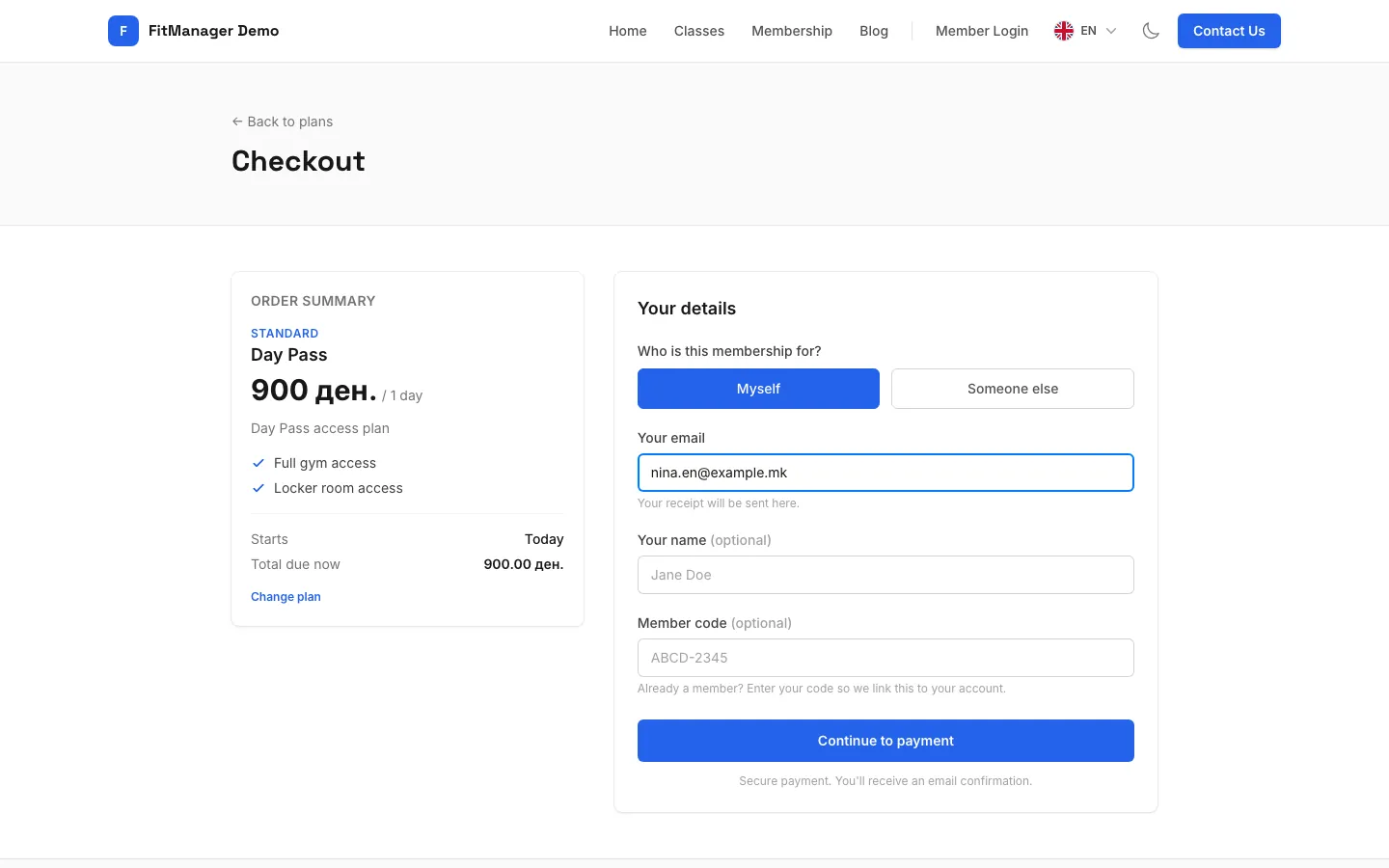
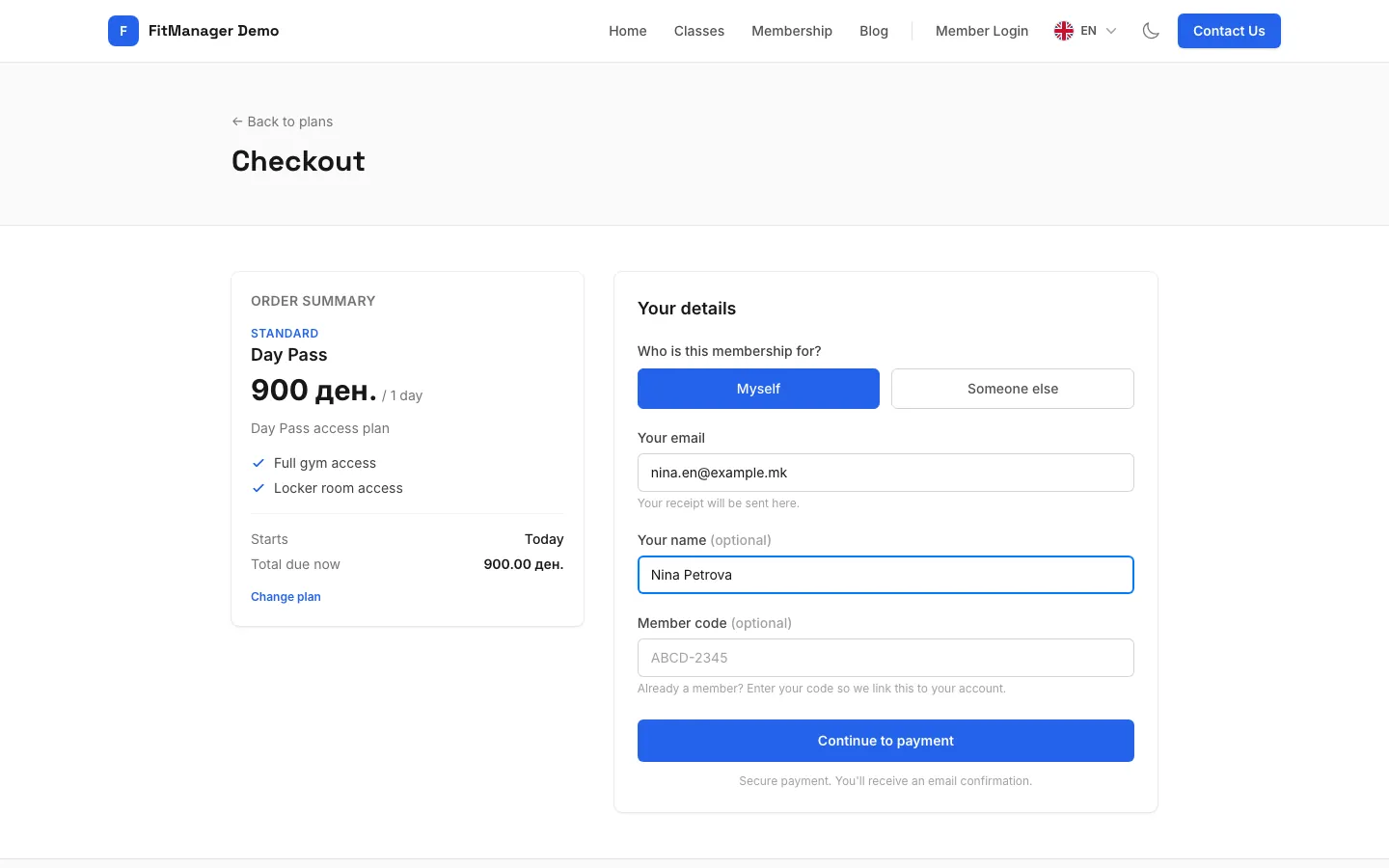
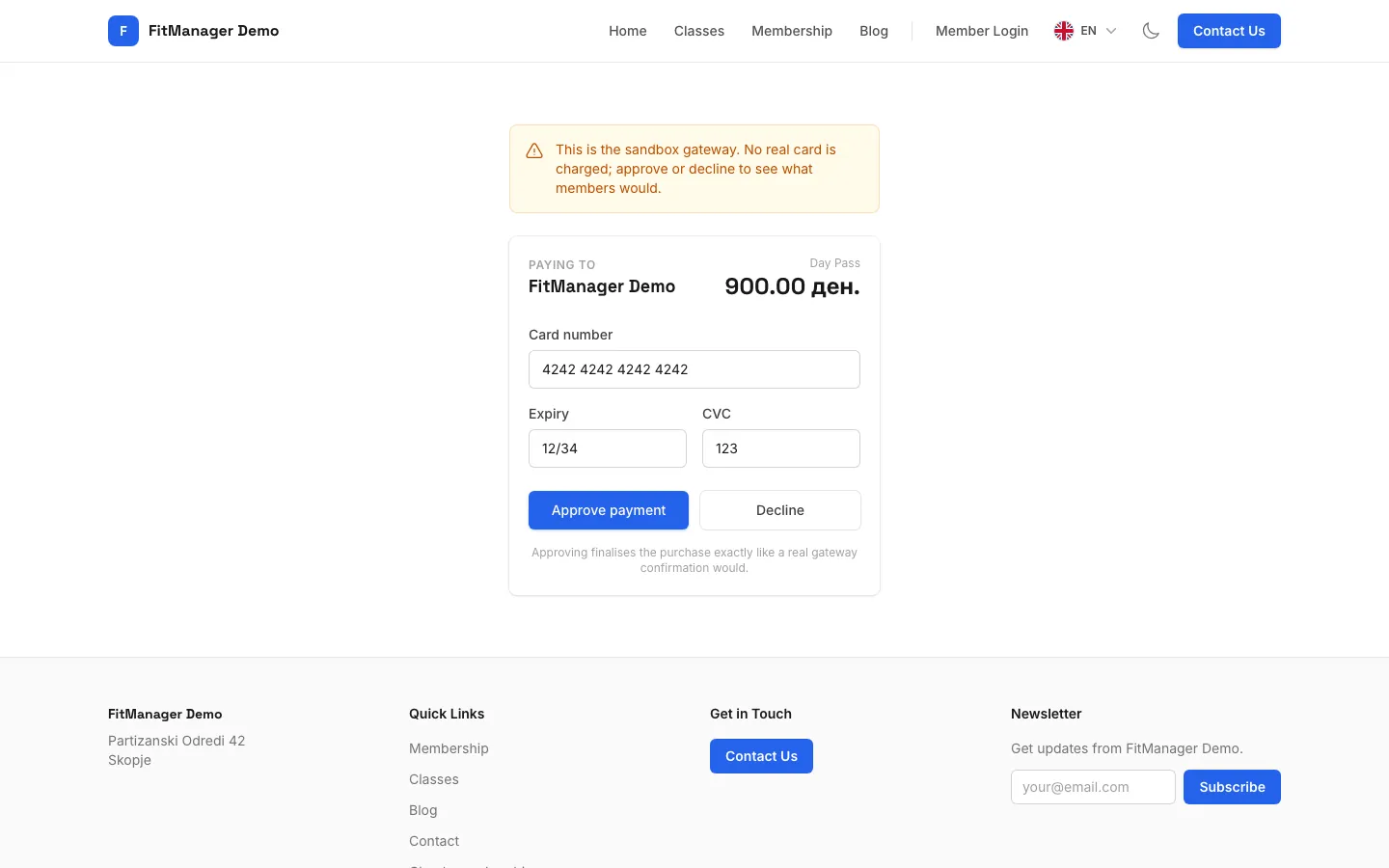
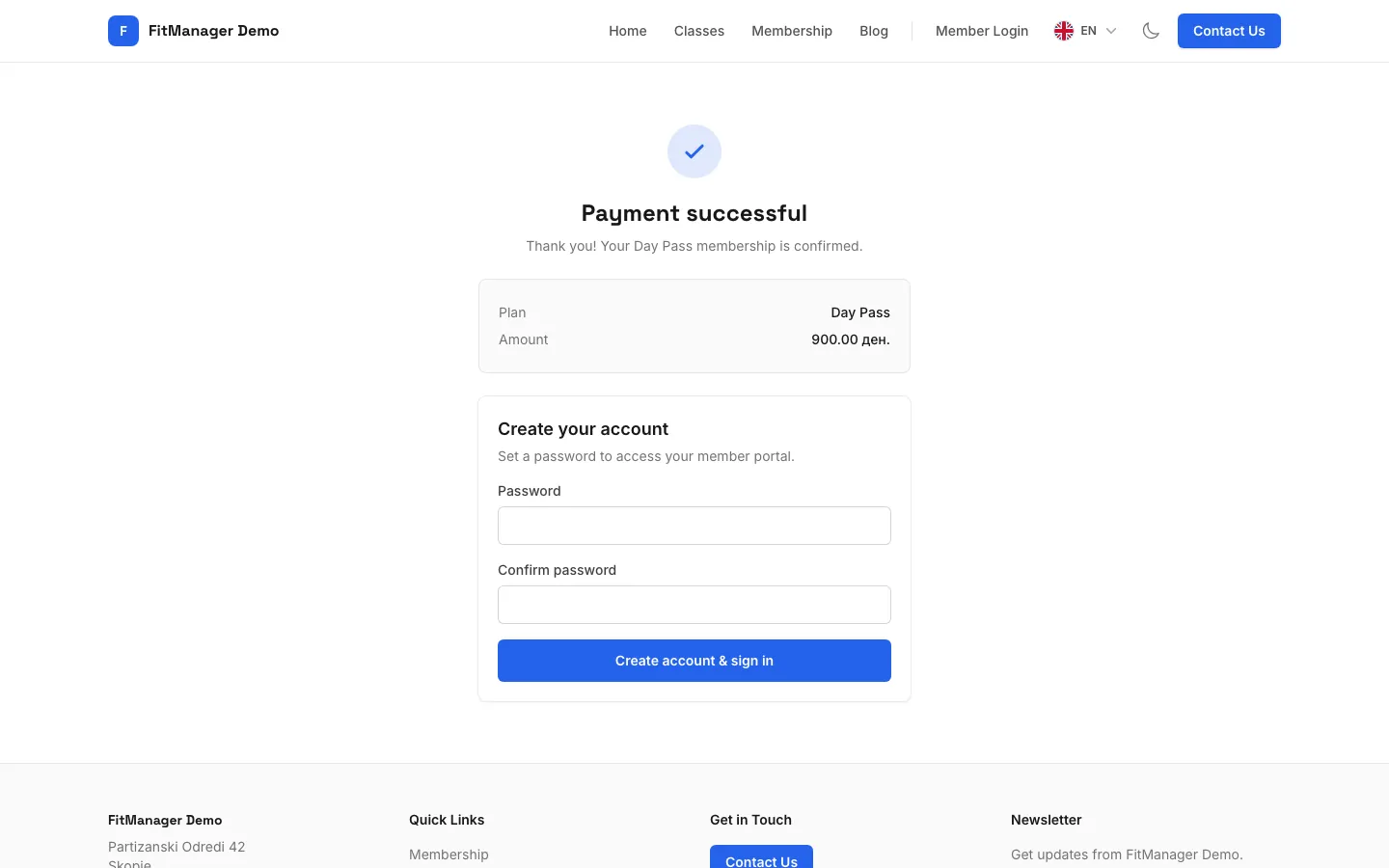
- Step 1: On the gym's website, open Membership in the menu.
- Step 2: Pick a plan and click the button under it to see its durations.
- Step 3: Click a duration to go to checkout.
- Step 4: Enter your email. The receipt and the login for the member portal go there.
- Step 5: Add your name. If you are already a member, also enter your member code.
- Step 6: Click Continue to payment.
- Step 7: Enter your card on the payment page and confirm. This demo uses a test gateway, so nothing is charged.
- Step 8: Payment successful. You are now a member and can set a password for the member portal below.
The new member appears under Members in the location of the plan, with the membership and the payment already recorded, and gets a confirmation email.
Where to change things
| What | Where |
|---|---|
| Logo, icon and brand colour | Settings, Gym settings, Website branding (see SEO, social links and branding) |
| Hero style, tagline, about text, contact details, social links | Settings, Website, Website & app |
| Order of home page sections and the theme | Website & app (see Sections and themes) |
| Any text or image on the home page | On the live site with the Edit site bar (see Edit your website in place) |
| Taking the site offline | Gym settings, Public Website (see Maintenance mode) |
Changes on Website & app apply when you click Save Changes at the bottom of the page. Section order, section switches and the theme save the moment you click them.
Common questions
Can I build my own website instead?
Yes. Keep your existing site and pull your timetable, plans and forms into it with the Website API, or link to the FitManager pages you want.
The Classes page is empty
The timetable shows public classes of one location at a time. Check that your classes are marked public and that visitors picked the right location at the top of the page.
My plan does not include the website. What do members see?
Your address opens the member login. Website & app shows a note that your plan has no public website; the contact details, social links and app settings on that page still apply to the member portal and the app page.
Was this page helpful?
Related articles
Still stuck?
Write to us and we will get back to you within one working day.