Sell at the point of sale
Ring up products and memberships at reception, apply a coupon or gift card, take cash or card and print the fiscal receipt.
The Point of Sale is the till at your reception. You use it to sell products such as drinks and supplements, and to sell a membership to a member on the spot. Every sale is recorded under Purchases, counts towards your earnings, and can print a fiscal receipt.
Before you start
- You need the Use the POS permission. Owners have it, and new employees get it by default.
- Add what you sell first: products for goods and services, and membership plans for memberships. You can also add both straight from the POS with the small + buttons next to the Products and Memberships tabs.
- The POS always works on the facility you have selected at the top of the dashboard. See Switch facilities.
Make a sale
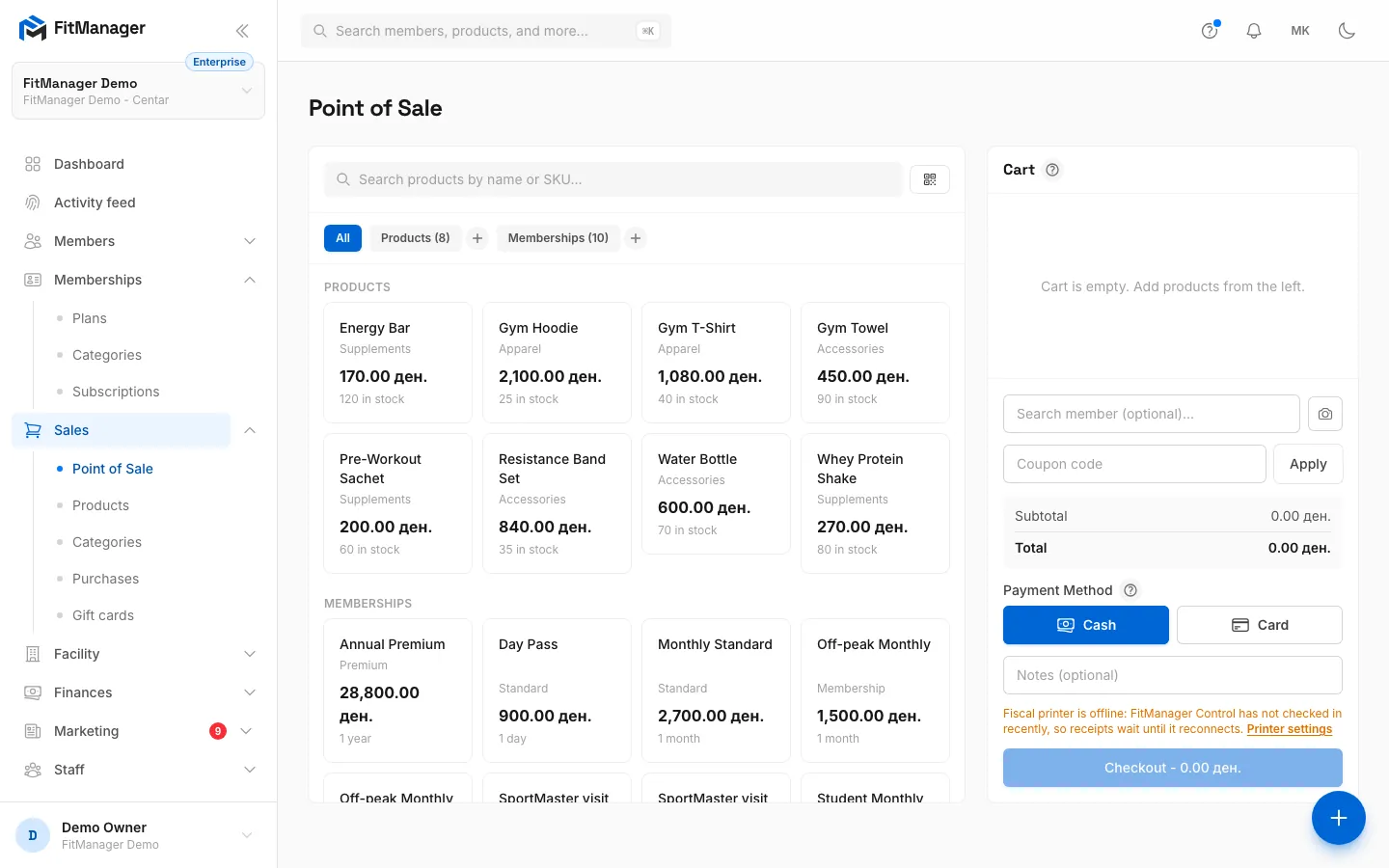
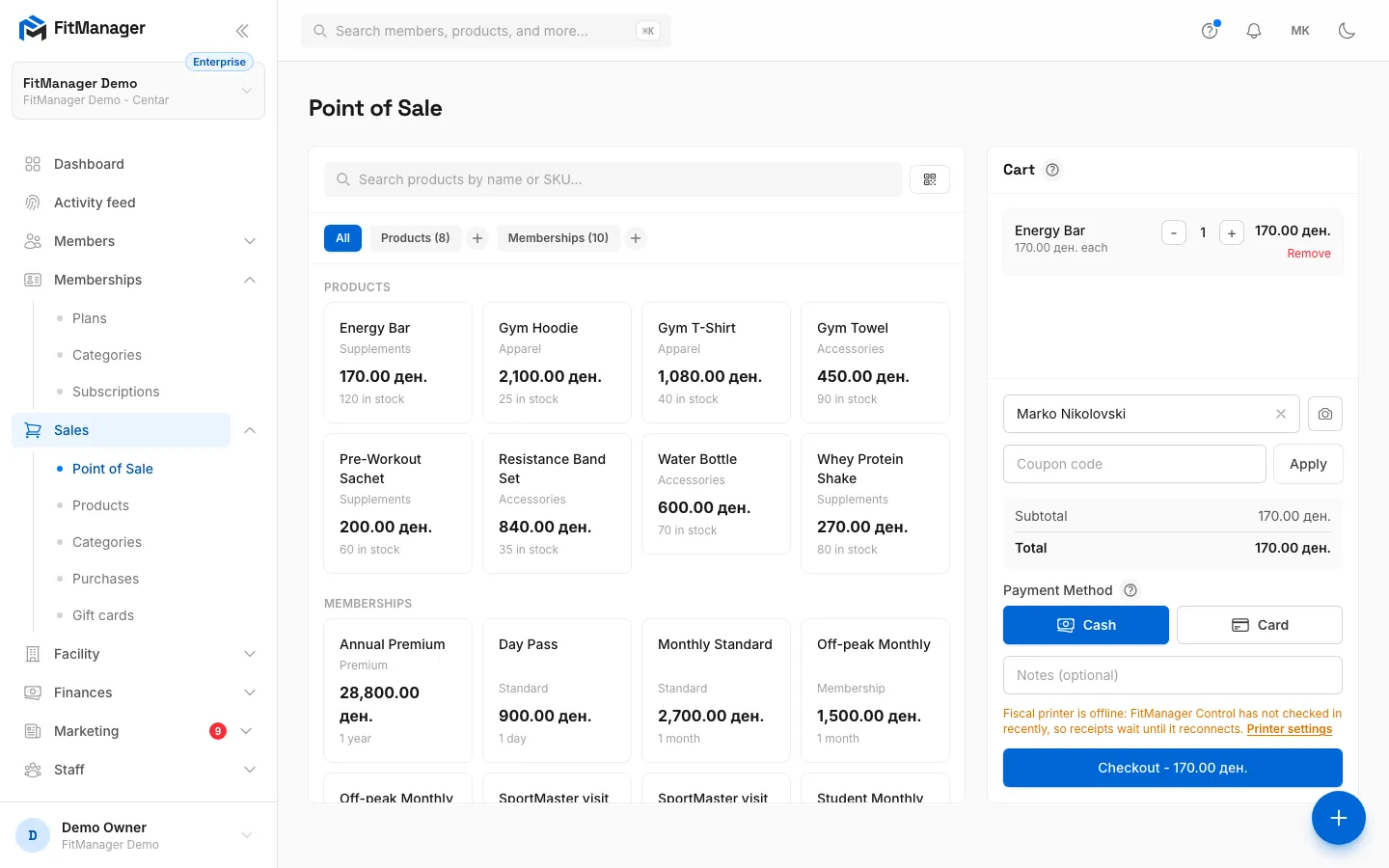
- Step 1: Click a product to put it in the cart. Click it again to add one more.
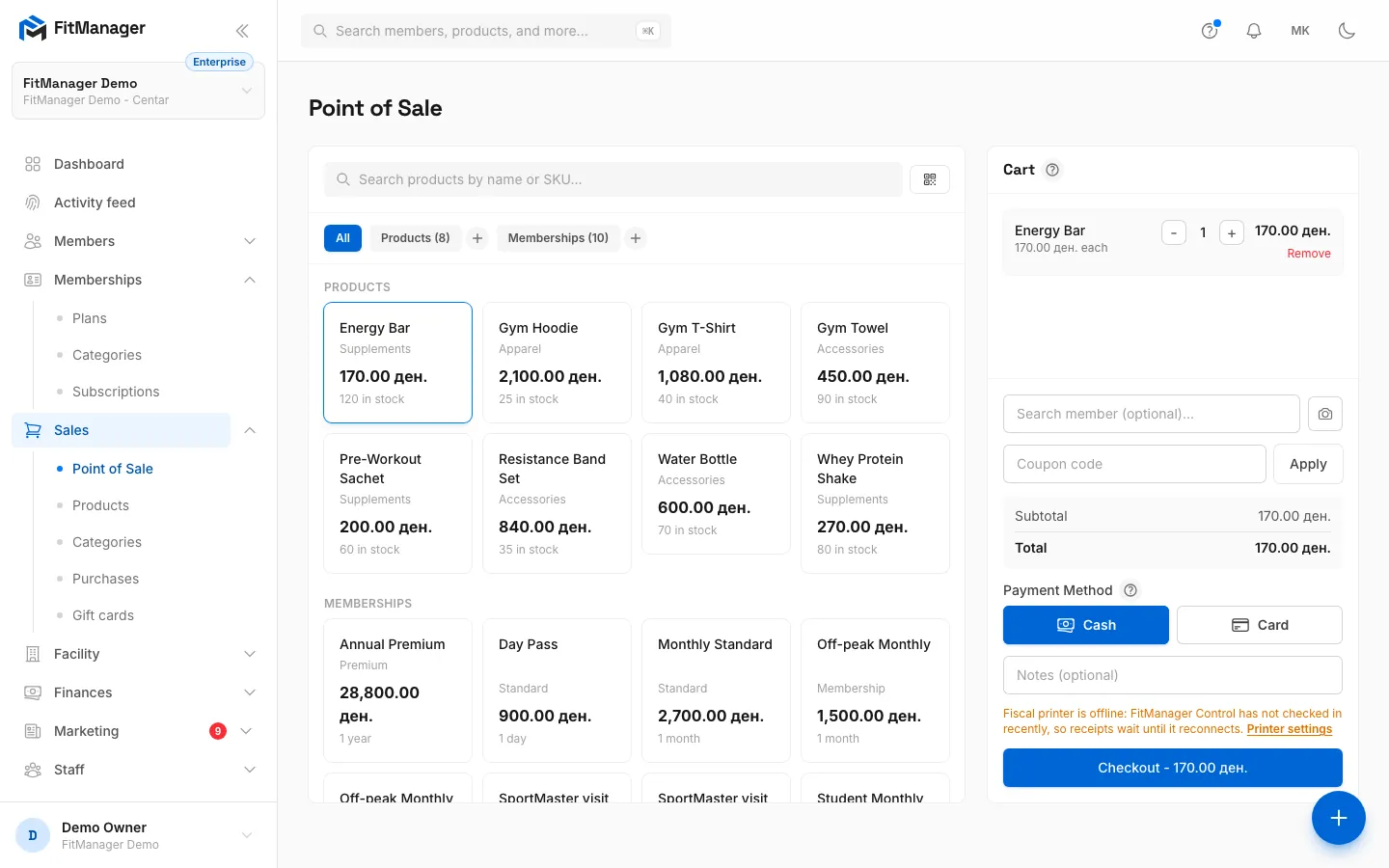
- Step 2: The cart lists every line. Use + and - to change the quantity, or Remove to take it out.
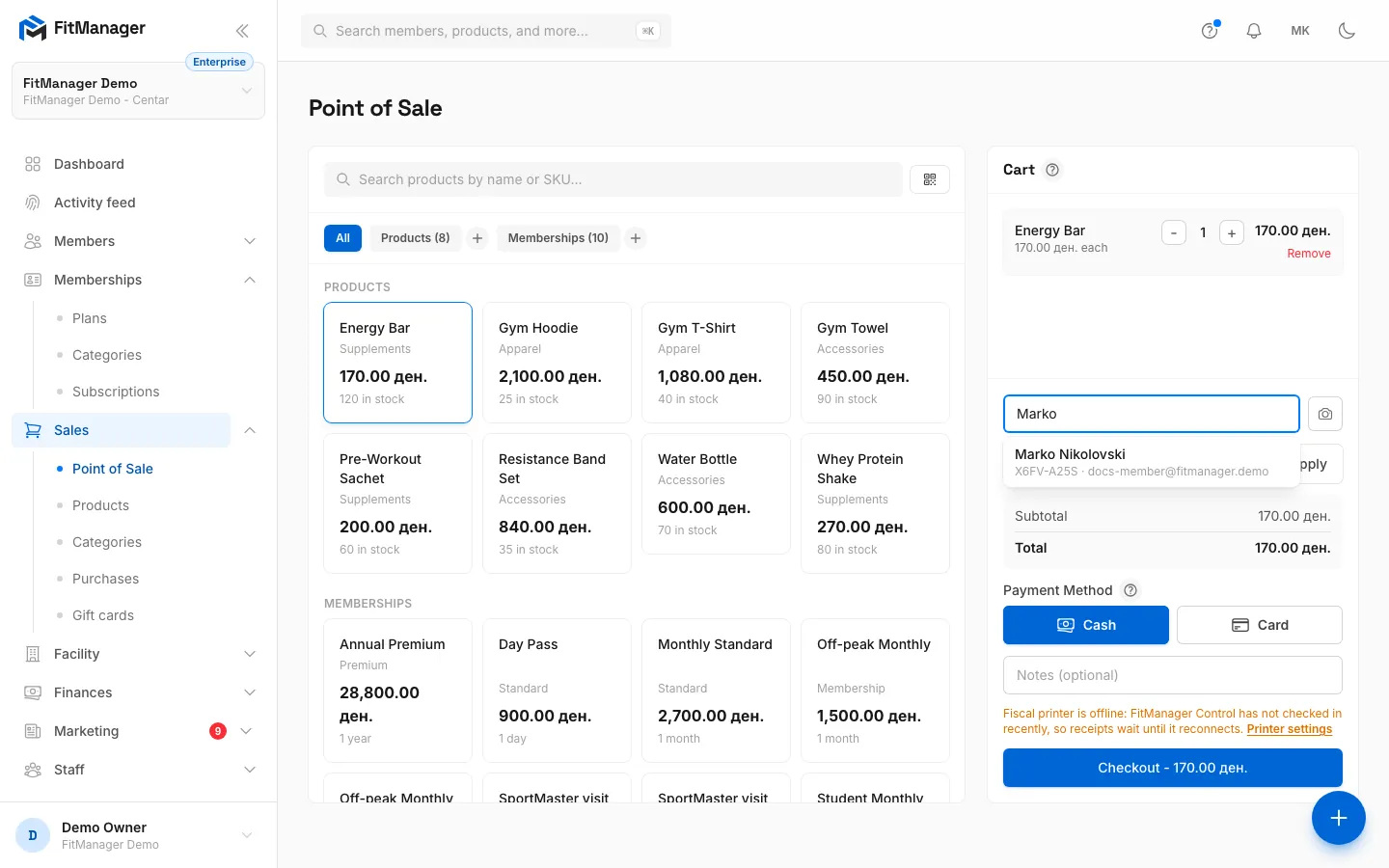
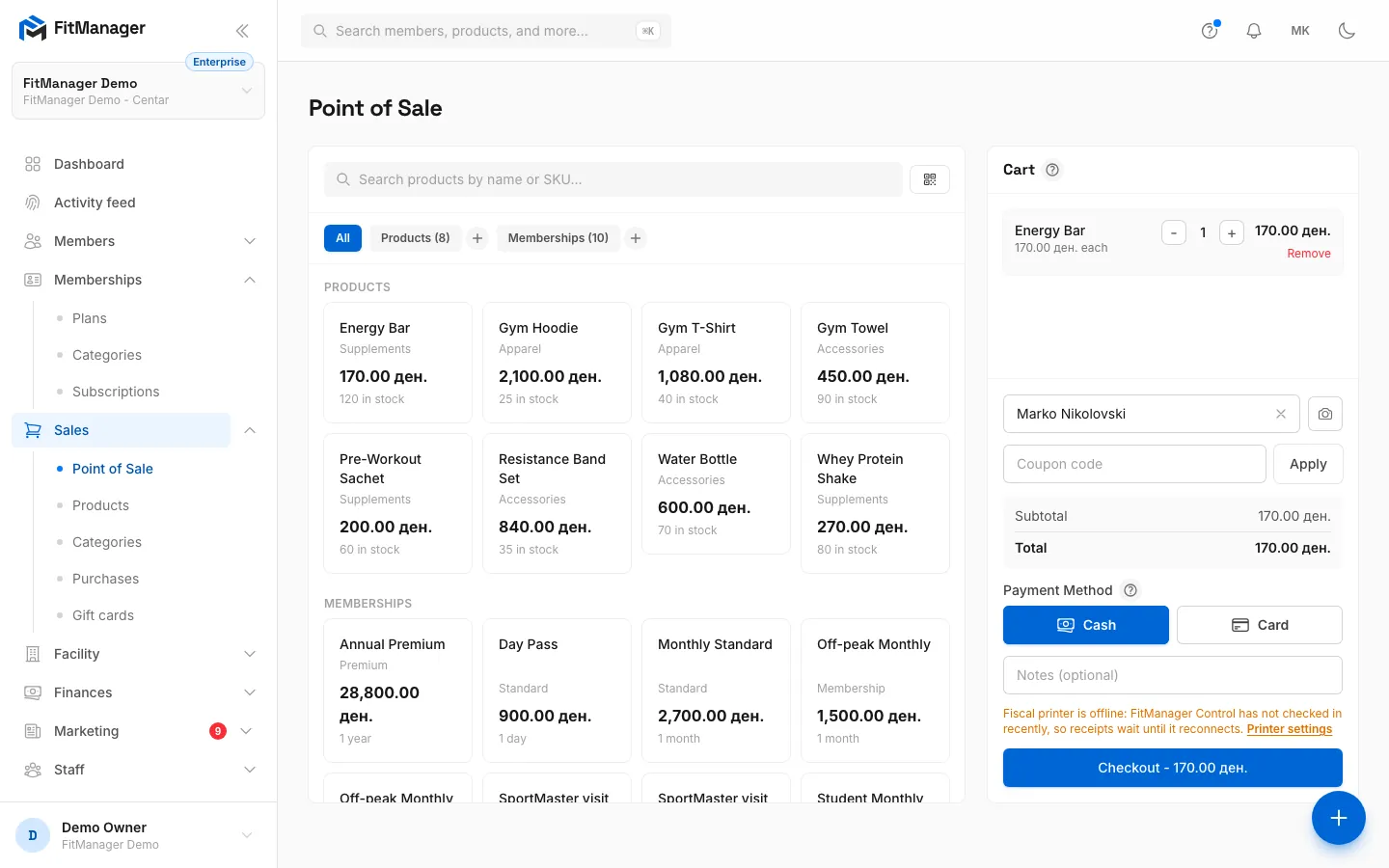
- Step 3: To link the sale to a member, start typing their name, code or email.
- Step 4: Pick the member from the list. A walk-in sale needs no member.
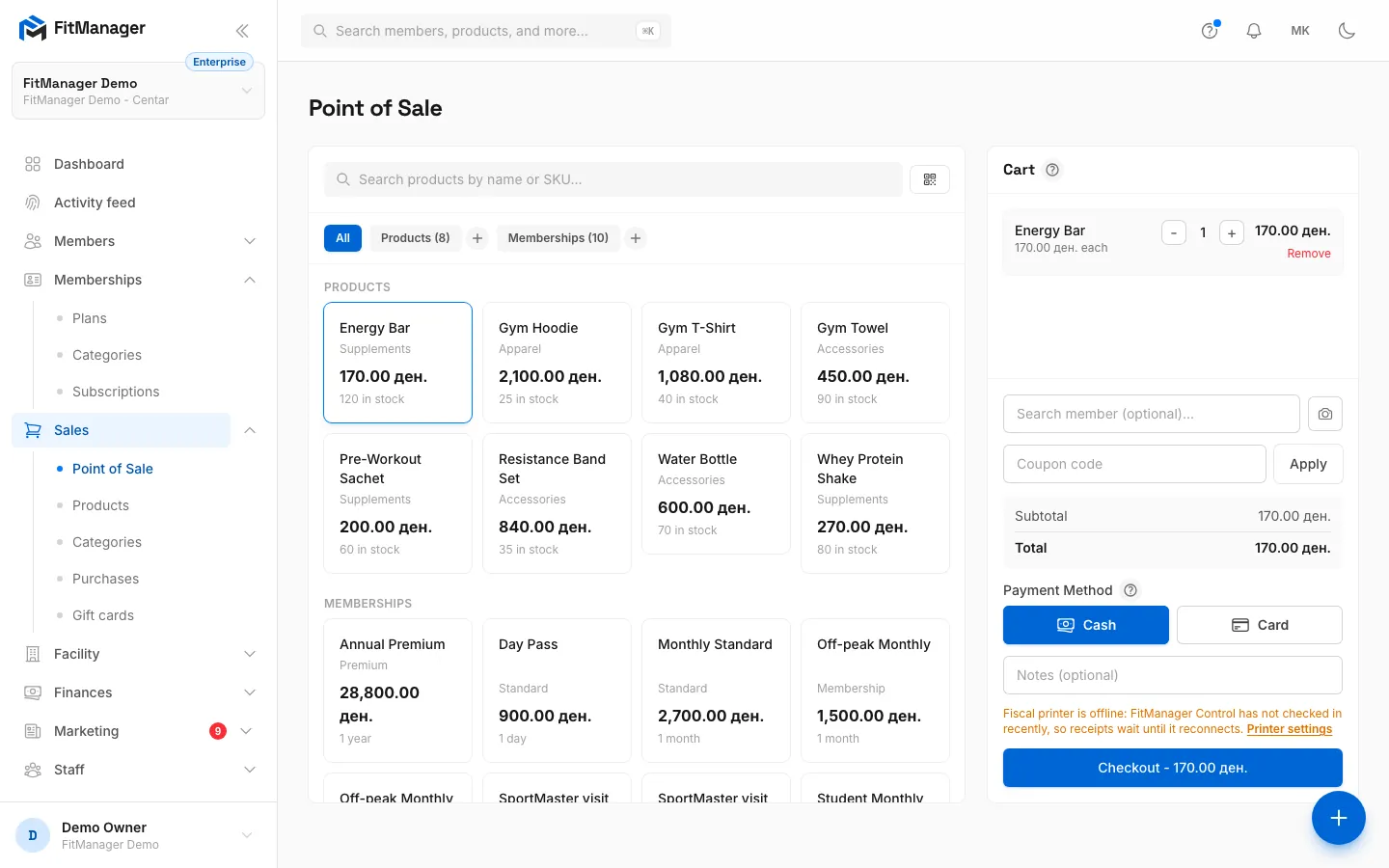
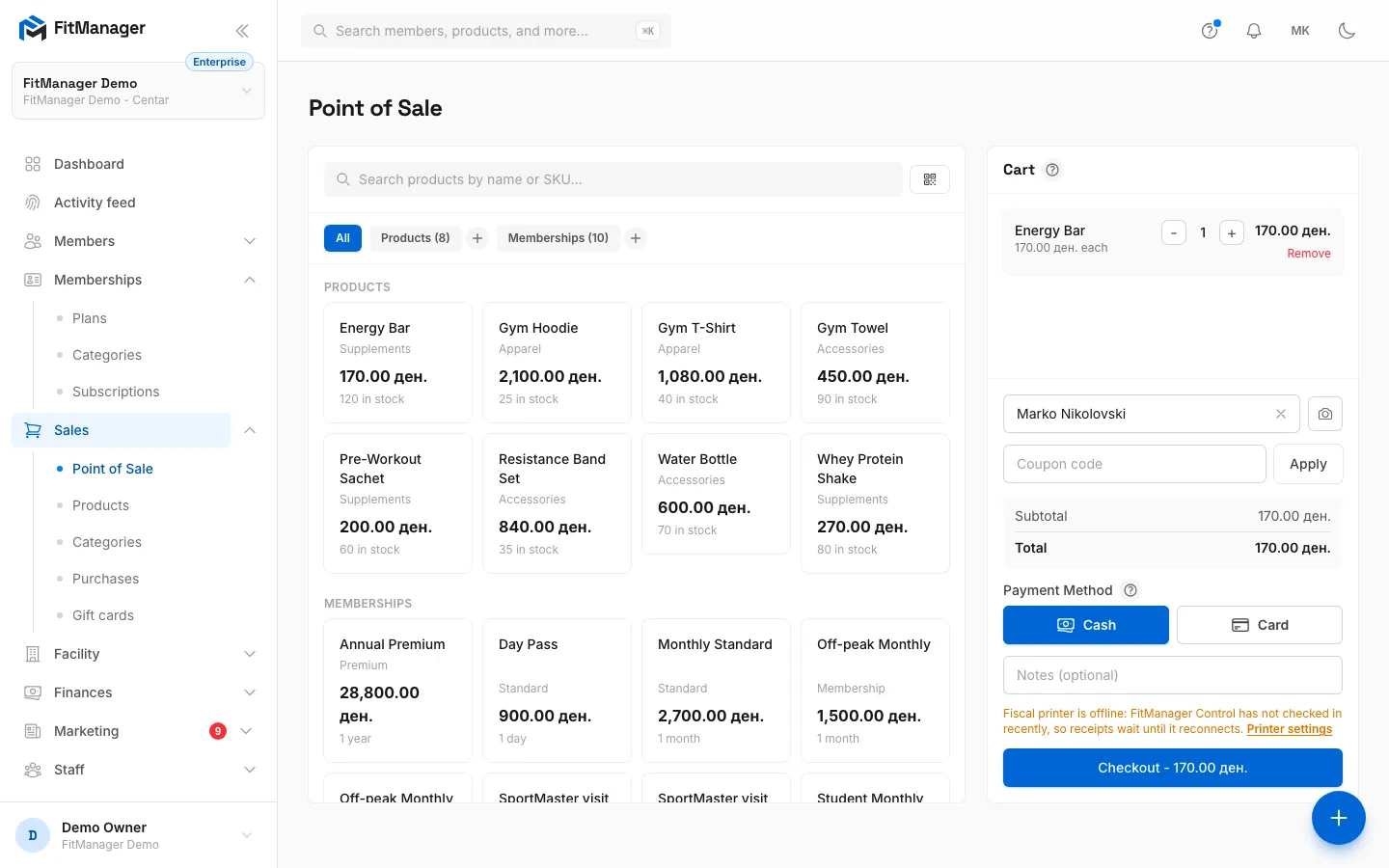
- Step 5: A coupon or gift card code goes here, then click Apply.
- Step 6: Choose how the customer pays, Cash or Card.
- Step 7: Click Checkout. The sale is recorded and the cart clears for the next customer.
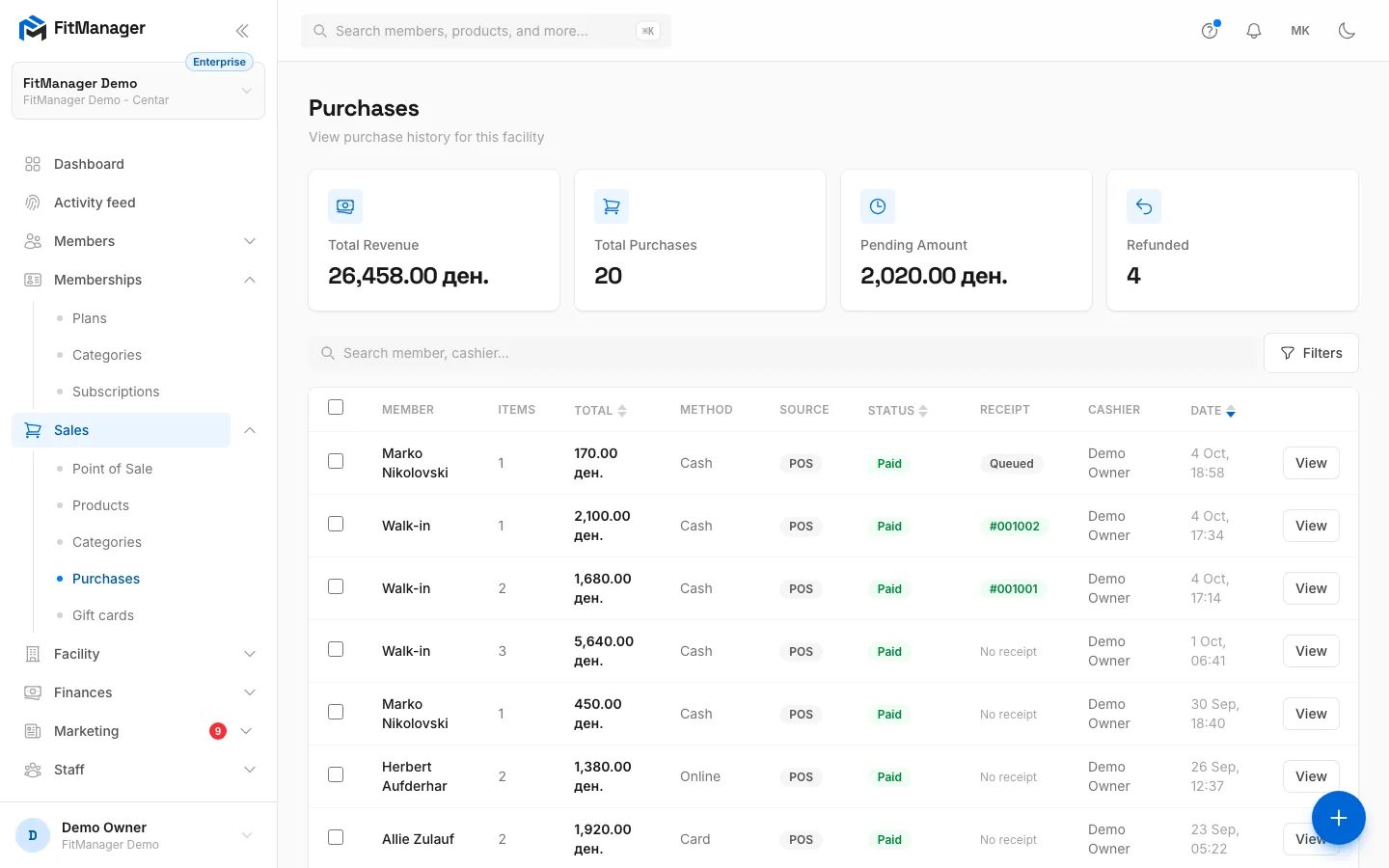
- Step 8: The sale is now at the top of Sales, Purchases, with its receipt status.
- Open Sales, Point of Sale.
- Click a product on the left to add it to the Cart. Click it again to add another one, or use + and - on the cart line. Remove takes the line out.
- To link the sale to a member, type at least two letters of their name, member code or email in Search member (optional)... and pick them from the list. A sale without a member is recorded as a walk-in.
- If the customer has a coupon or gift card code, type it in Coupon code and click Apply. The Discount line appears under Subtotal.
- Under Payment Method, choose Cash or Card.
- Add a note in Notes (optional) if useful, for example an invoice request.
- Click Checkout. The button shows the total you are about to charge.
The toast confirms the sale with its purchase number, and the cart clears for the next customer. When a fiscal printer is connected, the toast says the fiscal receipt is being printed.
What you can sell
The catalog on the left has three tabs: All, Products and Memberships. The search box finds products by name or SKU and memberships by name.
| Item | How it works at the POS |
|---|---|
| Product | Shows the price and, when you track stock, how many are left. You cannot add more than the stock you have. Inactive products are hidden. |
| Membership (one-time plan) | Needs a member first. The membership starts today and ends after the plan's validity. |
| Subscription | Also needs a member. The first period is paid at the till. |
Each membership plan can be in the cart only once per sale. If you click a membership before choosing a member, the POS asks you to Select a member before adding a membership to the cart.
Gift cards
Gift cards are sold at the self-service kiosk. At the POS you can take a gift card as payment: type its code in Coupon code and click Apply. See Gift cards.
Scanners and card readers
- Product barcodes: click the QR button next to the product search and point the camera at the product's code. The code is matched against the product's SKU, and the product goes into the cart. Keep scanning to add more.
- Member cards: click the camera button next to the member search to scan a member's QR code or barcode. A USB RFID reader at the desk also works: tap the member's card while the POS is open and the member is selected for you.
Payment methods
The POS takes two payment methods, Cash and Card. Unless the sale goes to a card terminal, it is recorded as paid the moment you click Checkout, so take the money first.
Requires: POS card terminal
When a card terminal is set up for your facility, choosing Card shows Send to payment terminal. Leave it on and the amount goes straight to the terminal on the desk. A Waiting for the terminal window stays open until the customer pays, and the sale completes only when the card is approved. Cancel payment stops it. If the card is declined or the payment is cancelled, the cart is kept so you can try again or take cash. See Card terminal.
Online payments from your website and the member portal are not taken at the POS. They are covered in Online payments with Stripe.
Fiscal receipts
Requires: Fiscal printing
Every cash or card sale with a total above zero gets a fiscal receipt on your facility's fiscal printer, printed by FitManager Control on the reception PC. The sale never waits for the printer: if it is out of paper, the receipt waits and you can retry it later from Purchases.
Users with the Manage settings permission see a Fiscal receipts switch above Checkout while the printer is online. Turning it off stops receipts for new sales at this facility, for example while the printer is at the service. If the printer has not checked in for a while, the POS says Fiscal printer is offline instead, and receipts wait until it is back. Setup is in Fiscal printer.
Point of sale settings
Settings, Facility settings, Point of sale shows what the sales screen at this facility is connected to. You need the Manage settings permission.
Requires: Fiscal printing
Under Fiscal receipts, Print fiscal receipts turns receipts on or off for this facility, the same as the switch on the POS. Printer chooses which of the facility's printers the POS prints on. Left on the first option, it uses the first enabled printer. Click Save to apply it.
Requires: POS card terminal
Under Card terminal you set up the desk terminal and see the recent card sales. See Card terminal.
Troubleshooting
| Message | What to do |
|---|---|
| Not enough stock for "...". Only N available. | The product's stock is lower than the quantity. Restock it on the Products page, or sell fewer. |
| Invalid or expired coupon code. | The code does not exist at this facility, is inactive, has expired or has reached its maximum uses. Check it under Coupons. |
| Order does not meet the minimum purchase amount for this coupon. | Add items until the subtotal reaches the coupon's minimum. |
| That gift card has no balance left. | The card is used up, voided or expired. |
| No member found for code "..." | The scanned card or QR code is not linked to a member of this facility. Search by name instead. |
| Could not access the camera. | Allow camera access in the browser, or use the search box. |
A sale cannot be edited after checkout. To give money back on a sale with a fiscal receipt, print a storno from Purchases.
Was this page helpful?
Related articles
Still stuck?
Write to us and we will get back to you within one working day.