Products and product categories
Add the drinks, supplements and services you sell, track stock, group them in categories and choose what the kiosk shows.
Products are everything you sell at reception that is not a membership: water, protein shakes, towels, a massage or a personal training session. Each product has a price, an optional stock count and a VAT group, and appears as a tile on the Point of Sale.
Before you start
- To see and add products you need the View products permission. Owners have it and new employees get it by default.
- To manage Categories you need the Manage products permission.
- Products belong to one facility. Switch facility first if you run several locations.
Add a product
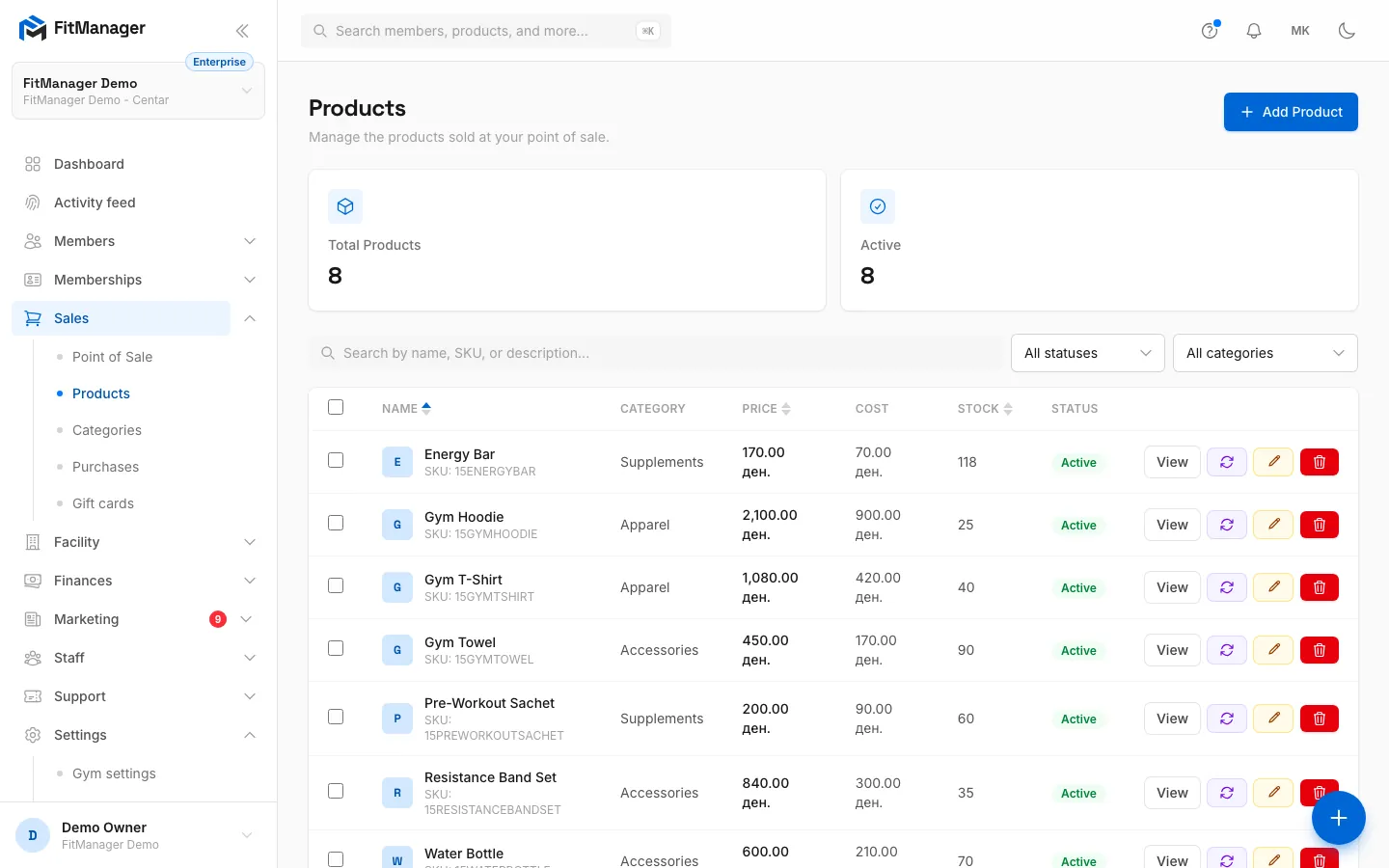
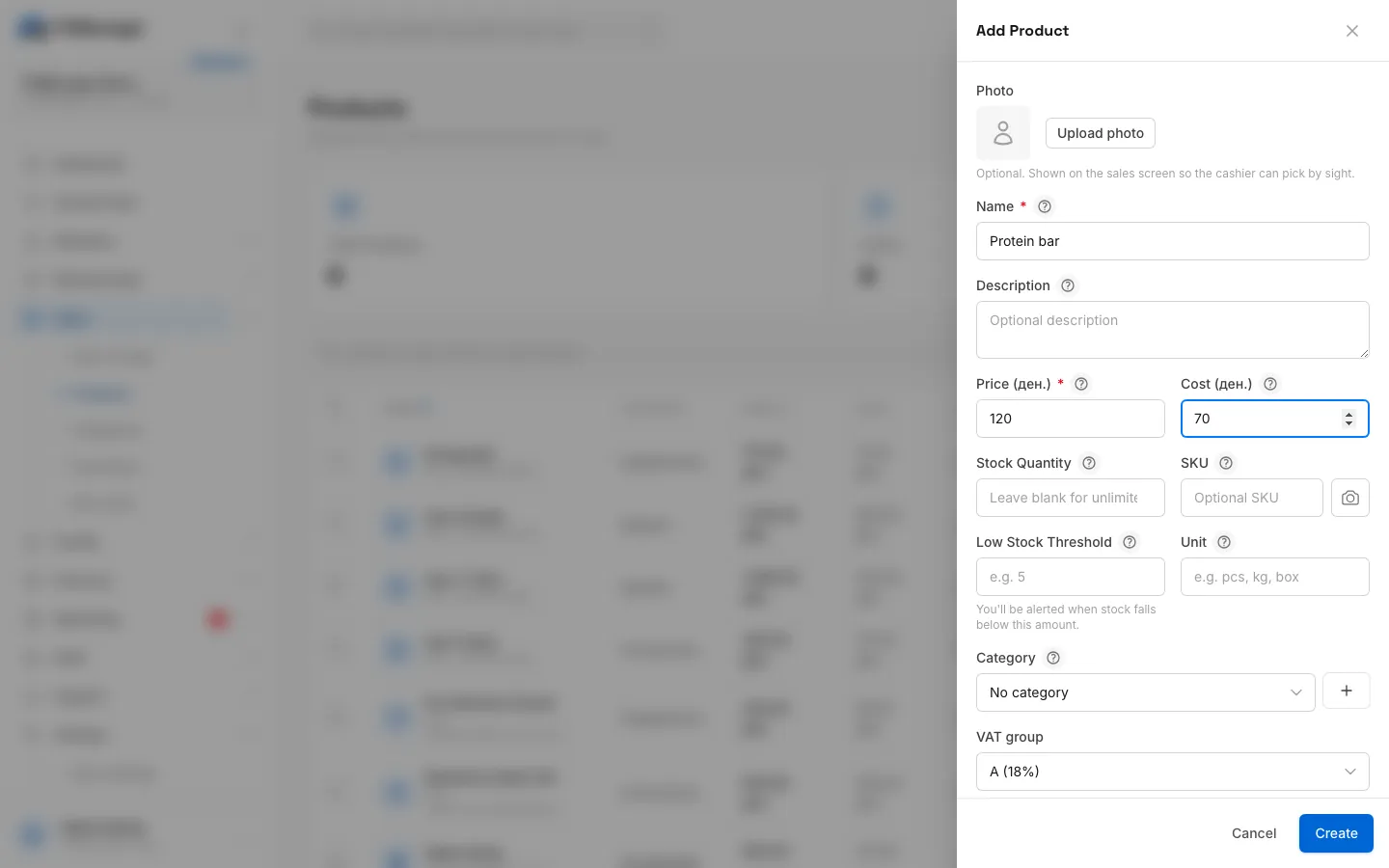
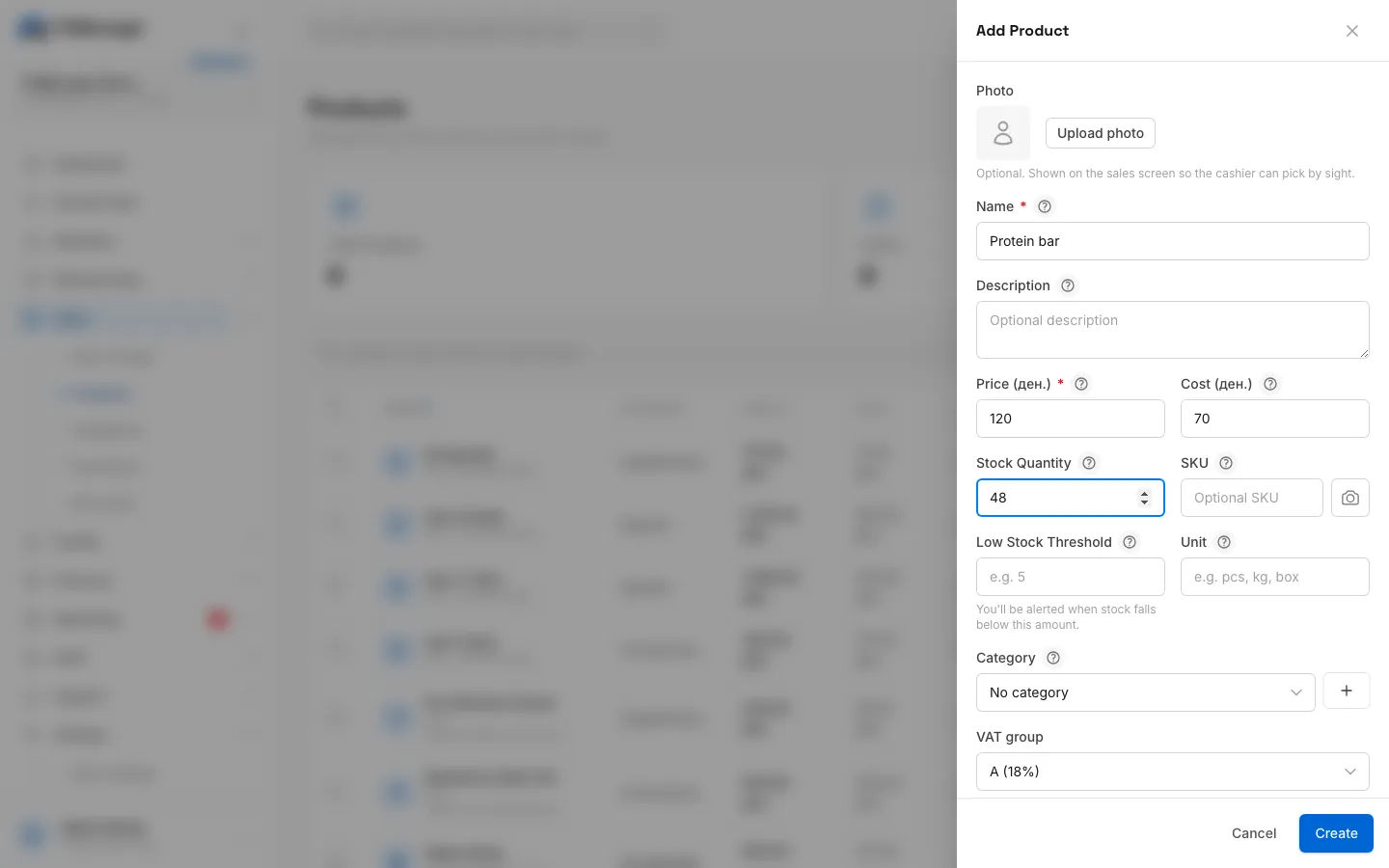
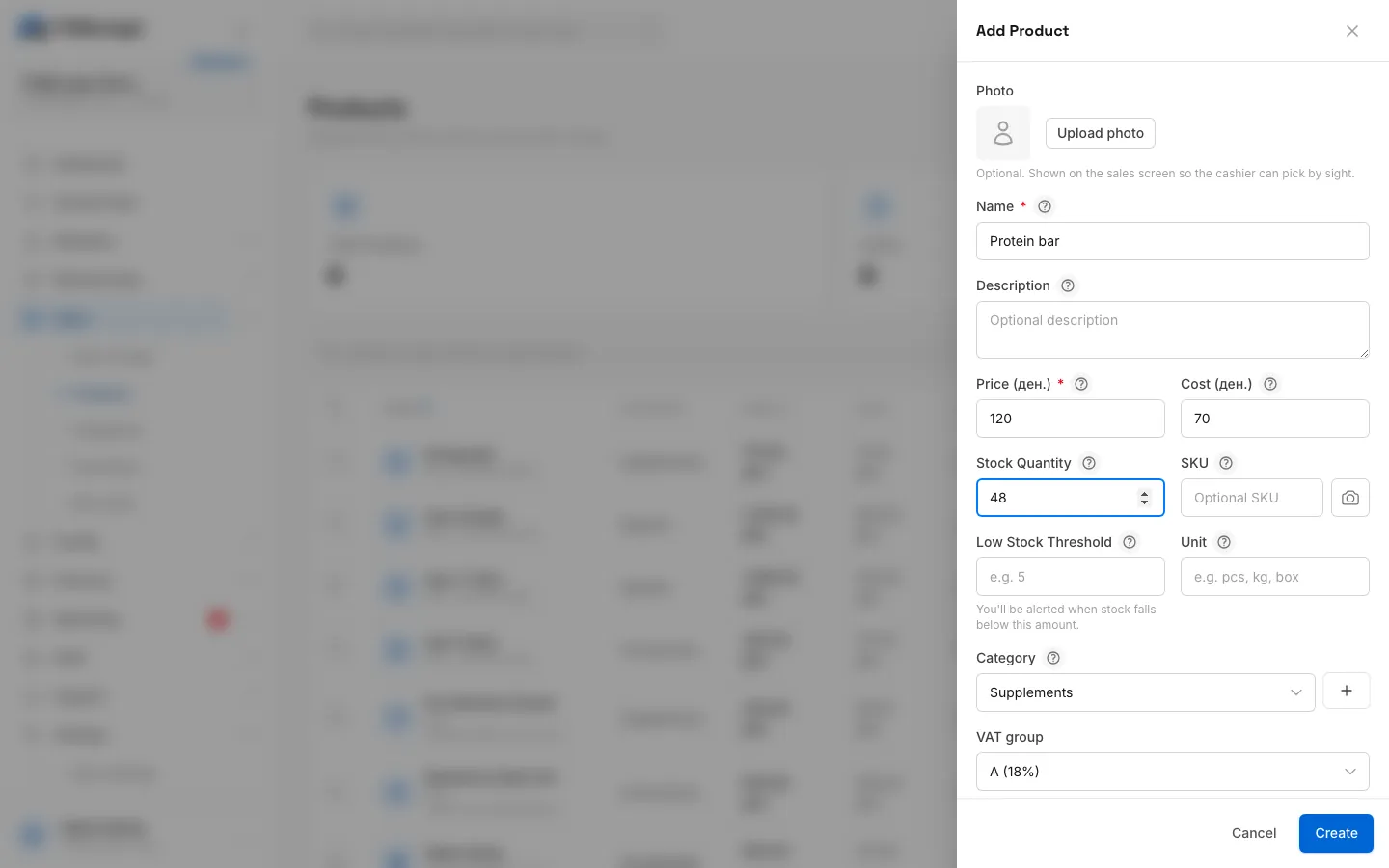
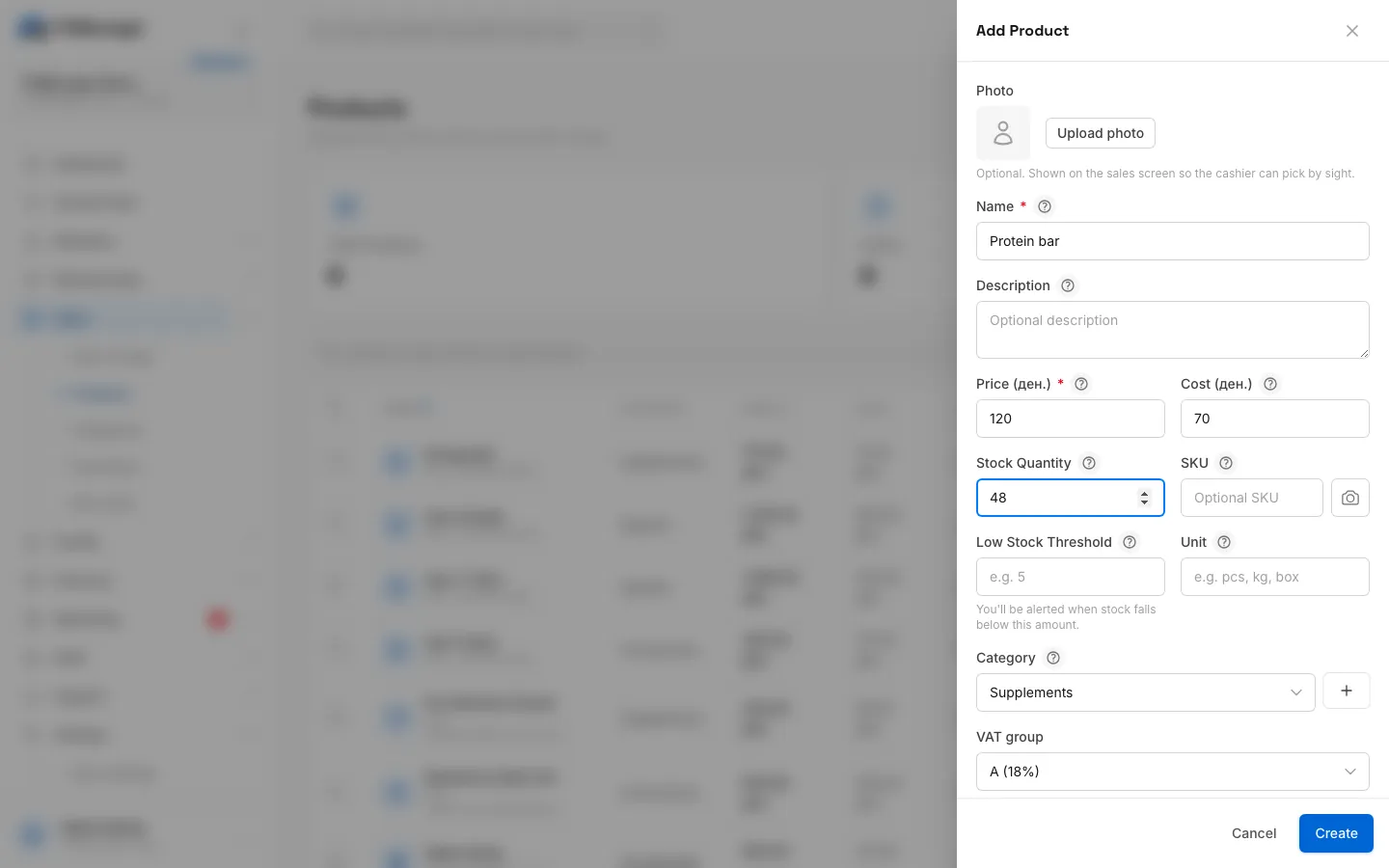
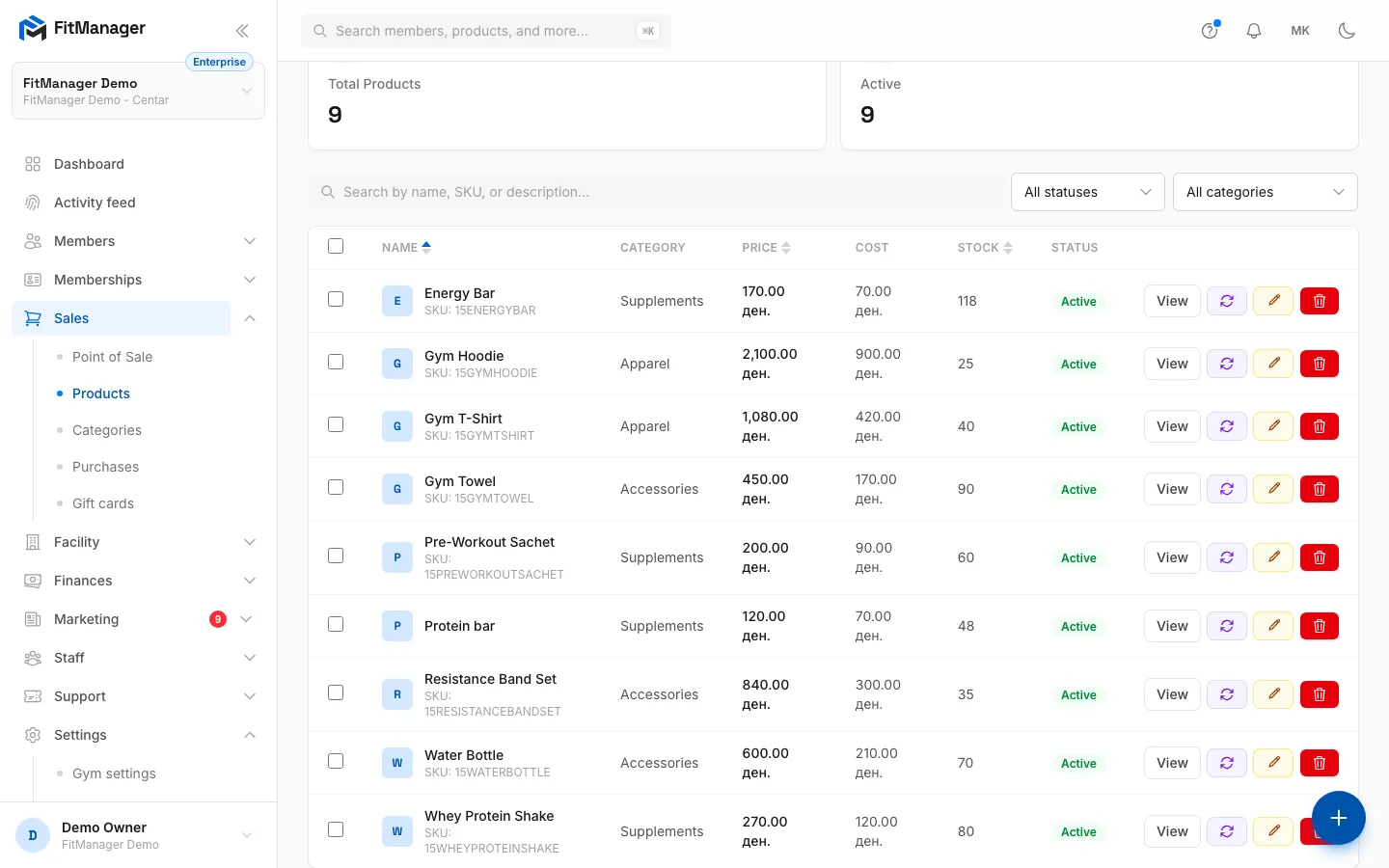
- Step 1: On the Products page, click Add Product.
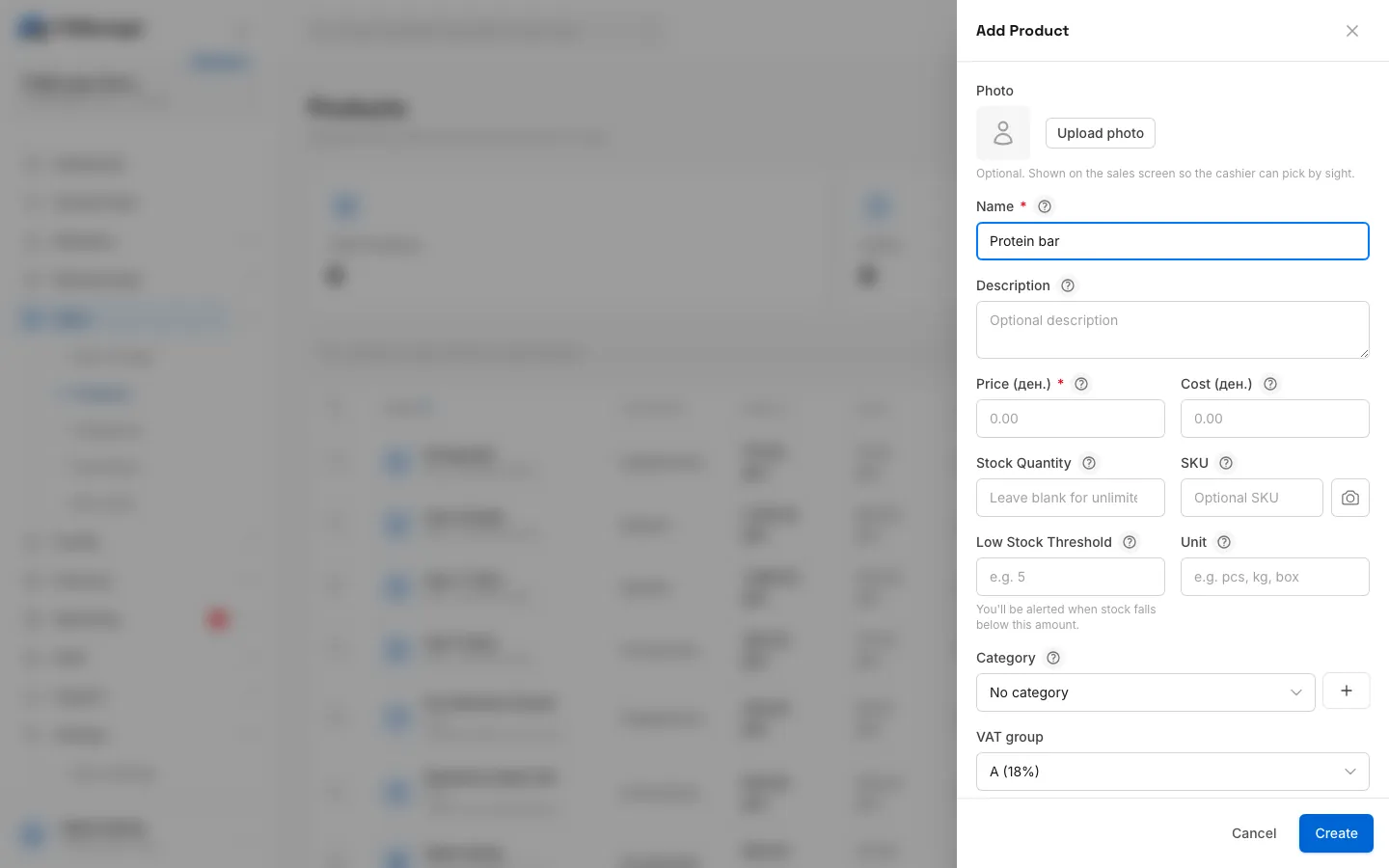
- Step 2: Type the name the cashier and the receipt will show.
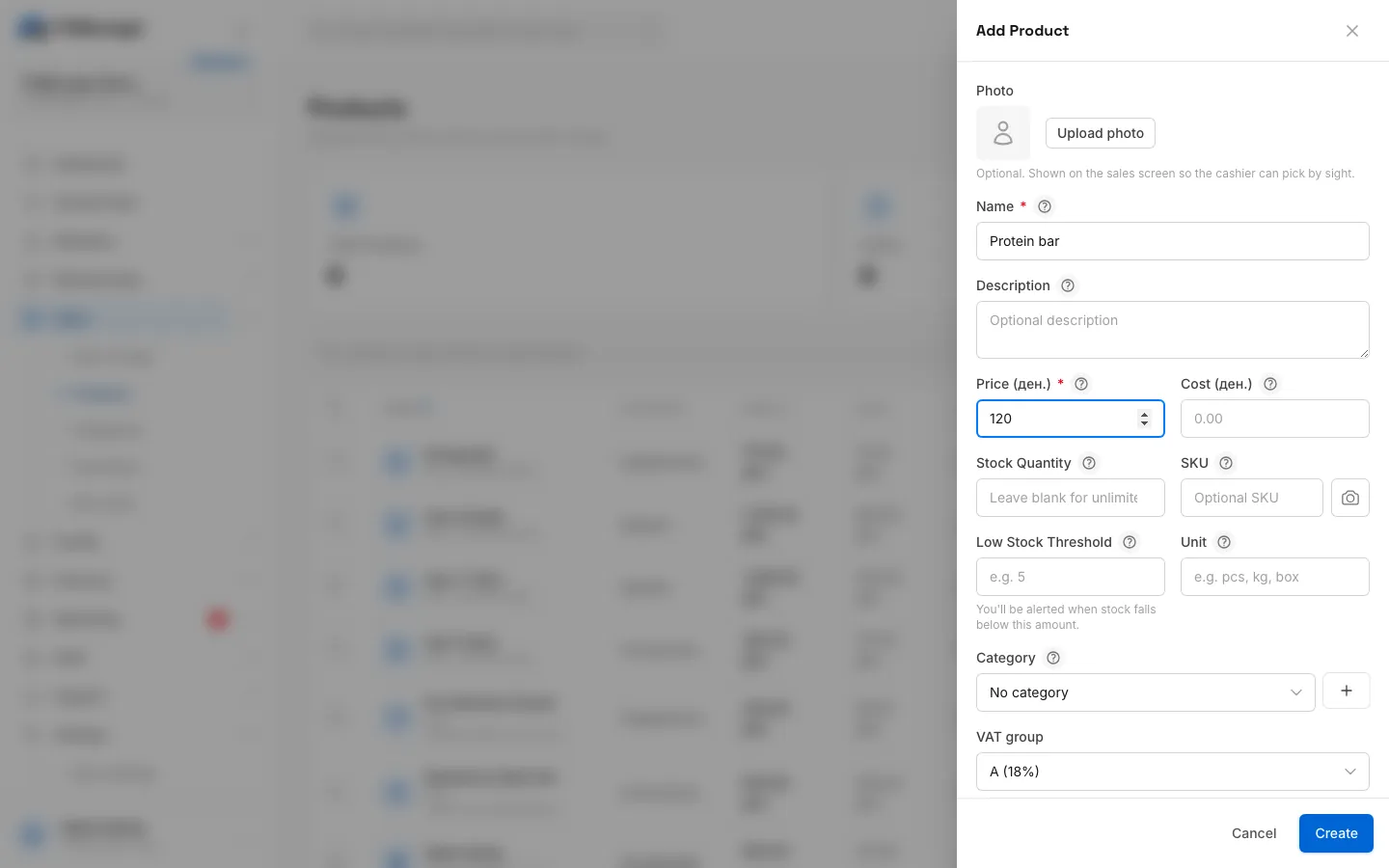
- Step 3: Enter the selling price.
- Step 4: The cost is optional and only for your own margin overview.
- Step 5: Enter how many you have. Leave it empty for a service that never runs out.
- Step 6: Put it in a category, so the POS and the kiosk can group it.
- Step 7: Pick the VAT group the fiscal printer uses for this product.
- Step 8: Click Create.
- Step 9: The product is in the list and ready to sell at the POS.
- Open Sales, Products.
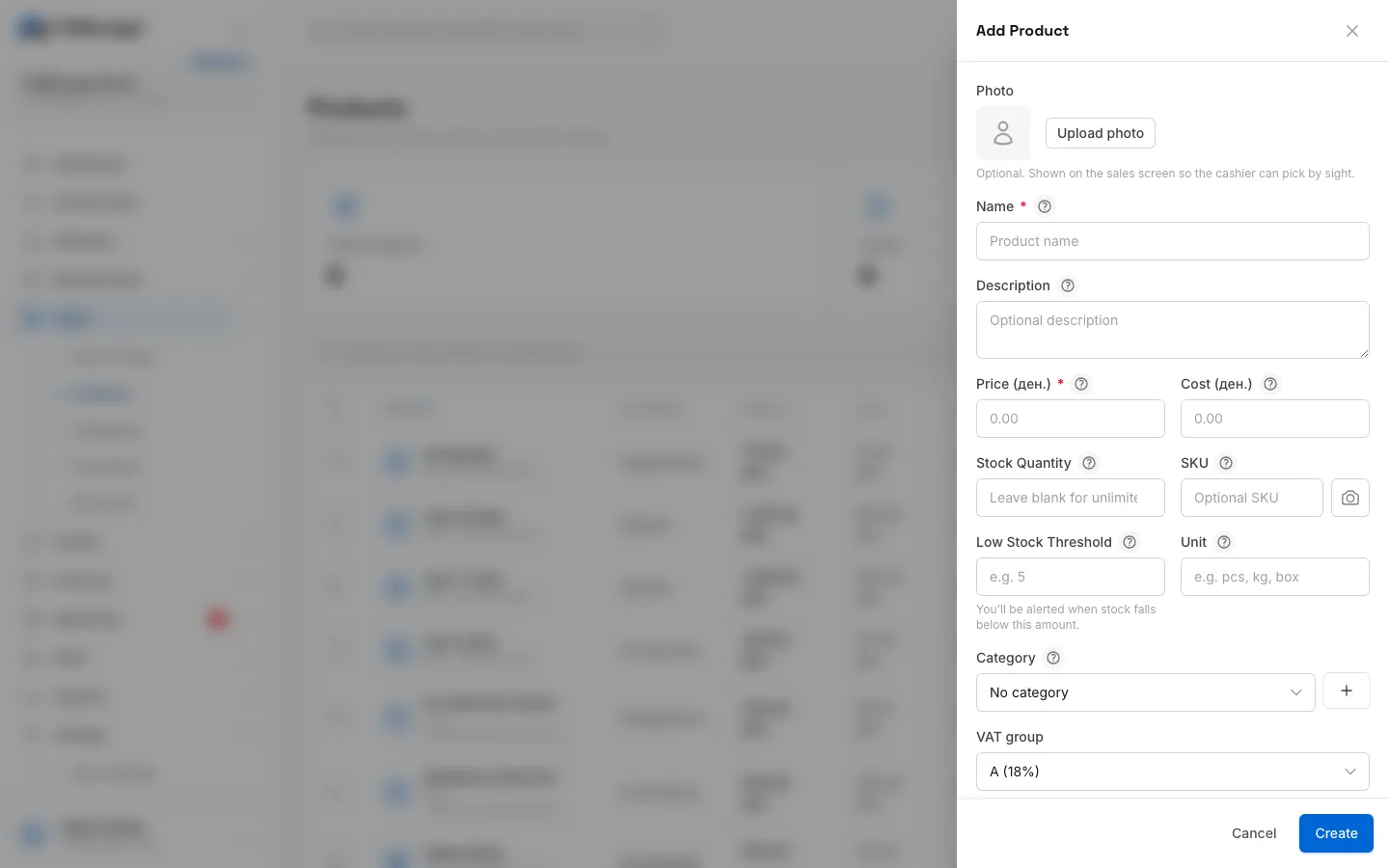
- Click Add Product. A panel opens on the right.
- Fill in the fields below and click Create.
You can also add a product without leaving the till: on the Point of Sale, click the + next to the Products tab. That quick form asks only for the name, price and stock.
| Field | What it does |
|---|---|
| Photo | Optional. Shown on the POS tile so the cashier can pick by sight. Up to 4 MB. |
| Name | Required. Shown on the POS, on the receipt and in reports. |
| Description | Optional, for your own reference. |
| Price | Required. What the customer pays, VAT included. |
| Cost | Optional. What the product costs you. Shown next to the price in the list. |
| Stock Quantity | How many you have. Leave it blank for something that never runs out, such as a service. |
| SKU | Optional code. The POS search and the barcode scanner find products by it. The camera button next to the field scans a barcode into it. |
| Low Stock Threshold | Optional. Stored with the product as your reorder level. |
| Unit | Optional, for example pcs, kg or box. |
| Category | Groups products on the POS and the kiosk. The + button next to it creates a new category on the spot. |
| VAT group | The fiscal printer's tax letter for this product: A (18%), B (5%), V (10%) or G (0%). Defaults to A. |
| Status | Active products are sold. Inactive ones are hidden from the POS and the kiosk but keep their history. |
Requires: Self-service kiosk
Once your gym has a kiosk, the form also shows Show on the self-service kiosk. Turn it off to keep one product off the kiosk even when its category is shown there. See Self-service kiosk.
Stock
When Stock Quantity is filled in, every sale takes the sold quantity off, and the POS refuses to sell more than you have. To add new deliveries, click the restock button on the product's row, enter Quantity to Add and confirm. The panel shows the New total: before you save.
Products without a stock quantity are never limited.
The product page
Click View on a product to open its page. It shows the Price, In Stock, Units Sold and Revenue, the product's details, and Recent Sales (the last 50) with the member, quantity, price and date. Edit opens the same form as on the list.
Product categories
Categories keep the POS and the kiosk tidy, for example Drinks, Supplements, Apparel and Services.
- Open Sales, Categories.
- Click Add Category.
- Enter a Name, an optional Description and a Sort Order. Lower numbers come first.
- Click Create.
Deleting a category does not delete its products. They stay, without a category.
Requires: Self-service kiosk
The kiosk shows product categories as tabs. You choose which categories each kiosk shows in its settings, so a category such as Massages can be sold at the kiosk while Apparel stays at the desk.
Delete and export
- To delete a product, click the delete button on its row and confirm. A product that has been sold cannot be deleted, because its sales history refers to it: set it to Inactive instead.
- Tick several products to Export them to a file, or Delete them in one go. Products with sales are skipped and the toast says how many.
Common questions
Why can't I find a product on the POS?
It is Inactive, or it belongs to another facility. Check the status filter on the Products page.
The POS says there is not enough stock, but the shelf is full
The stock count in FitManager is lower than reality. Restock the product with the difference.
Which VAT group should I choose?
Use the letter your fiscal printer's service programmed for that type of item. Ask your accountant if you are not sure. The letter is copied onto each sale, so changing it later does not change old receipts. See Fiscal printer.
Was this page helpful?
Related articles
Still stuck?
Write to us and we will get back to you within one working day.