Sign in to the member portal
How to sign in to your gym's member portal, set your password the first time and get back in when you forget it.
The member portal is your gym's own page for members. Once you are signed in you can see your membership and the days you have left, show your digital card at the door, check your visits and payments, and more.
Find your portal
Every gym has its own portal, so you sign in at your gym's address, not at a general one. You can get there in any of these ways:
- From your gym's website. Look for Member Login in the menu.
- From the email you got when you joined. It has a button that takes you straight to the portal.
- From the app. If your gym uses the FitManager app or has its own app, it opens the portal for you. See Install the app.
- Ask the front desk. They can tell you the exact address. It usually looks like
fitmanager.com/your-gym/member, or/memberat the end of your gym's own website address.
Once you are in, bookmark the page or add it to your home screen so it is one tap away next time.
First time: set your password
When the gym adds you as a member, you get a welcome email with a Set up my account button. The link in it is personal and works for 7 days.
- Open the email and tap Set up my account.
- Check that your email is filled in on the Set your password page.
- Type a password of at least 8 characters in New password, and again in Confirm password.
- Tap Save password & sign in. You go straight to your portal.
Sometimes the gym sets a password for you instead. Then the welcome email lists your email and password. Sign in with them and change the password afterwards under Settings, then Edit contact details and password.
Sign in
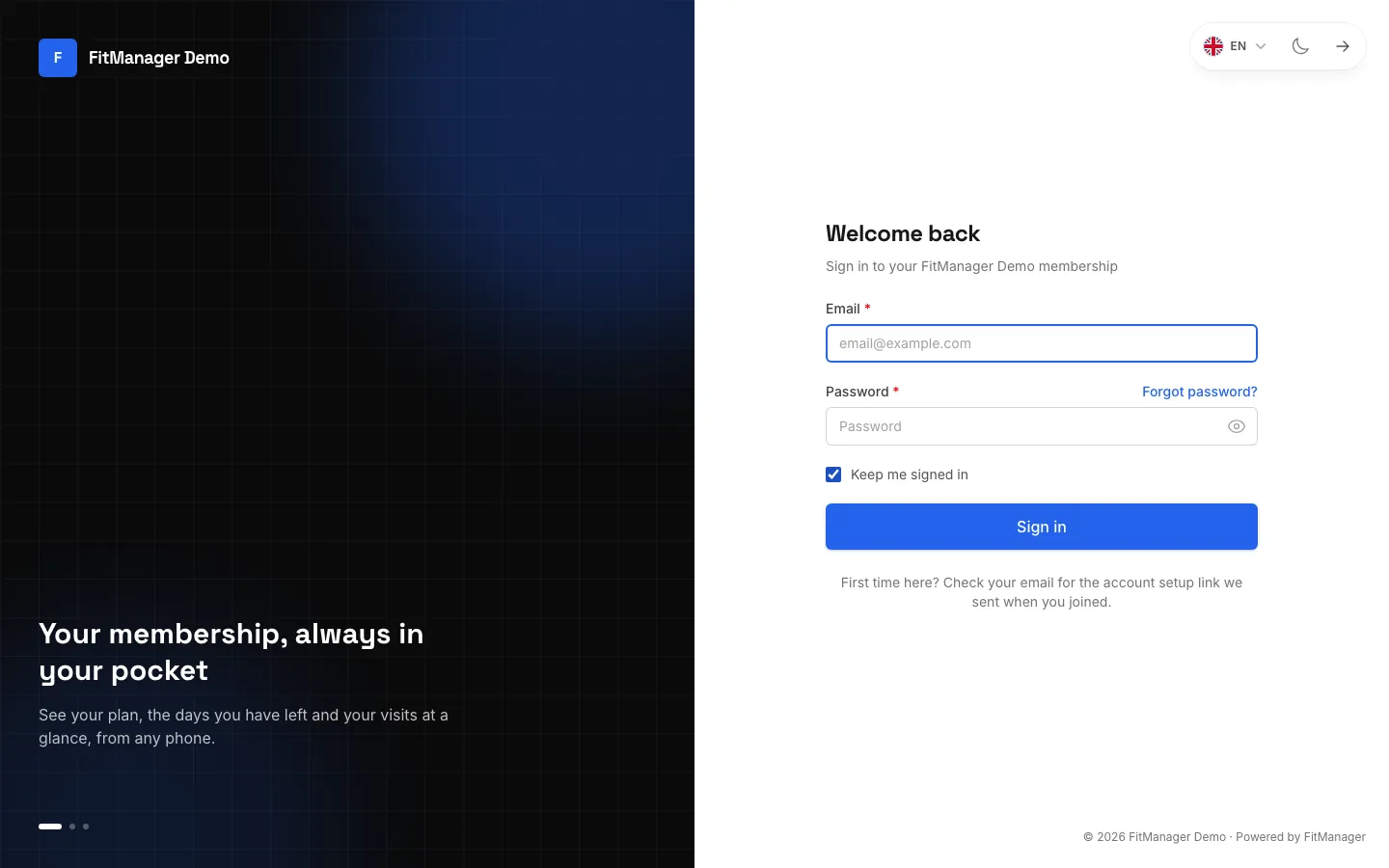
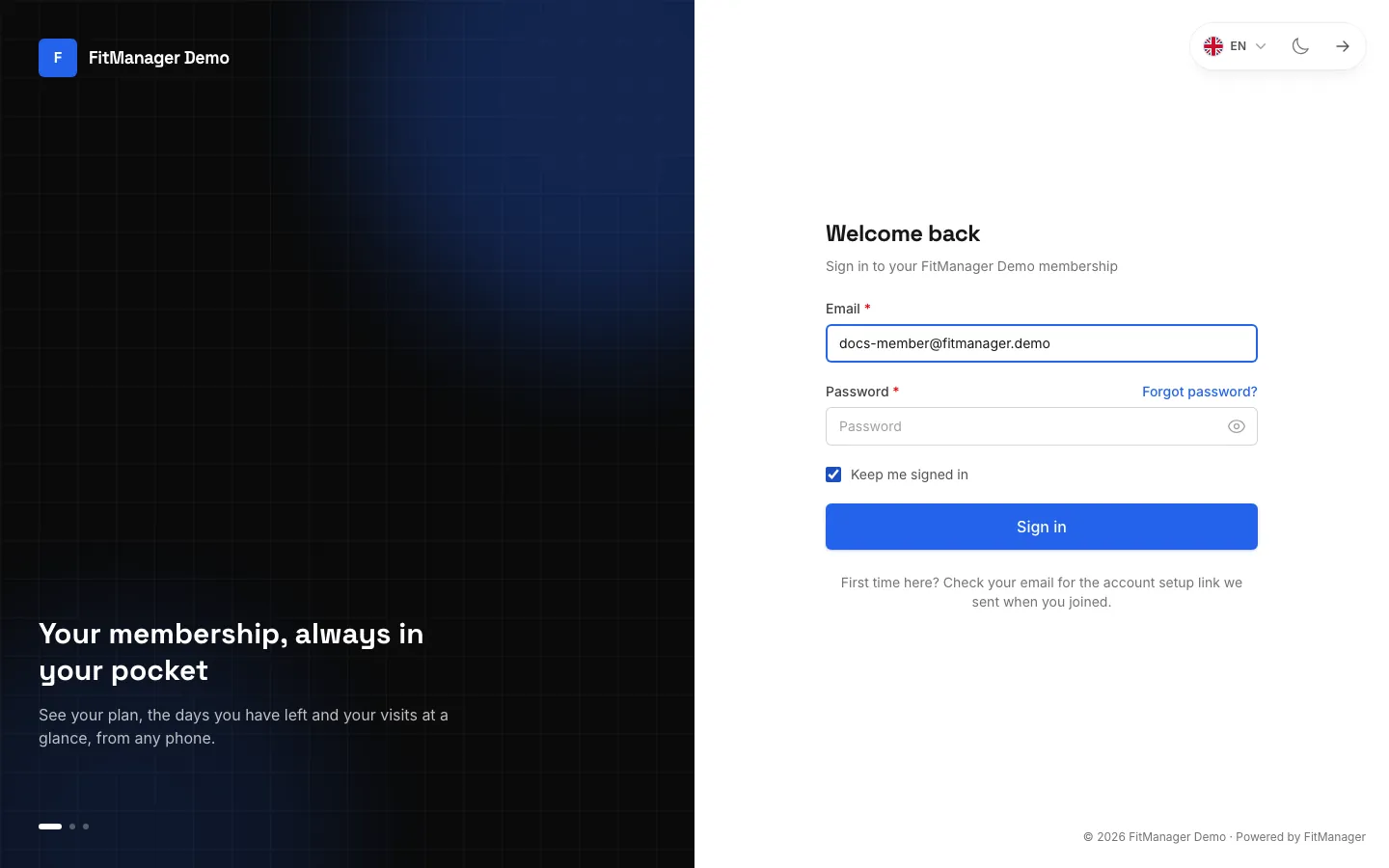
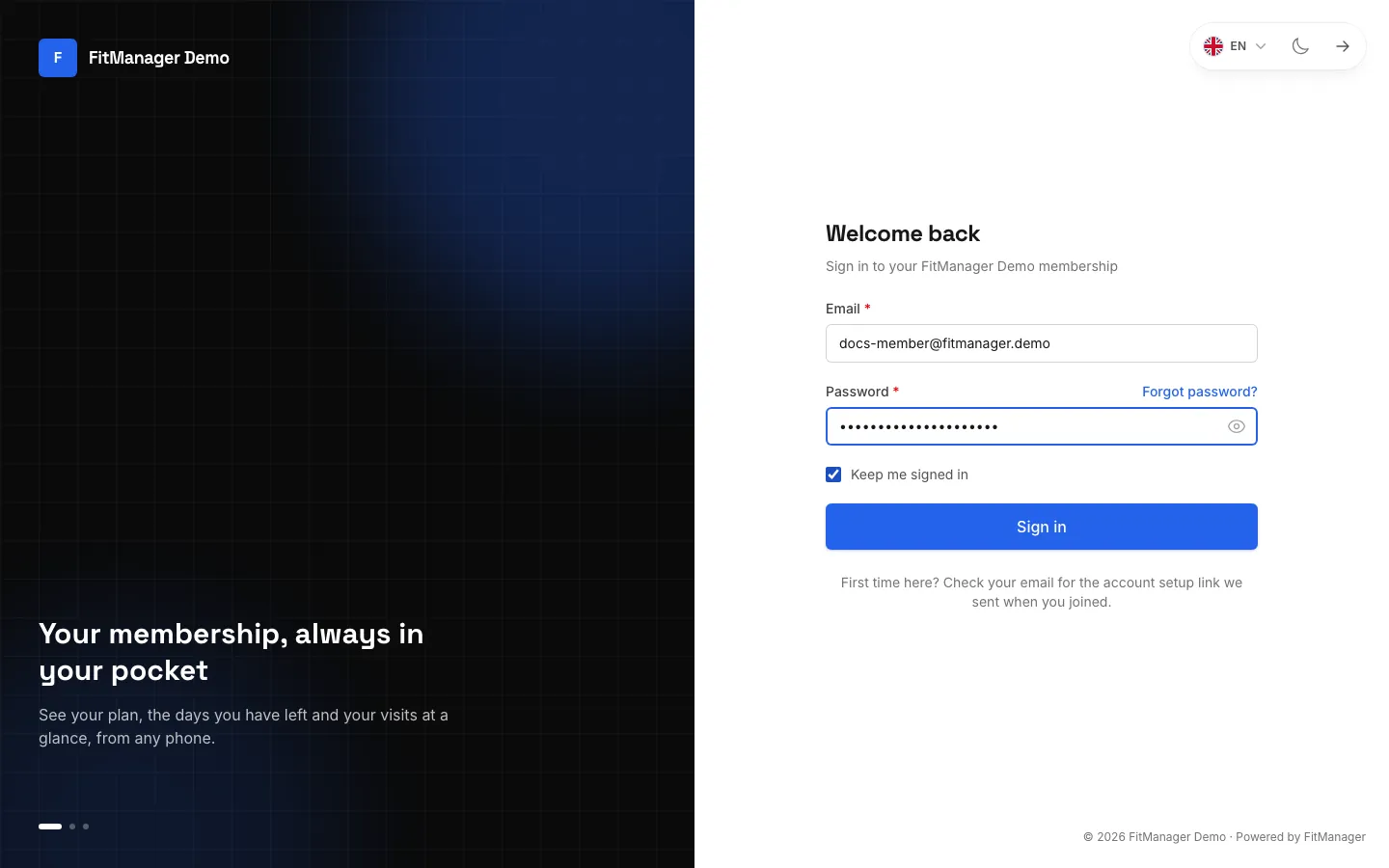
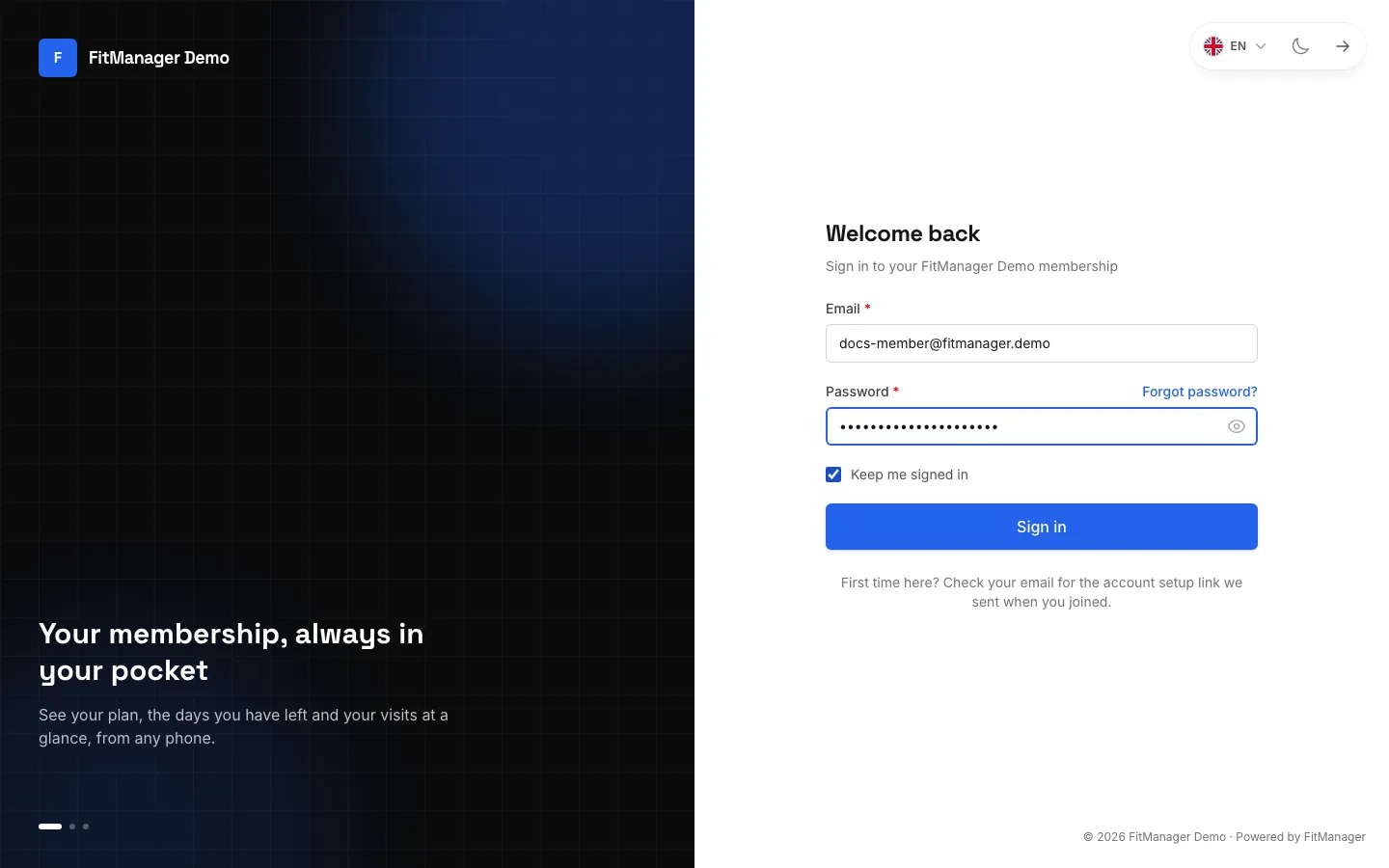
- Open your gym's portal. You see Welcome back with your gym's name.
- Type your Email and Password.
- Leave Keep me signed in ticked on your own phone, so you stay signed in. Untick it on a shared computer.
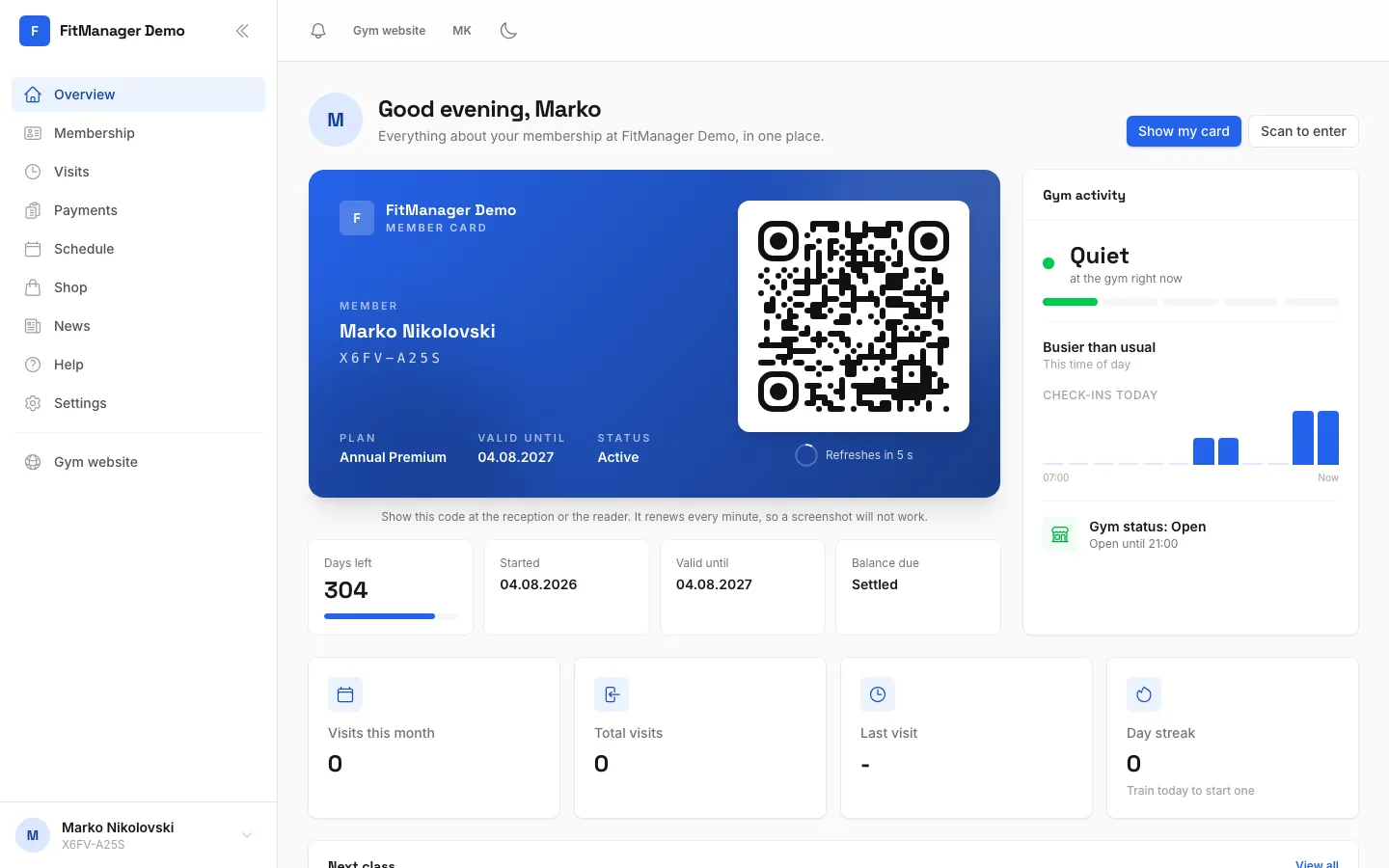
- Tap Sign in. You land on the Overview.
Forgot your password
- On the sign-in page, tap Forgot password?.
- Type the email on your membership and tap Send reset link.
- Open the email from your gym and tap Choose a new password. The link works for 7 days.
- Choose a new password and tap Save password & sign in.
For your privacy, the page always says Check your inbox, even if that email is not on file, so it cannot be used to find out who is a member.
Common problems
"These credentials do not match our records"
The email or the password is wrong. Check for typos and a space at the end of the email. Use the email the gym has for you, which is not always your everyday one. If you are not sure which email it is, ask the front desk.
"Too many login attempts"
After 5 wrong tries the page makes you wait a minute. Wait for the countdown, then try again, or reset your password.
The reset or setup email never arrived
Check your spam or promotions folder and wait a few minutes. You can request a new link up to 3 times every 5 minutes. If nothing arrives, the gym may have a different email for you, so ask the front desk to check it and resend the link.
The link says it is invalid or expired
Setup and reset links work for 7 days and only once. Tap Forgot password? on the sign-in page to get a fresh one.
I am a member at two gyms
Each gym has its own portal and its own account. Sign in at each gym's portal separately. See Switch between gyms.
I see a red notice after signing in
If your account is frozen, inactive or blocked, the Overview says so at the top and you may not be able to scan in. Only the gym can change that, so talk to the front desk.
Was this page helpful?
Related articles
Still stuck?
Write to us and we will get back to you within one working day.