Edit, deactivate or delete a member
Change a member's details, pause their access with a status, or remove them from your lists, and what happens to their history.
Member details change: a new phone number, a lost card, a member who stops coming. This article covers editing a profile, using the status to stop someone at the door without losing anything, and deleting a member when you really need to.
Before you start
| To do this | You need the permission | Employees have it by default |
|---|---|---|
| Edit details, Deactivate or Activate | Edit members | Yes |
| Delete a member | Delete members | No, only owners until you allow it |
See Employee permissions to change this for a particular employee.
Edit a member
- Open Members and find the member. The search box matches name, member code, email and phone. You can also tap the member's card on a USB card reader while the list is open, and their profile opens.
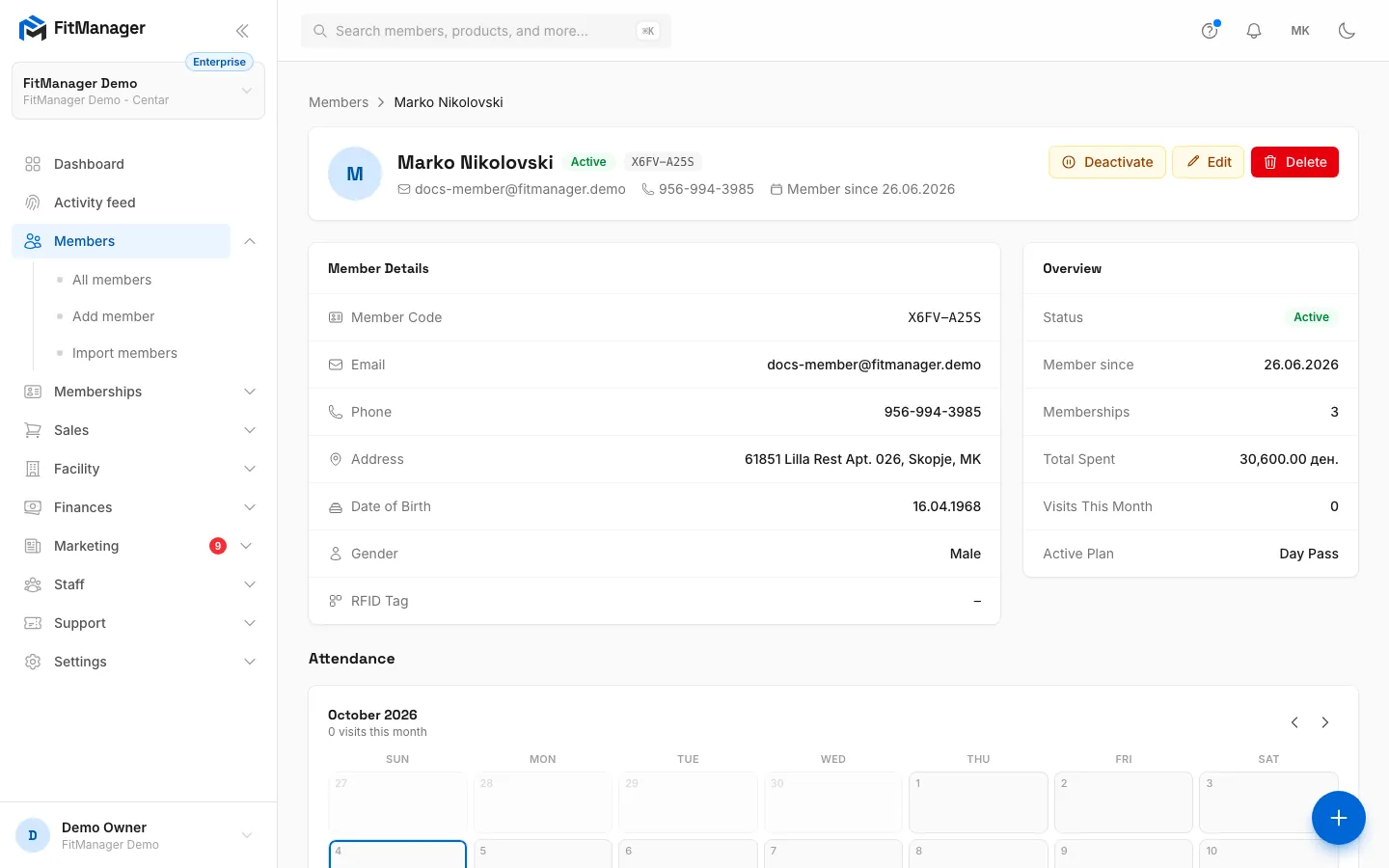
- Click View to open the profile, then click Edit. In the list you can also open the ... menu on the row and choose Edit.
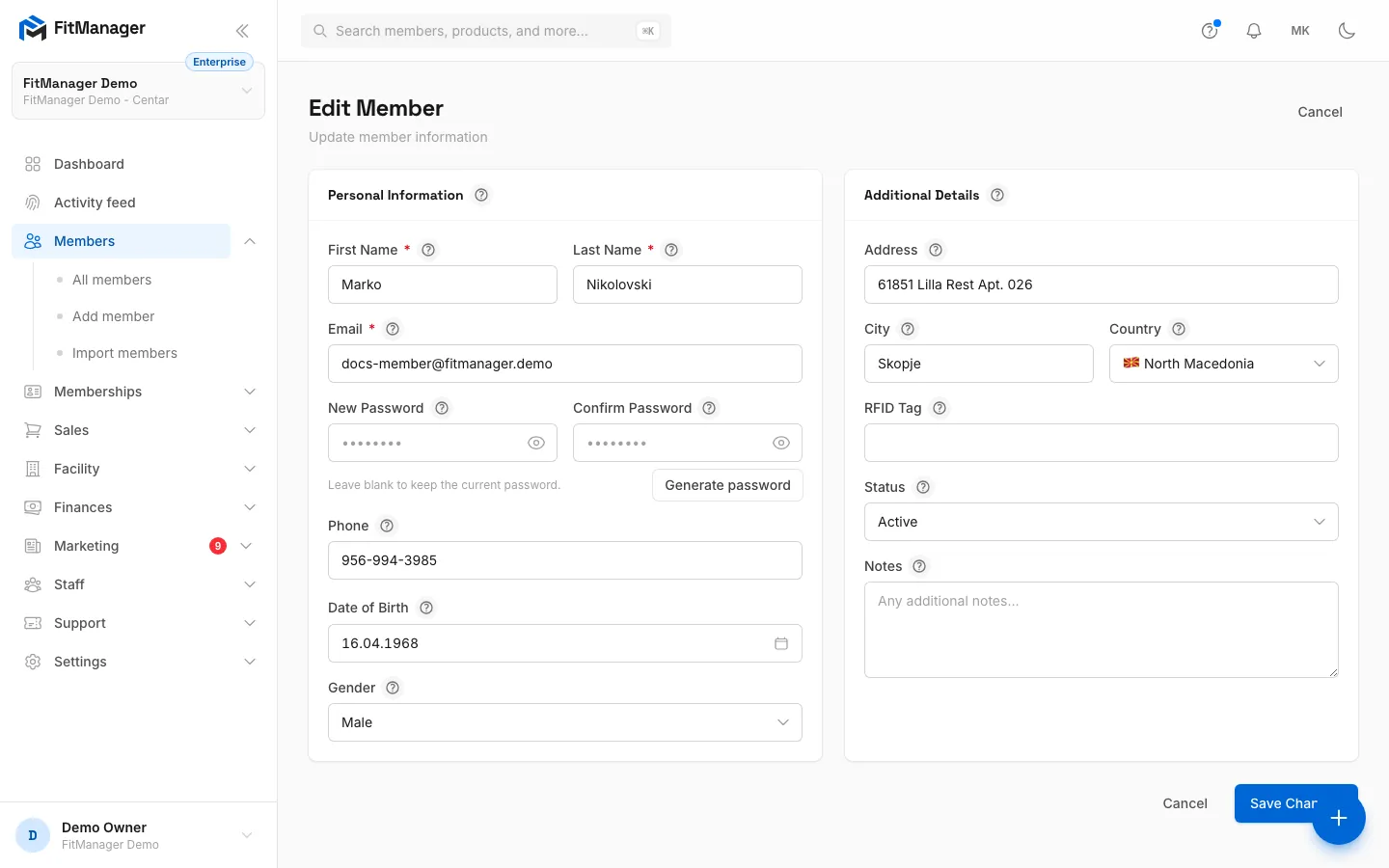
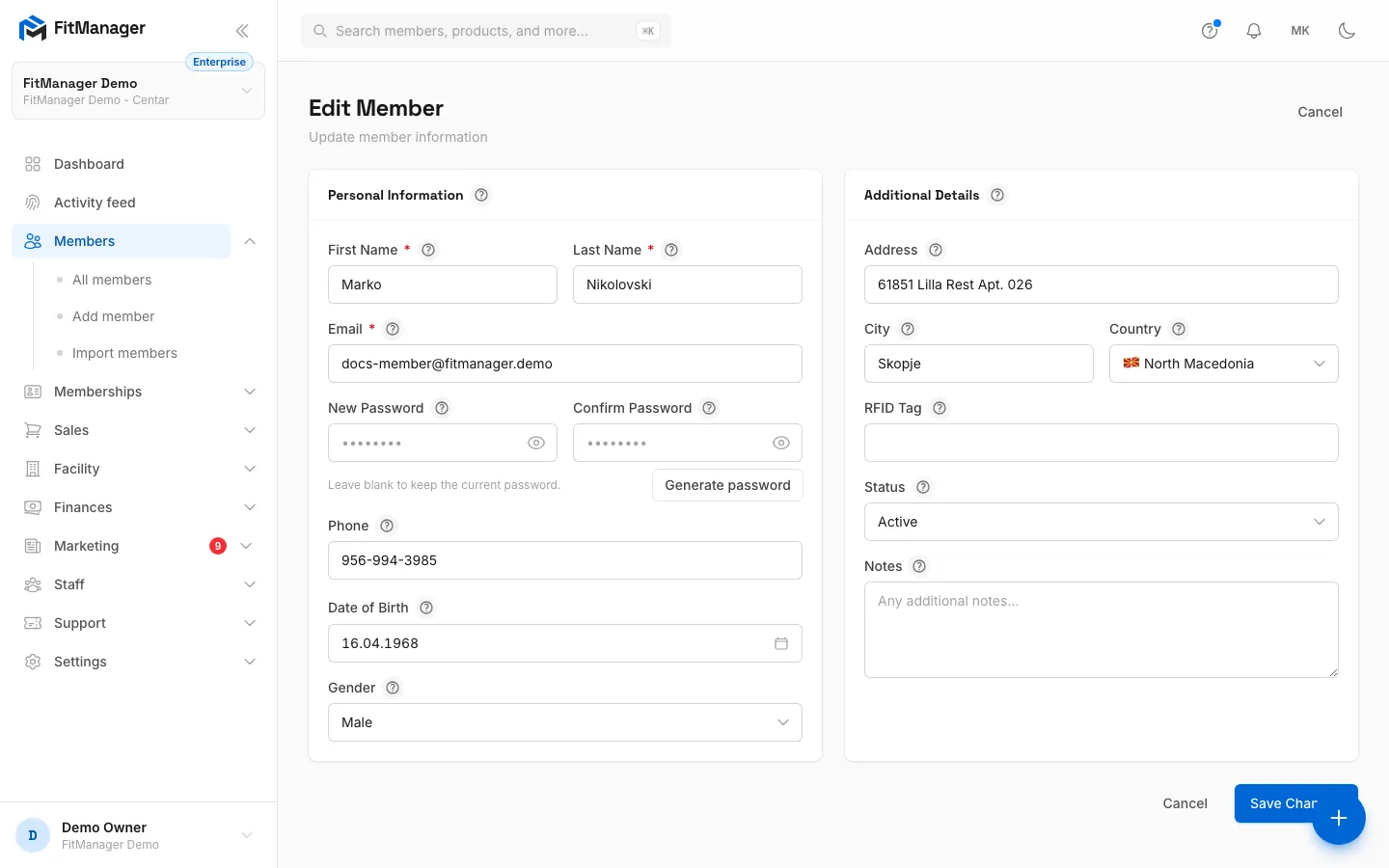
- Change what you need. The form has the same fields as Add a member.
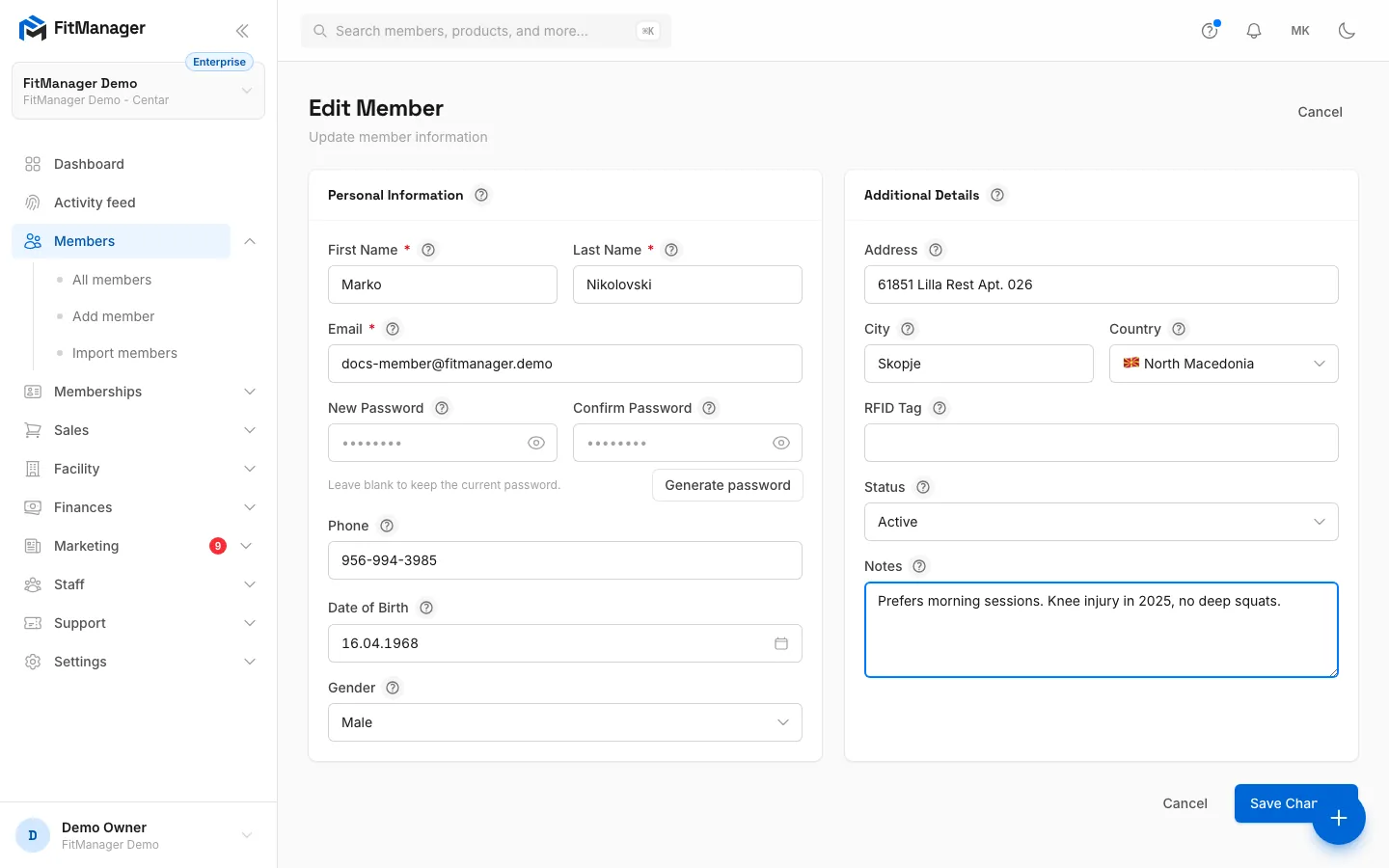
- Click Save Changes. You return to the profile with the message Member updated.
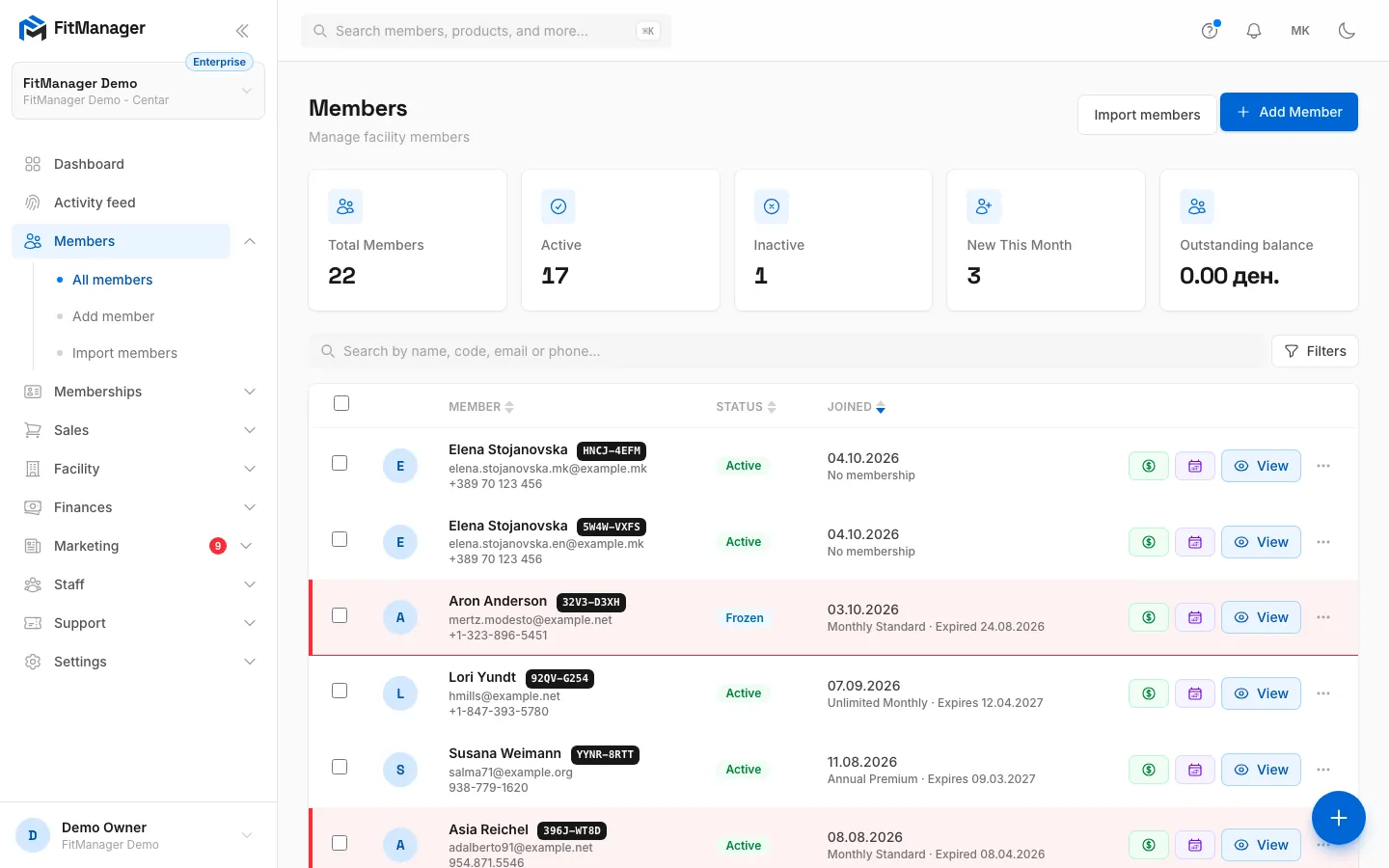
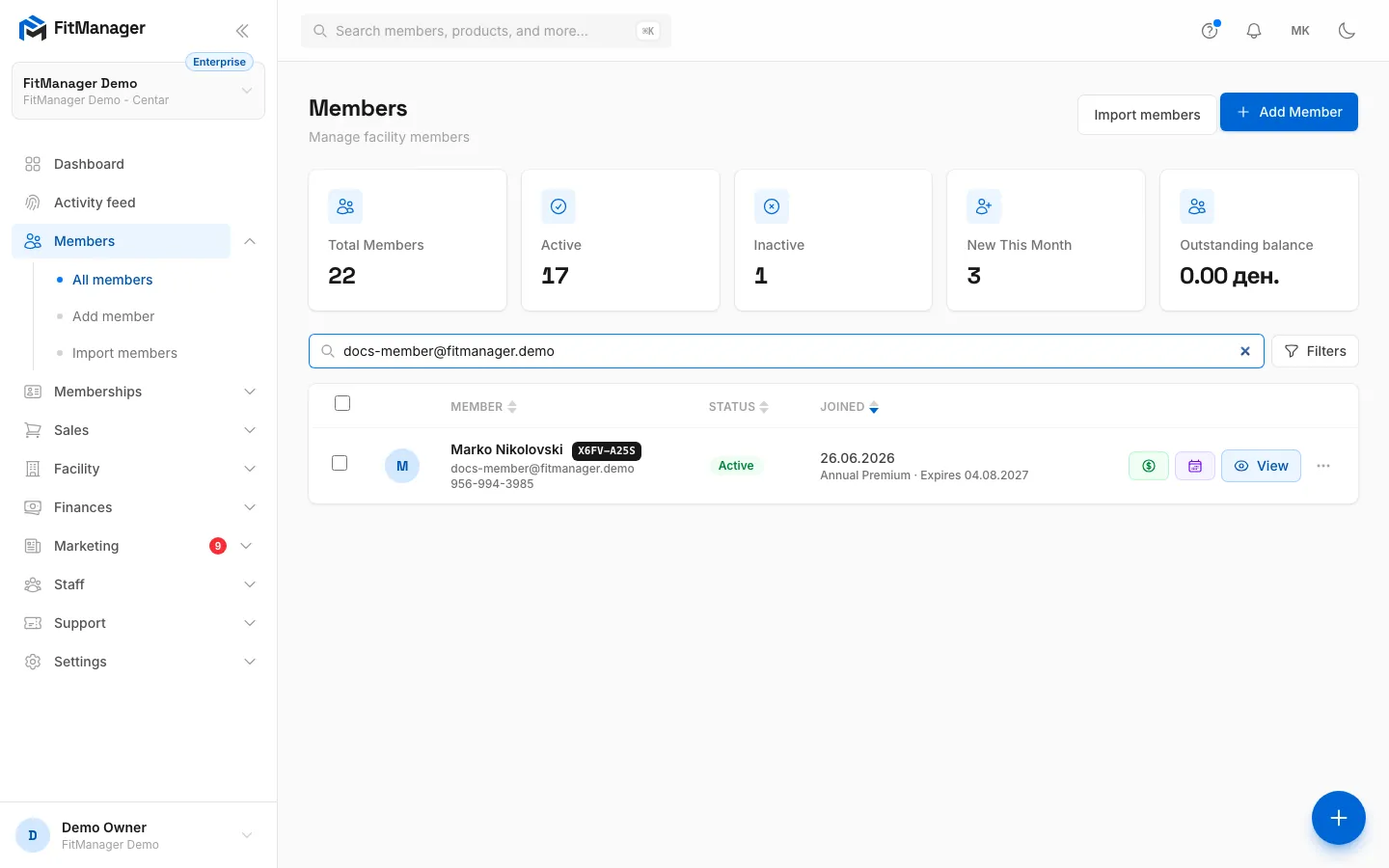
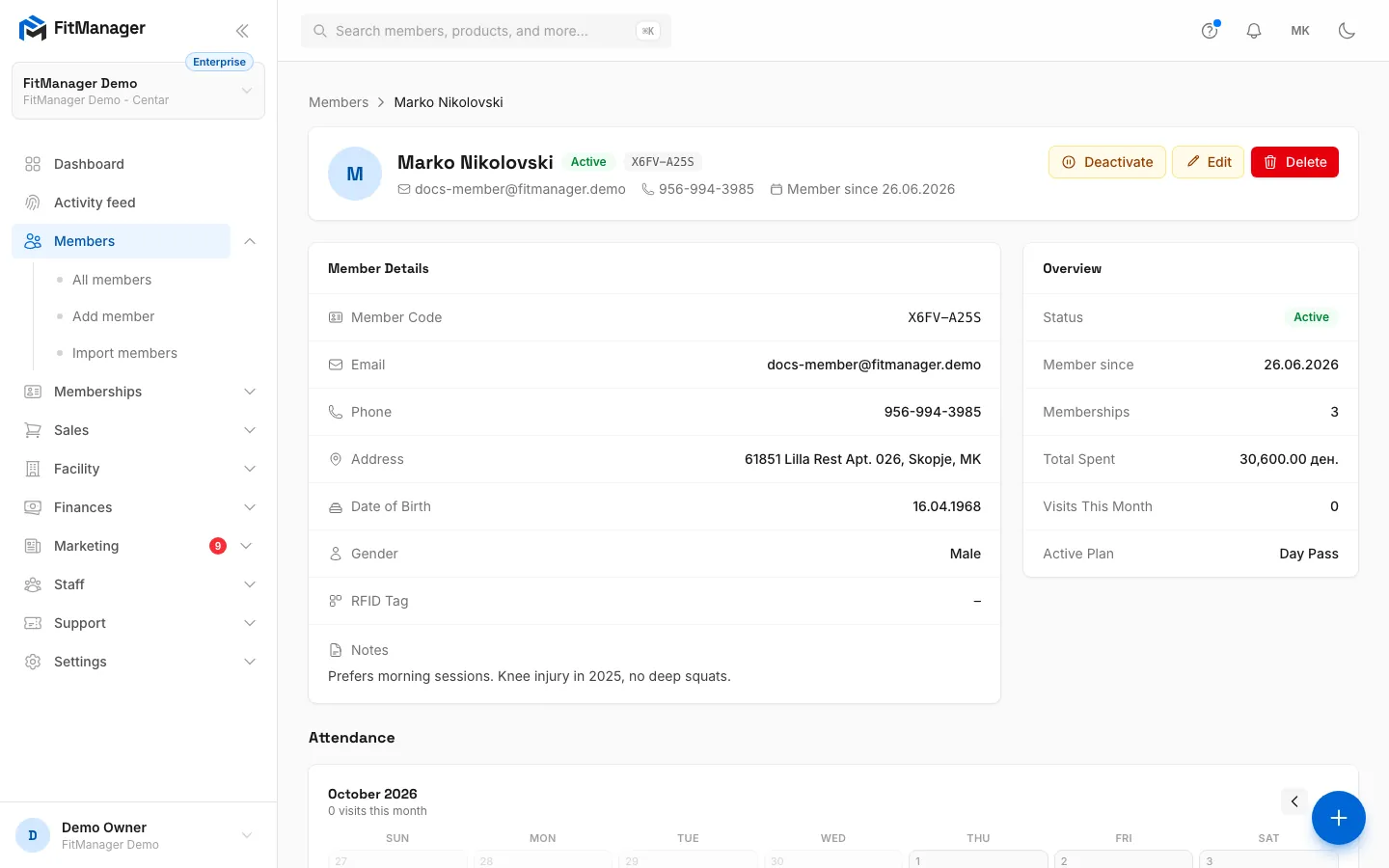
- Step 1: On the Members page, search for the member by name, code, email or phone.
- Step 2: Click View to open their profile.
- Step 3: Click Edit.
- Step 4: Every field from the Add Member form can be changed here.
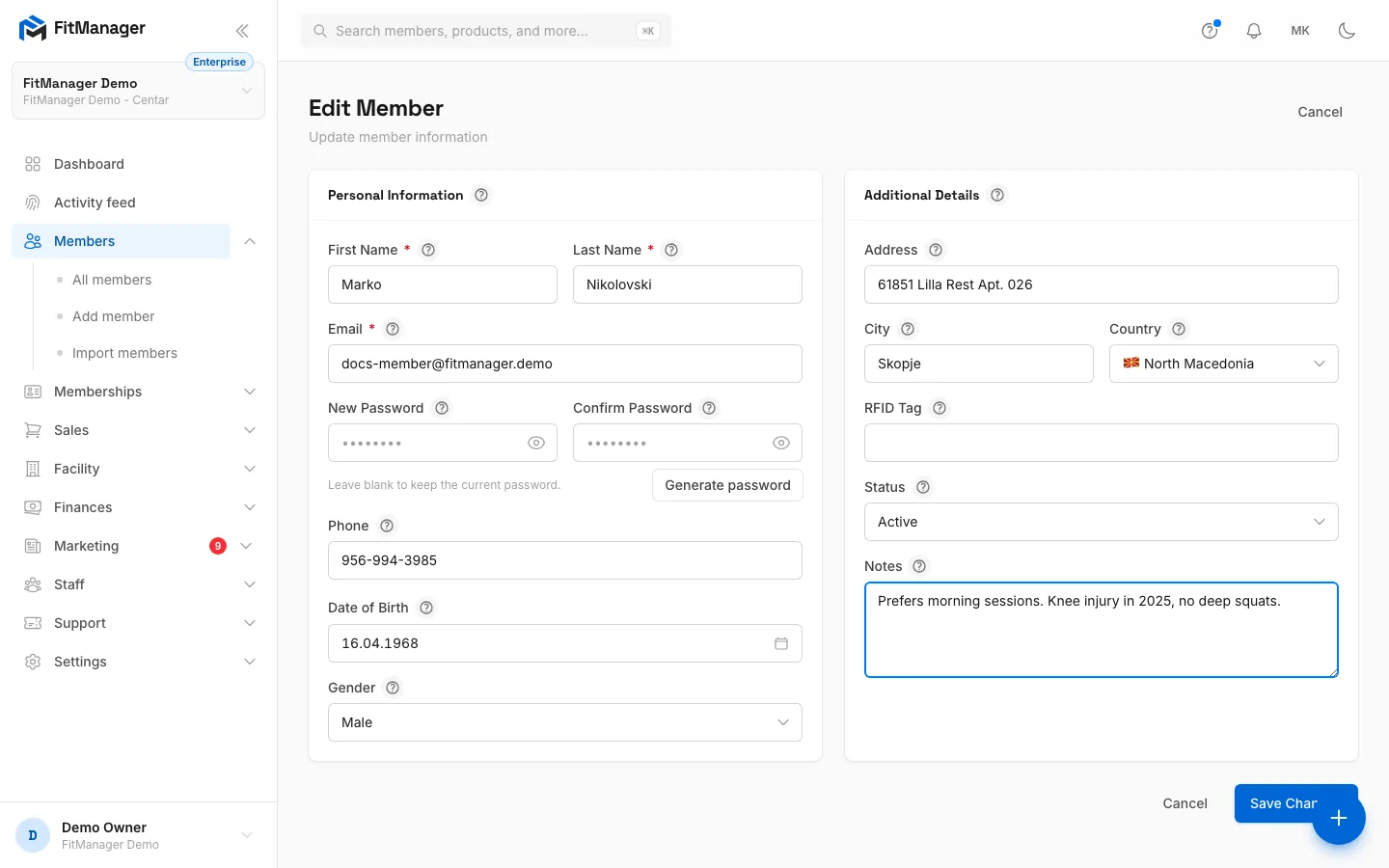
- Step 5: For example, add a note that only staff can see.
- Step 6: Leave the password empty to keep the current one, or type a new one to replace it.
- Step 7: Click Save Changes.
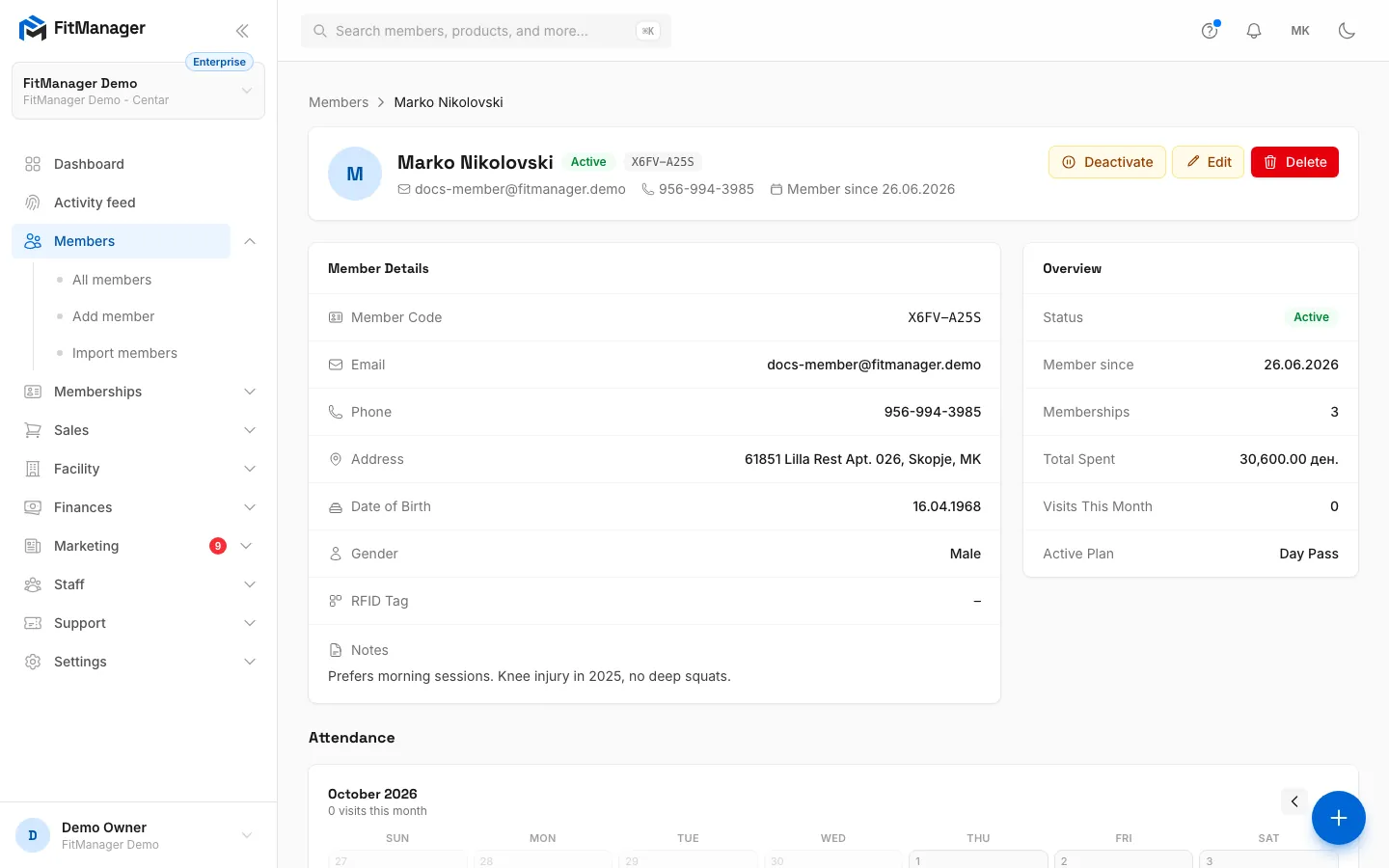
- Step 8: Back on the profile, Deactivate or Activate switches the member's status without deleting anything.
- Step 9: Delete removes them from your lists. Only staff with the Delete members permission see it.
Changing the password
On the edit form the field is called New Password. Leave it empty to keep the member's current password. If you type a new one (or click Generate password), it replaces the old one as soon as you save.
No email is sent when you edit a member, so tell them the new password yourself. Usually it is better to let members reset it on their own with Forgot password? on the portal sign-in page. See Portal access.
Status: stop access without deleting
The Status field decides whether the member gets through the door:
| Status | At the door | Use it for |
|---|---|---|
| Active | Allowed, if they also have a valid membership | Everyone who trains with you |
| Inactive | Denied | Members who left or stopped paying |
| Frozen | Denied | A member who is away for a while |
| Banned | Denied, logged as banned | Someone who must not enter |
The quickest way to switch is the Deactivate button at the top of the profile. It sets the status to Inactive. On an inactive, frozen or banned member the same button reads Activate and sets them back to Active.
To pause a membership for a holiday or an injury, freeze the membership itself rather than the member. See Assign a membership.
The status does not lock members out of the portal. An inactive member can still sign in and see their history.
Delete a member
- Open the member's profile and click Delete, or choose Delete from the ... menu on the list row.
- Confirm with Delete Member.
To delete several at once, tick the boxes in the list, then click Delete in the bar that appears and confirm with Delete members.
What happens to their history
Deleting removes the member from the list, from search and from the door: their code, card and QR stop working. Their records are not wiped: their payments, memberships, attendance and sales stay recorded, so your earnings and report totals do not change.
There is no restore button in the dashboard. If you deleted someone by mistake, open a support ticket.
A deleted member keeps their email, member code and card number reserved. You cannot add a new member with the same email in this facility, and a CSV import skips rows that match them. If the person may come back, set them to Inactive instead of deleting.
Who changed what
Every change to a member's details is recorded with the name of the staff member and the old and new values. Owners can read it in the activity log.
Troubleshooting
I don't see Edit, Deactivate or Delete. Your account is missing the Edit members or Delete members permission. Ask the gym owner.
An error says the email has already been taken. Another member of this facility, possibly a deleted one, already has that email.
The member is active but still cannot get in. Check their membership on the profile: it may be expired, frozen or out of visits. The Access Log on the profile shows the exact deny reason for every scan. See Door troubleshooting.
Was this page helpful?
Related articles
Still stuck?
Write to us and we will get back to you within one working day.