Plan categories
Group your membership plans into categories such as Standard, Premium or Student so members can compare durations side by side.
Categories group plans that give the same kind of access in different lengths. A "Premium" category might hold Premium Monthly, Premium Quarterly and Premium Yearly. Your website and the member portal shop then show Premium as one package with the three durations to choose from, and point out how much the longer ones save per month.
Categories are optional. Plans without a category are shown together under "Plans", and visit packs always get their own group.
Before you start
You need the memberships.manage permission. Owners have it, employees only when it is switched on for them.
Create a category
- Open Memberships, Categories in the sidebar.
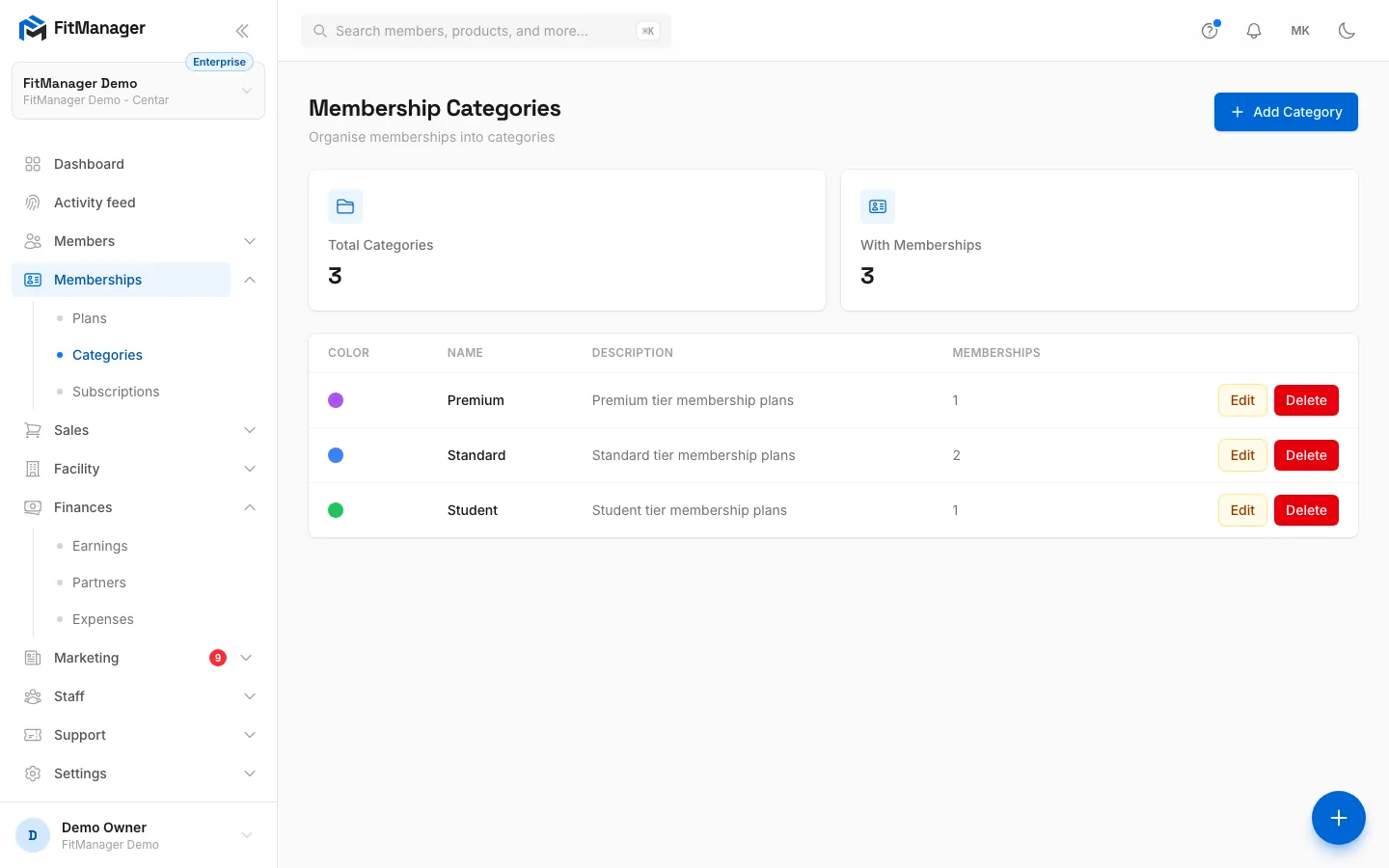
- Click Add Category.
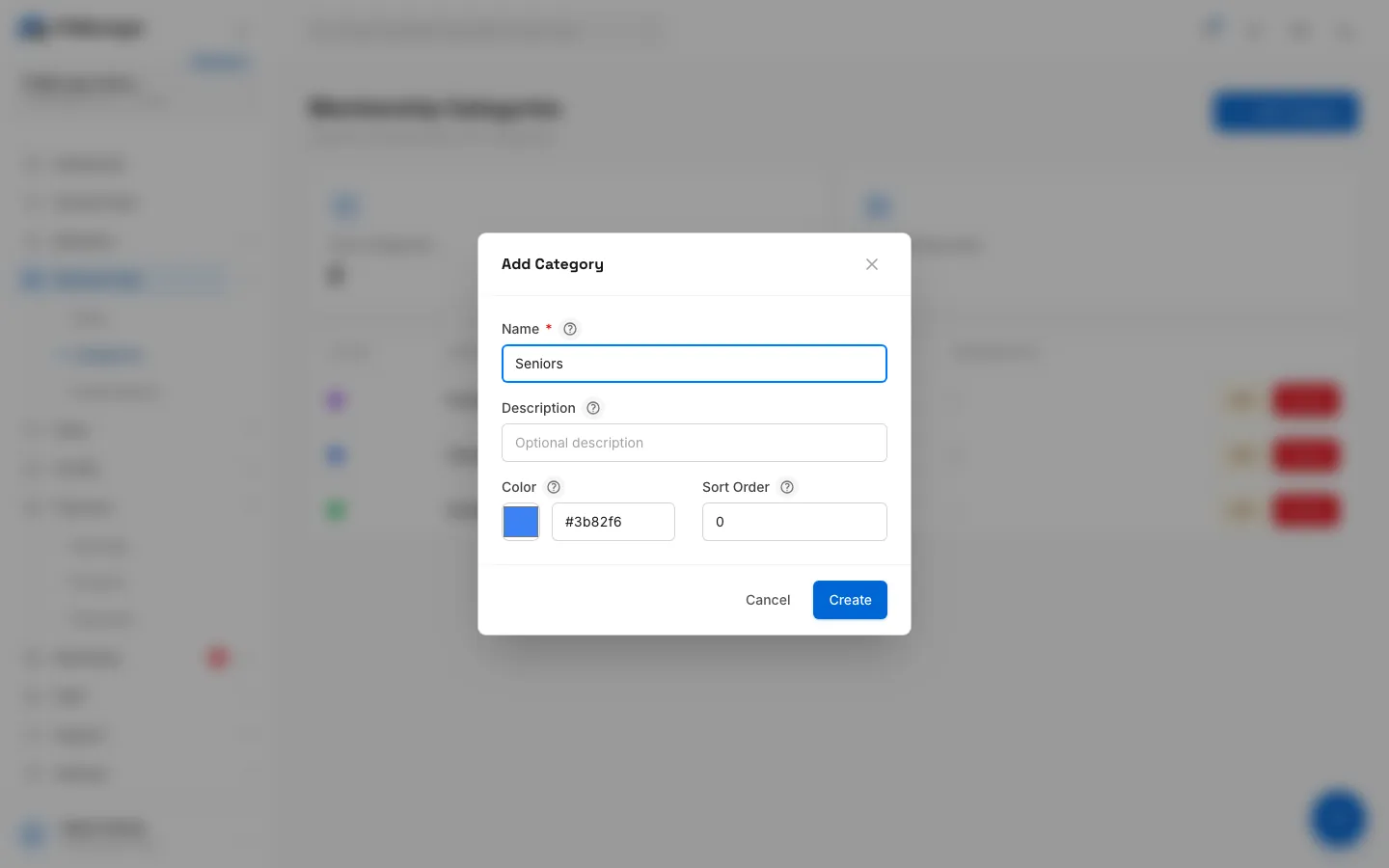
- Enter a Name, for example "Premium".
- Optionally add a Description. The website shows it under the package name.
- Pick a Color and set the Sort Order. Lower numbers come first in the lists on this page and in the plan form.
- Click Create.
You can also create a category while adding a plan: click the plus button next to Category in the plan form, type a name and click Create. The new category is selected for the plan straight away. See Create a membership plan.
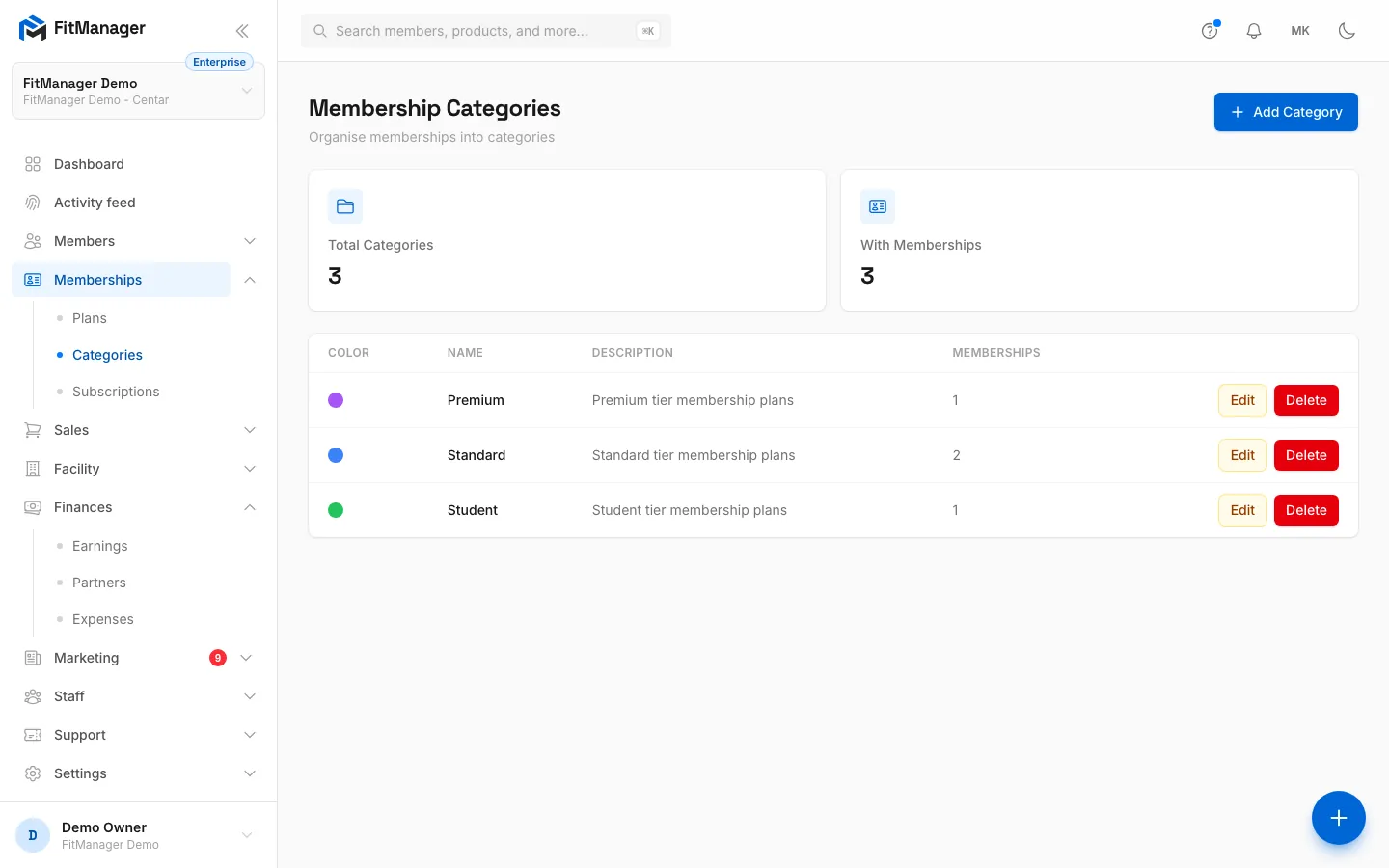
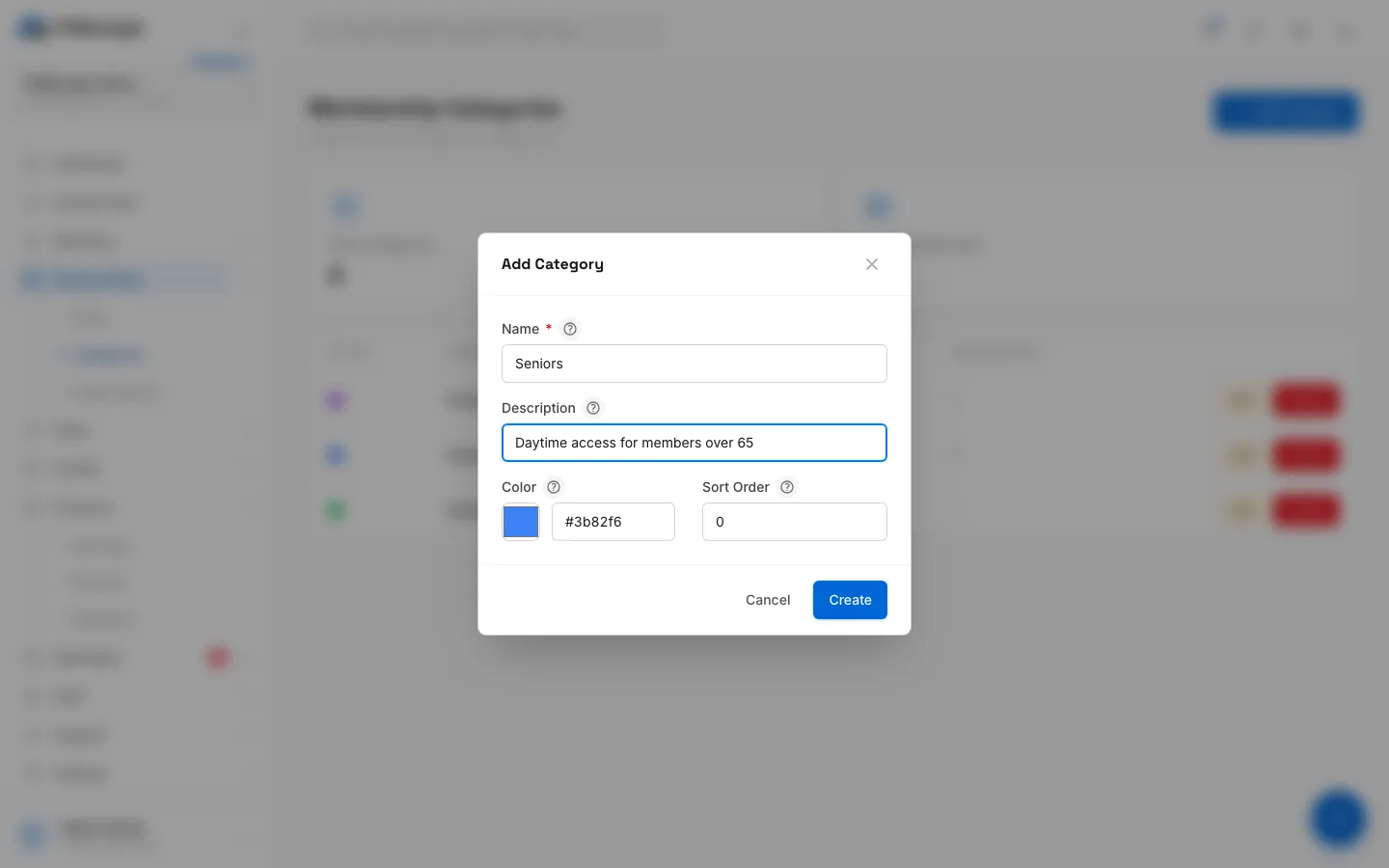
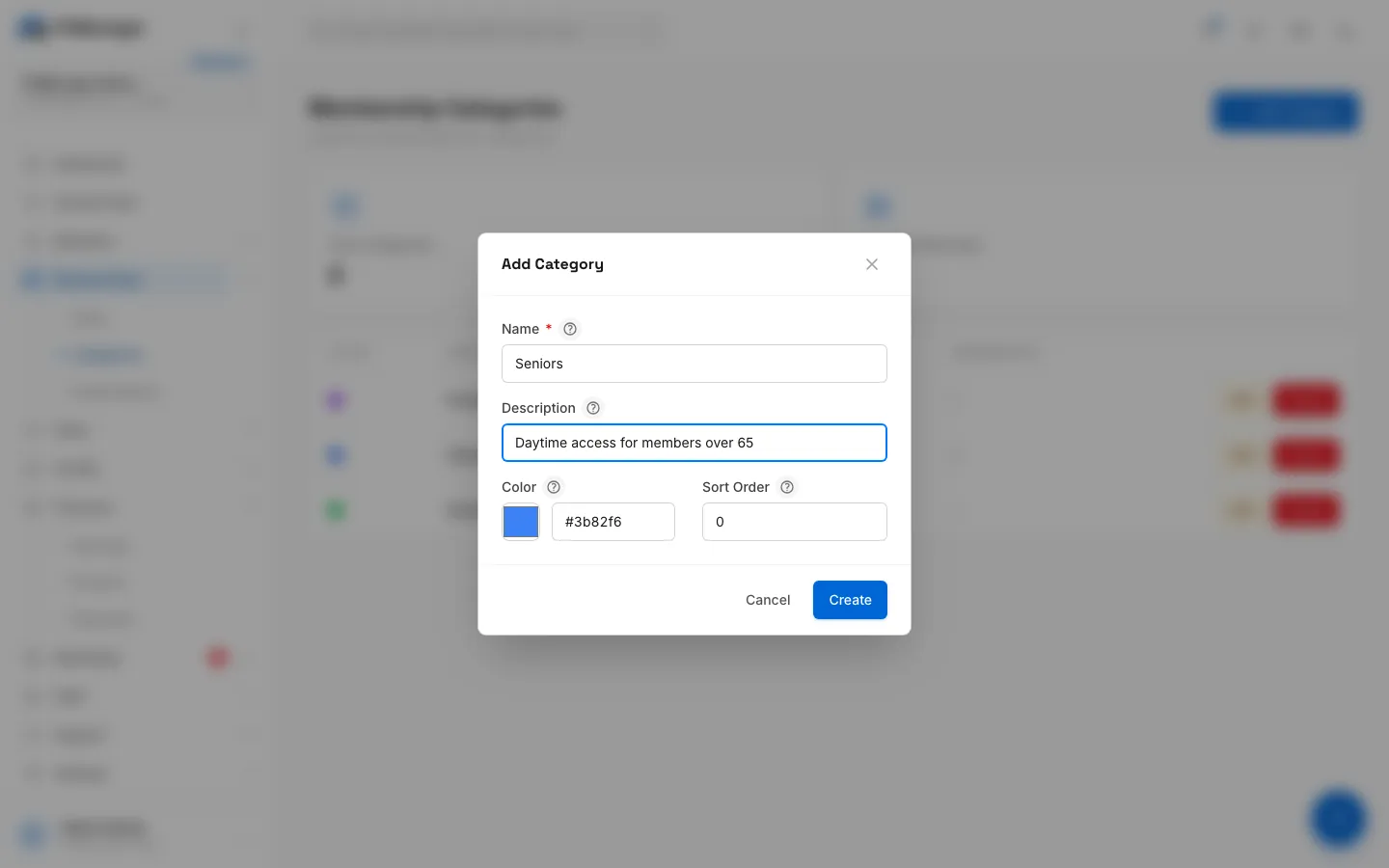
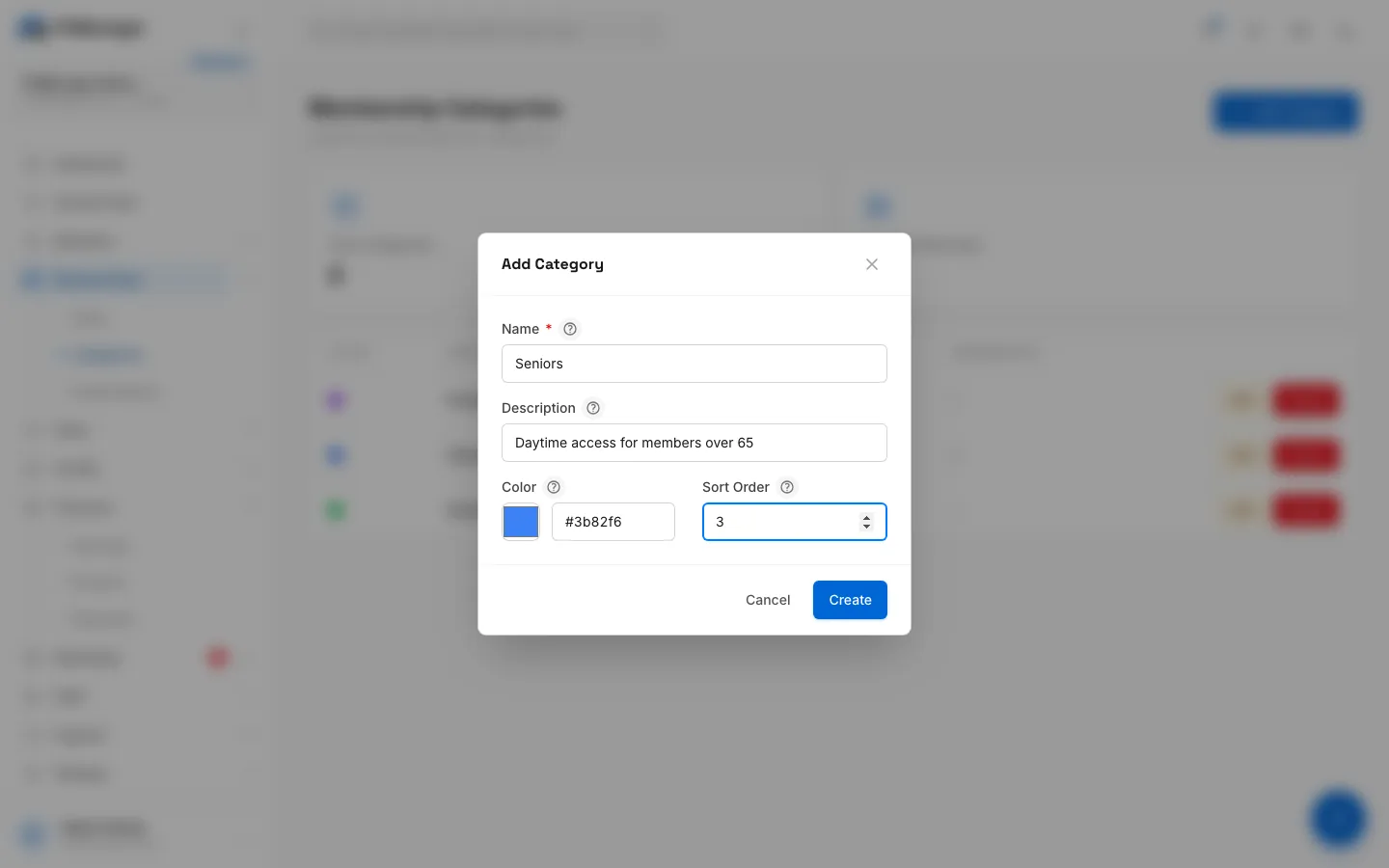
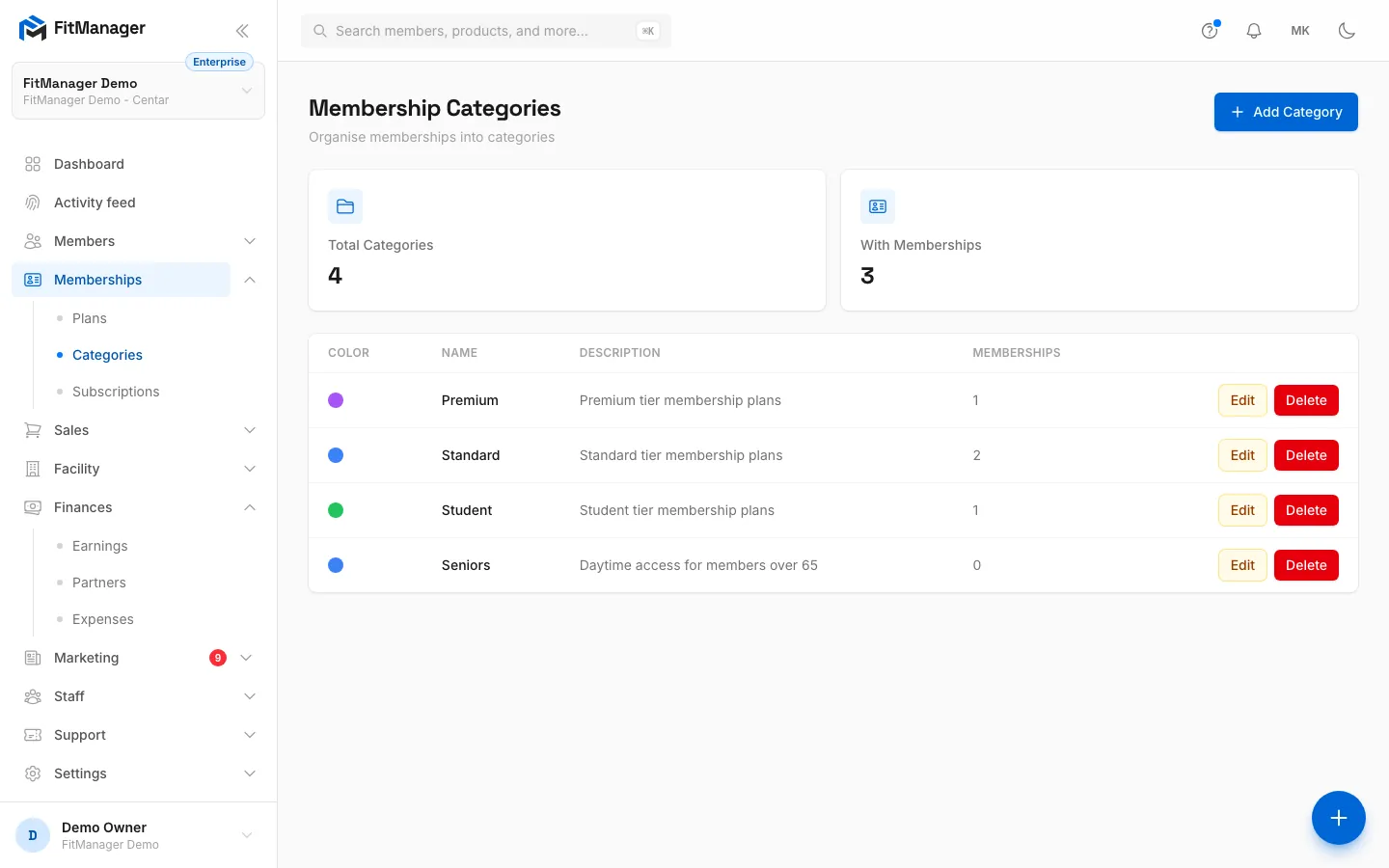
- Step 1: Categories group plans of the same kind. The Memberships column counts the plans in each one.
- Step 2: Click Add Category.
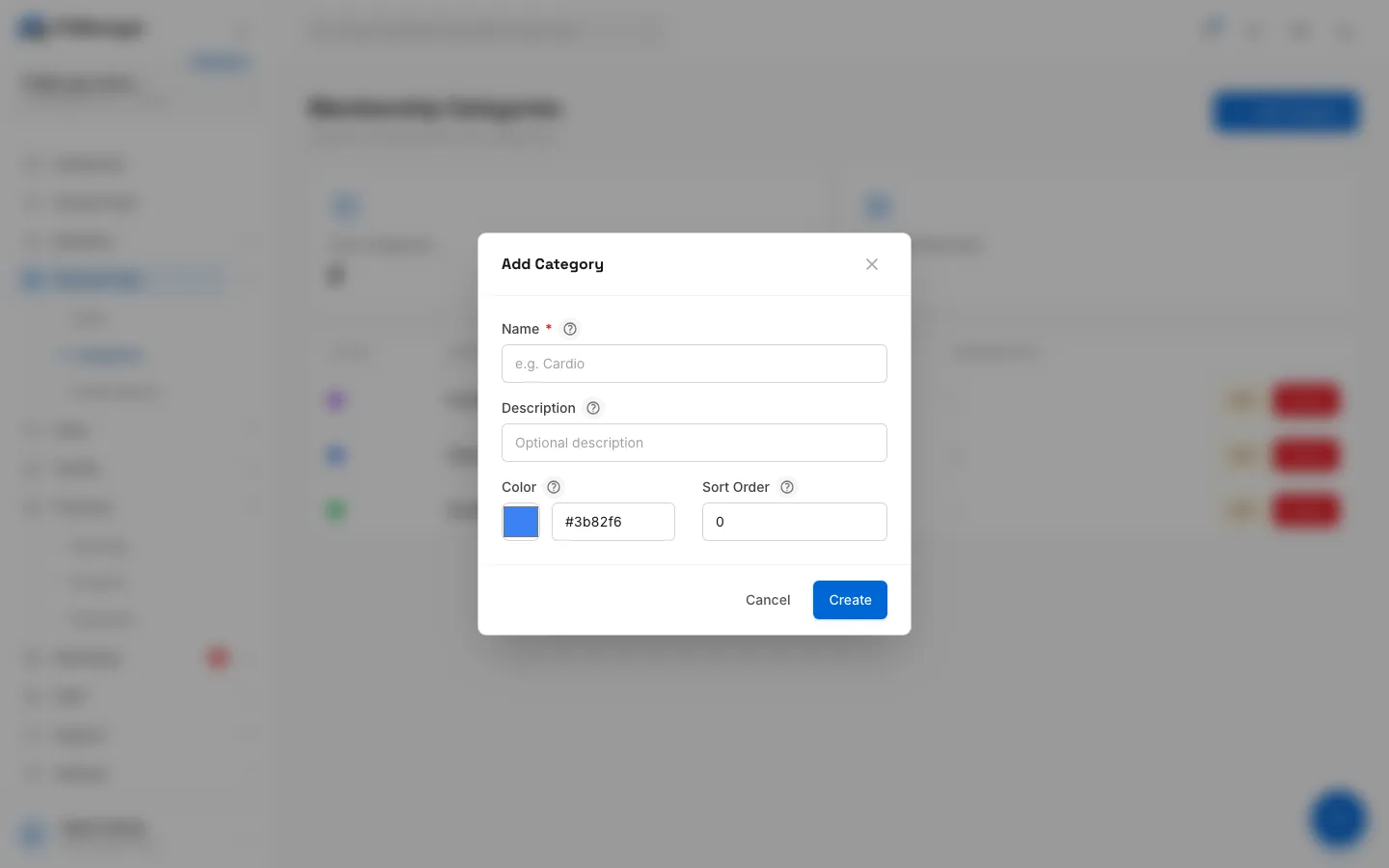
- Step 3: Enter a Name. Your website shows it as the package name.
- Step 4: Optionally add a Description, shown under the package name.
- Step 5: Pick a Color to tell categories apart.
- Step 6: Set the Sort Order. Lower numbers come first.
- Step 7: Click Create.
- Step 8: Edit or Delete a category from its row. Deleting it keeps the plans, they just lose the category.
Put plans in a category
Open Memberships, Plans, click Edit on a plan, choose the category under Category and click Update. The categories page counts how many plans each category holds in the Memberships column, and the With Memberships card shows how many categories are in use.
Edit or delete a category
- Click Edit on the row, change the fields and click Save.
- Click Delete and confirm with Delete Category. The plans in it are not deleted. They simply lose their category and move to the general "Plans" group on your website.
Common questions
Do categories change prices or access? No. They only group plans for display. Price, length and access always come from the plan itself.
Why does my website show a package as "from" a price? The website shows the cheapest duration in the category as the starting price, and the monthly equivalent of each duration so members can compare.
Can categories differ per location? Yes. Categories belong to a facility, like plans. Switch facility to manage another location's categories.
Was this page helpful?
Related articles
Still stuck?
Write to us and we will get back to you within one working day.