Create and manage API keys
Create live and test API keys for the FitManager REST API, authenticate with them, and roll or revoke a key safely.
An API key lets your own software, or a developer you work with, read and write your gym's data through the FitManager REST API. Each key belongs to one gym, and every request made with it only ever sees that gym's records.
Before you start
- You need the settings.manage permission. Gym owners have it. Employees only see the page if it was given to them in Staff permissions.
- Your plan must include API access. The page is at Settings > Integrations > API integration, or open Integrations directly.
- Treat a key like a password. Anyone who has it can act on your gym's data through the API.
Create a key
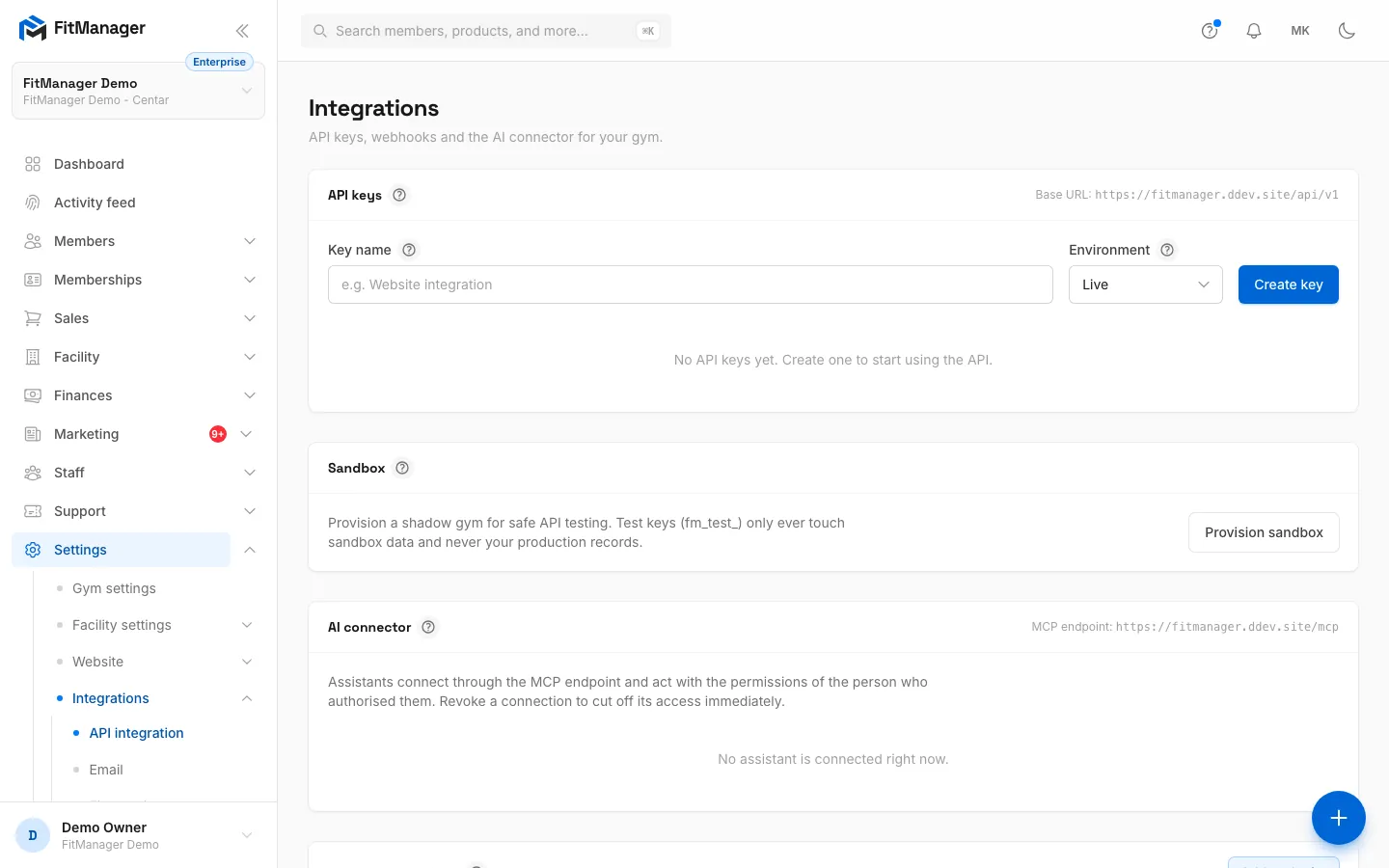
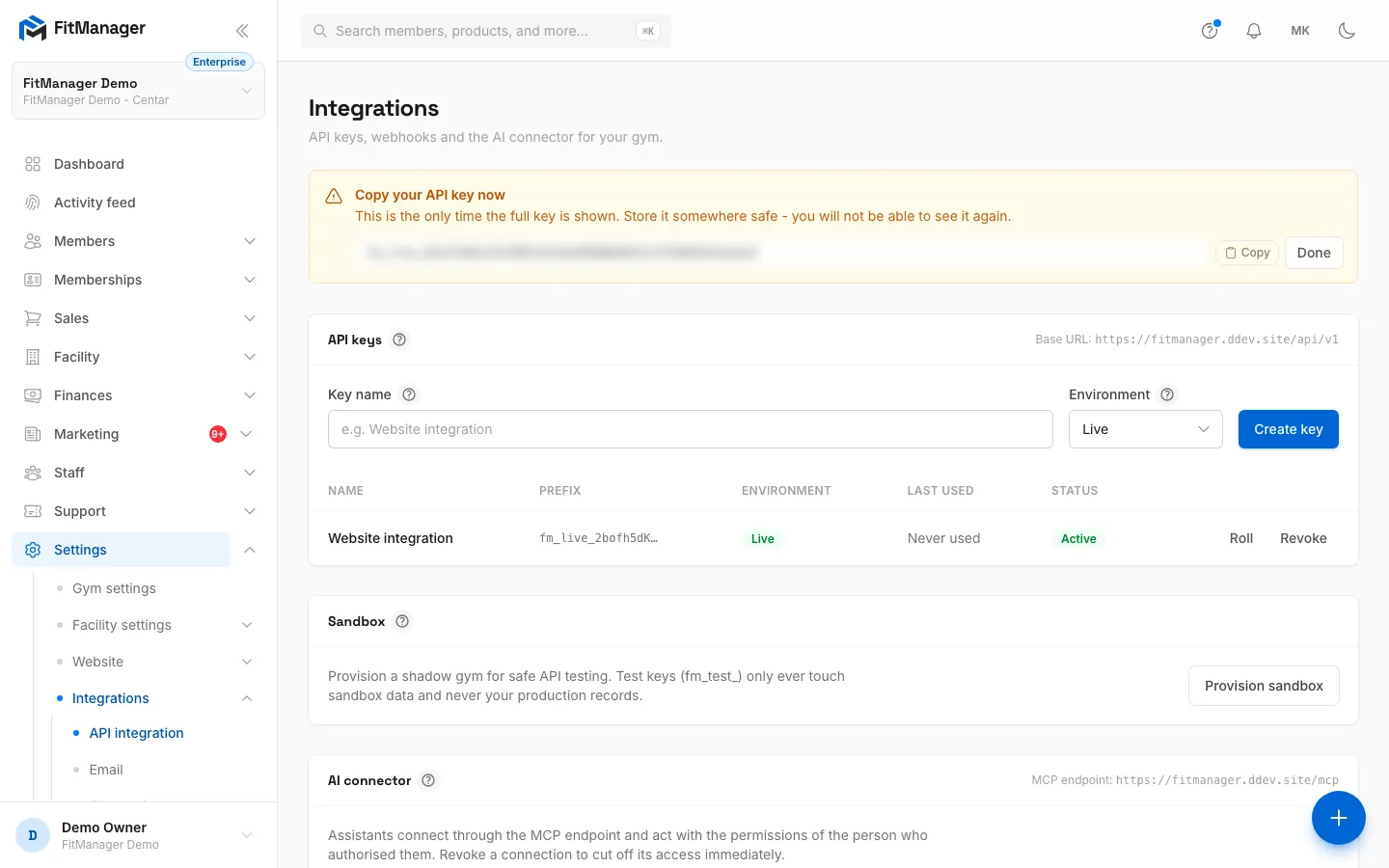
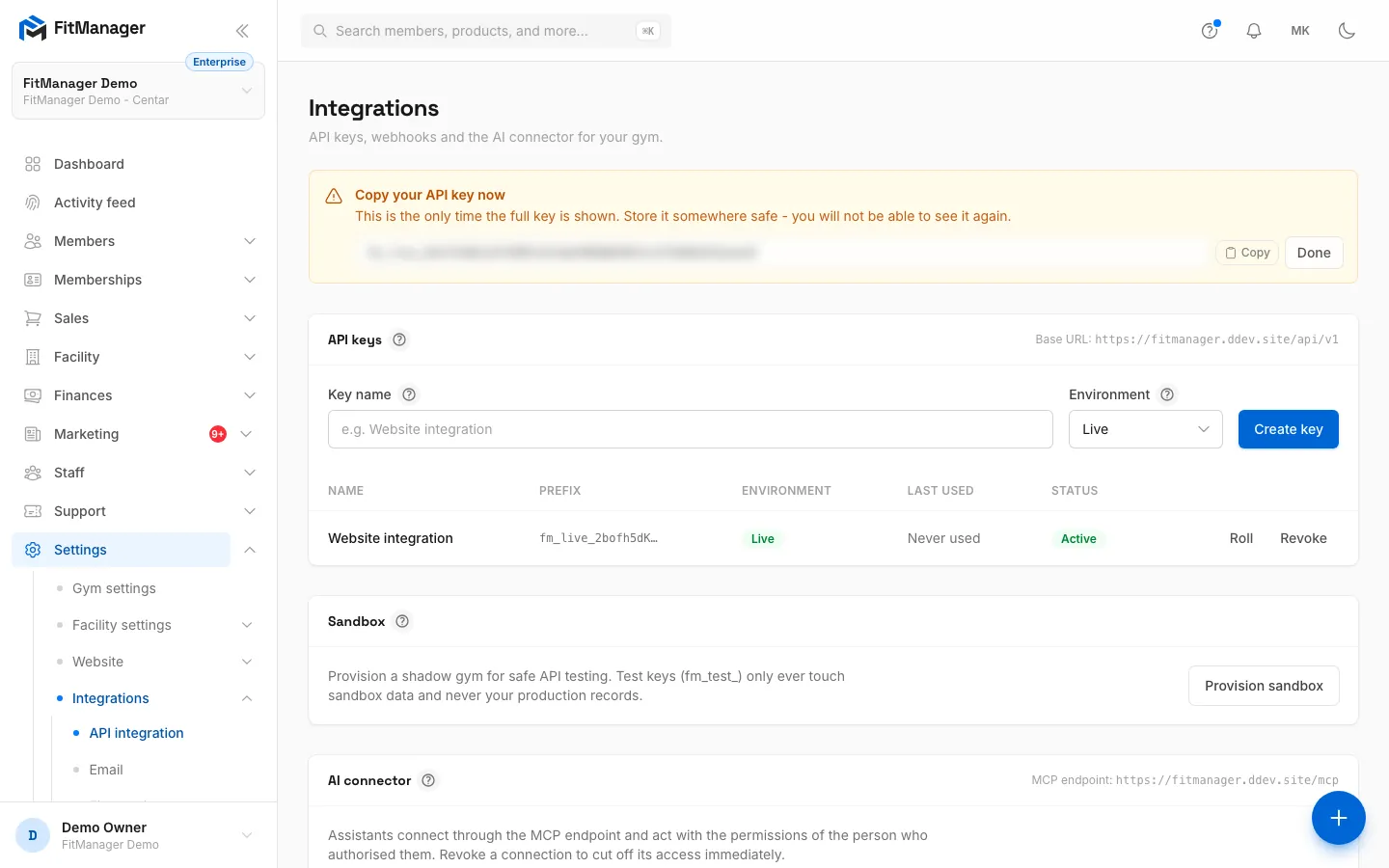
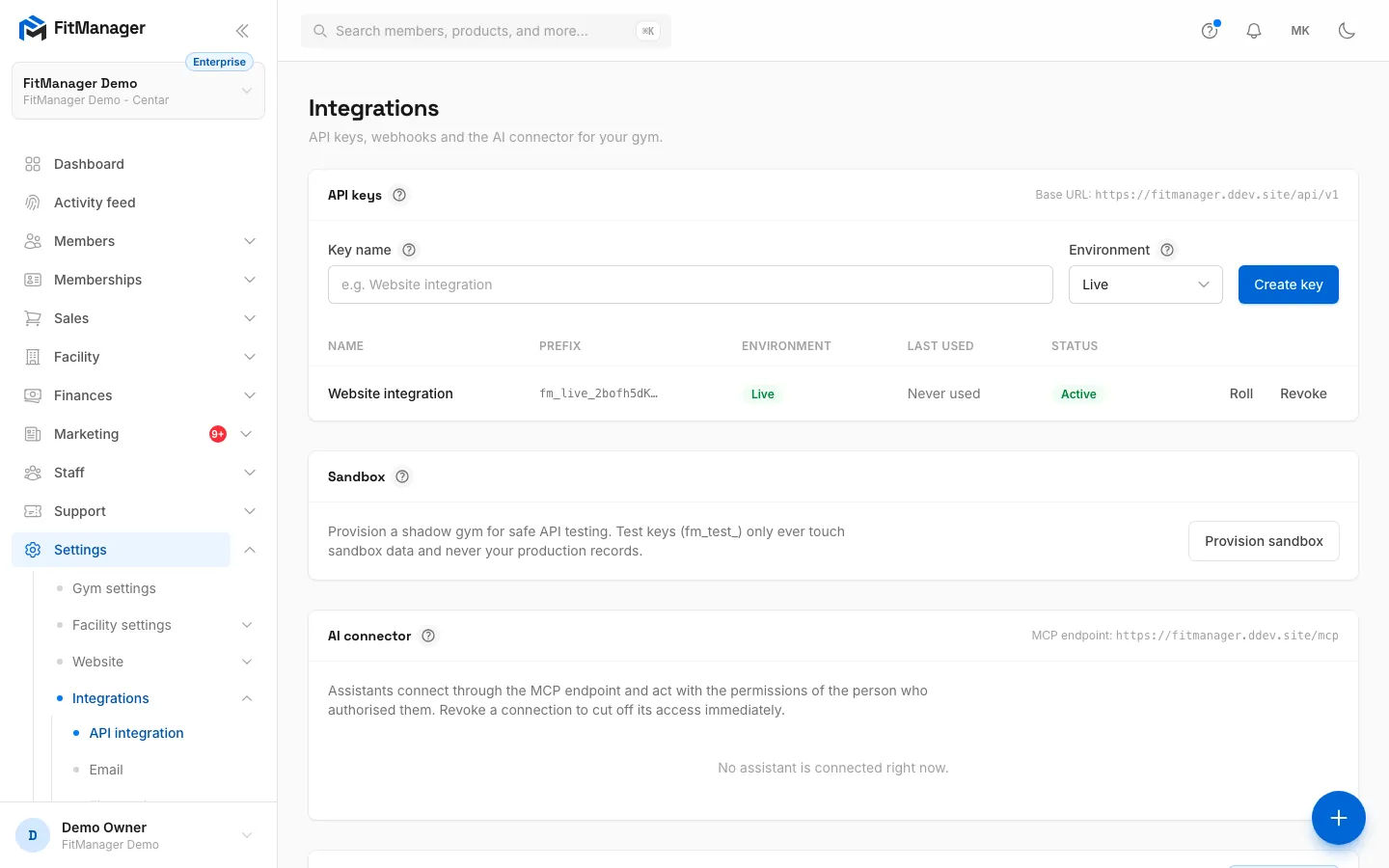
- Step 1: Every REST API request goes to this base URL.
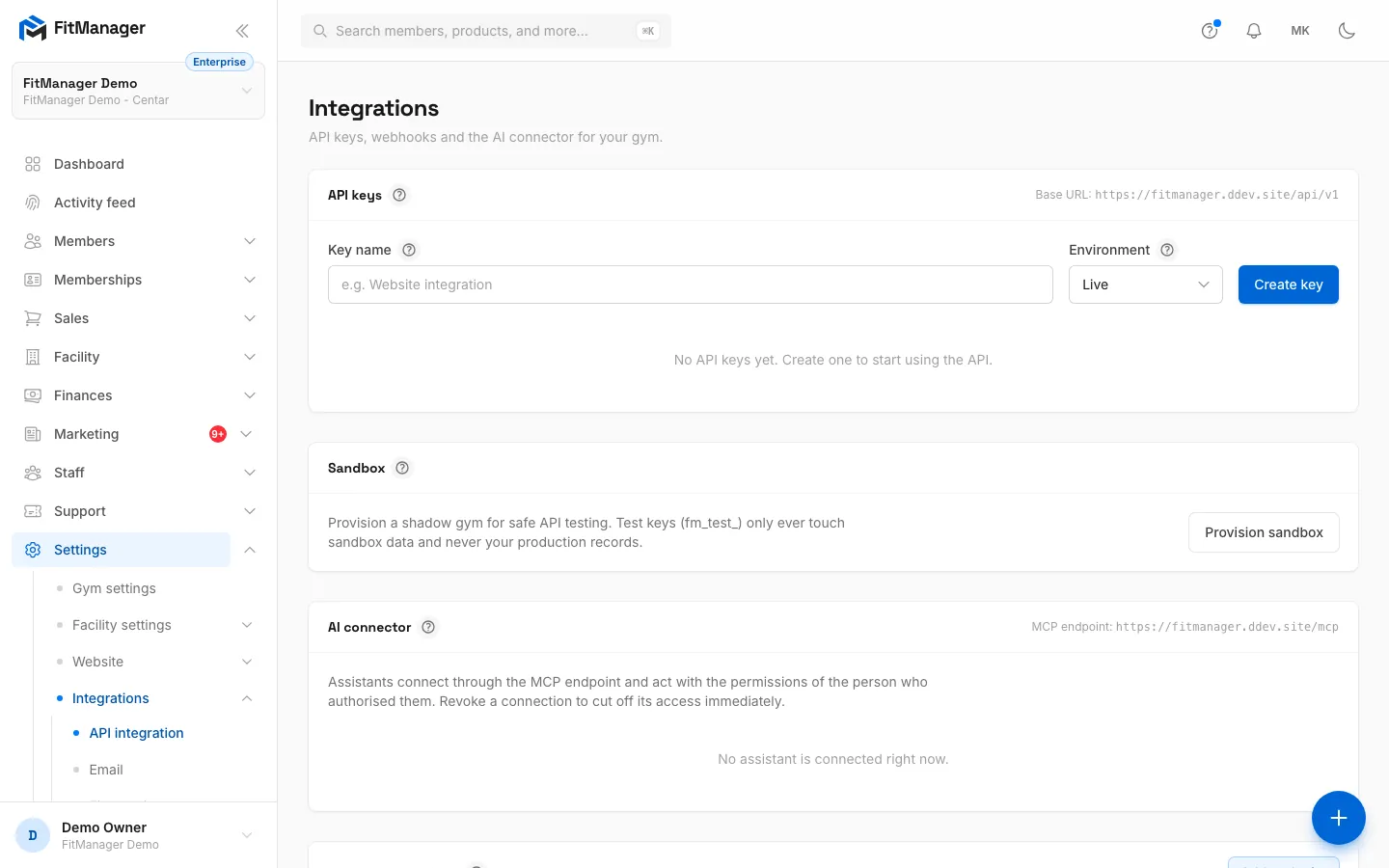
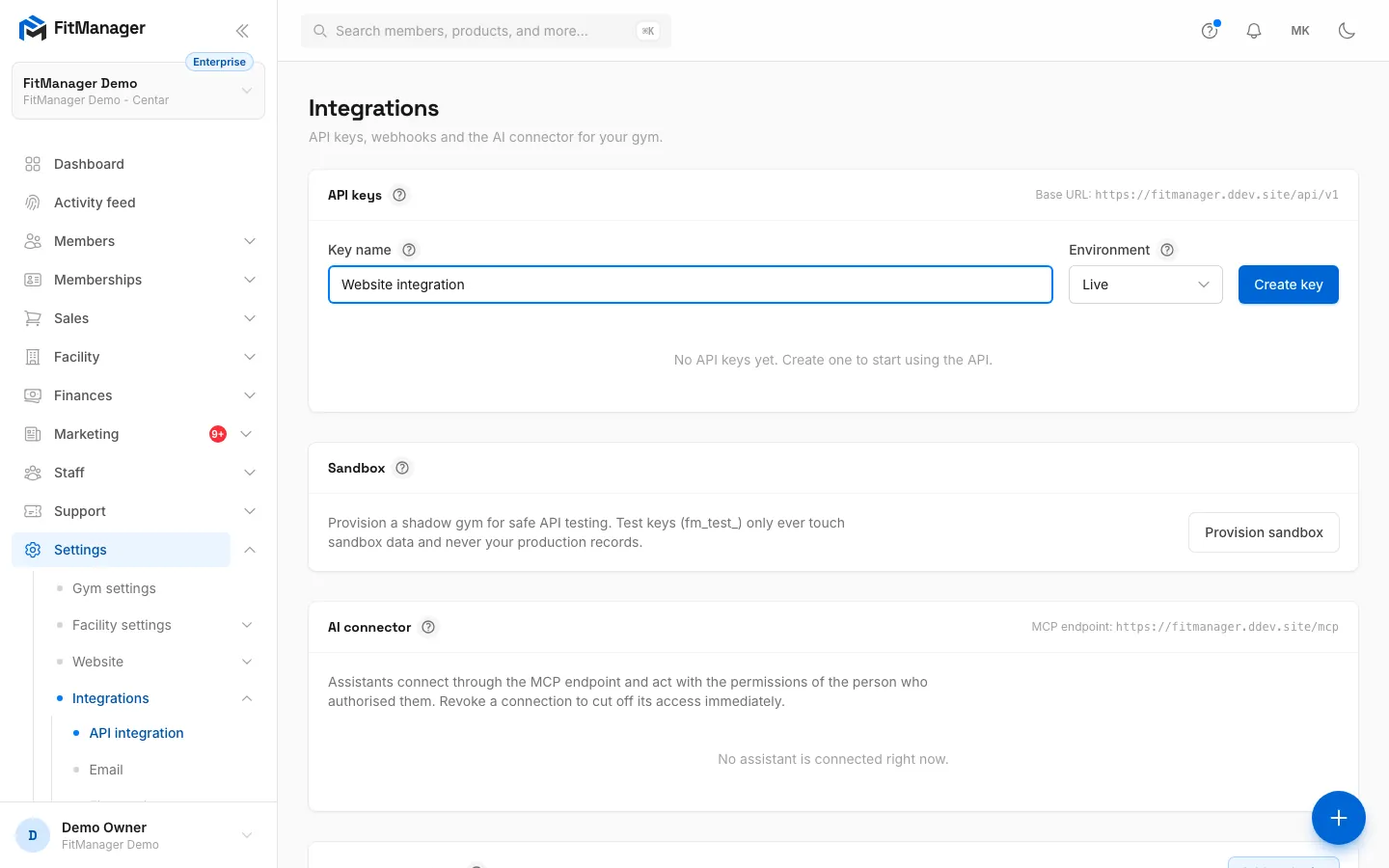
- Step 2: Give the key a name that says which tool will use it.
- Step 3: Pick Live for real gym data. Test keys need a sandbox first.
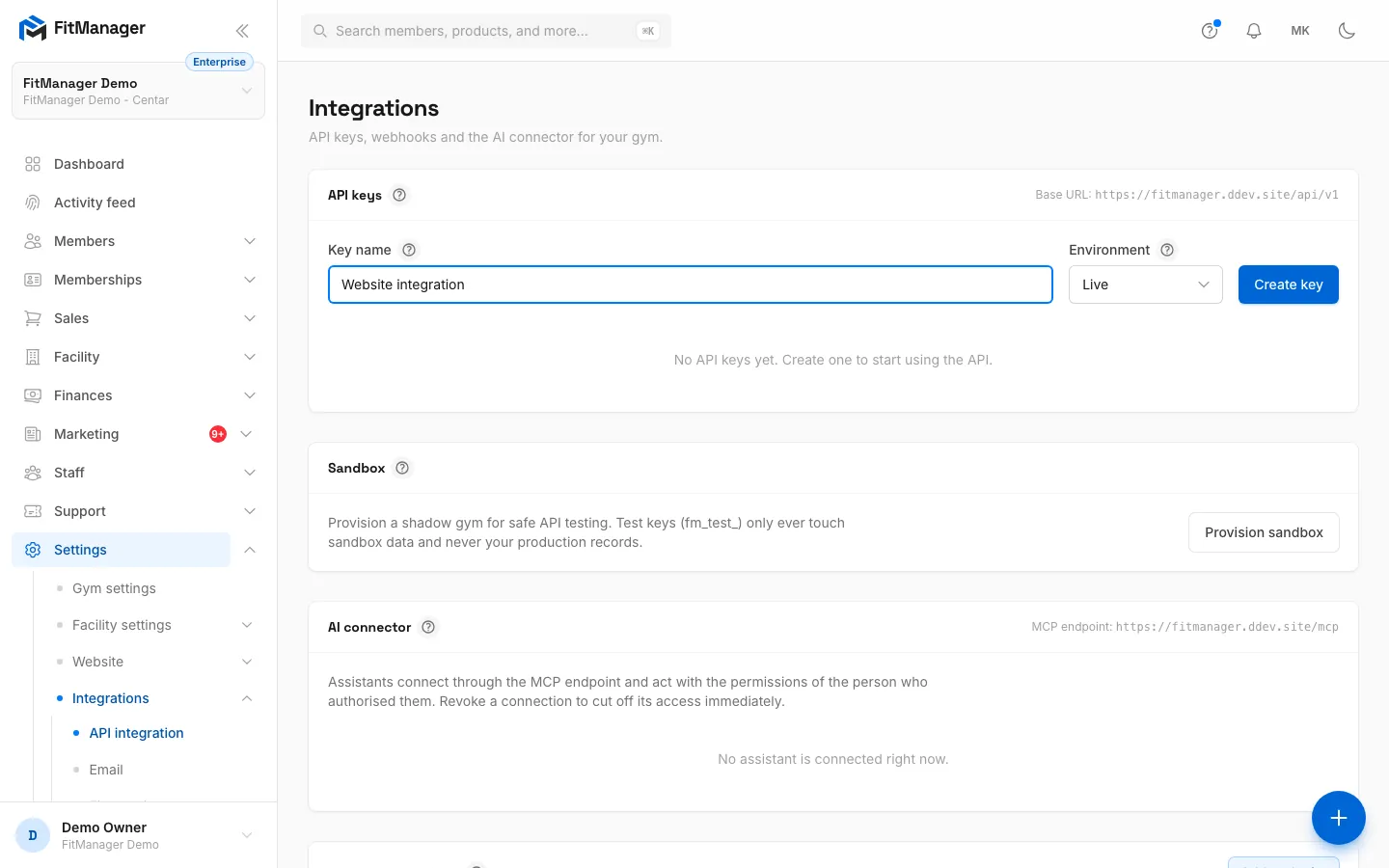
- Step 4: Click Create key.
- Step 5: Copy the full key now and store it safely. It is never shown again.
- Step 6: Click Done once you have saved it.
- Step 7: The key is listed by its prefix, with when it was last used. Roll or Revoke it from here.
- Go to Settings > Integrations > API integration.
- In the API keys card, type a Key name that says which tool will use the key, for example "Website integration". The name is only for you.
- Choose the Environment: Live works on your real data, Test works only on your sandbox (see below).
- Click Create key.
- A yellow box titled Copy your API key now shows the full key. Click Copy and store it somewhere safe, such as a password manager or your server's environment settings.
- Click Done. The full key is never shown again. FitManager only keeps a fingerprint of it, so support cannot recover it either.
The key then appears in the list with its Prefix (the first characters, so you can tell keys apart), its Environment, when it was Last used and its Status.
Live and test keys
| Live | Test | |
|---|---|---|
| Starts with | fm_live_ |
fm_test_ |
| Works on | Your real gym | Your sandbox gym only |
| Needs | Nothing extra | A sandbox, created first |
A test key can never touch production records, and a live key can never reach the sandbox. If you try to create a test key before you have a sandbox, you see "Provision a sandbox first to create a test key."
Create a sandbox
- In the Sandbox card, click Provision sandbox.
- FitManager creates an empty copy of your gym named "{your gym} (Sandbox)" with one facility, on the same plan. The card then shows Ready.
- Create a key with Environment set to Test.
The sandbox starts empty: it has no members, plans or products until your integration creates them through the API. You can only have one sandbox per gym.
Authenticate requests
Send the key as a Bearer token in the Authorization header. The base URL is shown in the top right of the API keys card as Base URL, normally https://fitmanager.com/api/v1.
curl https://fitmanager.com/api/v1/members?per_page=10 \
  -H "Authorization: Bearer fm_live_your_key_here" \
  -H "Accept: application/json"
You can also send the key in an X-Api-Key header if your tool cannot set a Bearer token. Always send Accept: application/json so errors come back as JSON.
Rate limits
Each key can make 120 requests per minute. When you go over it, the API answers 429 Too Many Requests with a Retry-After header telling you how many seconds to wait. The device endpoints used by FitManager Control have a separate, higher limit.
Safe retries
For POST, PUT and PATCH requests you can add an Idempotency-Key header with a unique value (a UUID works well). If the same key and header value arrive again within 24 hours, the API returns the first response again, with an Idempotency-Replayed: true header, instead of creating a duplicate.
Roll a key
Rolling replaces a key without downtime. The old key keeps working for 24 hours, so you have time to switch your integration over.
- Create a new key and put it in your integration.
- On the old key, click Roll and confirm.
- The old key's status changes to Retires, followed by the time it has left, for example "Retires 23 hours from now". After that it stops working on its own, and the Roll button disappears from it.
Revoke a key
Click Revoke on a key and confirm. It stops working immediately, and any integration using it gets 401 errors from that moment. Revoke a key straight away if you think it has leaked, then create a new one.
Keys and FitManager Control
FitManager Control, the Windows app that runs your doors, fiscal printer, card terminal and kiosk, signs in with an API key from this page too. Rolling or revoking that key stops your devices until you paste a new key into Control. See FitManager Control.
Troubleshooting
Every request returns 401 "Invalid or missing API key"
The key is missing, mistyped, revoked, or past its roll date. A test key used against a gym without a sandbox, or a live key that somehow points at a sandbox, also fails the same way. Check the key's Status in the list and that you copied it in full, including the fm_live_ or fm_test_ start.
403 "This gym does not have API access enabled."
Your plan no longer includes API access, for example after a downgrade. Keys created earlier stop working until the feature is back. See What's on my plan.
402 "payment_required"
Your FitManager subscription is unpaid past its grace period. The API and your devices resume as soon as the invoice is paid. See Missed payments.
I lost the key
It cannot be shown again. Create a new key, update your integration, then revoke the old one.
Was this page helpful?
Related articles
Still stuck?
Write to us and we will get back to you within one working day.