Edit your website in place
Change any heading, paragraph or photo on your home page right on the live site, and move or hide sections as you go.
You edit your website where your visitors read it. While you are signed in to FitManager, your own website shows a small Edit site bar. Switch editing on and every piece of text on the home page gets a pencil: click it, type, save, and the page reloads with your words.
Before you start
- Your plan needs the website editor.
- You need to be the gym owner, or an employee with the Manage settings permission who works at one of the gym's locations.
- Sign in to the dashboard first, in the same browser. The bar only appears for signed-in staff; visitors never see it.
Edit a heading or paragraph

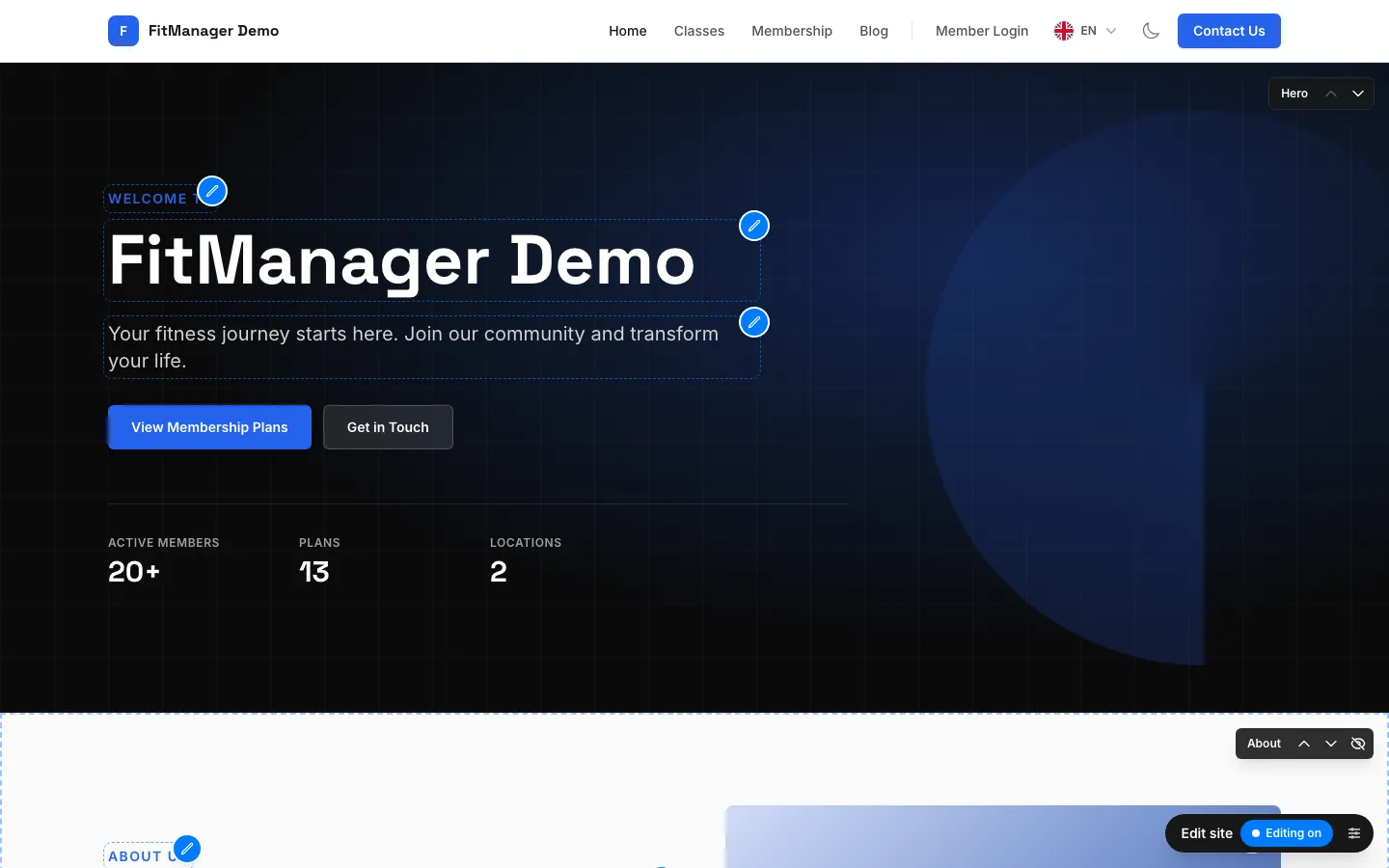
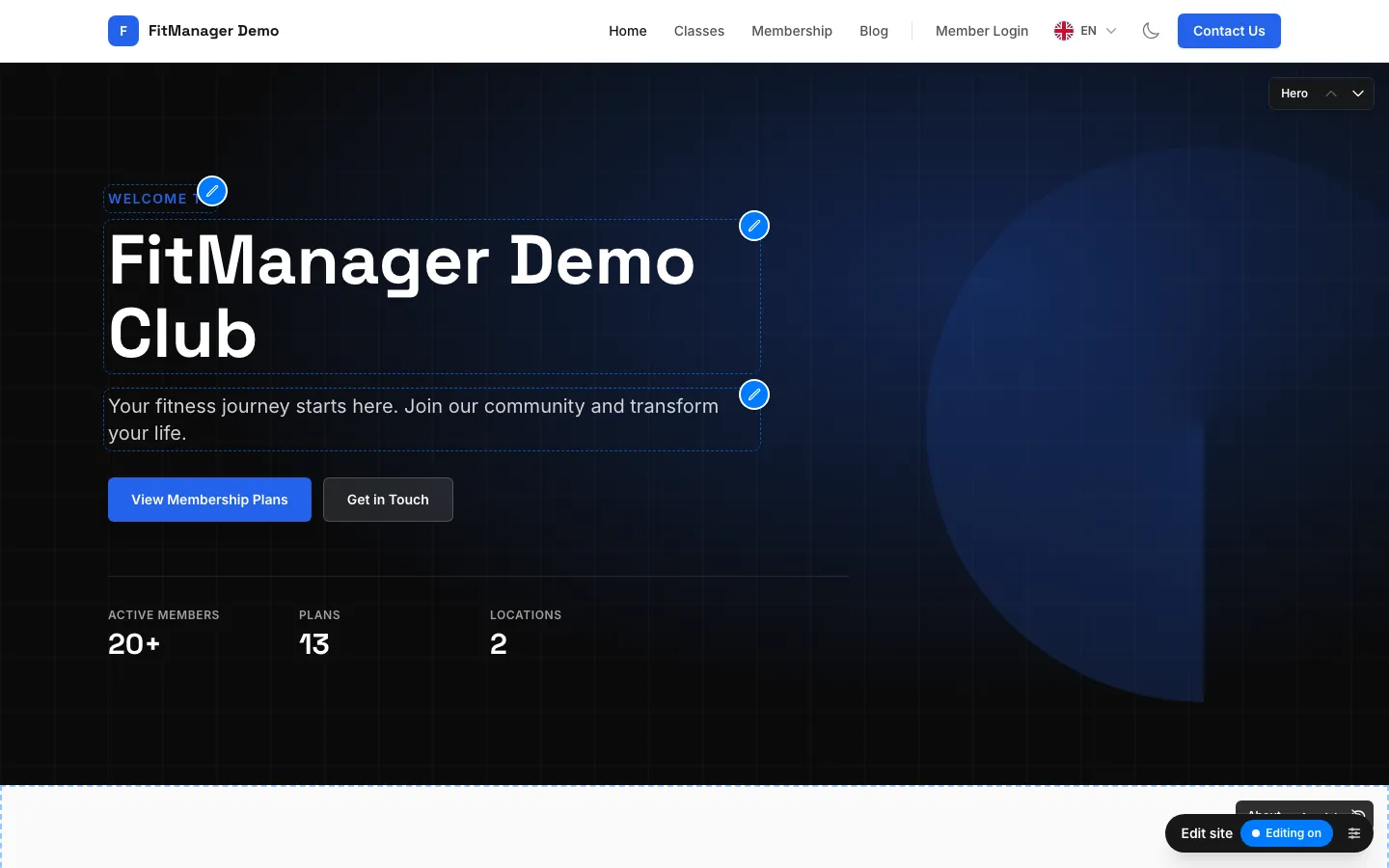
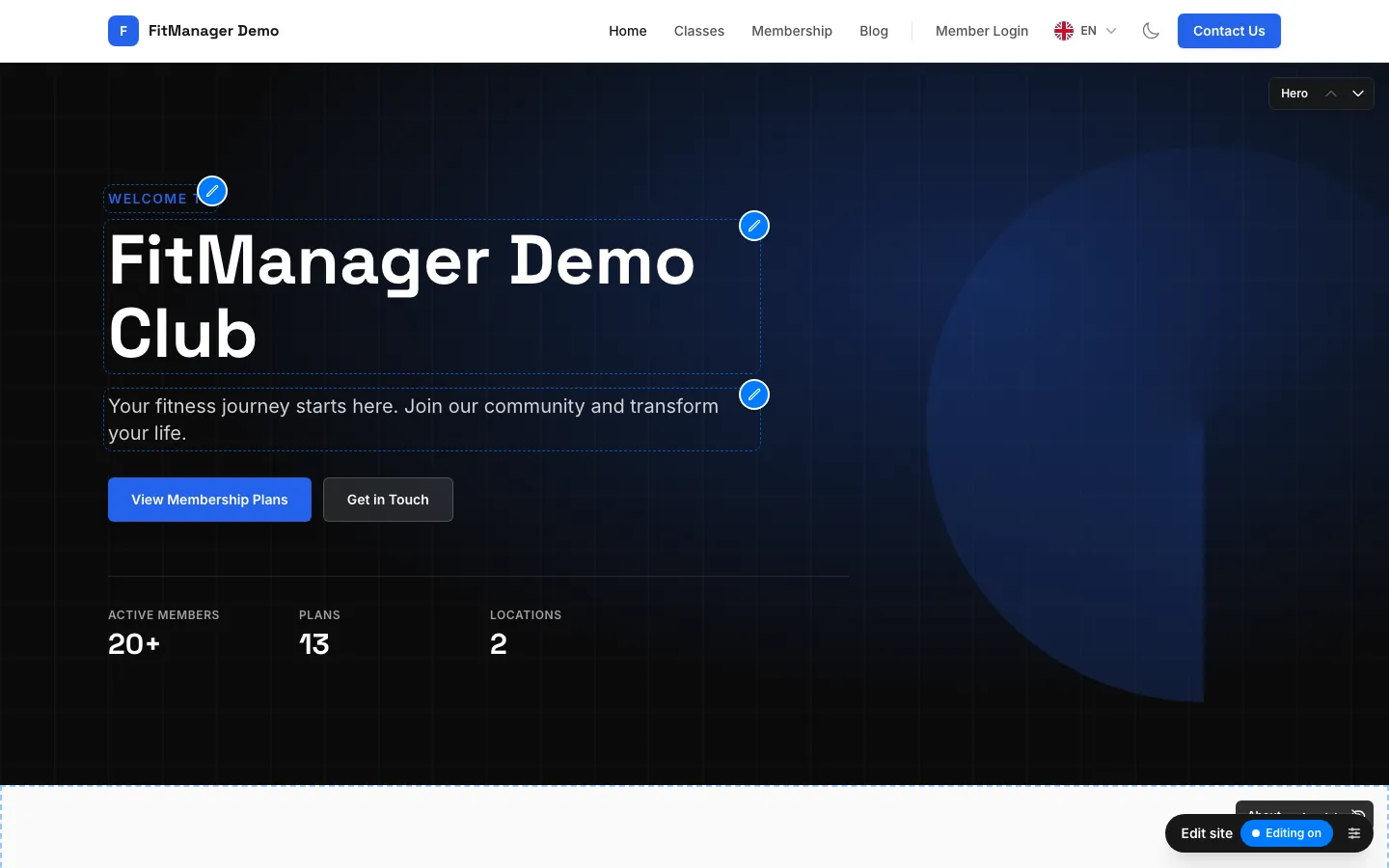
- Step 1: Open your website while signed in. In the Edit site bar at the bottom right, click Editing off to switch editing on.
- Step 2: Every section now has a dashed outline and a small bar to move it up, down or hide it.
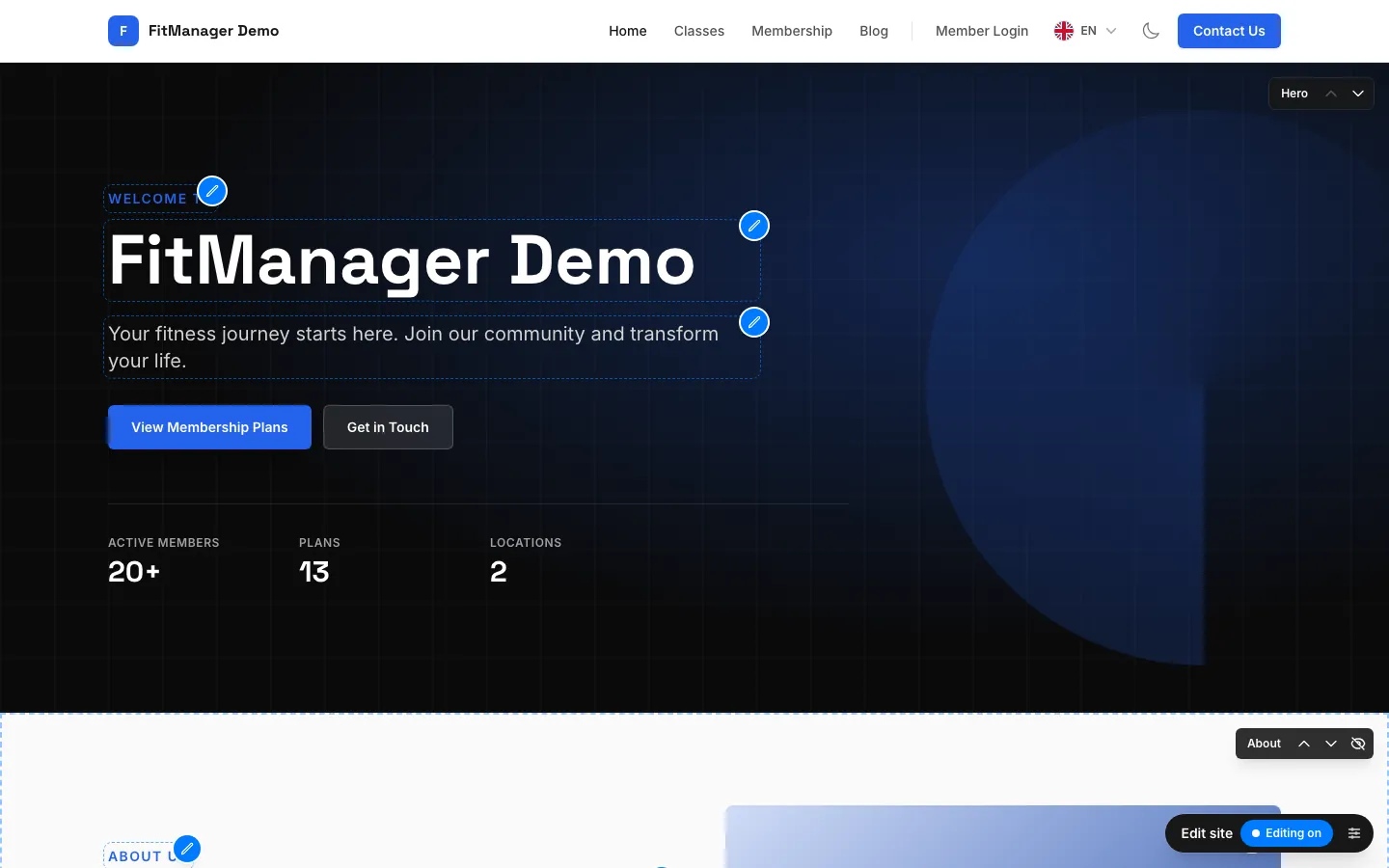
- Step 3: Click the pencil next to the text you want to change, here the main heading.
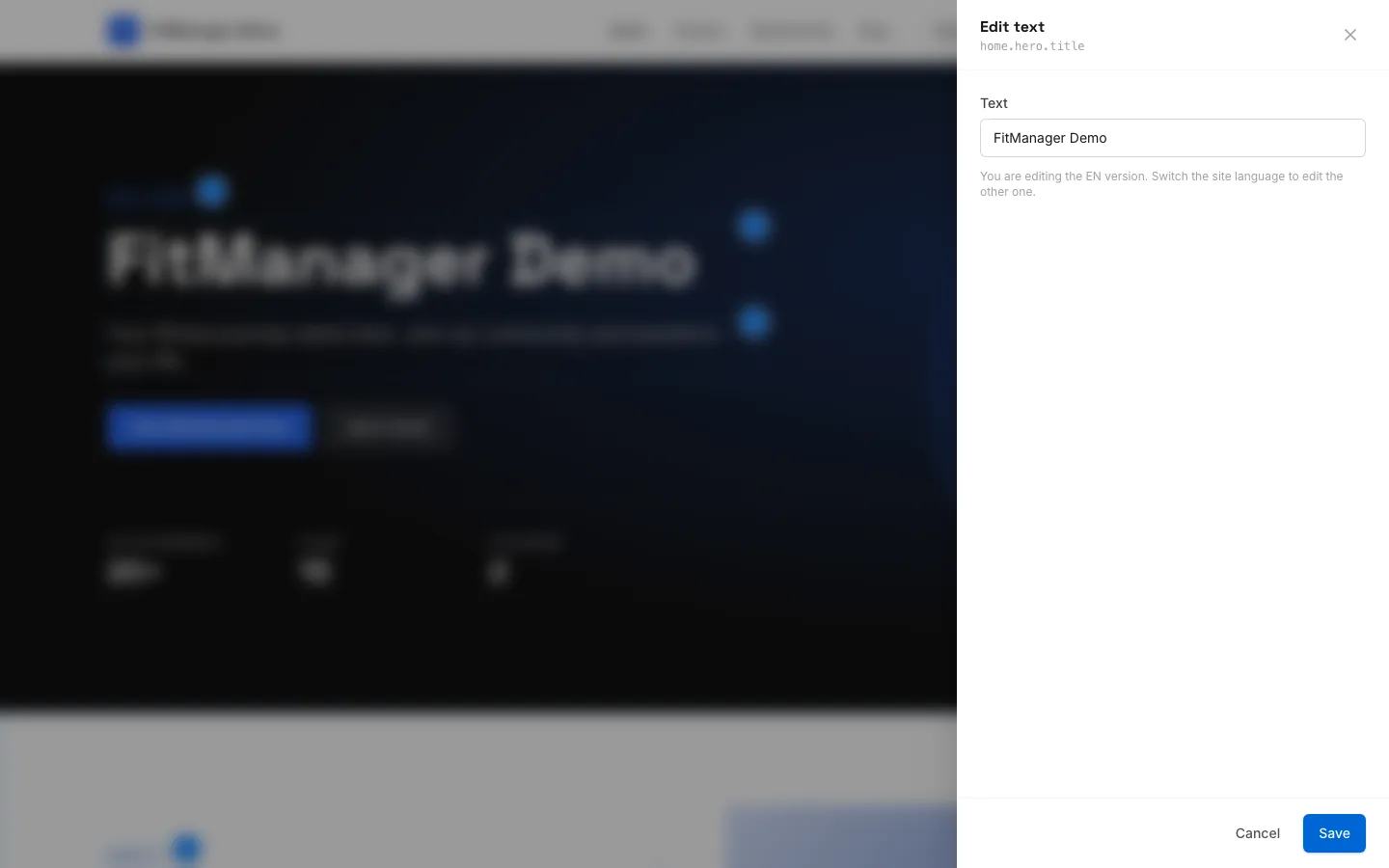
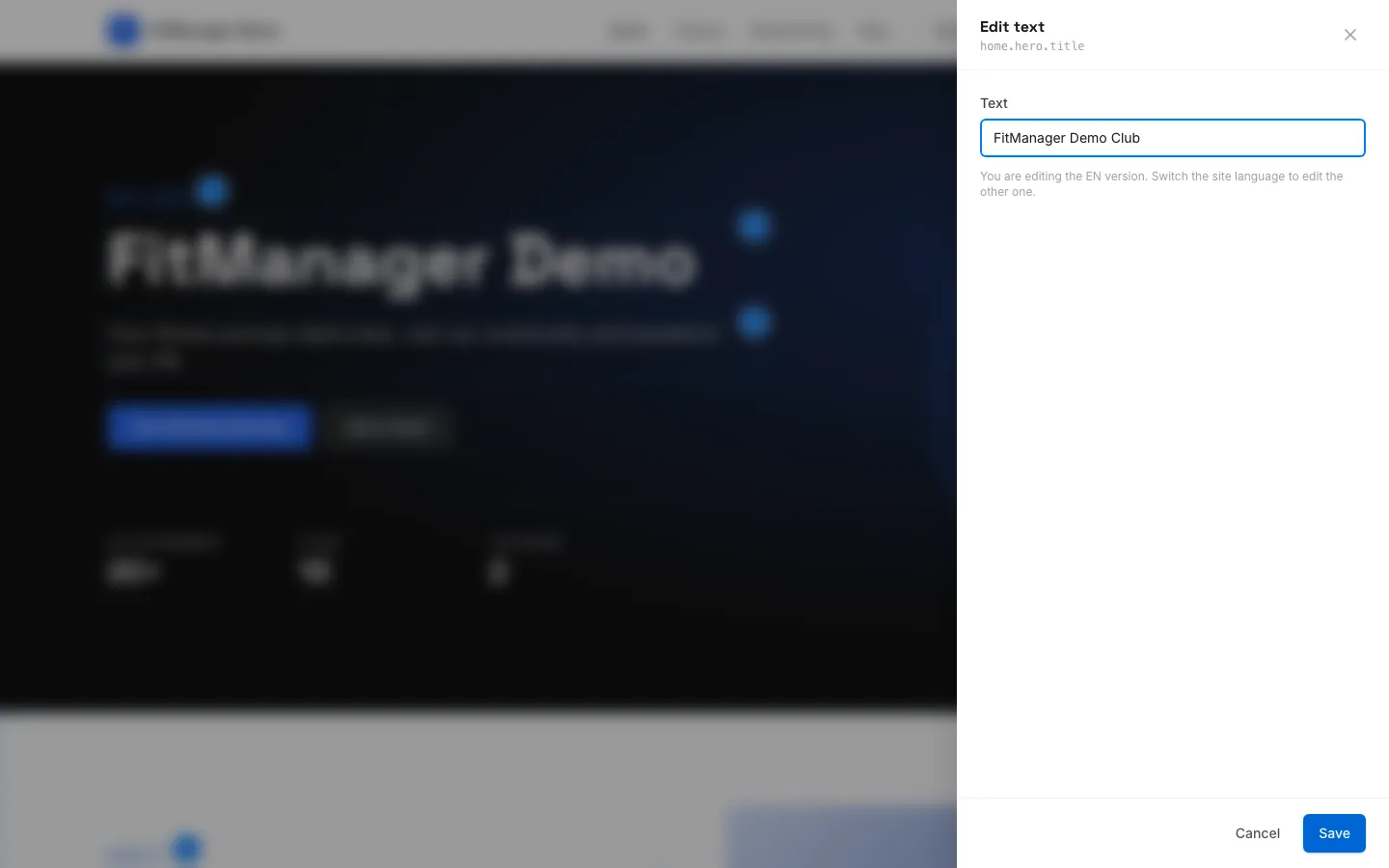
- Step 4: Type the new text. You are editing the version for the language the site is shown in.
- Step 5: Click Save. The page reloads with your change.
- Step 6: The new heading is live for every visitor right away.
- Step 7: When you are done, click Editing on to switch editing off again.
- Open your website: in the dashboard, open the workspace menu at the top of the sidebar and choose Preview website.
- At the bottom right of the site, find the Edit site bar and click Editing off. The page reloads and the button now reads Editing on.
- Every editable text now has a dashed outline and a blue pencil. Click the pencil next to the text you want to change.
- A panel opens on the right with the current text. Type the new version. For longer texts, leave an empty line between paragraphs.
- Click Save. The page reloads with your change, live for everyone.
- When you are done, click Editing on to switch editing off again.
Change a photo
Photo slots, such as the image in the About section, show a round photo button in their top right corner while editing is on.
- Click it to open the Change image panel.
- Click Choose an image and pick a JPG, PNG or WebP file of up to 8 MB. A preview appears.
- Click Save. To go back to the original image, click Use default.
The big hero image or video is not edited here: pick it with the hero style on Website & app. See Sections and themes.
Move or hide sections
While editing is on, each home page section has a small dark bar in its top right corner with its name and three buttons:
- the up and down arrows move the section,
- the eye button hides it. The Hero section is always shown and has no hide button.
Hidden sections are listed above the Edit site bar after Hidden:. Click a name there to bring the section back. The same order and switches are on Website & app under Home page sections, and both places always show the same state.
Two languages
Your website is shown in English and Macedonian, and each text is saved per language. The panel tells you which version you are editing. To edit the other one, switch the site language with the language menu in the website header, then edit the same text again. Until you do, visitors in the other language keep seeing the original wording.
The hero tagline and the about heading and text are the exception: they are the same fields as Tagline, Heading and Text on Website & app, so editing either place changes both.
Common questions
I do not see the Edit site bar
- Make sure you are signed in to the dashboard in the same browser, and that you opened the site from Preview website or the same address.
- Check that your plan includes the website editor. On Website & app, the Home page sections card says so when it does not.
- Employees need the Manage settings permission and must be assigned to one of the gym's locations.
Which pages can I edit?
The home page. The bar appears on every page of your site, but the pencils are on the home page sections. Plans, classes, opening hours and blog posts come from your data in the dashboard: change them there and the site follows.
The save button complains about my text
Text is required: to remove a line, write something shorter rather than leaving it empty. A single line can hold up to 300 characters, a paragraph text up to 4,000.
How do I undo a change?
Open the same text and type the old wording back. For photos, Use default restores the original image.
Was this page helpful?
Related articles
Still stuck?
Write to us and we will get back to you within one working day.