Choose what members are notified about
Pick the channel for each automatic member message, when expiry and class reminders go out, and the language members are written to in.
FitManager sends members a few messages on its own: a reminder before their membership ends, a receipt when they pay, a reminder before a class and a welcome when they join. On the Notification Settings page you decide which channel each of these goes out on, when reminders are sent and in which language.
Before you start
- You need the Manage settings permission. Employees without it do not see the page.
- The settings belong to one location. Check the location in the top bar before you change anything, and repeat the steps for each location you run.
- Email is always available. The SMS and Push columns only work when your plan includes them. Without them the column shows not in plan and its switches are greyed out.
Set up notifications
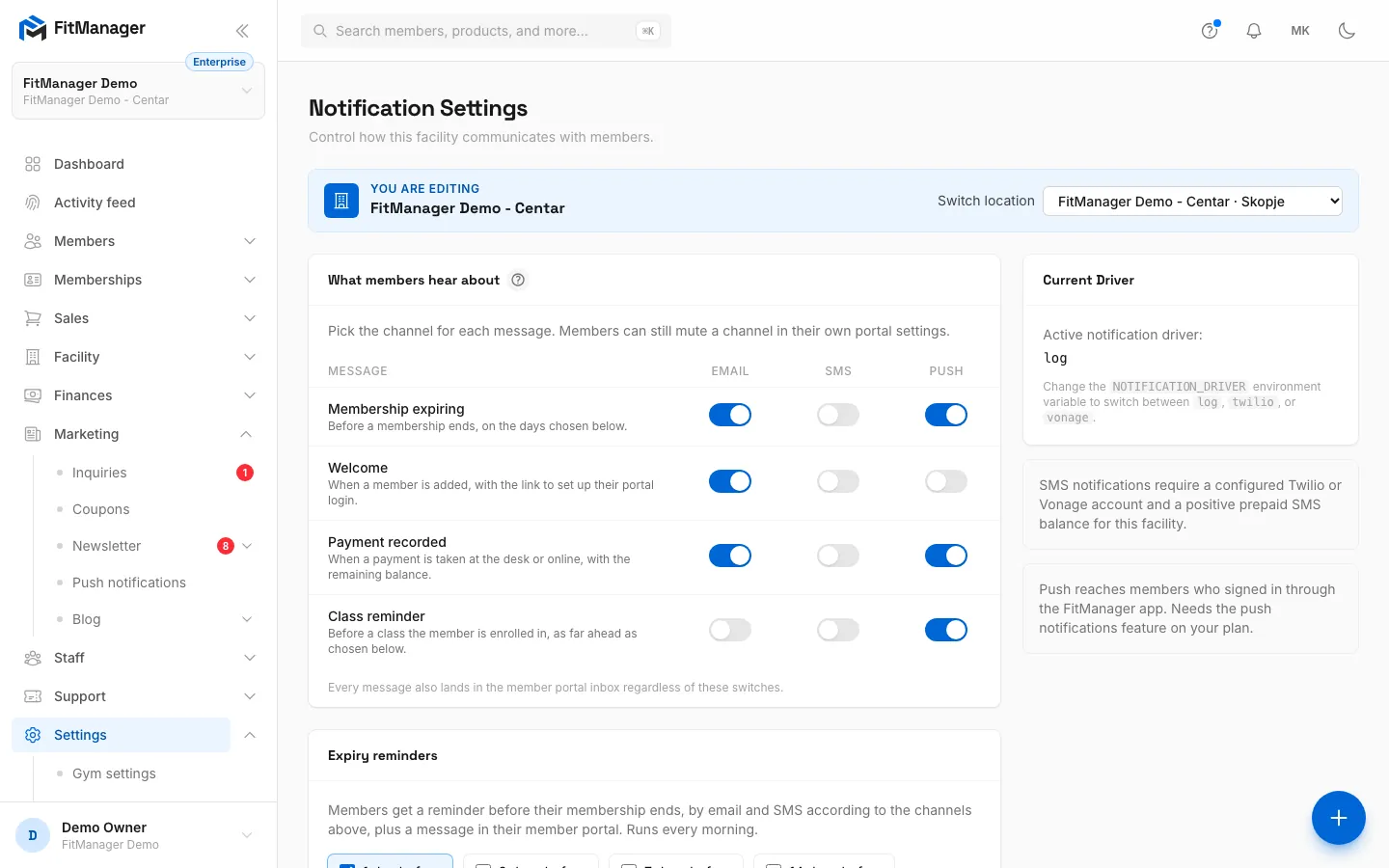
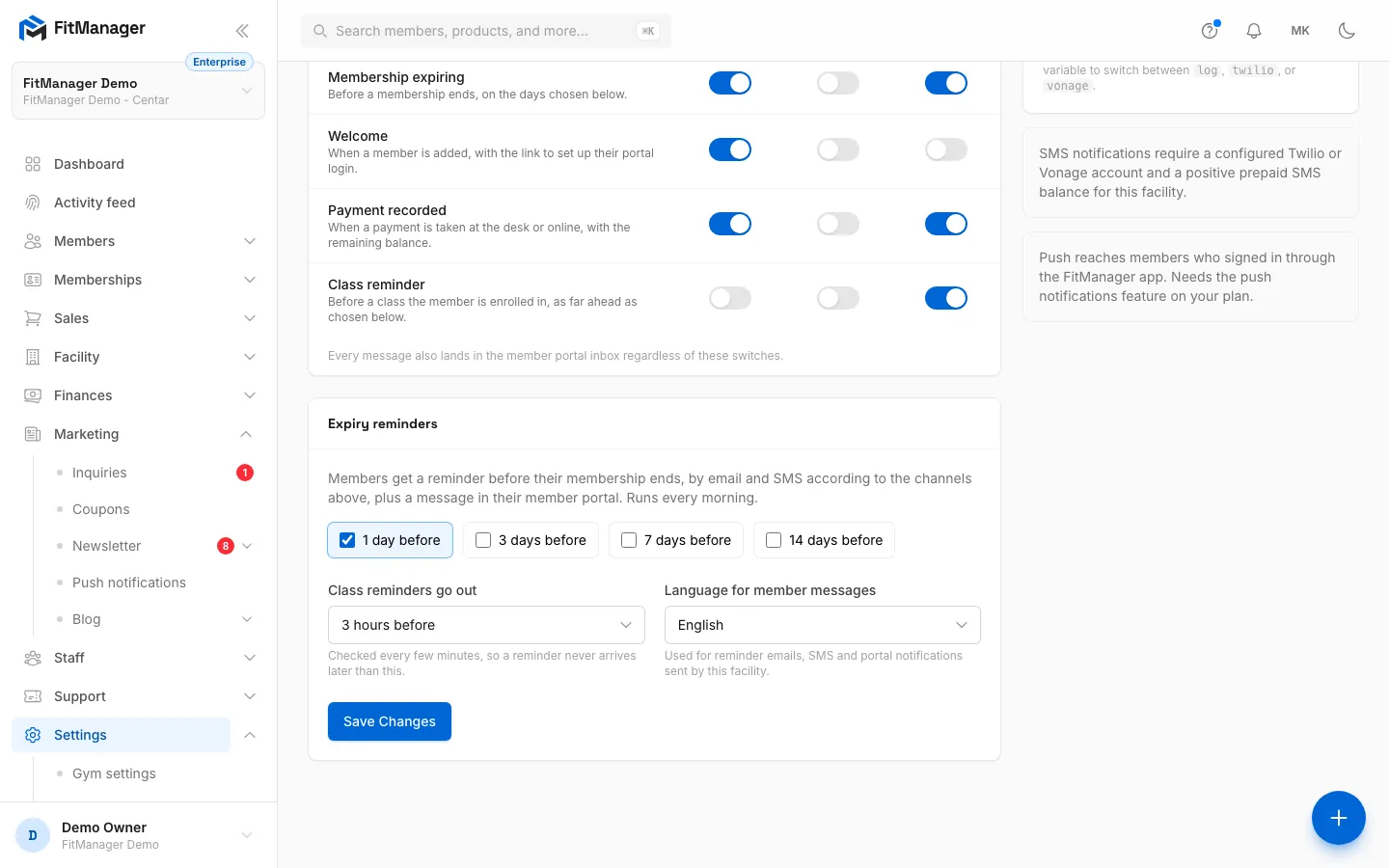
- Step 1: Each row is a message members get, each column a channel. Columns your plan lacks are greyed out.
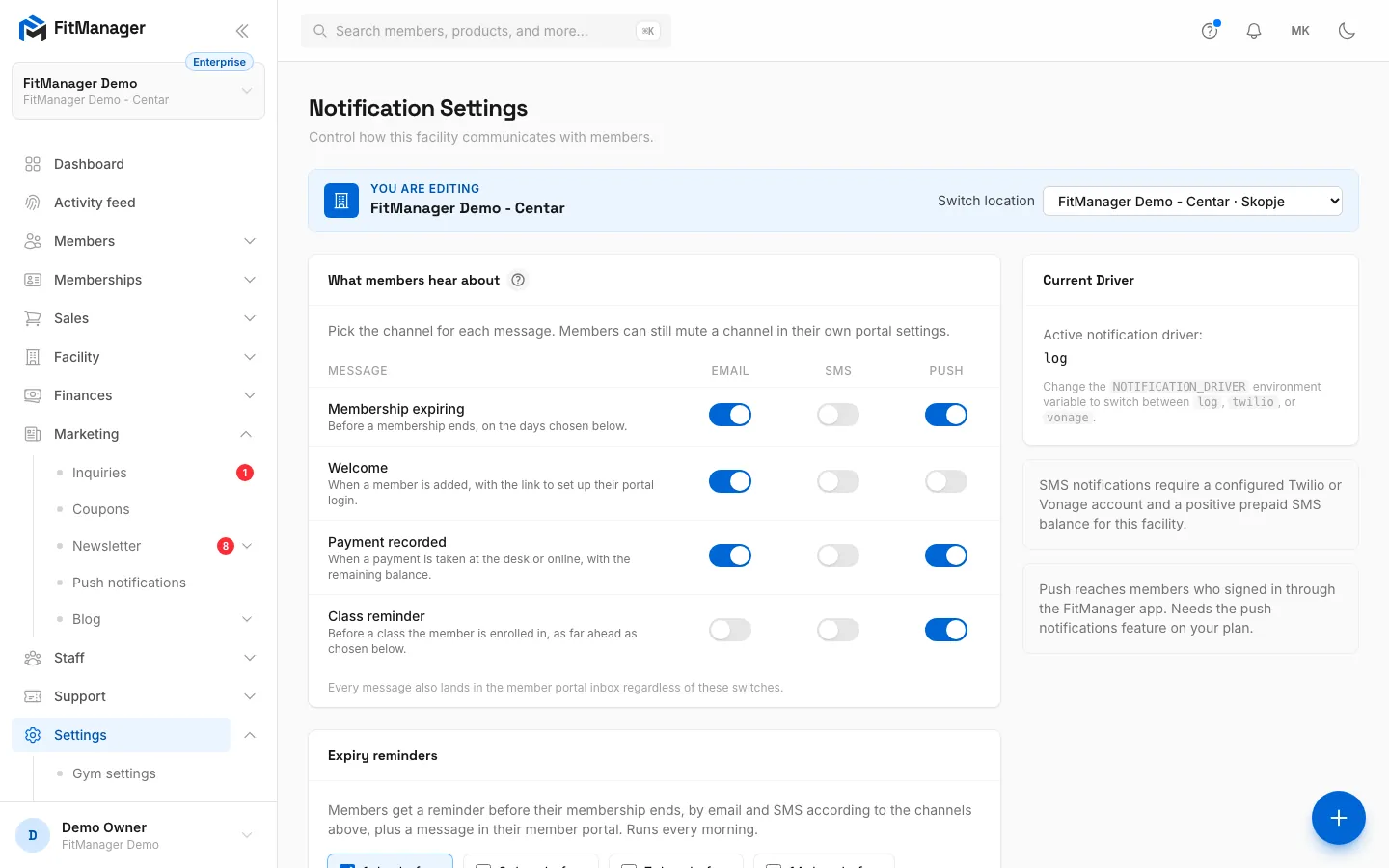
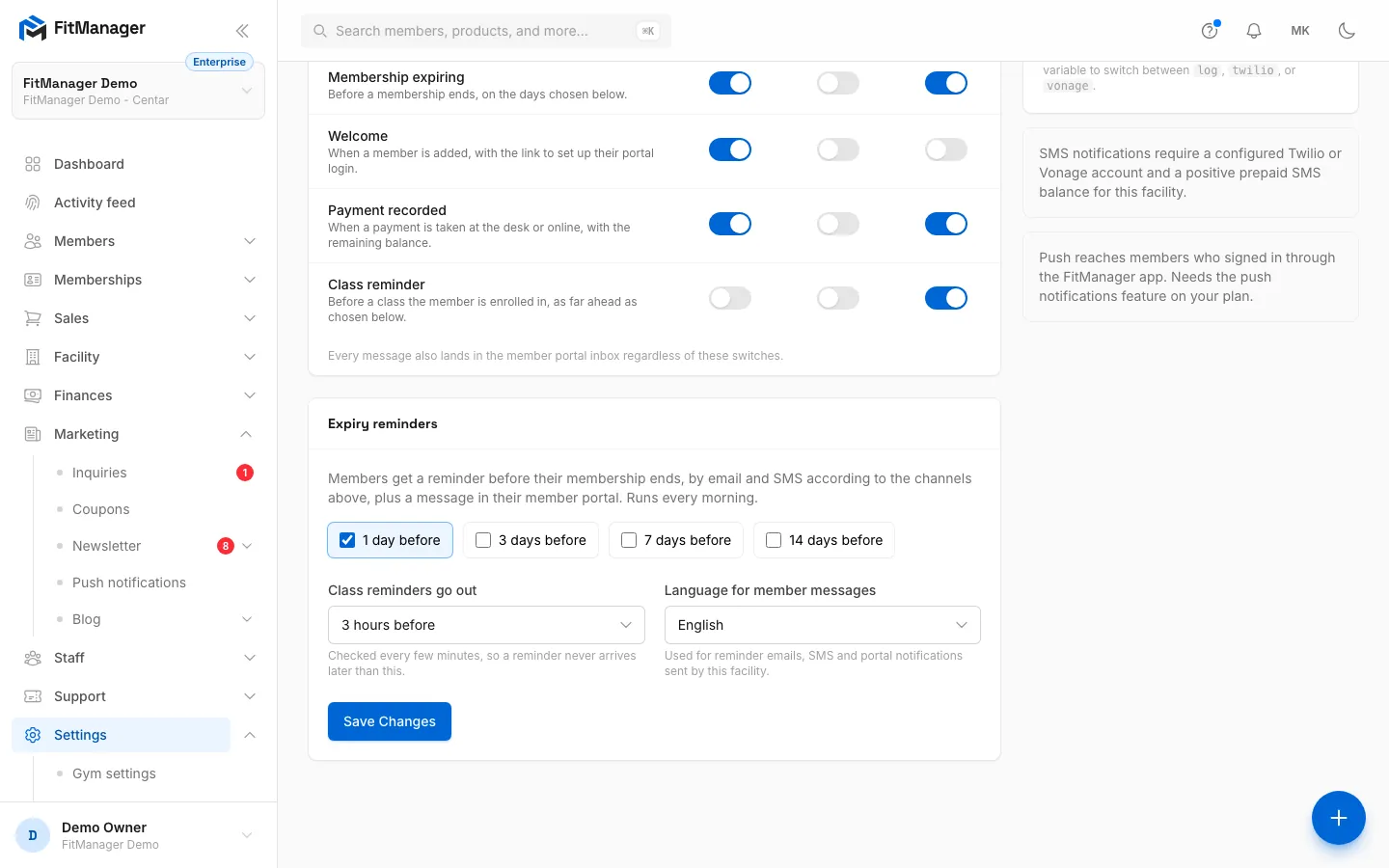
- Step 2: Click a switch to turn a channel on or off for a message, here class reminders by email.
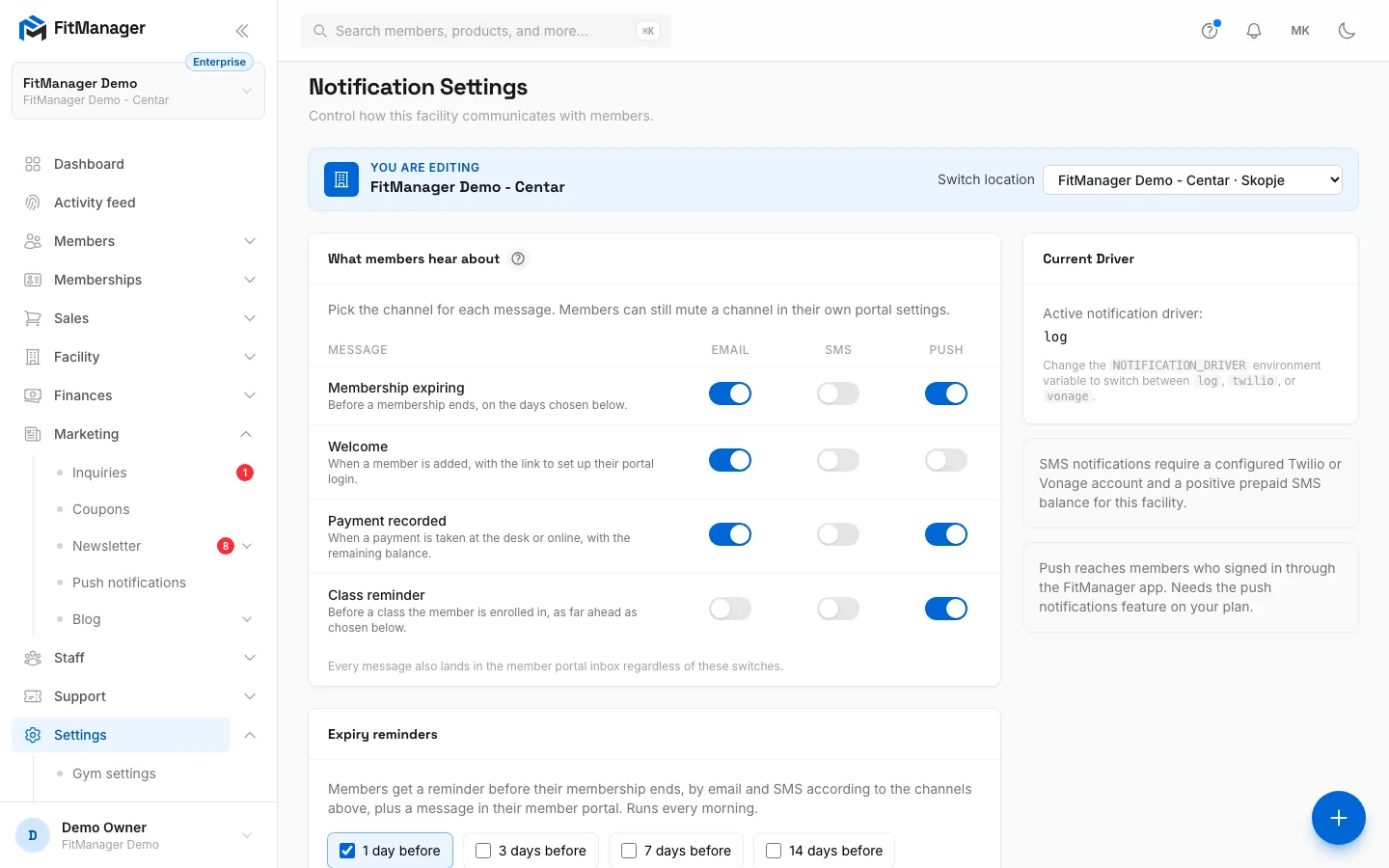
- Step 3: Tick how many days before a membership ends the expiry reminder goes out.
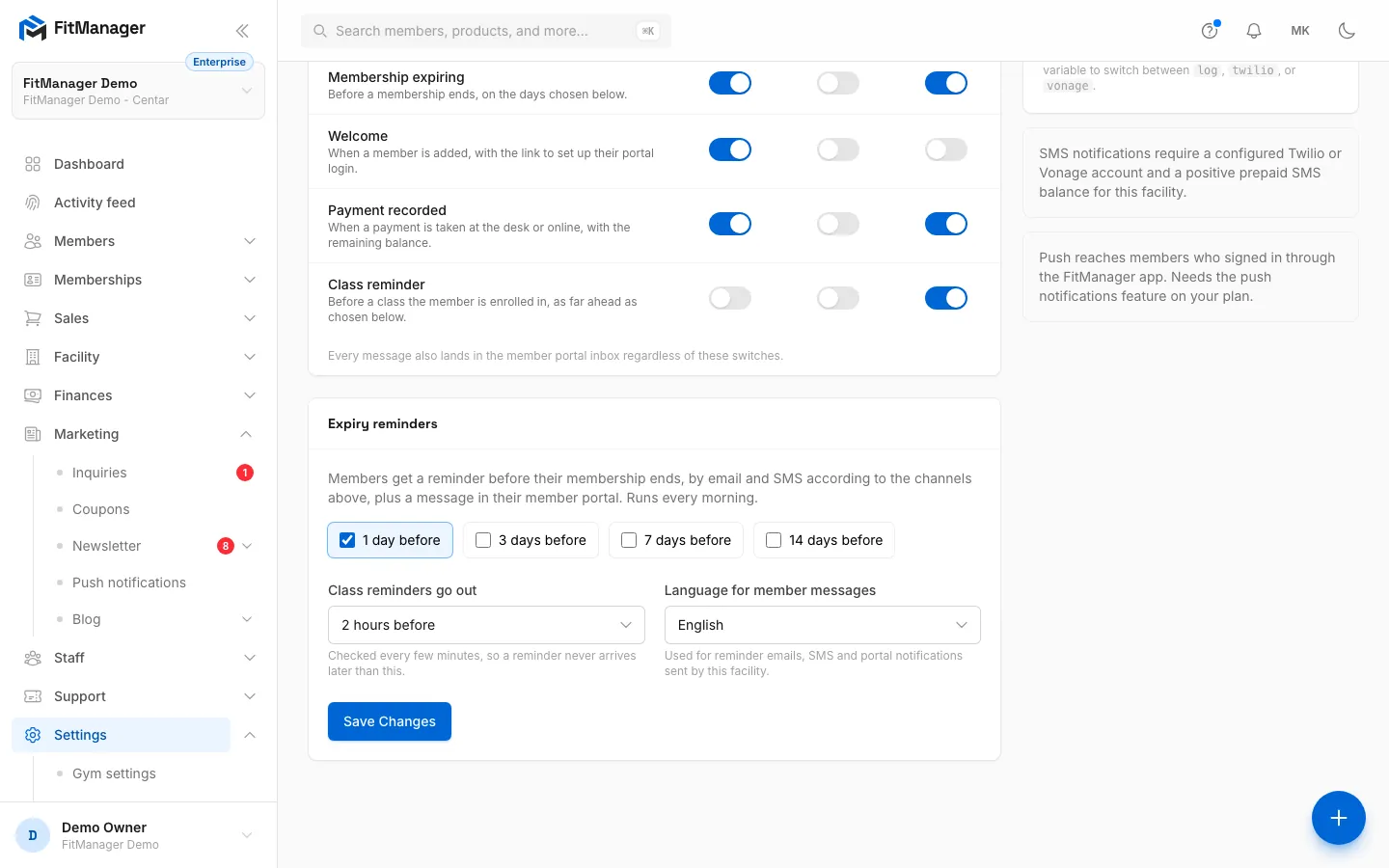
- Step 4: Choose how far ahead class reminders arrive.
- Step 5: Set the language members are written to in.
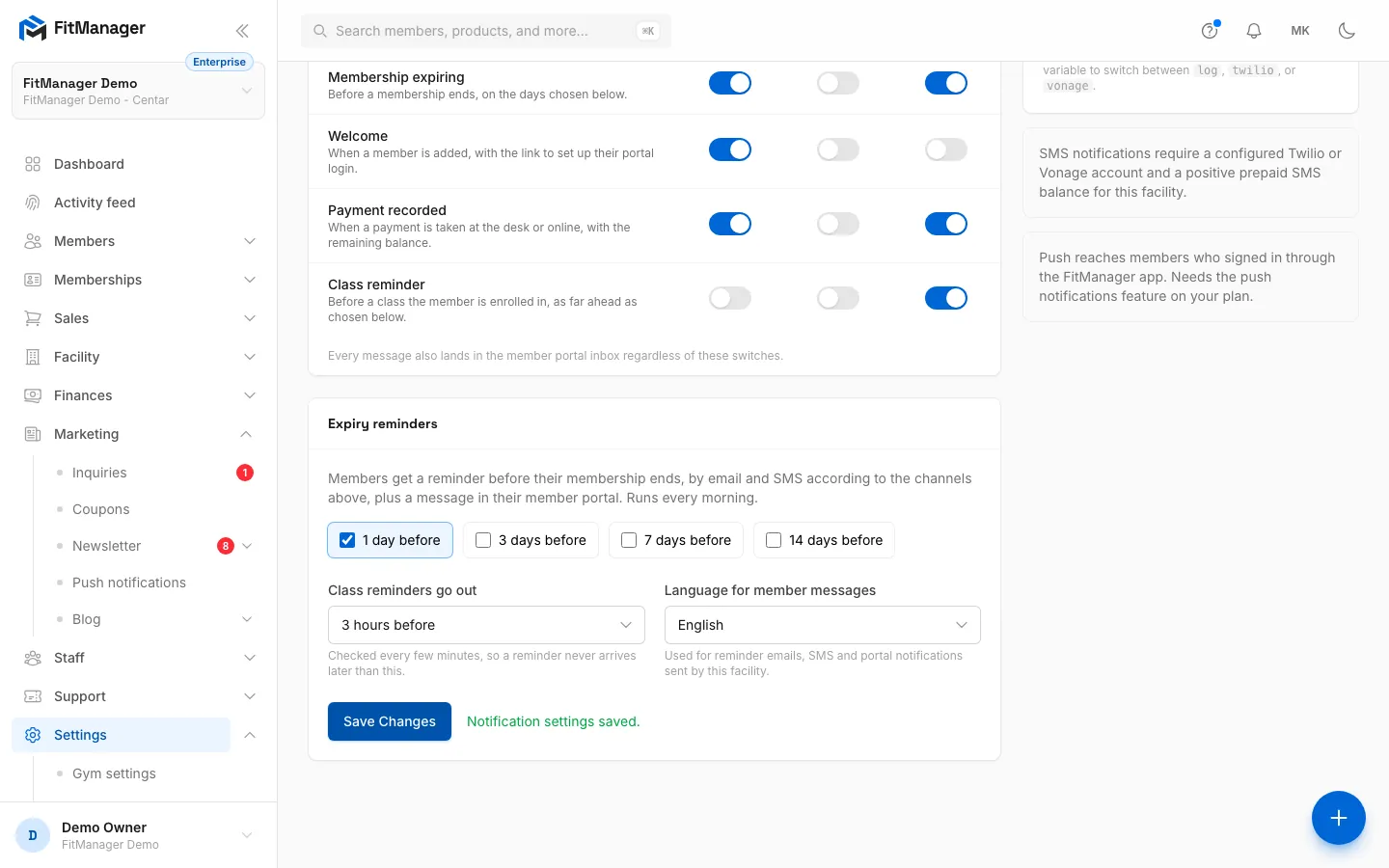
- Step 6: Click Save Changes.
- Step 7: The settings are saved and apply to this location from the next message on.
- Go to Settings, Facility settings, Notifications.
- In What members hear about, switch each channel on or off for each message.
- Under Expiry reminders, tick how many days before the end of a membership the reminder goes out.
- In Class reminders go out, choose how far ahead of a class the reminder arrives.
- In Language for member messages, choose English or Macedonian.
- Click Save Changes.
The messages
| Message | When it goes out | Default channels |
|---|---|---|
| Membership expiring | Every morning, for memberships that end on one of the days you ticked under Expiry reminders. | Email and Push |
| Welcome | When a member is added, with the link to set up their portal login. | |
| Payment recorded | When a payment is taken at the desk or online, with the remaining balance. | Email and Push |
| Class reminder | Before a class the member is enrolled in, as far ahead as you chose. Needs the timetable on your plan. | Push |
Every message also lands in the member's portal inbox, whatever the switches say. The switches only control the extra channels.
Welcome email
The welcome email is sent when you add a member with Send login details & welcome email switched on in the member form. Turn that switch off on the form when you do not want a member to get it. See Add a member.
Reminder timing
Expiry reminders can go out 1, 3, 7 or 14 days before a membership ends. The check runs once every morning. A membership gets one expiry reminder: once it has been sent, the other days you ticked are skipped for that membership. A member who already holds a later membership, because they renewed early, gets no reminder at all.
Class reminders can go out 1, 2, 3, 6, 12 or 24 hours before the class. FitManager checks every few minutes, so a reminder never arrives later than the time you chose. See Class reminders.
What members can change
Members choose for themselves which reminders they want in the portal, under Email reminders, SMS reminders and App notifications. If a member has switched a channel off, they do not get it even when you have it on. Your switches decide what is offered, the member decides what they accept.
A member also needs the right contact details for a channel:
- Email needs an email address on their profile.
- SMS needs a phone number. See SMS and prepaid balance for the number format.
- Push needs the member to be signed in through the FitManager app on their phone. See Push notifications.
Where email comes from
Member email goes out from the FitManager platform address unless you connect your own sender.
Requires: Own email provider
Connect your Brevo account to send member email from your own domain and see every delivery in the email log. See Connect your Brevo account.
Common questions
A member says they never got an expiry reminder
Check that Membership expiring has a channel switched on, that the member has the email or phone number for it, and that they have not muted the channel in the portal. Remember that a member who renewed early is not reminded. The reminder is always in their portal inbox.
Why can't I switch on SMS or Push?
The column shows not in plan when your plan does not include SMS or push notifications. See What's on my plan.
What is the Current Driver card?
It shows which SMS gateway the FitManager platform is using. There is nothing for you to configure there: SMS is sent through FitManager's own providers and paid from your prepaid balance.
I run two locations. Do I set this up twice?
Yes. Each location has its own channels, reminder days and language. Switch location in the top bar and save the page for each one.
Was this page helpful?
Related articles
Still stuck?
Write to us and we will get back to you within one working day.