Connect your own domain
Serve your gym website and member portal on your own domain, step by step, with DNS examples for Cloudflare, GoDaddy, Namecheap and .mk registrars.
Put your website on www.yourgym.mk instead of a FitManager address. You enter the domain in FitManager, add two DNS records at the company where you bought the domain, and FitManager does the rest: it checks the records, sets up the domain on our server and issues the https certificate, which then renews on its own. Nothing to install, no hosting to pay for.
Before you start
- Your plan needs connected domains.
- You need to own the domain and be able to log in where its DNS is managed (your registrar, Cloudflare, or your web host).
- Only staff with the Manage settings permission can open the page.
- If the domain already runs another website, that site stops answering once you point the records at FitManager. Email on the domain keeps working: you only touch the A records, never the MX records.
Website domain or portal domain
The Domains page has two cards. You can use one or both.
| Card | What it serves | Typical address |
|---|---|---|
| Website domain | Your public website. The member portal works there too, under /member. |
yourgym.mk and www.yourgym.mk |
| Member portal domain | Only the member portal. Its front page opens the member login. | app.yourgym.mk |
Most gyms only need the website domain. Add a portal domain when you want a short, separate address to give to members. Once your domain is live, members who open the portal on the old FitManager address are sent to your domain automatically (to the portal domain if you have one, otherwise to the website domain).
Step 1: Enter your domain in FitManager
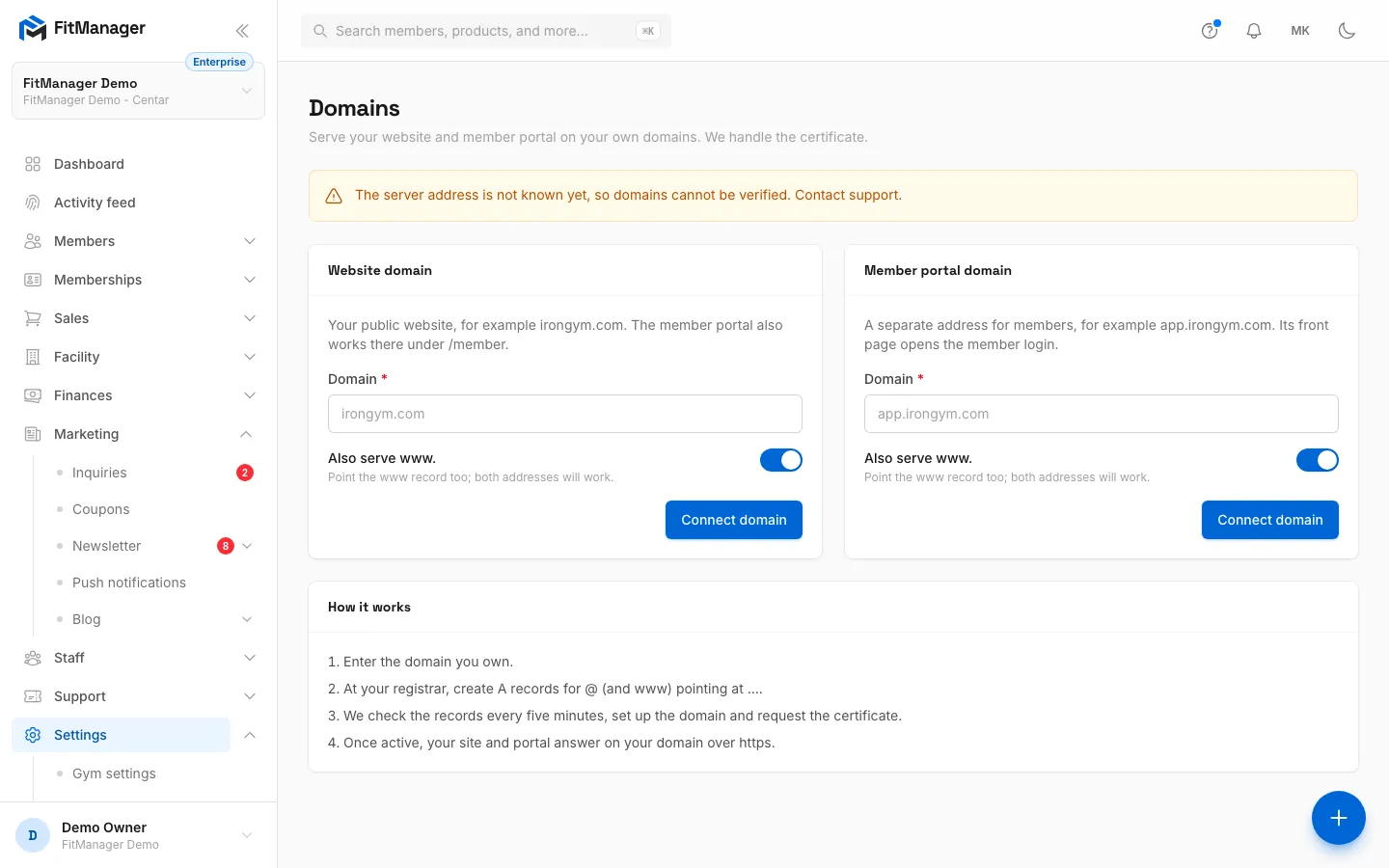
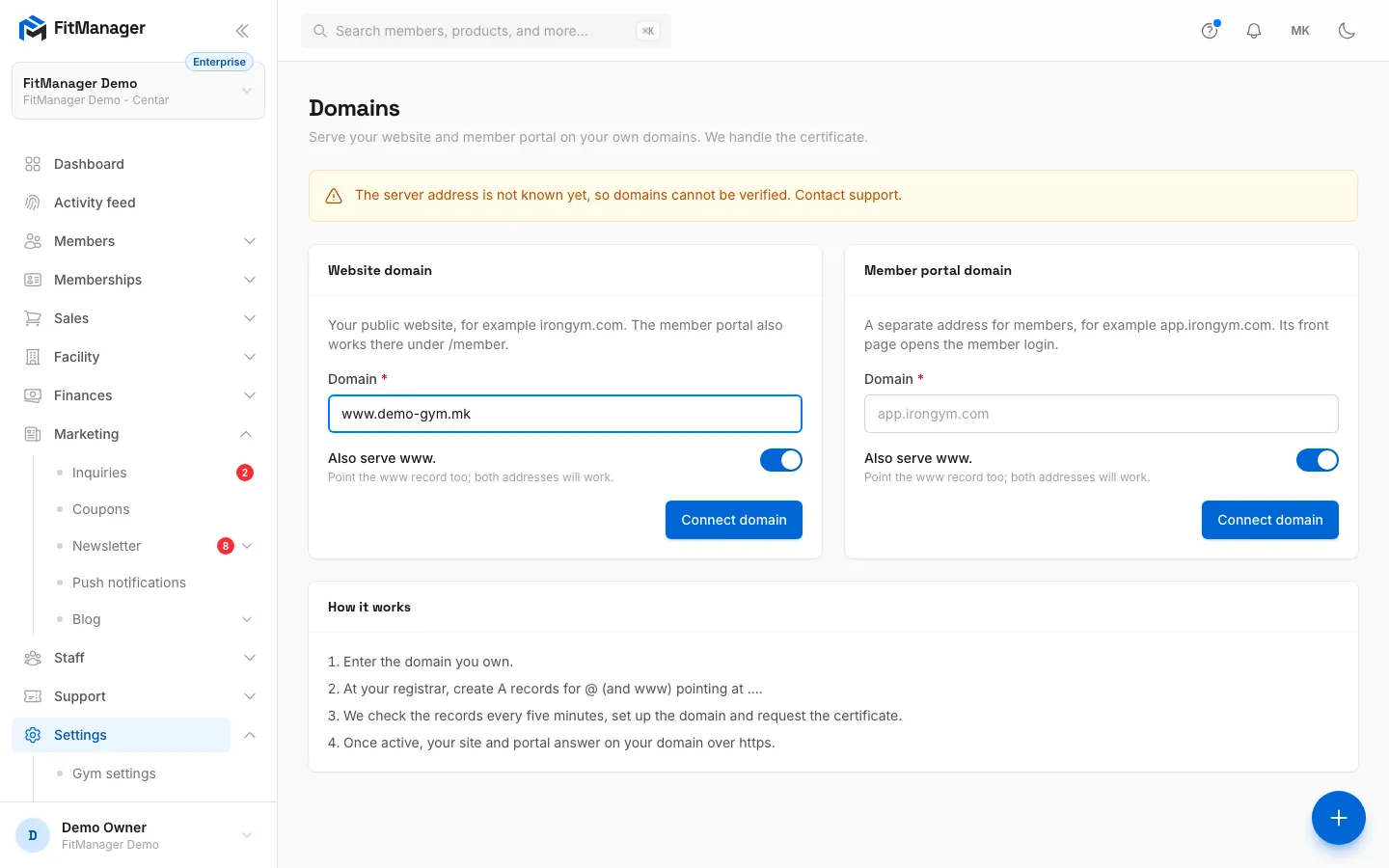
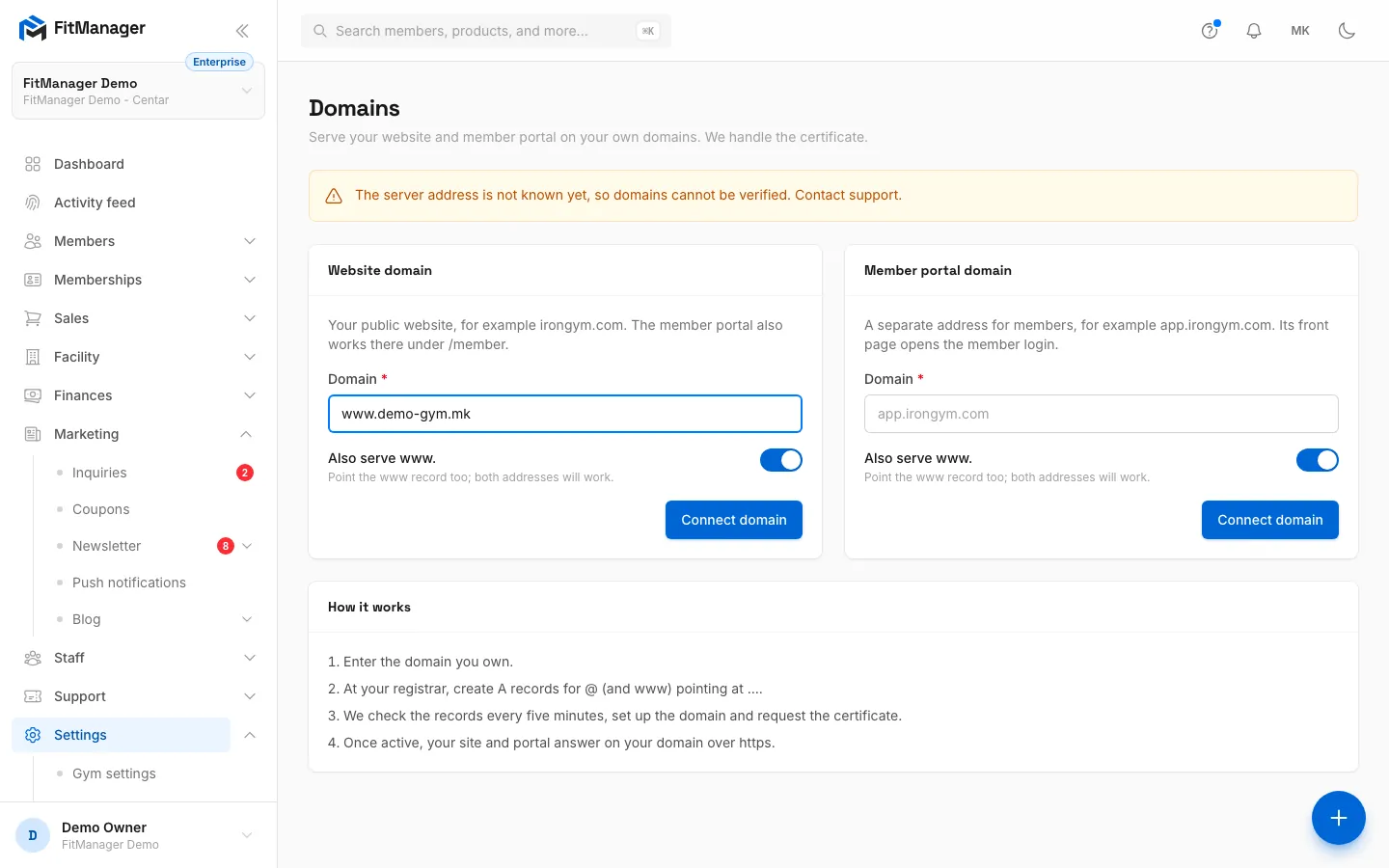
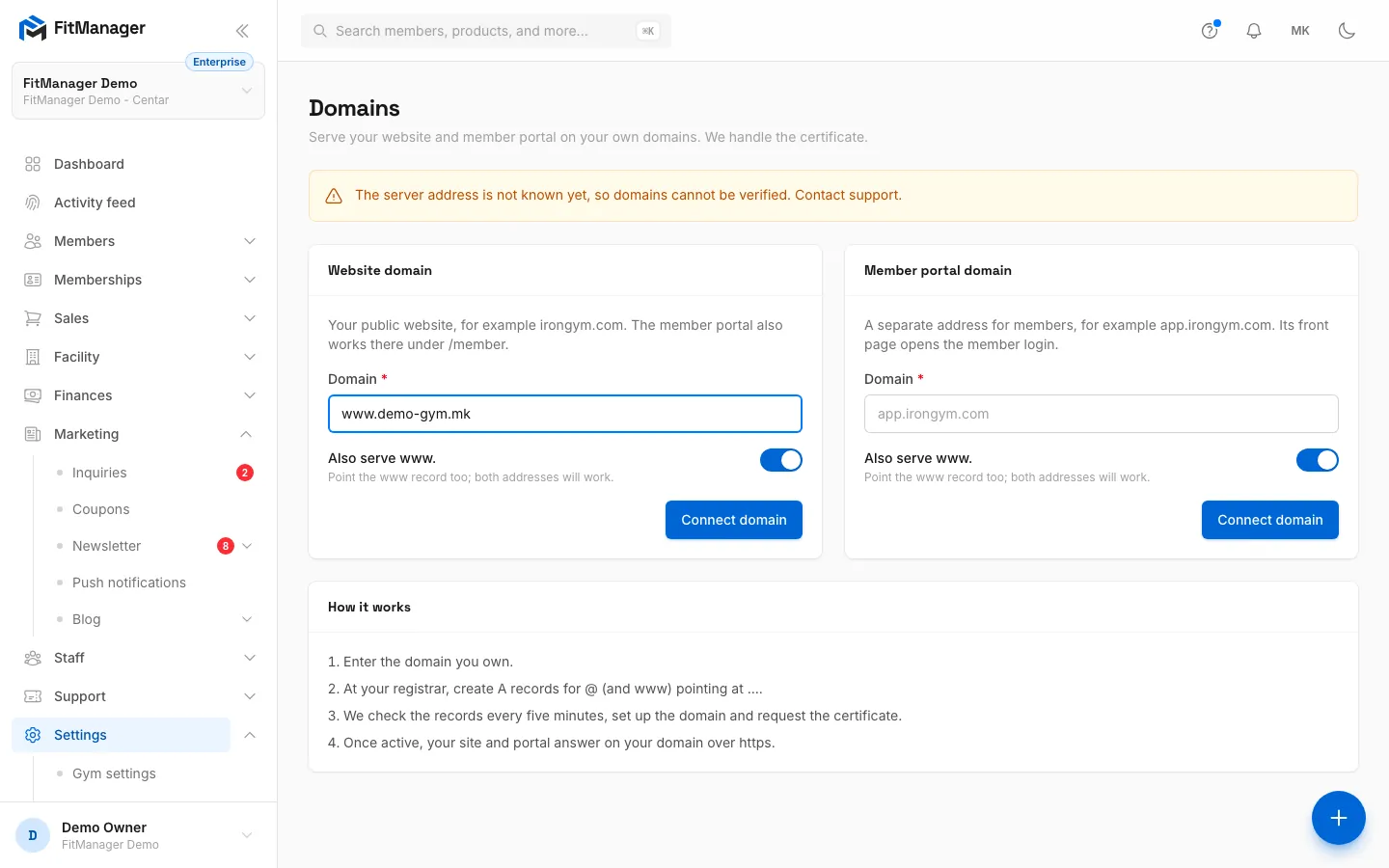
- Step 1: In the Website domain card, type the domain you own. A www. prefix is fine, FitManager stores the bare domain.
- Step 2: Leave Also serve www. on so both addresses work, then click Connect domain.
- Step 3: How it works sums up the rest. After you connect, the card lists the A records to add at your registrar, and the domain goes live on its own once they point at our server.
- Step 4: Optionally, connect a separate address for the member portal, such as app.demo-gym.mk.
- In the sidebar, open Settings, Website, Domains.
- In the Website domain card, type your domain in Domain, for example
yourgym.mk. You can pastehttps://www.yourgym.mk/too: FitManager removes thehttps://, the path and thewww.and keeps the bare domain. - Leave Also serve www. on so both
yourgym.mkandwww.yourgym.mkwork. Switch it off only if you do not want thewwwaddress. - Click Connect domain.
The card now shows the domain with the status Waiting for DNS and a table titled DNS records to add at your registrar:
| Type | Host | Value |
|---|---|---|
| A | @ |
the server IP shown on your page |
| A | www |
the same IP |
@ means the domain itself (yourgym.mk). Use the copy button next to the IP so you do not mistype it. The IP on your page is the one that counts: do not copy it from this article or from another gym.
Step 2: Add the A records where your DNS is managed
Log in where your domain's DNS is managed. That is usually the company you bought the domain from. If you moved your DNS to Cloudflare or to your web host (you changed the domain's nameservers), make the change there instead: records added at the registrar are ignored once the nameservers point elsewhere.
In every provider, the job is the same:
- one A record with host
@and the IP from your page, - one A record with host
wwwand the same IP, - remove any other A, AAAA or CNAME record for
@orwww, so nothing else competes with them, - leave MX, TXT and other records alone.
Cloudflare
- Log in to dash.cloudflare.com and click your domain.
- Open DNS, Records.
- If there is an existing A, AAAA or CNAME record named
yourgym.mk(shown as@) orwww, click Edit and change it, or Delete it. - Click Add record. Choose Type
A, Name@, IPv4 address the IP from your page. - Click the orange cloud under Proxy status so it turns grey and reads DNS only. This is essential.
- Leave TTL on Auto and click Save.
- Repeat with Name
www, again with DNS only.
Keep the cloud grey
With the orange cloud (Proxied), Cloudflare hides our server behind its own addresses. FitManager then never sees your records pointing at it, the status stays on Waiting for DNS, and the certificate cannot be issued. Set both records to DNS only.
GoDaddy
- Log in to godaddy.com and open My Products.
- Next to your domain, click DNS (or Manage DNS).
- On the DNS Records tab, find the A record with name
@(often pointing at "Parked"). Click the pencil, set Value to the IP from your page and click Save. - GoDaddy usually has a CNAME record named
wwwpointing at@. Delete it. - Click Add New Record, choose Type
A, Namewww, Value the IP, TTL 1 hour, and click Save. - If you see AAAA records for
@orwww, delete them.
Namecheap
- Log in to namecheap.com and open Domain List.
- Click Manage next to your domain and open the Advanced DNS tab.
- Under Host Records, delete the default CNAME Record for
www(pointing atparkingpage.namecheap.com) and any URL Redirect Record for@. - Click Add New Record, choose A Record, Host
@, Value the IP from your page, TTL Automatic, and click the green tick. - Add a second A Record with Host
wwwand the same IP.
If Advanced DNS tells you the domain uses custom nameservers, make the change at that provider instead.
Macedonian .mk domains
.mk domains are run by MARnet, but you never edit them at MARnet itself: you manage them through the accredited registrar you bought the domain from.
- Not sure who that is? Look your domain up in the WHOIS search on marnet.mk. The registrar and the nameservers are listed there.
- Log in to that registrar's client area and open the DNS or zone management for your domain. Depending on the registrar it is called DNS zone, DNS management or Zone editor.
- Add or change the two A records:
@(some panels want the field empty, or the fullyourgym.mk.) andwww, both with the IP from your page. - If the nameservers belong to your web hosting company (for example the panel where your current site or email lives), edit the zone there instead, for example in cPanel under Zone Editor.
- Some registrars only change DNS on request. In that case, send them the two records from your FitManager page by email or through their support form.
Step 3: Wait for it to go live
Back on the Domains page, FitManager checks your records every five minutes, and the page refreshes by itself every 30 seconds while a domain is not live. Click Check now to check right away.
DNS changes travel at their own pace: usually a few minutes, sometimes a few hours, in rare cases up to 48 hours, depending on the old records' TTL. The Currently points to column shows what FitManager sees for each host, turning green when it matches.
| Status | What is happening |
|---|---|
| Waiting for DNS | The records do not point at our server yet. |
| DNS verified | Records are right. FitManager starts setting up your domain. |
| Setting up | The domain is being added on our server. |
| Certificate pending | The https certificate is being issued. This usually takes a minute. |
| Active | Live. The card shows Live at with your address and the date the current certificate is valid until. |
| Failed | Something went wrong. The reason is shown in red under the domain. |
| Removing | The domain is being disconnected. |
Once Active, your website answers at https://yourgym.mk and https://www.yourgym.mk, and the links on your website, in the portal and in the sitemap use your domain. The certificate renews automatically.
Remove a domain
Click Remove in the domain card and confirm. The domain stops serving your site right away and your website is back on its FitManager address. You can then connect a different domain. To change a domain, remove it first: each card holds one domain.
Troubleshooting
It stays on Waiting for DNS
- Look at Currently points to. no record means the record does not exist yet or has not spread. A different IP means an old record is still there or you are editing DNS in the wrong place (check the nameservers).
- On Cloudflare, make sure both records are DNS only (grey cloud). Proxied records show Cloudflare IPs here.
- Check the IP character by character against the one on your page.
- Wait for the TTL of the old record to expire, then click Check now.
It says Failed
Read the message under the domain. FitManager retries failed domains every hour for 24 hours; after that, fix the cause and click Check now. Common causes:
- AAAA records. An IPv6 record for
@orwwwthat points elsewhere makes the certificate check reach the wrong server. Delete AAAA records for both hosts. - The www record is missing while Also serve www. is on. Add it, or remove the domain and connect it again with the switch off.
- A CAA record that only allows another certificate authority. Remove it, or add one that allows
letsencrypt.org.
"That domain is already connected"
The domain, or its www version, is connected to another FitManager gym or to your other card. Remove it there first, or open a ticket if you do not know where.
"A domain is already set for this purpose. Remove it first."
Each card holds one domain. Remove the current one before connecting another.
"Enter a domain such as irongym.com, without http:// or paths."
Type only the domain. FitManager addresses (anything ending in the FitManager domain) and IP addresses are not accepted.
Using a subdomain such as app.yourgym.mk
The table shows host @, meaning the domain you entered. For a subdomain, the record you create at your registrar has the host app, not @. Switch Also serve www. off for a subdomain, since www.app.yourgym.mk is rarely wanted.
The page shows "The server address is not known yet"
FitManager cannot show you the IP to point at. Open a ticket and the team will sort it out.
Was this page helpful?
Related articles
Still stuck?
Write to us and we will get back to you within one working day.