Partner billing
Let corporate wellness card holders train without paying at the desk and settle their visits with the partner company once a month.
Many members train on a corporate wellness card, such as SportMaster or FitKit. They pay nothing at the desk. Instead, the partner company pays you for every visit at the end of the month. Partner billing keeps those visits apart from normal sales, gives you a monthly statement per partner, and records the partner's payment in one click.
Before you start
- You need Finances access (the finances.view permission) to open the statements, and memberships.manage to assign visits and settle a month.
- Agree with each partner what they pay per visit. That amount becomes the plan price.
How it works
- You create a plan Billed to a partner company. The price is what the partner pays for one visit.
- When a card holder arrives, you assign them that plan. They pay nothing, and the visit is added to the partner's statement as unpaid.
- At the end of the month you open the partner's statement, export it for the partner, and mark the month as settled once they pay.
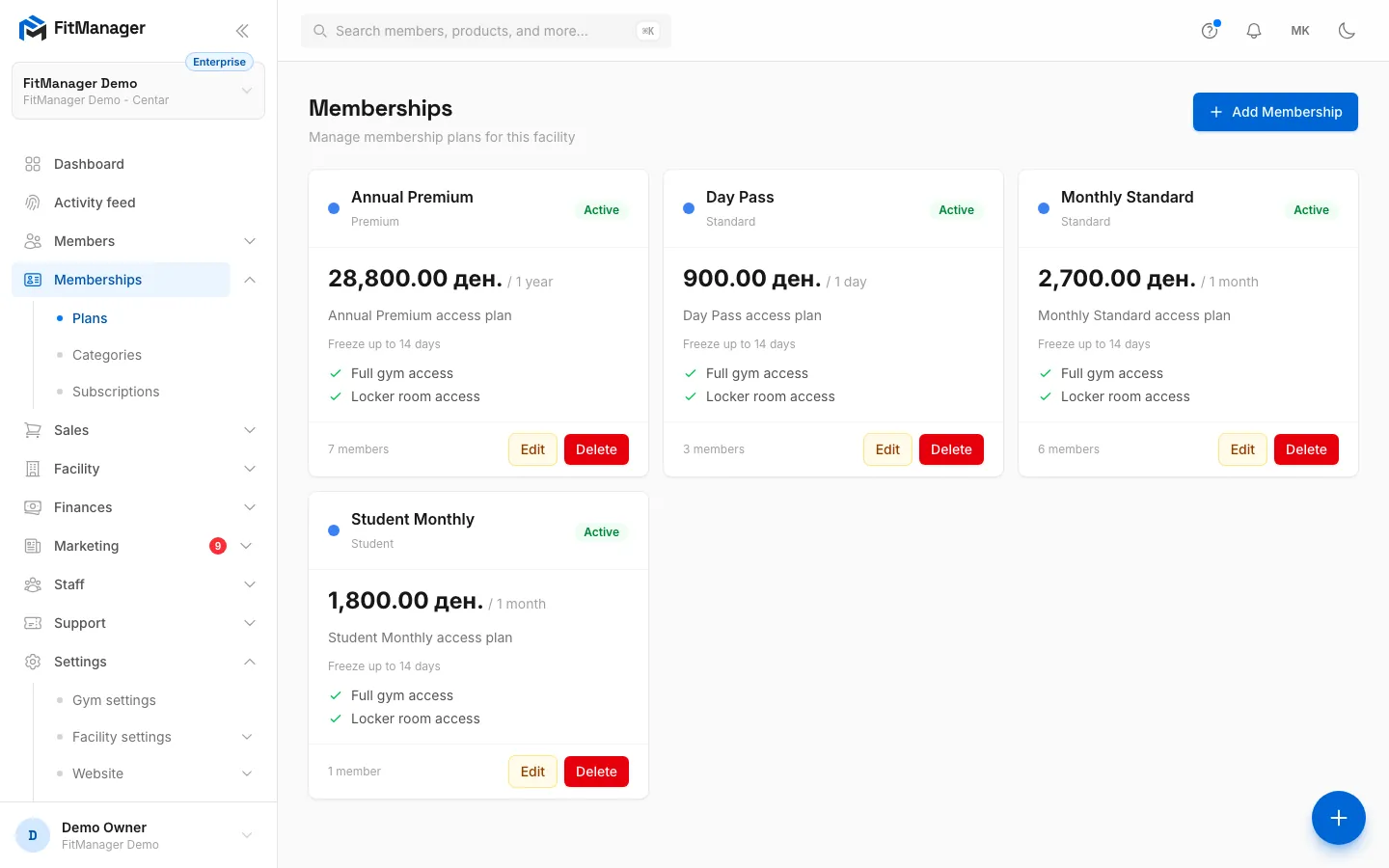
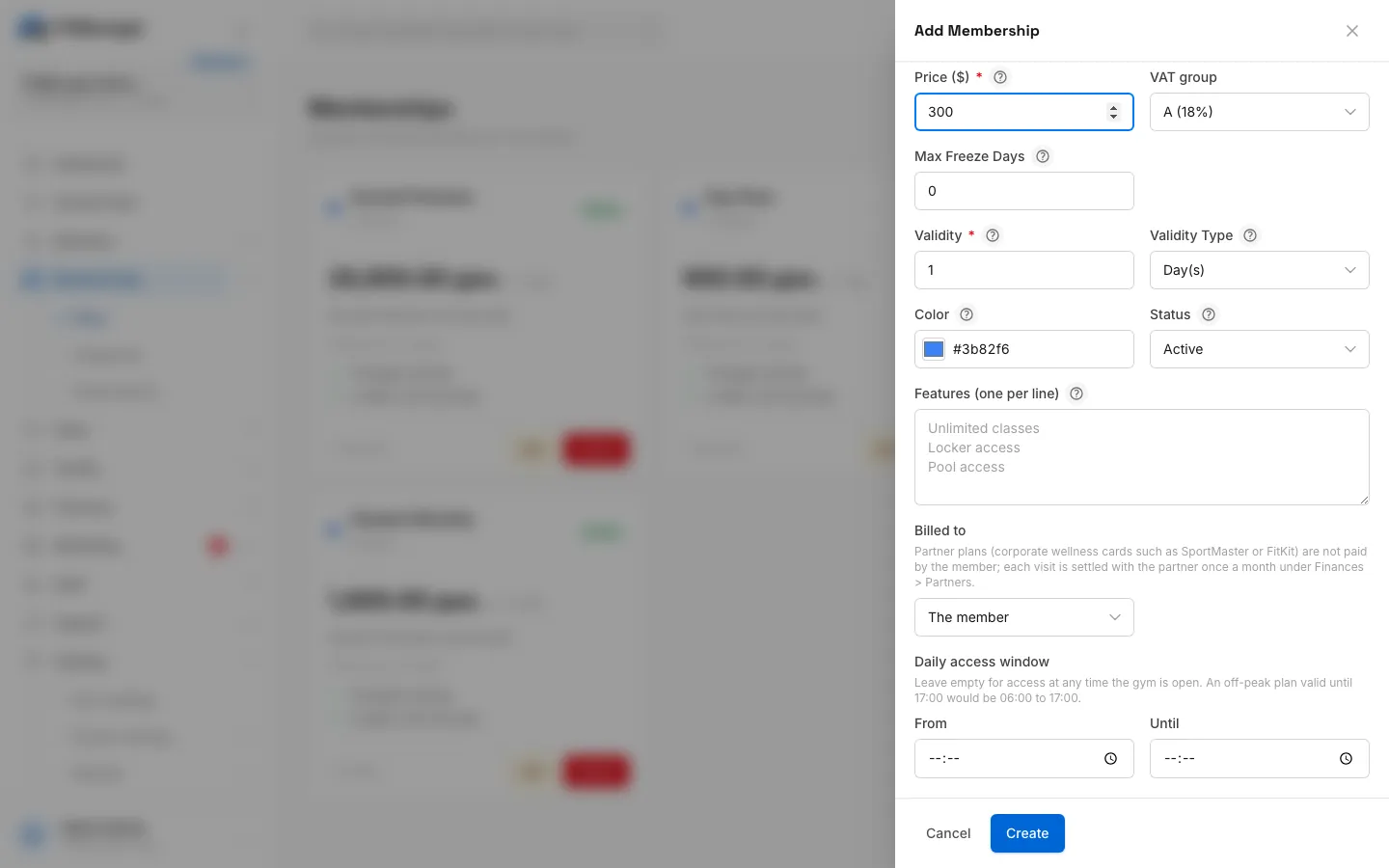
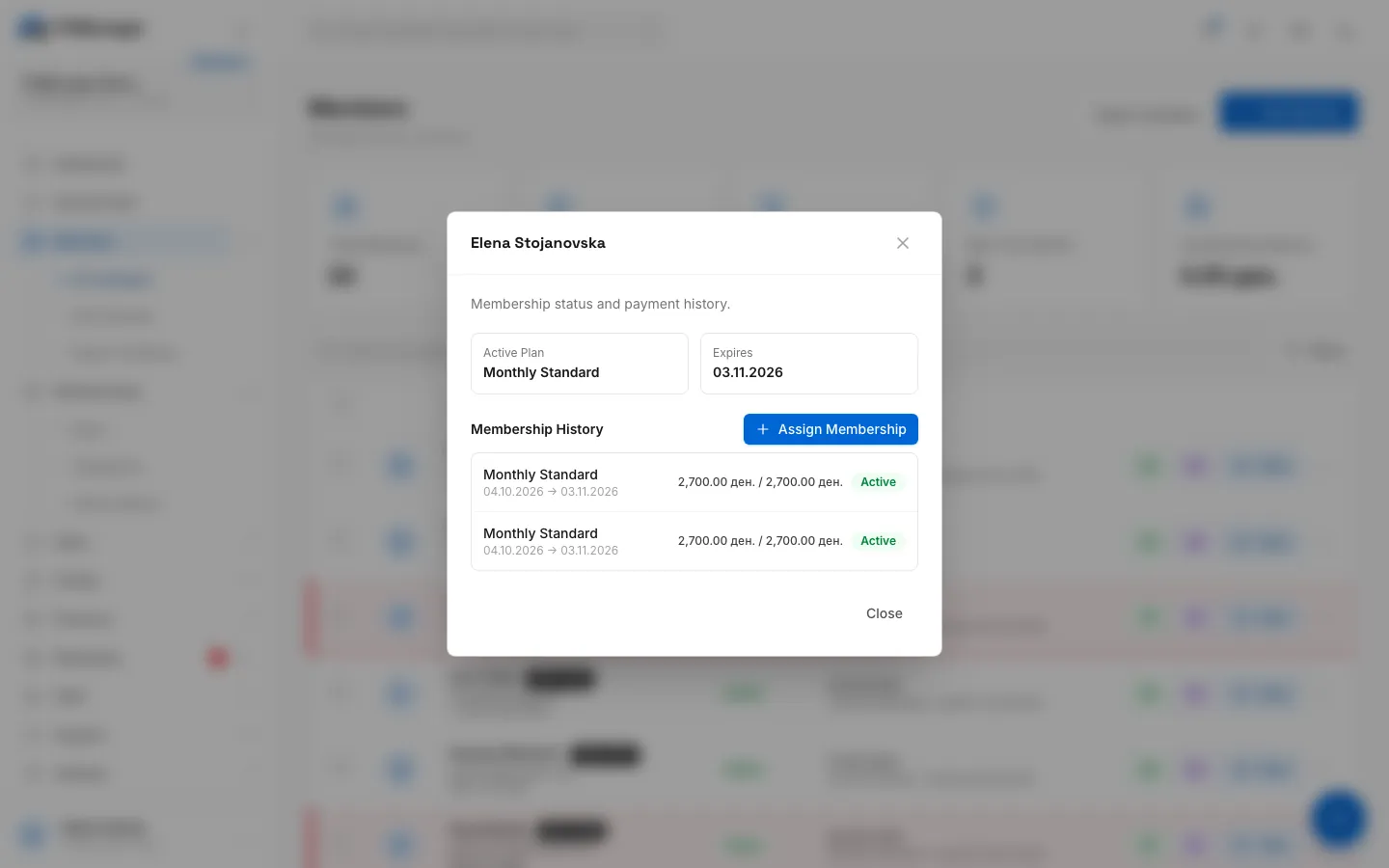
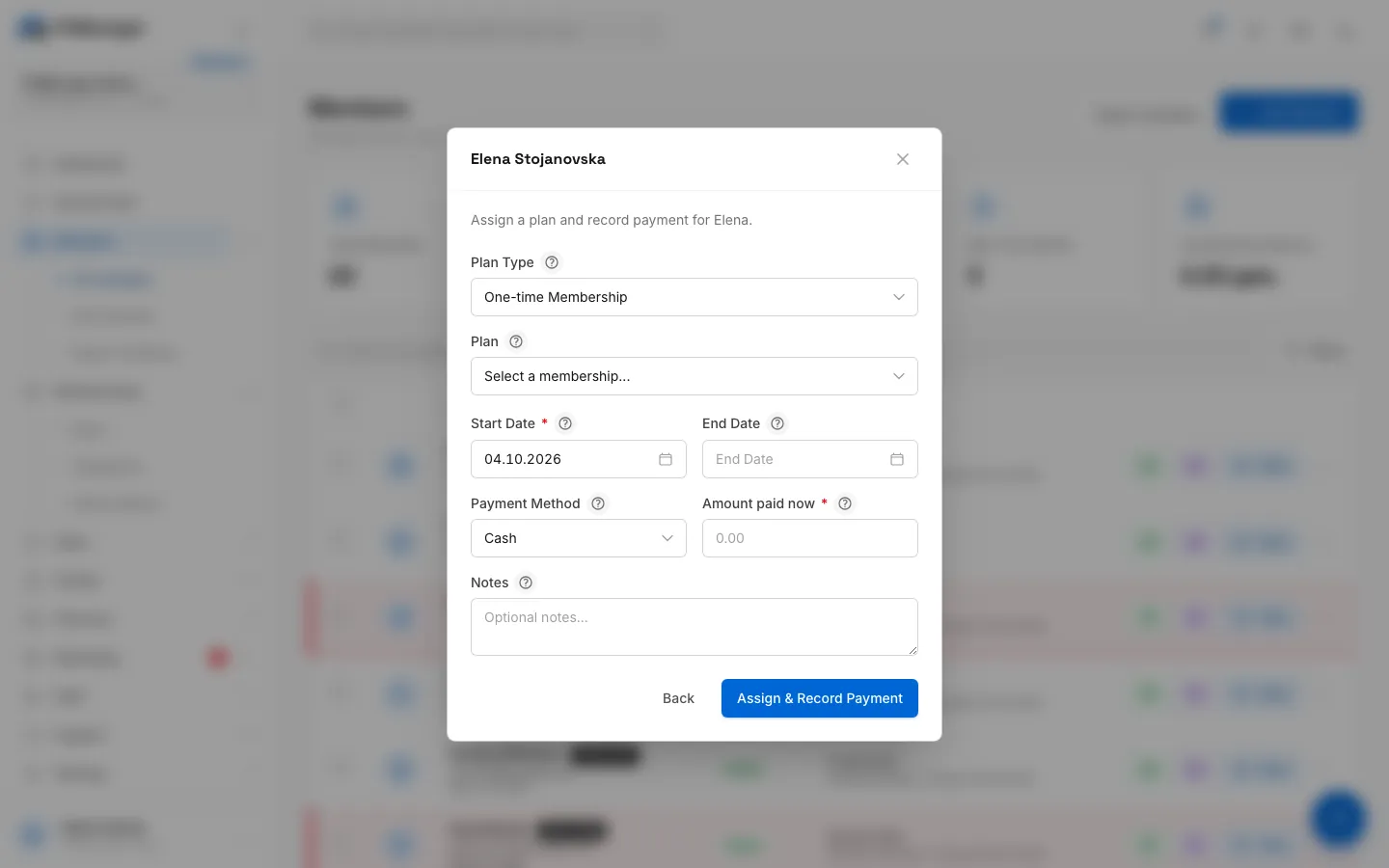
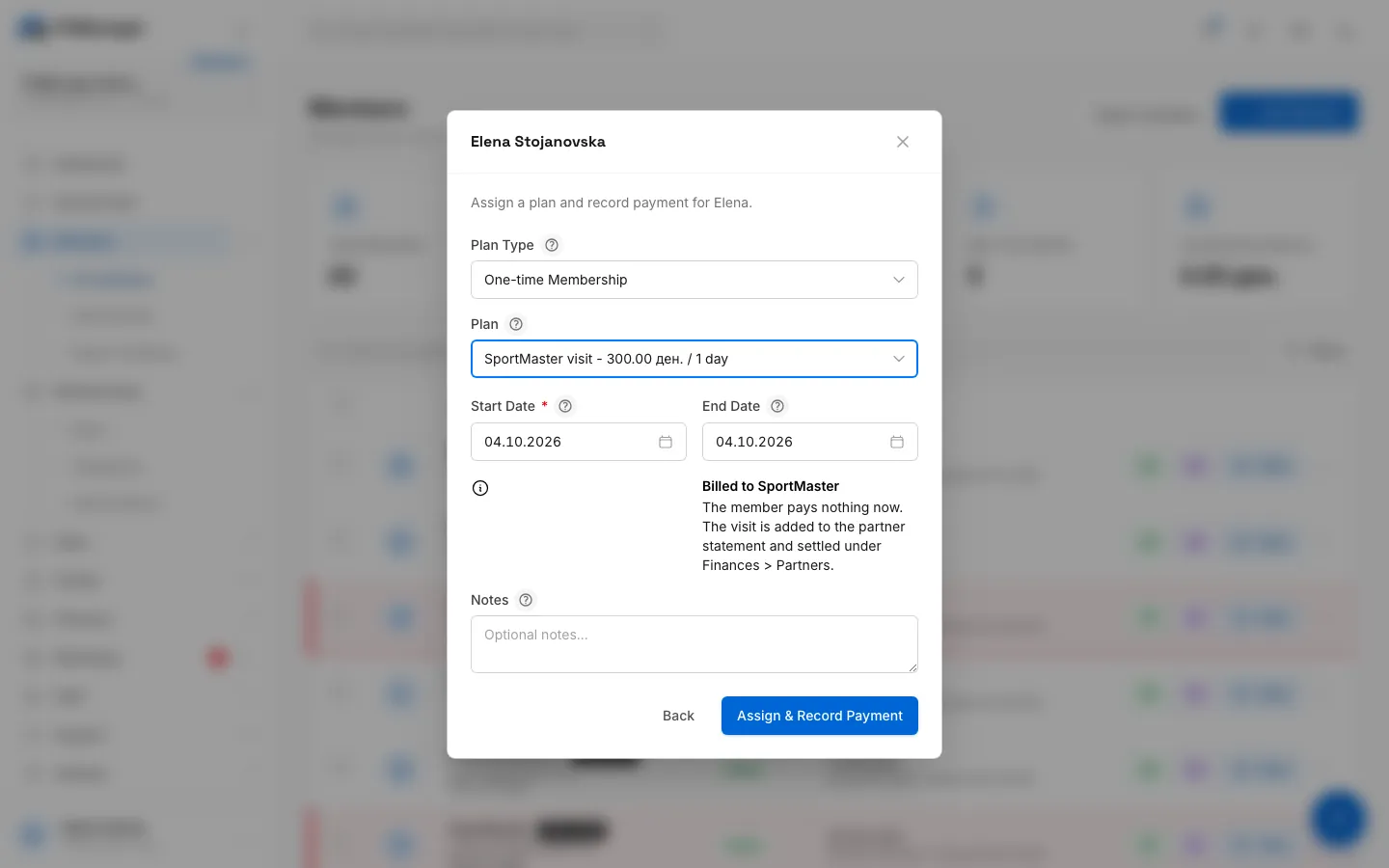
- Step 1: Partner visits use their own plan. On the Plans page, click Add Membership.
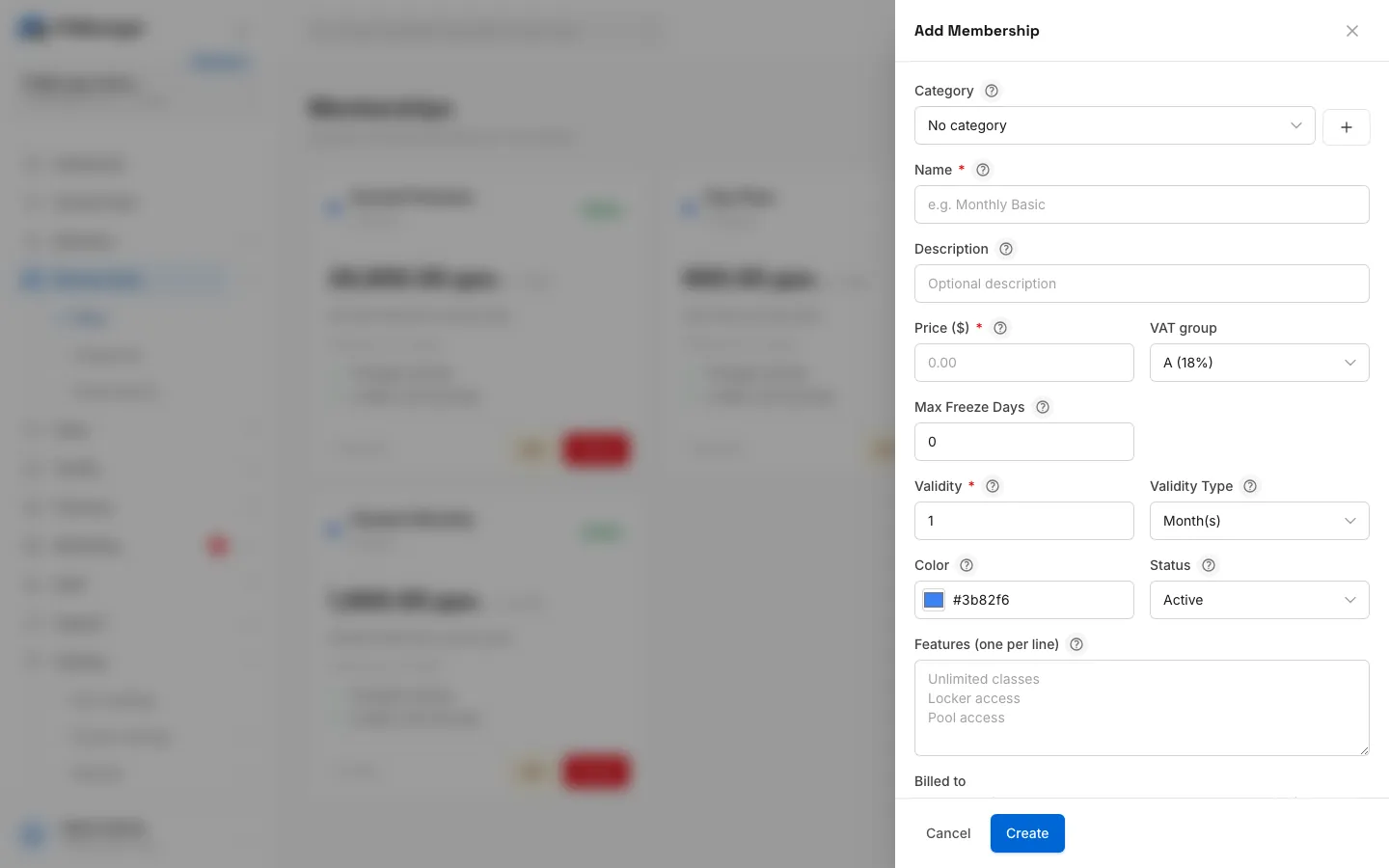
- Step 2: Name it after the partner card.
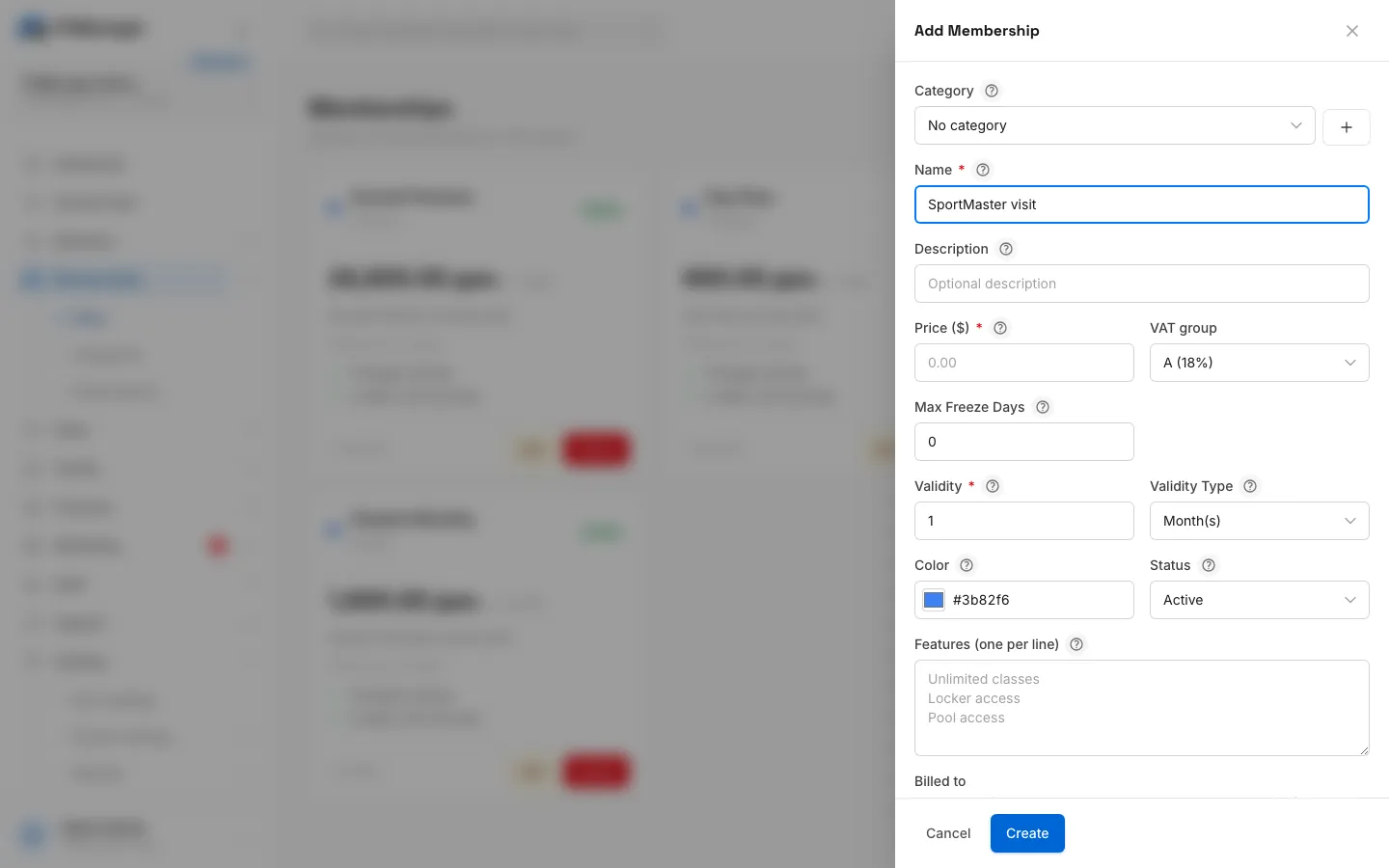
- Step 3: The price is what the partner pays you for one visit.
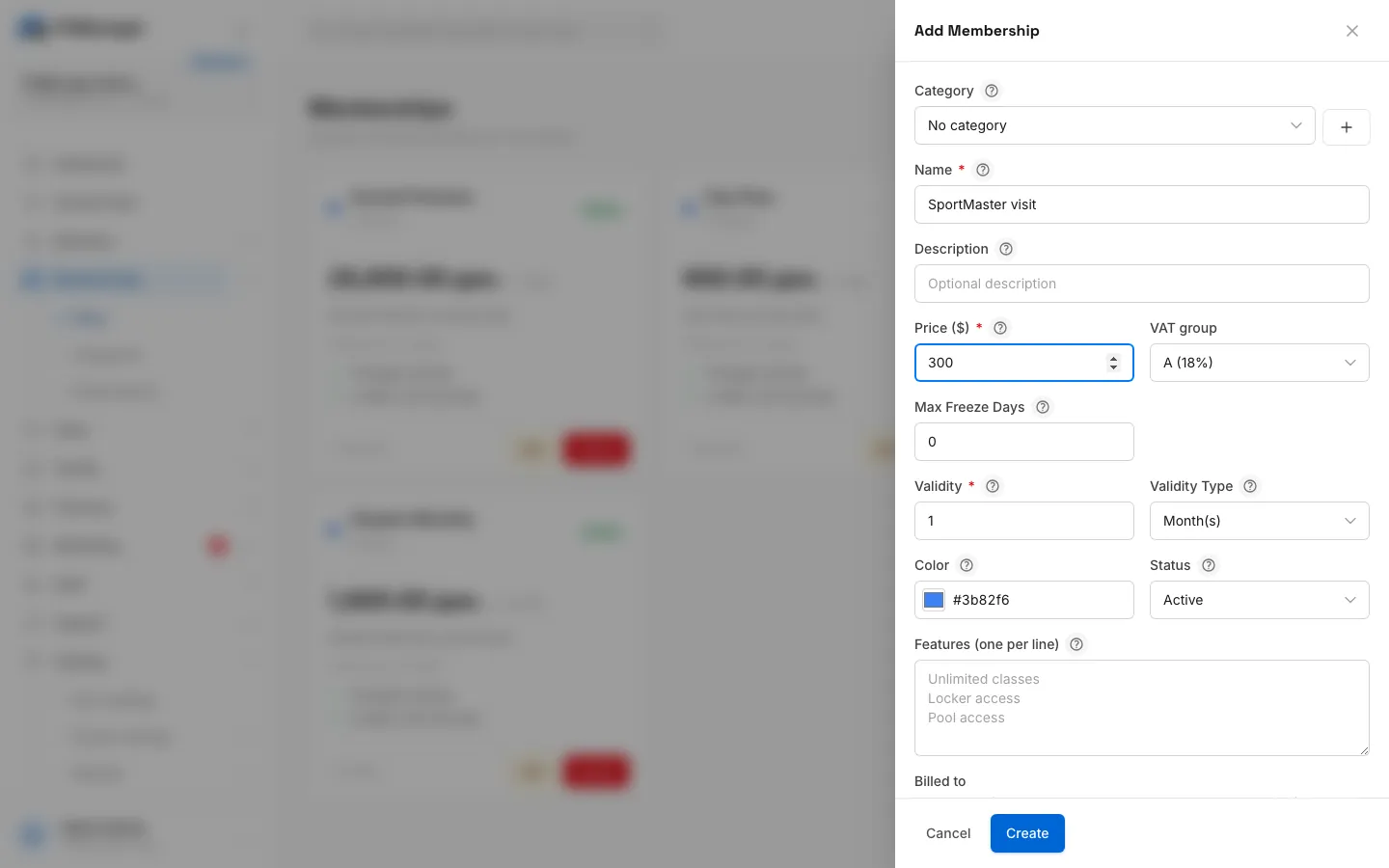
- Step 4: Set the validity to 1 Day(s), so each assignment covers one visit.
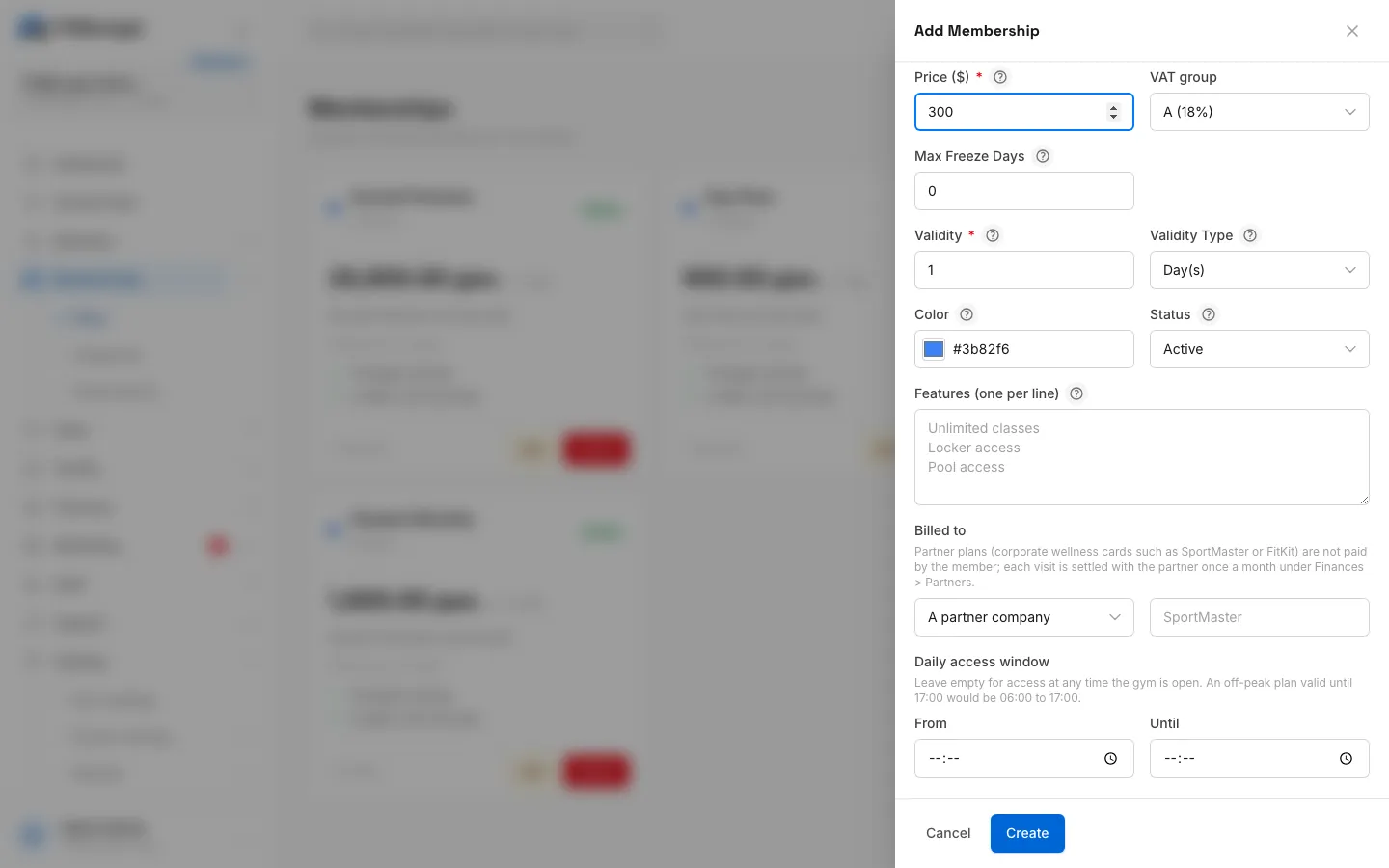
- Step 5: Under Billed to, choose A partner company.
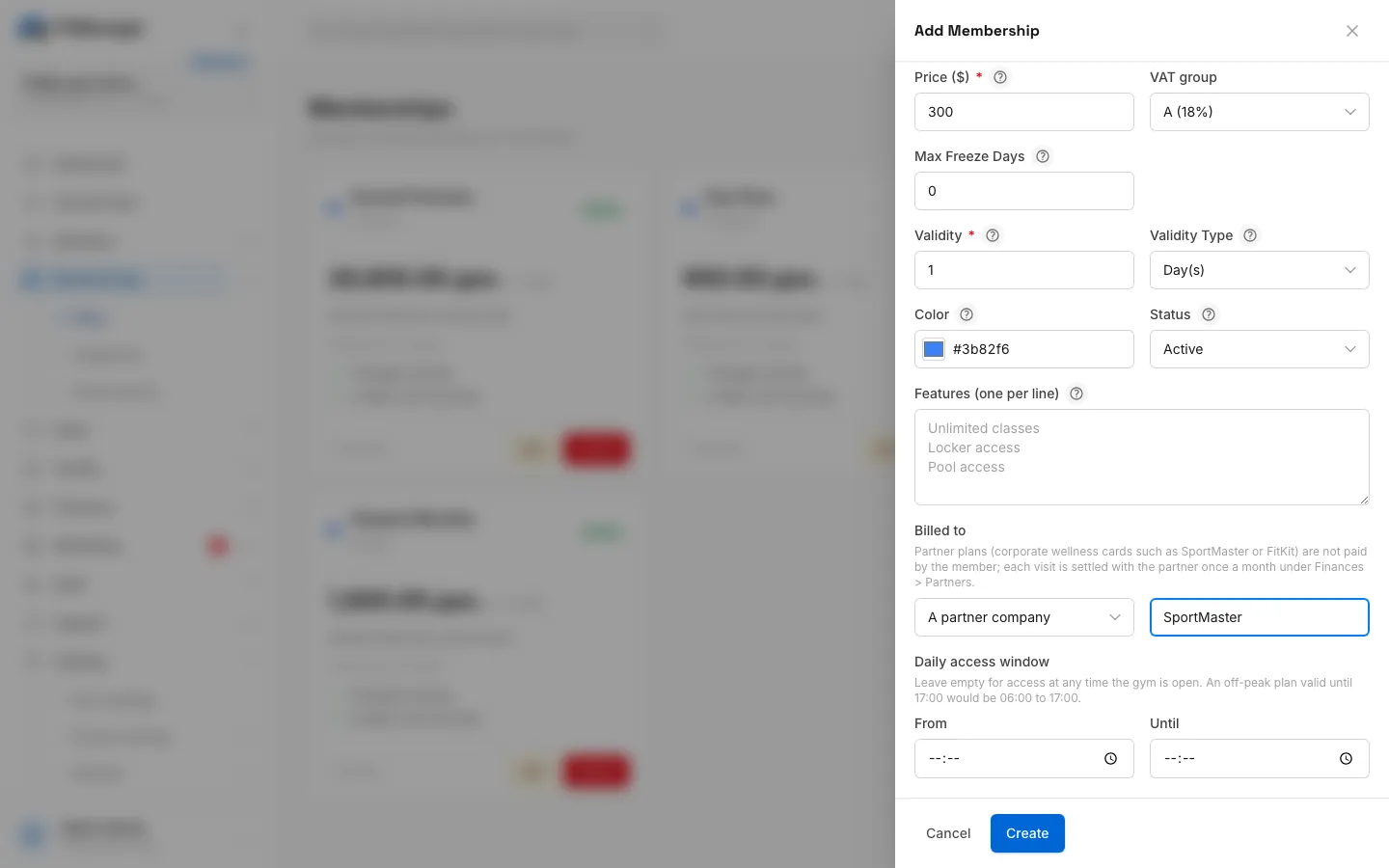
- Step 6: Type the partner's name, spelled the same way on every plan for this partner.
- Step 7: Click Create.
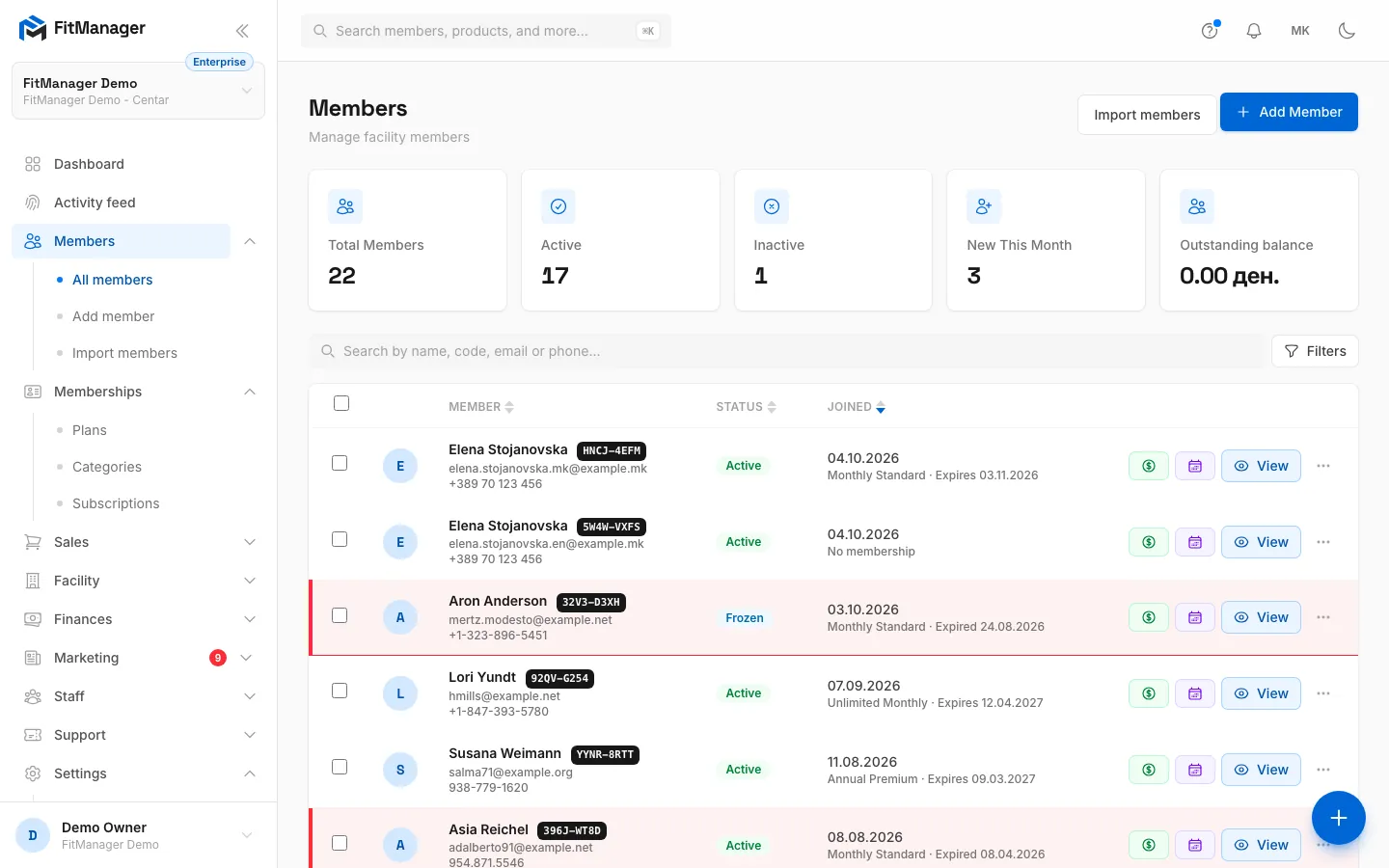
- Step 8: When a partner member comes in, open Pay next to them on the Members page.
- Step 9: Click Assign Membership.
- Step 10: Pick the partner plan. The member pays nothing, the visit goes on the partner statement.
- Step 11: Click Assign & Record Payment.
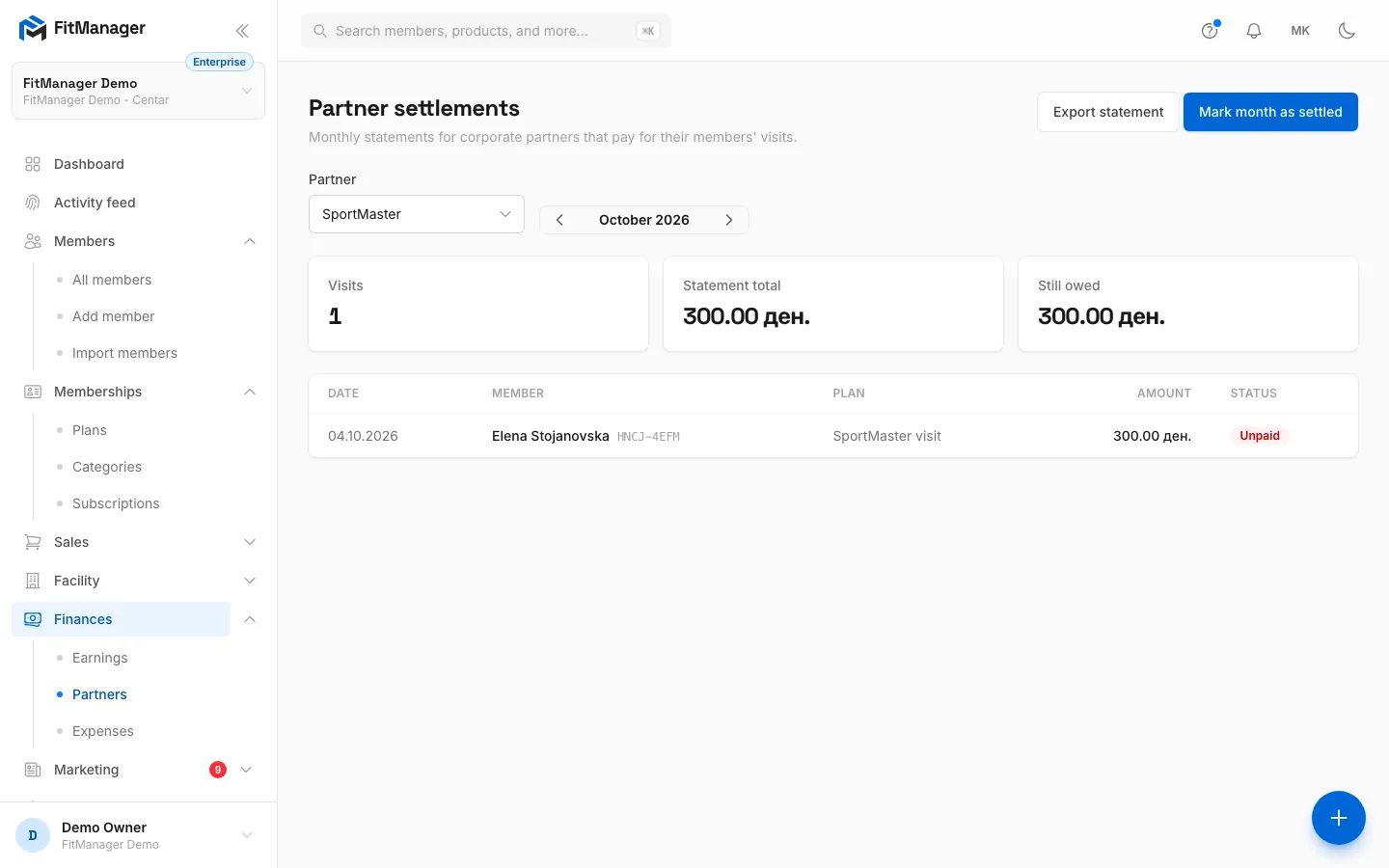
- Step 12: At month end, open Finances, Partners. When the partner pays, click Mark month as settled.
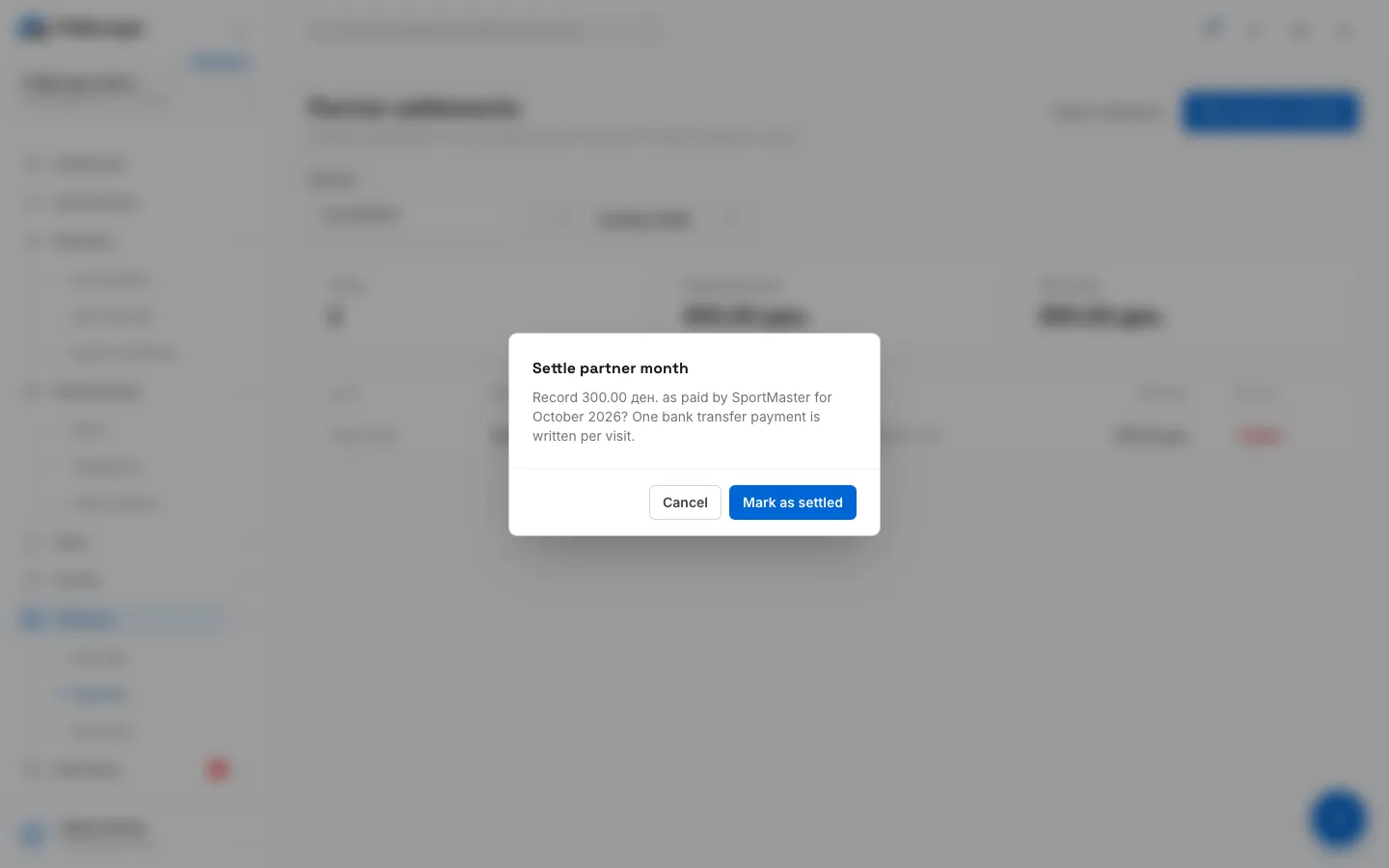
- Step 13: Click Mark as settled. One bank transfer payment is recorded per visit and Still owed drops to zero.
Set up a partner plan
- Open Memberships, Plans and click Add Membership.
- Enter a Name, for example "SportMaster visit", and the Price ($) the partner pays per visit.
- Set Validity to 1 and Validity Type to Day(s), so each assignment covers one day of training.
- Under Billed to, choose A partner company and type the Partner name, exactly the same way every time. The statement groups visits by this name.
- Click Create.
You can do the same with a subscription plan if a partner pays a monthly fee per employee. See Recurring subscriptions.
Partner plans are never offered on your website, in the portal shop or on the kiosk.
Record a visit
- Find the member on Members and click the green Pay button, or open their profile.
- Click Assign Membership and pick the partner plan.
- A Billed to notice replaces the payment fields: the member pays nothing now.
- Click Assign & Record Payment.
The visit shows in the member's history as unpaid until you settle the month.
Read the monthly statement
Open Finances, Partners.
- Pick the Partner at the top, and move between months with the arrows next to the month name.
- Visits counts the partner memberships that started in that month, Statement total adds up their prices, and Still owed is what the partner has not paid yet.
- The table lists each visit with the Date, Member with their member number, Plan, Amount and Status.
Click Export statement to download the month as a file you can send to the partner. It includes the date, member number, member name, plan, amount and what was paid.
Settle a month
When the partner's payment arrives:
- Open the partner and month on the Partners page.
- Click Mark month as settled.
- Check the amount in the confirmation and click Mark as settled.
FitManager records one bank transfer payment per unpaid visit, so Still owed drops to zero and every row shows as paid. The payments appear in your earnings like any other bank transfer. The button only shows while something is still owed.
Common questions
The Partners page says "No partner plans yet". No plan in this facility is billed to a partner. Create one as described above, or click Go to plans.
A partner appears twice in the list. The Partner name was typed differently on two plans, for example "SportMaster" and "Sport Master". Edit one plan so both names match exactly.
A visit is in the wrong month. Visits are counted by the membership's start date. A membership assigned with a start date in another month lands on that month's statement.
The partner paid only part of the month. Settling always pays every open visit for the month. If the partner pays only some visits, record those payments one by one with Record payment on each member's membership instead.
Was this page helpful?
Related articles
Still stuck?
Write to us and we will get back to you within one working day.