Create a membership plan
Set up the plans you sell, from monthly and yearly memberships to visit packs, off-peak plans and partner cards.
A membership plan is what you sell to members: a price, how long it lasts, and what it allows. Every membership you assign at the desk, sell online or sell at a kiosk starts from one of these plans, so set them up before you add your first members.
Plans belong to the facility you are working in. If you run several locations, switch facility first and create the plans there.
Before you start
- You need access to Memberships, Plans in the sidebar.
- Recurring plans that renew every month, quarter or year are set up separately as subscriptions. See Recurring subscriptions.
Create a plan
- Open Plans under Memberships in the sidebar.
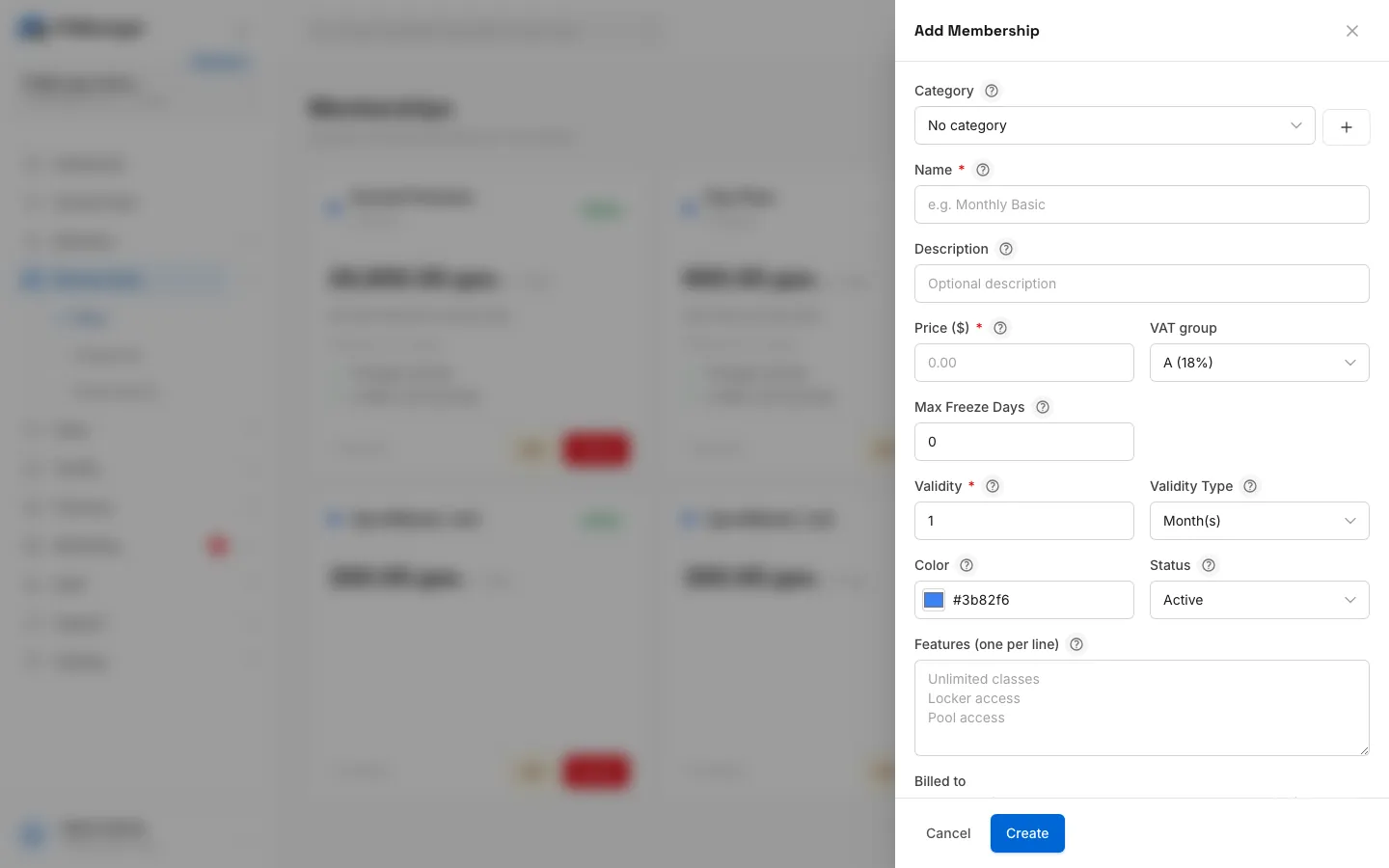
- Click Add Membership. A panel opens on the right.
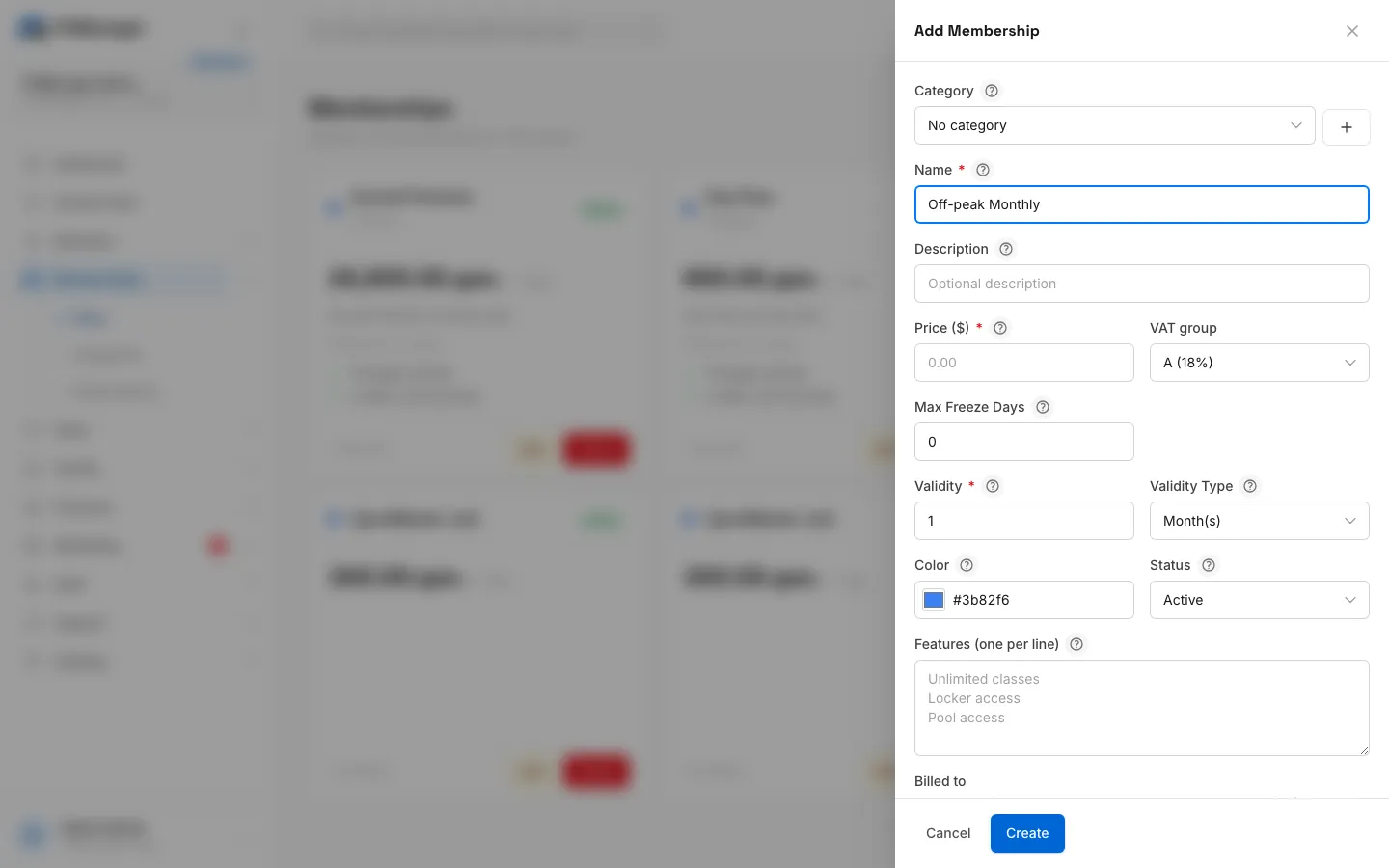
- Fill in Name and Price ($). The price is for the whole period, in your gym's currency.
- Set Validity and Validity Type, for example 1 and Month(s), or 10 and Visit(s) for a ten visit pack.
- Fill in any of the optional fields described below.
- Click Create.
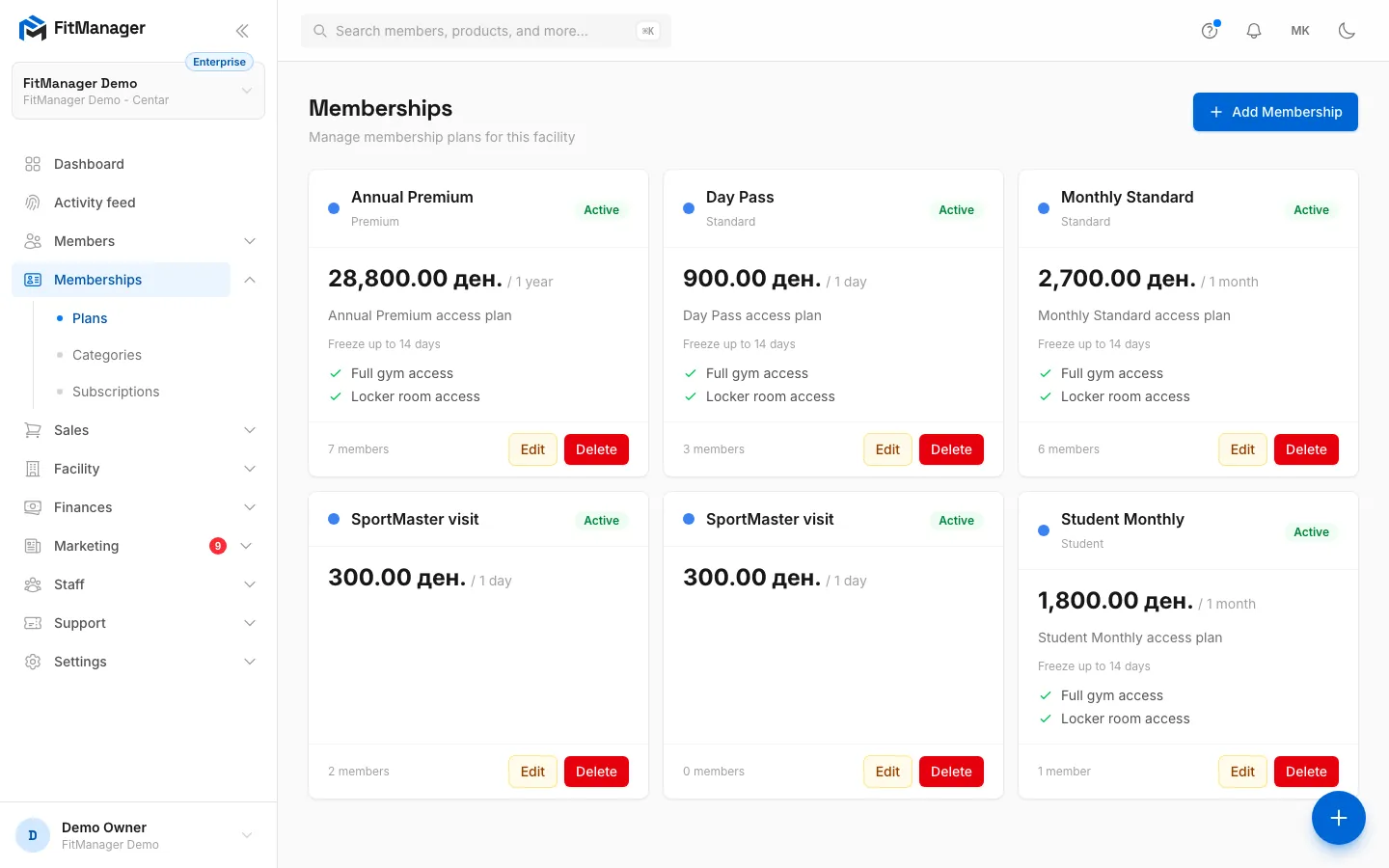
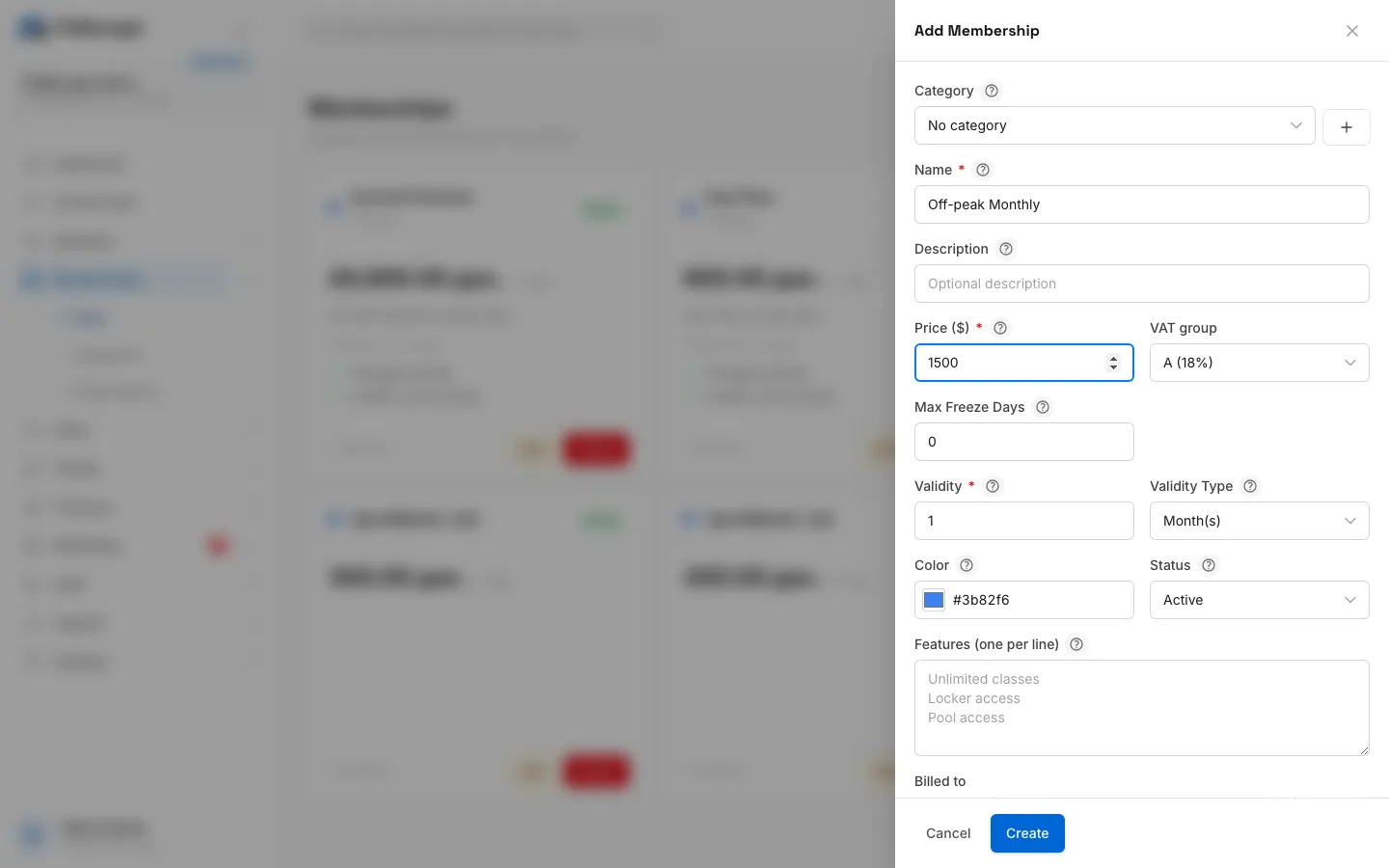
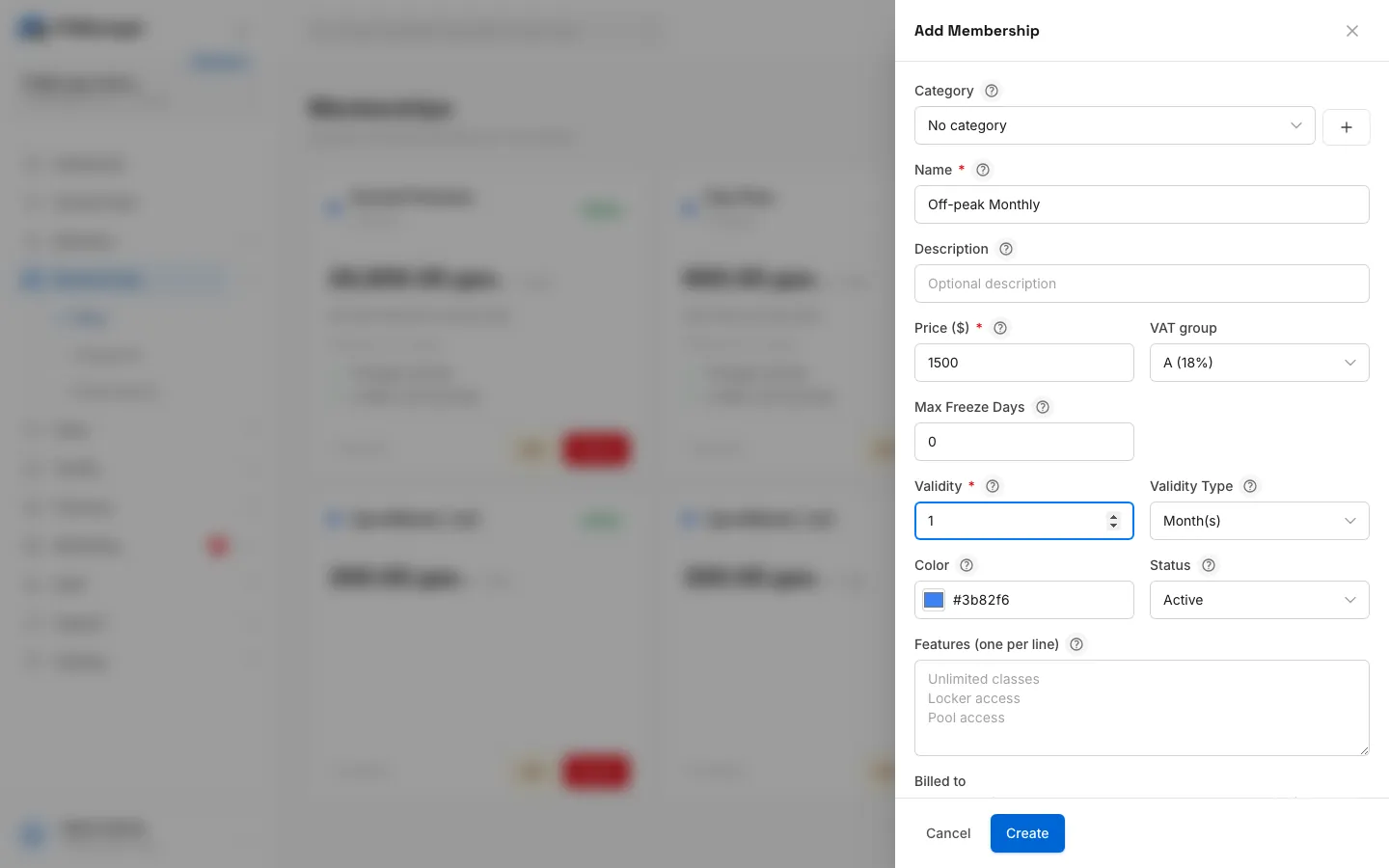
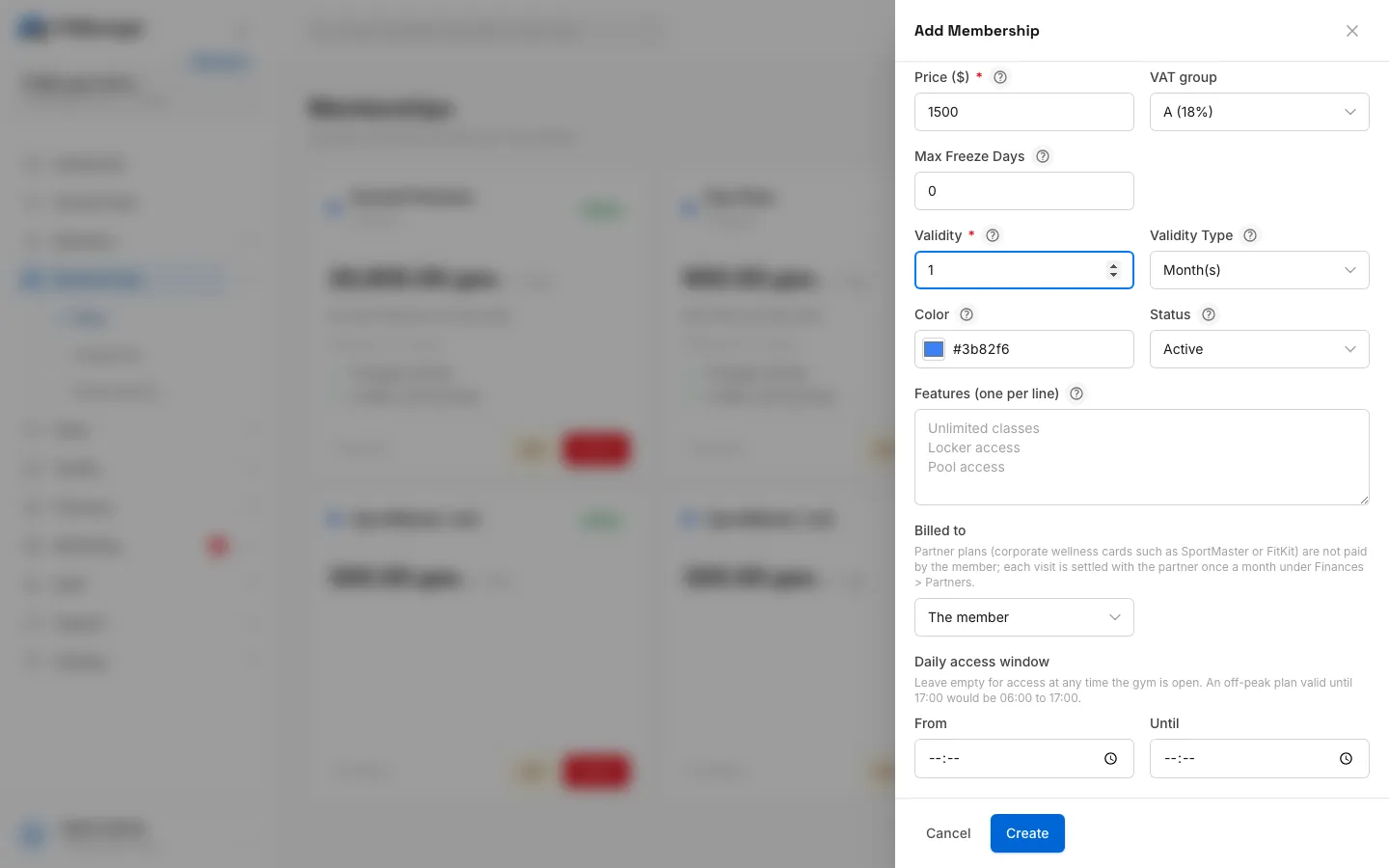
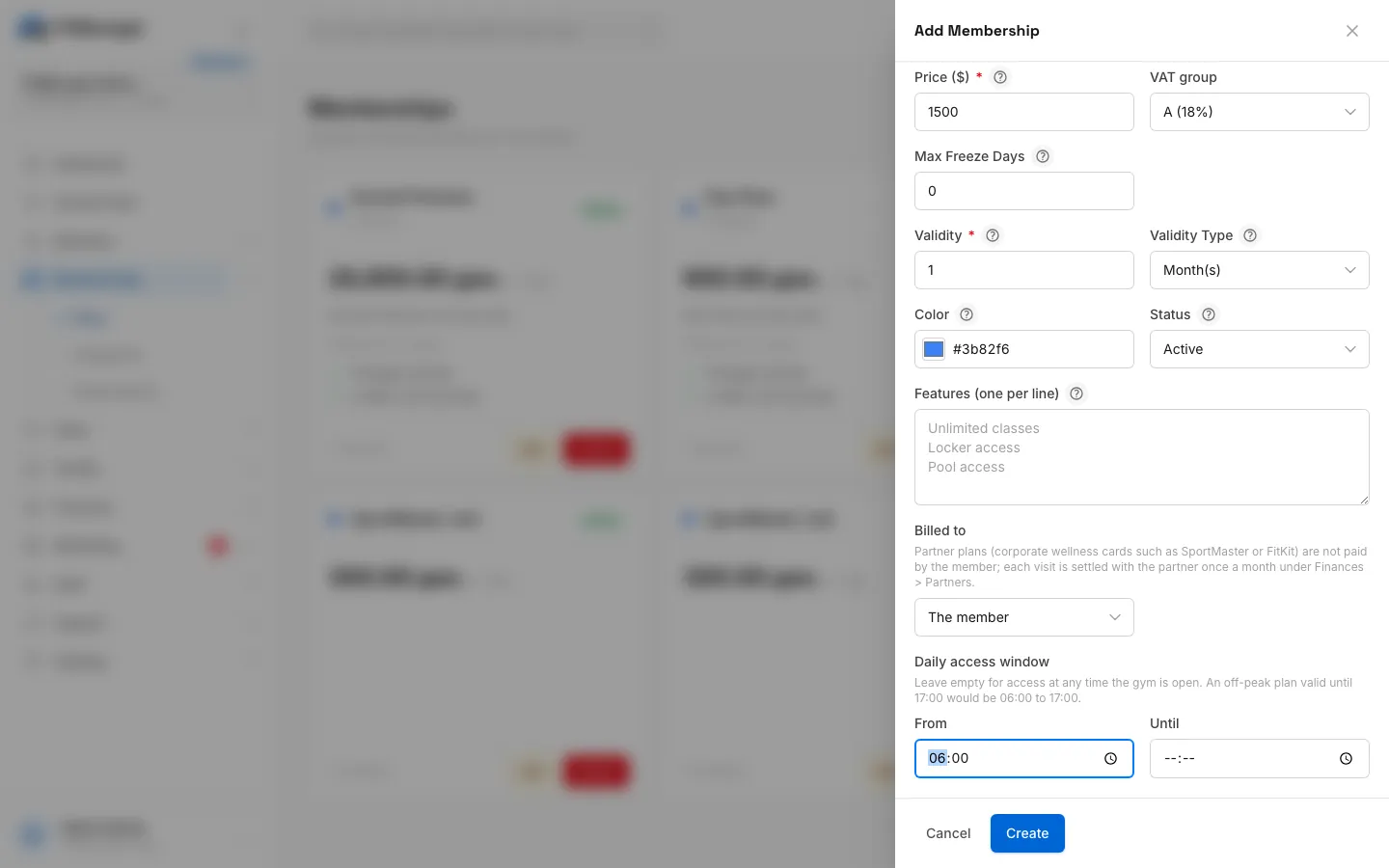
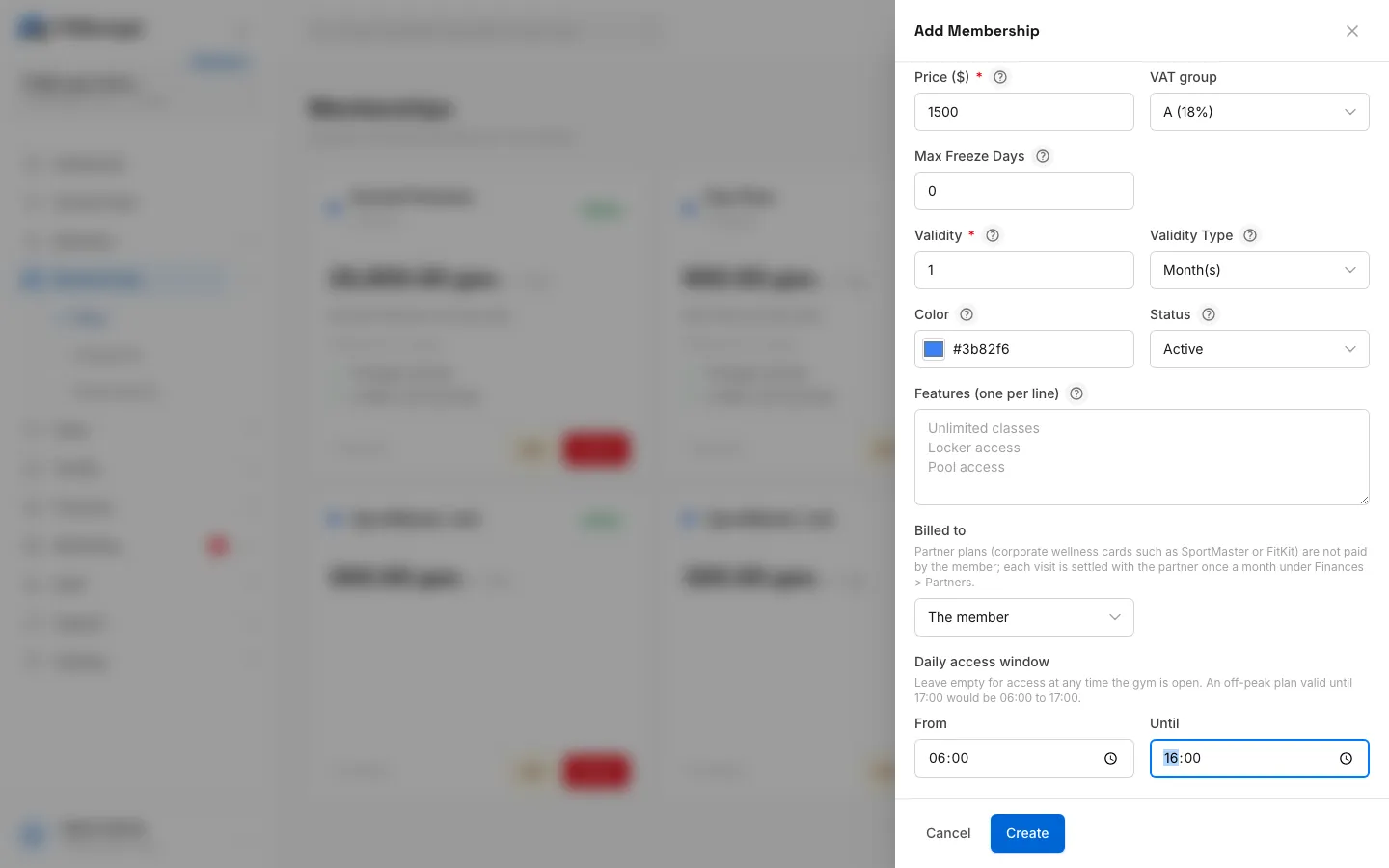
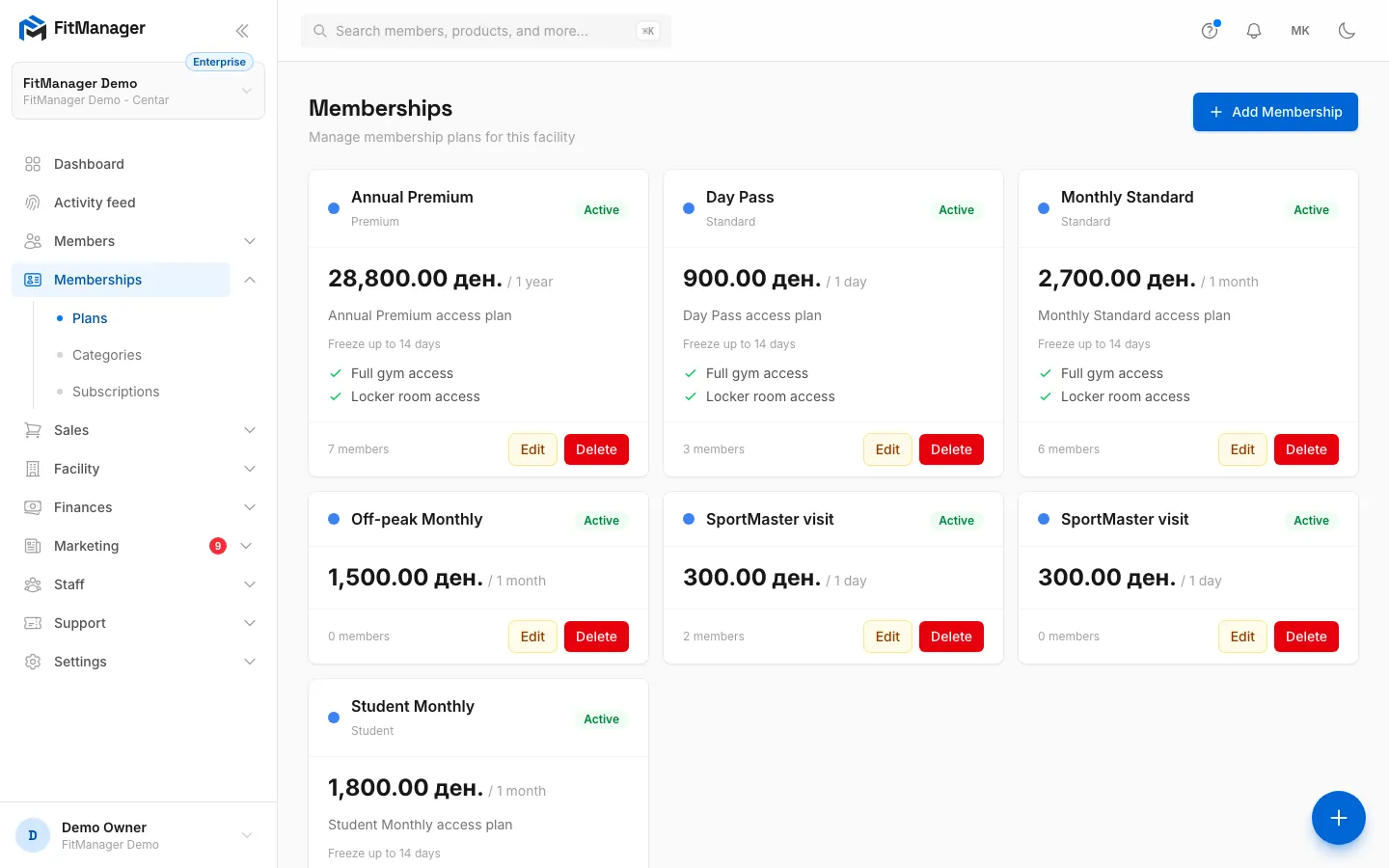
- Step 1: On the Plans page, click Add Membership.
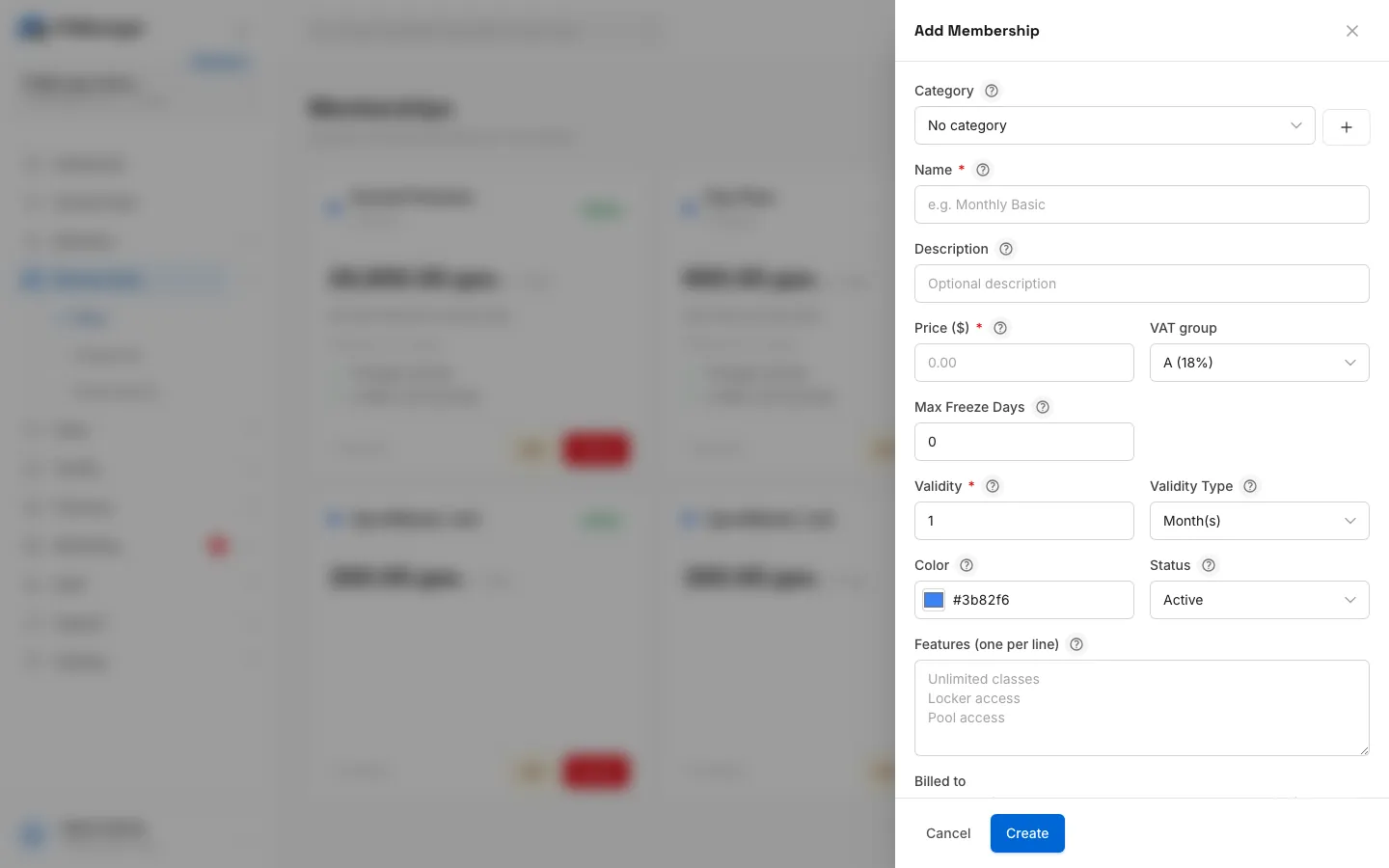
- Step 2: Optionally put the plan in a category. The plus button creates a new one on the spot.
- Step 3: Give the plan the name members will see.
- Step 4: Enter the price for the whole period.
- Step 5: Set how long it lasts, here 1.
- Step 6: Pick the unit. Choose Visit(s) instead for a visit pack.
- Step 7: For an off-peak plan, set the daily access window. Leave it empty for access at any time.
- Step 8: Then the time access ends.
- Step 9: Click Create.
- Step 10: The plan is live. You can now assign it to members and it shows up wherever you sell plans.
The plan appears as a card on the Plans page with its price, period, description and features. The footer shows how many members hold it.
The plan fields
| Field | What it does |
|---|---|
| Category | Groups plans, for example Standard, Premium and Student. Your website and the member portal shop show each category as one package with its durations side by side. Click the plus button next to the list to create a category without leaving the form. See Plan categories. |
| Name | What staff and members see, for example "Monthly Basic". |
| Description | A short line under the name on the card and on your plans page. Optional. |
| Price ($) | The full price of the plan. It is copied onto every membership you assign, so changing it later does not change memberships members already hold. |
| VAT group | The tax letter your fiscal printer applies to this plan: A (18%), B (5%), V (10%) or G (0%). Ask your fiscal service which letter they programmed for memberships. |
| Max Freeze Days | Shown on the plan card as "Freeze up to N days" so staff and members know the policy. FitManager does not have a freeze button for staff yet, so it is informational today. |
| Validity and Validity Type | How long the plan lasts: Day(s), Week(s), Month(s), Year(s) or Visit(s). |
| Visits expire after (days) | Only for Visit(s). Leave it empty and the pack never expires, or enter a number of days after which unused visits are lost. |
| Color | The dot on the plan card, used to tell plans apart at a glance. |
| Status | Active plans can be assigned and sold. Inactive plans are hidden everywhere but members who hold them keep them. You can also click the status badge on a card to switch it. |
| Features (one per line) | Bullet points on the card, your website and the portal shop, for example "Pool access". |
| Billed to | The member for normal plans. A partner company for corporate wellness cards, with the Partner name. See Partner billing. |
| Daily access window | From and Until times the plan lets members in, for an off-peak plan. Leave both empty for access at any time the gym is open. Fill both or neither. |
How the end date is worked out
When you assign a time based plan, the end date is the start date plus the validity, minus one day. A one month plan started on 1 March ends on 31 March. A visit pack has no end date unless you set Visits expire after (days).
Visit packs
With Visit(s) the number in Validity is the number of visits. Each granted entry at the door uses one visit, and the pack stops letting the member in when the visits run out. Staff can correct the count on the member's profile with Adjust.
Off-peak plans
A plan with a Daily access window of 06:00 until 16:00 lets the member in only between those times. A scan outside the window is denied and shows up in the Activity feed with the reason. The gym's own opening hours under the access rules still apply on top. See Access rules.
Where your plans appear
Every Active plan can be picked in the Assign Membership form at the desk. See Assign a membership.
Requires: Gym website
Active plans billed to the member are listed on the plans page of your gym website, grouped by category. With online payments set up, visitors can buy them there. See Online payments with Stripe.
Requires: Portal shop
The same plans are offered in the Shop of the member portal, so members can renew by themselves.
Requires: Self-service kiosk
The kiosk only sells the plans you tick under Memberships on the kiosk on the Self-service kiosk page. A new plan is not added to the kiosk by itself.
Partner plans are never sold online or at the kiosk, because the member does not pay for them.
Edit or delete a plan
- Click Edit on the card, change the fields and click Update. Changes apply to new memberships. Memberships already assigned keep the price and dates they were given.
- Click Delete and confirm with Delete Membership. A plan that any member has ever held cannot be deleted. Set it to Inactive instead so nobody can buy it any more.
Troubleshooting
"Cannot delete: members are assigned to this membership." The plan is in at least one member's history, past or present. Switch it to Inactive.
The plan does not show in the Assign Membership list. Only Active plans of the current facility are listed. Check the status badge on the card and the facility you are working in.
The price field says $ but my gym charges in denars. The label always shows $, but amounts are stored and shown in your gym's currency, for example 1,500.00 ден.
Save fails on the access window. Fill both From and Until, or clear both.
Save fails with Partner name. When Billed to is A partner company, the partner name is required.
Was this page helpful?
Related articles
Still stuck?
Write to us and we will get back to you within one working day.