Online payments with Stripe
Connect your own Stripe account so members can buy memberships and subscriptions by card on your website and in the member portal.
With online payments switched on, the buy buttons on your website's plans page, the shop in the member portal and the checkout links in the Website API take real card payments. The money goes straight into your own Stripe account. FitManager never holds it. When the payment succeeds, FitManager creates the member if they are new, activates the membership and records the payment.
Stripe is the gateway that works today, for one-time plans and recurring subscriptions. The local bank gateways are described in Bank card gateways.
Before you start
- You need the Manage settings permission.
- A Stripe account for your business. Create one at stripe.com and complete its business verification, or you can only take test payments.
- Your gym's Member Billing Currency set correctly in Gym settings. Checkouts are charged in that currency.
Step 1: Get your API keys from Stripe
- Sign in to the Stripe Dashboard.
- Decide whether you are testing or going live. Stripe has a test mode (or a sandbox) where no real money moves. Test keys start with
pk_test_andsk_test_, live keys withpk_live_andsk_live_. - Open Developers, API keys.
- Copy the Publishable key (
pk_...). - Reveal and copy the Secret key (
sk_...). Treat it like a password: anyone with it can charge cards on your account.
Step 2: Enter the keys in FitManager
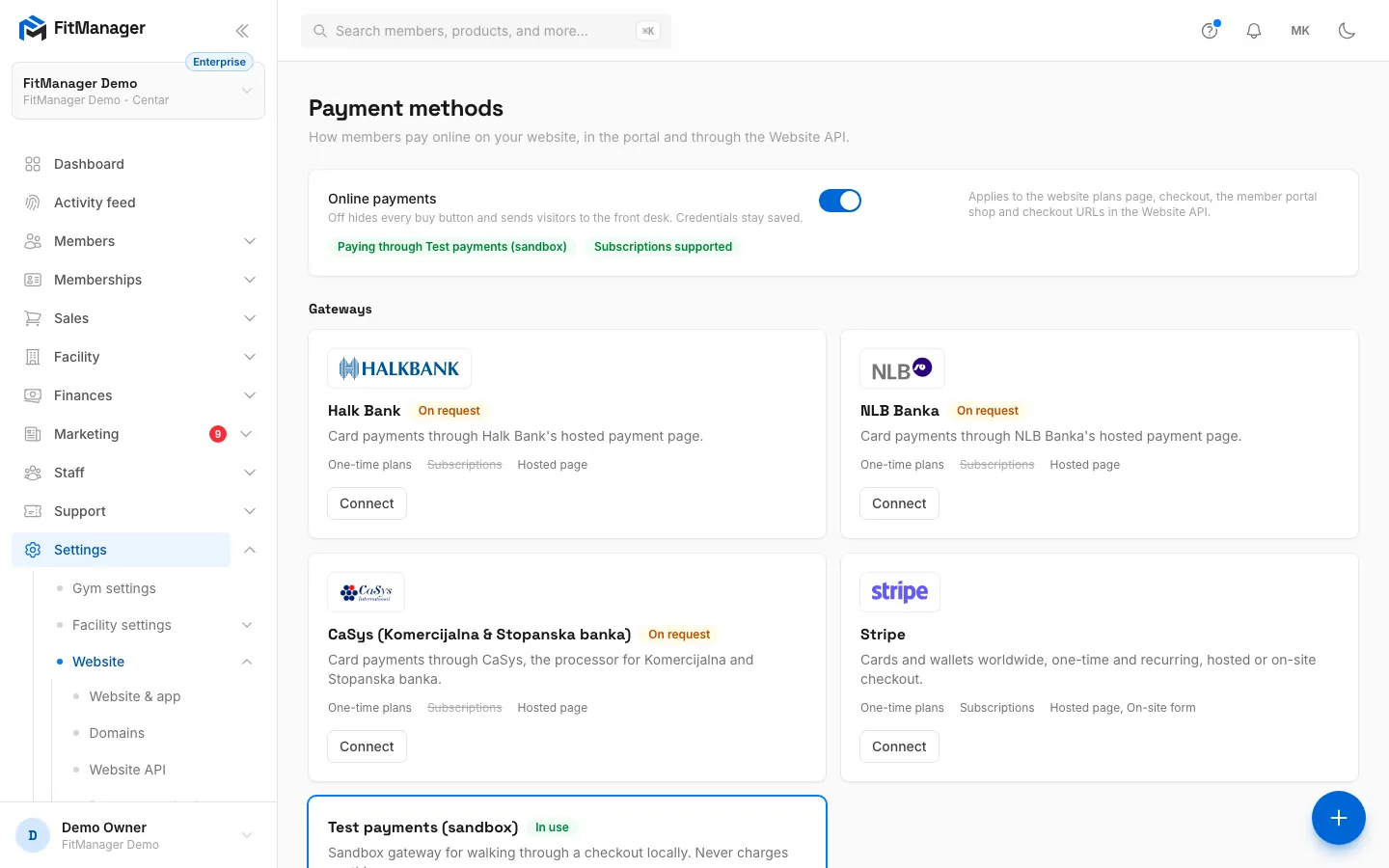
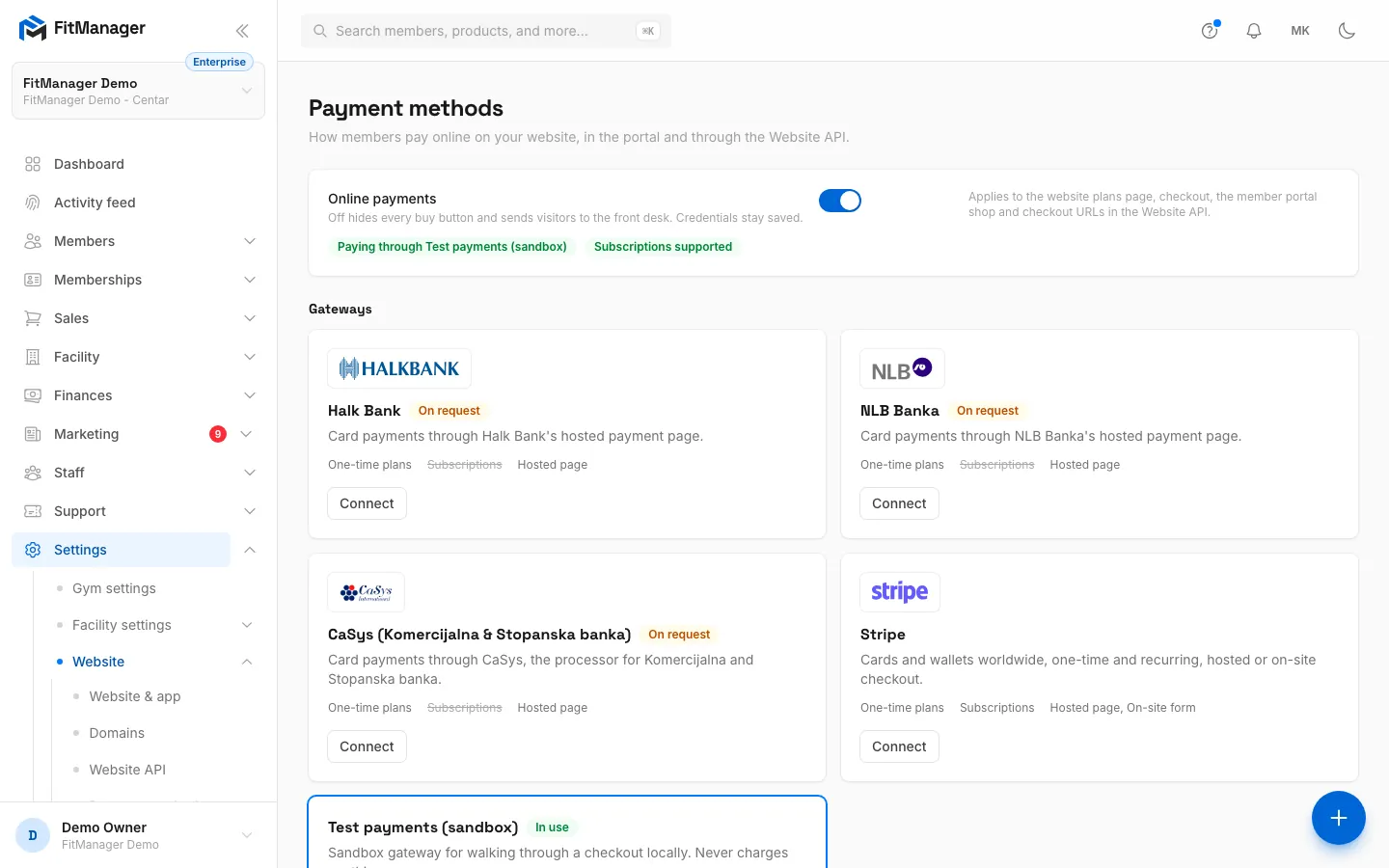
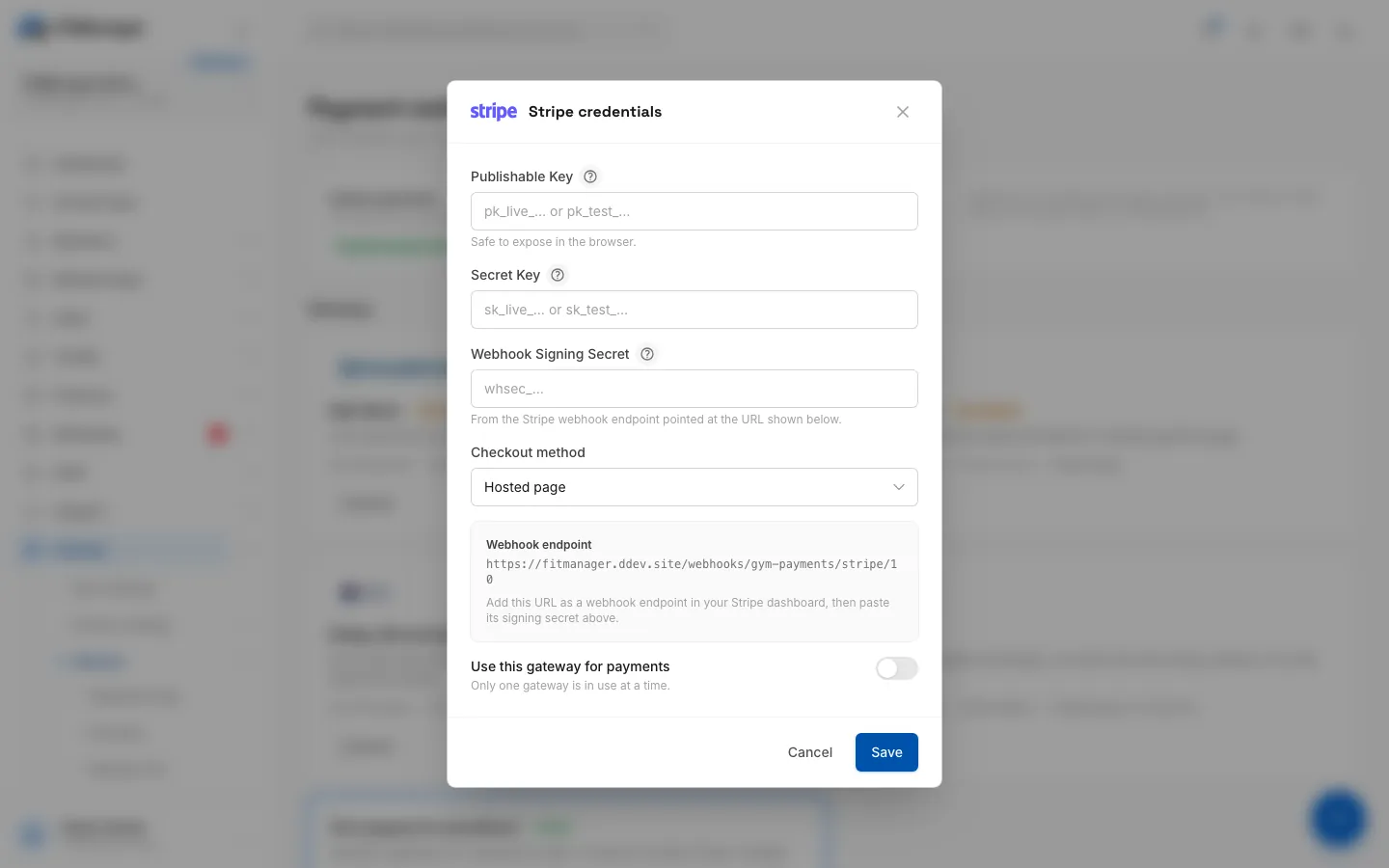
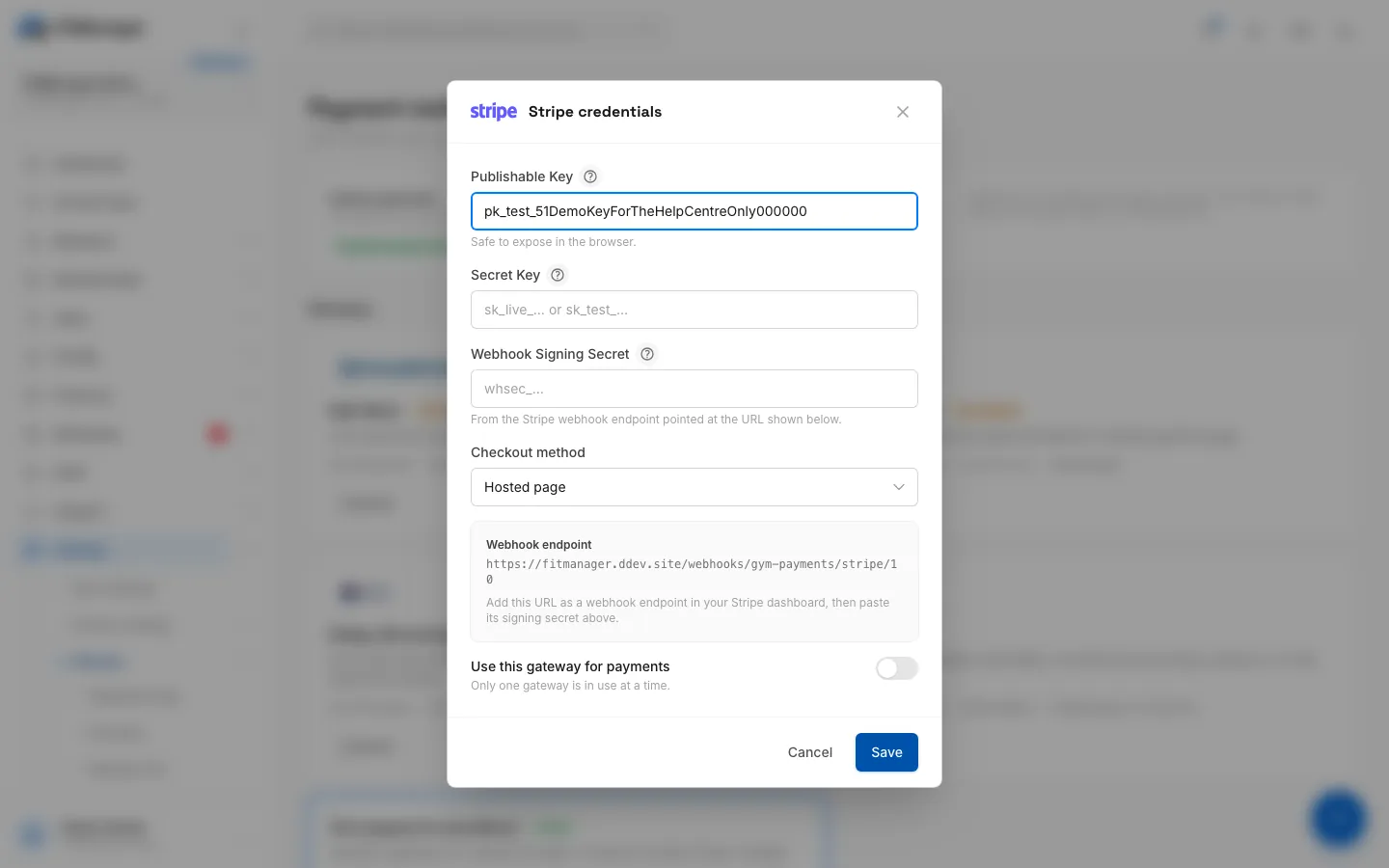
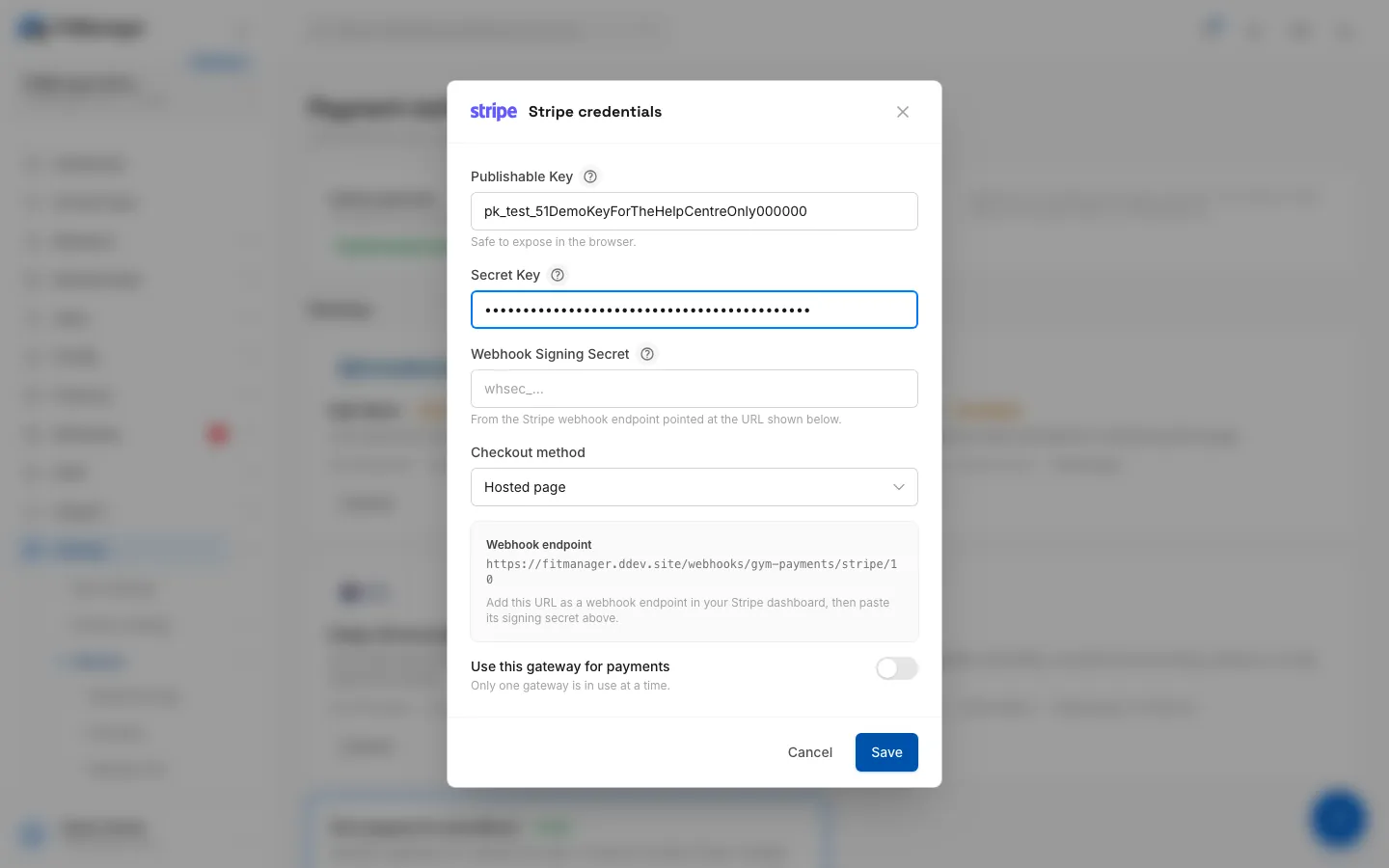
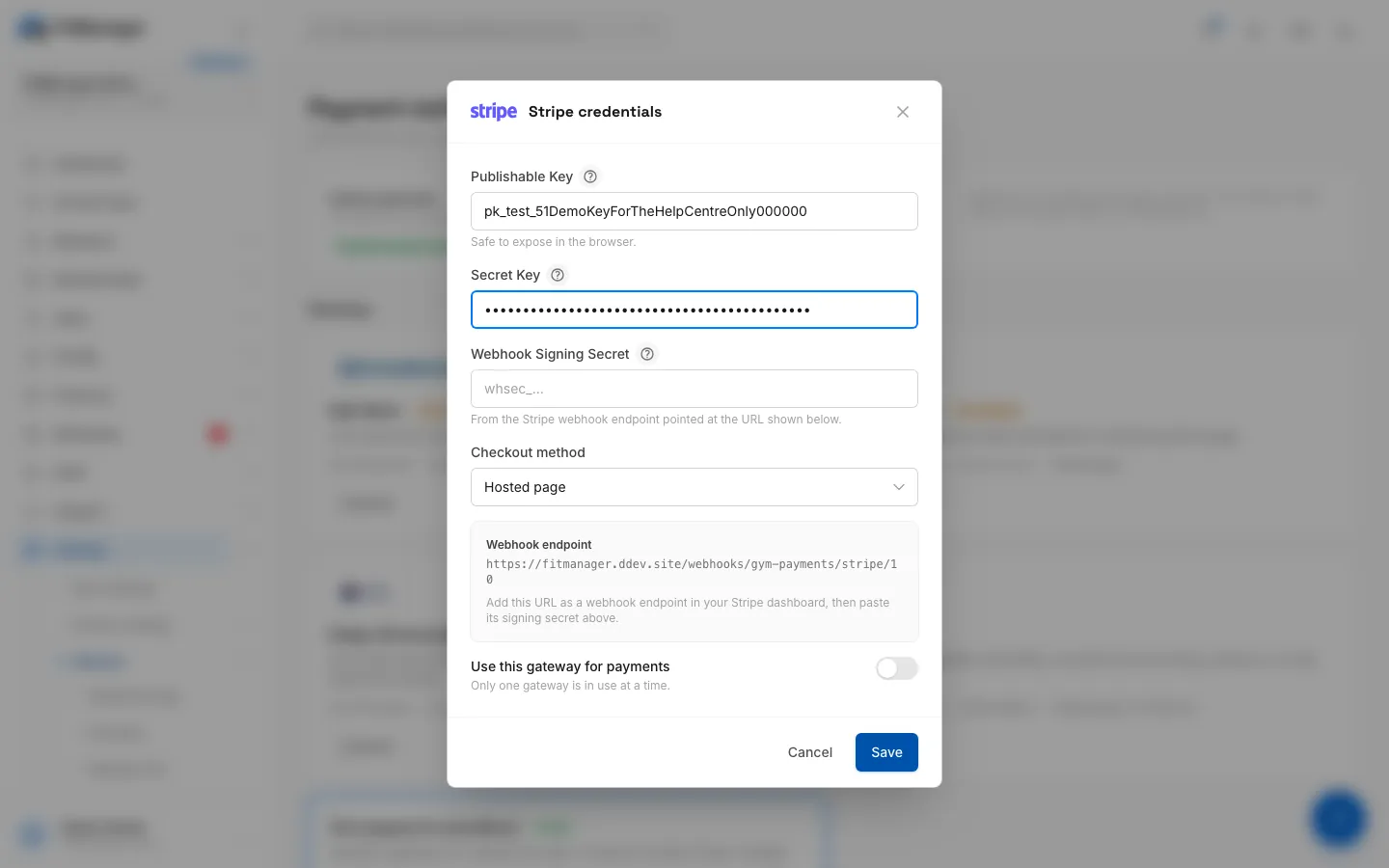
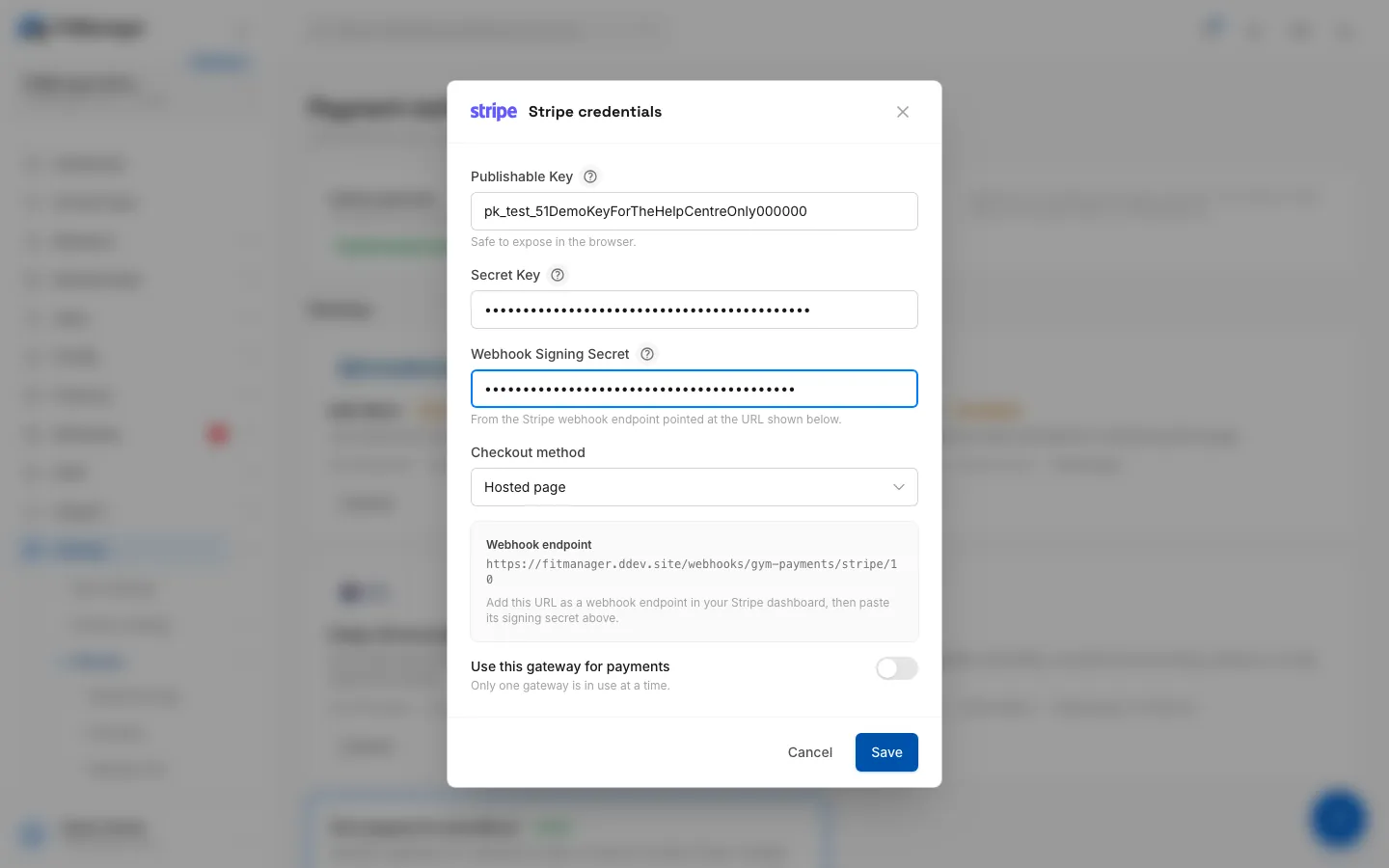
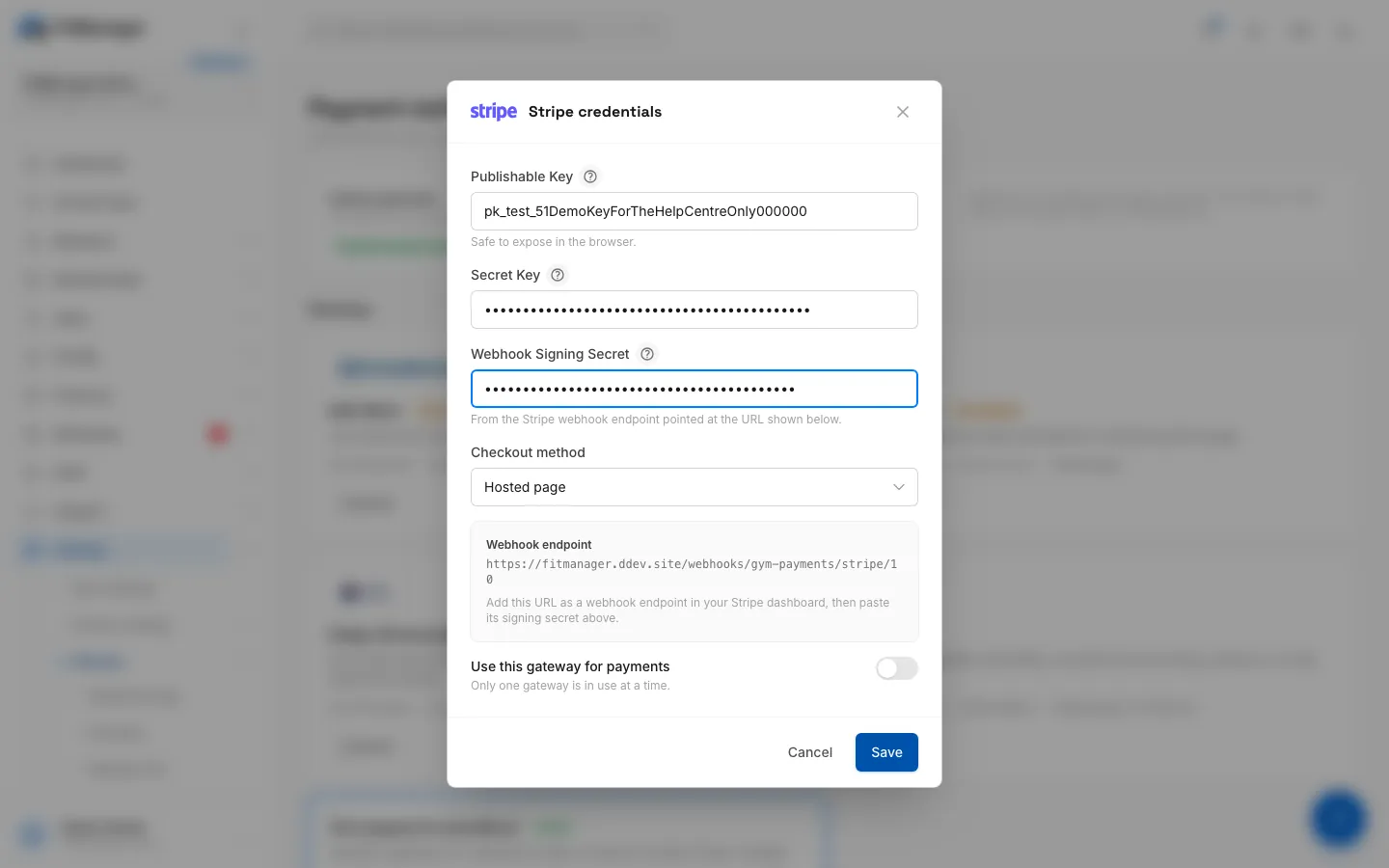
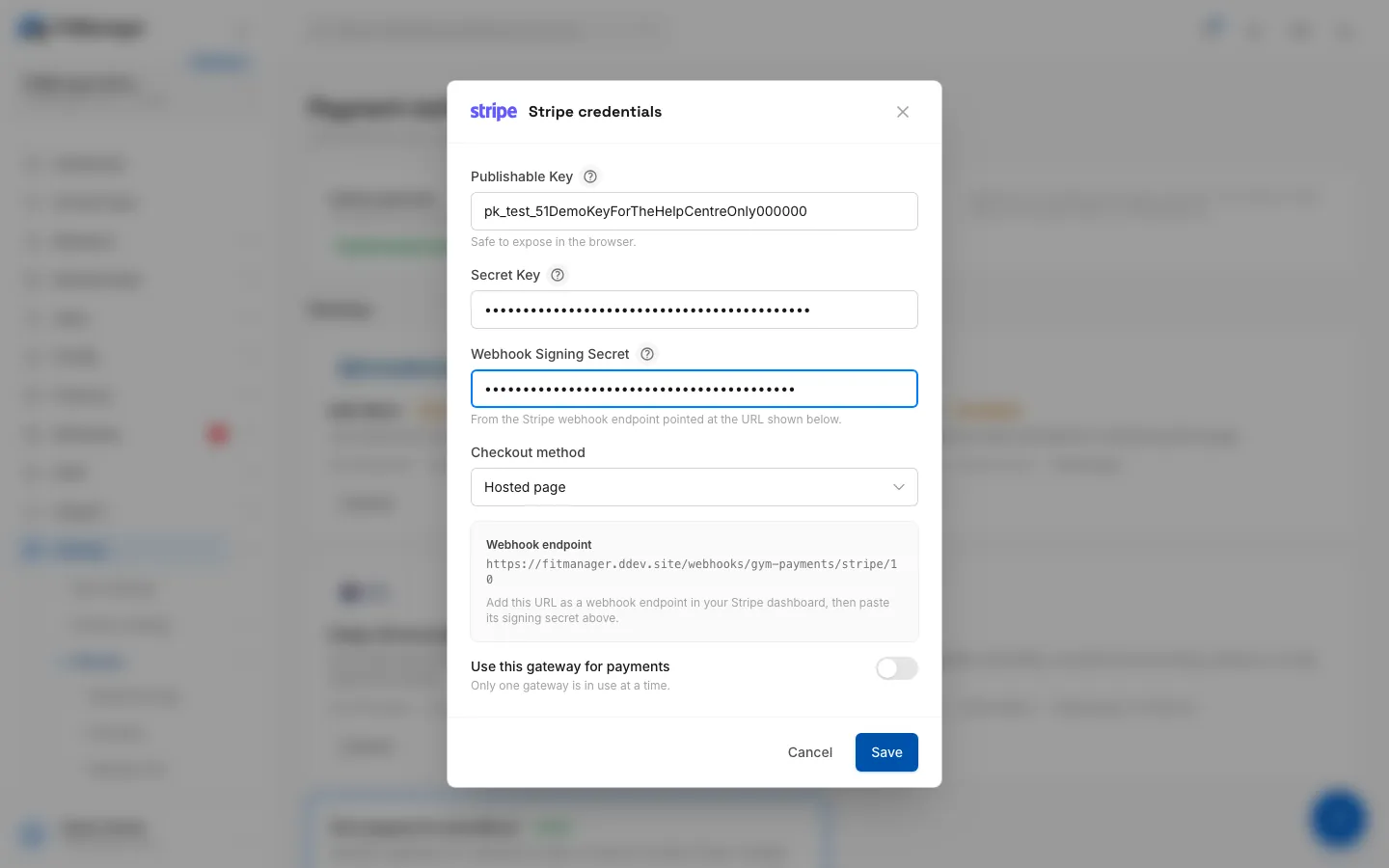
- Step 1: Online payments is the main switch for buying on your website and in the member portal.
- Step 2: On the Stripe card, click Connect.
- Step 3: Paste the Publishable key from Stripe, Developers, API keys.
- Step 4: Paste the Secret key from the same page.
- Step 5: Copy this webhook address and add it as an endpoint in Stripe.
- Step 6: Paste the endpoint's Signing secret, the one that starts with whsec_.
- Step 7: Choose Hosted page or On-site form for the card form.
- Step 8: Keep Use this gateway for payments on.
- Step 9: Click Save. Members can pay online from that moment.
- Open Settings, Website, Payment methods. If your plan has no website settings, Payment methods is directly under Settings.
- On the Stripe card, click Connect.
- Paste the Publishable Key and the Secret Key.
- Leave the window open: it shows the Webhook endpoint address you need in the next step. It looks like
https://fitmanager.com/webhooks/gym-payments/stripe/123.
Step 3: Create the webhook in Stripe
The webhook is how Stripe tells FitManager that a payment went through. Without it, members pay but their membership is never activated.
- In the Stripe Dashboard, open Developers, Webhooks and add an endpoint (Stripe may call it a destination).
- Paste the Webhook endpoint address from FitManager as the endpoint URL.
- Select these events:
checkout.session.completed, a checkout was paid. This is the essential one.invoice.paid, a subscription renewed. Each renewal extends the membership and records the payment.invoice.payment_failed, a renewal failed. The membership is frozen until it is paid.customer.subscription.deleted, a subscription was cancelled in Stripe. The membership is cancelled.
- Save the endpoint, then open it and reveal its Signing secret. It starts with
whsec_.
Use test-mode keys with a test-mode webhook, and live keys with a live webhook. Each mode has its own endpoints and secrets.
Step 4: Finish and switch on
- Back in FitManager, paste the signing secret into Webhook Signing Secret.
- Choose the Checkout method:
- Hosted page: the buyer goes to Stripe's payment page and comes back afterwards.
- On-site form: the card form appears on your own checkout page.
- Leave Use this gateway for payments on. Only one gateway is in use at a time.
- Click Save.
The Stripe card now shows In use, and the switch at the top says Paying through Stripe and Subscriptions supported. Make sure Online payments is on.
To change a key later, click Edit credentials. Secret fields are left blank: type a new value only to replace the stored one.
Test it
With test keys, buy a membership on your own website using Stripe's test card 4242 4242 4242 4242, any future expiry date and any CVC. Check that:
- The payment shows Completed in the Online payments log at the bottom of Payment methods.
- The member and the active membership appear under Members.
Then replace the keys and the signing secret with live ones, and do one real purchase.
What members see
On your website's plans page and in the portal shop, each plan gets a buy button. At checkout the buyer:
- Enters their email, where the receipt is sent, and optionally their name.
- Chooses whether the membership is for Myself or Someone else. For someone else, they give the recipient's name and email, and the recipient gets an email to set up their account.
- Optionally enters their Member code if they are already a member, so the purchase is linked to their account.
- Clicks Continue to payment and pays on Stripe's page or the on-site form.
After a successful payment they see Payment successful, can set a password for the member portal, and receive a confirmation email. A member whose current plan is still running gets the new one queued after it, so no days are lost. Subscriptions are charged again automatically every period.
The online payments switch and the log
- Online payments at the top turns all buy buttons on or off at once. Off sends visitors to the front desk, and your keys stay saved. Use it, for example, while you change prices.
- Stop using on the Stripe card pauses online payments until a gateway is in use again.
- The Online payments log lists every checkout with the buyer, plan, gateway, amount and status (Pending, Processing, Completed, Failed, Expired, Canceled), with totals for Completed, Volume, Subscriptions started and Failed or abandoned.
Online payments are counted as membership income in Reports. They are not POS sales, so they do not appear under Purchases or Earnings, and they need no fiscal receipt from your printer.
Troubleshooting
| Problem | What to check |
|---|---|
| Publishable Key is required. when saving | All three fields are required the first time. |
| Buyers pay, but the membership never appears | The webhook. Check the endpoint URL, that checkout.session.completed is selected, and that the signing secret belongs to that same endpoint and mode. Stripe's webhook page shows the failed deliveries. |
| The log shows checkouts stuck on Pending | The buyer left the payment page, or the webhook did not arrive. |
| Buy buttons are missing on the website | Online payments is off, or no gateway is In use. |
| Payments fail in live mode | The account is still in test mode or not verified in Stripe, or live keys were mixed with a test webhook. |
Was this page helpful?
Related articles
Still stuck?
Write to us and we will get back to you within one working day.