Build your class timetable
Create classes such as CrossFit or Yoga, give them weekly slots with times, capacity and coaches, and link days that share one timetable.
The timetable is a weekly board of your group classes. You create a class once (CrossFit, Yoga, Kids boxing), then give it slots: the times it runs each week. Members are then enrolled into slots, and the public classes appear on your website and in the member portal.
Before you start
- Open Facility > Schedule in the sidebar. The page belongs to the facility you are working in, so every location has its own timetable.
- You need the View the schedule permission to see the board and Manage classes and enrolment to change it. Owners have both. Employees have both by default too, and an owner can switch them off in Permissions.
- Coaches are picked from your staff accounts. Anyone you want to show as a coach needs a FitManager login first, see Invite an employee.
How the board is organised
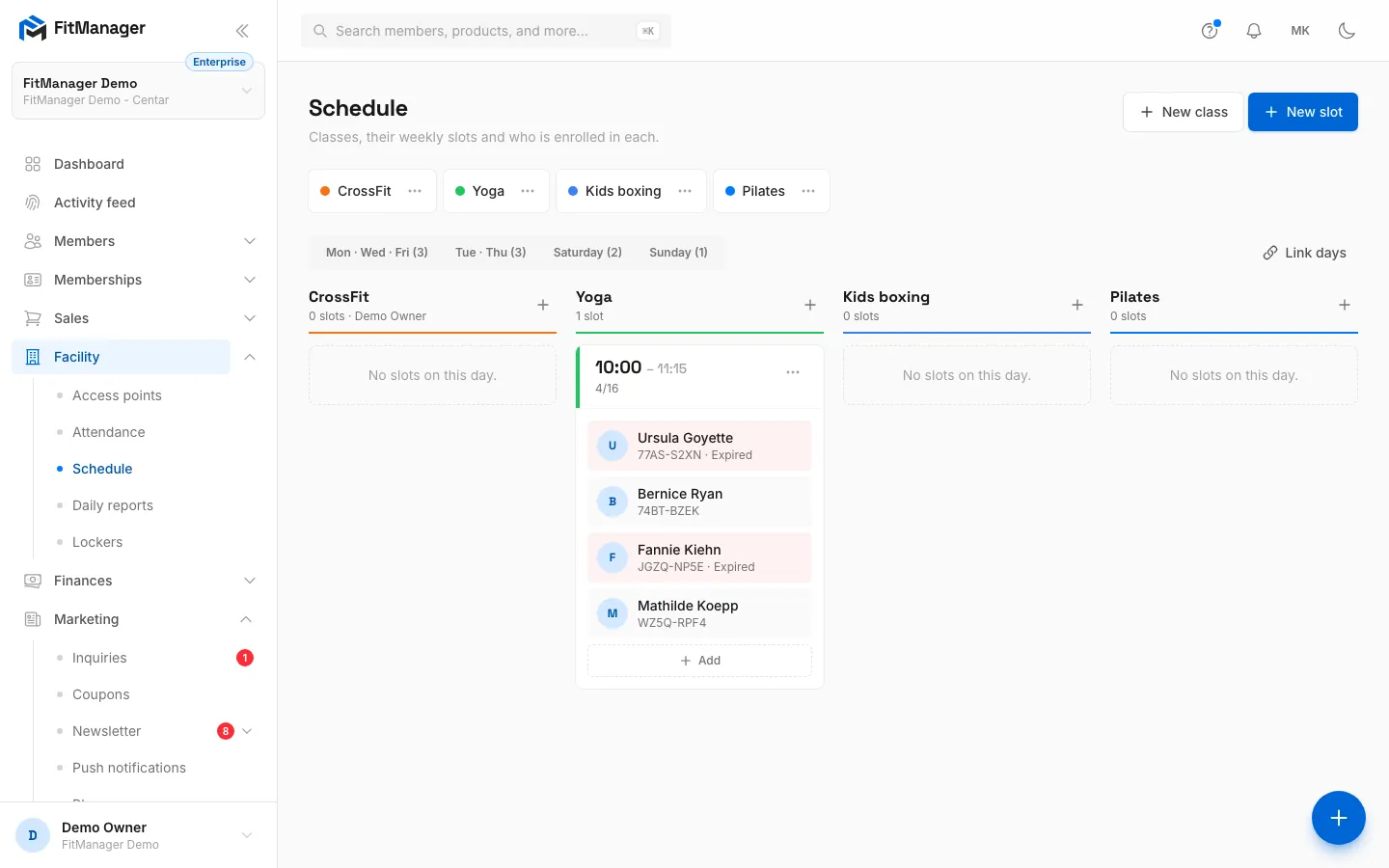
- The class strip at the top lists every class with its colour. A crossed out eye means the class is hidden from the website.
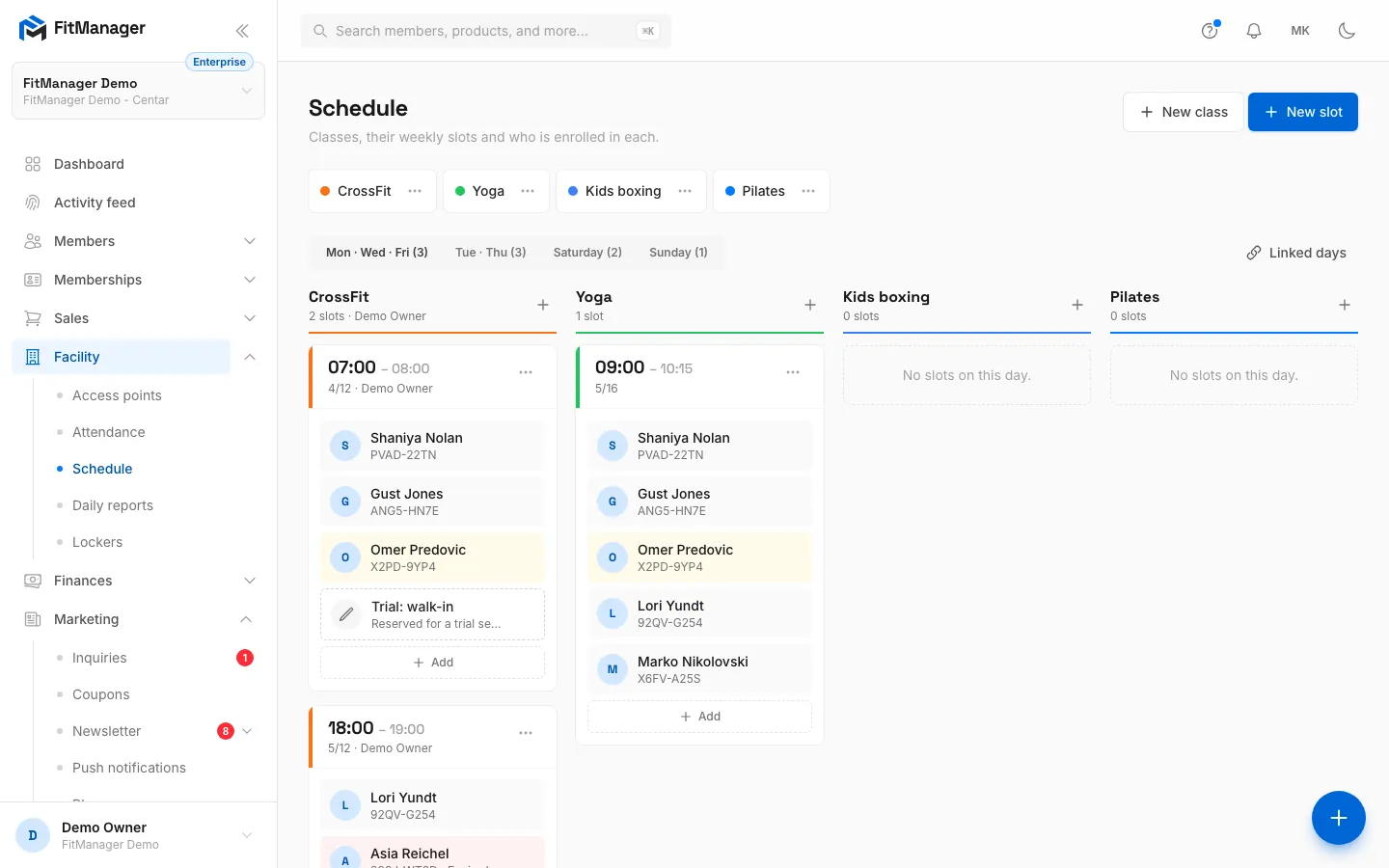
- Day tabs sit under it, one per day row. Days can be linked so that one row covers several days, for example Mon · Wed · Fri and Tue · Thu. The number in brackets is how many slots the row has.
- One column per class shows that class's slots for the selected row, each with its time, how full it is (for example
4/12), the coach and the members enrolled.
Create a class and its first slot
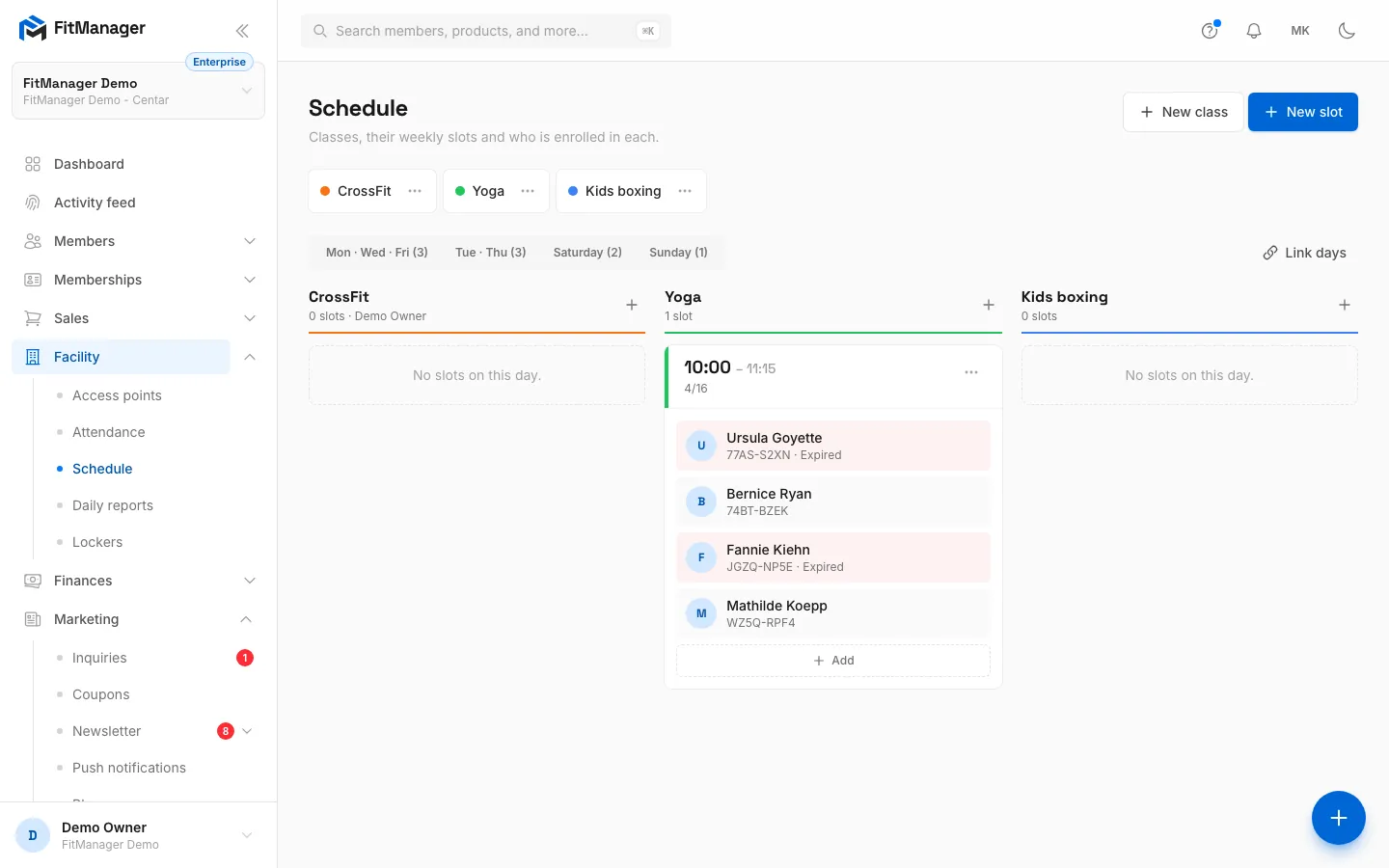
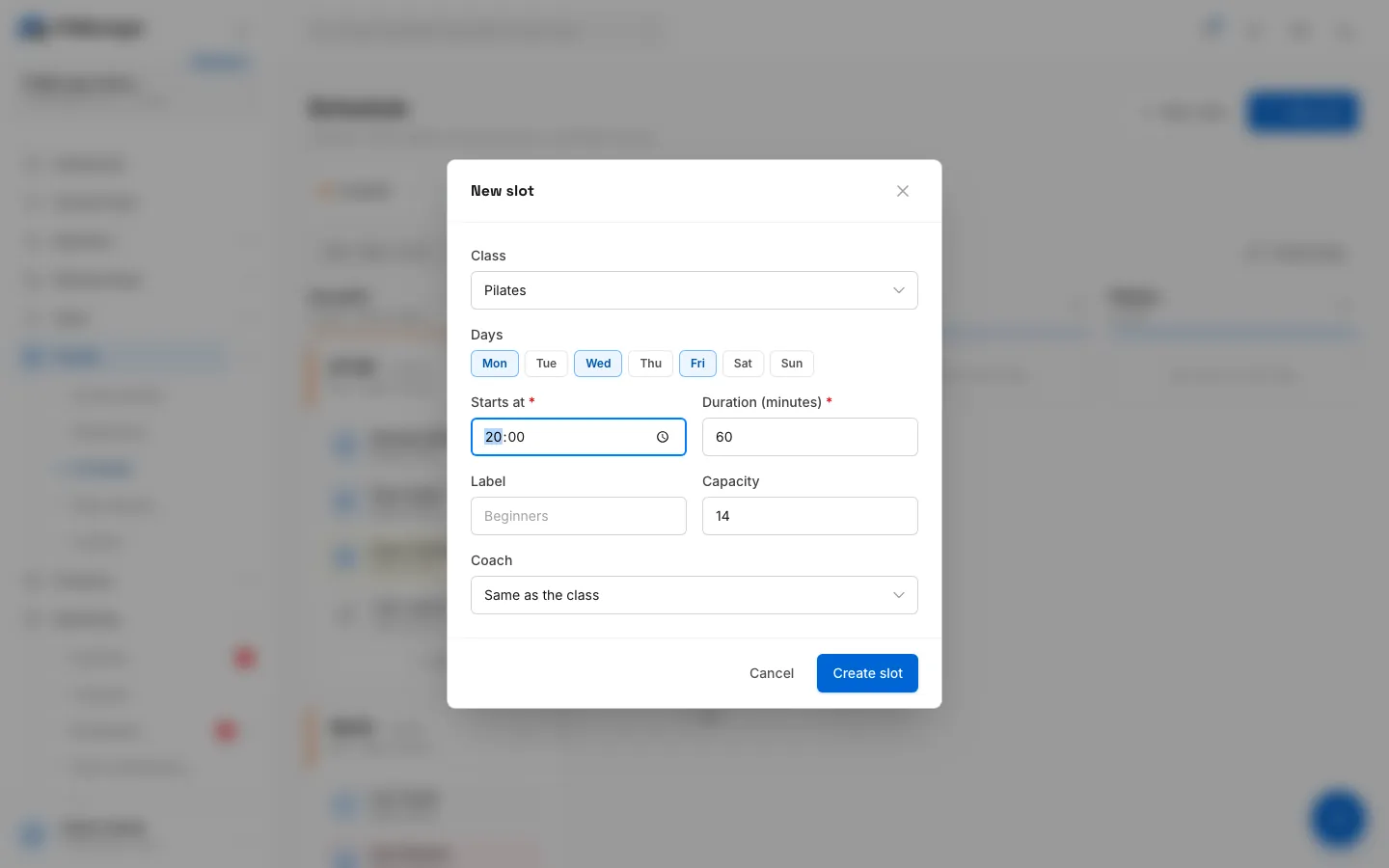
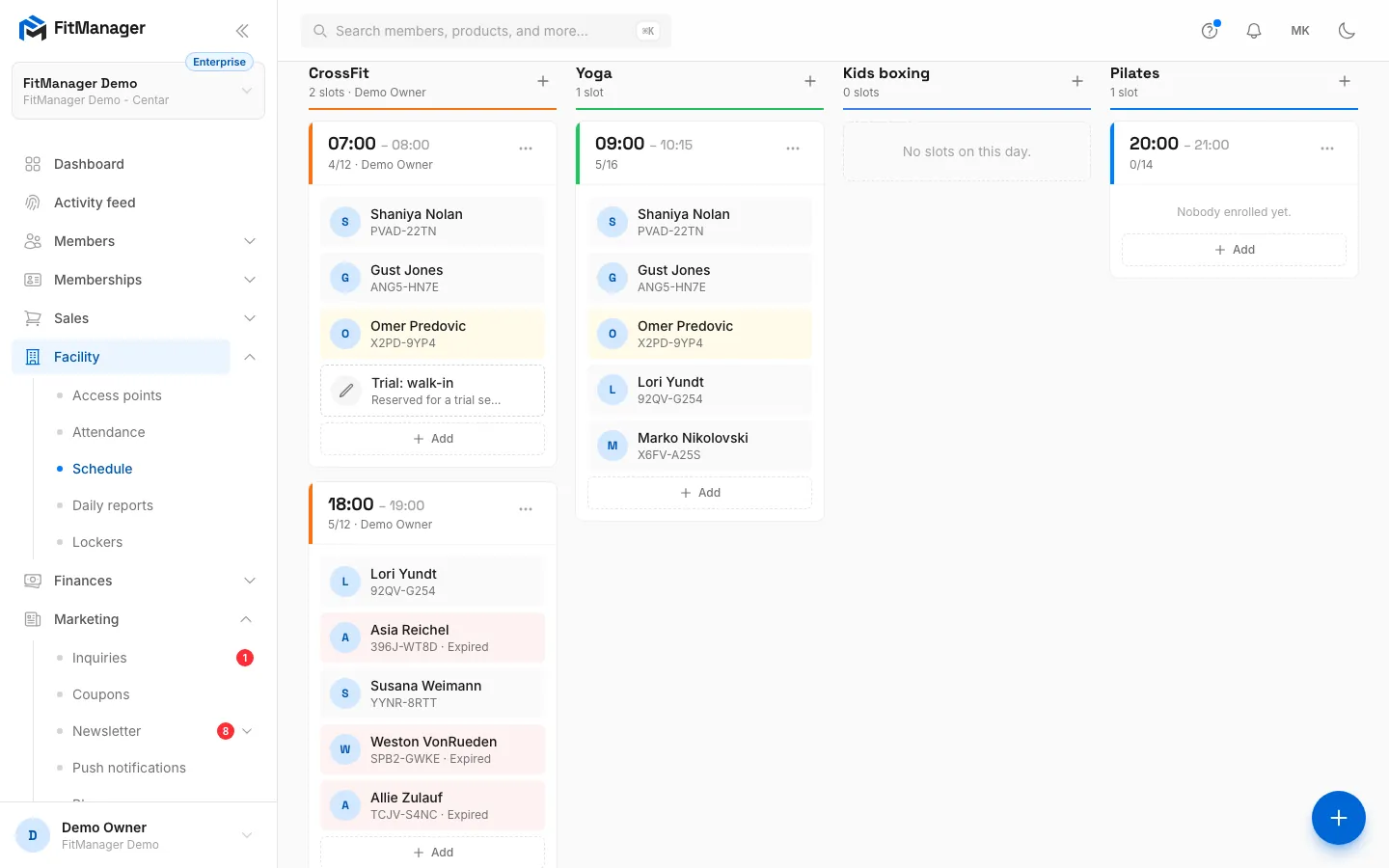
- Step 1: On the Schedule page, click New class.
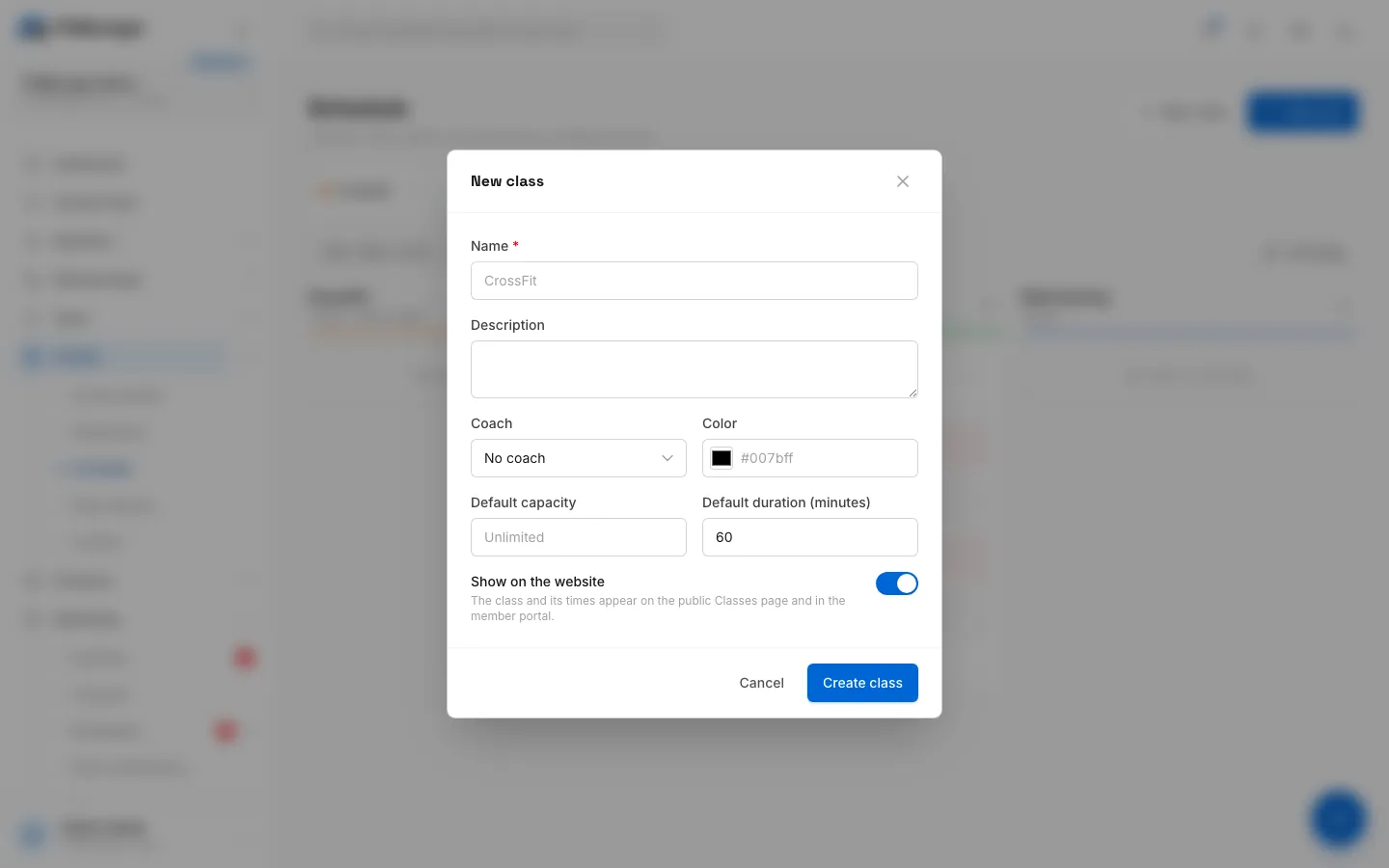
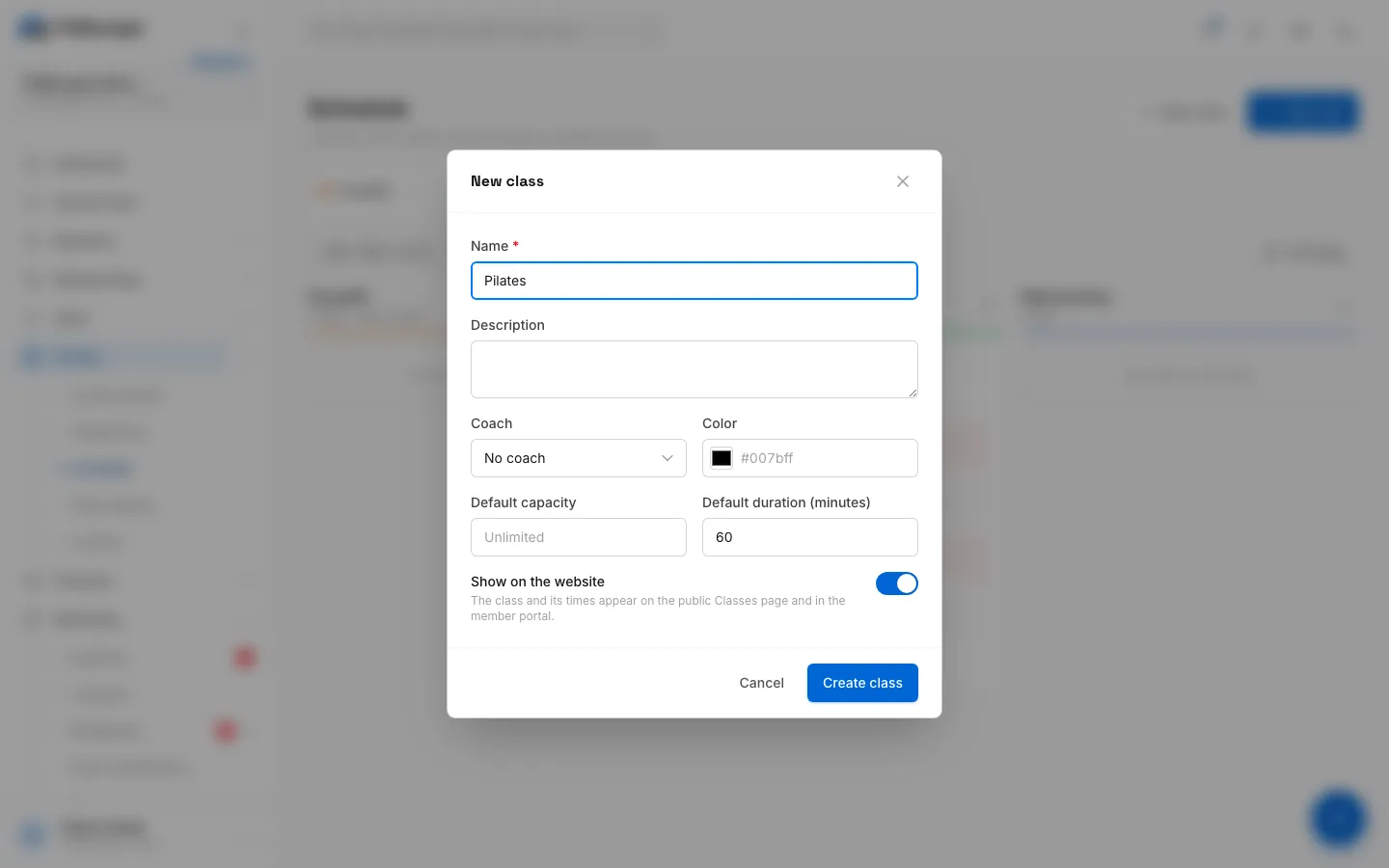
- Step 2: Name the class, for example Pilates.
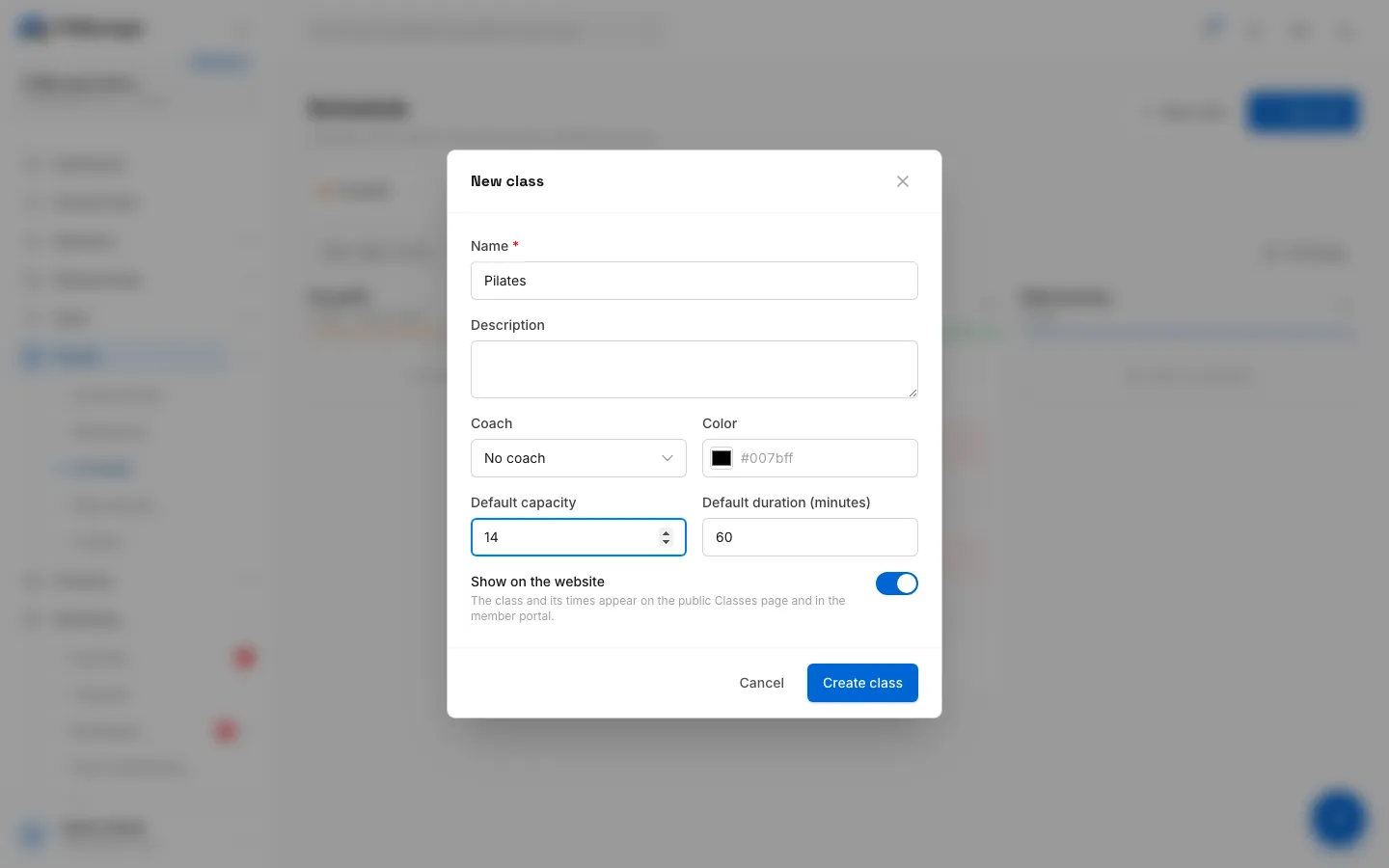
- Step 3: Set a default capacity. Every new slot of this class starts with it and with the default duration.
- Step 4: Click Create class. It appears in the strip of classes above the board.
- Step 5: Pick the day row the slot belongs to. Linked days like Mon, Wed and Fri share one row.
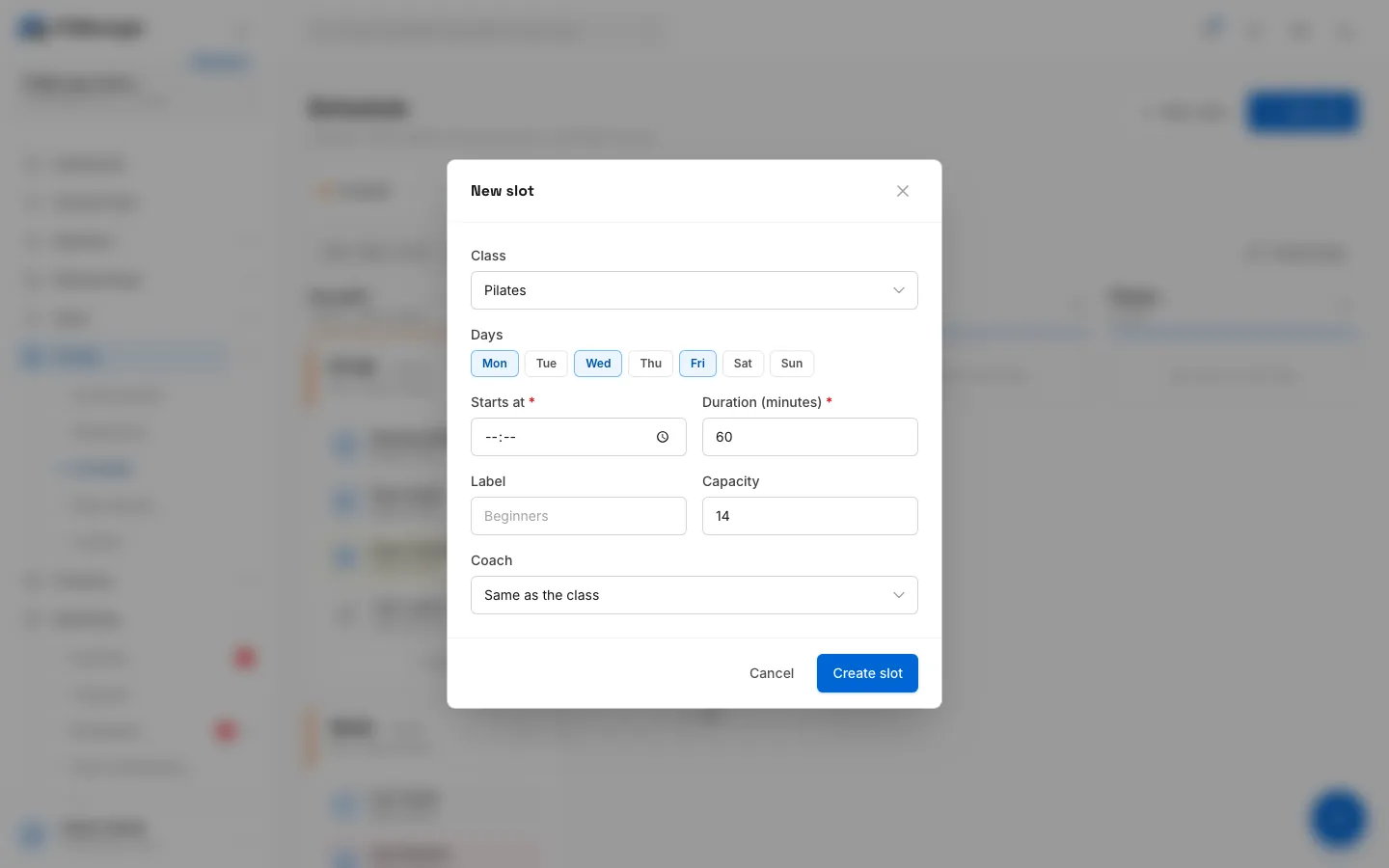
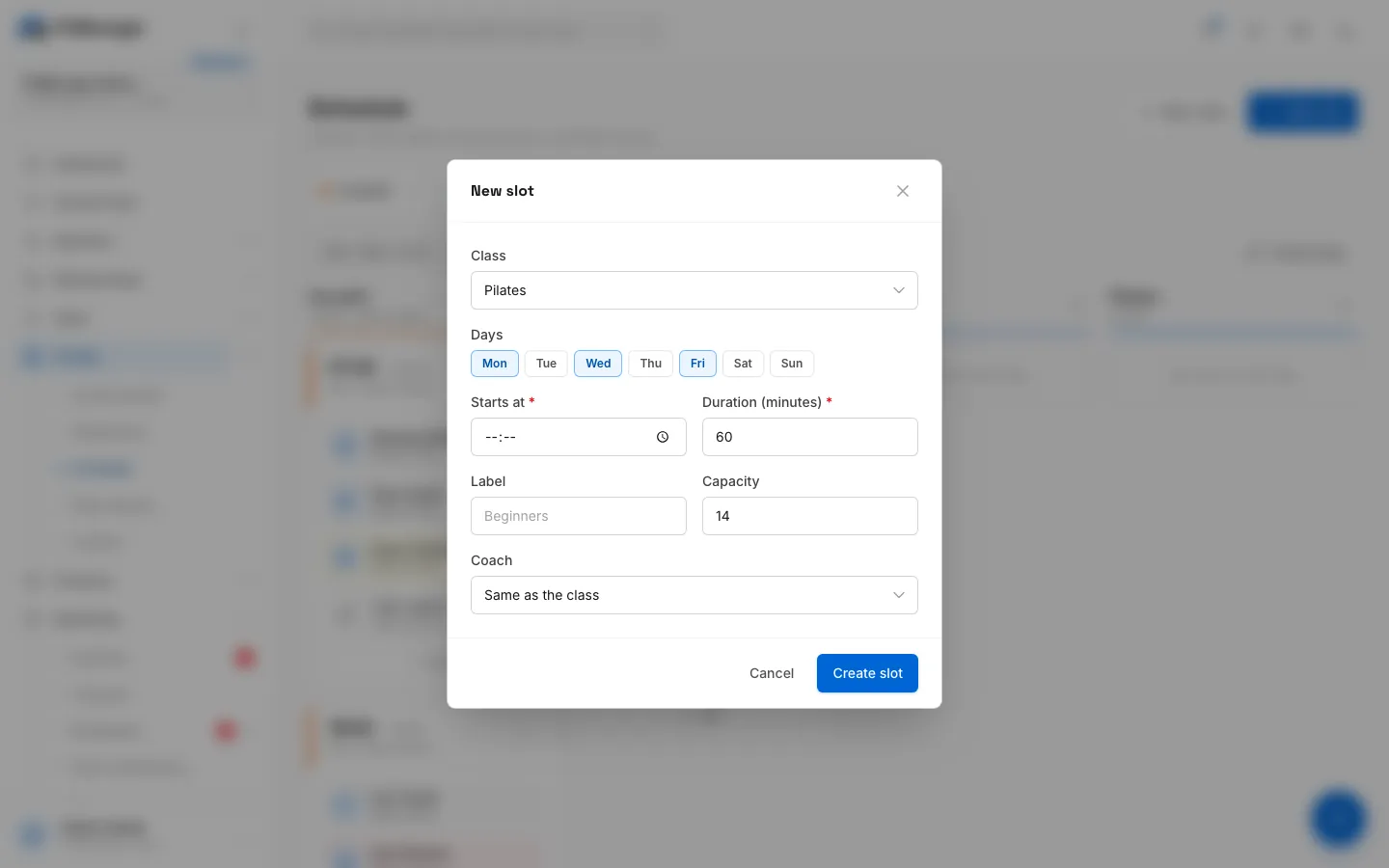
- Step 6: In the new Pilates column, click the plus to add a slot to it.
- Step 7: The class, its days, capacity and duration are already filled in from the class.
- Step 8: Enter the start time.
- Step 9: Click Create slot. It is added to every day in the row.
- Step 10: The class gets its own column with the new slot, ready for members.
- Click New class.
- Enter a Name, and optionally a Description.
- Pick a Coach and a Color if you like, then set the Default capacity and Default duration (minutes). New slots of this class start with these values.
- Leave Show on the website on if the public should see this class, then click Create class.
- Click the day tab the slot belongs to.
- In the class's column, click the + button (or click New slot at the top, which preselects the first class).
- Check the Class, enter the time in Starts at and adjust Duration (minutes) or Capacity if this slot differs from the defaults.
- Click Create slot. On a linked row, the slot is created on every day of the row at once.
Open the slot form from the + in the class's own column. Capacity and duration are filled in from the class you opened it for. Changing the Class inside the form afterwards does not refill them, so check both fields when you switch class there.
Class fields
| Field | What it does |
|---|---|
| Name | Required, up to 100 characters. Shown on the board, the website and in the portal. |
| Description | Optional, up to 500 characters. |
| Coach | The default coach for every slot of the class. Choose No coach to leave it empty. |
| Color | Tints the class on the board, the website timetable and the portal. |
| Default capacity | 1 to 999 places. Leave it empty for Unlimited. |
| Default duration (minutes) | 5 to 600 minutes, 60 by default. |
| Show on the website | The class and its times appear on the public Classes page and in the member portal timetable. |
Slot fields
| Field | What it does |
|---|---|
| Class | Which class the slot belongs to. |
| Day or Days | On a single day row you choose one day. On a linked row the days are set by the row. |
| Starts at | Required start time. |
| Duration (minutes) | Required, 5 to 600. The end time is worked out from it. |
| Label | Optional name for this slot, such as "Beginners". It replaces the class name on the website and in reminders. |
| Capacity | 1 to 999, or empty for Unlimited. Both members and reservation notes count towards it. |
| Coach | Same as the class uses the class coach. Pick someone else to override it for this slot. |
Link days that share a timetable
If Monday, Wednesday and Friday run the same classes, link them so you only edit one row.
- Open the day you want to keep as the template, for example Monday.
- Click Link days (it reads Linked days when the row is already linked).
- Tick the other days and click Save.
Adding a day copies the template day's slots, members and notes onto it. If the added day already had its own slots, FitManager warns that they will be replaced, and you have to switch on Yes, replace them before saving. Untick a day to unlink it again: it keeps its copy of the slots and becomes its own row.
Edit, reorder and archive
- Edit a class: open the ... menu on its chip in the class strip and click Edit. Move left and Move right change the order of the columns.
- Edit a slot: open the ... menu on the slot and click Edit. On a single day row you can also move the slot to another day. If the day or start time changes, every enrolled member gets a portal notification (and a push message on the app) that the class moved.
- Archive a slot: ... > Archive. Enrolled members are told the class was taken off the timetable. Archived slots are listed under Archived (n) at the top of the page, where you can Restore them or Delete them for good.
- Archive a class: ... on the class chip > Archive class. The class and all its slots leave the board. Enrolled members stay attached until the slots are deleted for good.
Common questions
Why can I not see New class or the Add buttons?
Your account only has View the schedule. Ask the owner for Manage classes and enrolment.
I cannot change the days of a slot
On a linked row the days come from the row ("Days are set by the row"). Use Link days to change which days belong together, or unlink the day first.
The class does not show on our website
Check that Show on the website is on for the class and that the class has slots. The website shows the timetable of the location the visitor picks. See What members see.
Was this page helpful?
Related articles
Still stuck?
Write to us and we will get back to you within one working day.