Connect the card terminal to the POS
Send card sales from the POS straight to the payment terminal on the desk through FitManager Control, and settle sales the terminal never answered.
With a connected card terminal, the cashier no longer types the amount into the terminal by hand. When they choose Card on the Point of Sale, the amount appears on the terminal by itself, and the sale is completed in FitManager only once the bank approves the card. No typing mistakes, and no sale recorded for a card that was declined.
How it works
The browser never talks to the terminal. FitManager Control, the Windows app on the reception PC, does:
- The cashier clicks Checkout with Card selected. FitManager keeps the sale as Pending and puts the amount in a queue with a reference such as
POS-000123. - Control on the reception PC asks FitManager for work about once a second, takes the sale and starts it on the terminal.
- The customer taps or inserts the card. The terminal and the bank do the rest. No card data passes through Control or FitManager.
- Control reports the result. On Approved, FitManager completes the sale: stock, membership, payment and, if you have one, the fiscal receipt. On Declined or Cancelled, the pending sale is dropped and the cart stays on the POS.
Nothing at the gym needs to be reachable from the internet.
What you need
- The POS card terminal feature on your plan.
- A card terminal from your bank with a cash-register (ECR) connection, connected to the reception PC by cable or on the same network. Ask your bank for an ECR-capable terminal, and for a test terminal for the first days if they have one.
- FitManager Control installed and activated on the reception PC, with the POS System tab switched on. See Set up FitManager Control.
- A gym API key, made under Settings, Integrations, API integration.
- The Manage settings permission in FitManager.
Terminal drivers
Control drives terminals through Payten's cash-register interface (Windows DLL, TCP/IP or RS-232/USB). The Payten drivers are being finished against the bank's ECR specification. Until your terminal is confirmed, Control also offers a Simulated terminal so you can try the whole flow. Open a ticket with your bank and terminal model before you rely on it at the desk, and we will schedule the connection with you.
Step 1: Set up the terminal in FitManager
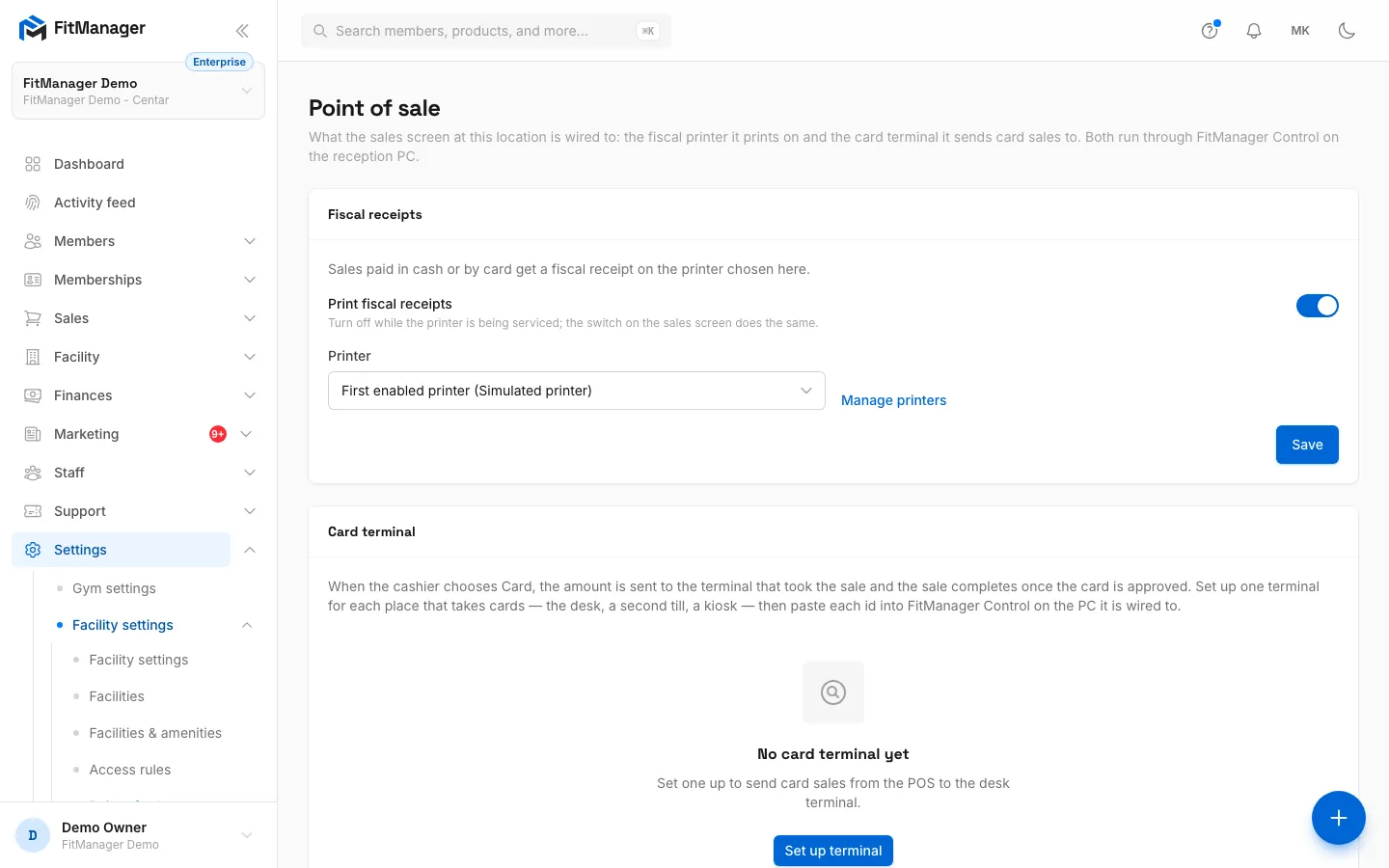
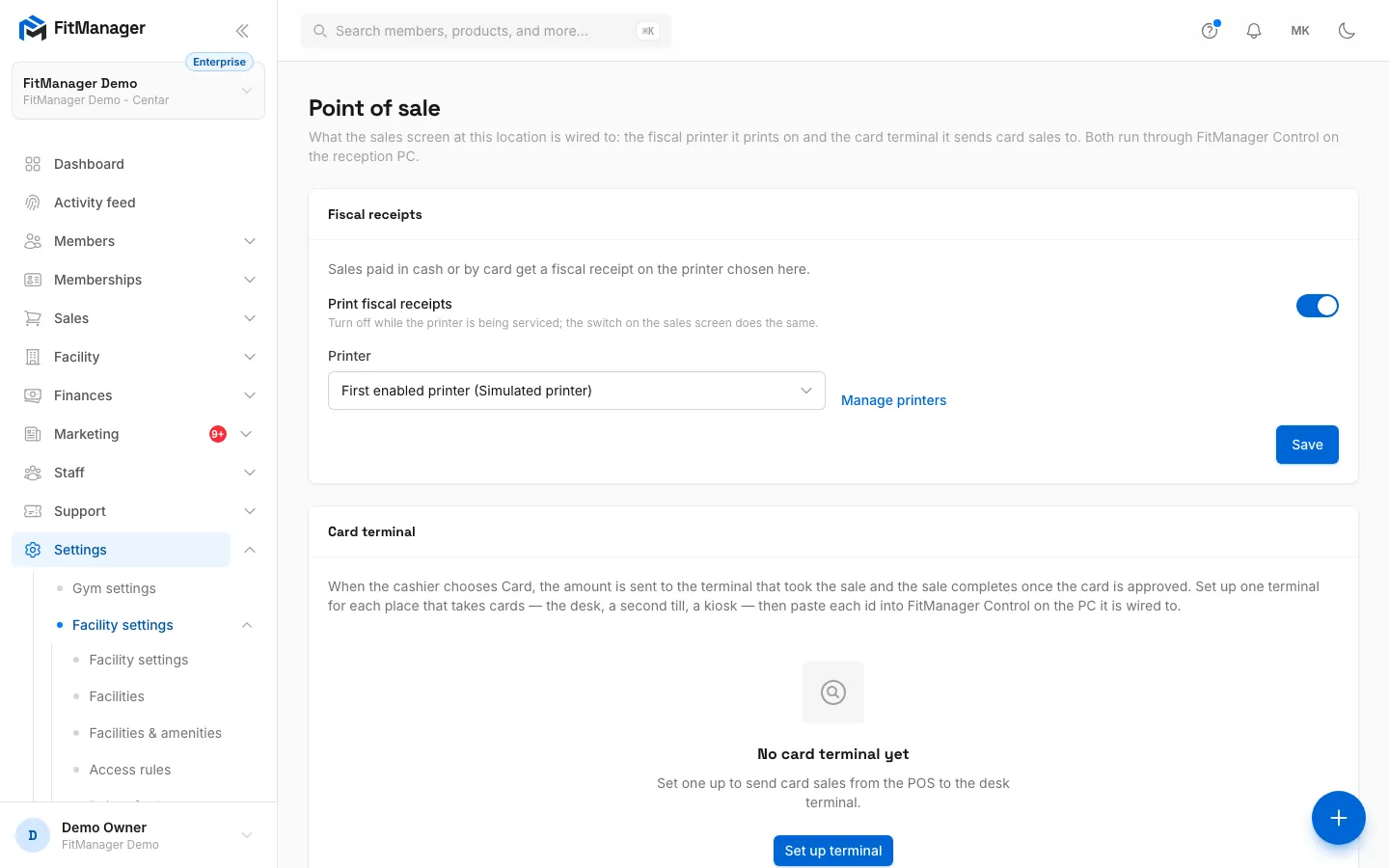
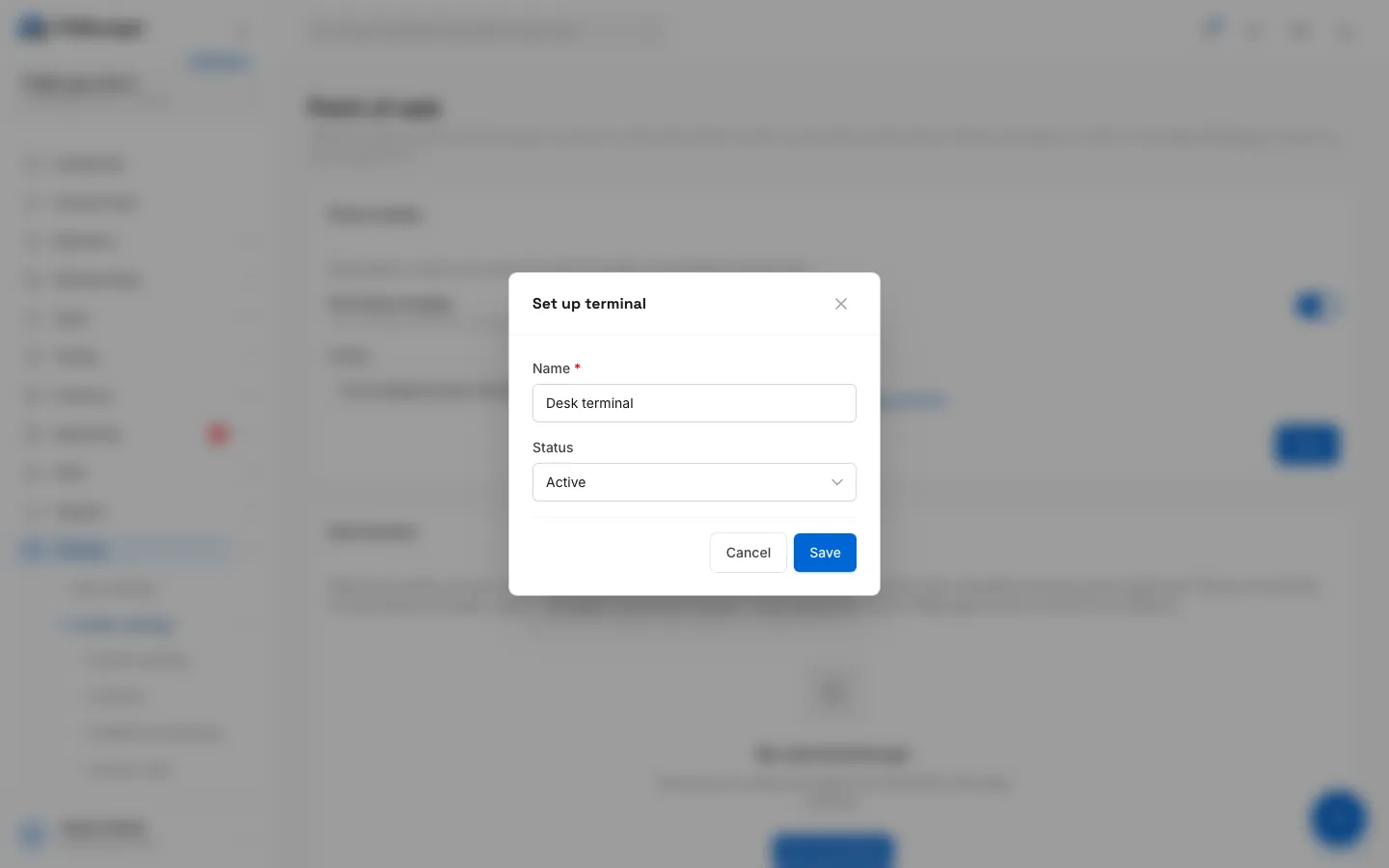
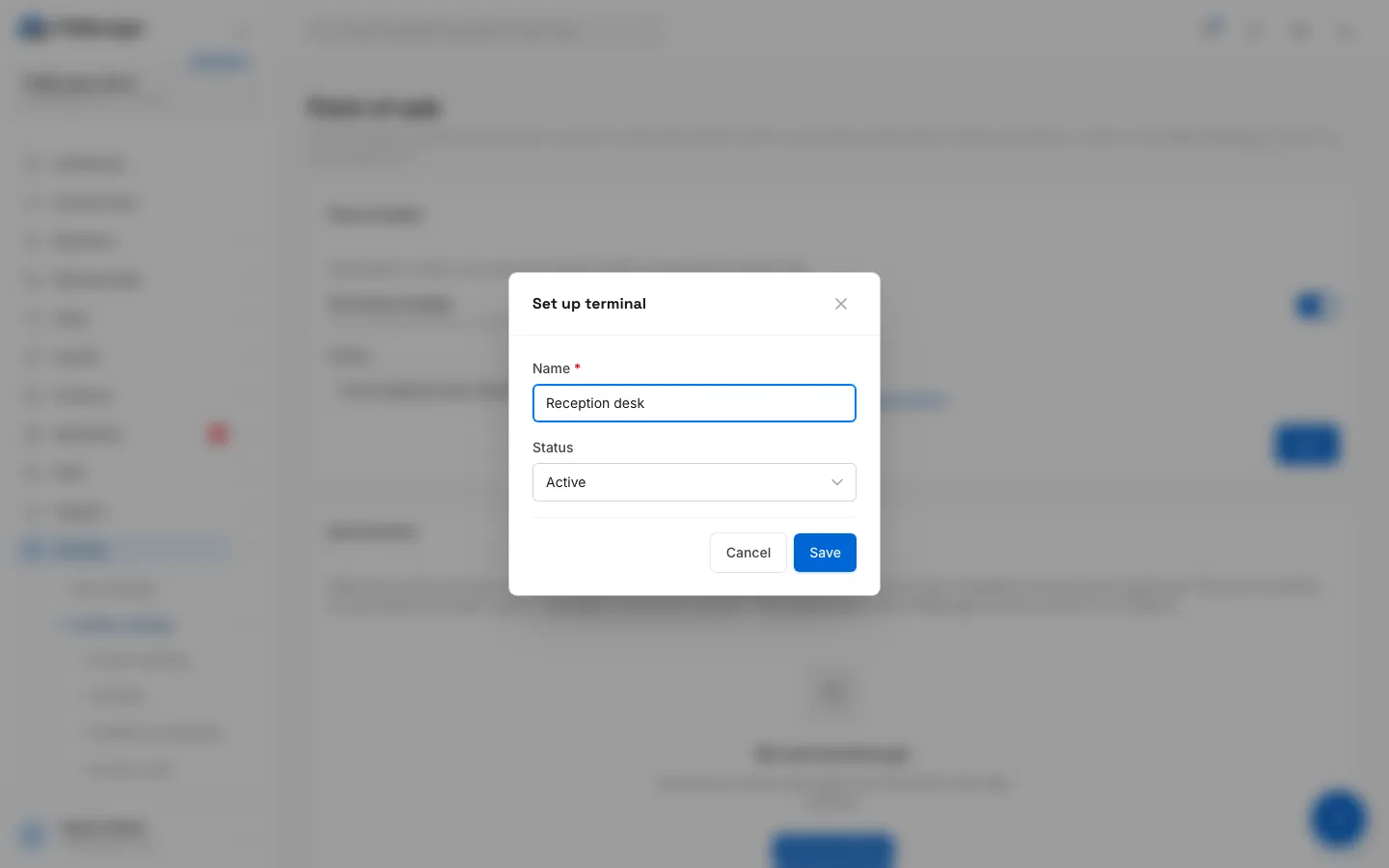
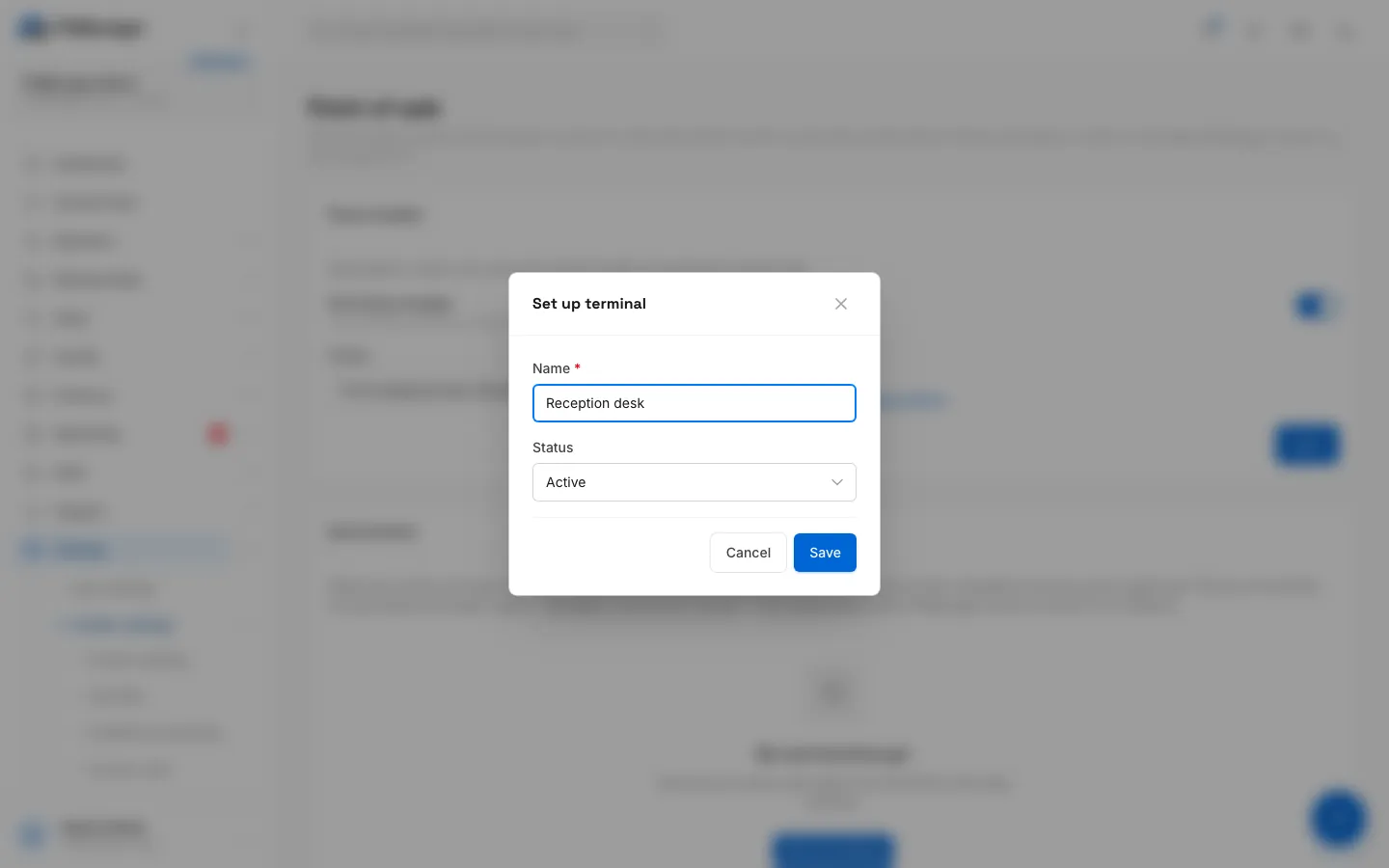
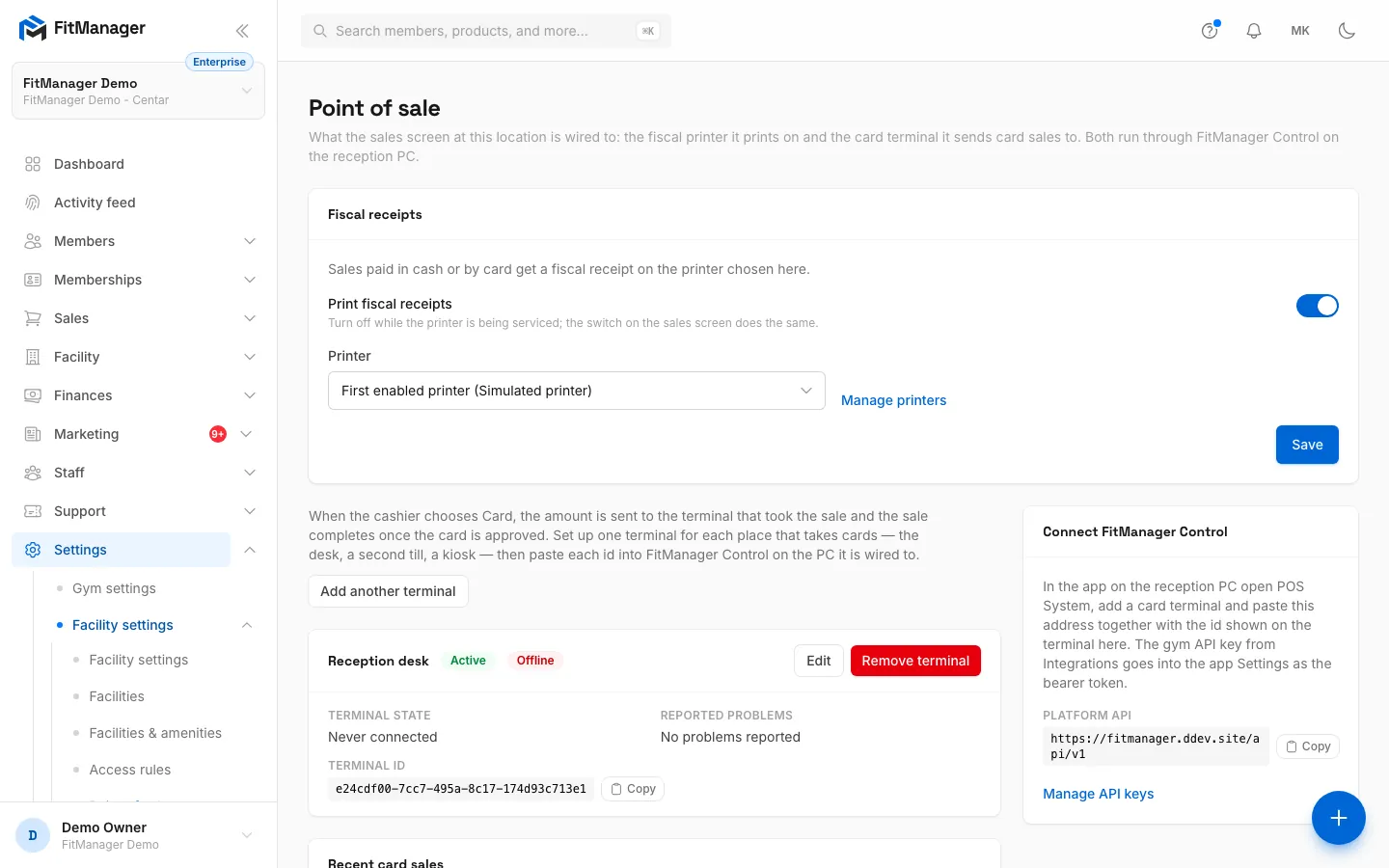
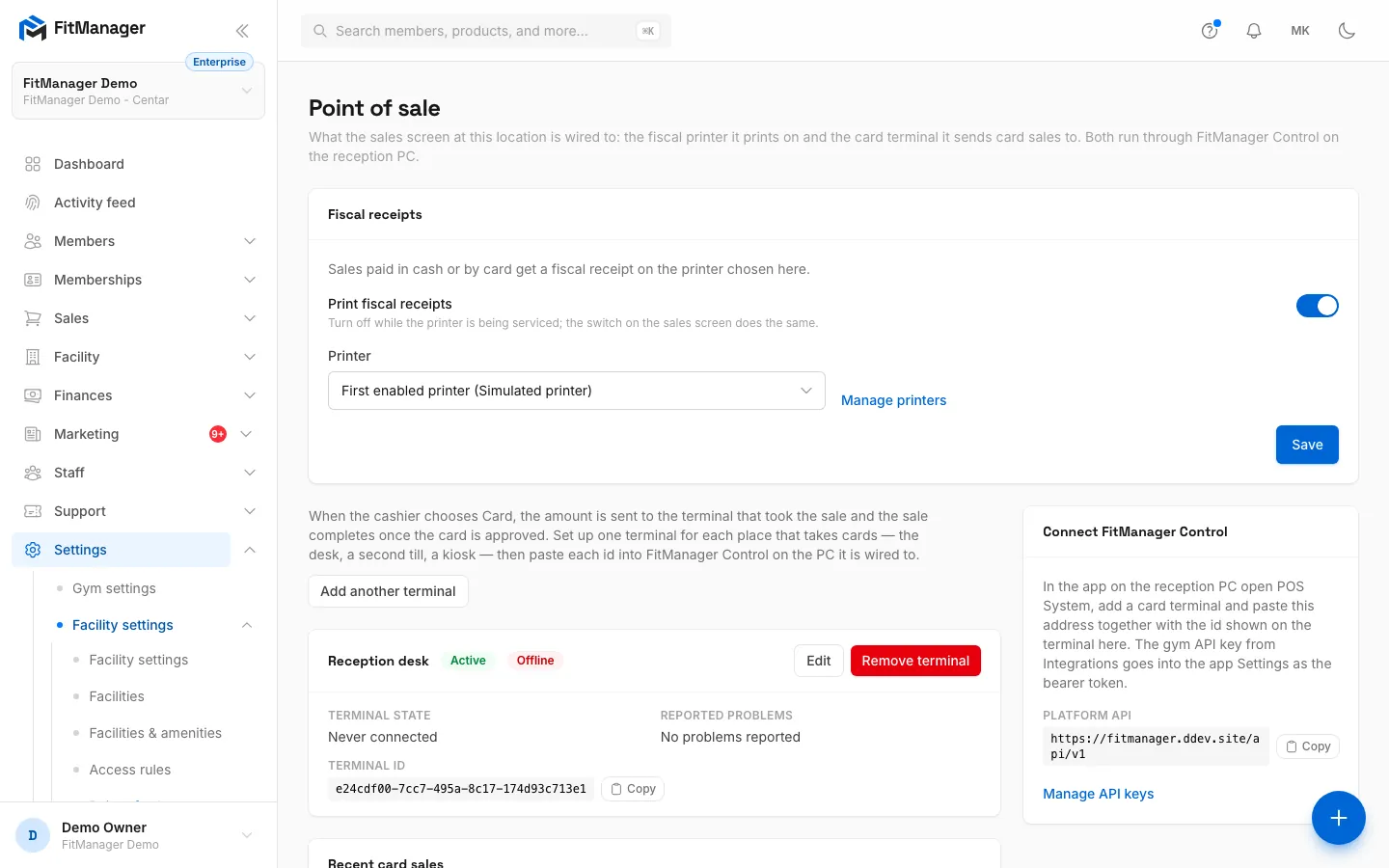
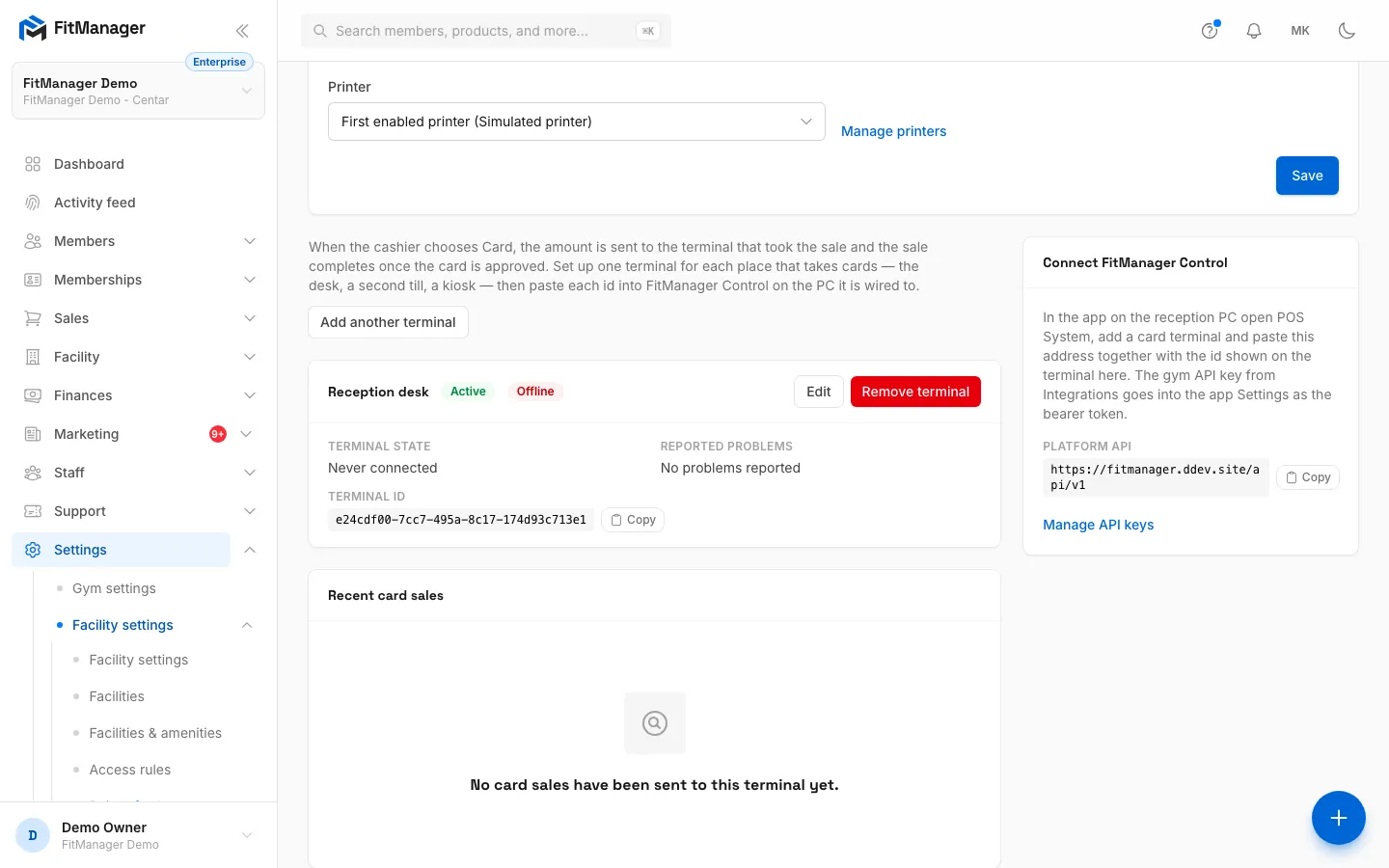
- Step 1: Settings, Point of sale holds what the sales screen at this location is wired to.
- Step 2: Under Card terminal, click Set up terminal.
- Step 3: Name it after where it stands, for example Reception desk.
- Step 4: Leave it Active. Disabled stops card sales from going to it.
- Step 5: Click Save.
- Step 6: The terminal card shows its state, reported problems and the Terminal id to copy.
- Step 7: Copy the Platform API address too. Both go into FitManager Control on the reception PC.
- Step 8: Every card sale sent to the terminal is listed here. An unknown result is resolved here too.
- Open Settings, Facility settings, Point of sale. Make sure the right facility is selected at the top.
- Under Card terminal, click Set up terminal. If one exists already, click Add another terminal.
- Enter a Name, for example
Reception desk, and leave Status on Active. - Click Save.
- On the terminal's card, copy the Terminal id with the copy button.
- In Connect FitManager Control on the right, copy the Platform API address.
Set up one terminal for every place that takes cards: the desk, a second till, or a kiosk.
Step 2: Connect the terminal in FitManager Control
On the reception PC:
- Open FitManager Control and click Settings. Paste the gym API key into Gym API bearer token if it is not there already, and save.
- Open the POS System tab and click + Card terminal.
- Give it a Name and tick This terminal is in use.
- Under The web POS, tick Charge the gym's web POS card sales on this terminal.
- Paste the Platform API address and the Terminal id from Step 1.
- Under Card terminal, choose the Driver and fill in what it asks for: the DLL path for the Payten DLL, the Terminal address and port for a terminal on the network, or the Serial port for a cable.
- Leave Currency on
MKDunless your bank says otherwise. Card wait is how long the terminal waits for a card before it gives up. - Click Save, then Test sale (1.00) on the terminal's card to check the connection.
Within a minute, the terminal in FitManager shows Online with the driver name and Control's version.
Step 3: Take a card payment
- On the POS, add the items and choose Card.
- Leave Send to payment terminal on and click Checkout.
- The Waiting for the terminal window shows the amount and the reference. Ask the customer to tap or insert the card.
- When the card is approved, the window closes, the cart clears and the sale is in Purchases as paid, with the terminal's authorisation code.
To stop a payment, click Cancel payment. If the terminal has not picked it up yet, it is cancelled at once. If the card is declined, the POS says The card was declined. and keeps the cart, so you can try another card or take cash.
To take a card on the terminal by hand for once, switch Send to payment terminal off before Checkout. The sale is then recorded as a card payment straight away.
The terminal card
On Settings, Point of sale, each terminal shows:
- Active or Disabled, and Online or Offline. A terminal is online when Control has checked in within the last couple of minutes.
- Terminal state: when it was last seen, the driver and Control's version.
- Reported problems in the terminal's own words, or No problems reported.
- Edit and Remove terminal. A terminal with a sale in progress cannot be removed.
Recent card sales lists the last 15 card sales across your terminals with the reference, amount, state, auth code and a link to the sale.
| State | Meaning |
|---|---|
| Waiting for Control | Queued, Control has not taken it yet. |
| On the terminal | The terminal is waiting for the card. |
| Approved, Declined, Cancelled, Failed | Final results. |
| Unknown | The terminal stopped answering after the card was read. |
When the terminal does not answer
Rarely, the connection drops after the card was read, so nobody knows whether the bank took the money. Control first asks the bank. If it still does not know, the POS says The terminal did not answer for sale POS-000123. and the sale stays Pending.
- Check the terminal's own receipt roll or its last transaction for that amount.
- On Settings, Point of sale, find the sale under Recent card sales with the state Unknown.
- Click Card was charged if the terminal shows the payment. The sale is completed as paid by card.
- Click Not charged if it does not. The pending sale is dropped and you can sell again.
Troubleshooting
| What you see | What to do |
|---|---|
| Terminal offline on the POS | Control has not checked in recently. Check that the reception PC is on, Control is running and the PC has internet. Until then, take the card on the terminal by hand. |
| The sale stays on Waiting for the terminal | Control is not taking work. Check the terminal's settings in Control, especially the Terminal id and Platform API, and that Charge the gym's web POS card sales on this terminal is ticked. Click Cancel payment to get the cart back. |
| The terminal payment failed. | The terminal was offline or the payment was reversed. Read the message, check the terminal and try again. |
| You do not see Card terminal settings | Your plan does not include the POS card terminal. Card sales are still recorded on the POS, they are just not sent to a terminal. |
Was this page helpful?
Related articles
Still stuck?
Write to us and we will get back to you within one working day.