Assign or renew a membership
Give a member a plan at the desk, record what they paid, take later payments, and see how expiry and reminders work.
When a member pays at the desk, you assign them a membership. FitManager copies the plan's price and works out the end date, records the payment, and from then on the door lets the member in until the membership runs out. Renewing is the same action: you assign the next membership.
Before you start
- You need the memberships.manage permission. Without it you can see memberships but the Assign Membership and Record payment buttons are hidden.
- The plan must exist and be Active. See Create a membership plan.
Assign from the Members list
This is the quickest way at a busy desk.
- Open Members.
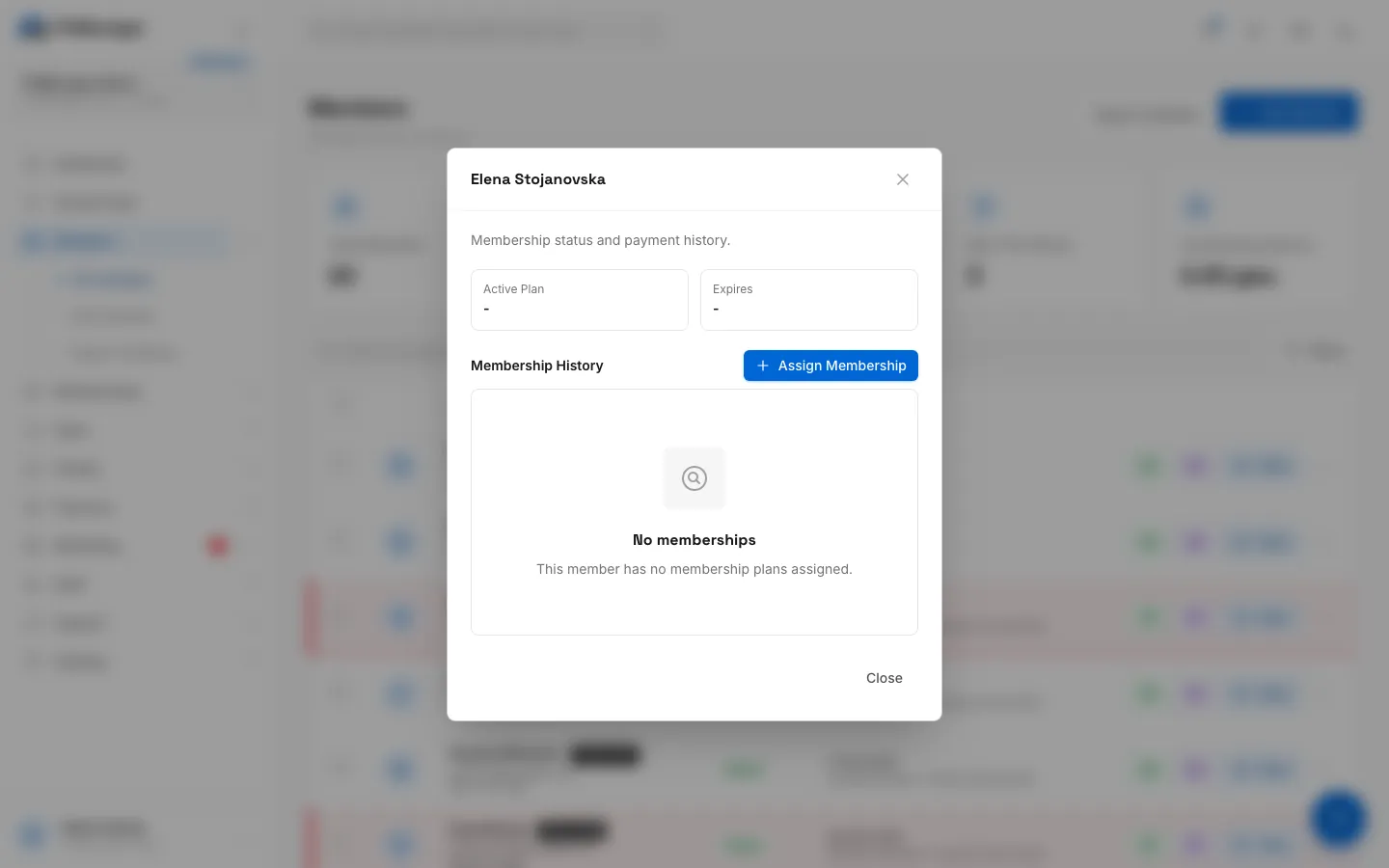
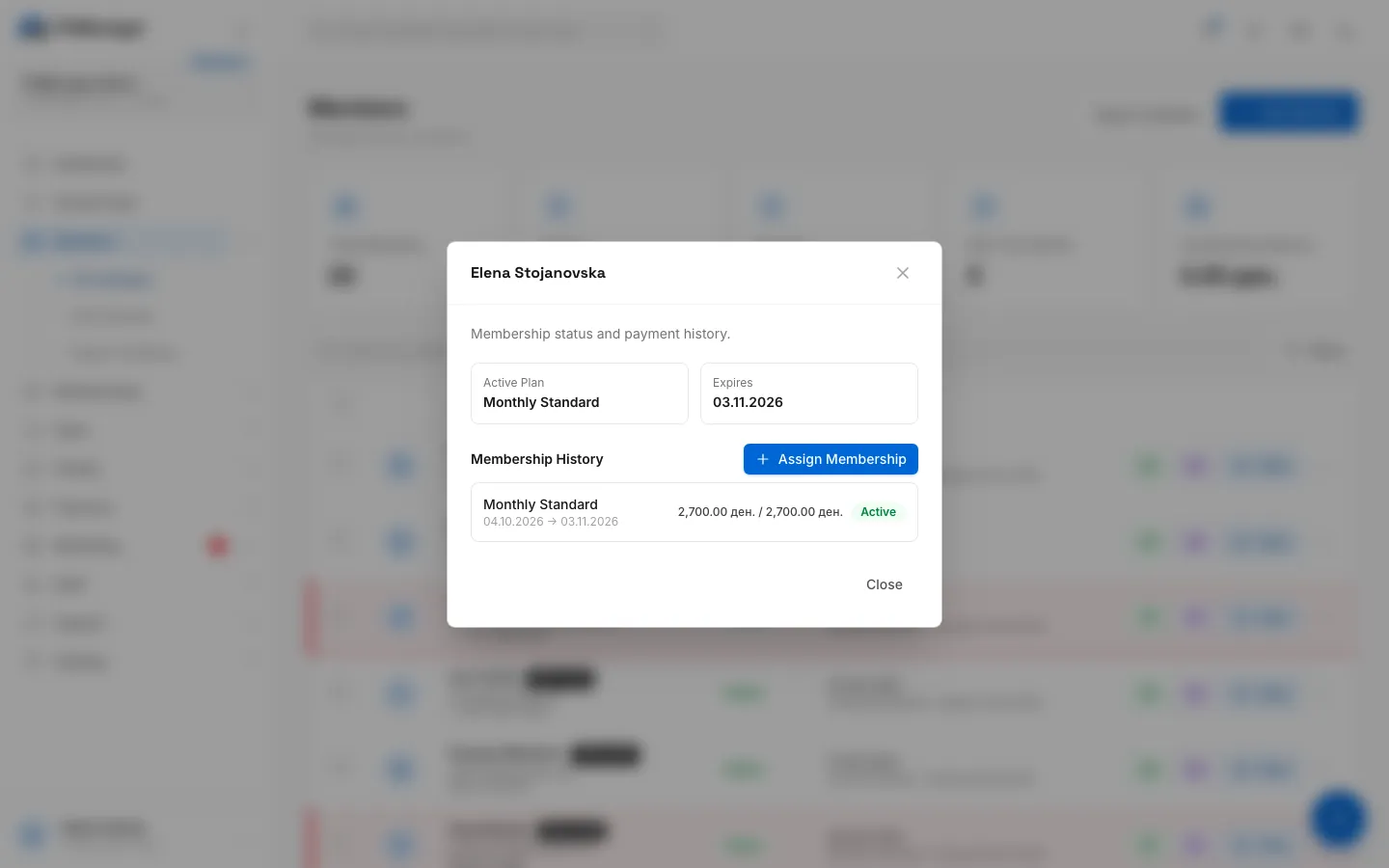
- Click the green Pay button (the dollar sign) on the member's row. A window shows their Active Plan, when it Expires, and their Membership History.
- Click Assign Membership.
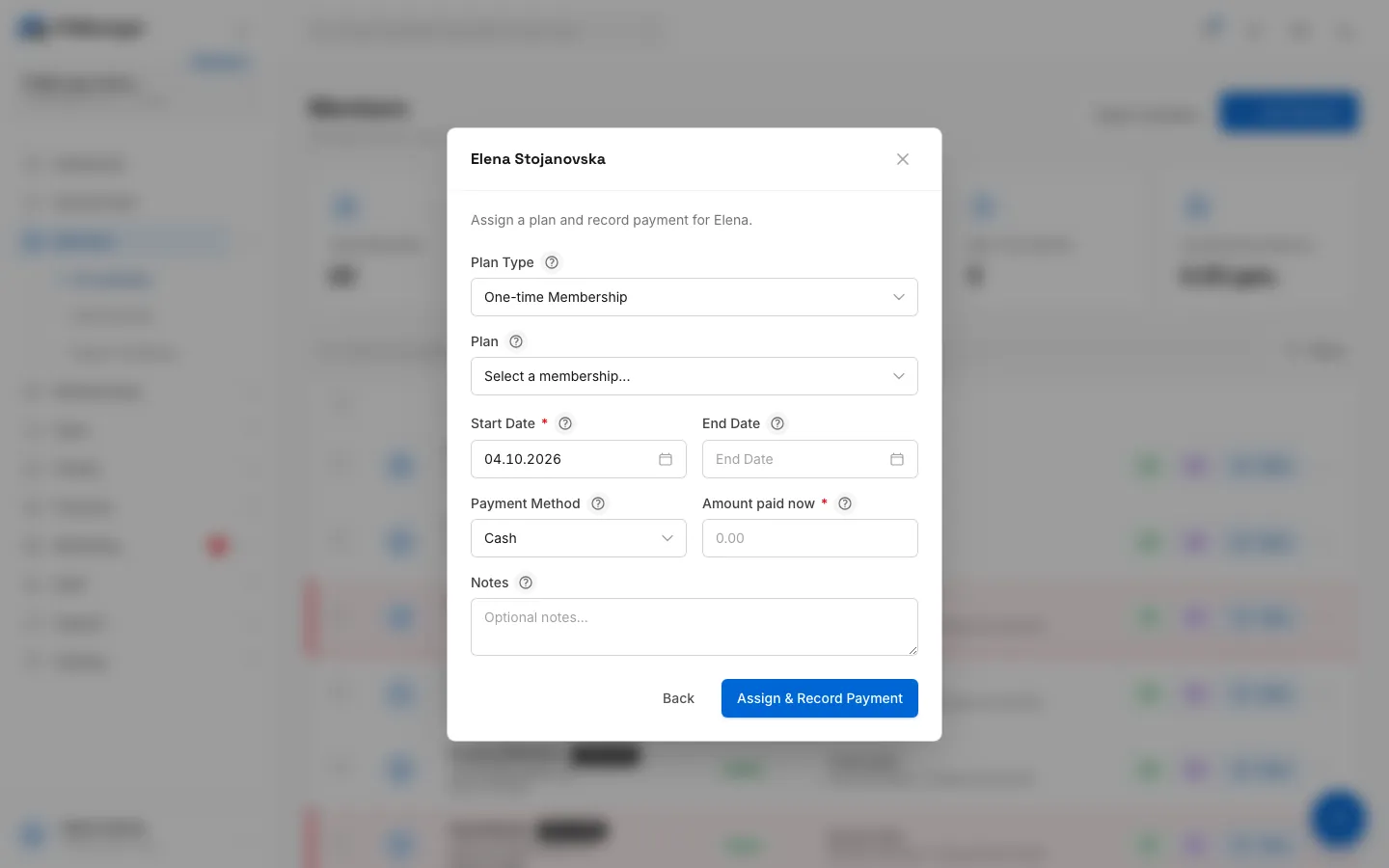
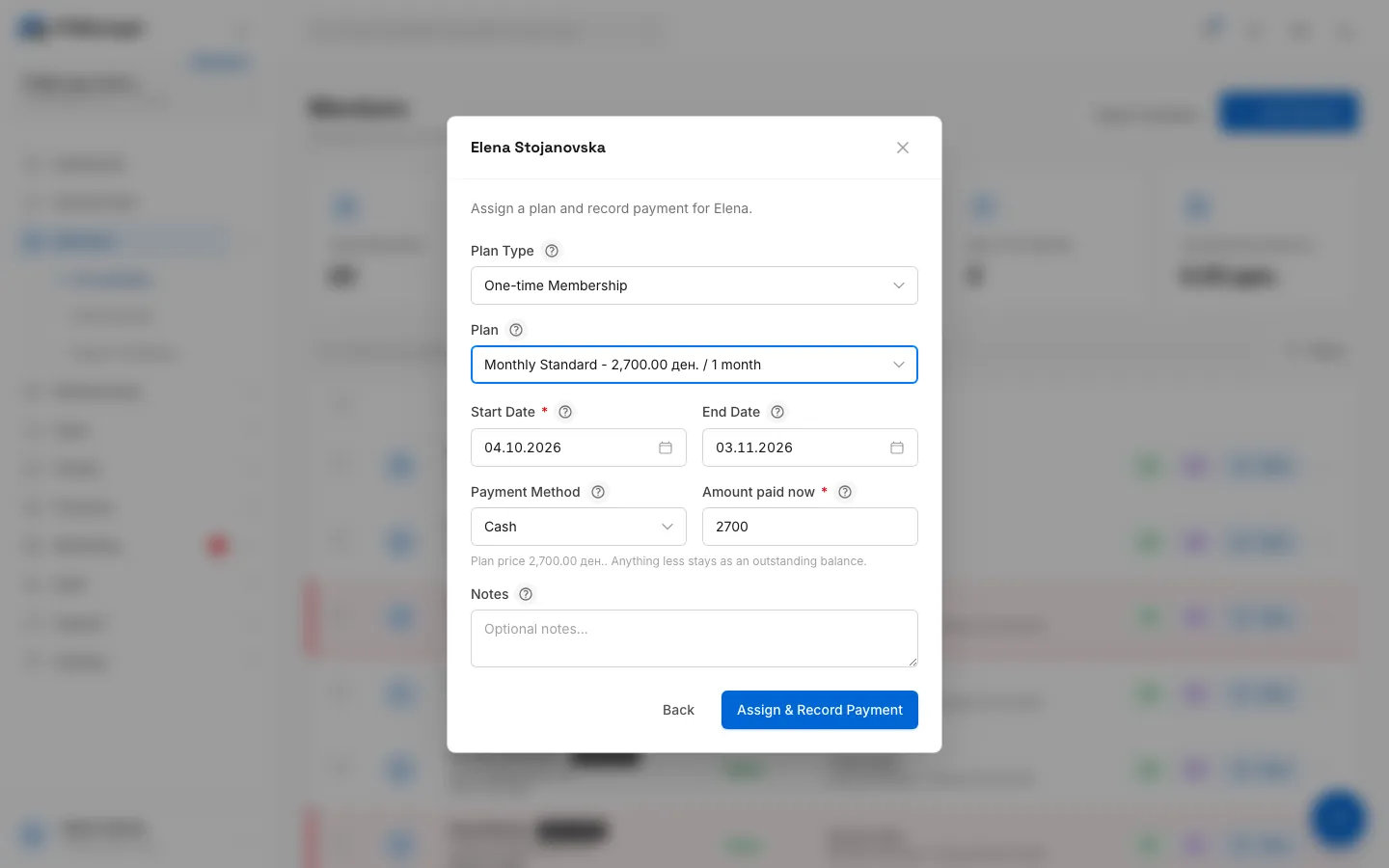
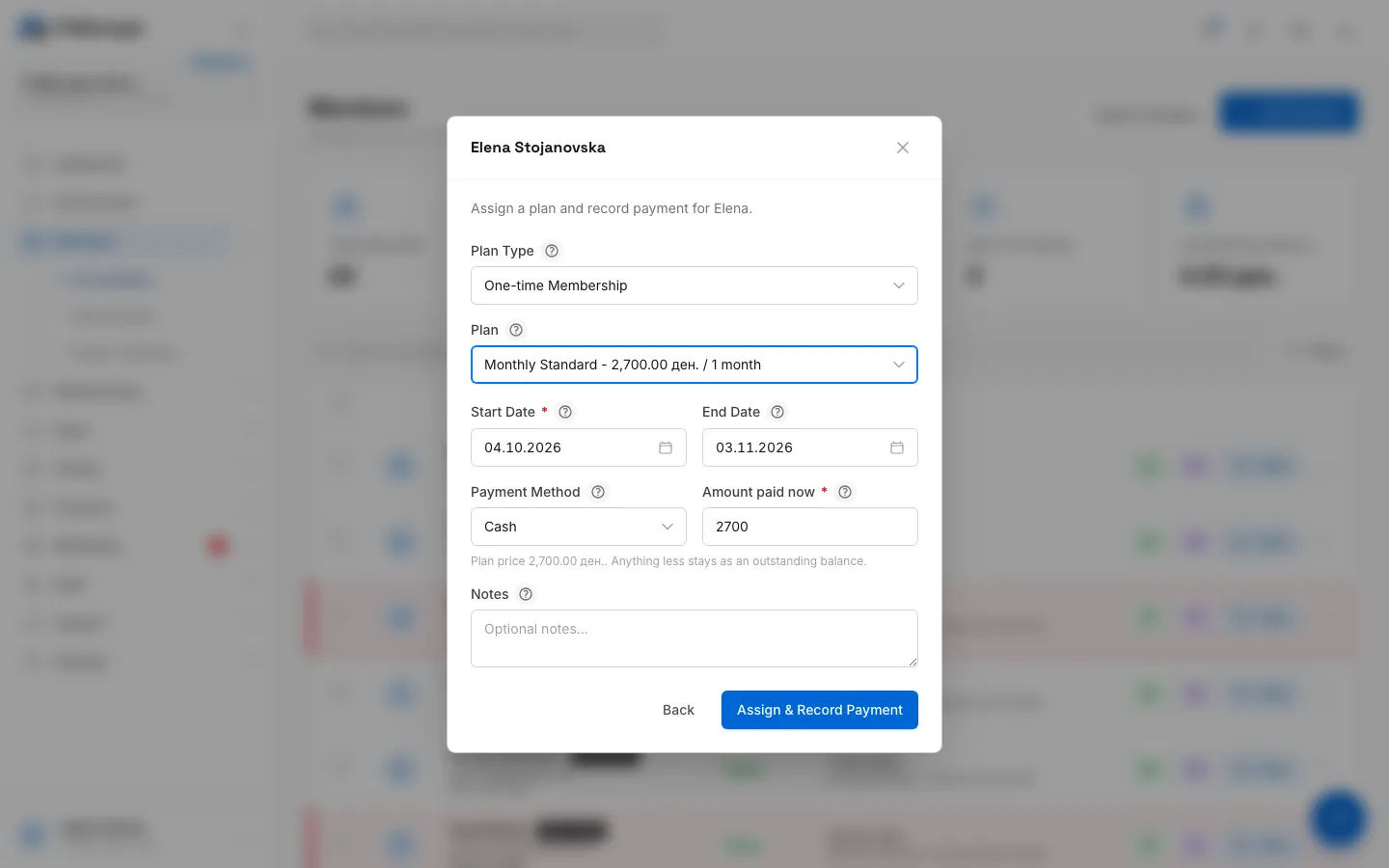
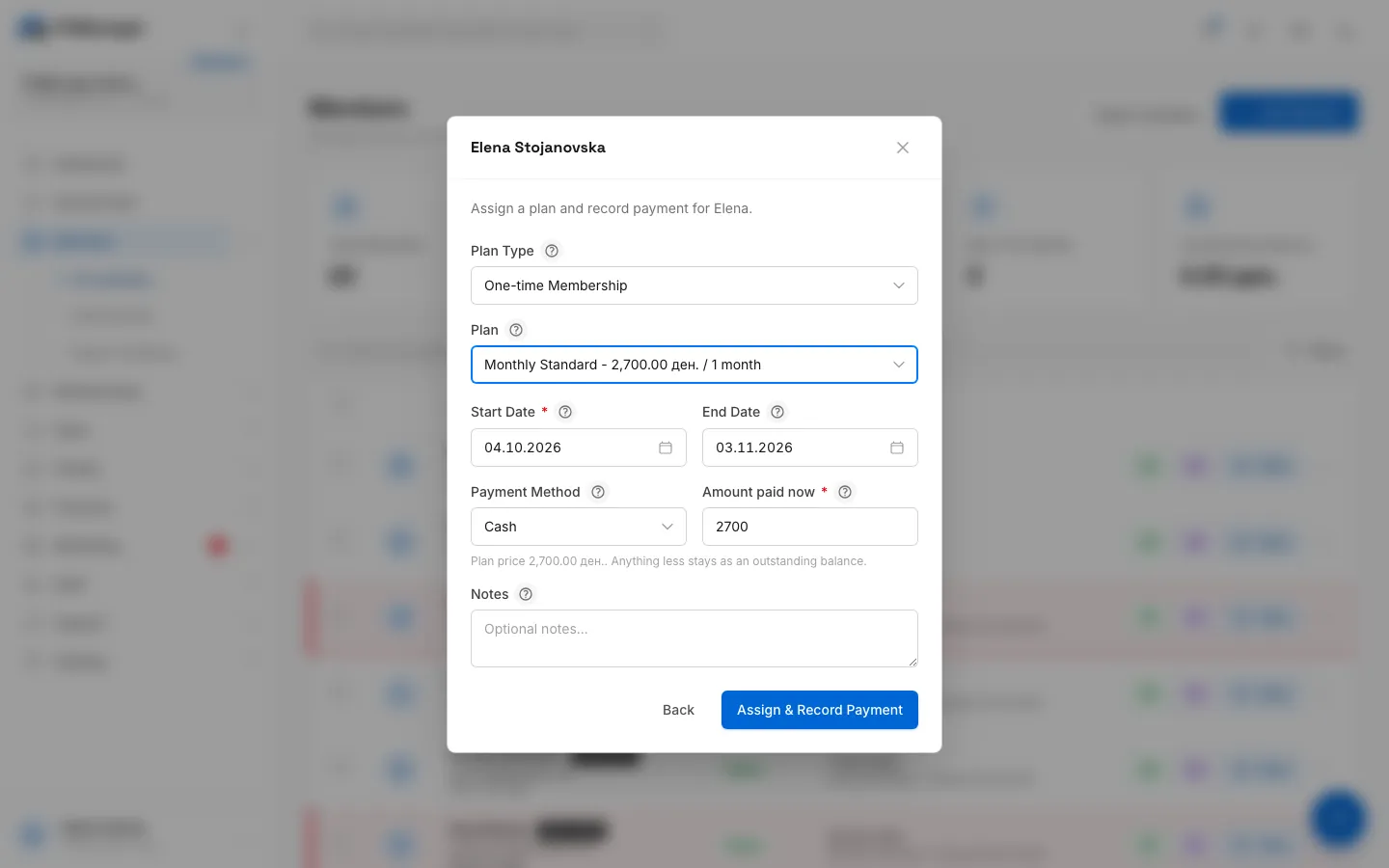
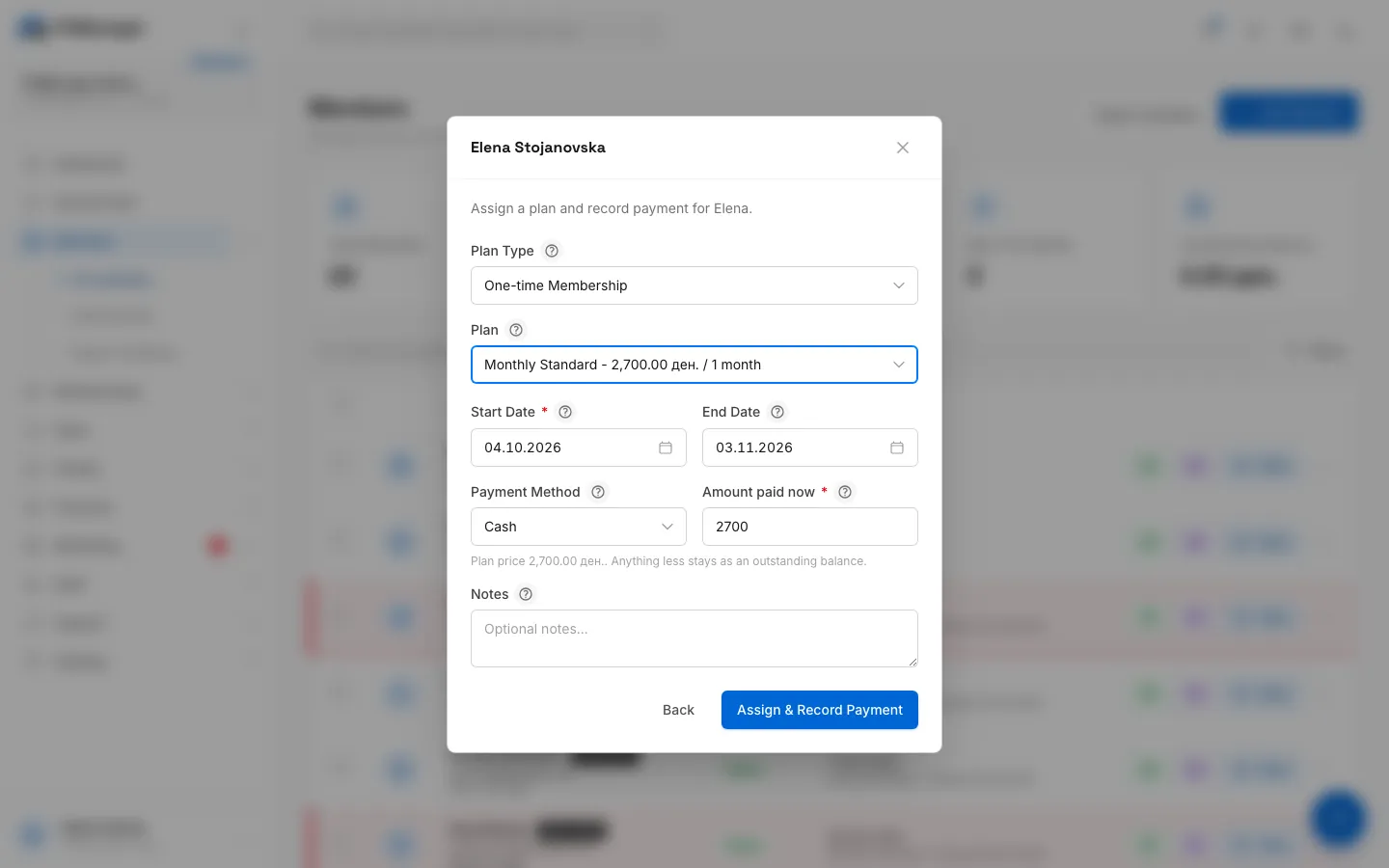
- Leave Plan Type on One-time Membership, or choose Subscription for a recurring plan.
- Pick the Plan. End Date and Amount paid now fill in by themselves.
- Check the Start Date. It is today unless you change it.
- Choose the Payment Method: Cash, Card or Bank transfer.
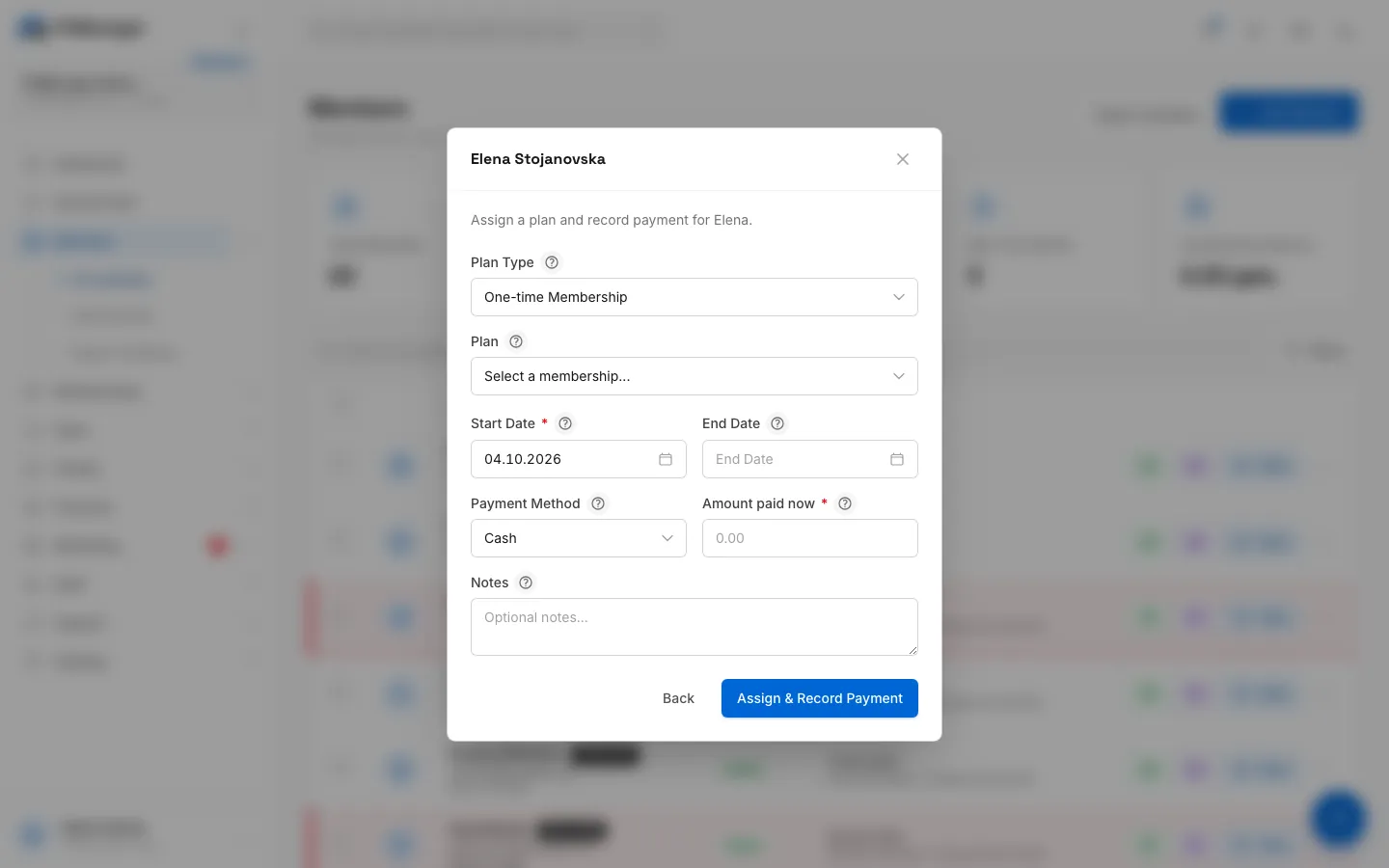
- Click Assign & Record Payment.
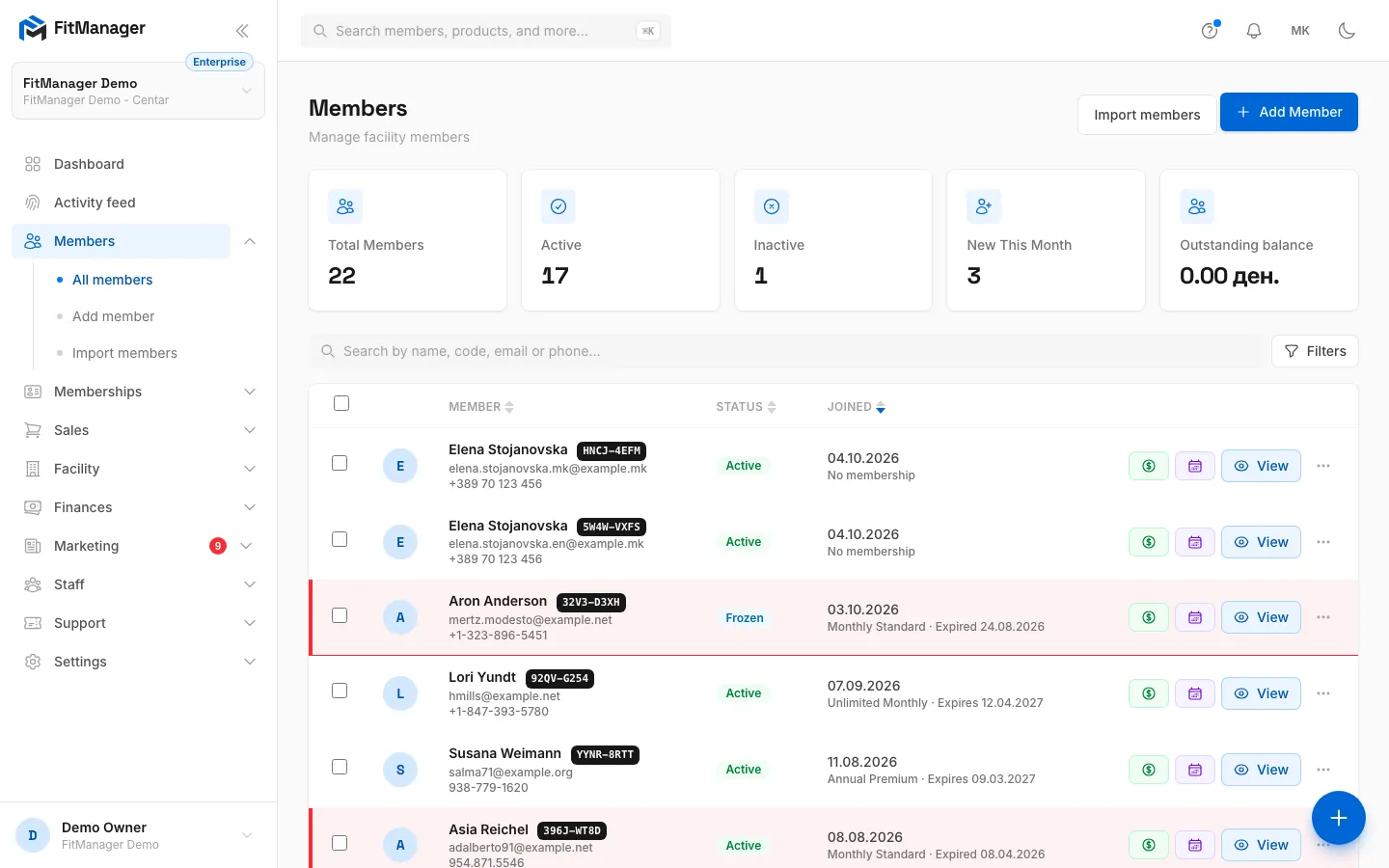
- Step 1: On the Members page, click the green Pay button next to the member.
- Step 2: You see their current plan and history. Click Assign Membership.
- Step 3: Keep One-time Membership, or switch to Subscription for a recurring plan.
- Step 4: Pick the plan. The end date and the amount fill in by themselves.
- Step 5: The start date is today. Change it to start the plan later, for example when the current one runs out.
- Step 6: Choose how the member paid.
- Step 7: Amount paid now is the full price. Lower it and the rest stays as an outstanding balance.
- Step 8: Click Assign & Record Payment.
- Step 9: The new membership is at the top of the history, and the payment is in Finances.
The new membership appears at the top of the history and the payment shows up in Finances.
The purple calendar button next to Pay opens the member's Visits calendar, a month view of the days they checked in. It does not change their membership.
Assign from the member's profile
Open the member's profile and click Assign Membership above the Memberships table. The form is the same as above.
The fields
| Field | What to enter |
|---|---|
| Plan Type | One-time Membership for plans from Memberships, Plans. Subscription for plans from Memberships, Subscriptions. |
| Plan | Only active plans of the current facility are listed. |
| Start Date | The first day the membership is valid. Defaults to today. |
| End Date | Filled in from the plan: start date plus the plan length, minus one day. You can change it or clear it. A visit pack without an expiry has no end date. |
| Payment Method | How the member paid. Card only records that they paid by card. It does not charge a card terminal. |
| Amount paid now | Starts at the full plan price. Enter less if the member pays part now, and the rest stays as an outstanding balance. It cannot be more than the plan price. |
| Notes | Anything worth remembering, for example "paid by employer". |
When the plan is billed to a partner company, the payment fields are replaced by a Billed to notice. The member pays nothing and the visit goes on the partner statement. See Partner billing.
Renew a membership
Assign the next membership the same way. To avoid losing days the member already paid for, set Start Date to the day after the current membership's end date. At the desk FitManager does not move the start date for you, so check the Expires date shown in the window first.
Online renewals queue up by themselves
When a member renews online or at the kiosk while their current plan is still running, the new membership starts the day after the old one ends.
Take a payment later
If a membership is not fully paid, its row shows an Unpaid or Partially paid badge and a Record payment button, both in the Pay window and on the profile.
- Click Record payment.
- Enter the Amount received. It starts at the full outstanding balance and cannot be more.
- Choose the Payment Method and add a Note if you like.
- Click Record payment.
The member is notified with the amount and the remaining balance, on the channels set for Payment recorded in Notification Settings. The Outstanding balance card on the Members page shows the total still owed across all members.
Visit packs
A visit pack shows "N of M visits left" in the history. Each granted entry at the door uses one visit. To correct the count, for example after a missed scan, click Adjust on the profile, change Visits in pack or Visits used and save.
Expiry and reminders
FitManager checks memberships automatically every day:
- Shortly after midnight, every active membership whose end date has passed is marked Expired. The member gets a portal message that their membership ended, unless they already hold a later one.
- Every morning at 9:00, members whose membership ends soon get a reminder. Choose how many days before (1, 3, 7 or 14) under Expiry reminders in Notification Settings, and the channels in the Membership expiring row. Members who already renewed are skipped. Each membership gets one reminder, on the first chosen day it reaches.
A membership assigned with an end date in the past is saved as Expired right away. This is useful for entering old history.
Freezing
Plans have a Max Freeze Days setting, but there is no freeze button for staff yet. A membership only shows as Frozen when an online subscription renewal fails at Stripe, and the door denies entry until the payment goes through. See Recurring subscriptions.
Troubleshooting
"The amount cannot be more than the plan price." A card tapped on the desk reader types its number into whatever field has focus. Clear Amount paid now and type the amount again.
The plan I want is not in the list. It is inactive, belongs to another facility, or is the other plan type. Switch Plan Type between One-time Membership and Subscription.
The member was denied at the door right after I assigned a plan. Check the Start Date is not in the future, and that a plan with a Daily access window is used within its hours. The Activity feed shows the exact reason. See Troubleshooting doors.
I assigned the wrong plan. Assigned memberships cannot be edited or removed from the gym dashboard. Assign the correct plan, and open a support ticket if the wrong one has to be removed. See Open a ticket.
Was this page helpful?
Related articles
Still stuck?
Write to us and we will get back to you within one working day.