Scan in at the door
Check in with your phone by scanning the door's QR code, typing the door code, or showing your digital member card.
Your phone is your key to the gym. Depending on how your gym is set up, you either scan the QR code on the door with your phone, or you show your own digital card to a reader or to the front desk. Every visit is saved under Visits in the portal.
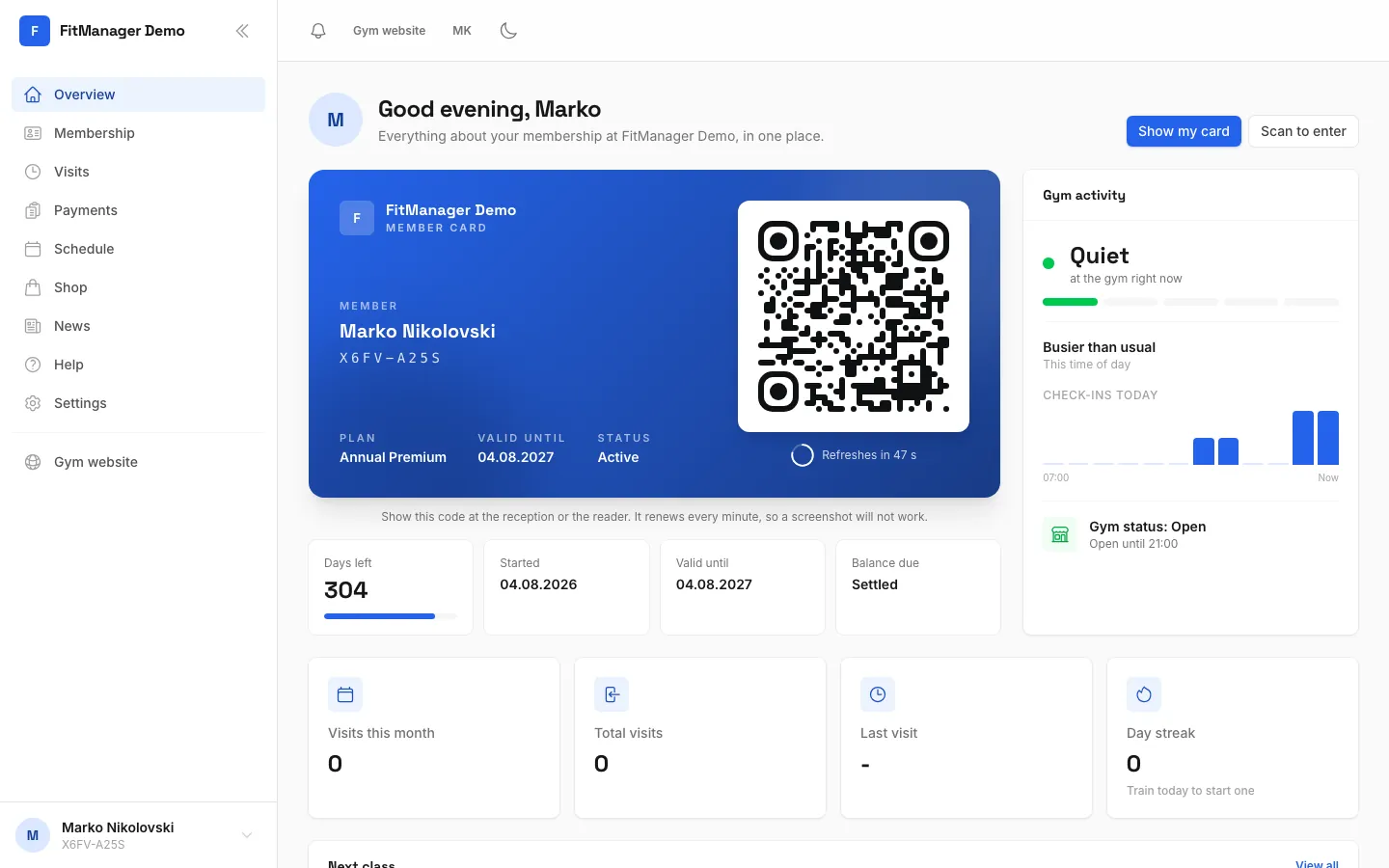
- Step 1: On the Overview, tap Scan to enter.
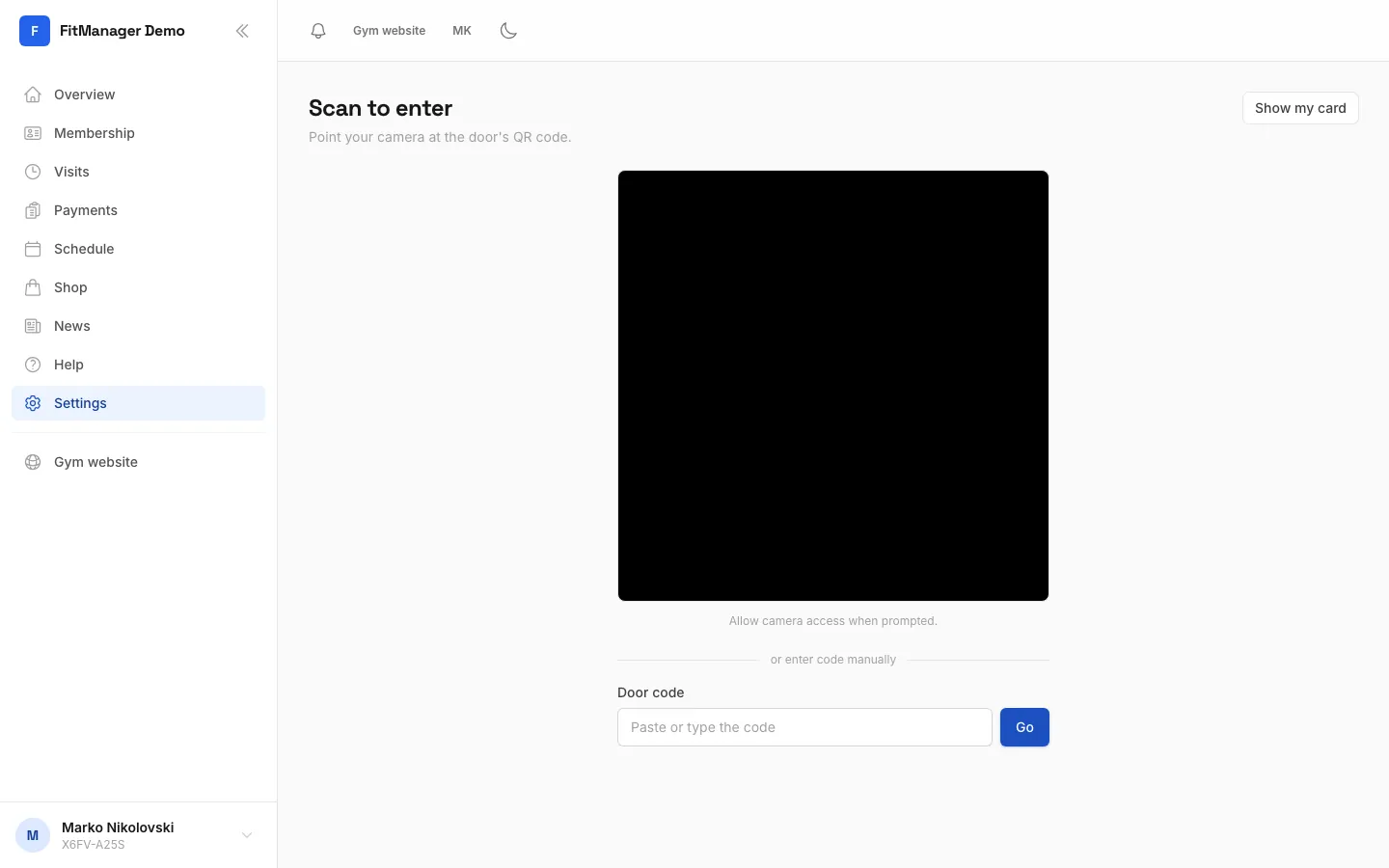
- Step 2: Allow the camera when asked, then point it at the QR code on the door.
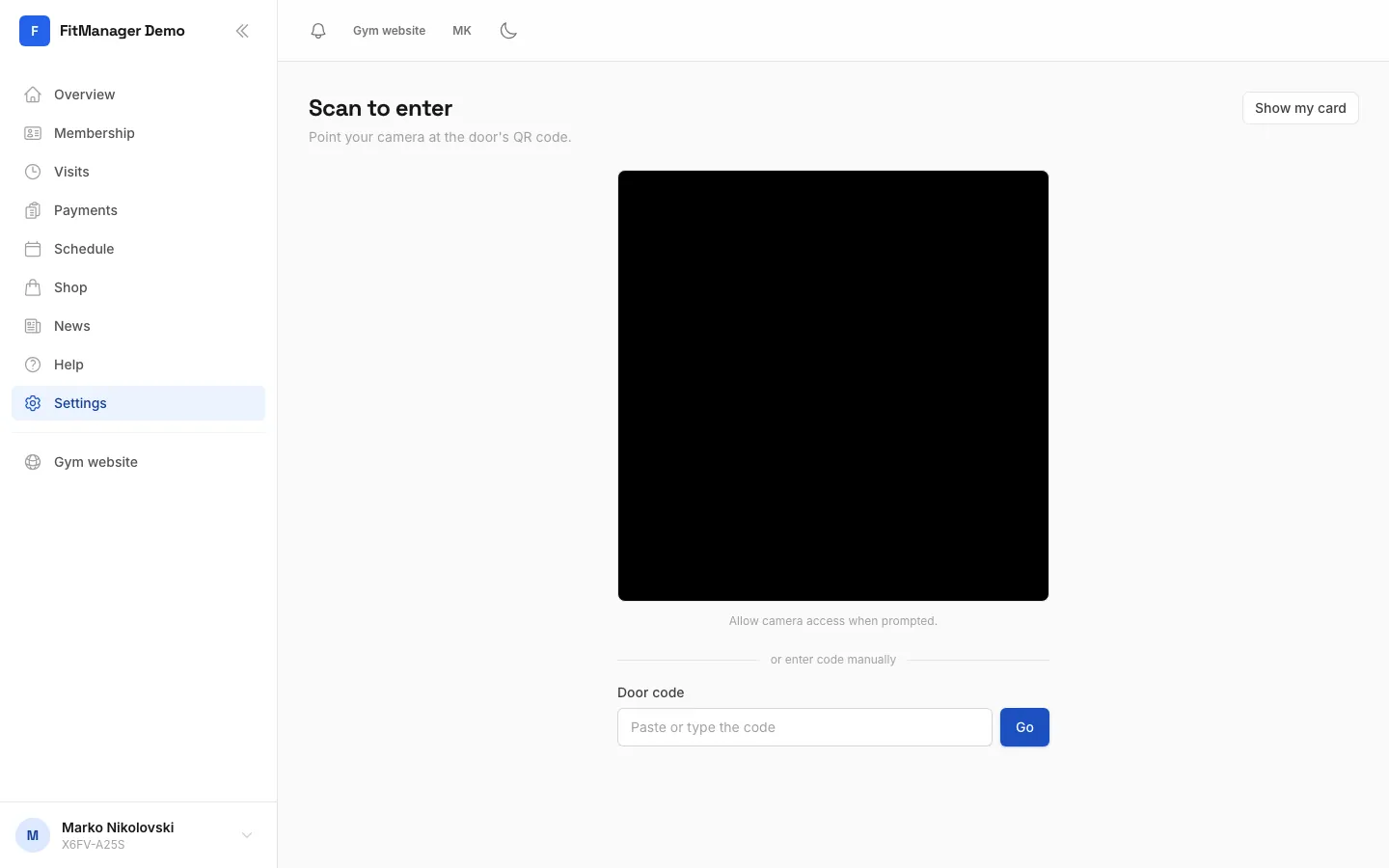
- Step 3: Camera not working? Paste or type the door code here and tap Go.
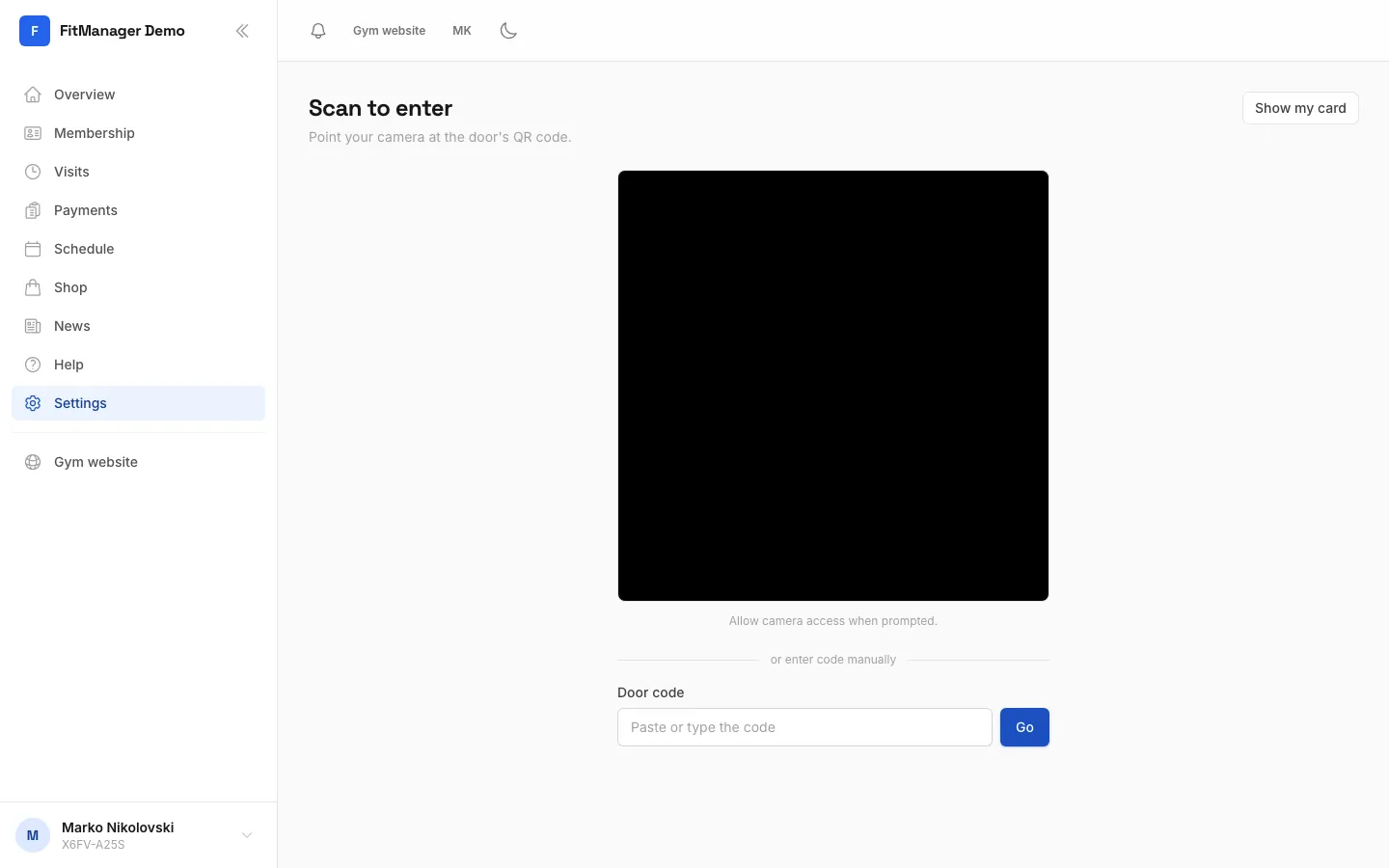
- Step 4: At a reader or the front desk, tap Show my card instead.
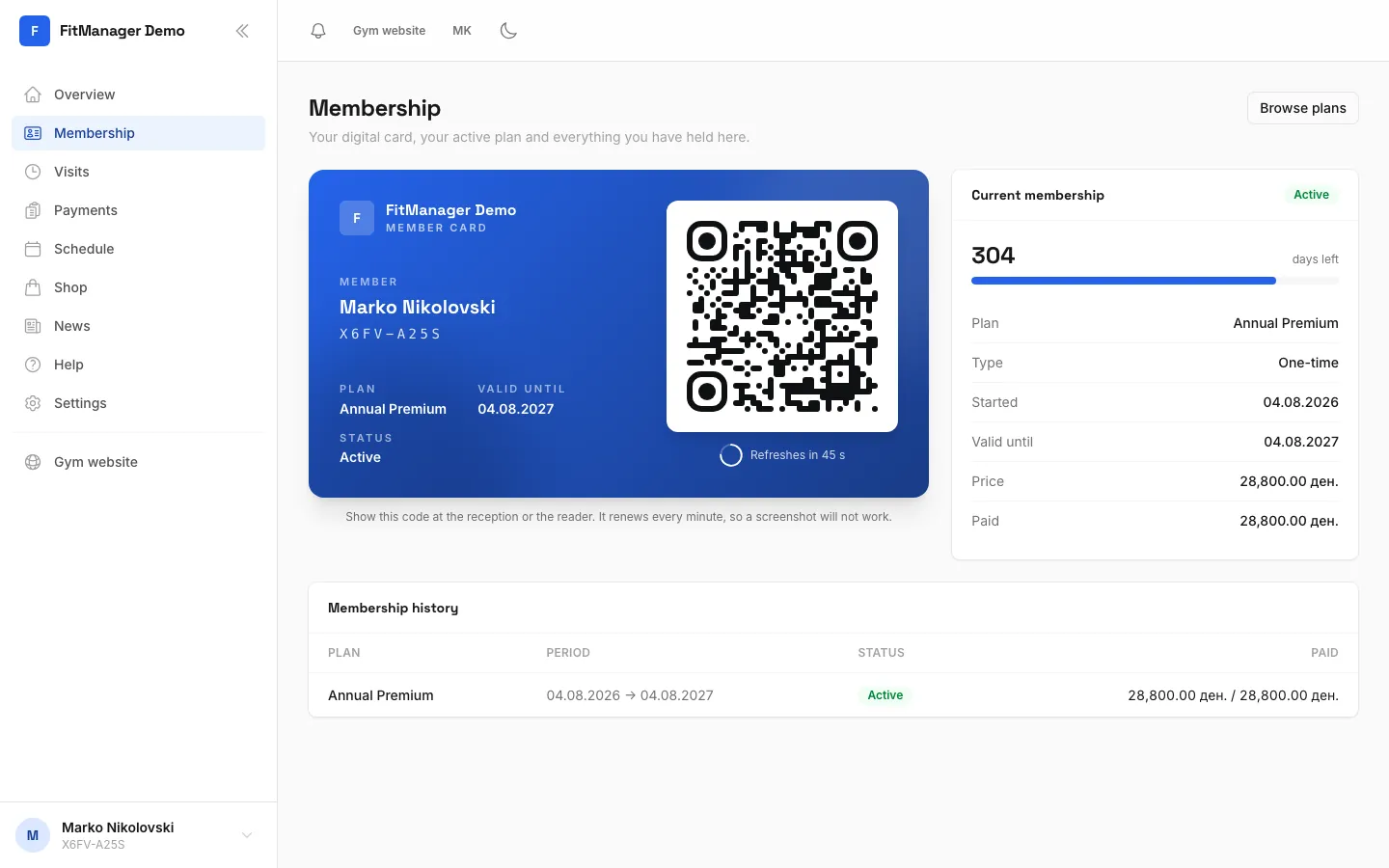
- Step 5: Hold this QR code up to the reader. It renews every minute, so a screenshot will not work.
Scan the door's QR code
- Open the portal and, on the Overview, tap Scan to enter. You can also find it under Settings as Check in.
- Allow the camera when your phone asks.
- Point the camera at the QR code on the door or turnstile. It reads the code by itself.
- You see Access granted in green, and the door or turnstile opens if it is connected.
Use Scan again to scan another door.
Scan from inside the portal or the app. Your phone's normal camera app does not know who you are, so it cannot check you in.
Camera does not work?
Under the camera you see or enter code manually. Paste or type the door's code in Door code and tap Go. The front desk can give you the code if it is not shown near the door.
Show your member card
Some gyms use a reader or the front desk instead of a QR code on the door. Then you show your card:
- Tap Show my card on the Overview or on the Scan to enter page. The card is also on the Membership page, and in the middle of the bottom bar on your phone (Card).
- Hold the QR code on the card up to the reader, or show it at the reception.
The code changes every minute (you see Refreshes in with a countdown), so a screenshot or a photo of it will not work. Always open it live.
Your card also shows your member code under your name. If your gym gave you a plastic card or a key tag, you can keep using that at the reader too.
When access is denied
If you see Access denied in red, the message below it tells you why:
| Message | What it means | What to do |
|---|---|---|
| This QR code is not recognised. | The code is not one of your gym's doors. | Scan the code on the door again, or ask the front desk. |
| This door is currently inactive. | The gym switched this door off. | Use another entrance or ask the front desk. |
| You are not registered at this facility. | This door belongs to a location your account is not part of. | Use your own location, or ask the front desk. |
| Your account is not active. / Your account is banned. | The gym has paused or blocked your account. | Talk to the front desk. |
| No valid membership found for this door. | You have no membership that includes this door. | Check Membership, or buy a plan. |
| Your membership is frozen. | Your membership is on hold. | Ask the front desk to unfreeze it. |
| Your membership has expired. Please renew. | Your plan has ended. | Renew in the Shop or at the front desk. |
| You have used all the visits on your pass. | Your visit pack is used up. | Buy a new pack. |
| The gym is closed right now. | You are outside opening hours. | Come back during opening hours. |
| Your plan does not allow access at this time. | Your plan only covers certain hours, for example mornings. | Come back within your plan's hours, or change plan. |
| Members under the age limit cannot enter at this hour. | The gym has a curfew for younger members. | Come back earlier in the day. |
Tap Try again to scan again once the problem is sorted.
See your visits
Every successful scan appears under Visits with the day, the time you came in, the door and how long you stayed. Your Overview also shows your visits this month, your last visit and your day streak.
See Your membership for renewing, and Install the app to keep your card one tap away.
Was this page helpful?
Related articles
Still stuck?
Write to us and we will get back to you within one working day.