Read the email log
See every email your gym sent to members, how it went out and what Brevo reported back about its delivery.
The email log lists every email FitManager sent on behalf of your gym: welcome emails, receipts, reminders, password resets and the rest. For email sent through your own Brevo account it also shows what happened after sending, such as whether the message was delivered, opened or bounced. Use it when a member says they never got an email.
Before you start
- You need the Manage settings permission.
- The log is part of your own email provider feature. Delivery statuses only appear for email sent through your Brevo account, so connect Brevo first.
Open the log
- Go to Settings, Integrations, Email.
- Click Email log at the top of the page, or scroll down to the Email Log section.
The standalone Email Log page shows the same list with a Brevo delivery webhook card on top. Its badge tells you whether delivery events are arriving, when the last one came in and how many arrived in the past 7 days, next to totals for Delivered, Opened, Bounced and Failed. Click Provider settings to go back to the connection page.
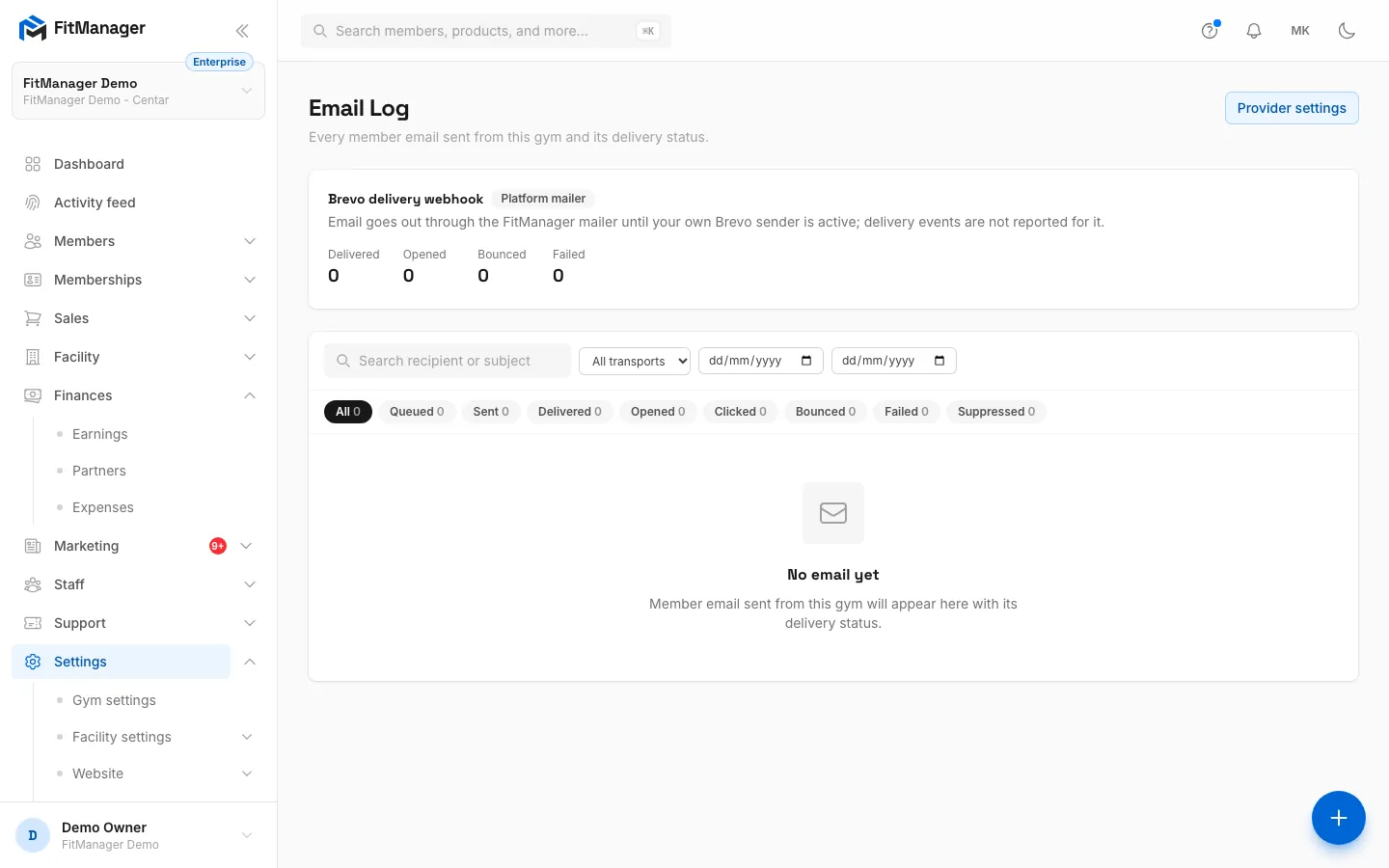
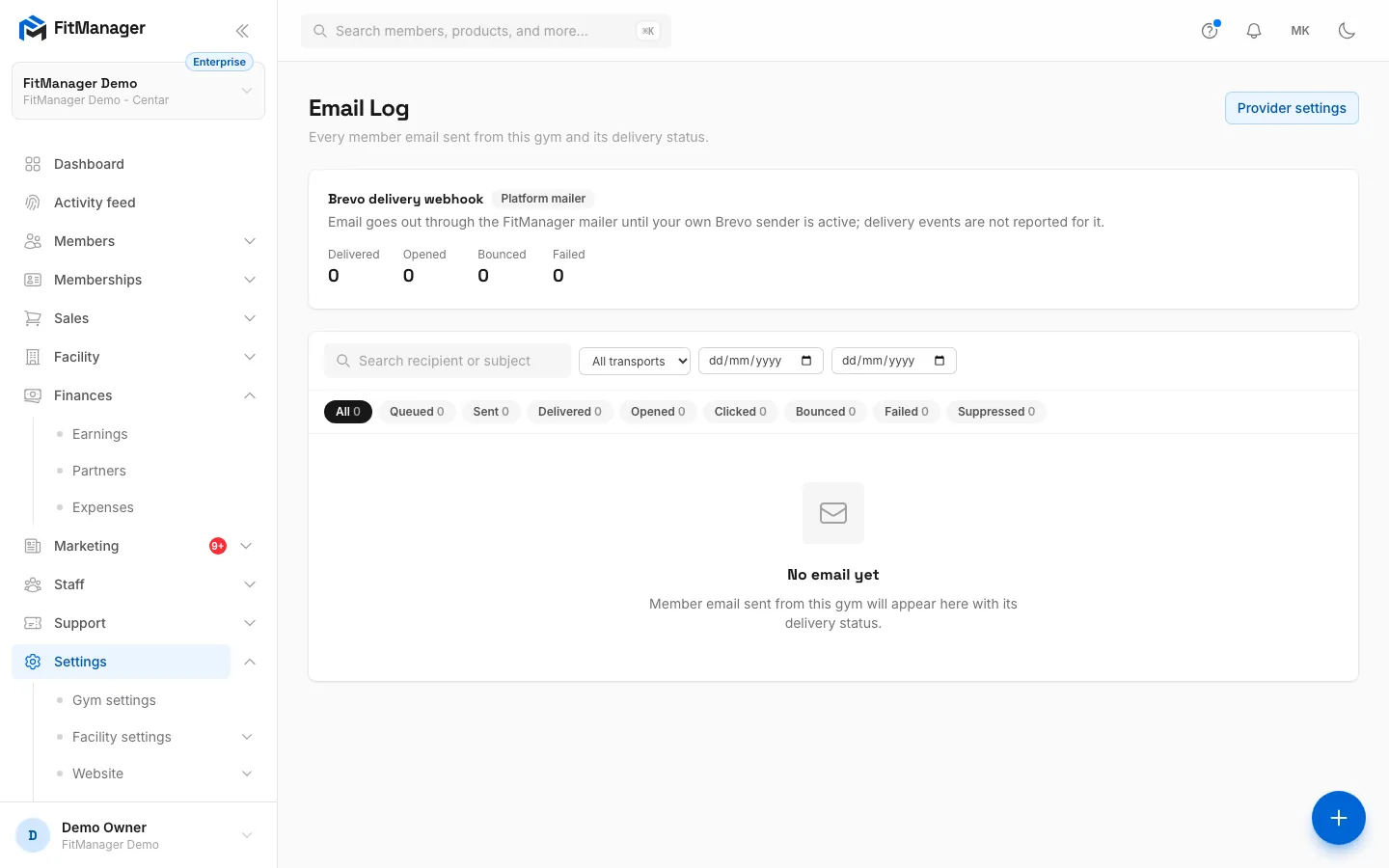
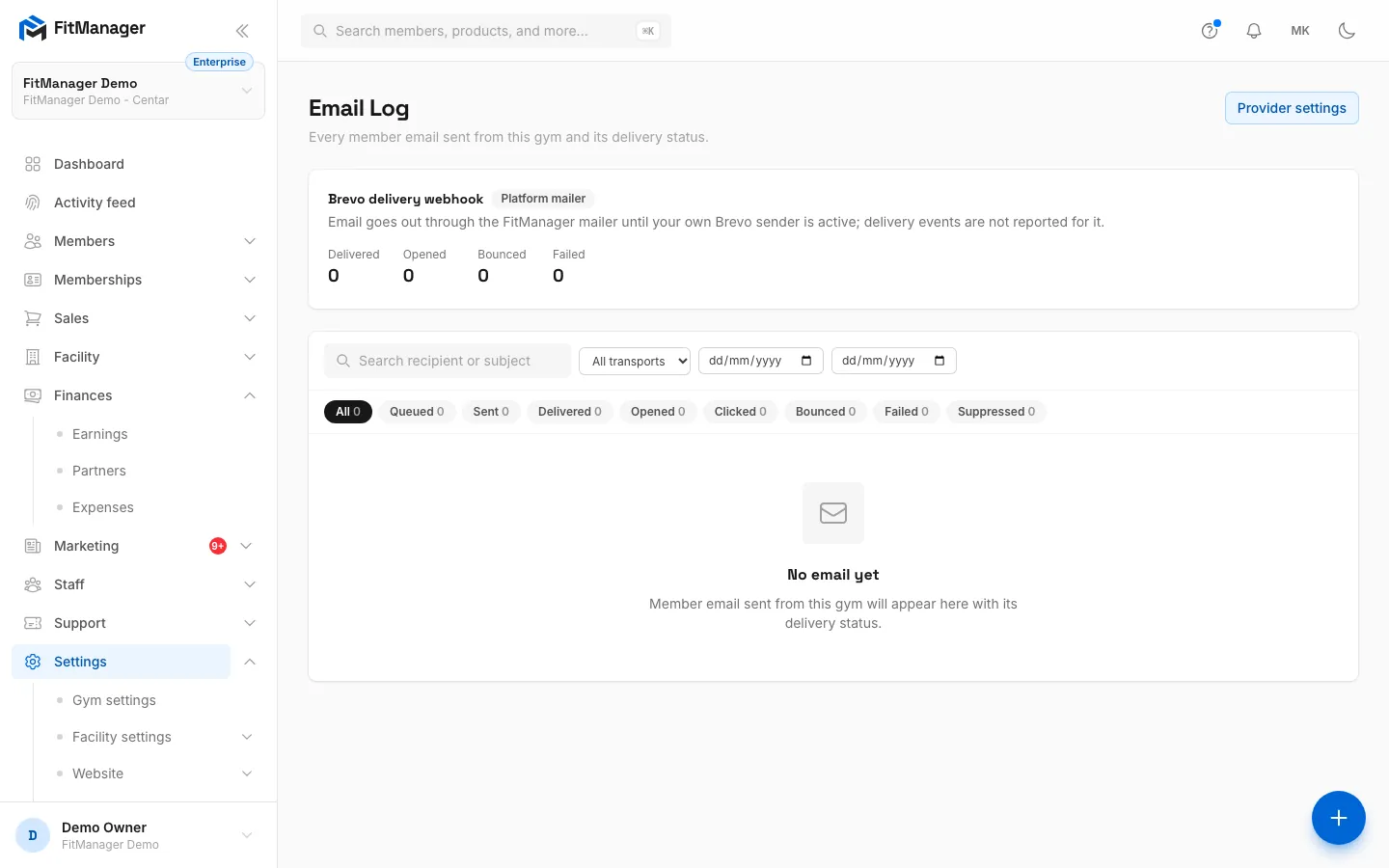
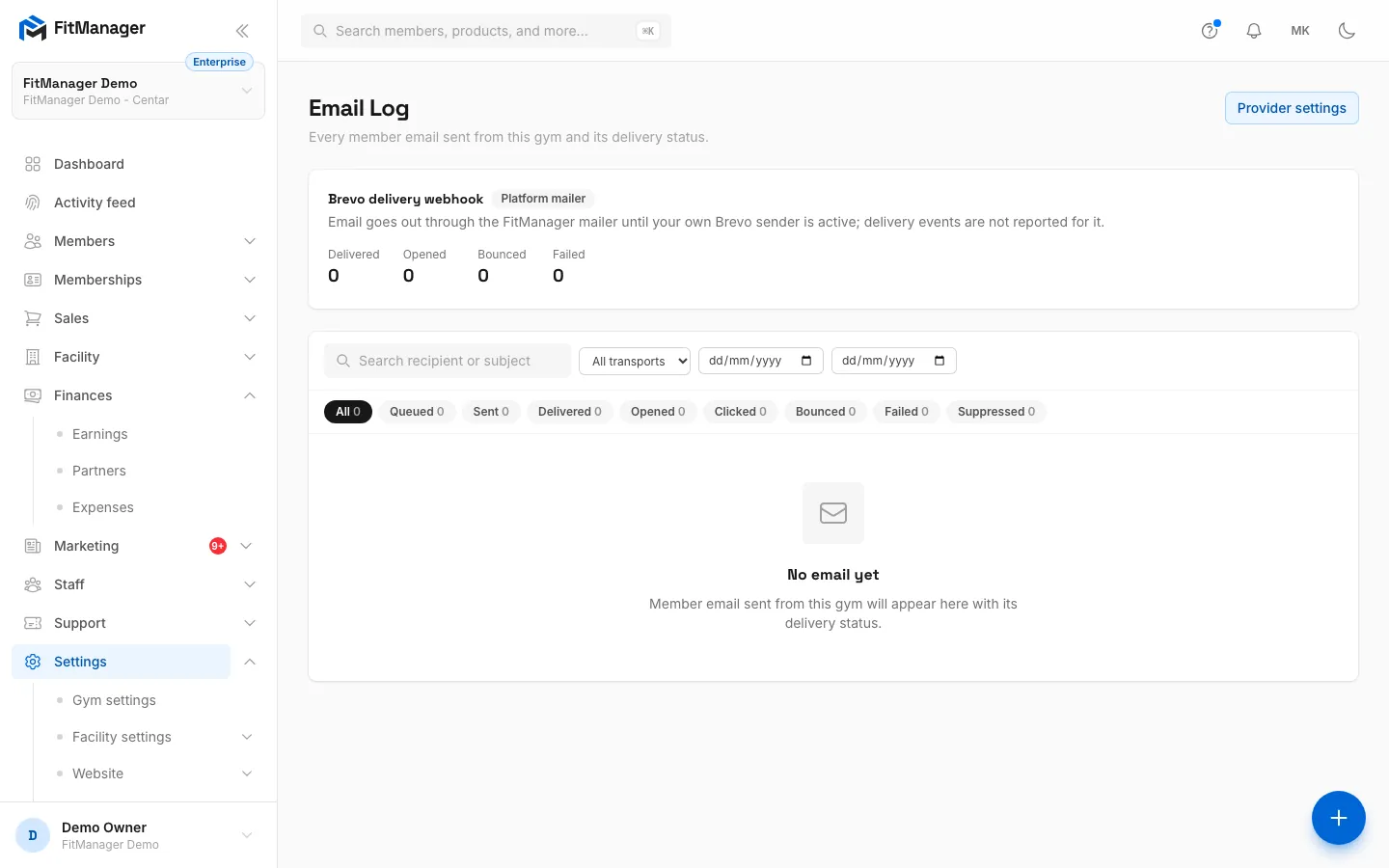
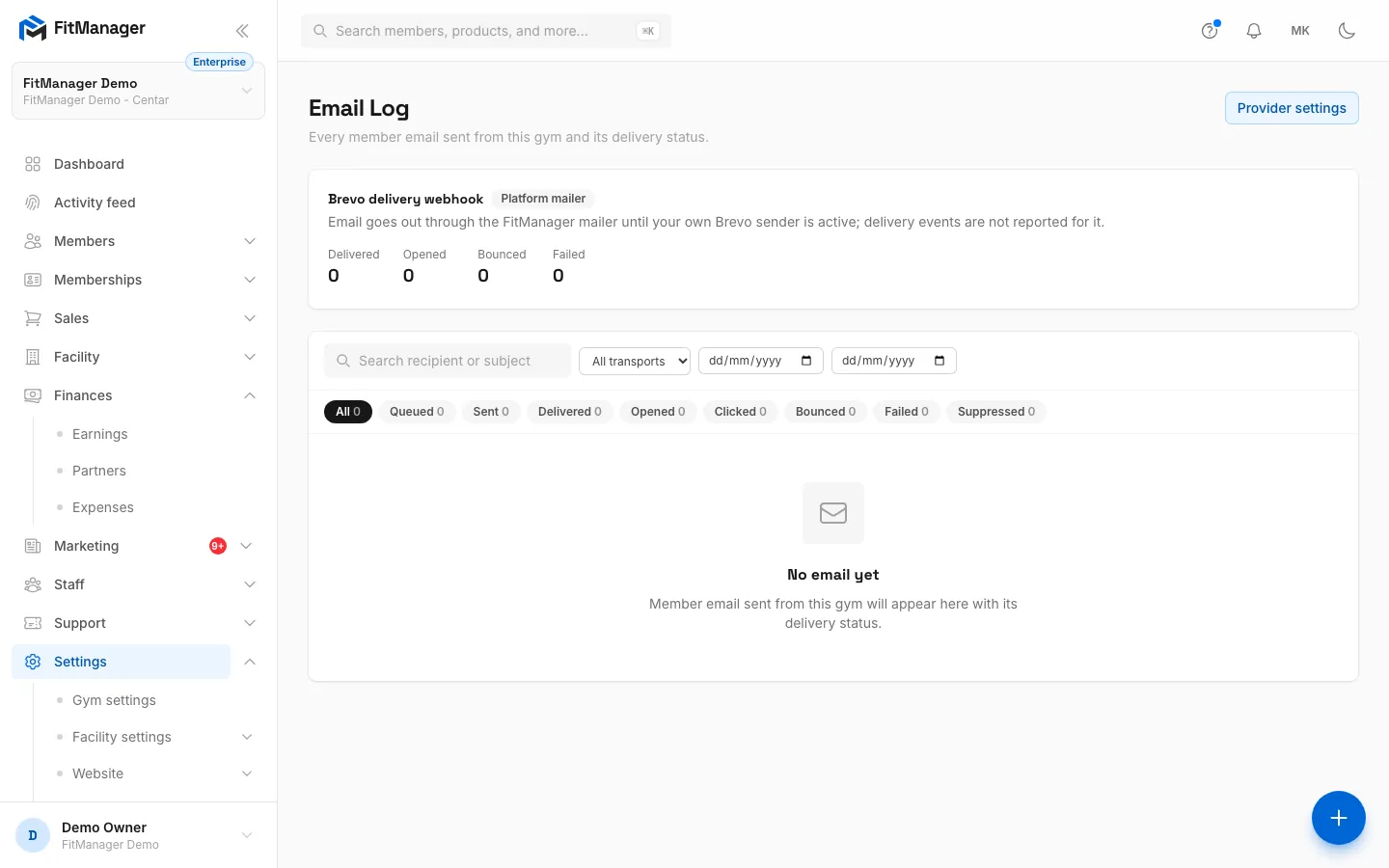
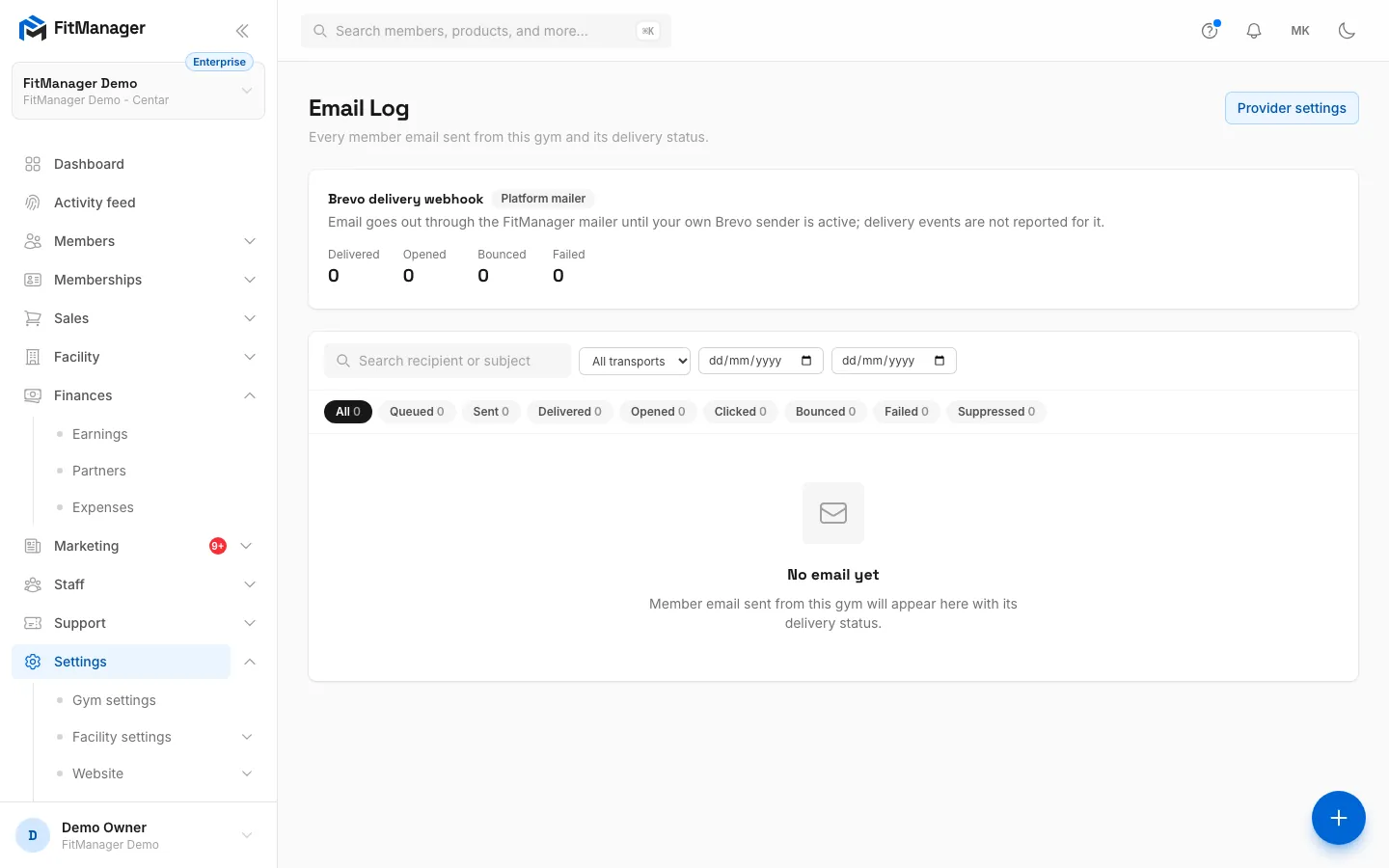
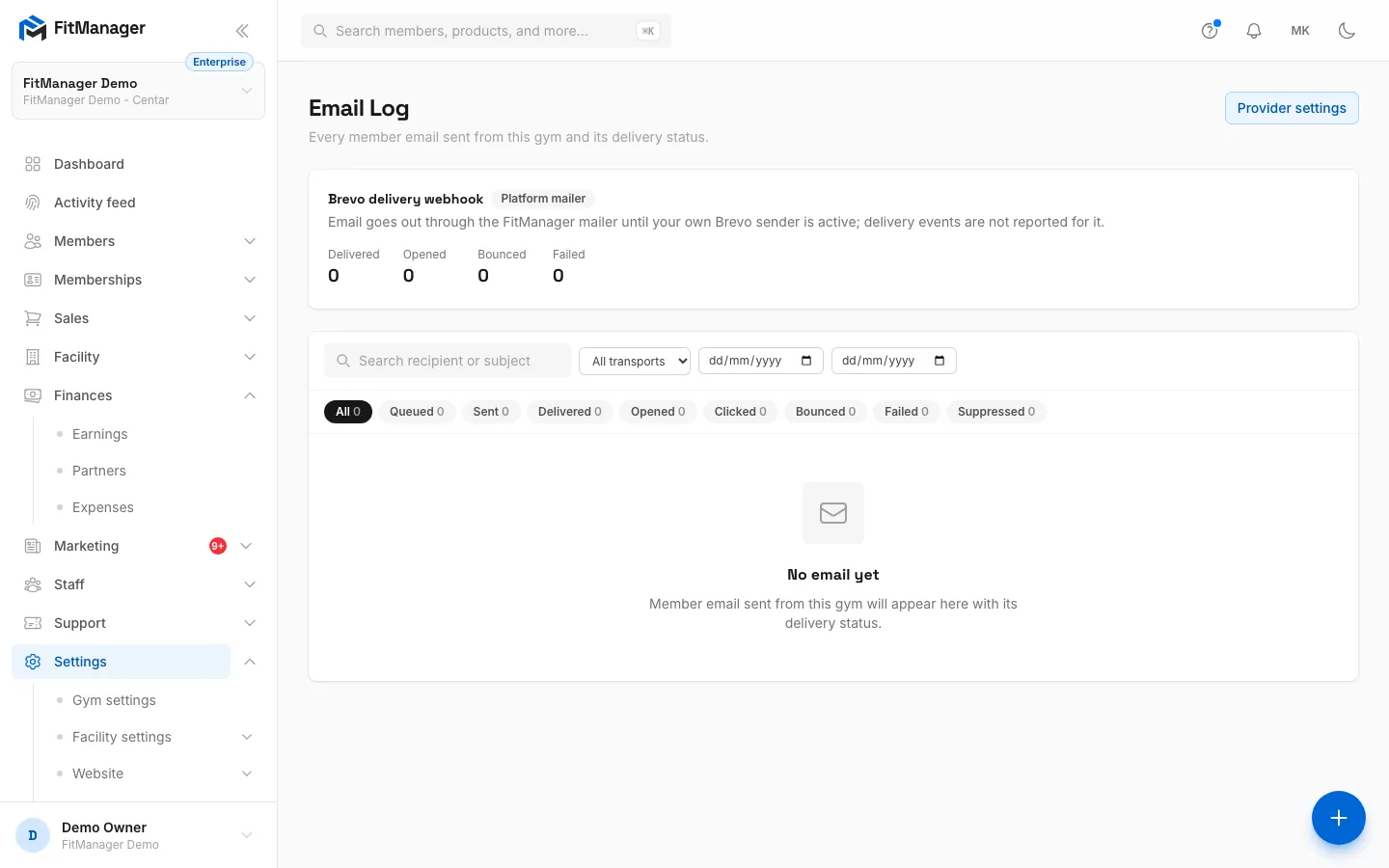
- Step 1: Open Settings, Integrations, Email and click Email log. Every email your gym sends is listed here.
- Step 2: The Brevo delivery webhook card tells you whether Brevo reports deliveries back, with totals for delivered, opened, bounced and failed.
- Step 3: Search by part of the recipient's address or the subject.
- Step 4: All transports lets you show only email sent through Brevo or through the Platform mailer.
- Step 5: The two date fields limit the list to a period.
- Step 6: The status chips count the messages in each state. Click one to show only those.
- Step 7: Each email is a row with recipient, subject, how it was sent, status and time. Click a row to see what Brevo reported. Until you send email, the list stays empty.
Find a message
- Search recipient or subject: type part of an email address or a subject line.
- All transports: show only email sent through Brevo or through the Platform mailer.
- From and To: limit the list to a date range.
- The status chips under the filters show how many messages have each status. Click one to show only those, or All to show everything.
- Clear filters resets everything.
The list shows 25 messages per page, newest first.
The columns
| Column | What it shows |
|---|---|
| Recipient | The address the email was sent to. |
| Subject | The subject line, with the type of email underneath in small print, for example MembershipExpiringMail. |
| Sent via | Brevo when it went through your own account, Platform when it went through the FitManager mailer. |
| Status | The latest known state of the message, explained below. |
| Sent at | When FitManager sent it. |
| Events | How many delivery events Brevo reported. Click the row to see them. |
Click any row to expand it. You see each event Brevo reported with its time, the reason Brevo gave for a bounce or block when there is one, and the Provider message id. Quote that id if you contact Brevo support about a message.
What the statuses mean
| Status | Meaning |
|---|---|
| Queued | FitManager has created the message and is about to send it. |
| Sent | The message was handed to Brevo or the platform mailer. For platform email this is the last status you see. |
| Delivered | The receiving mail server accepted it. |
| Opened | The recipient opened it. Some mail apps block the tracking, so a delivered email may have been read without showing as opened. |
| Clicked | The recipient clicked a link in it. |
| Bounced | The receiving server rejected it, permanently (the address does not exist) or temporarily (the mailbox is full). |
| Failed | It could not be sent. Brevo reported an invalid address, an error or a delay, or the send itself failed. |
| Suppressed | Brevo did not deliver it because the address is blocked, has unsubscribed or marked earlier email as spam. |
The status moves forward as events come in, from Sent to Delivered, Opened and Clicked. Once a message is Bounced, Failed or Suppressed, later events no longer change its status, but they still appear in the expanded row.
Common questions
Why do my messages stay at Sent?
Either the email went out through the Platform mailer, which reports no delivery events, or Brevo is not reaching FitManager. Check the badge on the Brevo webhook card on the email page. If it says Not registered, add the webhook by hand as described in Connect your Brevo account.
Why did some email go through the Platform mailer?
Until your sender is Active, and whenever a send through Brevo fails, FitManager sends the email through its own mailer so the member still gets it. A failed Brevo send also appears as a Failed row with Sent via set to Brevo, followed by a second row for the same email sent through the platform.
A member's email bounced. What now?
Expand the row to read the reason. Usually the address is misspelled or no longer exists. Correct it on the member's profile and send the email again, for example a new portal password link.
A member's email is Suppressed
The address is on Brevo's blocked list, usually because the member unsubscribed or reported an email as spam. Ask the member, then remove the address from the blocked contacts in your Brevo account if they want your email again.
Was this page helpful?
Related articles
Still stuck?
Write to us and we will get back to you within one working day.