Choose or change your plan
Pick a FitManager plan, the number of locations and add-ons on the Billing page, apply a coupon and see the total before you confirm.
The Billing page is your gym's own subscription to FitManager. It decides which features your dashboard, website and portal have. It has nothing to do with the money your members pay you, which lives under Earnings.
Before you start
- You need the Manage settings permission. Owners have it; employees do not unless you give it to them.
- Add a card first if you are subscribing for the first time. FitManager charges the first period straight away, and without a card you get Add a card before subscribing. See Cards and invoices.
- There is no free trial. Plans are paid from the first month, and you can switch plan or cancel later.
How pricing works
- Every plan is priced per location. The price on a plan card buys one location. Running three gyms under one brand means three times the plan price.
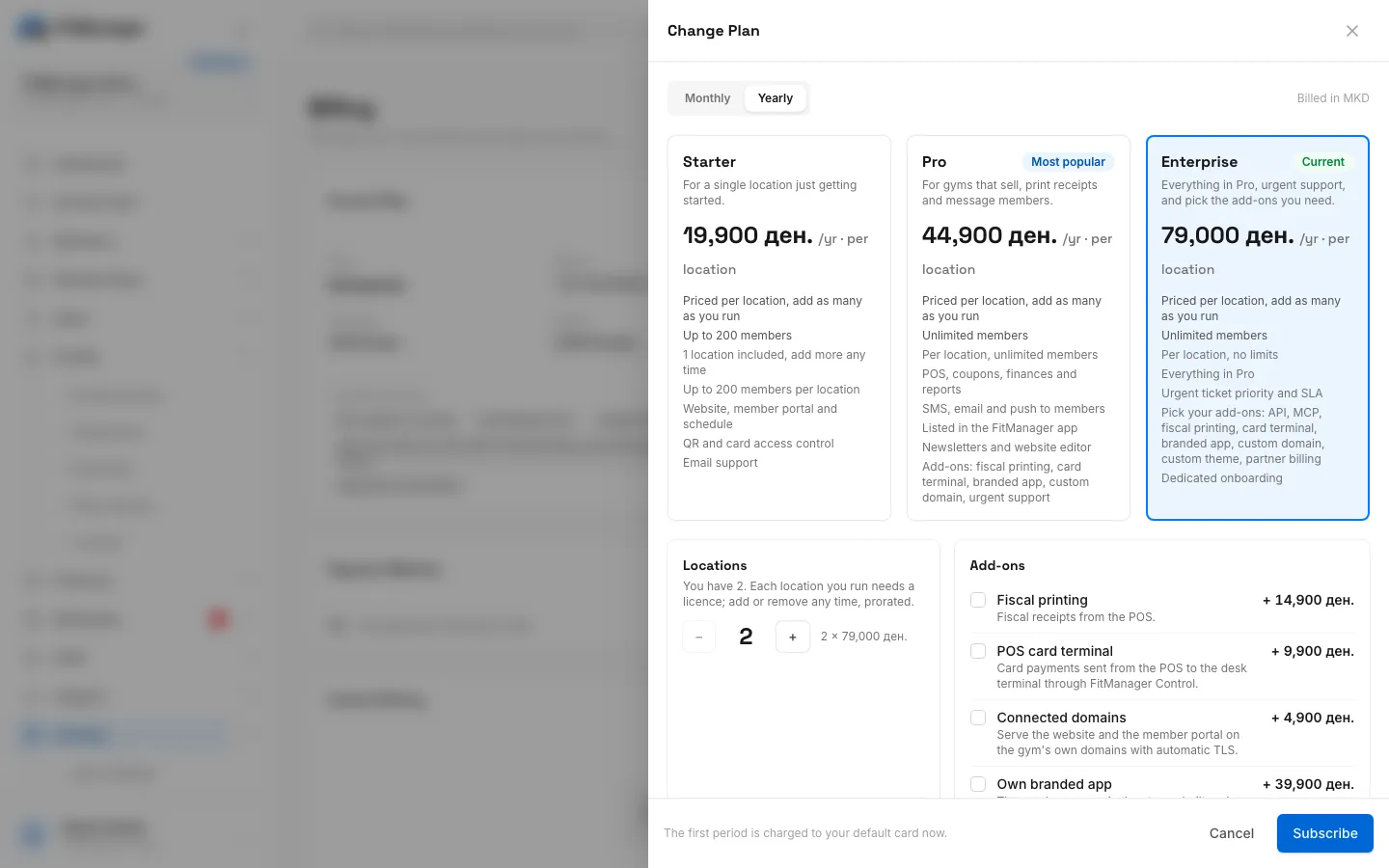
- Yearly costs ten months. Pick Yearly and you pay ten times the monthly price, so two months are free.
- Add-ons are priced once per gym, not per location, and each plan only lists the add-ons it can buy. Some features are included in a higher plan and are an add-on on a lower one.
- Prices are shown and charged in your Billing Currency, shown on the Current Plan card. The FitManager team sets it when your gym is created; open a ticket if it is wrong.
For the full list of what each plan includes, see Plans compared.
Choose or change your plan
- Open Settings > Billing.
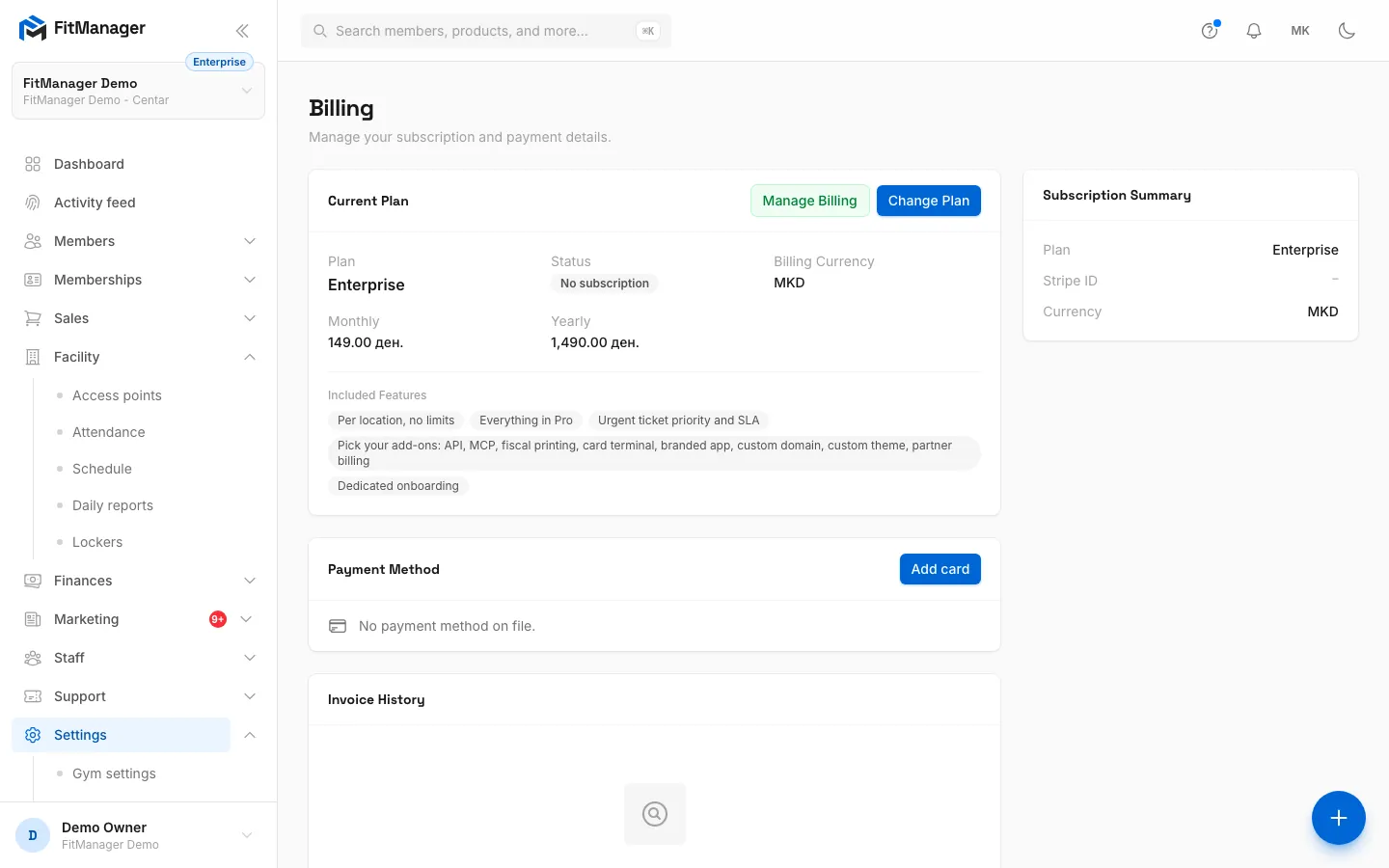
- Click Change Plan. The plan builder slides in.
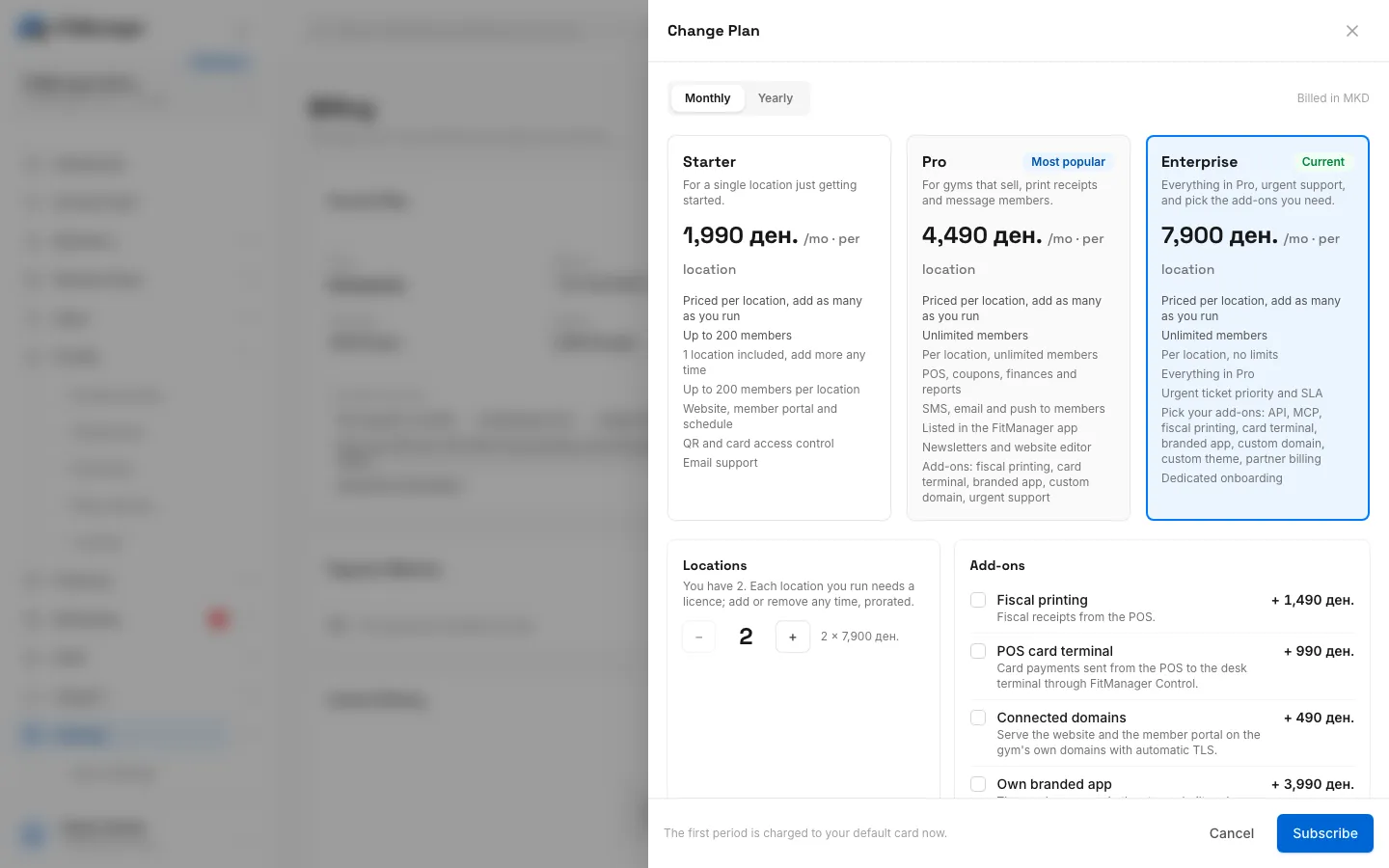
- Choose Monthly or Yearly at the top. The line next to it says which currency you are billed in.
- Click a plan card. Your current plan has a Current badge.
- Under Locations, use + and − to set how many locations you run. You cannot go below the number of locations you already have.
- Under Add-ons, tick the add-ons you want. Each shows its monthly or yearly price.
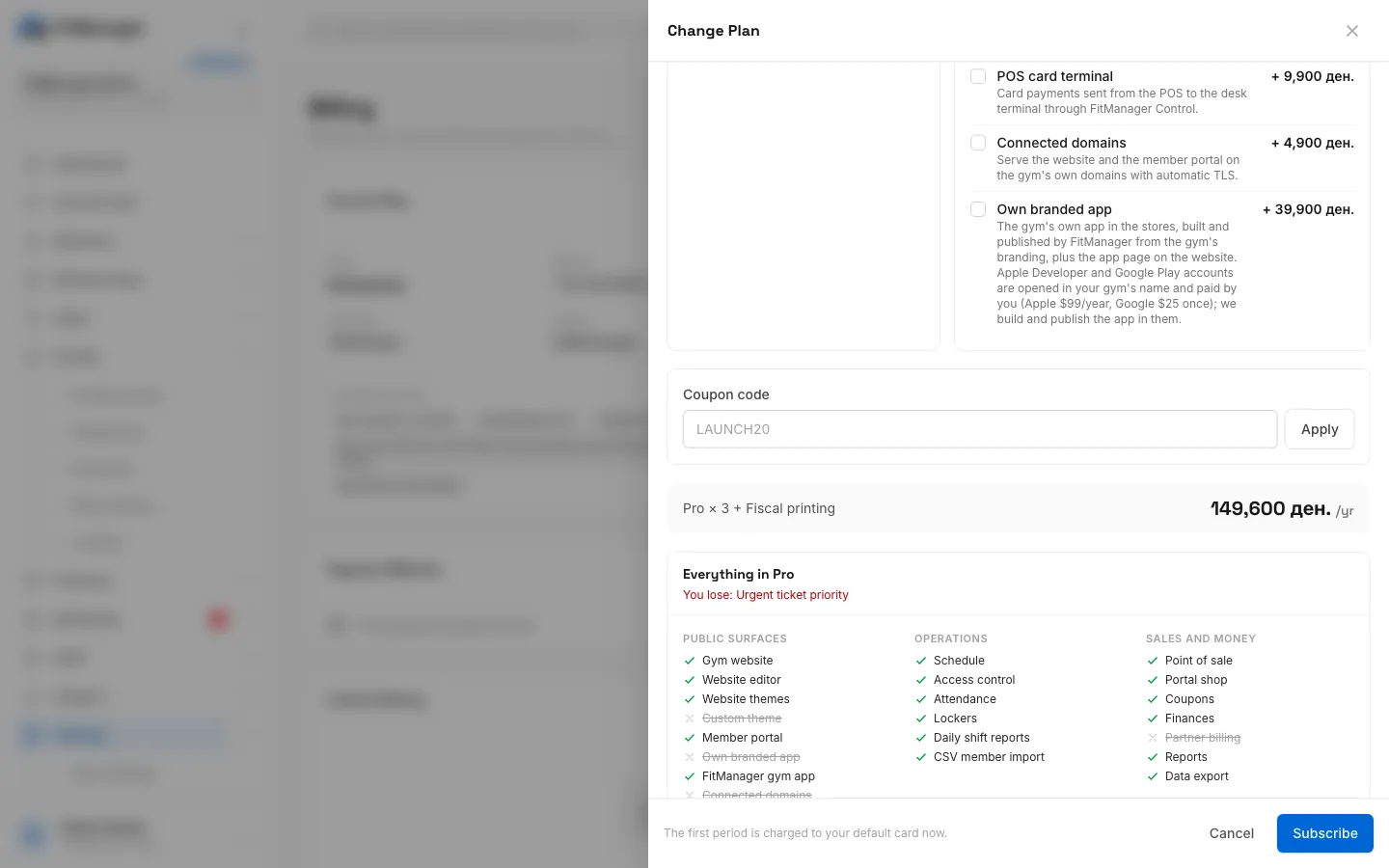
- Have a coupon? Type it into Coupon code and click Apply.
- Check the total in the grey bar: plan × locations, plus each add-on, minus any coupon.
- Read Everything in (the plan name) below it. When you pick a different plan, it lists what You gain and what You lose.
- Click Subscribe if you have no subscription yet, or Switch Plan if you do.
You see You are now on the (plan) plan. and the new features switch on at once.
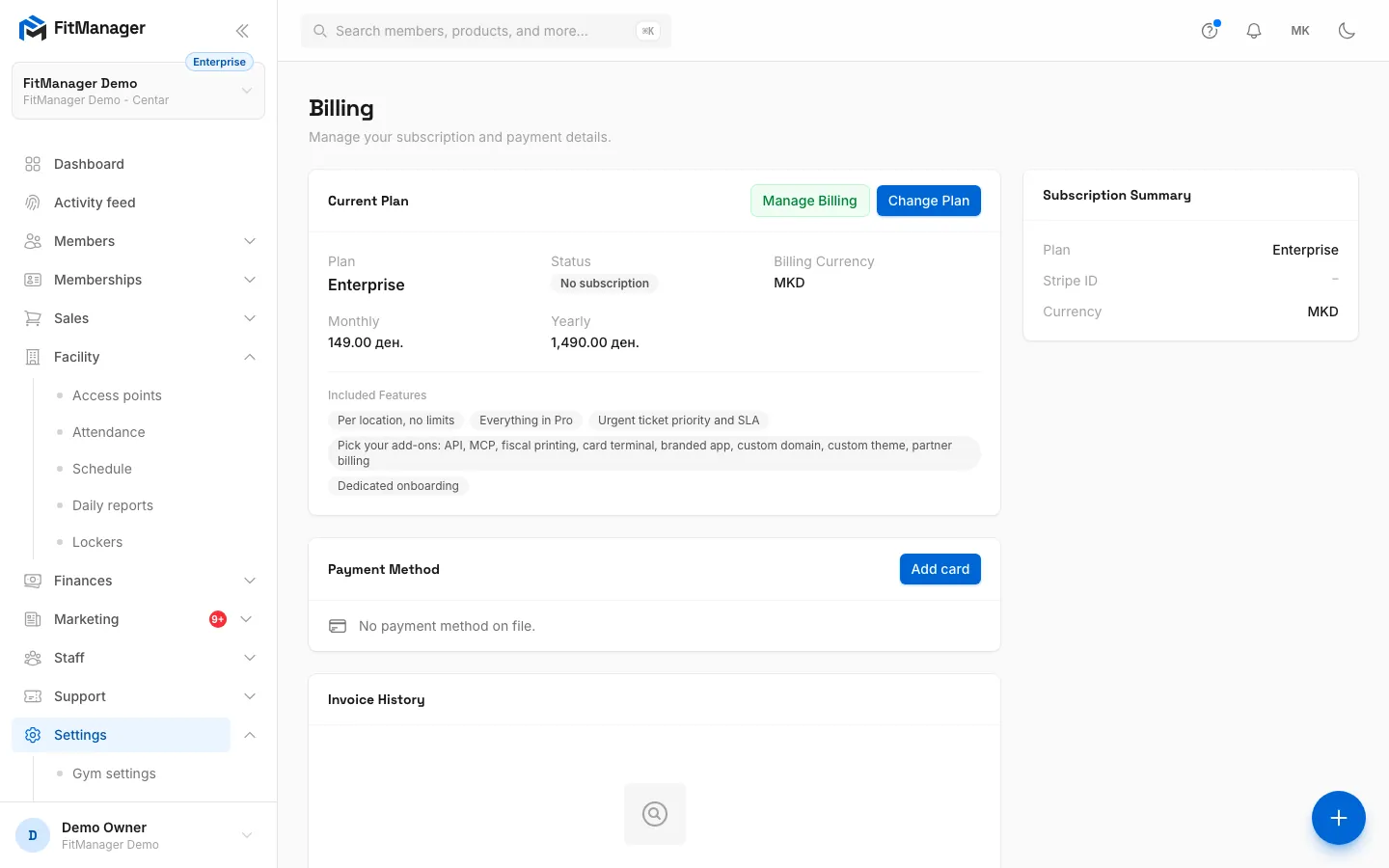
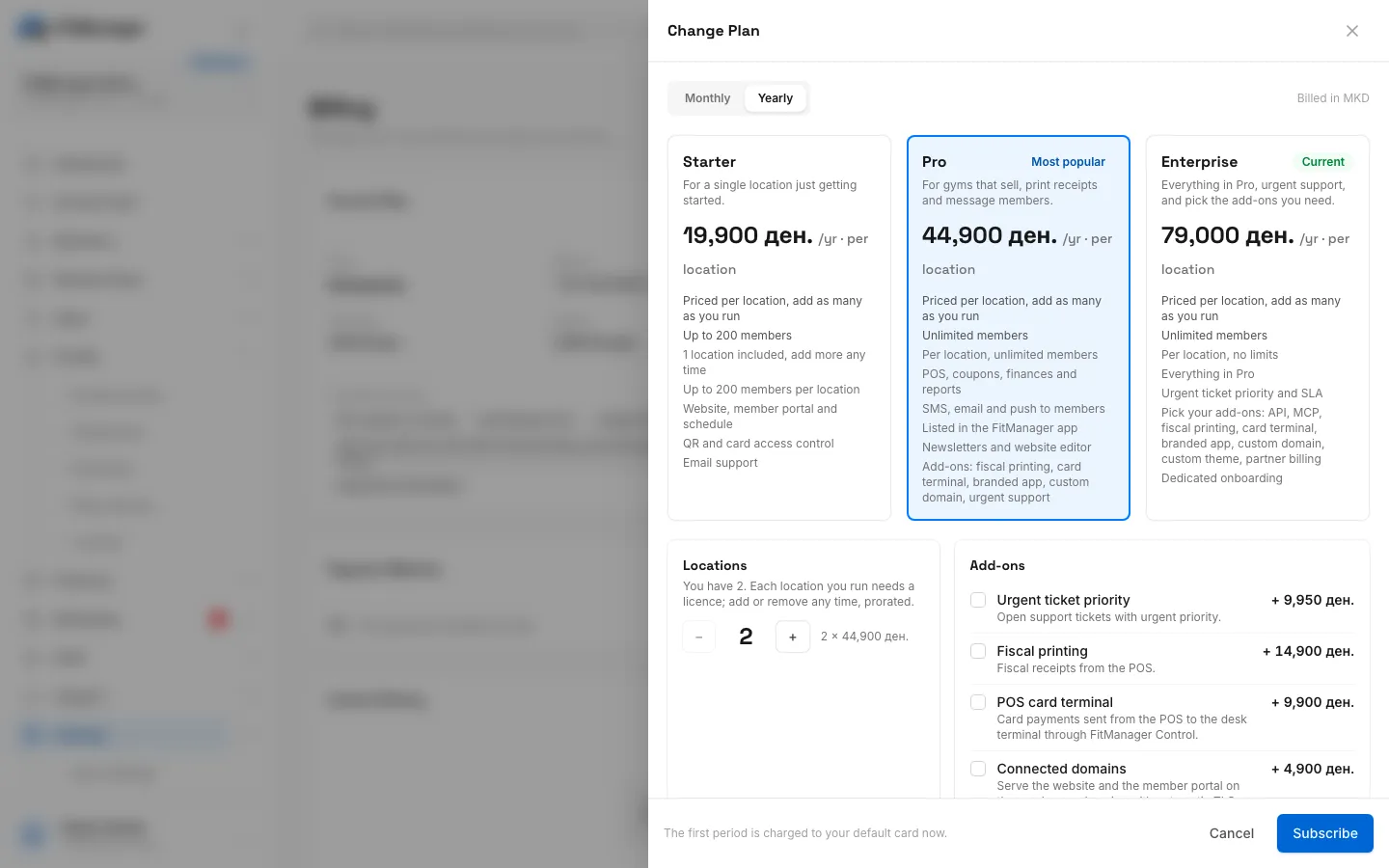
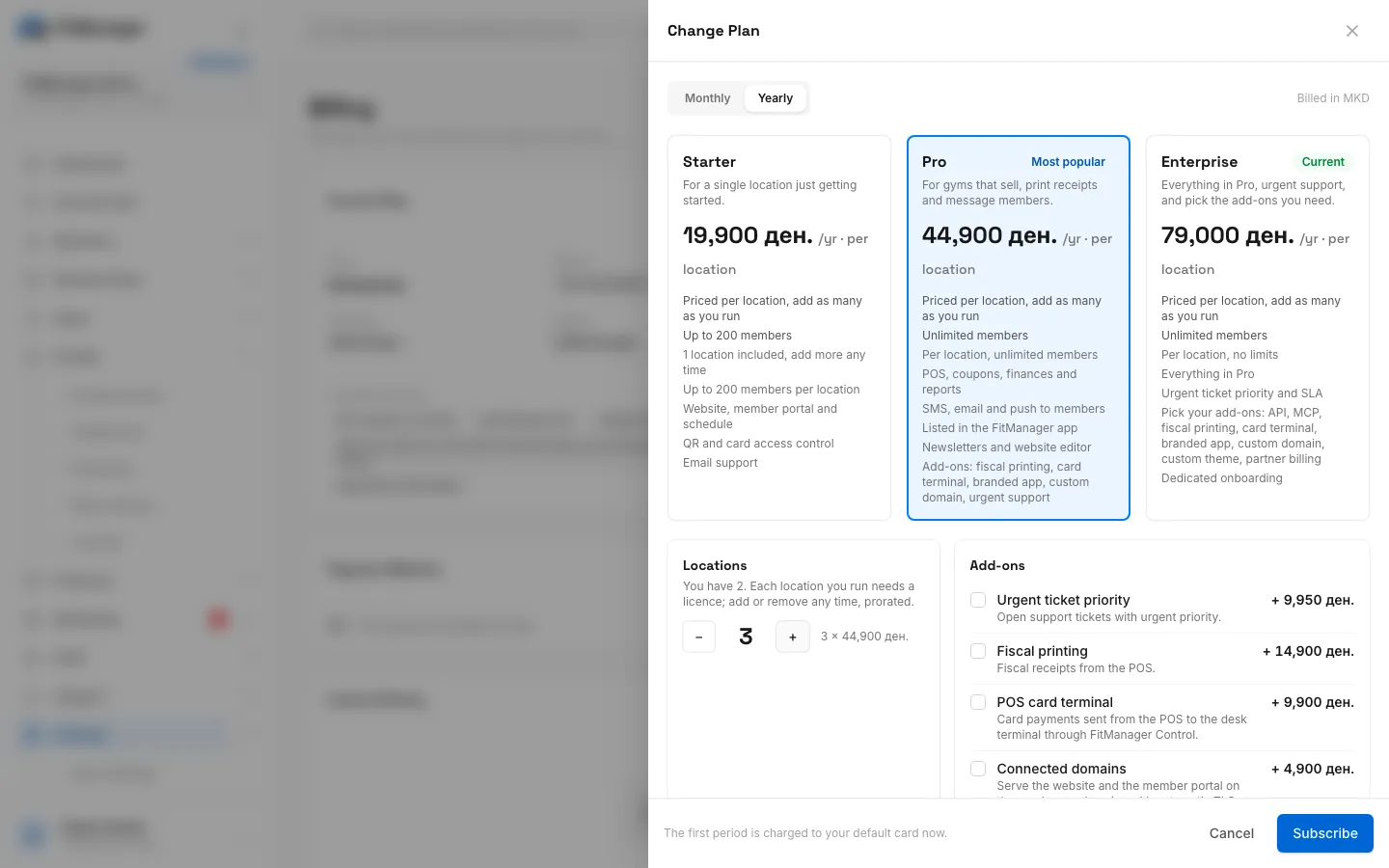
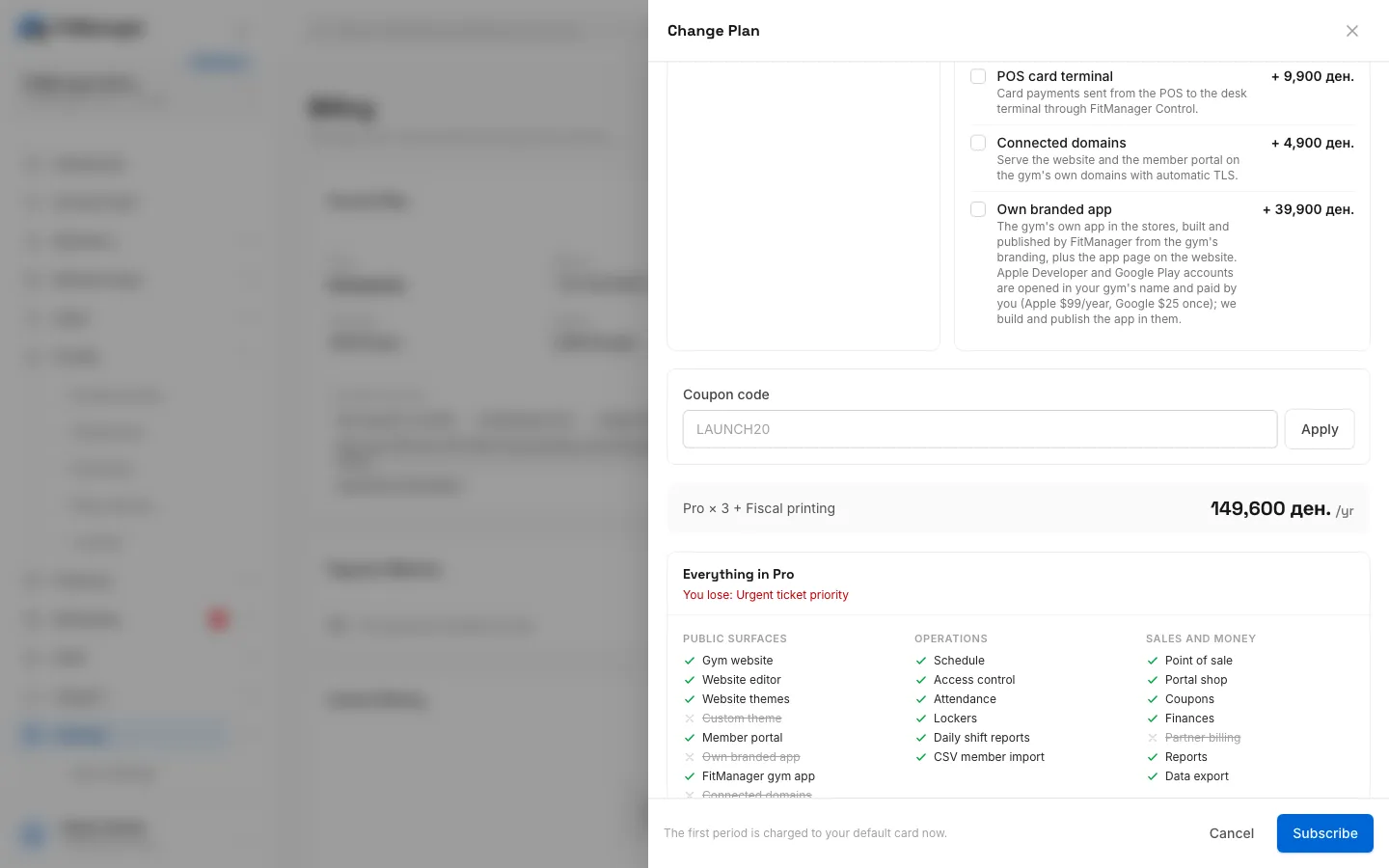
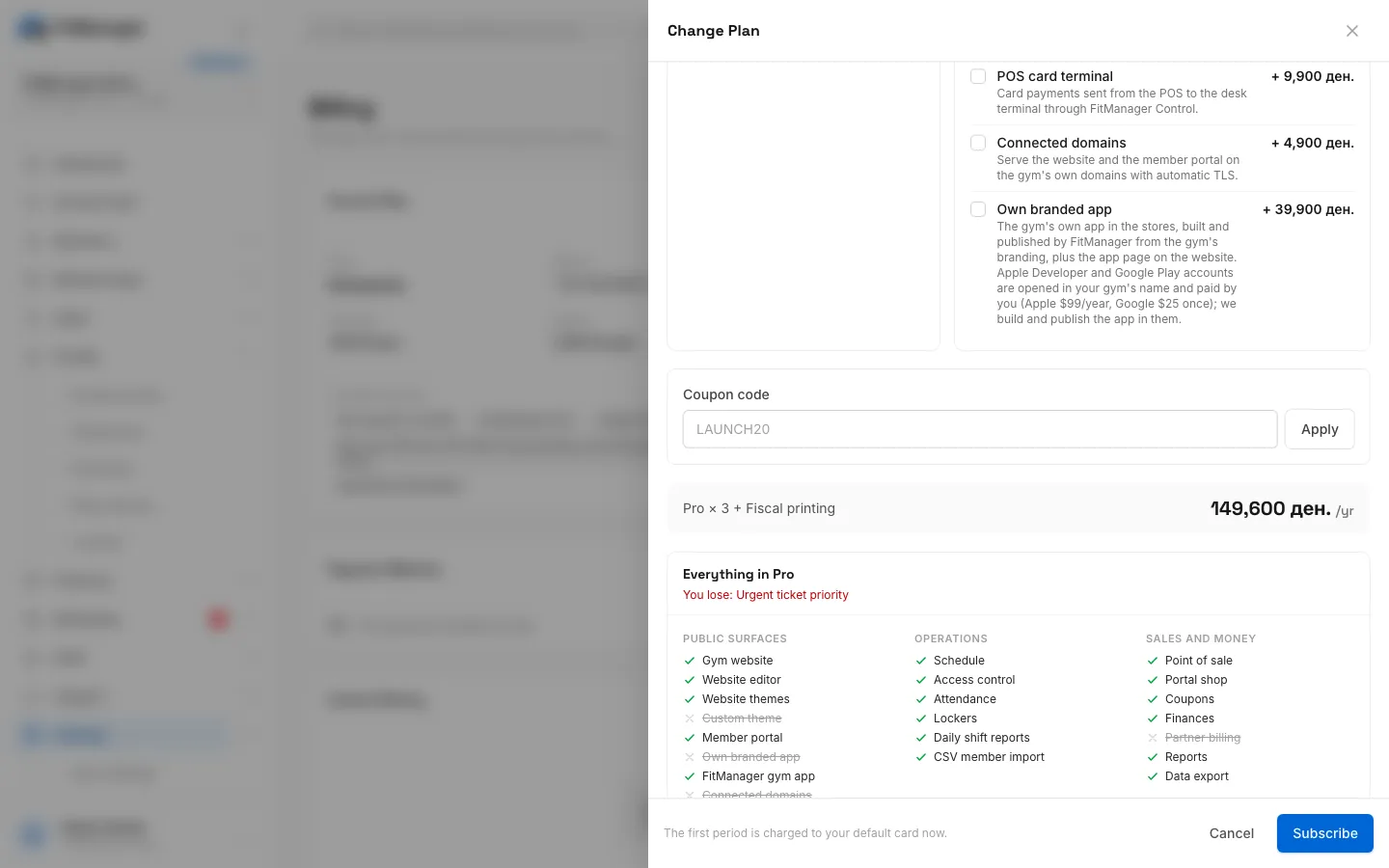
- Step 1: The Billing page shows your current plan, its status and the currency you are billed in.
- Step 2: Click Change Plan to open the plan builder.
- Step 3: Choose Monthly or Yearly. A year costs the same as ten months.
- Step 4: Pick a plan. The price shown is for one location.
- Step 5: Set how many locations you run. Each one is billed at the plan price.
- Step 6: Tick the add-ons you need. Only the ones your plan can buy are listed.
- Step 7: Have a coupon code? Type it here and click Apply.
- Step 8: The total adds up the plan, the locations and the add-ons as you go.
- Step 9: Click Subscribe, or Switch Plan if you already have one, to confirm.
What you are charged
The footer of the plan builder tells you before you confirm:
| Situation | Footer text | What happens |
|---|---|---|
| No subscription yet | The first period is charged to your default card now. | Your default card pays the first month or year straight away. |
| You already subscribe | Changes are prorated on your next invoice. | Stripe works out the difference for the rest of the period and adds it to the next invoice. |
If your bank asks for extra confirmation (3D Secure), FitManager opens Stripe's confirmation page and brings you back to Billing afterwards.
Locations
Each location (facility) you run needs a licence on your plan. The number under Locations is that licence count.
- Raising it lets you add a new location on the Facilities page. Without the licence, Add Facility shows Your plan is licensed for 1 location(s). Add a location licence on the Billing page first.
- Lowering it below the number of locations you have is refused with You run 2 locations; the licence cannot go below that. Remove a location first.
- Members and staff are not counted per location. Starter allows up to 200 members per location; Pro and Enterprise have no member limit.
Add-ons
Add-ons are features you buy on top of a plan, such as fiscal printing, the POS card terminal, connected domains or your own branded app. The list changes with the plan you pick: when you switch to a plan that cannot buy an add-on, it drops out of the total.
Your own branded app
The Own branded app add-on does not include the store accounts. Your gym opens and pays for its own Apple Developer and Google Play accounts; the FitManager team builds and publishes the app in them. See Your own branded app.
Coupons
A coupon from the FitManager team discounts your subscription. Once applied, it shows its code, its name and how long it lasts: first month, first year, first N months or every invoice. Click Remove to take it off before you confirm.
After you subscribe with a coupon, its code appears as Coupon on the Current Plan card.
Coming from the pricing page
You can also build your plan on the public pricing page before you sign up. Your pick (plan, cycle, locations, add-ons and coupon) is remembered. After you register, or straight away if you are already signed in, the Billing page opens with the plan builder already filled in. Check it and confirm.
Complimentary gyms
Some gyms are set up as complimentary by the FitManager team, for example a gym billed outside Stripe. A complimentary gym has every feature its plan includes without a card or a subscription. Its Status shows No subscription, which is expected, and it can add locations without a licence.
The Current Plan card
| Field | What it shows |
|---|---|
| Plan | Your plan, or No plan. |
| Status | Active, Cancelling (cancelled, runs until the Ends date), Cancelled or No subscription. |
| Billing Currency | The currency FitManager bills you in. |
| Coupon | The coupon used on your subscription, if any. |
| Included Features | The headline features of your plan. |
Troubleshooting
While your gym has no active plan, support tickets are locked with the rest of the dashboard. Where this section says to open a ticket, use the contact page instead.
"Add a card before subscribing." You have no card on file. Add one under Payment Method, then confirm again.
"This plan has no price in your billing currency yet. Contact support." The plan or one of the add-ons has no price set up in your currency. Open a ticket.
"This code is not valid for your subscription." The coupon has expired, has been used up, does not support your billing currency, or is only for a first subscription and your gym has subscribed before.
"Stripe could not complete that:" followed by a message. Stripe refused the change, most often because the card was declined. The message is Stripe's own. Fix the card under Payment Method and try again.
"Card payments are not configured on this platform yet." Online billing is not switched on for this FitManager installation. Contact the FitManager team.
Switch Plan is greyed out. The button only works when the plan you picked is different from your current one. To change only the number of locations or add-ons on your current plan, open a ticket and the team updates your subscription.
I cannot see the Billing page. It needs the Manage settings permission. Ask an owner.
Was this page helpful?
Related articles
Still stuck?
Write to us and we will get back to you within one working day.