Use FitManager on your own website (Website API)
Show your timetable, plans, locations and posts on a website you already have, with a site key and the embed script or the JSON endpoints.
Already have a website you like? Keep it, and let FitManager fill it with live data: your class timetable, membership plans with online checkout, locations and opening hours, blog posts, and working contact and newsletter forms. Everything stays up to date because it comes straight from your dashboard.
There are two ways to use it:
- No developer: paste a short embed code into your website and pick the widgets you want.
- With a developer: call the JSON endpoints from any website or framework.
Both use a site key that you create in FitManager.
Before you start
- Your plan needs the Website API.
- You need the Manage settings permission.
- Know the address of your website, for example
https://www.yourgym.mk.
Create a site key
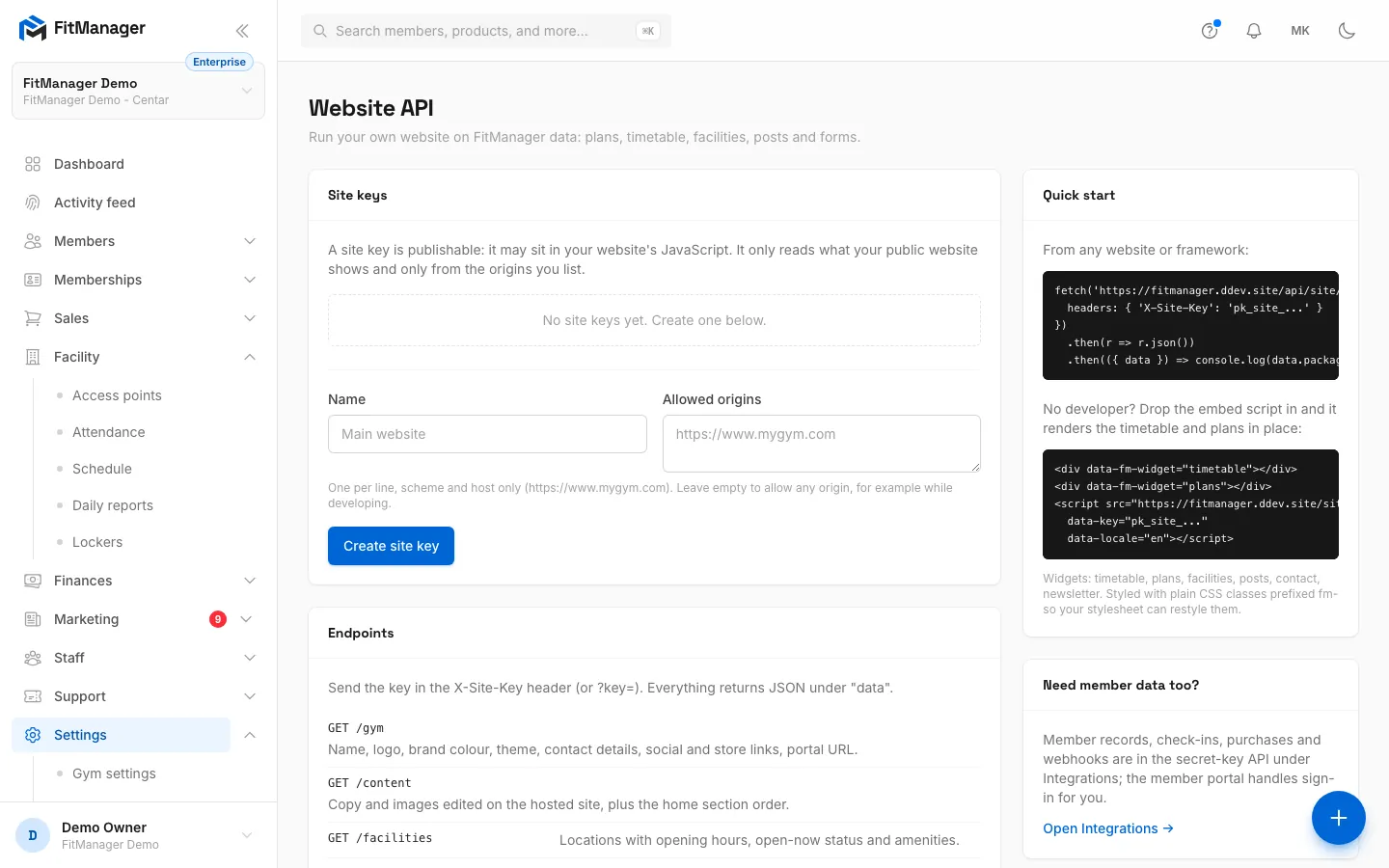
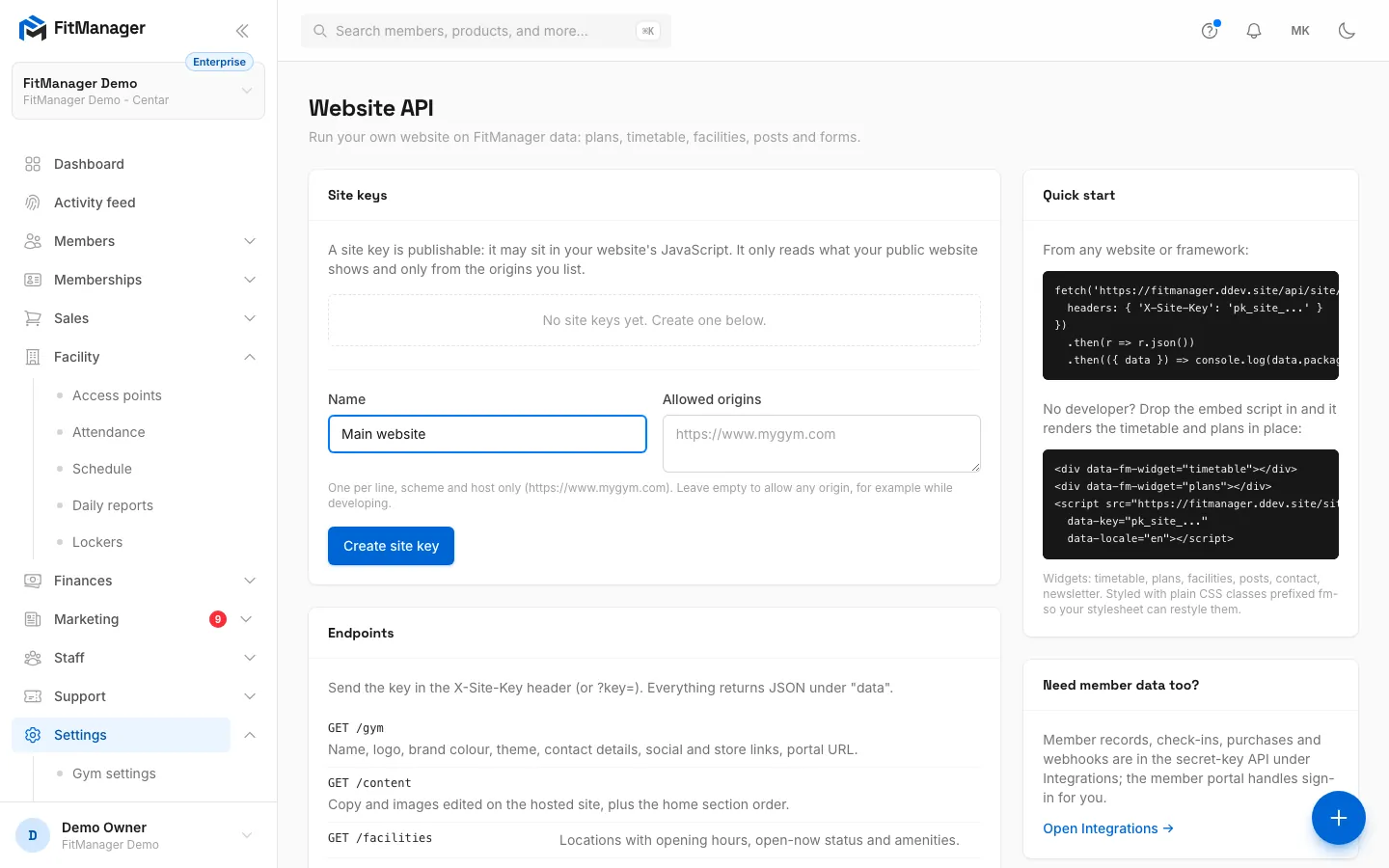
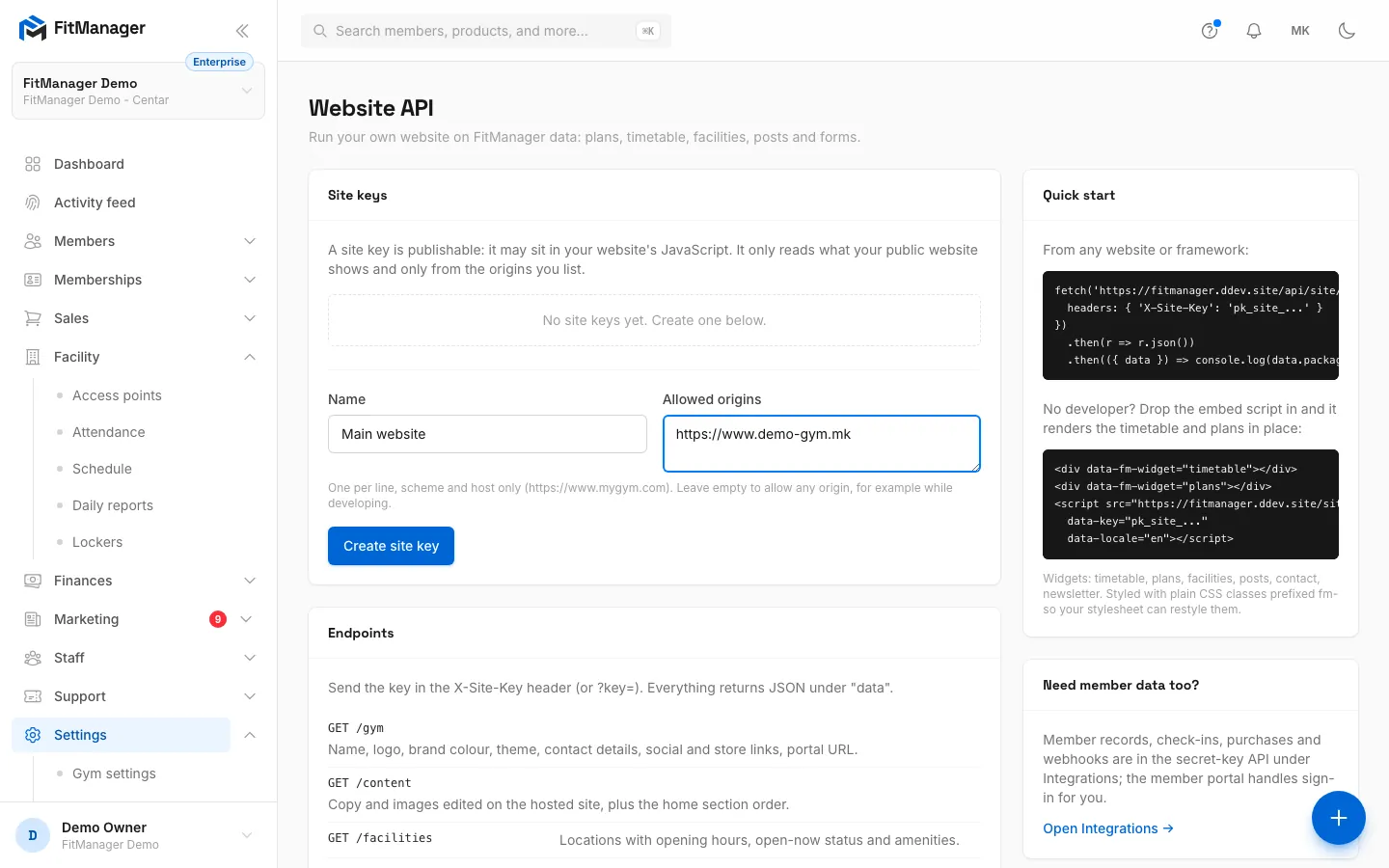
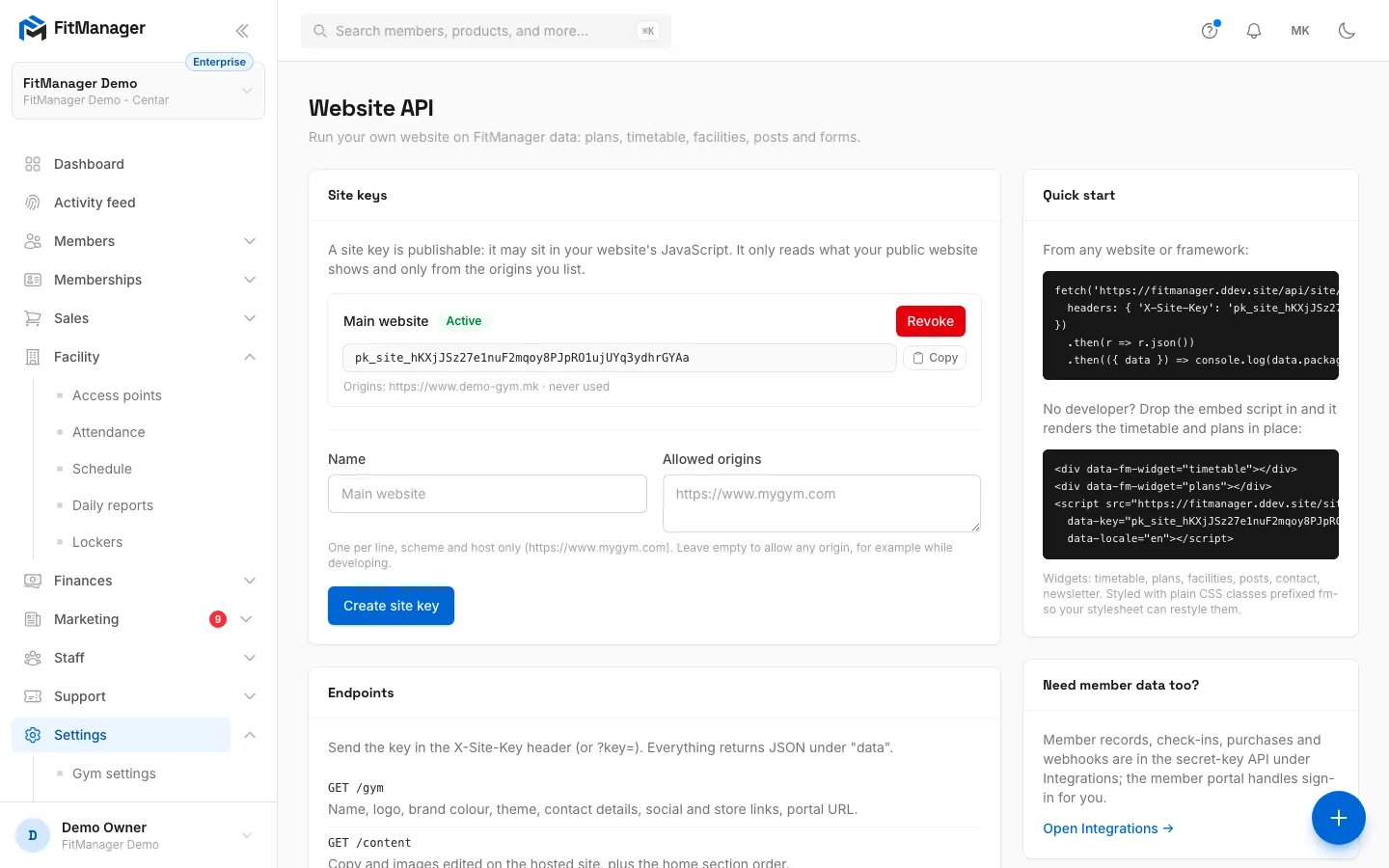
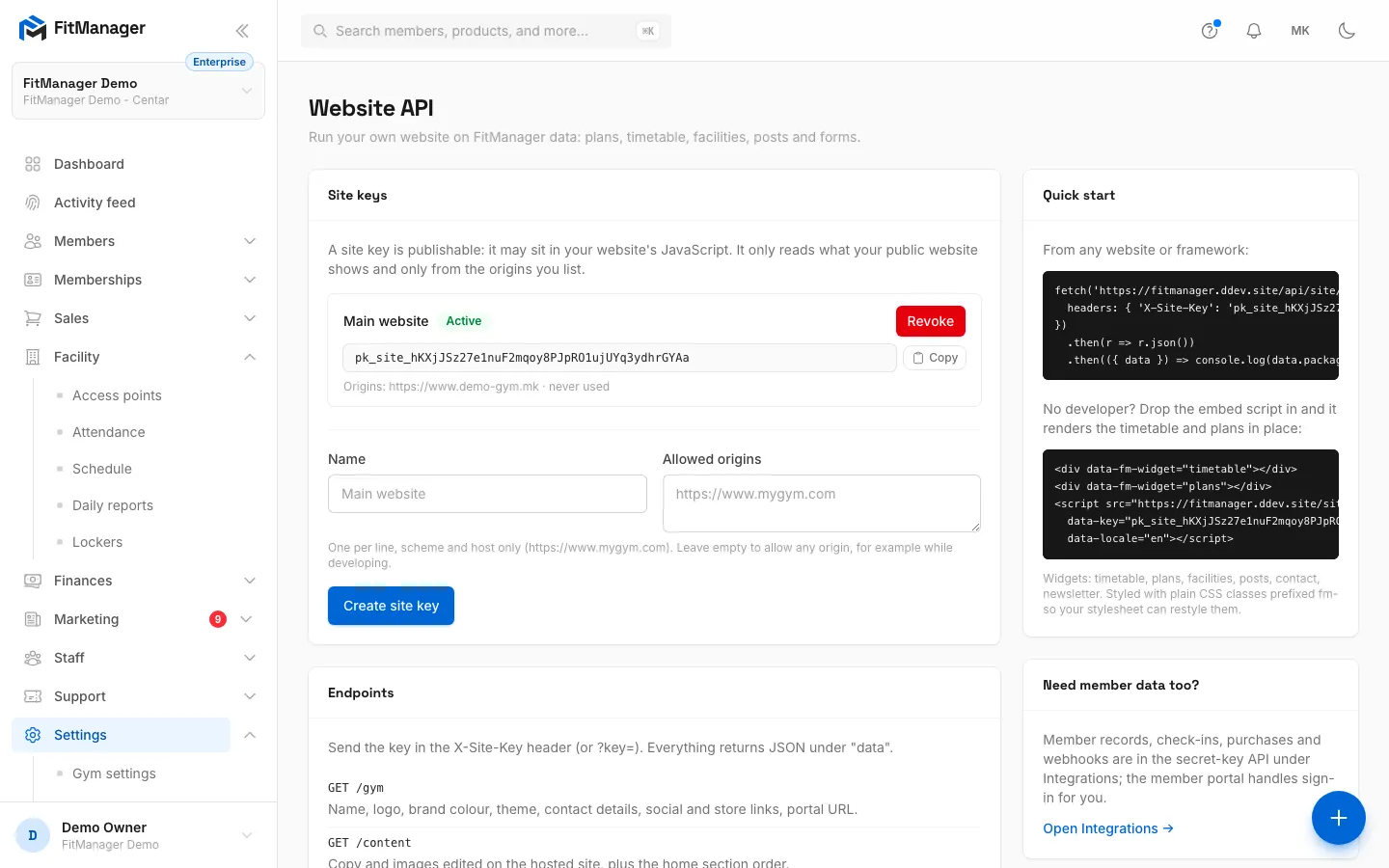
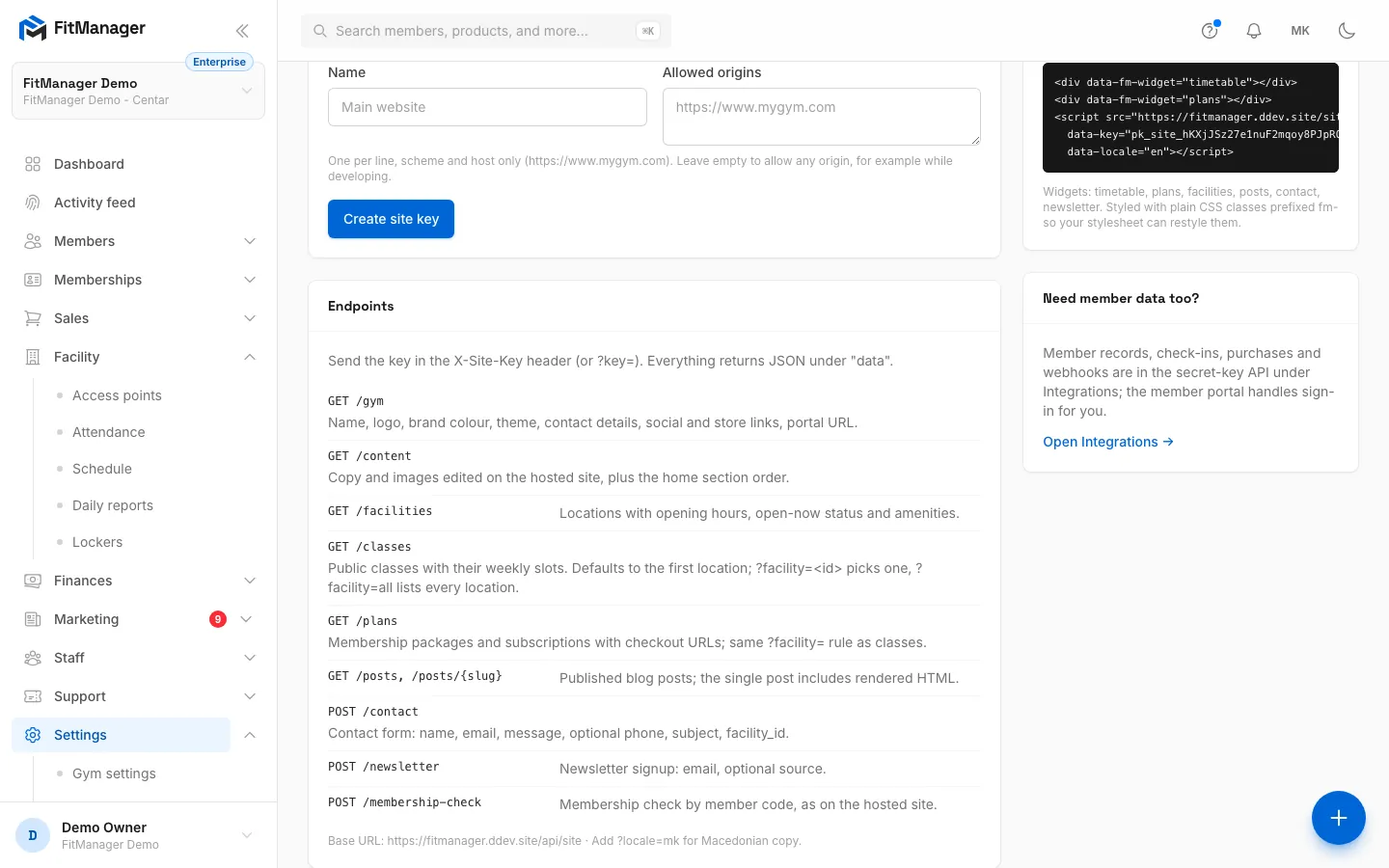
- Step 1: Under Site keys, give the key a Name, such as the website it is for.
- Step 2: Under Allowed origins, list the addresses of your website, one per line.
- Step 3: Click Create site key.
- Step 4: The key starts with pk_site_. Copy it with the button next to it.
- Step 5: Quick start shows a ready snippet with your key. Paste the embed code into your website to show the timetable and plans.
- Step 6: Endpoints lists what a developer can read and send with the key.
- In the sidebar, open Settings, Website, Website API.
- Under Site keys, type a Name, for example "Main website".
- Under Allowed origins, enter your website's address, one per line, with
https://and the host only, no path:https://www.yourgym.mk. Add both thewwwand the bare version if your site answers on both. - Click Create site key.
The new key appears in the list. It starts with pk_site_. Use the copy button next to it.
A site key is publishable: it is safe to put in your website's code, because it only reads what your public website shows anyway, and only from the origins you listed. Leave Allowed origins empty only while testing: an empty list lets any website use the key.
Each key shows when it was last used. Revoke a key to stop it immediately, for example after a redesign; websites using it stop loading FitManager data right away.
Option 1: the embed script (no developer)
The Quick start card on the same page shows a snippet with your key already filled in. Paste it into your website's HTML where you want the content to appear:
<div data-fm-widget="timetable"></div>
<div data-fm-widget="plans"></div>
<script src="https://fitmanager.com/site-embed.js"
  data-key="pk_site_..."
  data-locale="en"></script>
Copy the snippet from your page rather than from here: it carries your key and the right address.
Each <div data-fm-widget="..."> becomes one block:
| Widget | Shows |
|---|---|
timetable |
The weekly class timetable. Add data-facility="12" to choose a location. |
plans |
Membership plans with buttons to the online checkout |
facilities |
Locations with opening hours and whether they are open now |
posts |
Your latest blog posts. Add data-limit="3" to set how many. |
contact |
A contact form; messages arrive in your Inquiries |
newsletter |
A newsletter signup; addresses join your newsletter subscribers |
Set data-locale="mk" on the script for Macedonian. The widgets come with plain markup and class names starting with fm-, so they take on your website's fonts and colours, and your web designer can restyle them.
In website builders (WordPress, Wix, Squarespace and the like), paste the snippet into an "HTML", "Custom code" or "Embed" block.
Option 2: the endpoints (for developers)
The Endpoints card lists every call. All live under https://fitmanager.com/api/site (the exact base URL is shown on your page) and answer JSON under data. Send the key in the X-Site-Key header, or as ?key=. Add ?locale=mk for Macedonian text.
| Call | Returns or does |
|---|---|
GET /gym |
Name, logo, brand colour, theme, contact details, social and store links, portal URL |
GET /content |
Text and images edited on your hosted site, plus the home section order |
GET /facilities |
Locations with opening hours, open-now status and amenities |
GET /classes |
Public classes with their weekly slots. First location by default; ?facility=<id> picks one, ?facility=all lists all. |
GET /plans |
Membership packages and subscriptions with checkout URLs; same ?facility= rule |
GET /posts, GET /posts/{slug} |
Published blog posts; a single post includes rendered HTML |
POST /contact |
Sends a contact message: name, email, message, optional phone, subject, facility_id |
POST /newsletter |
Newsletter signup: email, optional source |
POST /membership-check |
Checks a membership by member code, like the check page on the hosted site |
Members still sign in on your hosted member portal and pay on the hosted checkout page (the URLs come in GET /gym and GET /plans), so card payments never touch your website.
Member records, check-ins, purchases and webhooks are not in this API. They need a secret key; see API keys.
Common questions
The widgets stay empty or show "Could not load this right now"
Open your browser's developer console on your website. The API answers with a reason:
- Unknown or revoked site key. The key in the snippet is wrong or was revoked. Copy it again from the Website API page.
- This origin is not allowed for the site key. Your website's address is not in Allowed origins. Check
https://versushttp://andwwwversus nowww. - This gym does not have the Site API enabled. The feature is no longer on your plan.
"is not a valid origin"
Enter only the scheme and host, like https://www.yourgym.mk: no path, no trailing page name.
Do I still need the FitManager website?
No, but you can keep both. Many gyms keep the hosted pages for checkout and the member portal and use the widgets on their main site.
Was this page helpful?
Related articles
Still stuck?
Write to us and we will get back to you within one working day.