Home page sections, hero and themes
Choose the hero style, arrange and hide home page sections, and give your whole website a theme.
Your home page is a stack of sections, topped by a hero: the first screen a visitor sees. On the Website & app page you pick how the hero looks, which sections appear and in which order, and the theme that styles every page of the site.
Open it from the sidebar: Settings, Website, Website & app.
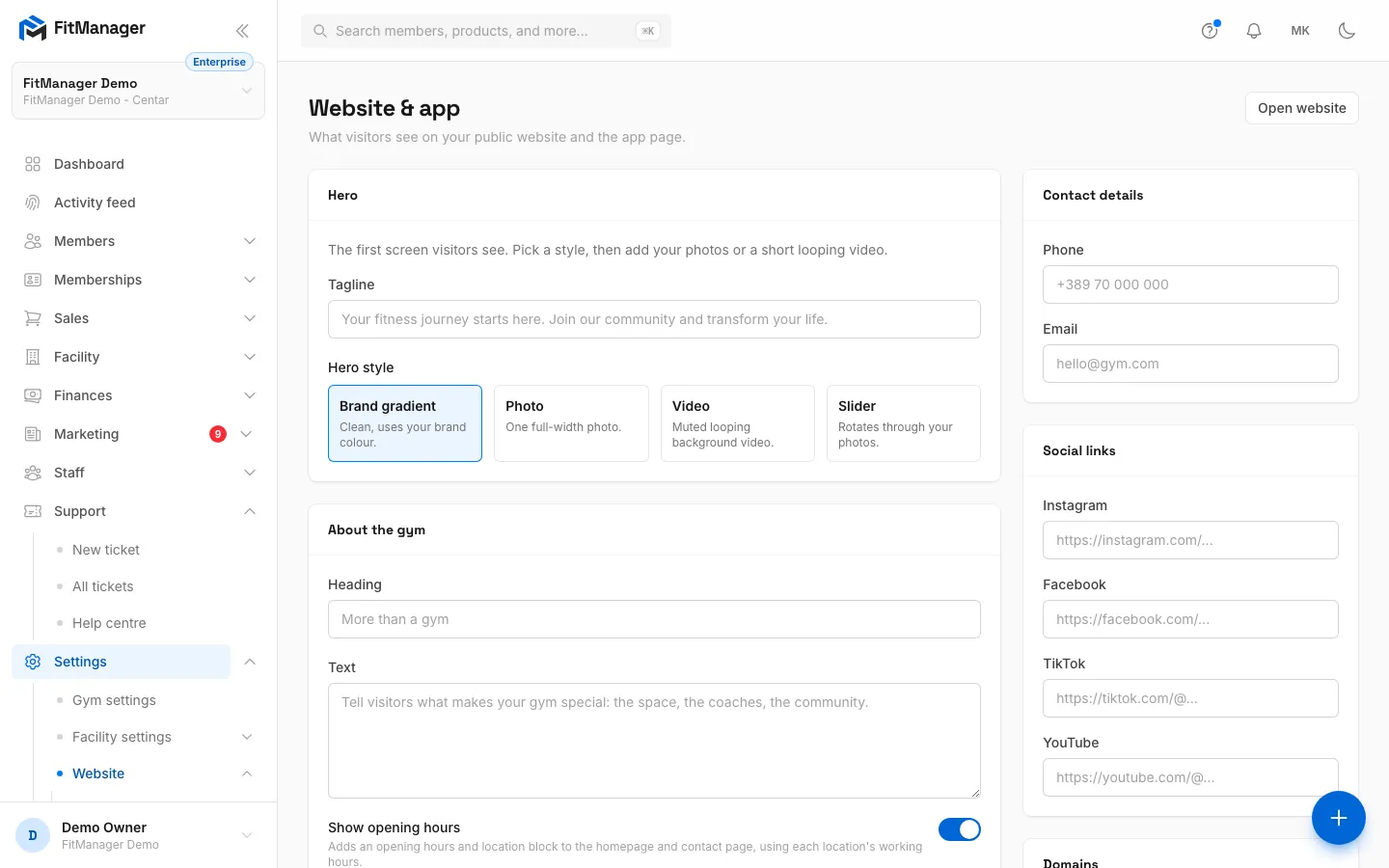
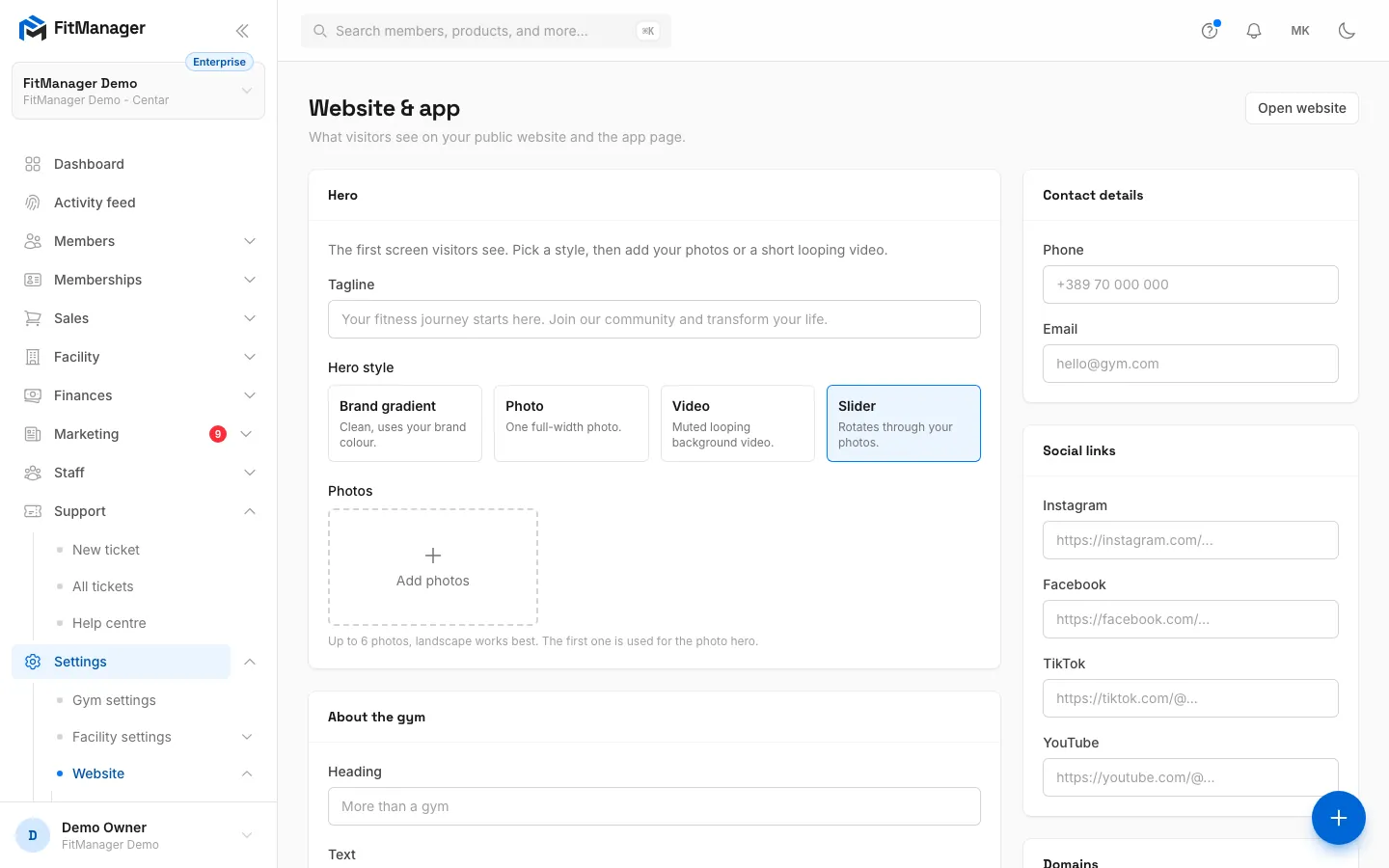
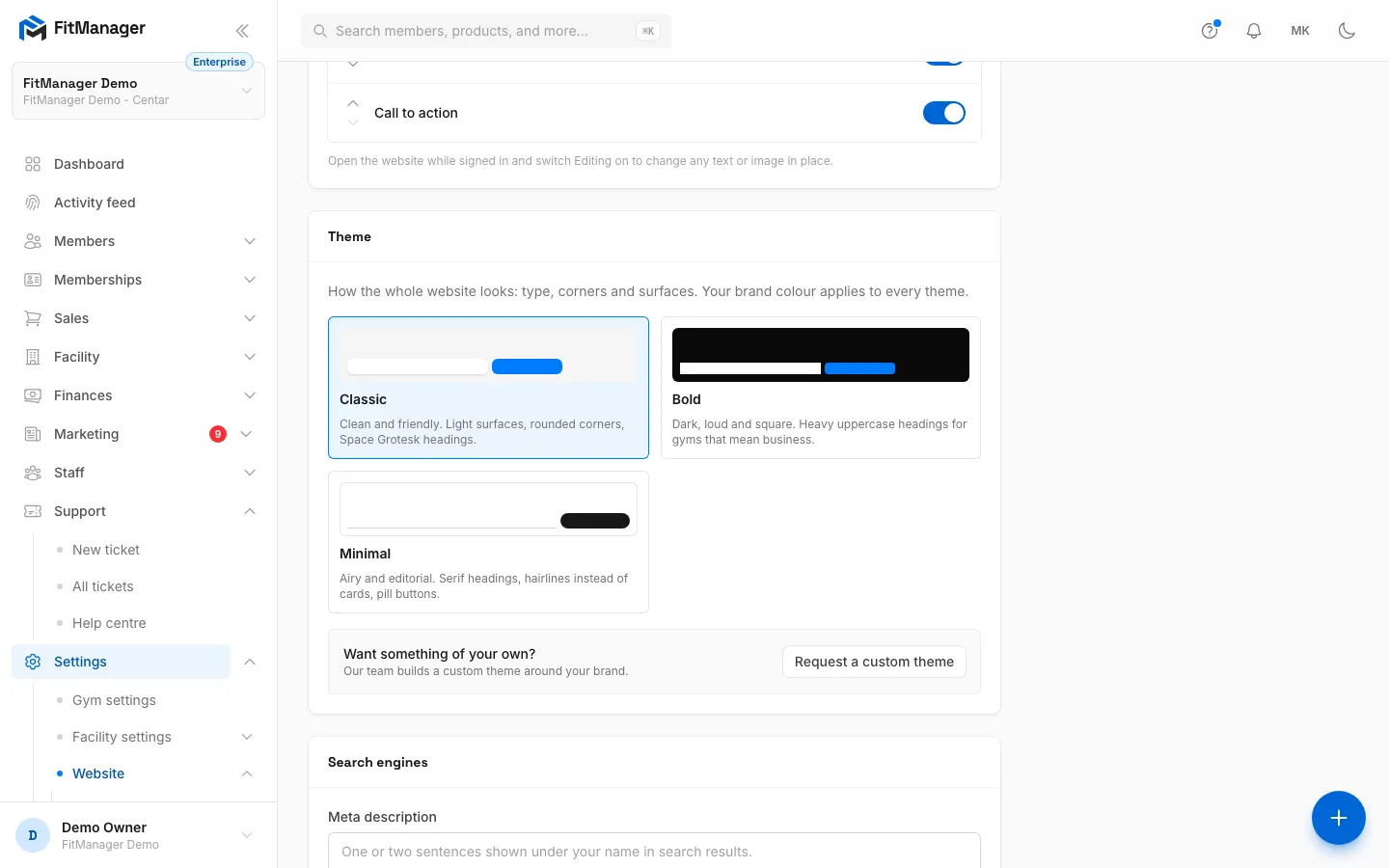
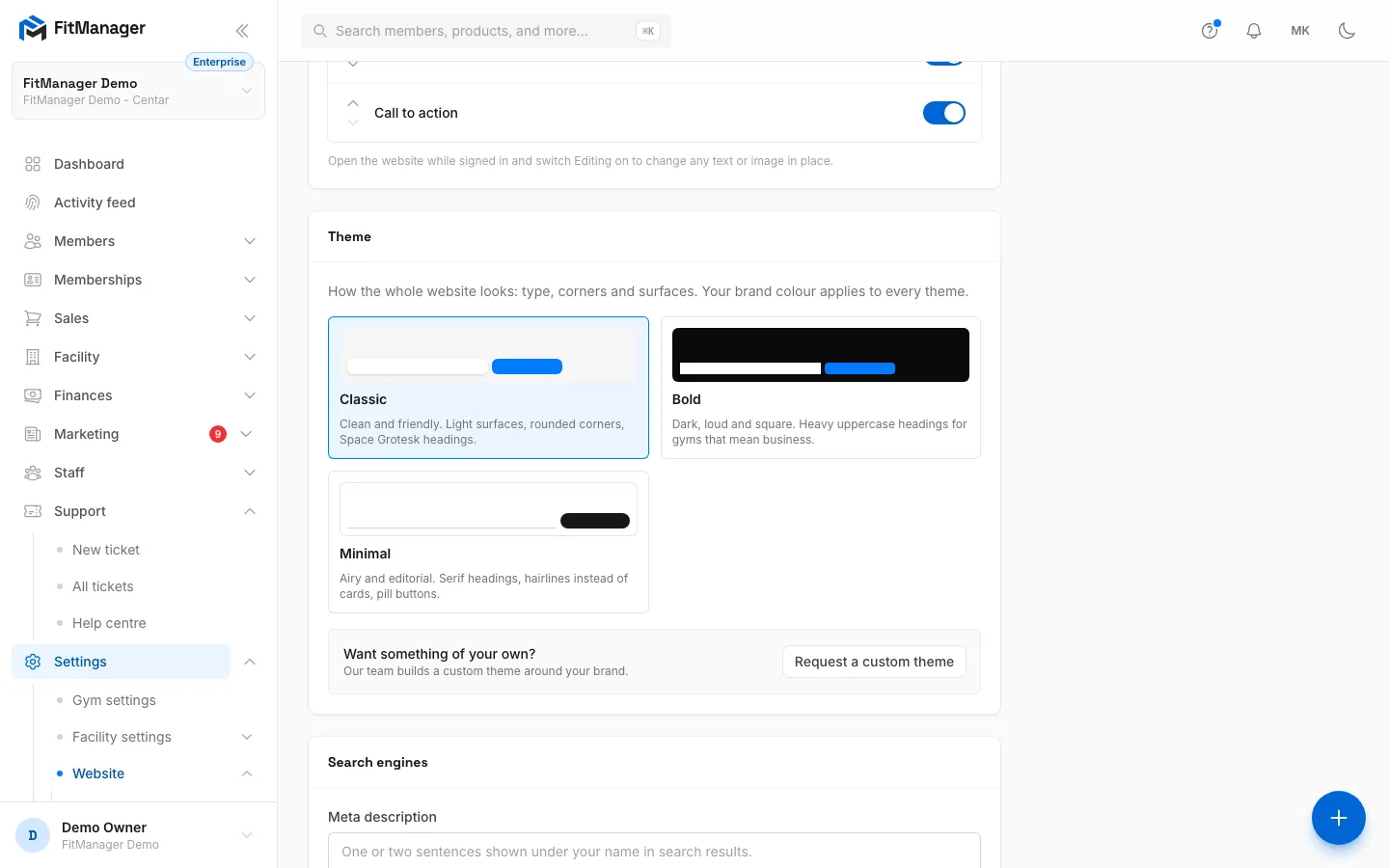
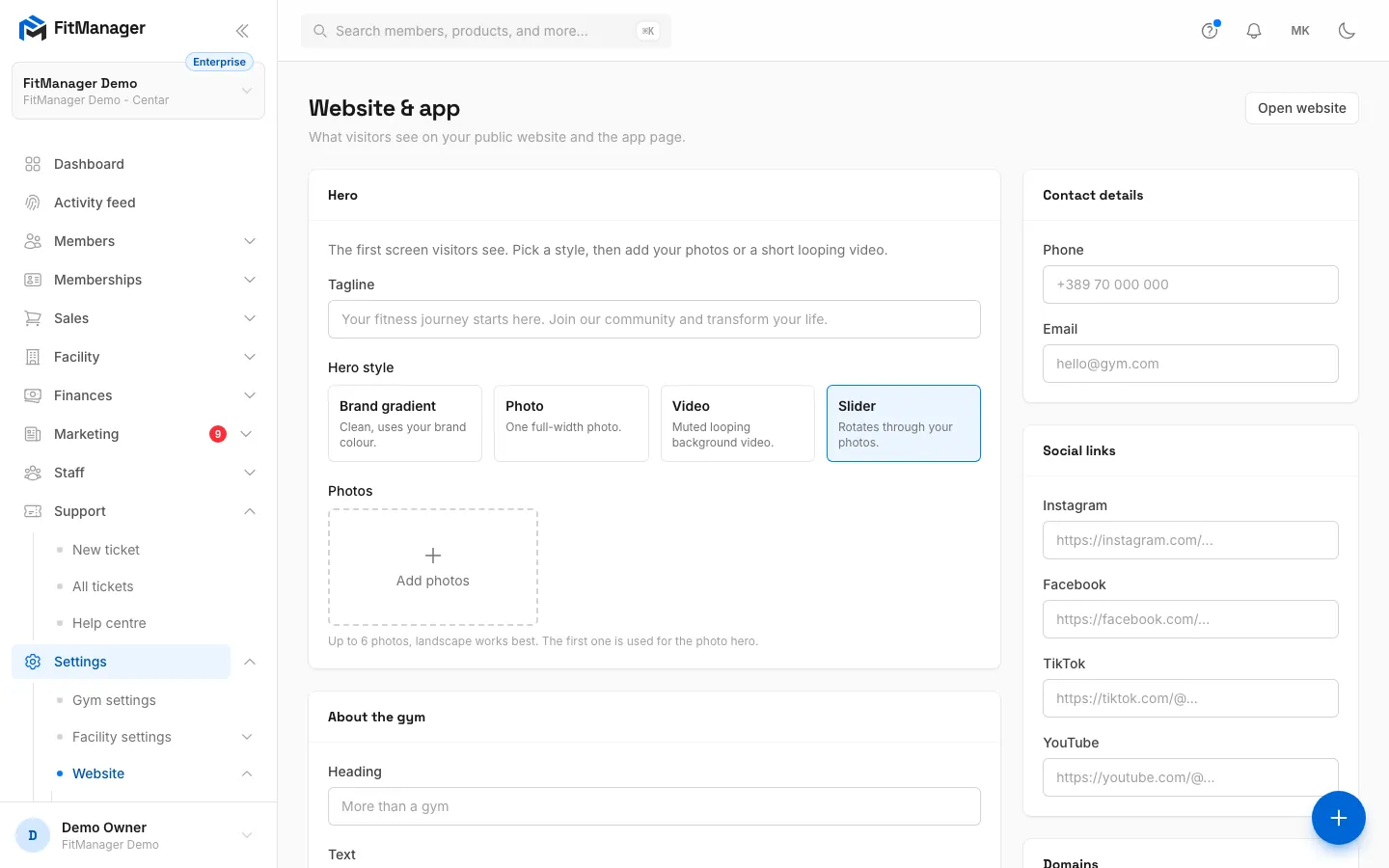
- Step 1: Under Hero, pick a Hero style. Slider rotates through your photos.
- Step 2: Click Add photos to upload up to six landscape photos, then click Save Changes at the bottom.
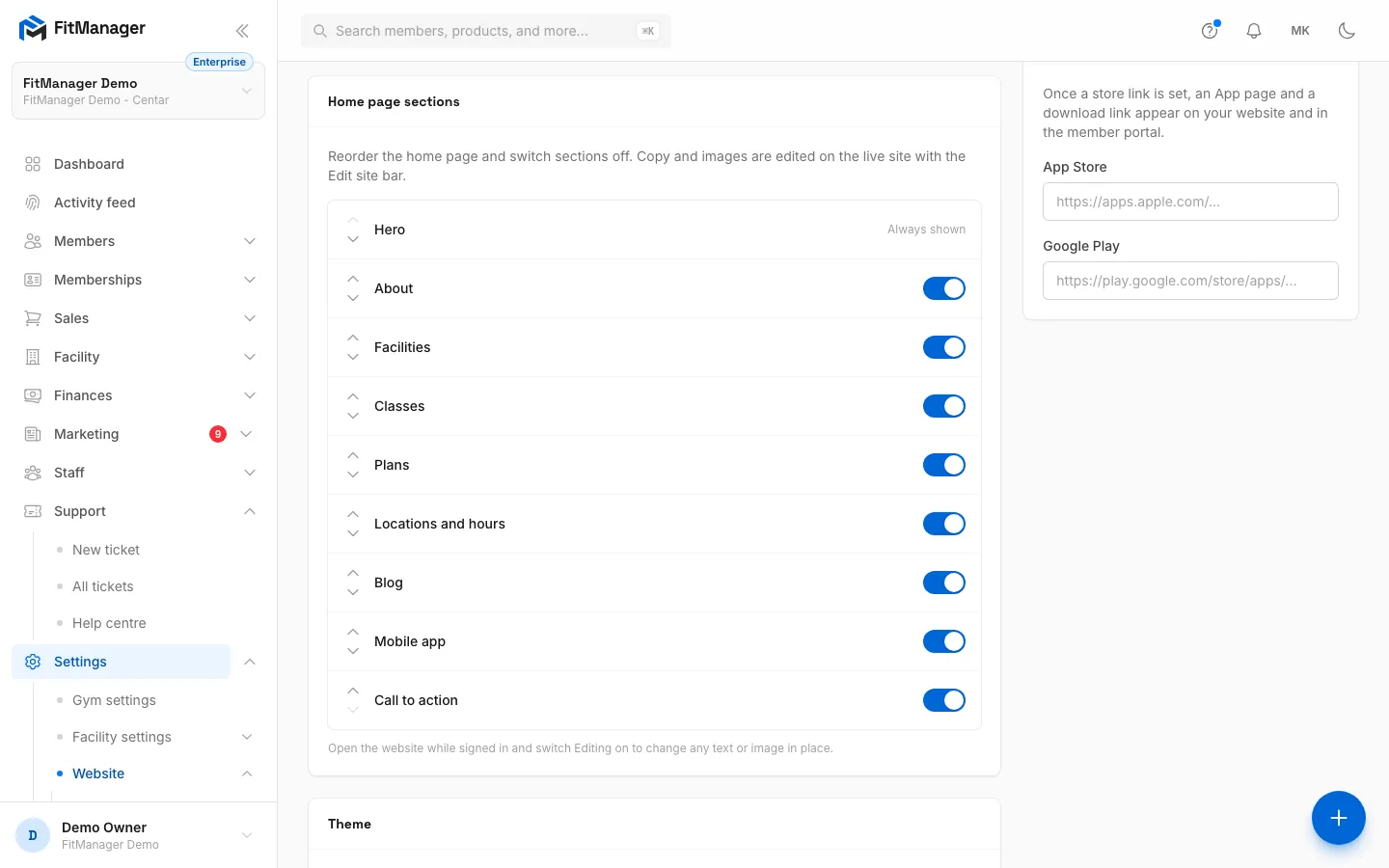
- Step 3: Home page sections lists the blocks of your home page in order. The arrows move a section up or down.
- Step 4: The switch shows or hides a section. Changes here are saved straight away.
- Step 5: Under Theme, click Classic, Bold or Minimal. The whole website switches as soon as you click.
- Step 6: Want something of your own? Request a custom theme and our team builds one around your brand.
- Step 7: Click Open website to see the result as visitors do.
The hero
The Hero card sets the first screen of your home page.
- Type a Tagline: one sentence under your gym's name, up to 160 characters.
- Pick a Hero style:
| Style | What it shows |
|---|---|
| Brand gradient | A clean background in your brand colour. No photos needed. |
| Photo | One full-width photo: the first one in your list. |
| Video | A muted background video that plays on a loop. |
| Slider | Rotates through your photos. |
- For Photo and Slider, click Add photos and upload up to 6 images. Landscape photos work best. Use the arrows under each photo to change the order and Remove to delete one. The photo the Photo style uses is marked Used.
- For Video, click Upload video and choose an MP4 or WebM file of up to 40 MB, or paste a link under Or link a video file. Keep it short. A linked file is only used when nothing is uploaded.
- Click Save Changes at the bottom of the page.
About the gym and contact details
- About the gym: a Heading and Text for the about section. Show opening hours adds an opening hours and location block to the home page and the contact page, built from each location's working hours.
- Contact details: the Phone and Email shown on the contact page and in the footer.
Both save with Save Changes. You can also edit the about heading and text on the live site; it is the same value. See Edit your website in place.
Arrange the home page sections
Requires: Website editor
The Home page sections card lists every section of your home page from top to bottom:
| Section | Shows |
|---|---|
| Hero | Your name, tagline and the hero style. Always shown. |
| About | Your about heading, text and a photo. |
| Facilities | The amenities of your locations, from Settings, Facility settings, Facilities & amenities. |
| Classes | A preview of your timetable. |
| Plans | Your membership plans. |
| Locations and hours | Opening hours and addresses. |
| Blog | Your latest posts. |
| Mobile app | Store badges for your branded app. |
| Call to action | A closing banner that invites visitors to get in touch. |
- Use the up and down arrows on the left of a row to move a section.
- Use the switch on the right to show or hide it. Hero says Always shown instead.
- A section marked Not in your plan belongs to a feature your plan does not include and stays hidden on the site.
These changes save immediately, without Save Changes. You can do the same on the live site while editing is on.
If your plan does not include the website editor, the card explains that rearranging sections is part of a higher plan, and the home page uses the default order.
Pick a theme
The Theme card changes how the whole website looks: typefaces, corners and surfaces. Your brand colour is used by every theme.
| Theme | Look |
|---|---|
| Classic | Clean and friendly. Light surfaces, rounded corners. The default. |
| Bold | Dark, loud and square, with heavy uppercase headings. |
| Minimal | Airy and editorial. Serif headings, thin lines instead of cards, pill buttons. |
Click a theme to apply it. It saves immediately and every page of the site follows, including the blog, classes and membership pages.
Requires: Website themes
All three themes are available to you. Without this feature, Classic is used and the other two are greyed out.
Request a custom theme
Requires: Custom theme
Want a look of your own? Under Theme, click Request a custom theme, describe what you have in mind (colours, mood, sites you like, at least 20 characters) and click Send request. This opens a support ticket, and the FitManager team replies there. When your theme is ready, it appears as a fourth option, Custom, and you switch to it like any other theme.
Common questions
My changes are not on the site
Hero, about, contact and social settings need Save Changes. If you leave the page with unsaved changes, the page warns you first. Section order and themes save on click.
I uploaded more than 6 photos
Only the first 6 are kept, and a message tells you the limit. Remove one to make room.
The video upload fails
Check the file is MP4 or WebM and under 40 MB. Large videos also slow the page down for visitors on mobile data, so keep it to a few seconds.
Was this page helpful?
Related articles
Still stuck?
Write to us and we will get back to you within one working day.