Open a support ticket
Ask the FitManager team for help from inside the dashboard, follow the answer, reply with attachments and close the ticket when it is solved.
A support ticket goes straight to the FitManager team. Use one when something is broken, when you need a change only the team can make, or when this help centre does not answer your question. Your gym and your name are attached automatically, so you do not need to explain who you are.
Before you start
- Opening a ticket needs the Open tickets permission. Owners have it; employees can read and reply to tickets but not open them, unless you give them the permission. See Permissions.
- Search this help centre first. Many questions are answered in Troubleshooting and the FAQ.
- Tickets are for the FitManager team. Messages from your members and website visitors arrive in Inquiries instead, and a ticket never reaches a member.
Open a ticket
- In the sidebar, open Support > New ticket, or click New ticket on the Support page.
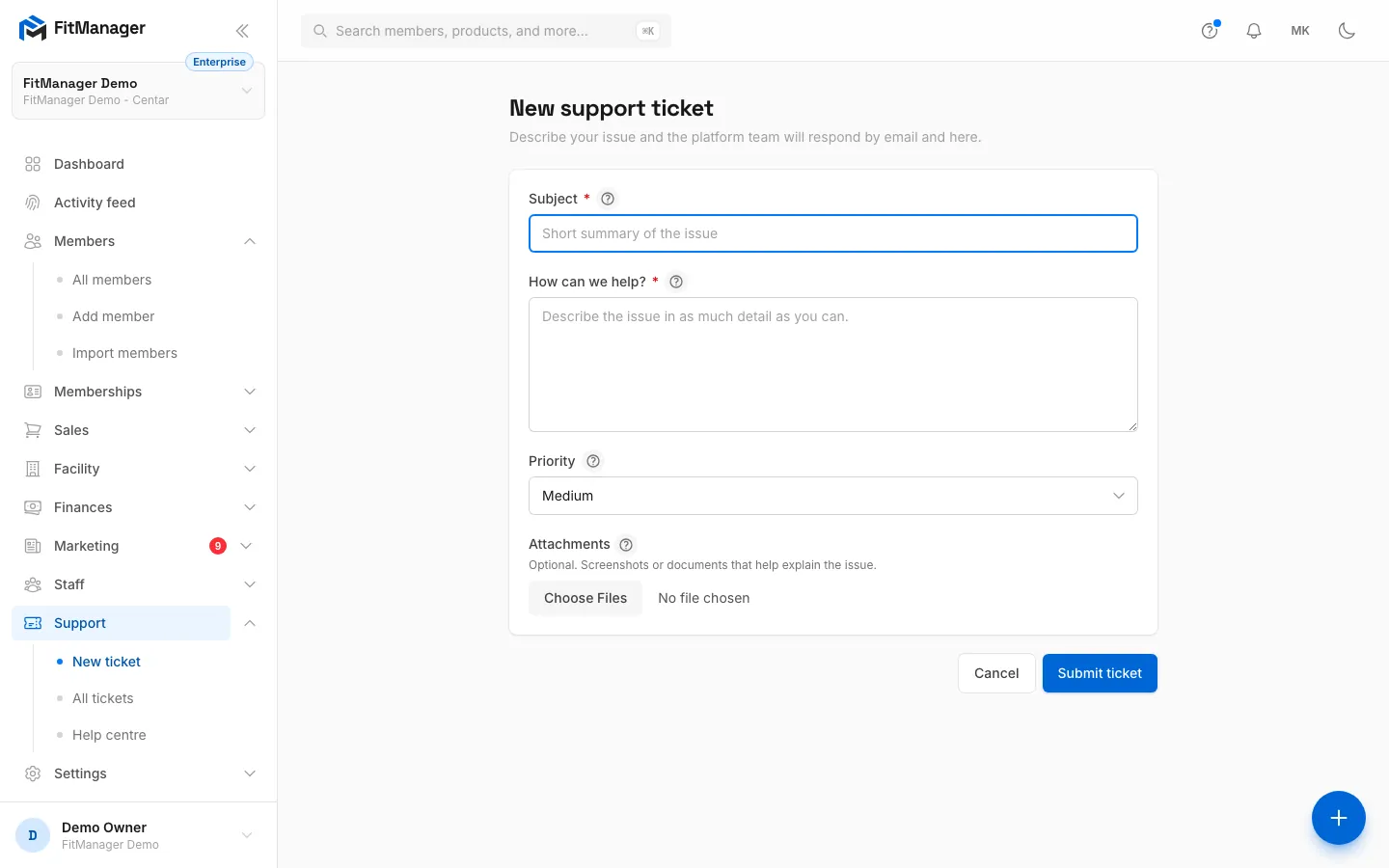
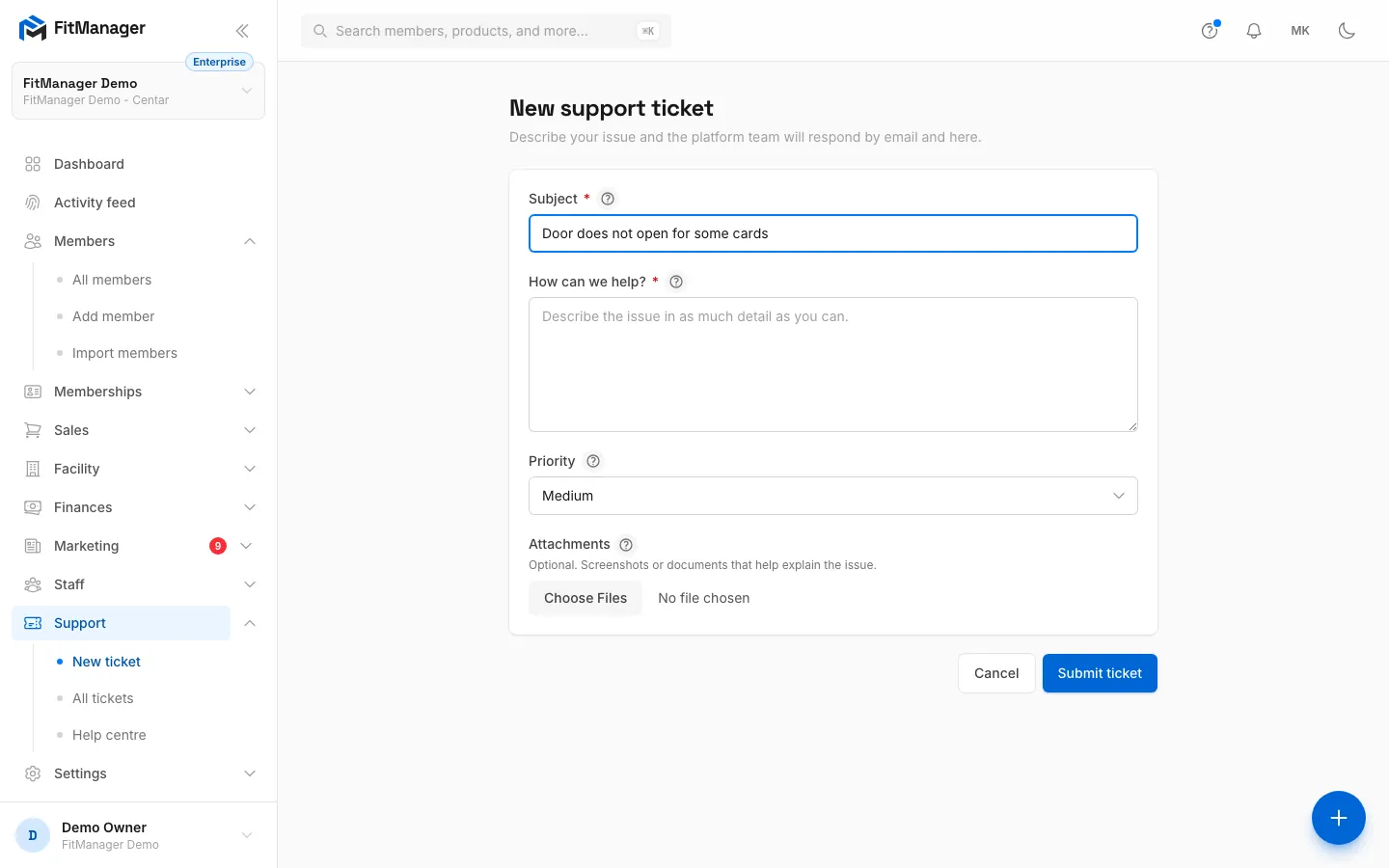
- Write a Subject: a short summary of the problem.
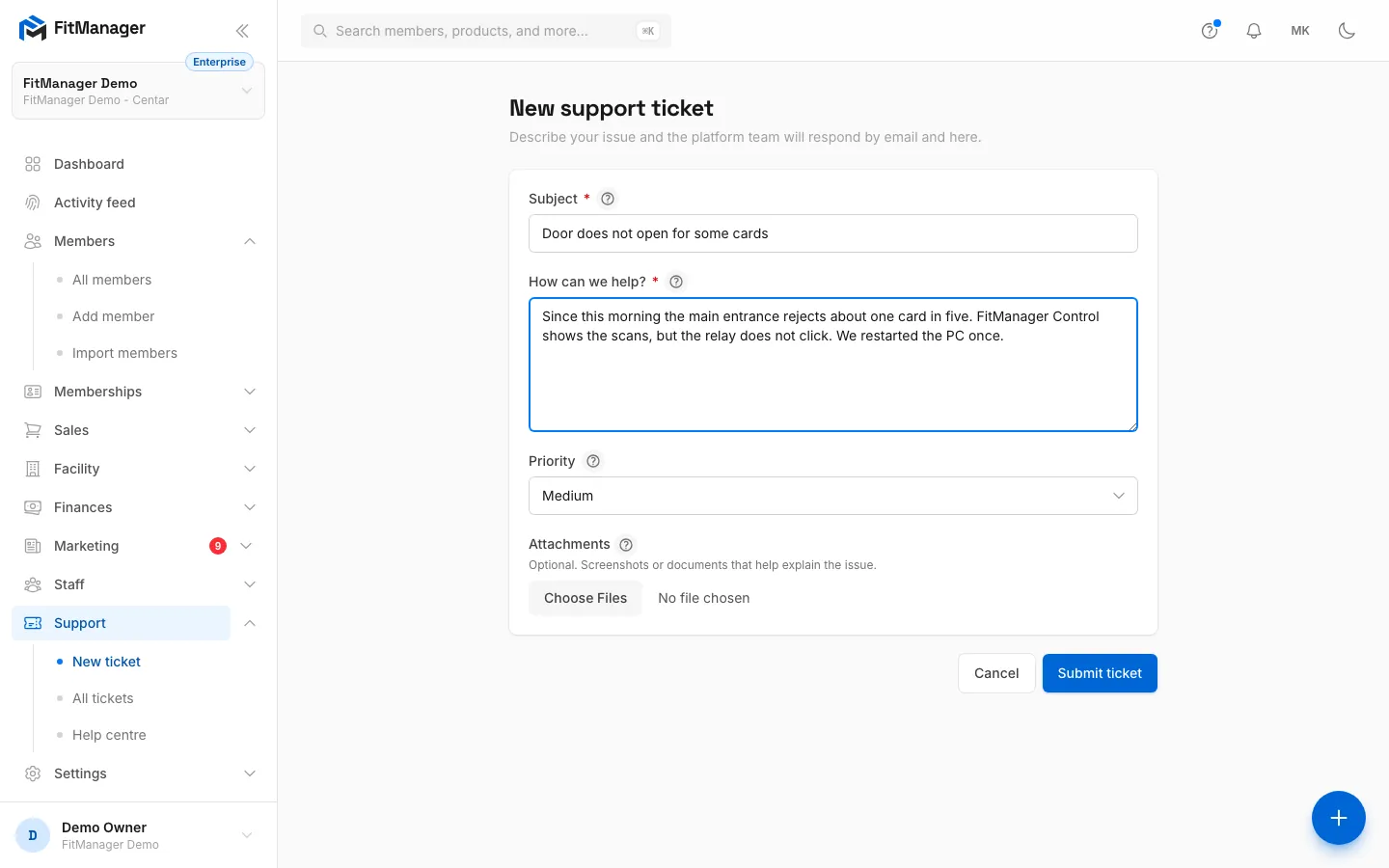
- Under How can we help?, describe the problem. Say what you did, what you expected and what happened instead. It needs at least 10 characters.
- Choose a Priority: Low, Medium (the default), High or Urgent.
- Add Attachments if a screenshot or document explains it better: up to 10 files of 10 MB each.
- Click Submit ticket.
The ticket appears at the top of the list with the status Open.
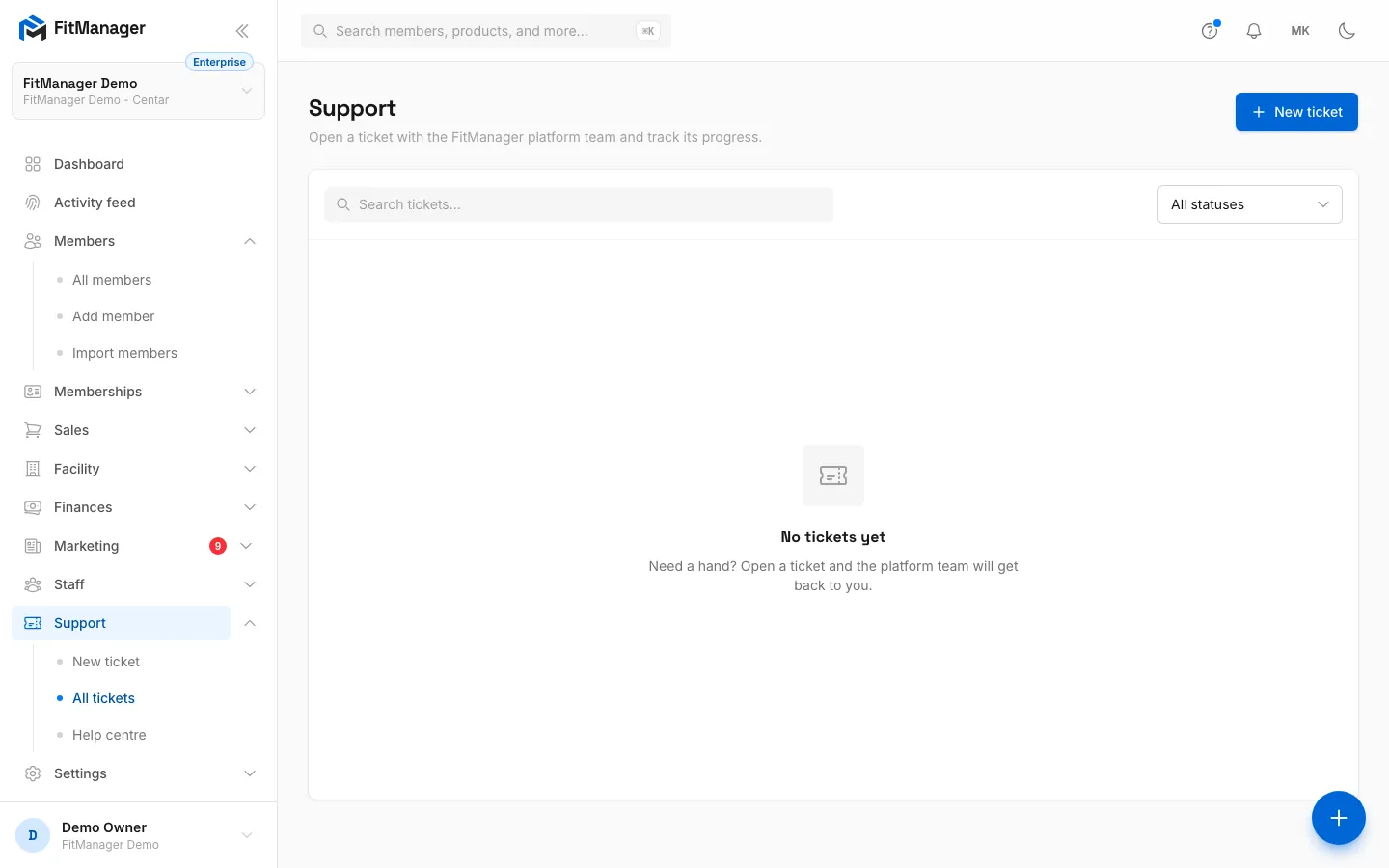
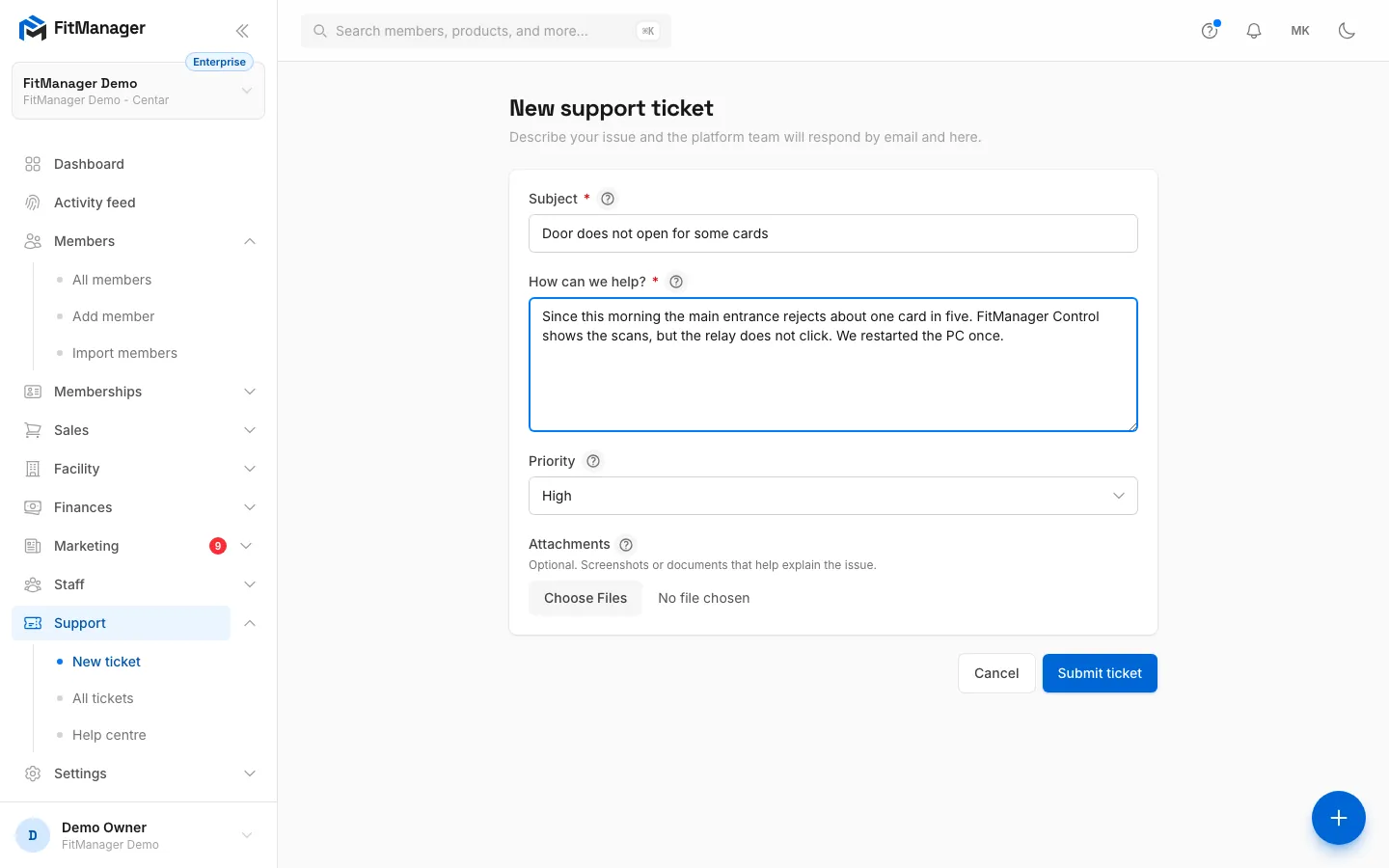
- Step 1: On the Support page, click New ticket.
- Step 2: Write a short subject that sums up the problem.
- Step 3: Describe what you did, what you expected and what happened instead.
- Step 4: Set the priority. Urgent needs the urgent priority add-on.
- Step 5: Attach screenshots or documents if they help, up to ten files.
- Step 6: Click Submit ticket. You get the answer by email and on the ticket.
Choose the right priority
| Priority | Use it for |
|---|---|
| Low | Questions and ideas that can wait. |
| Medium | Something does not work as expected, but you can carry on. |
| High | Something important is broken, such as a sale or a report you need today. |
| Urgent | The gym cannot operate, for example the doors or the POS are down. |
Requires: Urgent ticket priority
Your plan includes Urgent. Keep it for real emergencies so the team can react fast. See Urgent priority.
Without the urgent priority add-on, Urgent shows Upgrade required in the list and cannot be picked.
Follow a ticket
Support > All tickets lists your gym's tickets with the Subject, Latest reply, Priority, Status and Last activity. Search by subject or filter by status at the top.
When the FitManager team replies, every staff member who can view tickets gets an email and a notification in the dashboard bell. The ticket shows Needs your attention in your list until you open it, and the sidebar shows a count next to All tickets. This is tracked per person, so each colleague sees their own unread replies.
A ticket moves through these statuses:
| Status | Meaning |
|---|---|
| Open | Submitted and waiting for the FitManager team. |
| In progress | The team is working on it. |
| Waiting on gym | The team asked you something and needs your answer to carry on. |
| Resolved | The team, or you, consider it solved. |
| Closed | Finished and filed. |
Reply
- Open the ticket from the list.
- Write in the box at the bottom (Write a reply…).
- Add files with Attach files if needed, again up to 10 files of 10 MB.
- Click Send reply.
Replying moves the ticket along for you:
- A reply to a ticket that is Waiting on gym moves it to In progress.
- A reply to a Resolved or Closed ticket reopens it as Open. You never need a new ticket to continue an old conversation.
Replying needs the Reply to tickets permission, which employees have by default.
Close a ticket
When the problem has gone away, click Close ticket at the top of the ticket. Its status becomes Resolved. If the problem comes back, reply and it reopens.
Closing needs the Close tickets permission. Owners have it.
Write a ticket that gets solved fast
- One problem per ticket.
- Name the page, the member or the sale involved.
- Say when it happened and whether it happens every time.
- Attach a screenshot of the error message.
- For a door, printer or terminal problem, say which device and whether FitManager Control shows it online.
Troubleshooting
I do not see New ticket. You do not have the Open tickets permission. Ask an owner to open the ticket or to give you the permission.
"Urgent priority is not available on your current plan." You picked Urgent but your plan does not include it. Choose High instead, or add urgent priority to your plan.
My file is refused. Each file can be up to 10 MB, and a ticket or reply can carry up to 10 files. Images are converted to a smaller format automatically.
The Support menu opens the help centre instead of my tickets. Your gym has no active plan, so tickets are locked with the rest of the dashboard. Fix the payment or write to the FitManager team through the contact page.
Was this page helpful?
Related articles
Still stuck?
Write to us and we will get back to you within one working day.