Purchases, refunds and storno
Find any sale made at the POS or the kiosk, check its fiscal receipt, retry a failed print and refund a sale with a storno receipt.
Sales, Purchases is the full history of what was sold at this facility, at the reception POS, at the kiosk, or brought in when you moved to FitManager. From here you look up a sale, check its fiscal receipt and refund it.
Before you start
You need the View purchases permission. Owners have it. Employees do not get it by default, so a cashier can sell without seeing the sales history. Grant it under Permissions when someone needs it.
Find a sale
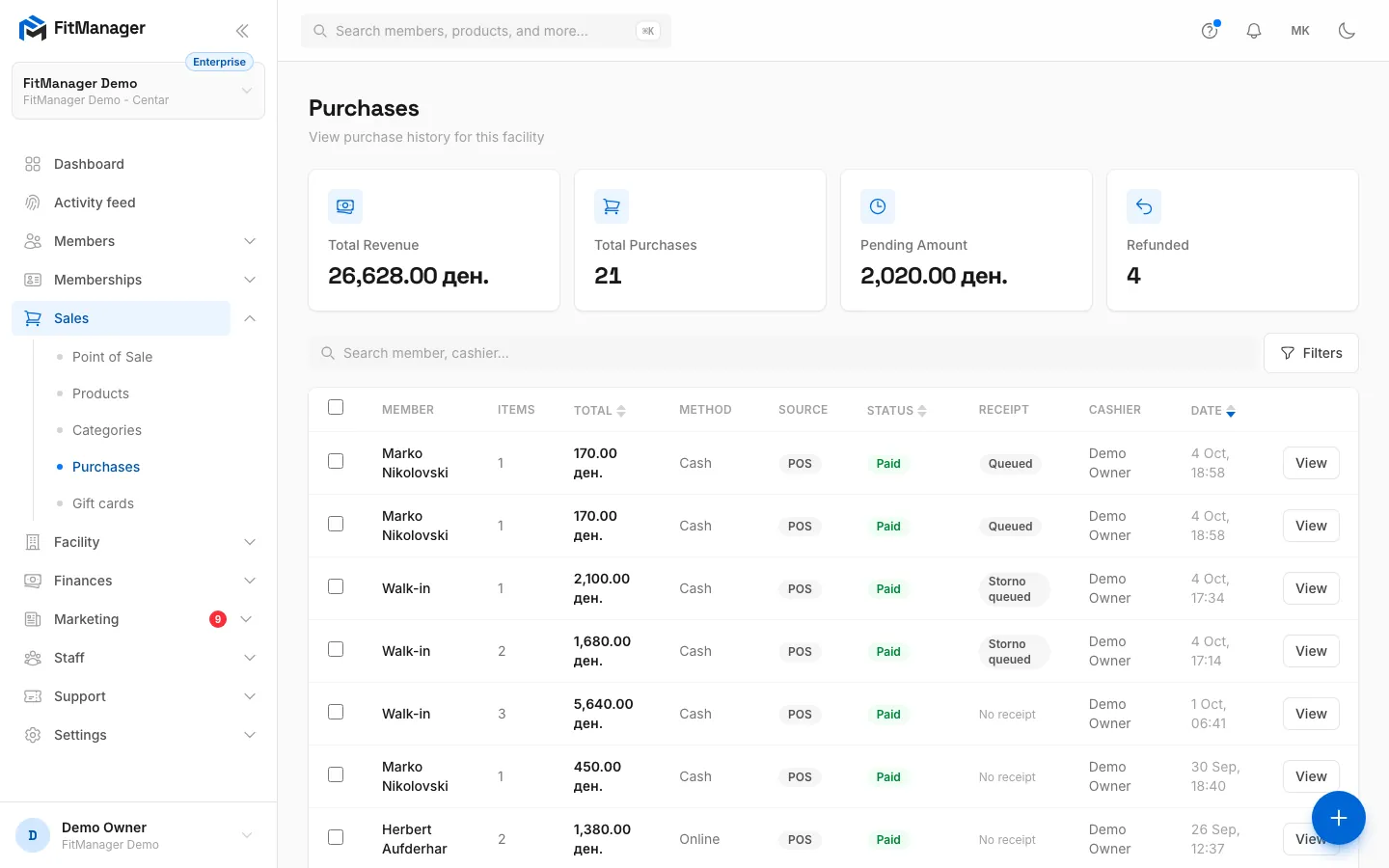
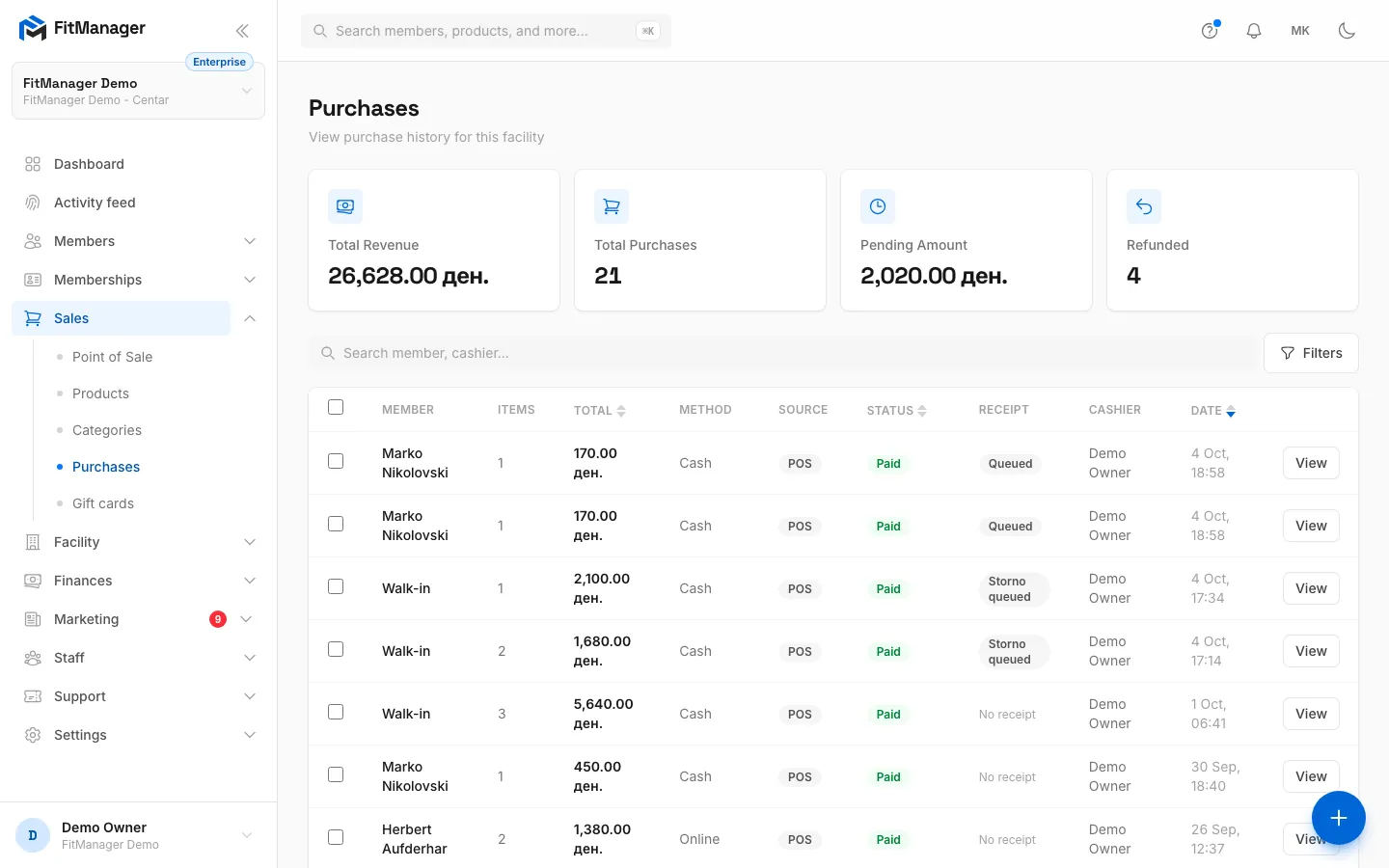
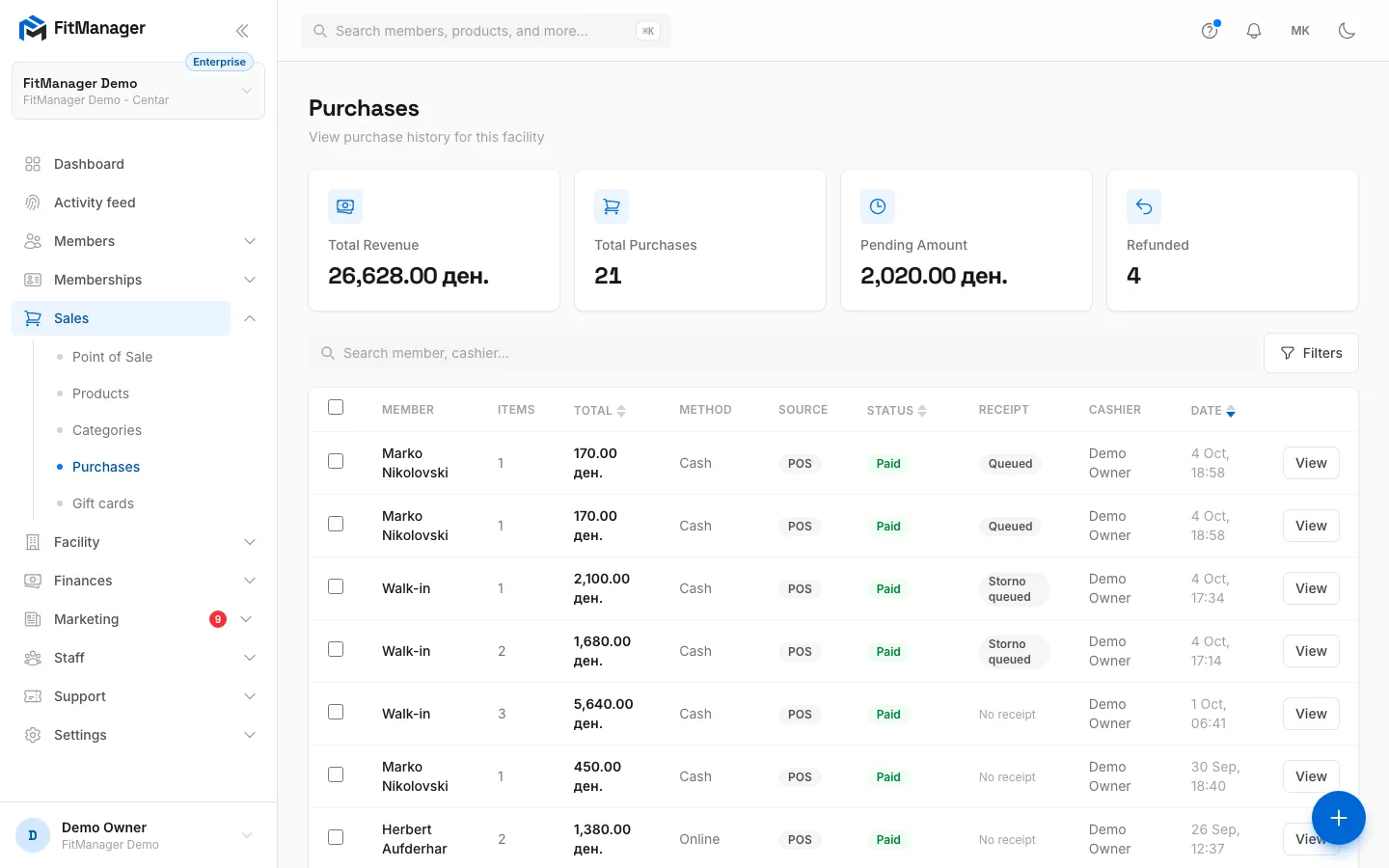
The four figures at the top are Total Revenue (paid sales), Total Purchases, Pending Amount and Refunded.
- Use the search box to find a sale by member or cashier.
- Click Filters to narrow the list by Status (Paid, Pending, Refunded), Payment method, Source, Cashier, Coupon and Purchase date range. Active filters show as chips you can remove one by one.
- Click a column heading such as Total or Date to sort by it.
Each row shows the member (or Walk-in), the number of items, the total, the method, the Source (POS, Kiosk or Imported), the status, the receipt, the cashier and the date.
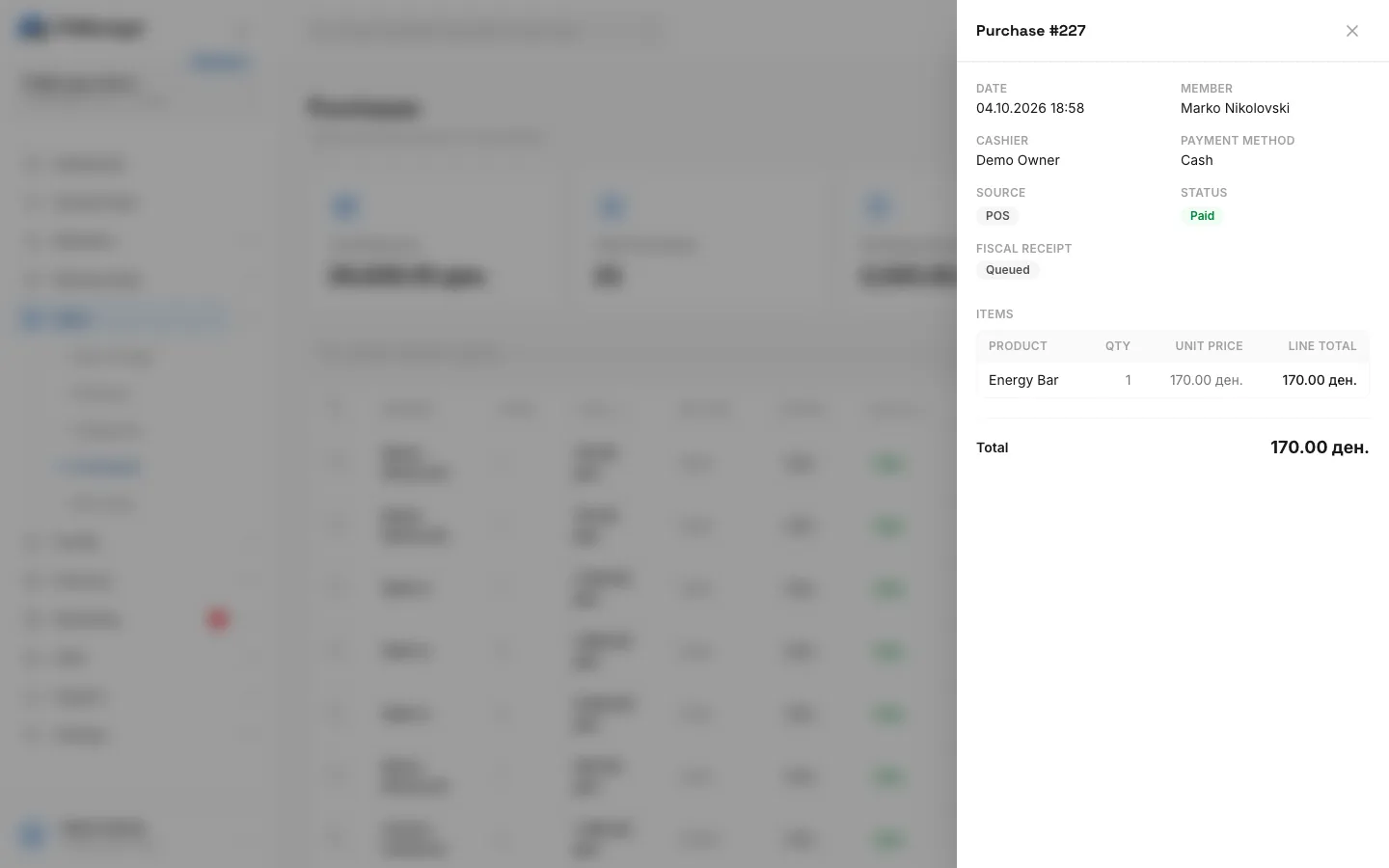
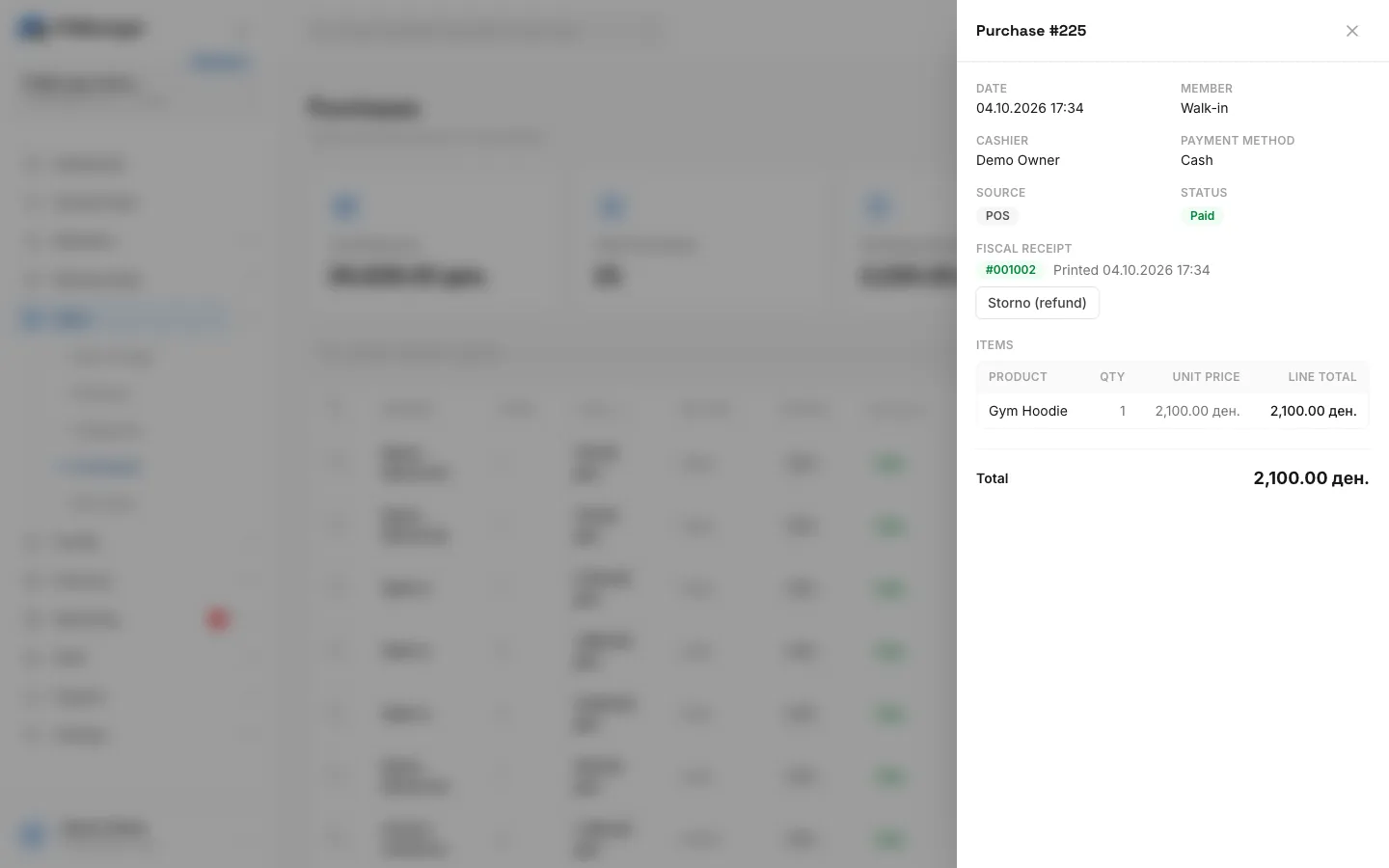
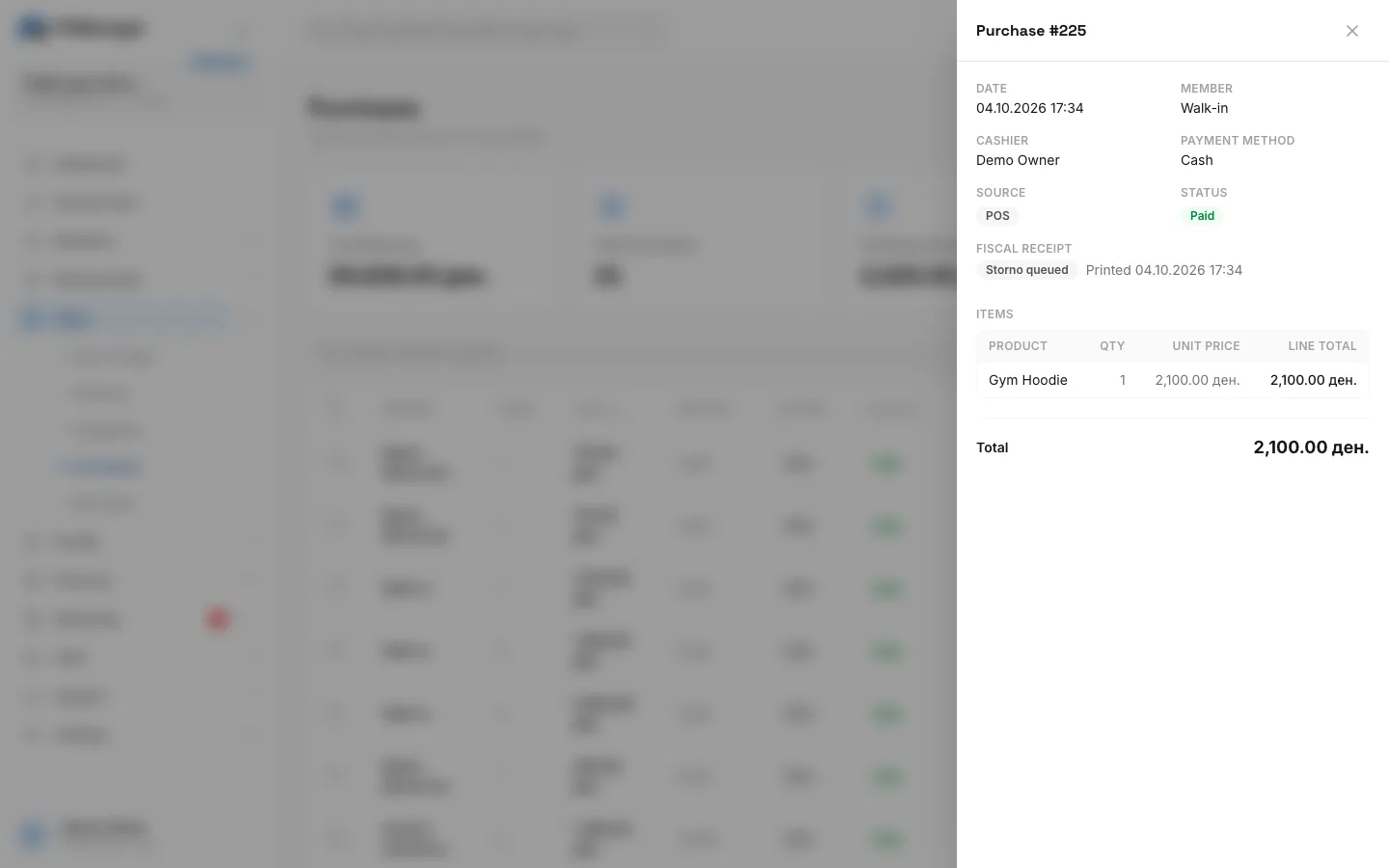
Click View to open the sale. The panel shows the date, member, cashier, payment method, source, status, the coupon if one was used, every item with quantity and price, and the total.
Sale statuses
| Status | Meaning |
|---|---|
| Paid | The money is in. This is the normal state of a POS or kiosk sale. |
| Pending | A card sale is waiting for the card terminal, or the terminal never answered. See Card terminal. |
| Refunded | A storno receipt was printed for the sale. |
Fiscal receipts
Requires: Fiscal printing
The Receipt column and the Fiscal receipt block in the sale panel show where the receipt is:
| Shown | Meaning |
|---|---|
| Queued | Waiting for FitManager Control to pick it up. |
| Printing | Control has it and is printing. |
| #0000123 | Printed, with the fiscal receipt number. |
| Failed | The printer could not print it. Hover over it, or open the sale, to read the printer's reason. |
| Storno queued / Stornoed (no. ...) | A refund receipt is on its way or printed. |
| No receipt | The sale needed none, for example a sale of zero, or it was made while fiscal receipts were off. |
Retry a failed receipt
- Fix the cause on the printer: paper, cover, cable, or a PC that was off.
- Open the sale and click Retry in the Fiscal receipt block.
The receipt goes back in the queue and prints on the next poll. FitManager Control never prints the same receipt twice, even if you click Retry more than once.
Refund a sale
Requires: Fiscal printing
A sale with a printed fiscal receipt is refunded with a storno receipt, as fiscal law requires. A printed receipt is never edited.
- Give the customer their money back at the desk.
- Open the sale under Purchases and click Storno (refund).
- Confirm Print a storno receipt for this sale and mark it refunded?
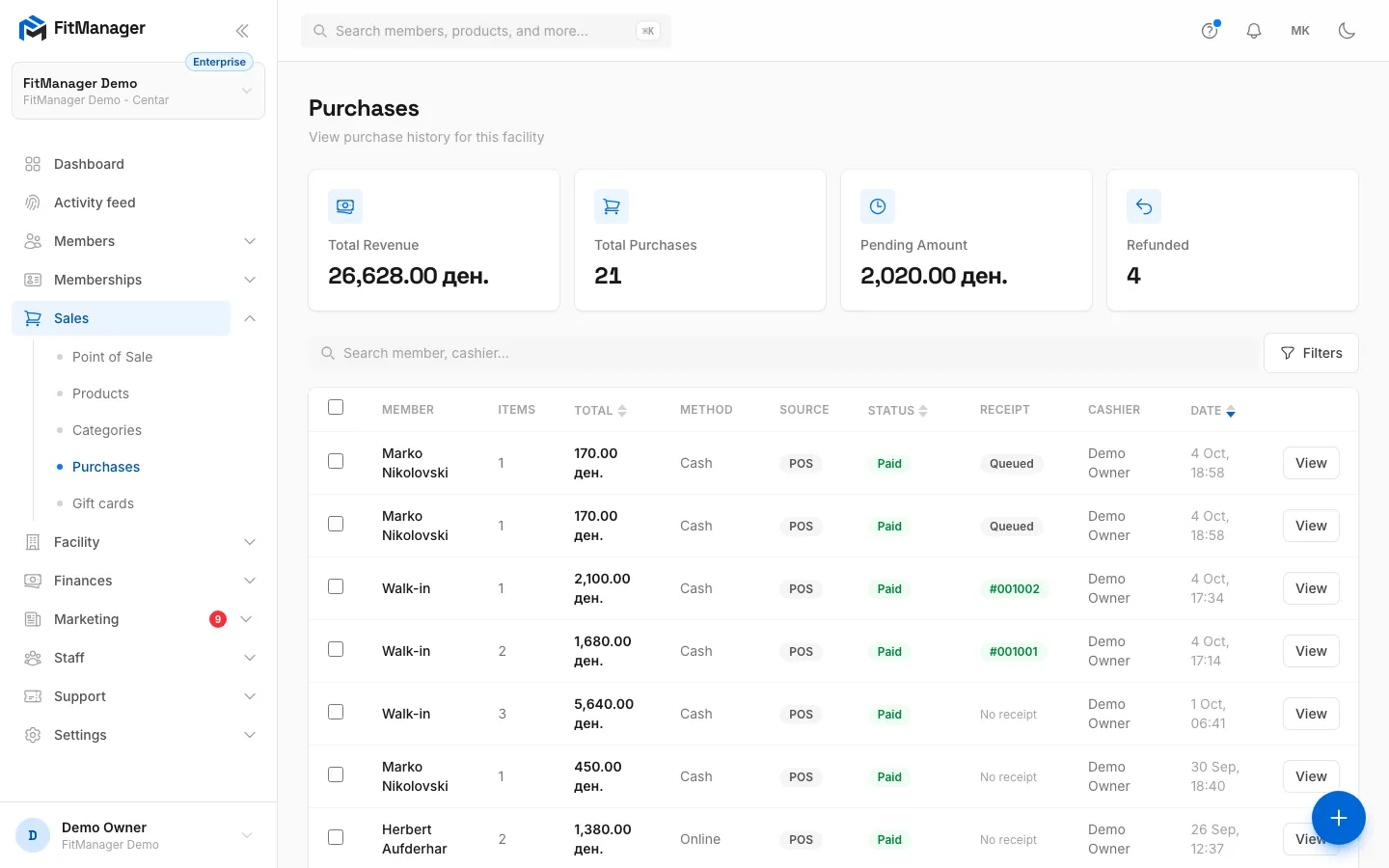
- Step 1: A sale with a printed fiscal receipt shows the receipt number in the Receipt column.
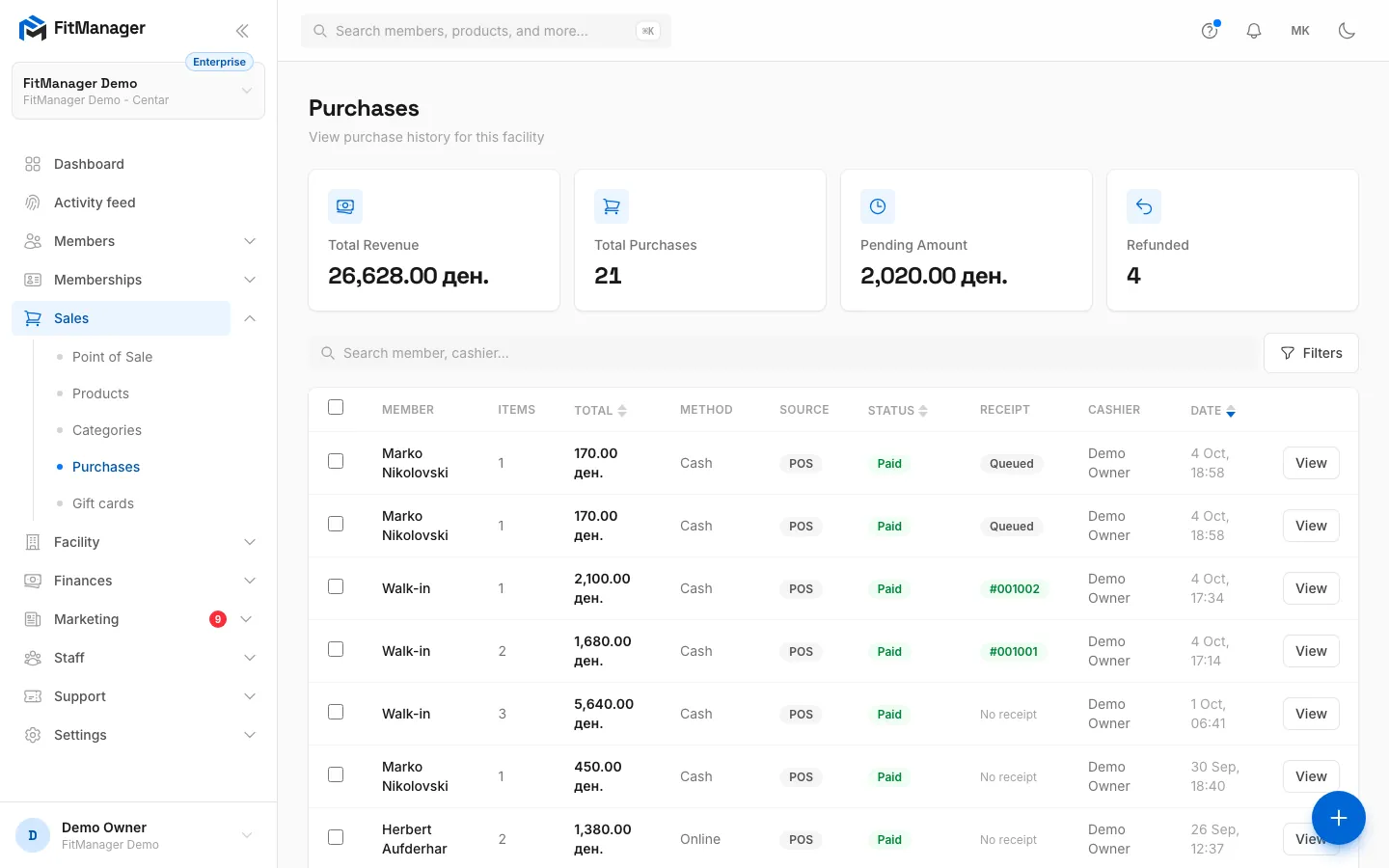
- Step 2: Click View on the sale you want to refund.
- Step 3: The Fiscal receipt section shows the printed receipt and when it was printed.
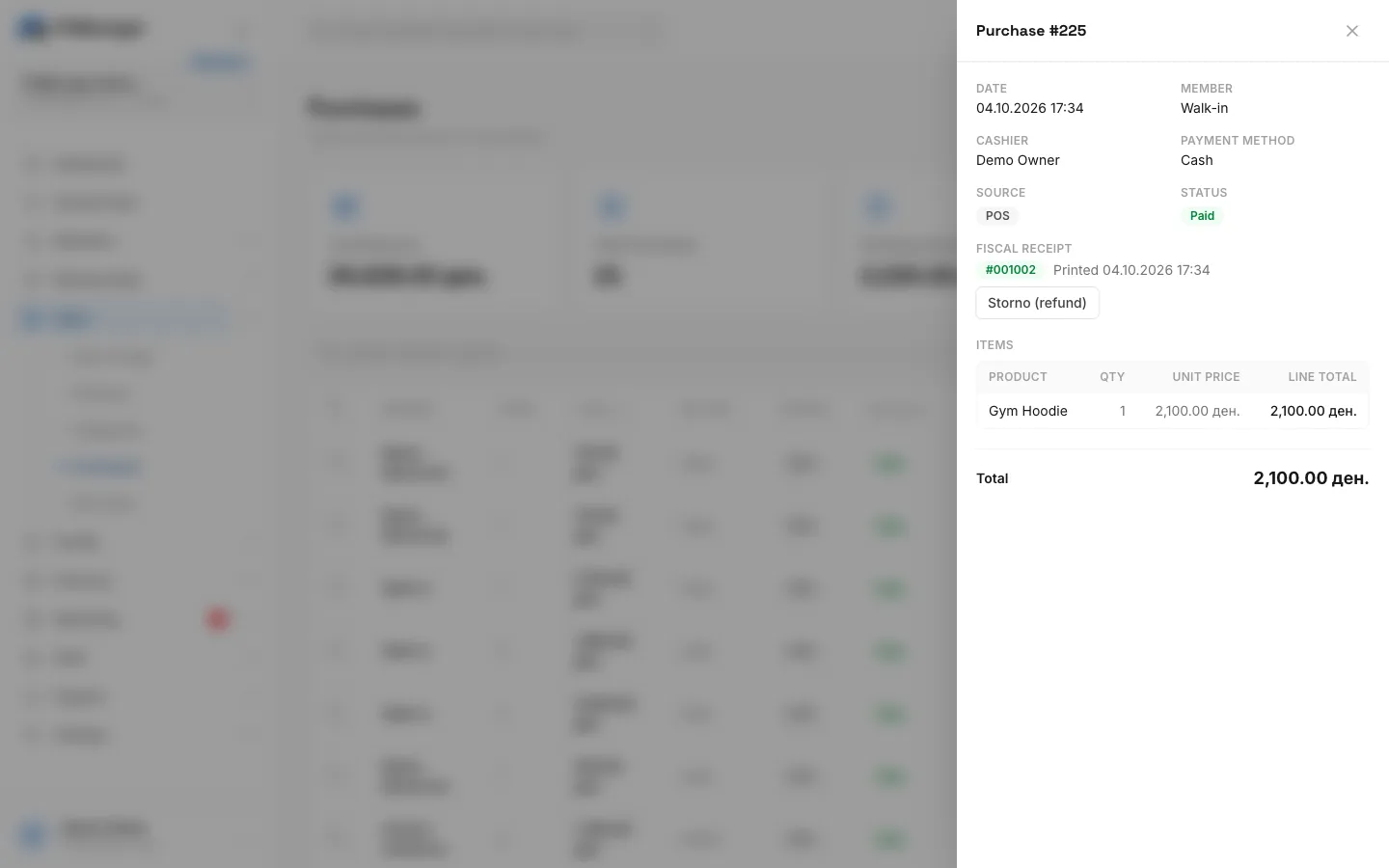
- Step 4: Click Storno (refund) and confirm. The whole sale is refunded on the printer.
- Step 5: The sale shows Storno queued until FitManager Control prints it, then it is marked Refunded.
The storno receipt prints with the same lines and refers to the original receipt number. When it has printed, the sale's status changes to Refunded and it no longer counts as revenue. You can also storno from the printer's fiscal journal.
Some things a refund does not do by itself:
- Stock is not put back. Restock the product if it went back on the shelf.
- A membership sold in the sale stays on the member's profile. Cancel or delete it there. See Assign a membership.
- A sale without a printed fiscal receipt has no refund button. If you need to correct one, contact support.
Export
Tick the sales you want, or tick the header box for the whole page, and click Export. The file includes the date, member, cashier, method, source, status and total.
Common questions
Why is a sale missing from the list?
The list shows the facility selected at the top of the dashboard. Switch facility, and clear any filters.
The Storno button is not there
Storno is only offered on a sale whose fiscal receipt was printed and has not been stornoed yet. A failed receipt has to be retried first.
A storno failed
Open the sale, read the error, fix the printer and click Retry on the storno.
Was this page helpful?
Related articles
Still stuck?
Write to us and we will get back to you within one working day.