Gift cards
Sell gift cards at the self-service kiosk, see what is left on each one, take them as payment at the kiosk or the POS, and void a card.
A gift card is a code with a balance, such as GC-7K3M-Q8P2. A customer buys it for themselves or for someone else, and the code is then used to pay at your gym until the balance runs out. Sales, Gift cards lists every card and what is left on it.
Before you start
- To see the Gift cards page you need the View purchases permission.
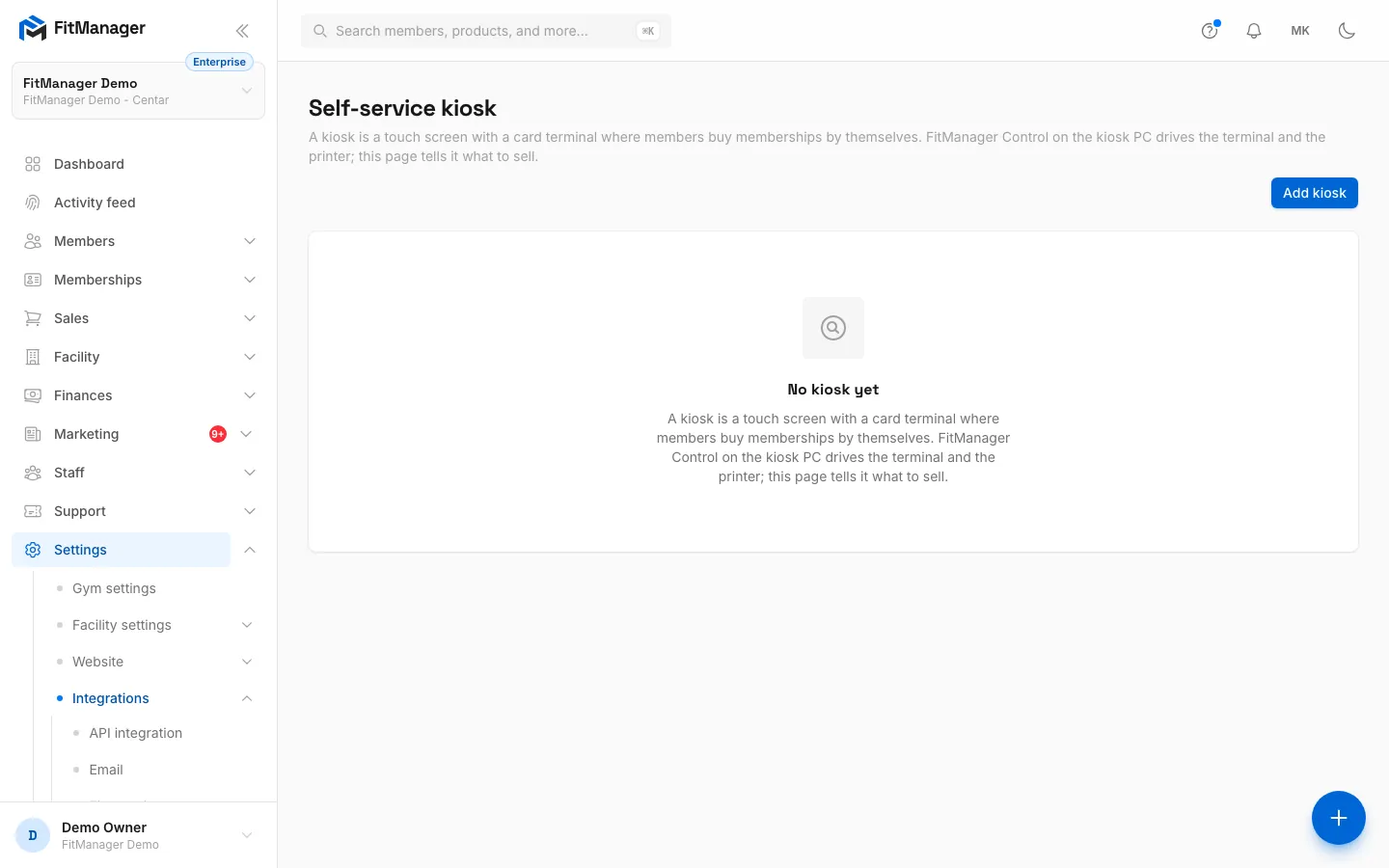
- Gift cards are sold at the self-service kiosk, so selling them needs the kiosk on your plan and a kiosk set up. See Self-service kiosk.
Start selling gift cards
Requires: Self-service kiosk
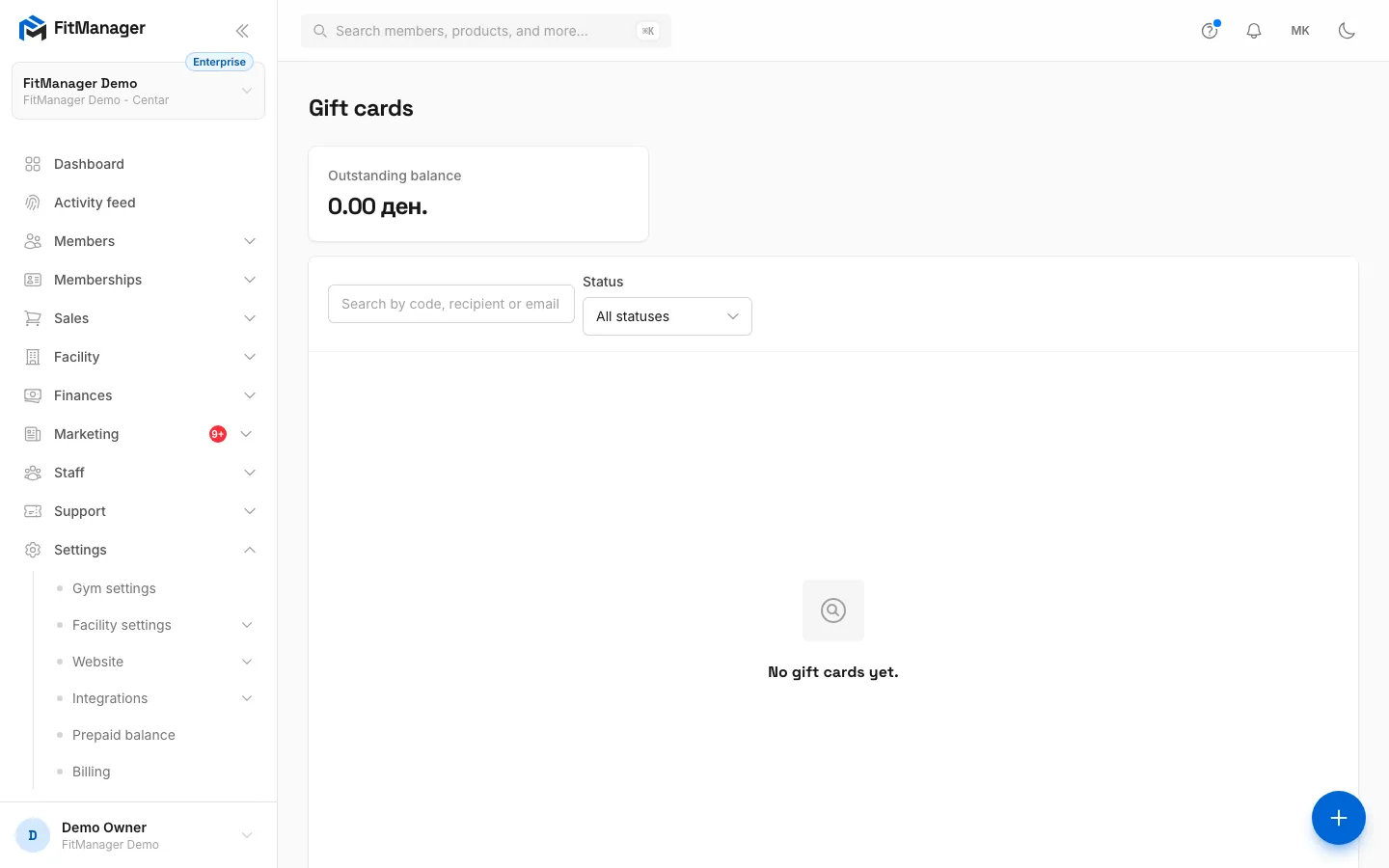
- Step 1: Sales, Gift cards lists every card sold and the balance still owed to customers.
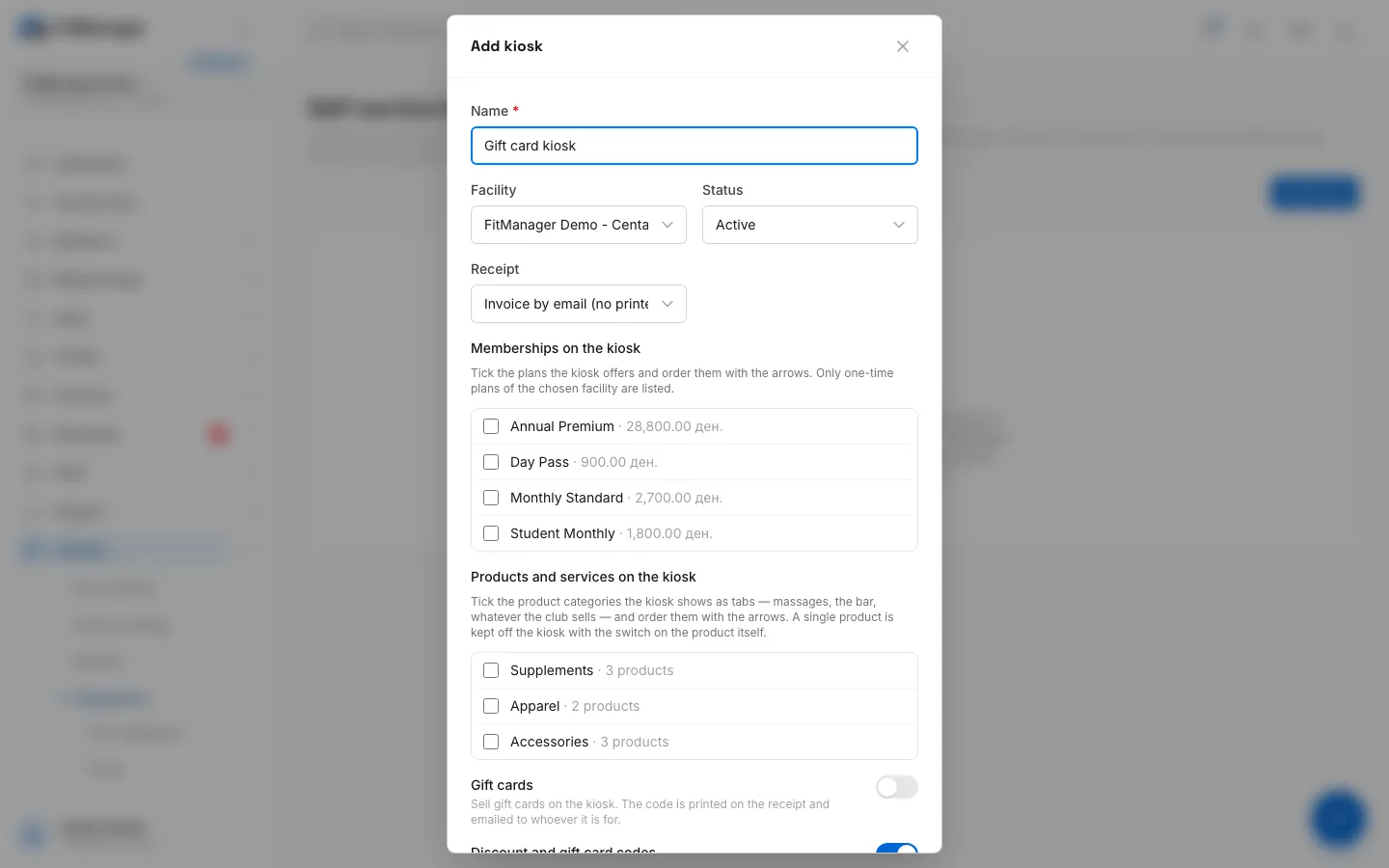
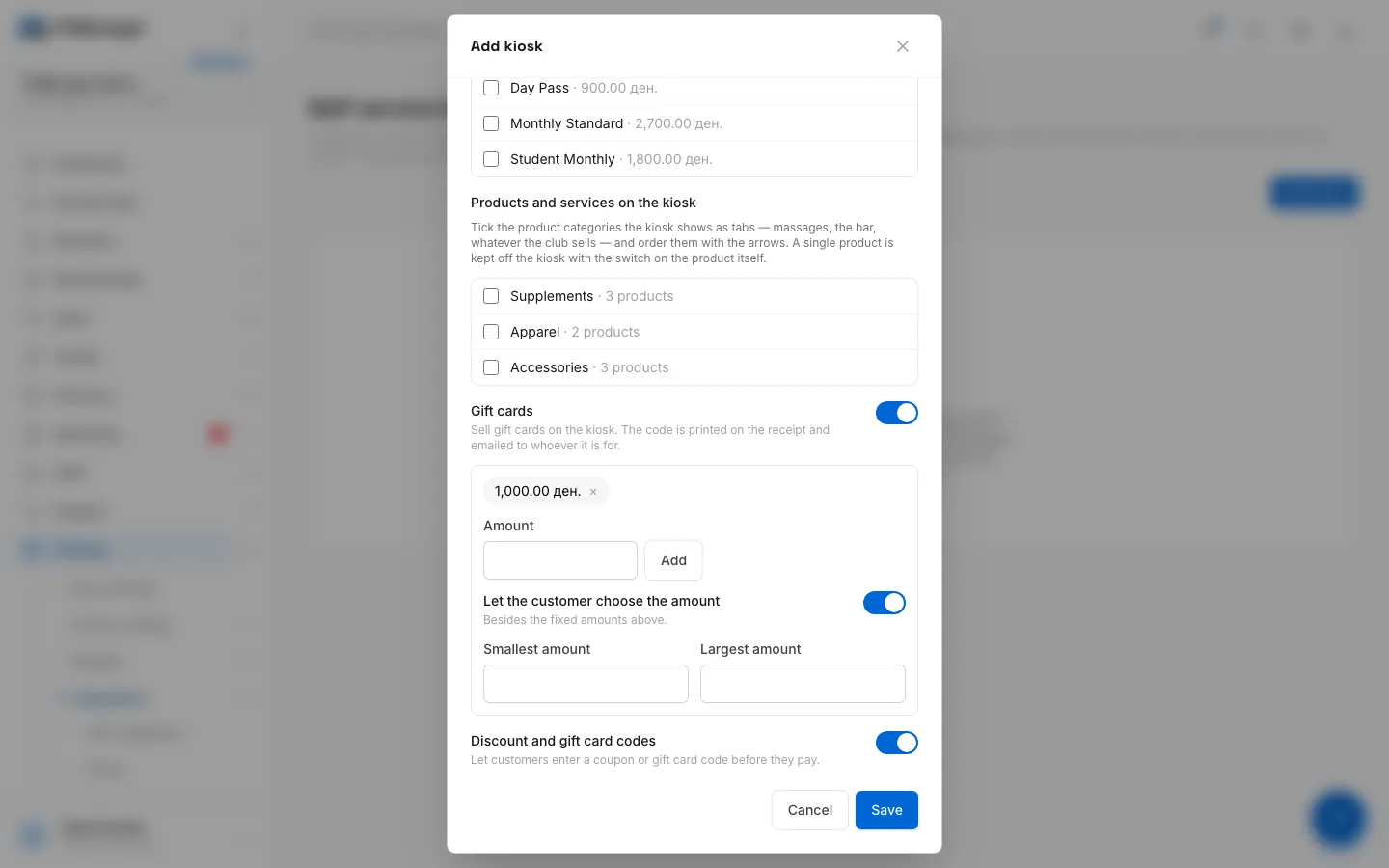
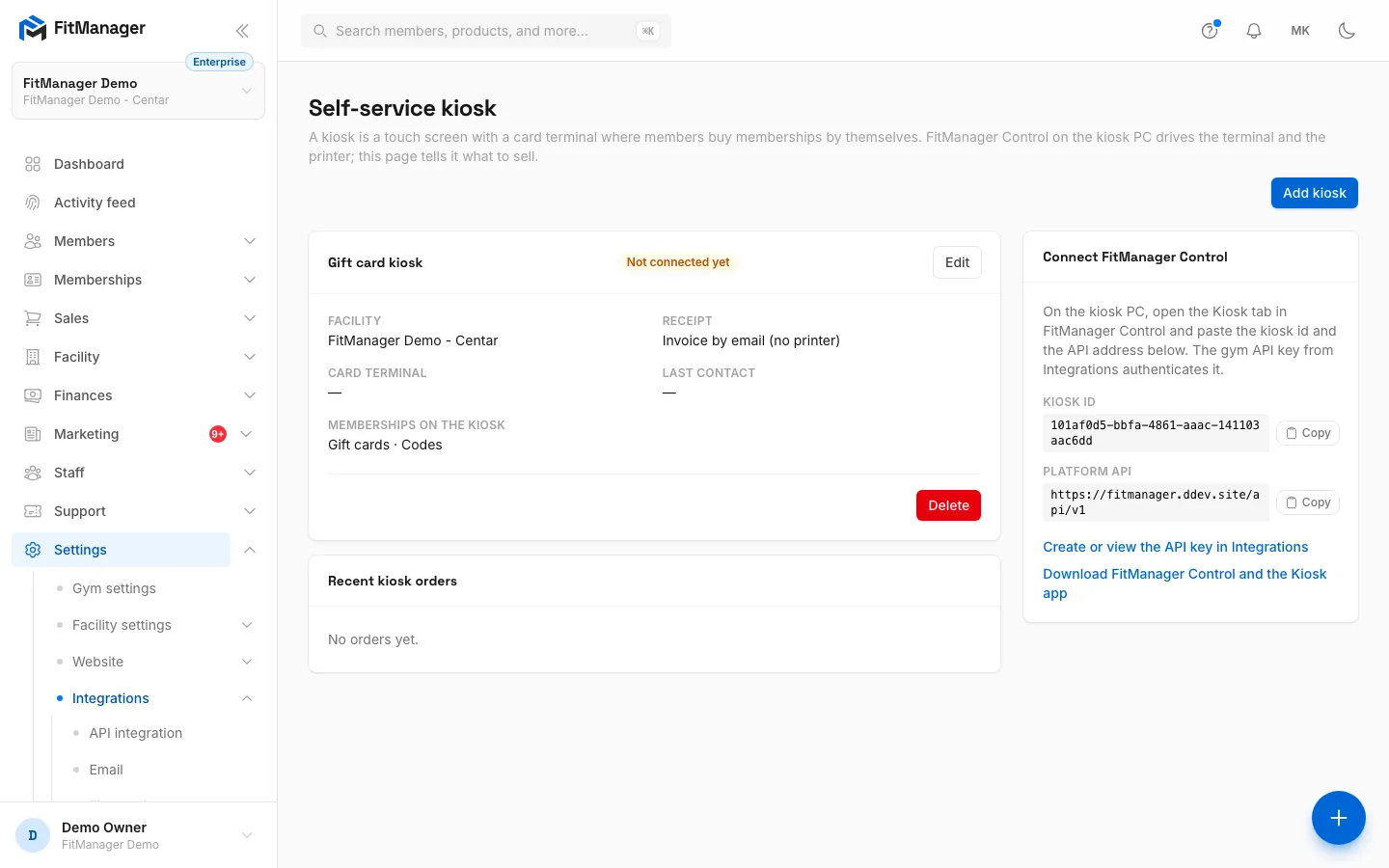
- Step 2: Gift cards are sold at the kiosk. Open Settings, Integrations, Kiosk and add or edit a kiosk.
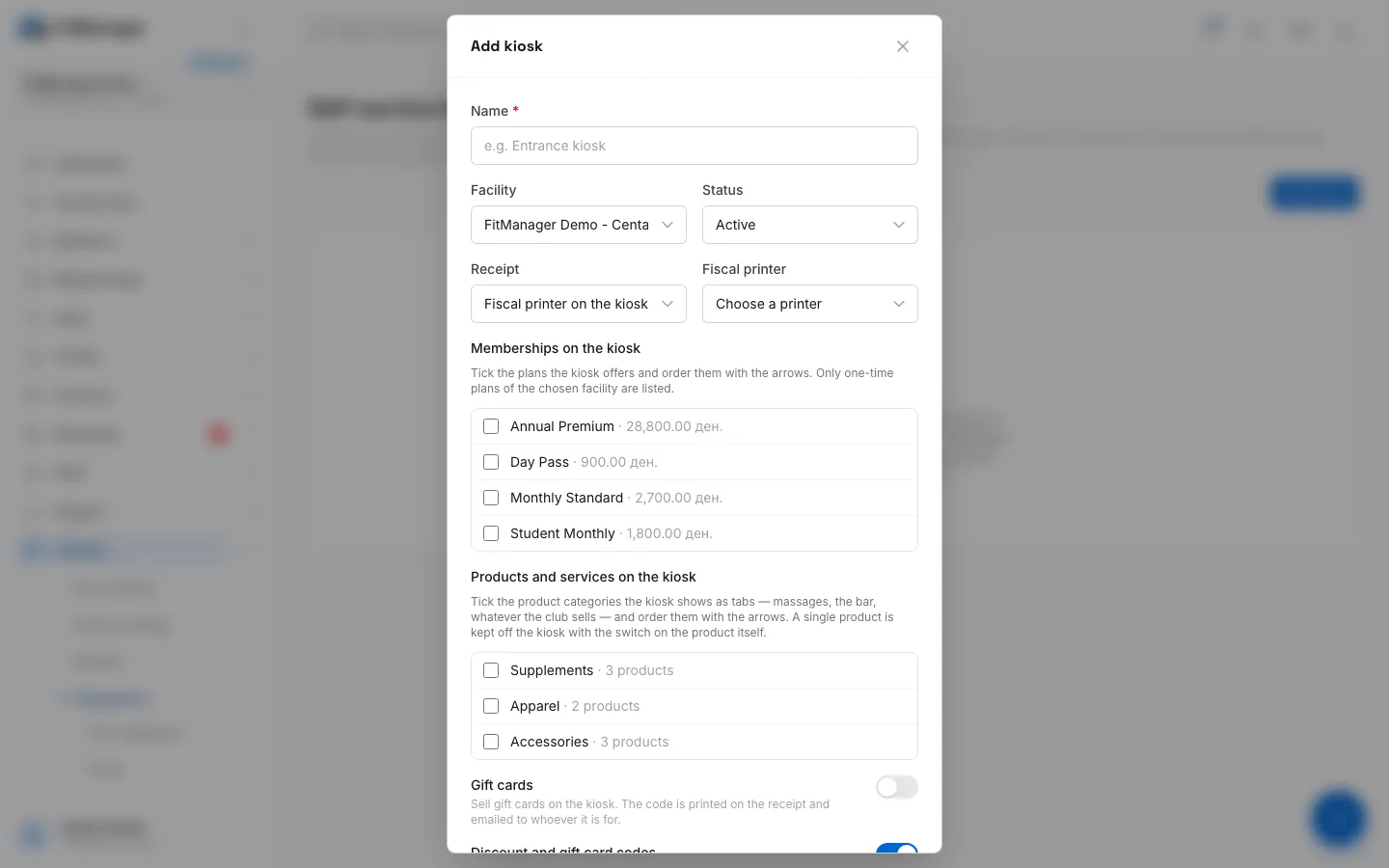
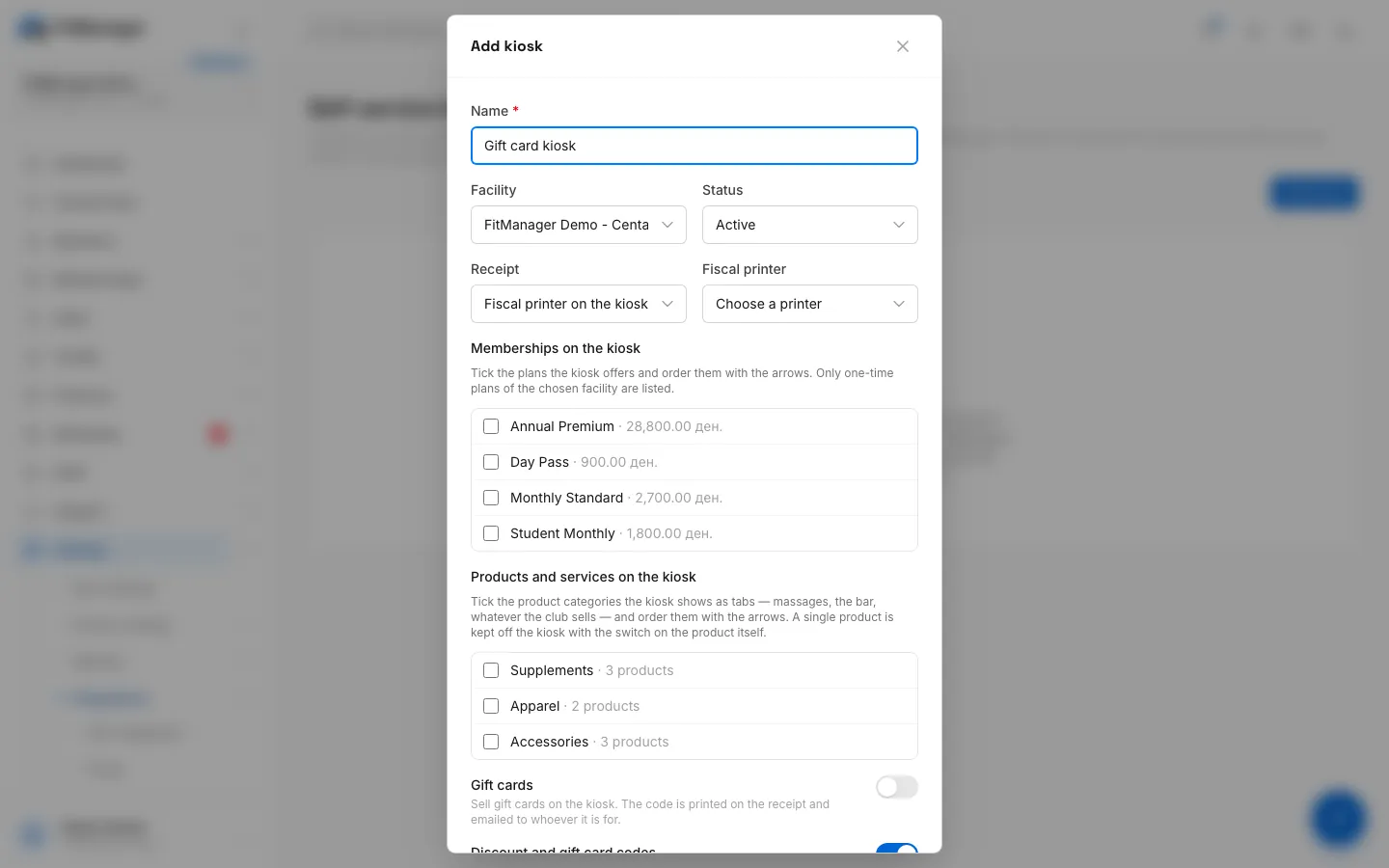
- Step 3: Give the kiosk a name.
- Step 4: Choose how the kiosk gives a receipt.
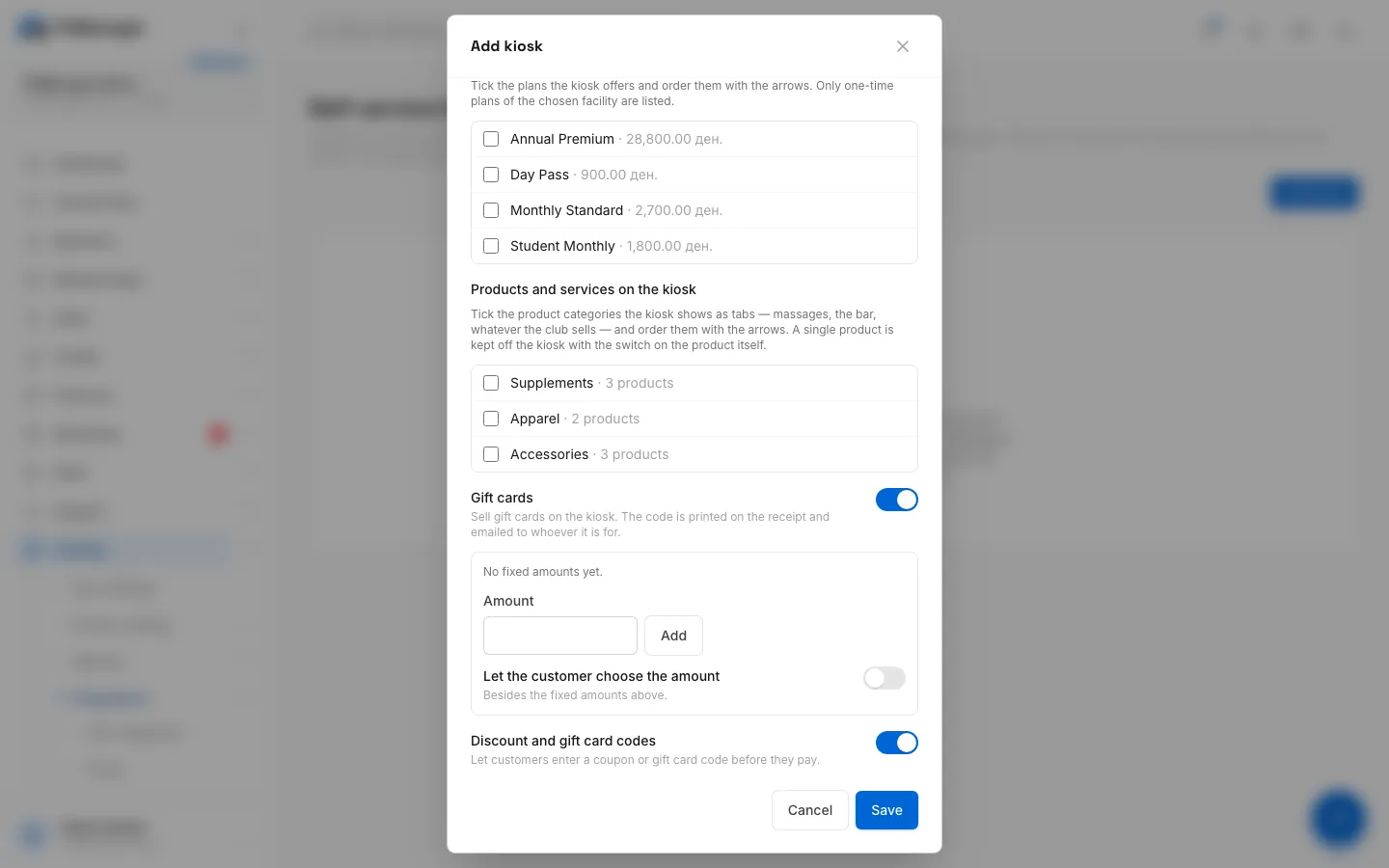
- Step 5: Switch on Gift cards.
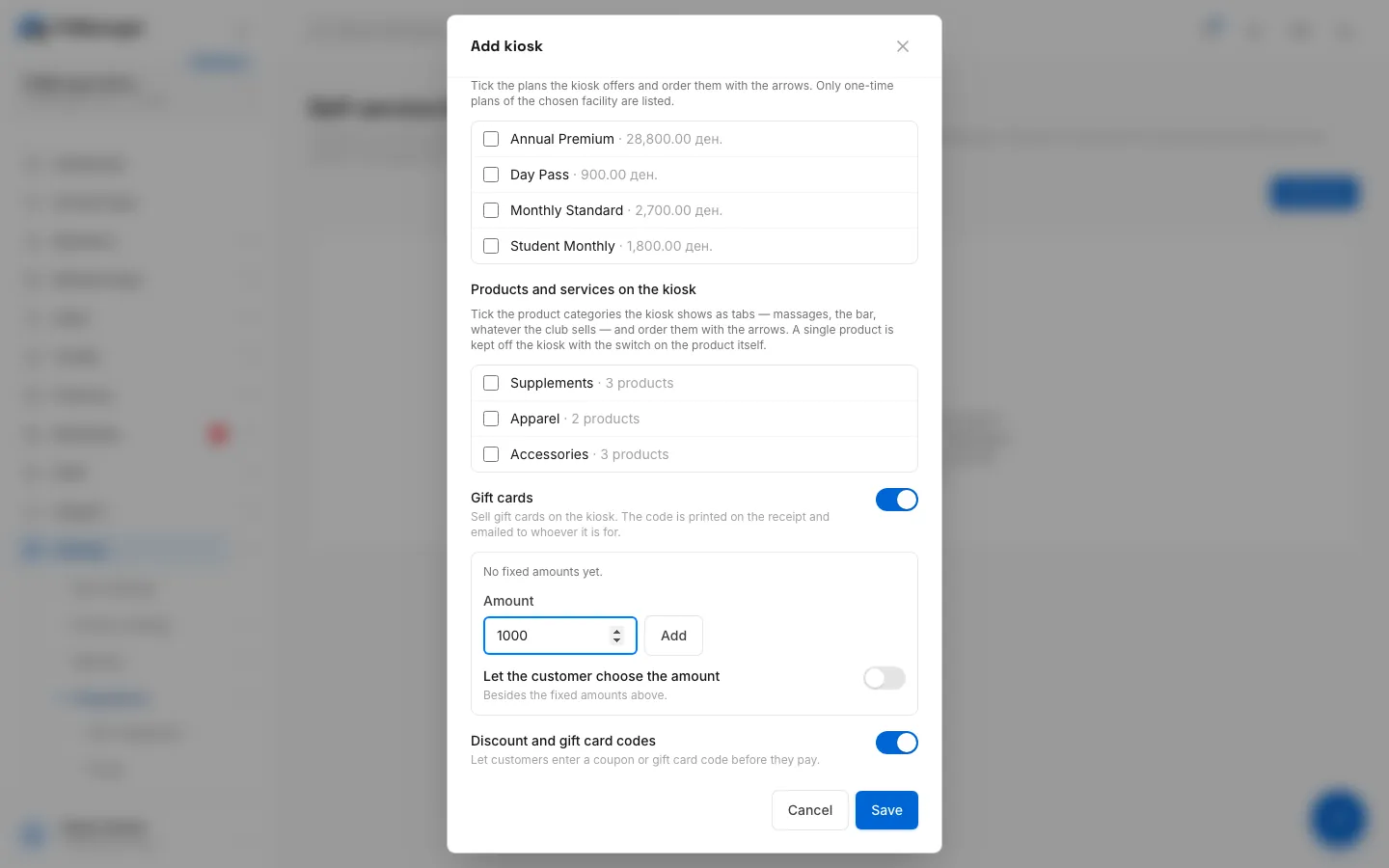
- Step 6: Type an amount the customer can pick.
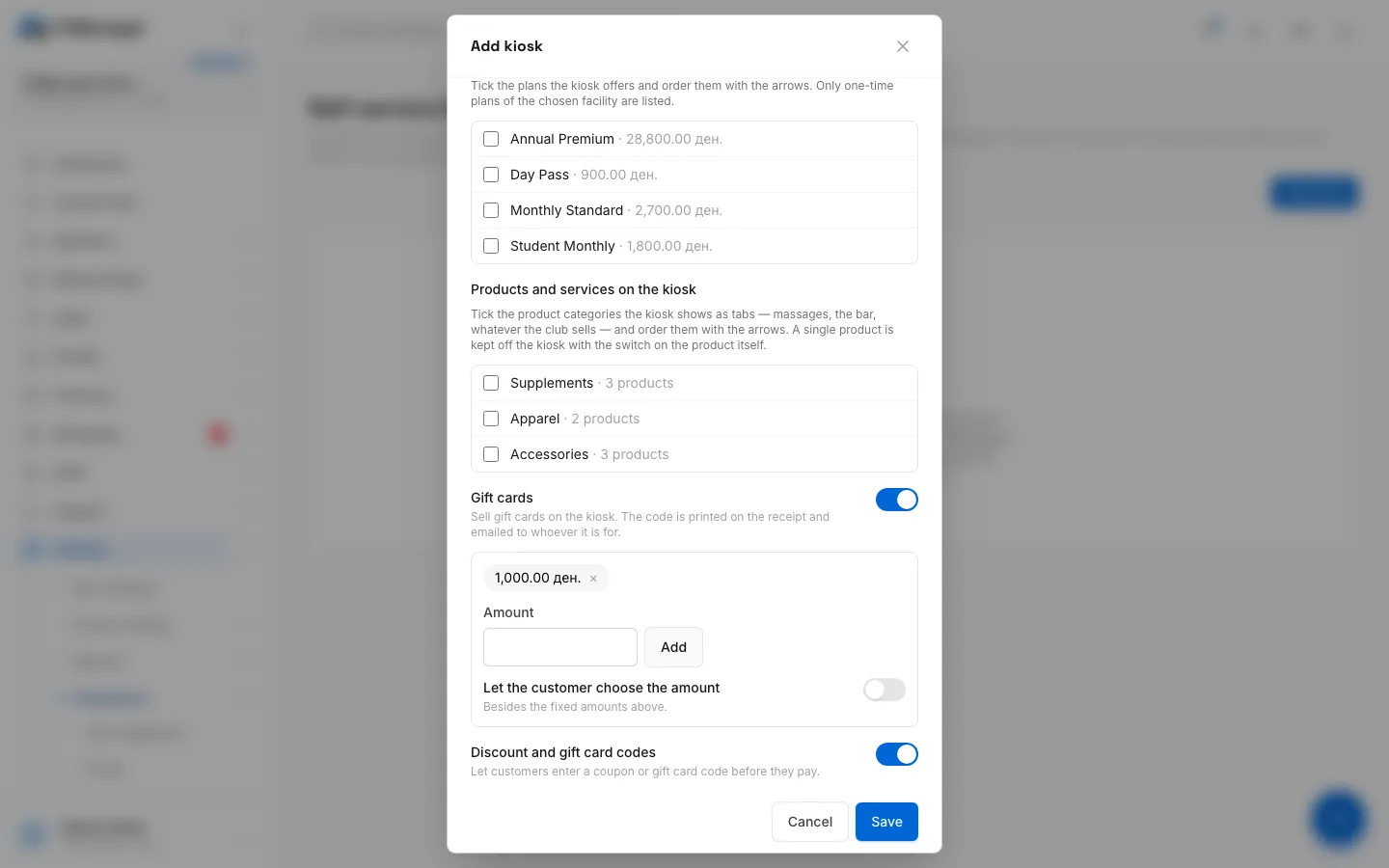
- Step 7: Click Add. Repeat for every fixed amount you want to offer.
- Step 8: Optionally, let customers type their own amount between a smallest and a largest.
- Step 9: Click Save.
- Step 10: The kiosk now sells gift cards. Each one sold shows up on the Gift cards page.
- Open Settings, Integrations, Kiosk.
- Click Edit on a kiosk, or Add kiosk for a new one.
- Switch on Gift cards.
- Type an amount in Amount and click Add. Repeat for every fixed amount you want to offer, for example 1,000, 2,000 and 3,000.
- To let customers type their own amount, switch on Let the customer choose the amount and set the Smallest amount and Largest amount.
- Click Save. The kiosk card now lists Gift cards under what it sells.
The kiosk picks up the change within a minute.
What the customer gets
When the customer pays for a gift card at the kiosk:
- The card becomes Active as soon as the payment is approved.
- The code is printed on the kiosk receipt and shown on the screen.
- The card is emailed to the recipient, or to the buyer if no recipient email was given, with the amount, the code and the expiry date. The email is sent from your gym's mail settings.
- The card is valid for 12 months from the day it was bought.
A card that is reserved while the customer is still paying shows as Not paid yet. If the payment fails, that card is voided automatically.
Taking a gift card as payment
Customers can pay with a gift card at the kiosk, if the kiosk accepts codes, and at reception:
- On the Point of Sale, add the items to the cart.
- Type the gift card code in Coupon code. Dashes and lower case do not matter.
- Click Apply. The card covers as much of the total as its balance allows.
- Take the rest in cash or by card and click Checkout.
The amount used is taken off the card's balance when the sale completes. When the balance reaches zero the card shows Used up.
Good to know:
- One code per sale: either a coupon or a gift card.
- A gift card cannot pay for another gift card.
- A gift card works only at the facility that sold it.
The Gift cards page
Outstanding balance at the top is the total still on active cards, money customers have paid that they have not used yet.
The list shows each card's Code, Amount, Balance, Status, Recipient, Issued date with the expiry, and where it was Sold at. Search by code, recipient or email, or filter by status.
| Status | Meaning |
|---|---|
| Not paid yet | Reserved for a kiosk sale that is still being paid. |
| Active | Paid, with a balance left. |
| Used up | The balance is zero. |
| Void | Cancelled by staff, or the sale that created it failed. |
| Expired | Past its expiry date. |
Void a gift card
Click Void on an active card and confirm. The code stops working immediately. Use it, for example, when a code was shared by mistake. Voiding does not refund money: give the money back at the desk if needed.
Common questions
The customer says the code does not work
Search for the code on the Gift cards page. If it is Used up, Void or Expired, the POS answers That gift card has no balance left. If it does not appear at all, it may belong to another facility.
Can I sell a gift card at the reception POS?
Not at the moment. Gift cards are sold at the kiosk and can be redeemed at both.
How is VAT handled?
The gift card sale is fiscalised when it is sold, under VAT group A by default. Using the card later counts as a discount on that sale. Ask FitManager support if your accountant prefers a different setup.
Was this page helpful?
Related articles
Still stuck?
Write to us and we will get back to you within one working day.