Coupons and discount codes
Create percentage or fixed-amount discount codes with limits and an expiry date, and redeem them at the POS and the kiosk.
A coupon is a code, such as SUMMER20, that takes a percentage or a fixed amount off a sale. Use them for opening offers, newsletter campaigns or a partner company's staff. You create them under Marketing, Coupons.
Before you start
- Coupons need the Coupons feature on your plan and the Manage coupons permission. Owners have it.
- Coupons belong to one facility and only work there.
Create a coupon
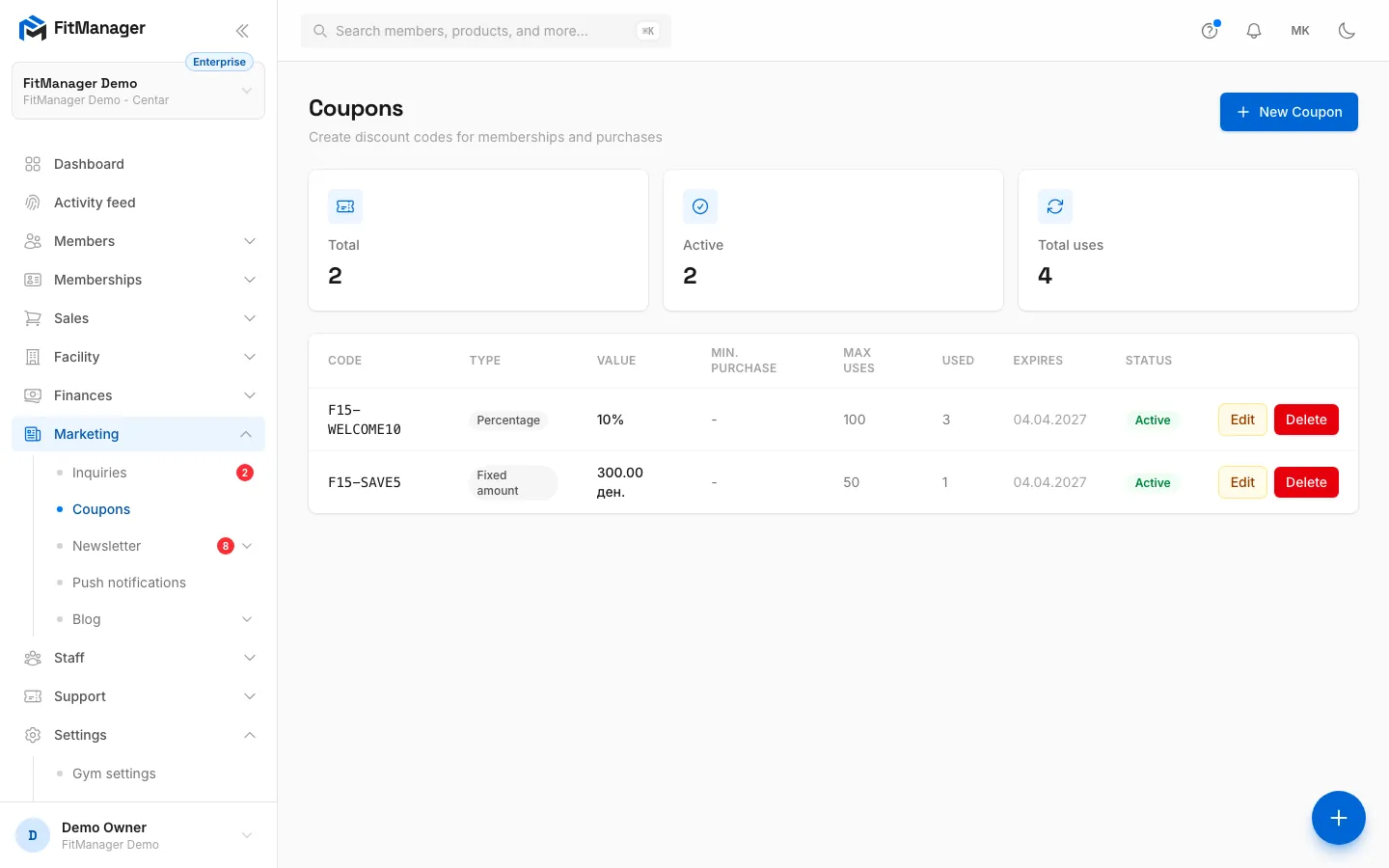
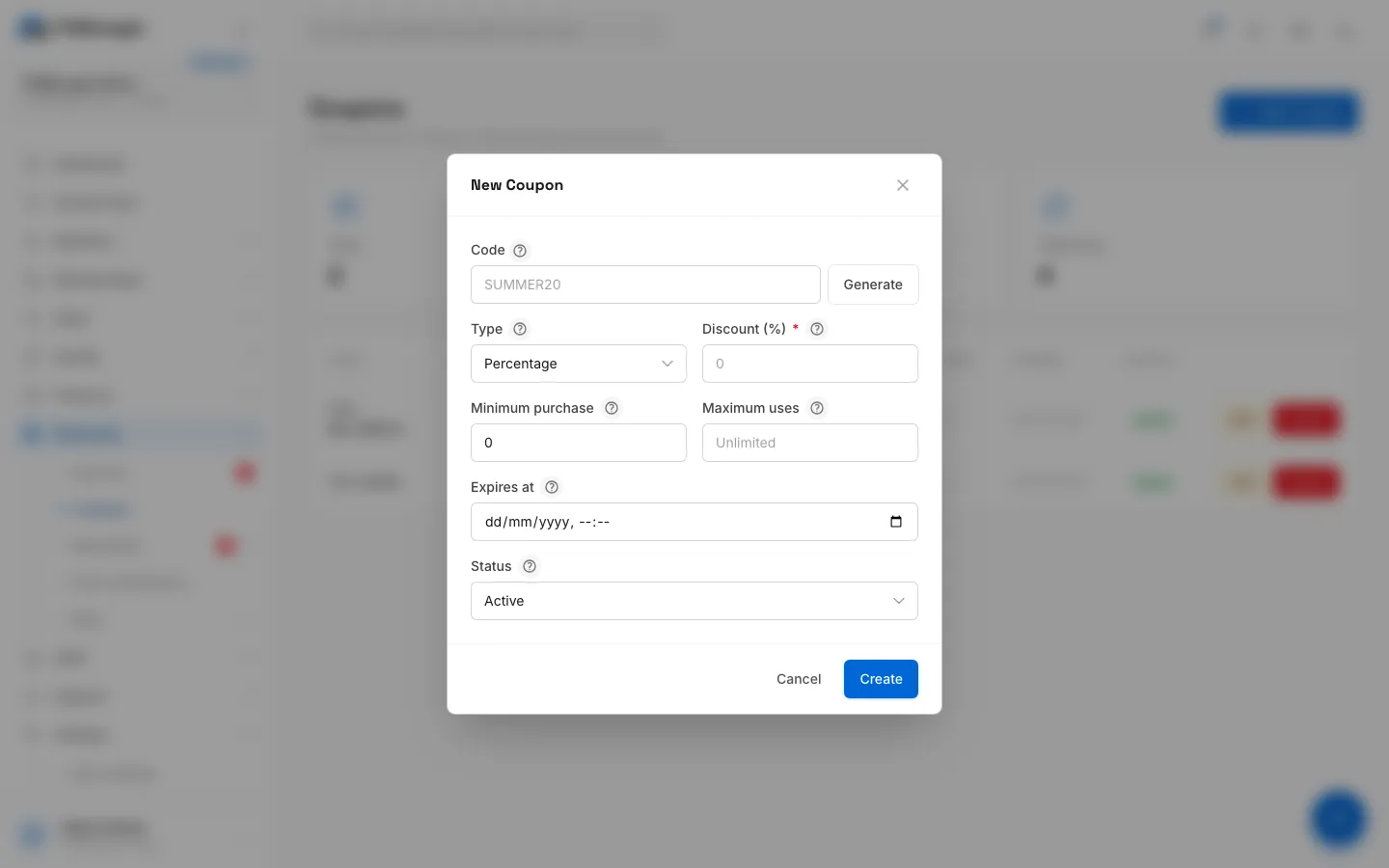
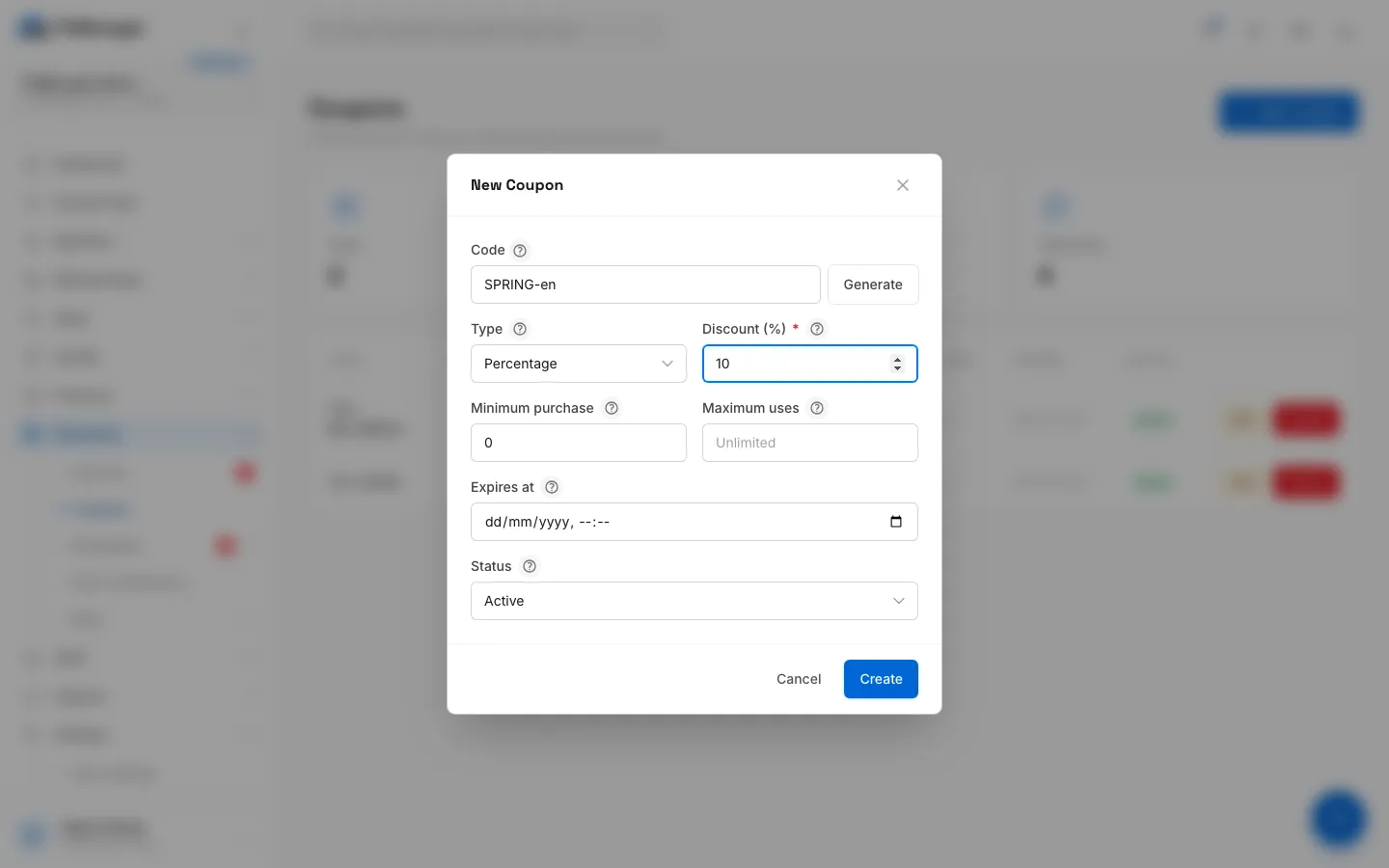
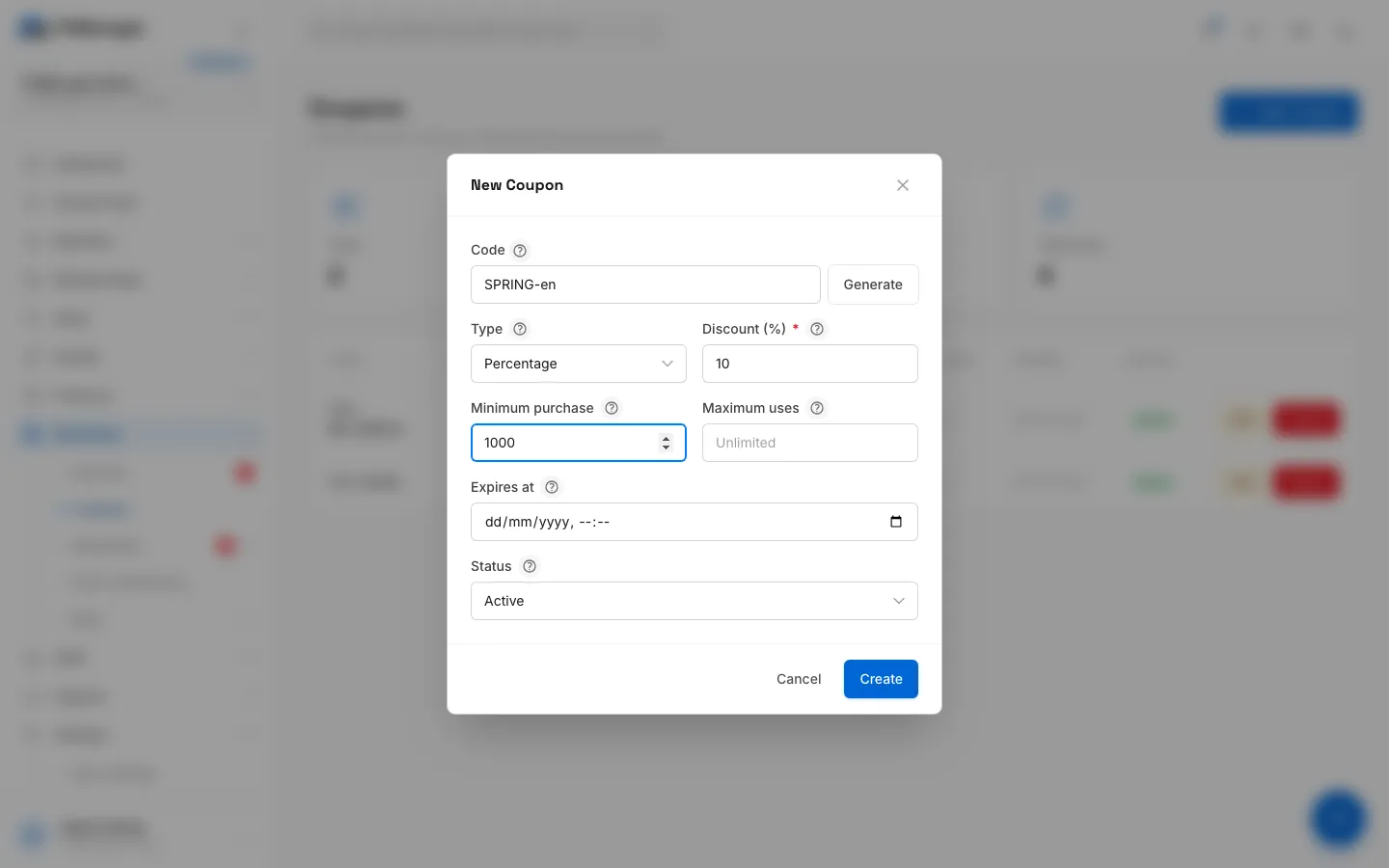
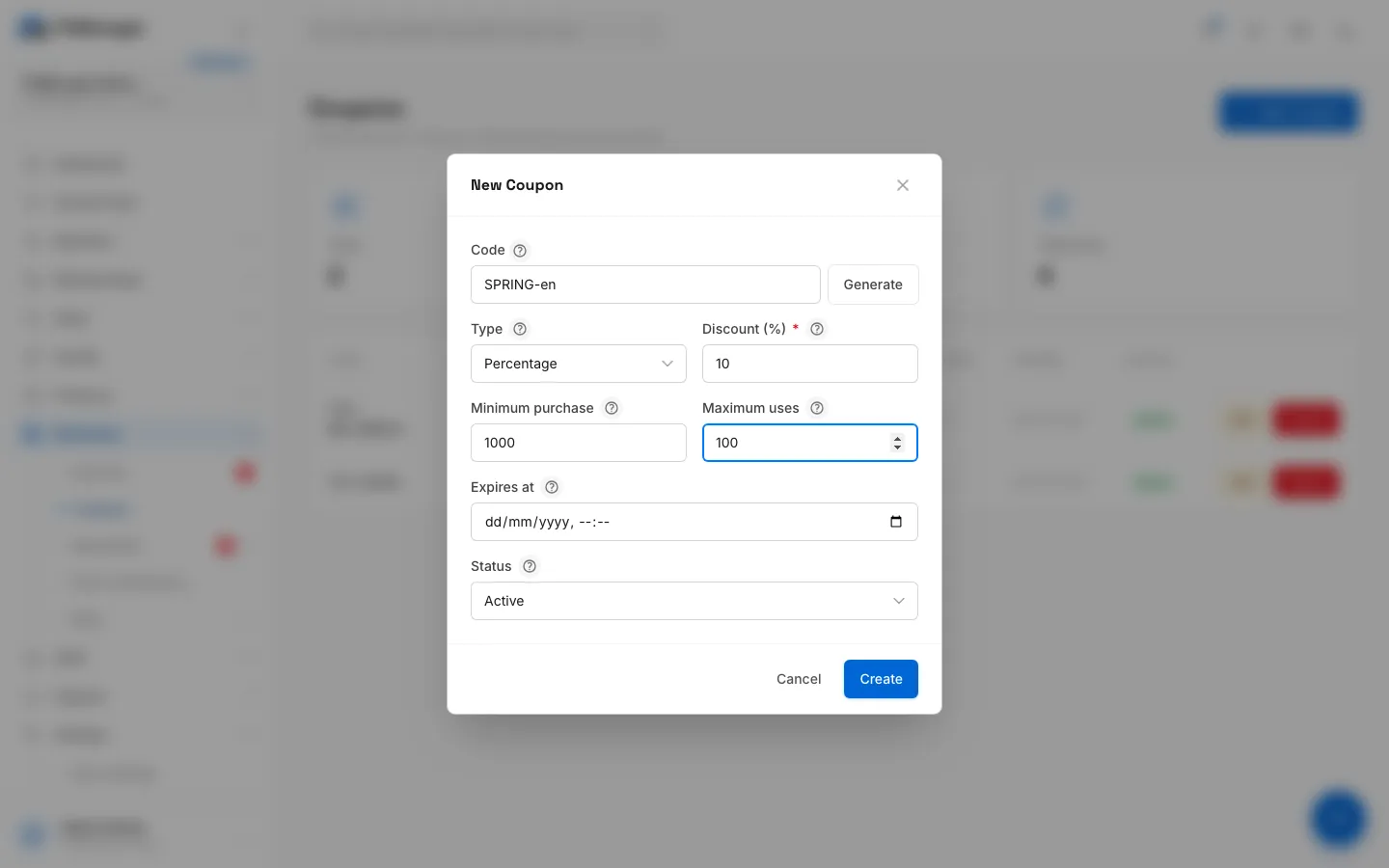
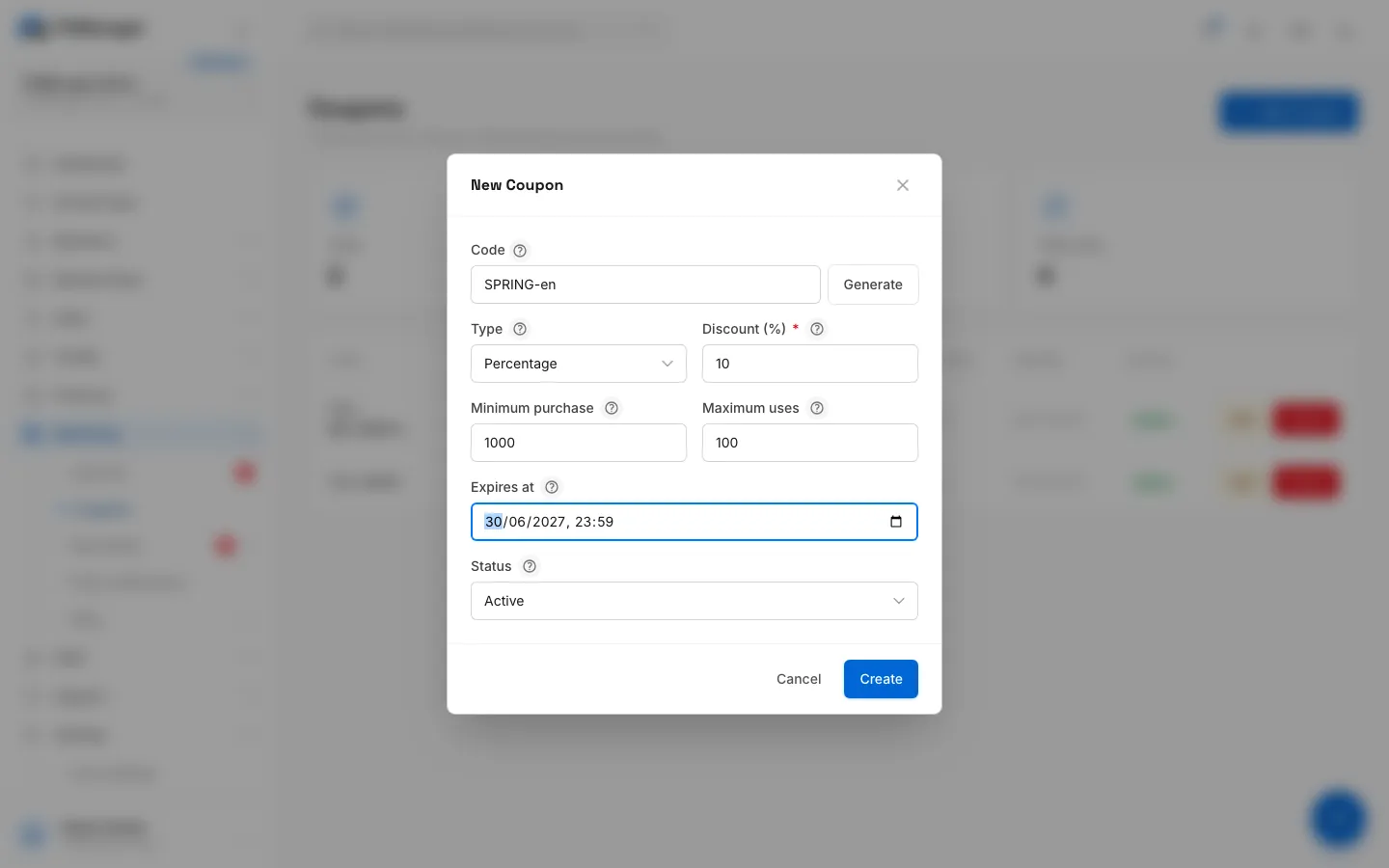
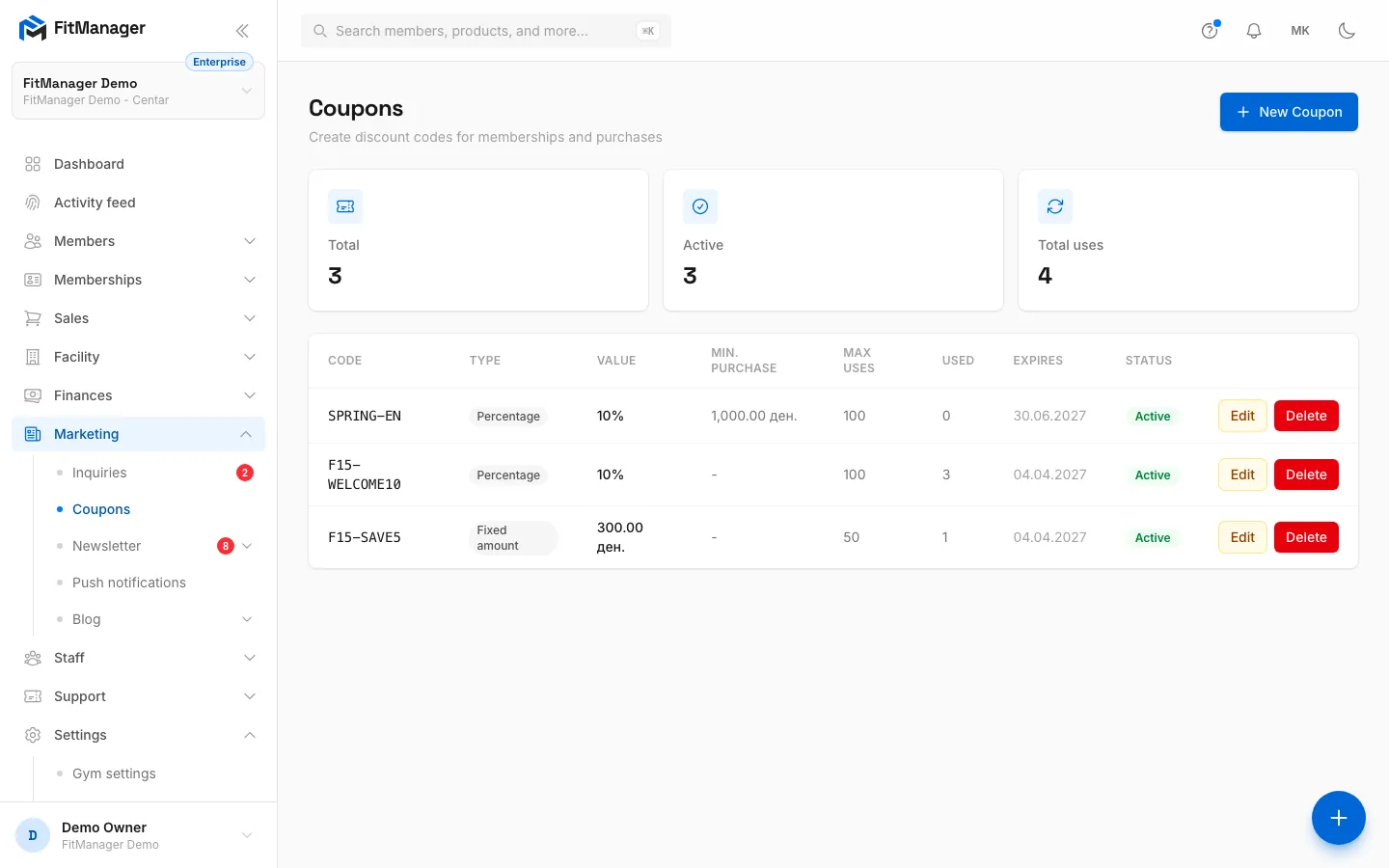
- Step 1: Under Marketing, Coupons, click New Coupon.
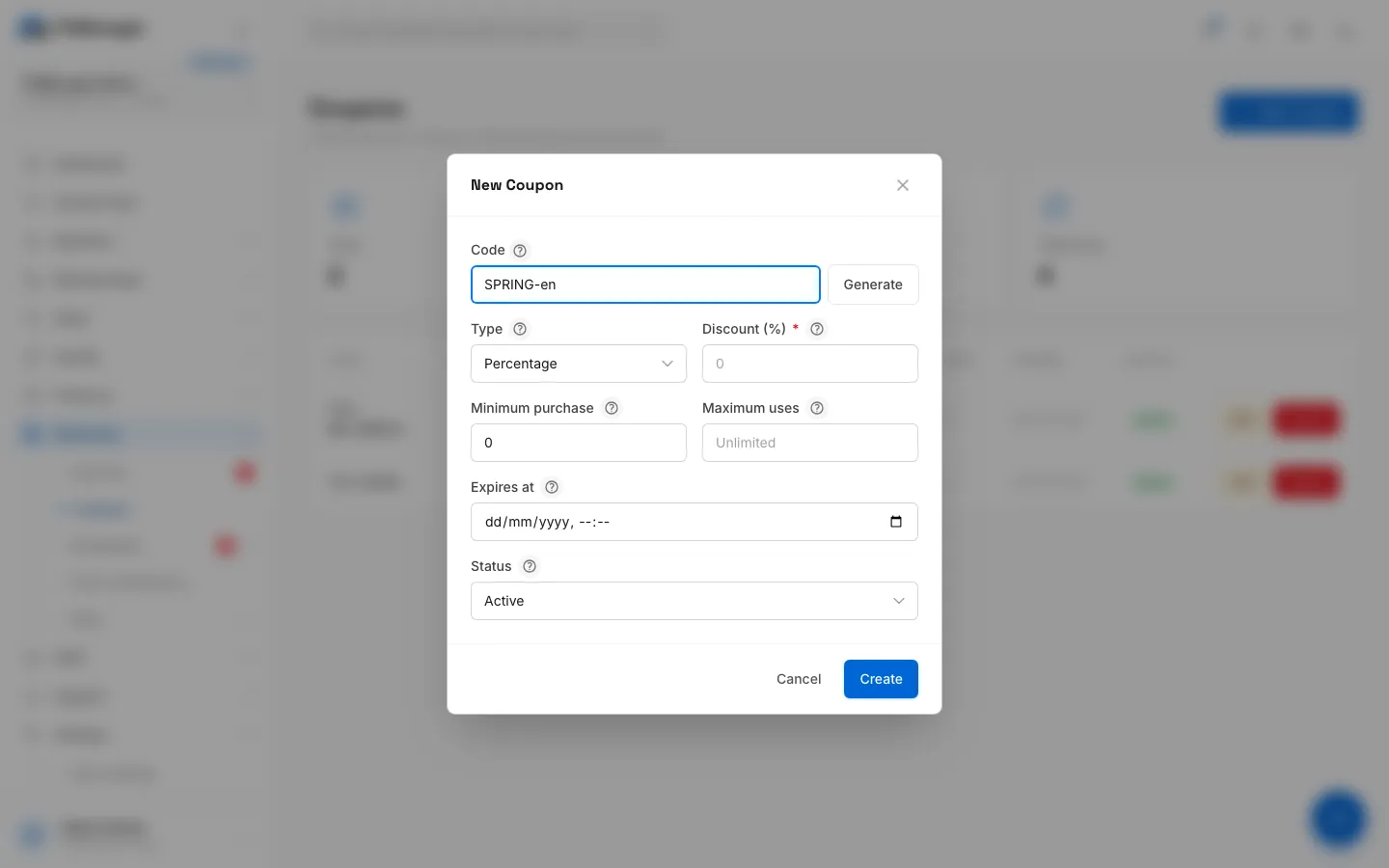
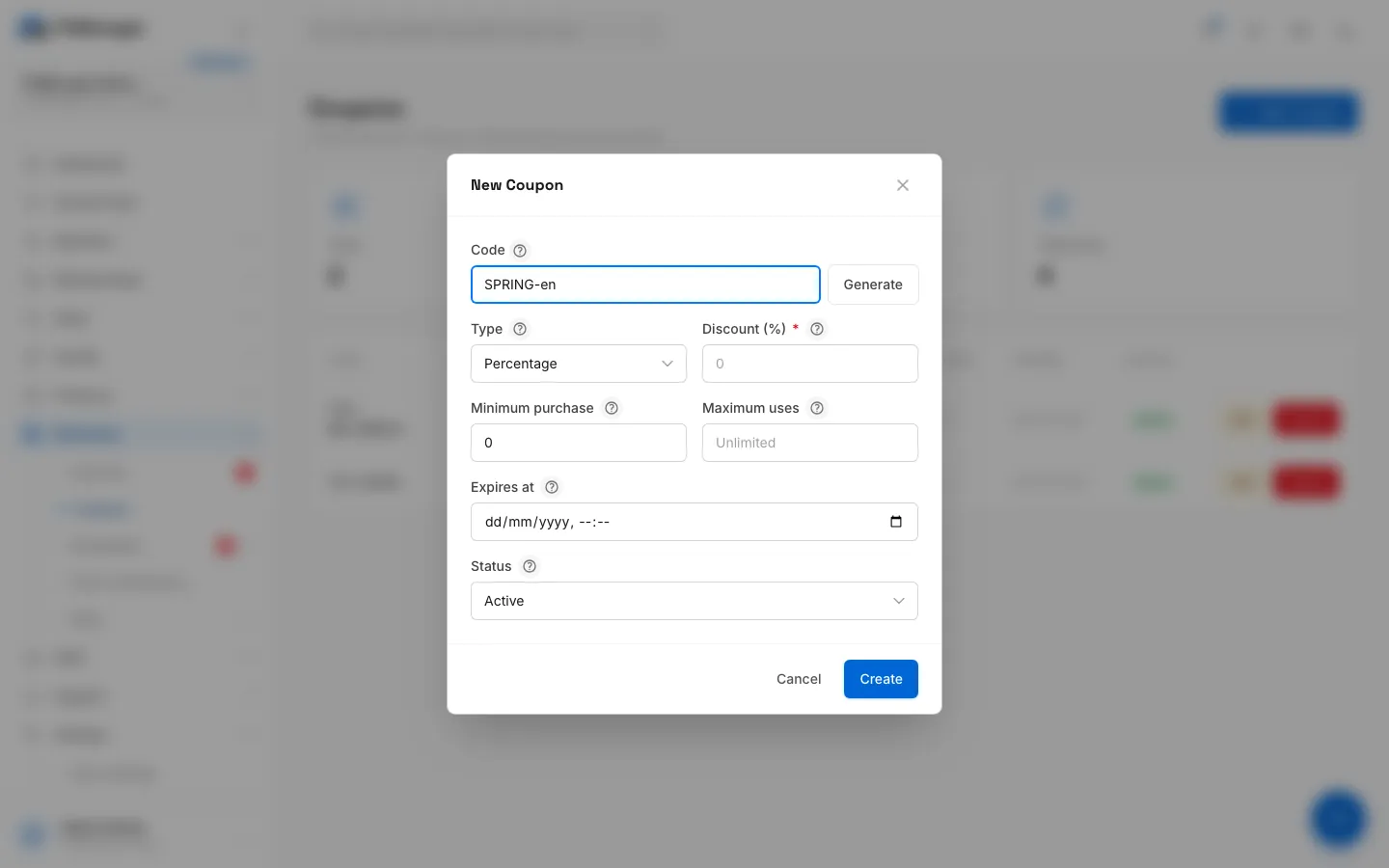
- Step 2: Type the code customers will give you, or click Generate for a random one.
- Step 3: Choose Percentage or Fixed amount.
- Step 4: Enter the discount, here 10 percent.
- Step 5: Optionally, set the smallest sale the coupon works on.
- Step 6: Limit how many times it can be used, or leave it empty for unlimited.
- Step 7: Set when it stops working, or leave it empty so it never expires.
- Step 8: Click Create.
- Step 9: The coupon is listed with its uses and expiry. It works at the POS and the kiosk right away.
- Open Marketing, Coupons.
- Click New Coupon.
- Fill in the fields below.
- Click Create.
| Field | What it does |
|---|---|
| Code | Required, up to 50 characters. Saved in capitals, and typed codes are matched in capitals too, so summer20 works. Generate makes a random 8-character code. Each code can exist once per facility. |
| Type | Percentage takes a share of the sale. Fixed amount takes off a set sum, never more than the sale itself. |
| Discount (%) or Discount amount | The size of the discount. |
| Minimum purchase | The smallest subtotal the code works on. 0 means any sale. |
| Maximum uses | How many sales may use it in total. Leave it empty for Unlimited. |
| Expires at | The date and time it stops working. It must be in the future. Leave it empty and it Never expires. |
| Status | Active codes work. Inactive pauses a code without deleting it. |
Where coupons work
| Where | How |
|---|---|
| Point of Sale | The cashier types the code in Coupon code and clicks Apply. See Sell at the POS. |
| Self-service kiosk | The customer enters it on the summary screen, when the kiosk has Discount and gift card codes switched on. See Self-service kiosk. |
Coupons are not offered at the online checkout on your website or in the member portal.
One code is used per sale. The discount applies to the whole cart, products and memberships alike. With a fiscal printer, the discount is spread over the lines of the receipt, so the printed total can differ from the sale total by a denar because of rounding.
Track and change coupons
The figures at the top show the Total number of coupons, how many are Active and the Total uses. Each coupon shows its value, minimum purchase, Used count against Max uses, and expiry. A use is counted when a sale with the code is completed.
- Edit changes any field. Changing the value does not change sales already made.
- Delete removes the code permanently. Past sales keep the record of the discount they got.
Troubleshooting
| Message | Cause |
|---|---|
| This coupon code is already in use. | Another coupon at this facility already has that code. Choose a different one. |
| Invalid or expired coupon code. (at the POS) | The code is inactive, past its expiry, has reached its maximum uses, or belongs to another facility. |
| Order does not meet the minimum purchase amount for this coupon. | The cart's subtotal is below the coupon's Minimum purchase. |
Was this page helpful?
Related articles
Still stuck?
Write to us and we will get back to you within one working day.