Member codes, cards and QR codes
How members identify themselves with a member code, an RFID card or fob, the door QR code or the digital member card in the portal.
A member can be recognised in four ways: by their member code, by a card or key fob, by scanning the QR code on your door with their phone, or by showing the digital card in their portal. All four lead to the same profile, and at the door all four go through the same checks.
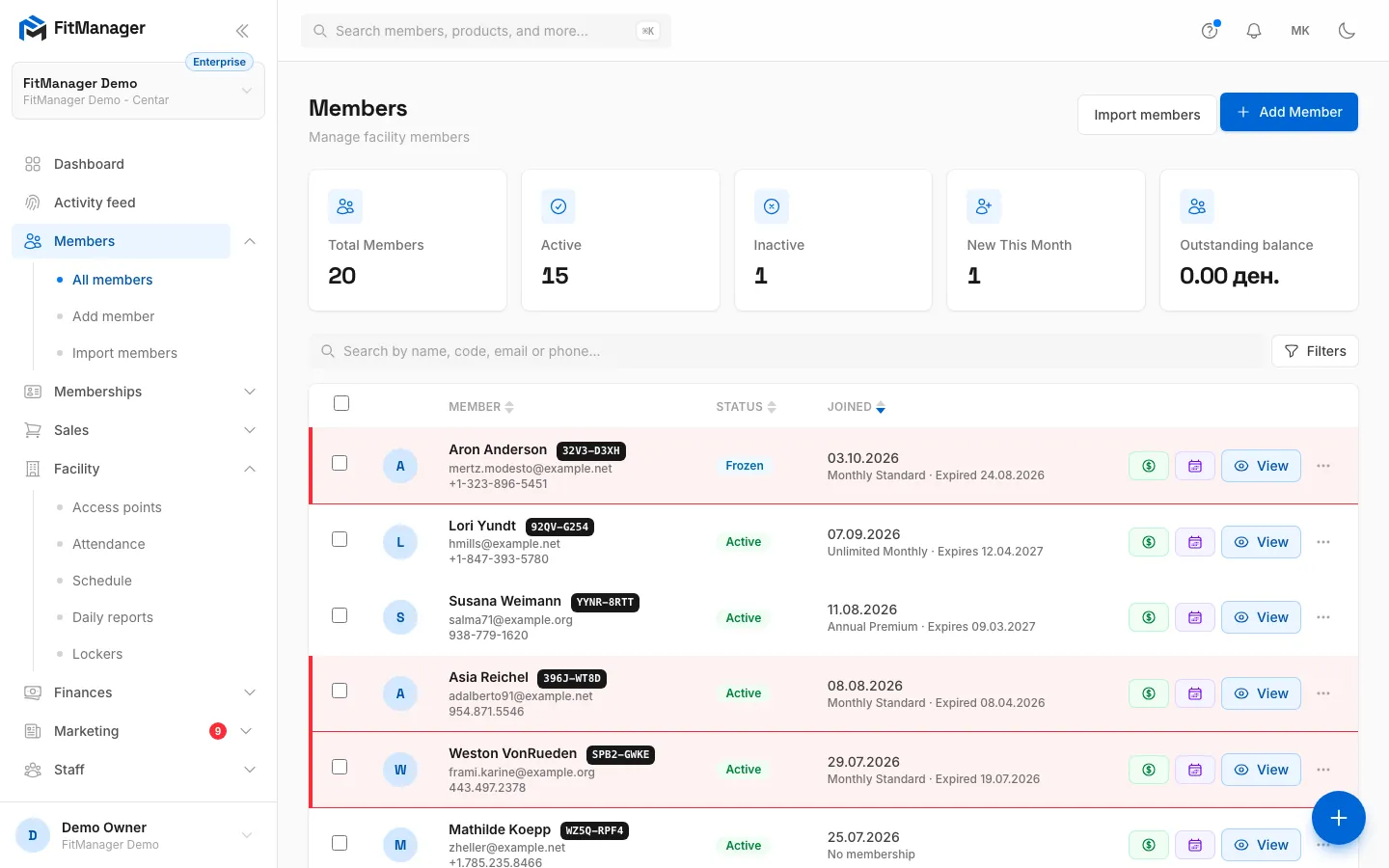
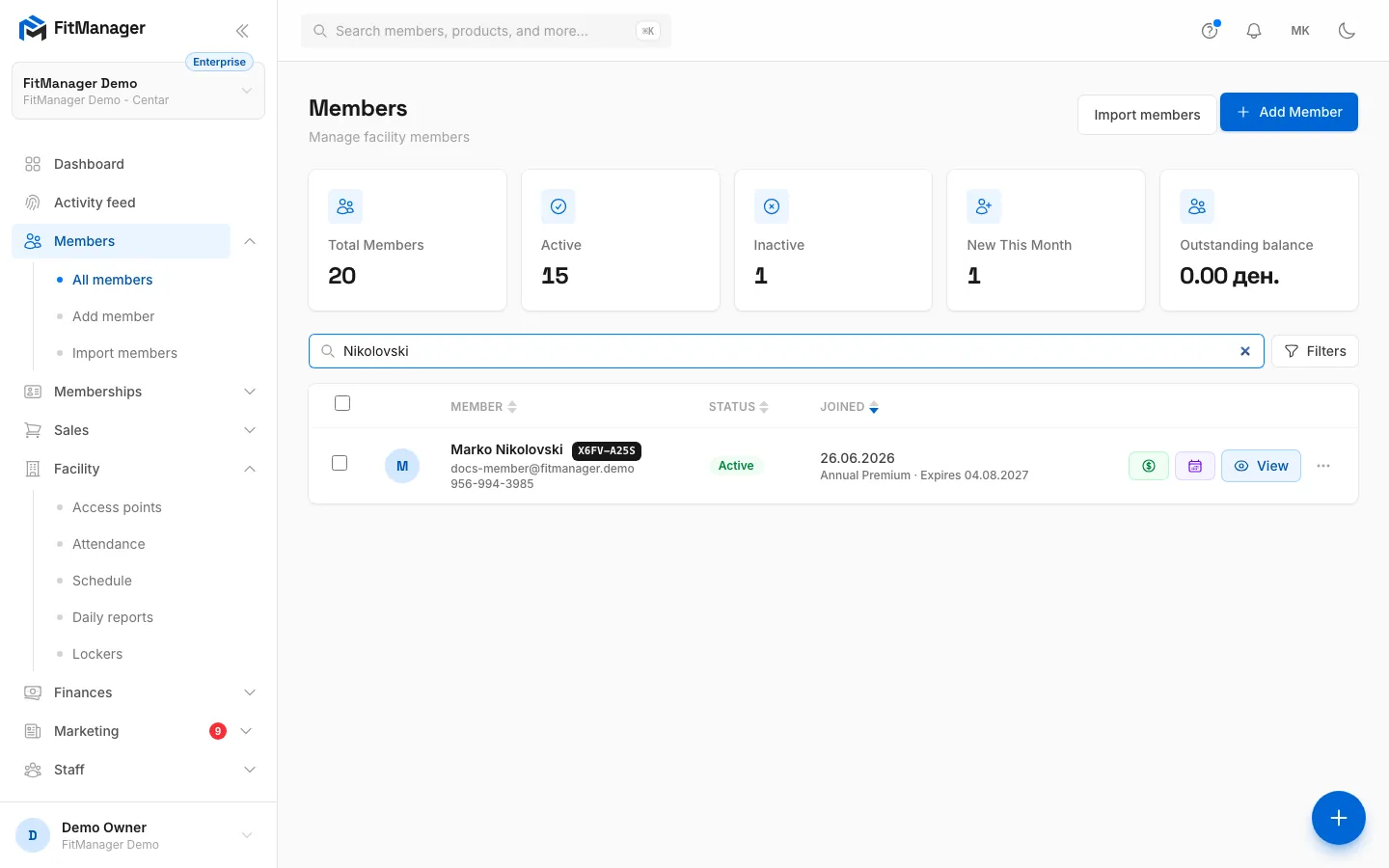
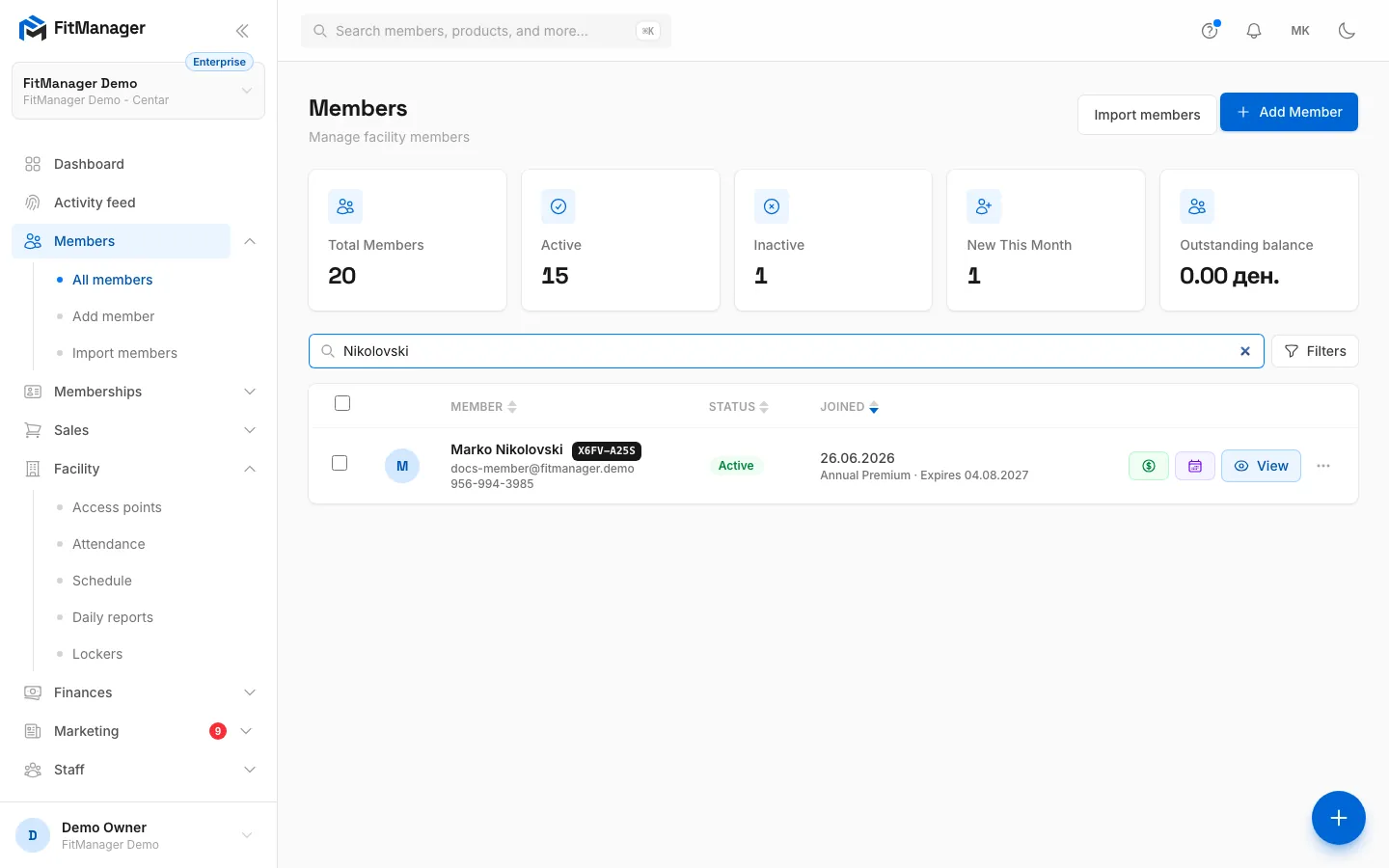
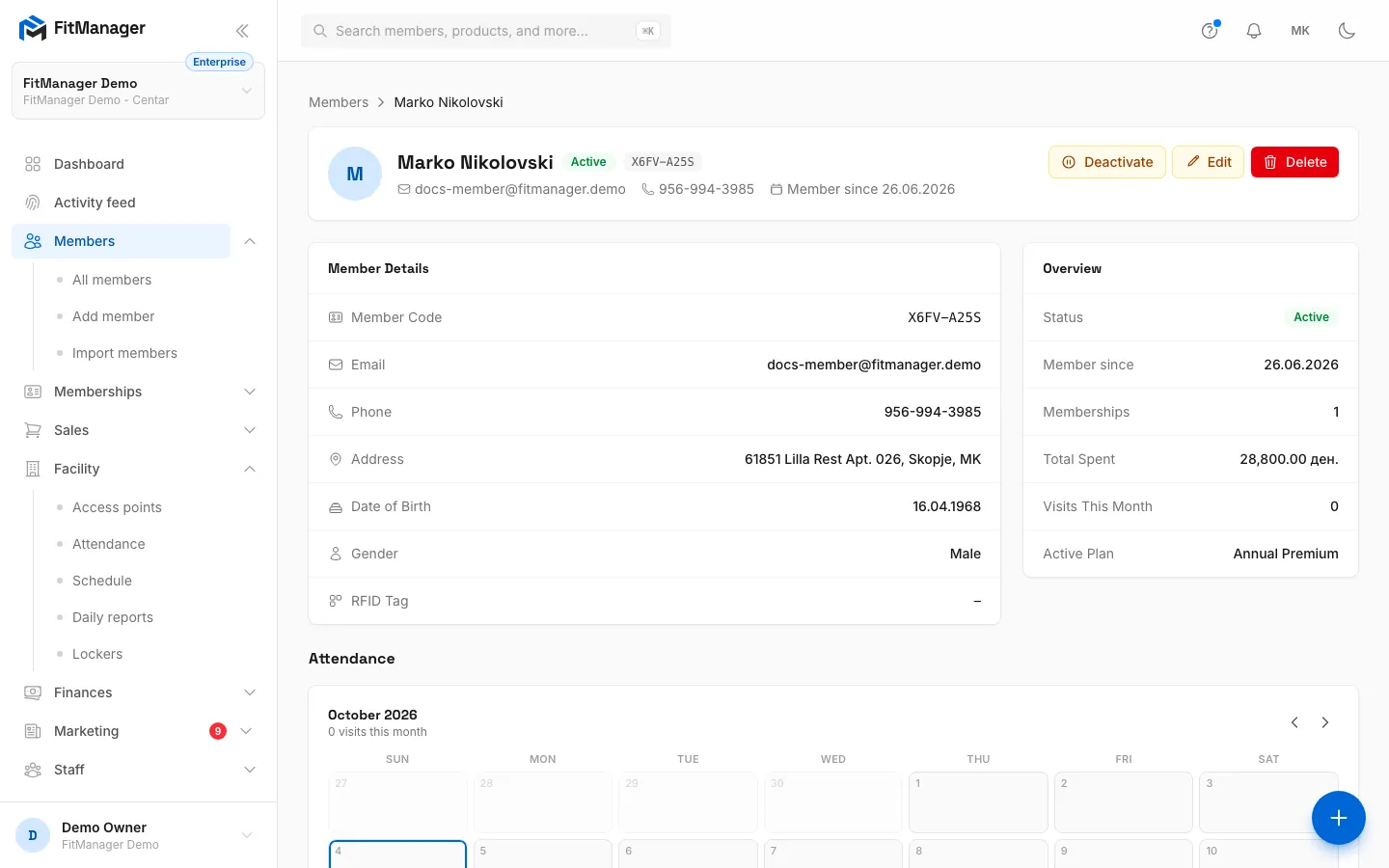
- Step 1: On the Members page, search by name, or by the member code with or without the dash.
- Step 2: Every member's code is shown next to their name. FitManager creates it when the member is added.
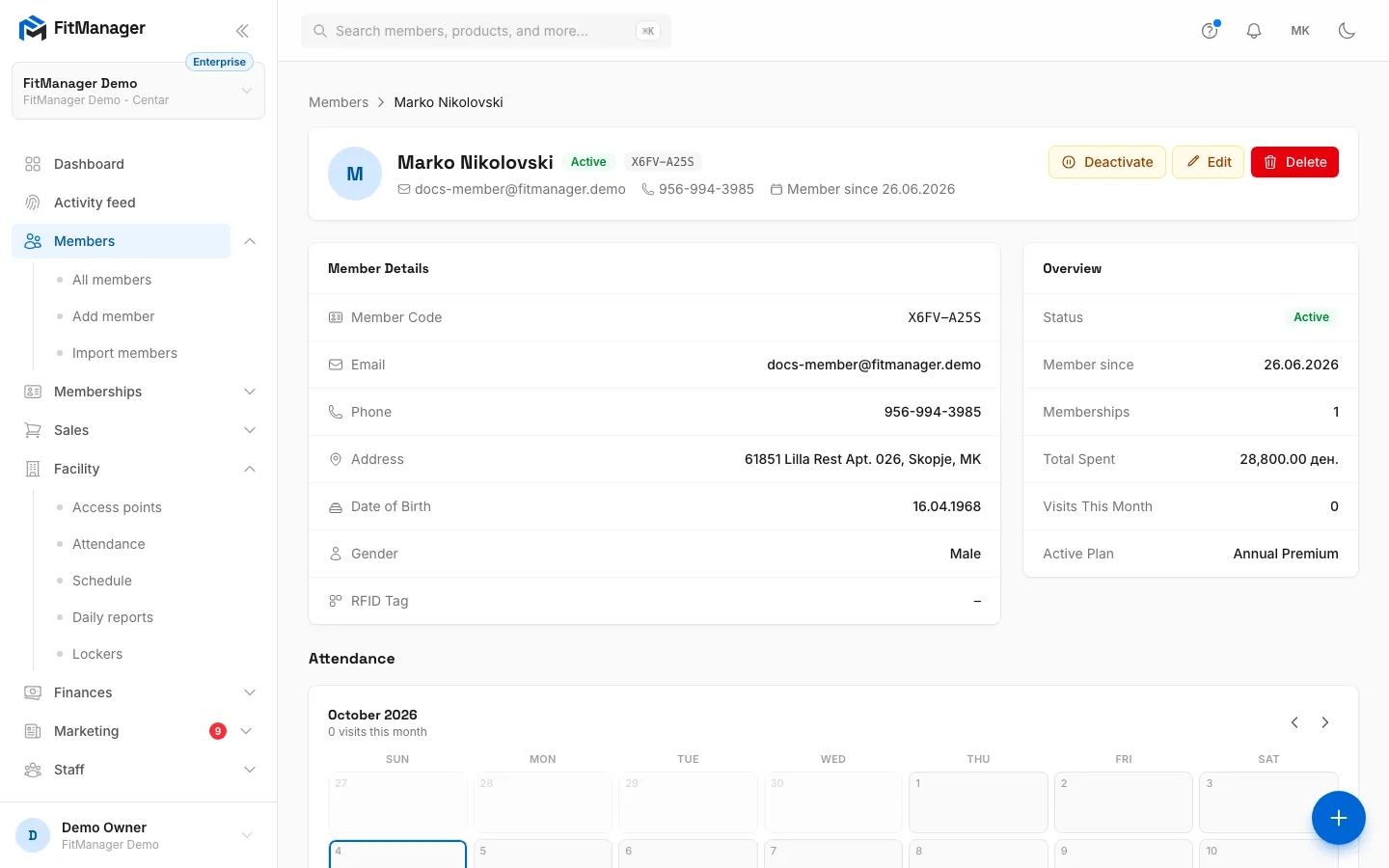
- Step 3: Click View to open the profile.
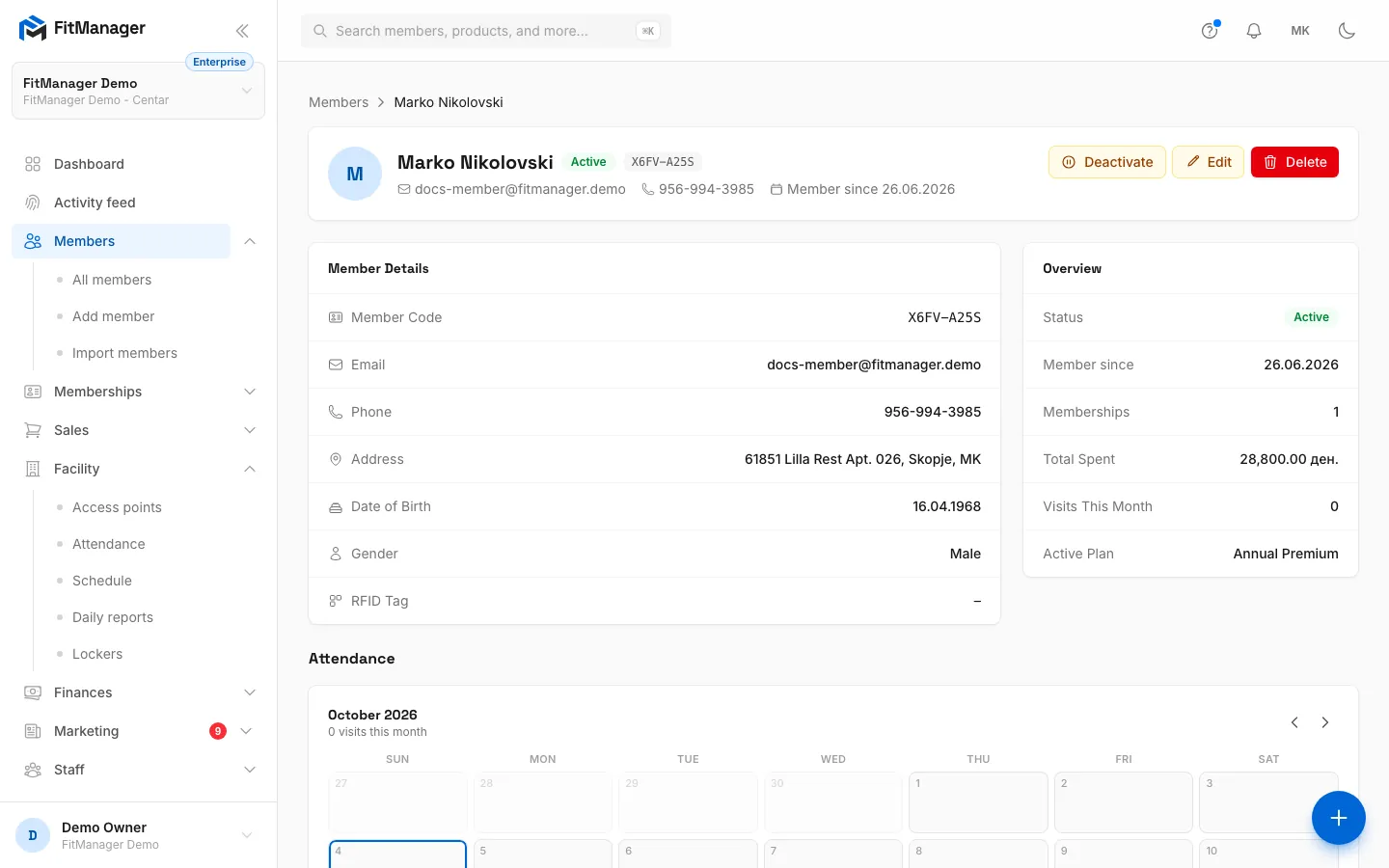
- Step 4: Member Code is in the member's details too.
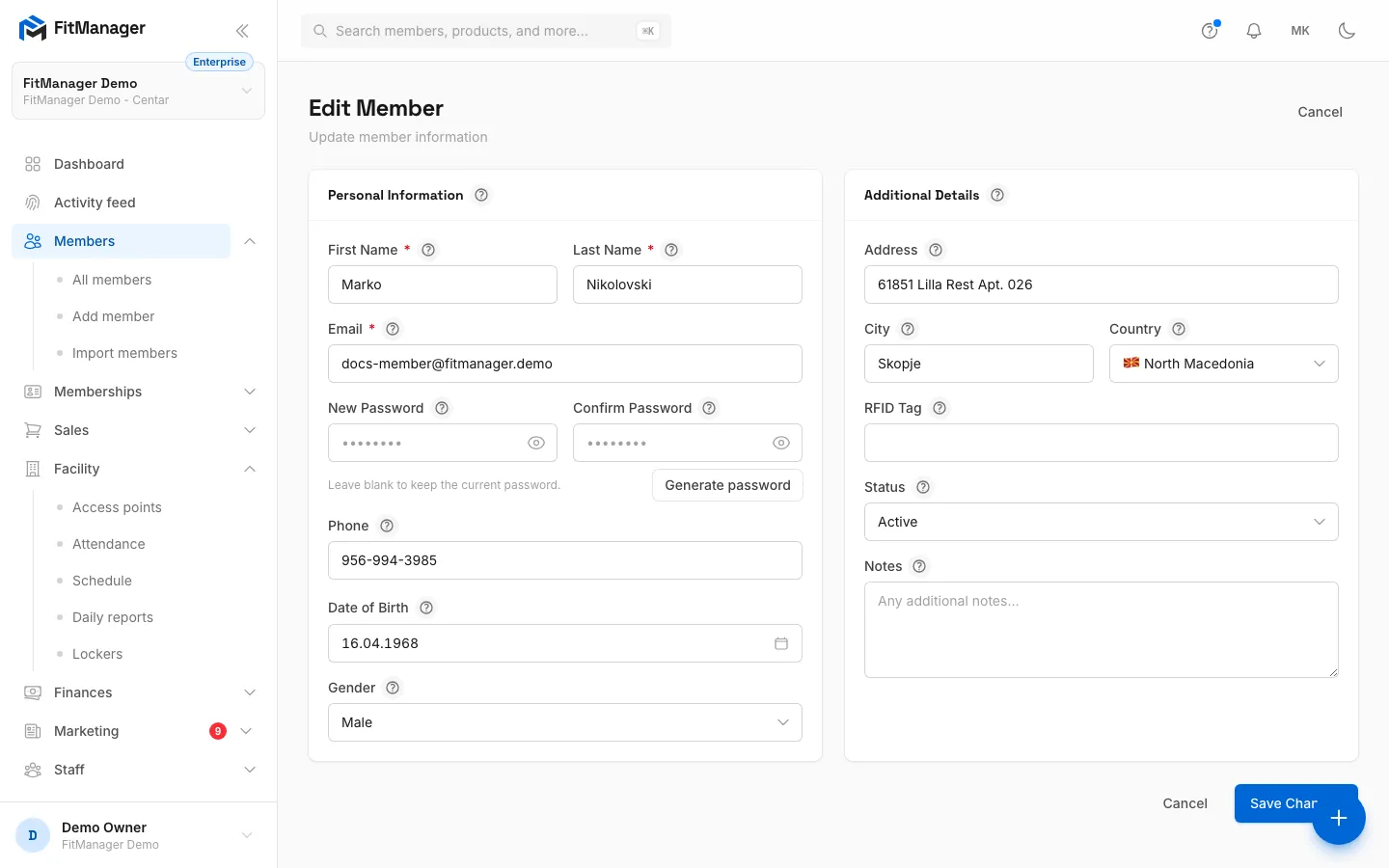
- Step 5: RFID Tag shows the number of the card or fob the member uses. A dash means none yet.
- Step 6: To give them a card, click Edit.
- Step 7: Click into RFID Tag, tap the card on the USB reader so it types the number, then click Save Changes.
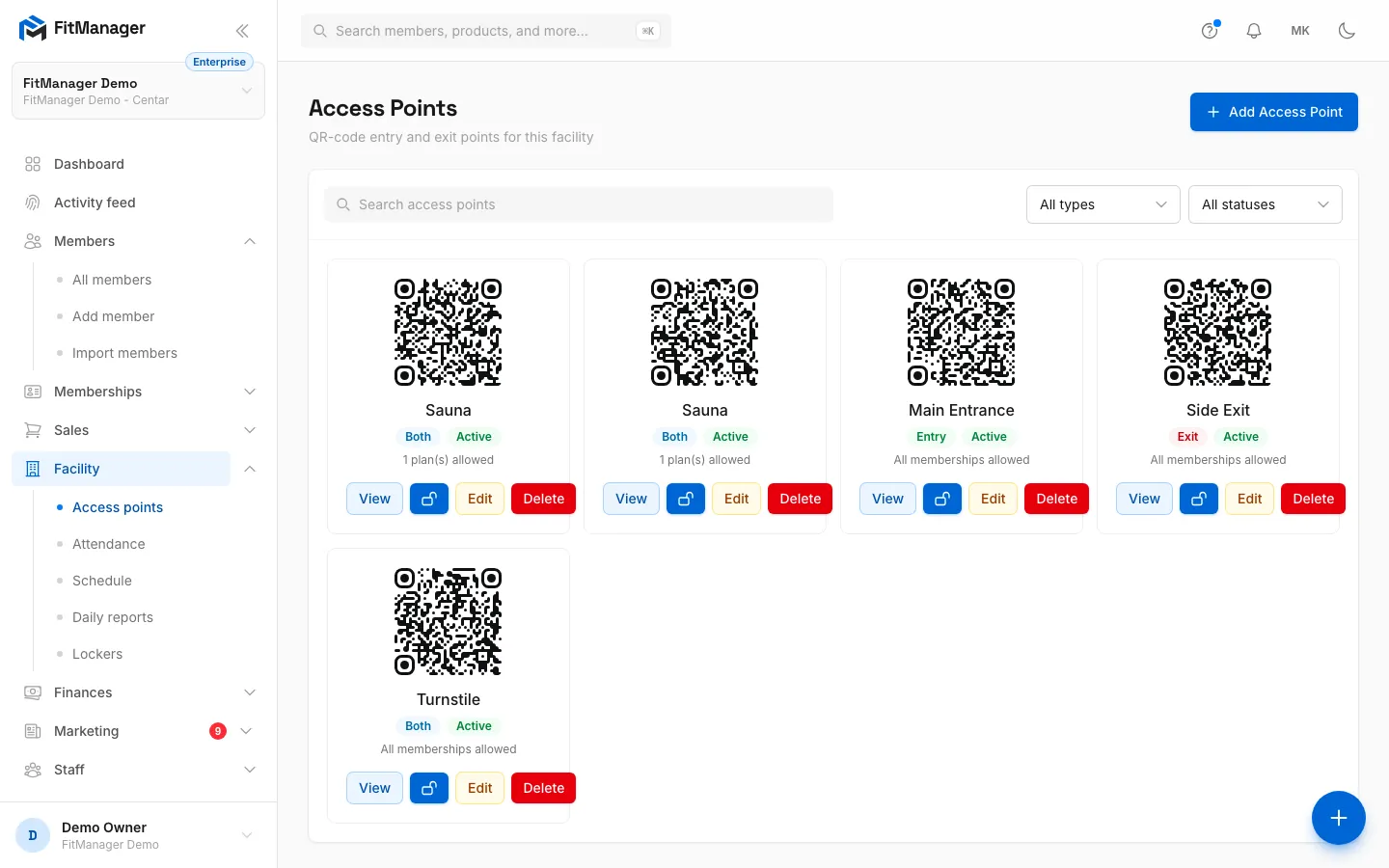
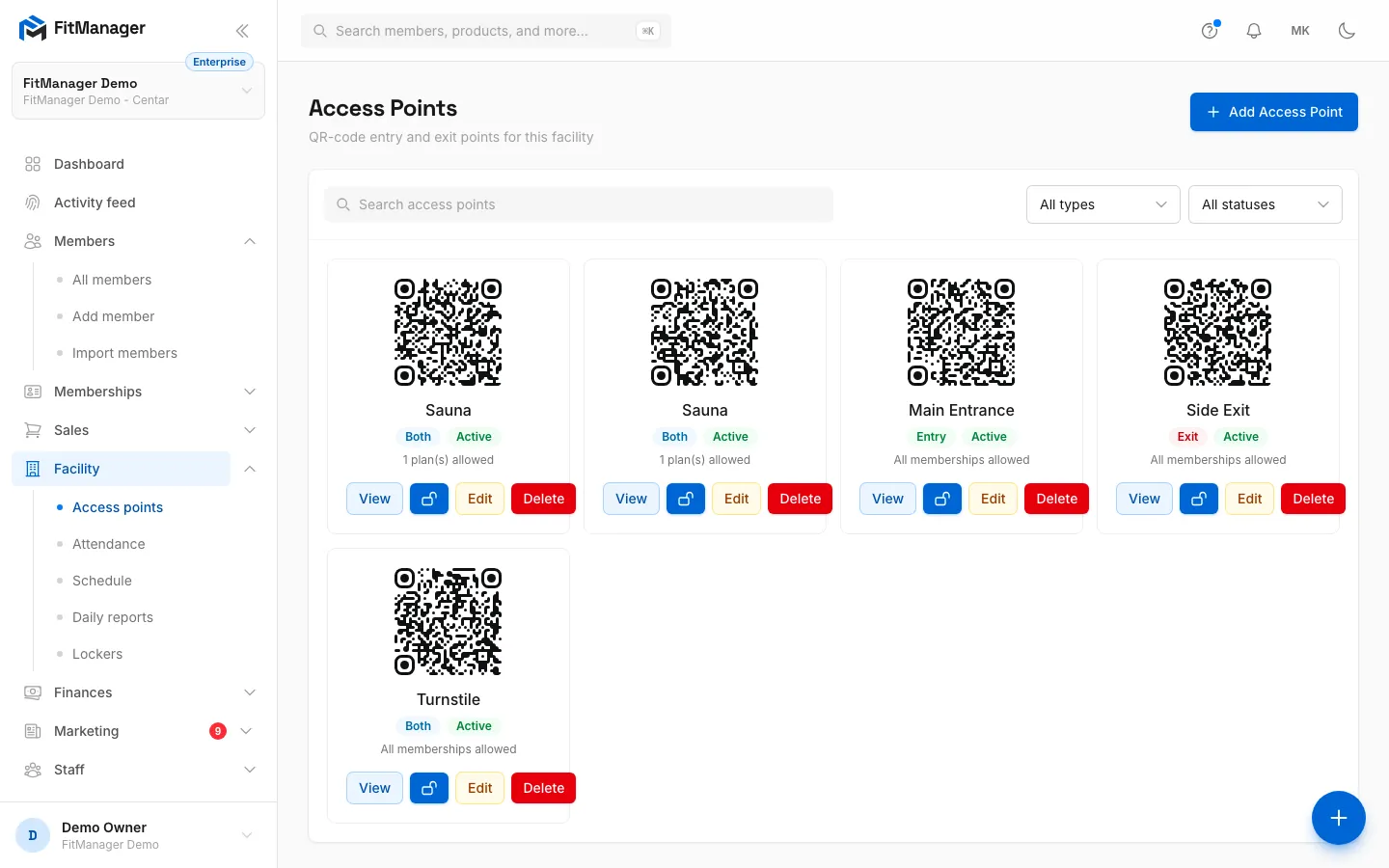
- Step 8: Members can also scan a door with their phone. Every access point has its own QR code.
- Step 9: Open a door with View, then click Download PNG, print the code and stick it at that entrance.
The member code
Every member gets a code automatically when they are added, for example K7PM-3QXD. It is eight characters long, shown in two groups of four, and leaves out characters that are easy to confuse (0 and O, 1, I and L, U). You never need to type one when adding a member.
- The code is on the member's profile, in the member list and on their digital card in the portal.
- You can search for it on the Members page with or without the dash.
- Members you bring in with a CSV import keep the number from your old system (up to 12 characters) and it is shown exactly as it was printed on their card.
Codes stay unique for good: a deleted member's code is never given to anyone else.
RFID cards and key fobs
If your gym hands out cards or fobs, write the card's number in the member's RFID Tag field (on Add a member or Edit). Give each card to one member only.
The easy way to get the number right:
- Plug the USB card reader into the reception computer. It works like a keyboard: when you tap a card, it types the card's number and presses Enter.
- Open the member's edit form and click into RFID Tag.
- Tap the card on the reader. The number appears in the field.
- Click Save Changes.
Typing the number from what is printed on the card often fails, because many readers send the number in a different format (for example with leading zeros). Always let the reader type it.
Once saved, tapping the card on the reader:
- on the Members list or on any member profile opens that member's profile,
- at the POS picks the member for the sale,
- at a connected door checks them in.
Imported card numbers are cleaned up for you: everything except digits is removed and the number is padded with leading zeros to 10 digits.
Staff cards
Employees can have a card too, in Staff card number on their employee profile. A staff card opens every door of the facilities that person works at, without a membership, and does not count as a visit.
QR codes at the door
Requires: Access control
Each access point (a door, turnstile or reception) has its own QR code. Open the access point, use Download PNG, print it and stick it at the entrance.
Members then open your portal, tap Scan to enter on the overview (or Check in in the settings menu) and point their phone camera at the code. If the camera does not work, they can type or paste the door code under or enter code manually. The answer appears on their phone straight away: Access granted or Access denied with the reason.
The digital member card
Requires: Member portal
Every member has a digital card in the portal: tap Show my card on the overview, or Card in the bottom menu. It shows their name, member code, plan, valid-until date and a QR code.
The QR code changes every 60 seconds. Your reception scanner, the POS and door readers accept the current code and the one just before it, so a phone held up to the reader always works, while a screenshot stops working within two minutes. Members cannot share their card with a friend by sending a picture.
What is checked at the door
Whichever way the member identifies, FitManager checks, in this order:
- The door exists and is active.
- The member belongs to this facility.
- The member is Active (not Inactive, Frozen or Banned).
- They have a membership that is valid for this door, is not frozen, has not expired and, for visit packs, has visits left.
- The facility is open, the plan allows this time of day, and the age-based curfew (if you use it) does not apply.
The first check that fails is the deny reason you see in the member's Access Log. A granted scan records a visit, and on a visit pack it uses one visit. See Door troubleshooting for every reason and its fix.
Common questions
A member lost their card. What do I do? Edit the member, clear RFID Tag and save, so the old card no longer works. Then tap the new card into the field and save again.
The reader shows "No member found for card or code". No member in this facility has that card number. Check the RFID Tag on the right profile, or whether the member belongs to another facility.
Can two members share one card? No. A card number should identify one person. The member form does not warn you if you type a number another member already has, and the reader then always finds the same one of them, so double-check when you reuse old cards. A CSV import skips any row whose card is already taken.
Does the member code work at the door? Doors read cards and QR codes. The member code is for finding members at the desk, by search or by a reader that types it.
Was this page helpful?
Related articles
Still stuck?
Write to us and we will get back to you within one working day.