Your account
Change your name, email, photo and password, turn on two-factor authentication and passkeys, and adjust appearance, language and notifications.
Your account is your personal login to FitManager. Everything on these pages applies to you only, not to the rest of your team or to the gym. Every owner and employee has their own account.
To open it, click your name at the bottom of the sidebar and choose Account. The settings have five tabs: Profile, Security, Passkeys, Notifications and Appearance.
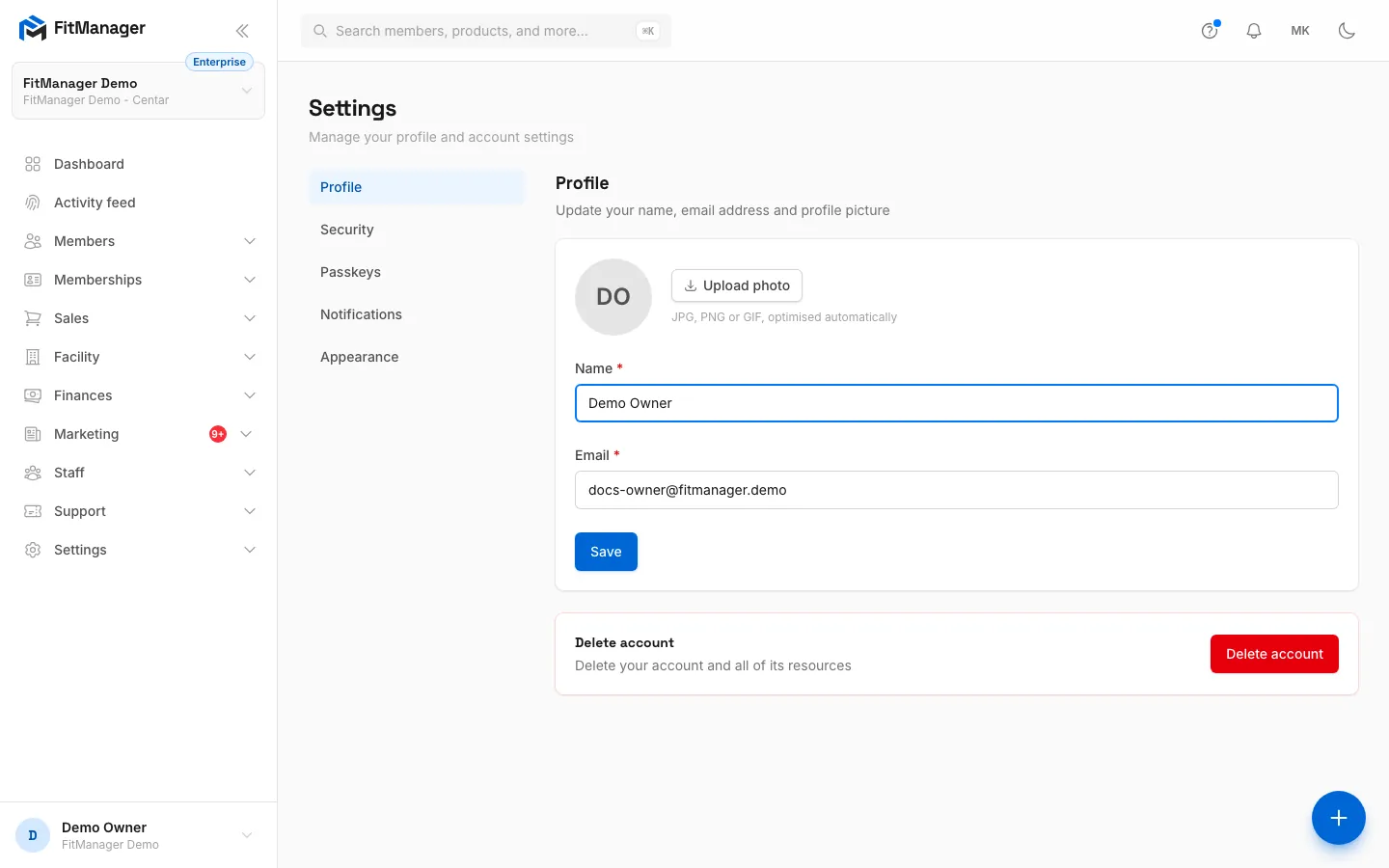
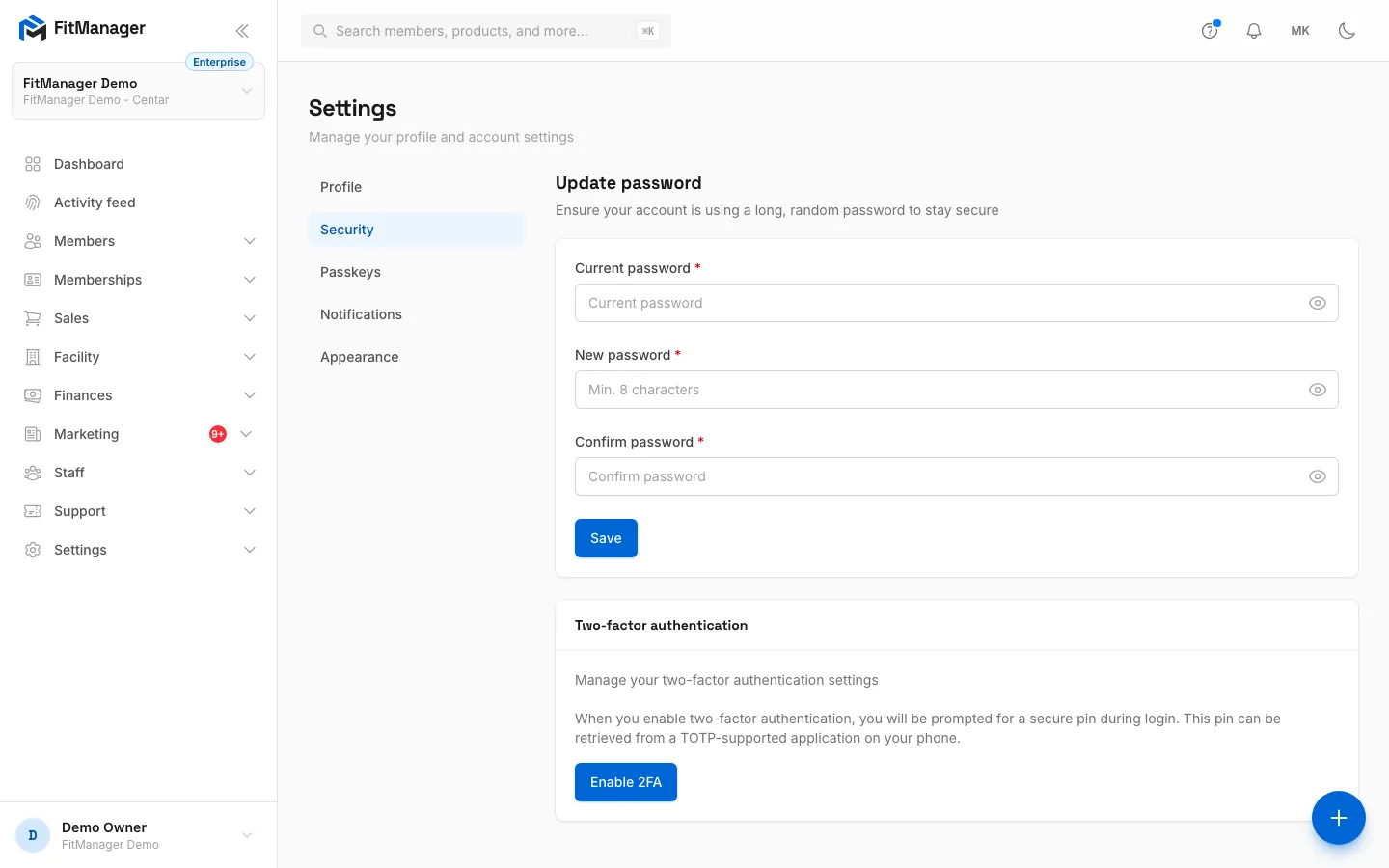
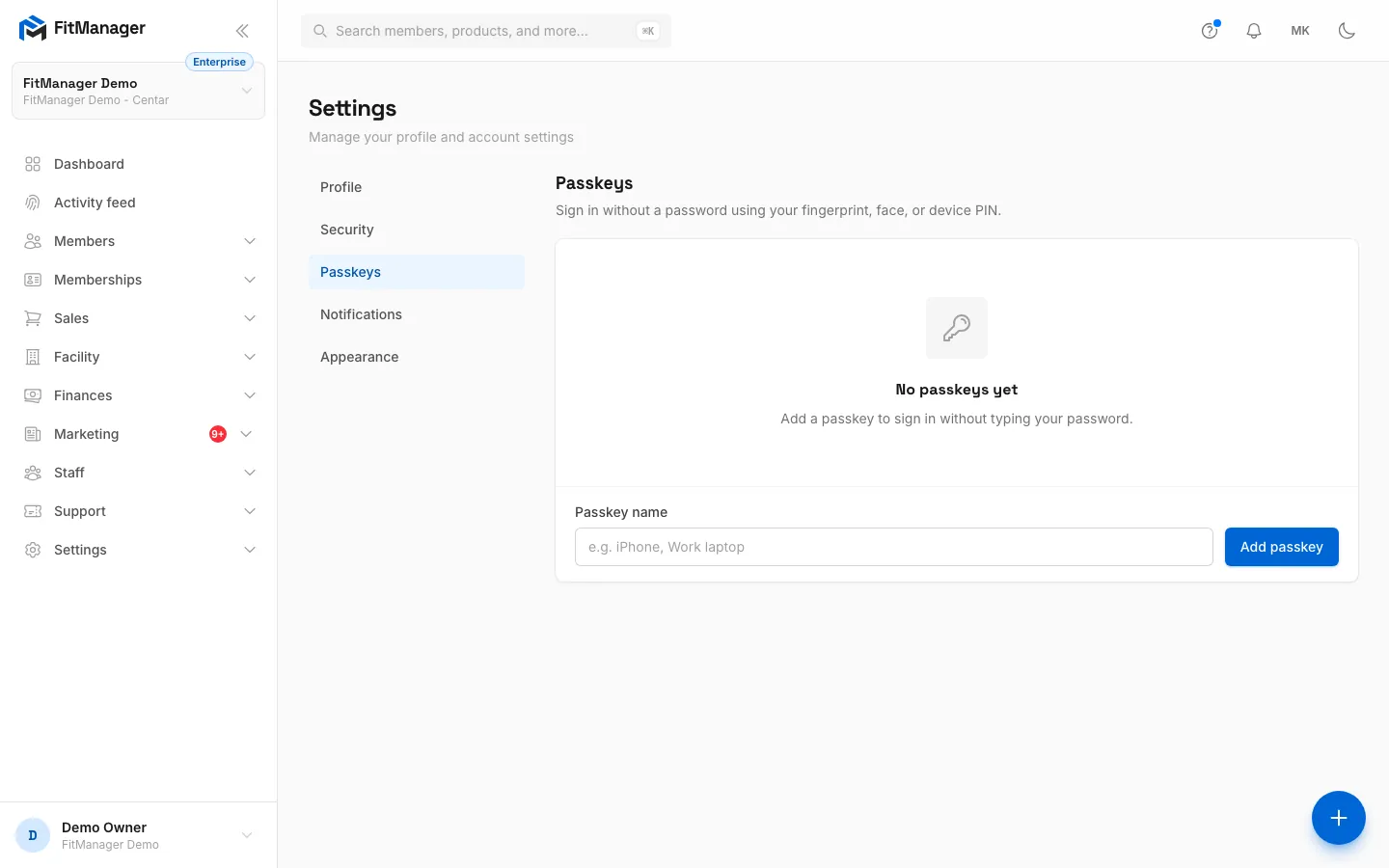
- Step 1: Your account opens on Profile, with your name, email and photo.
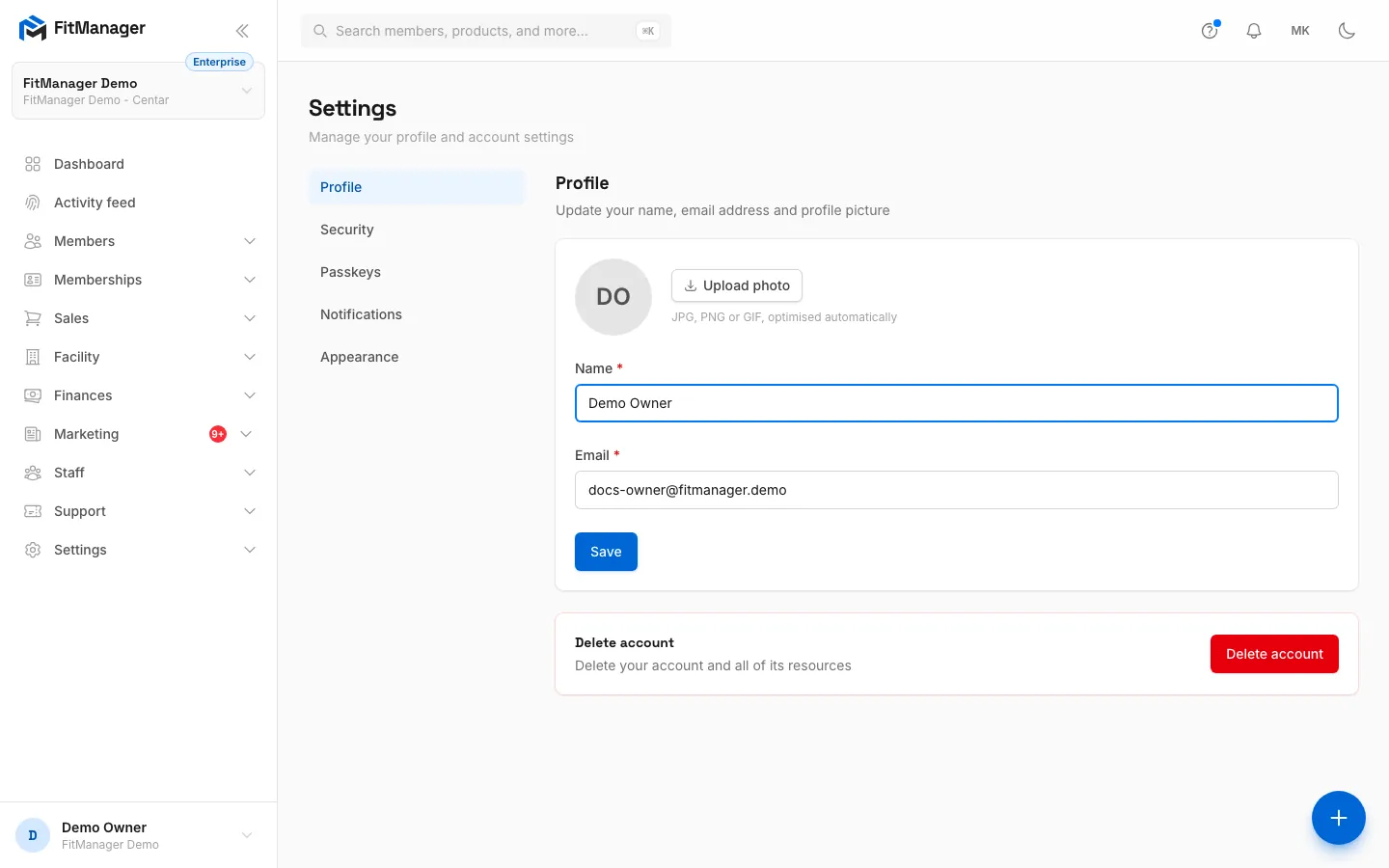
- Step 2: Click Security.
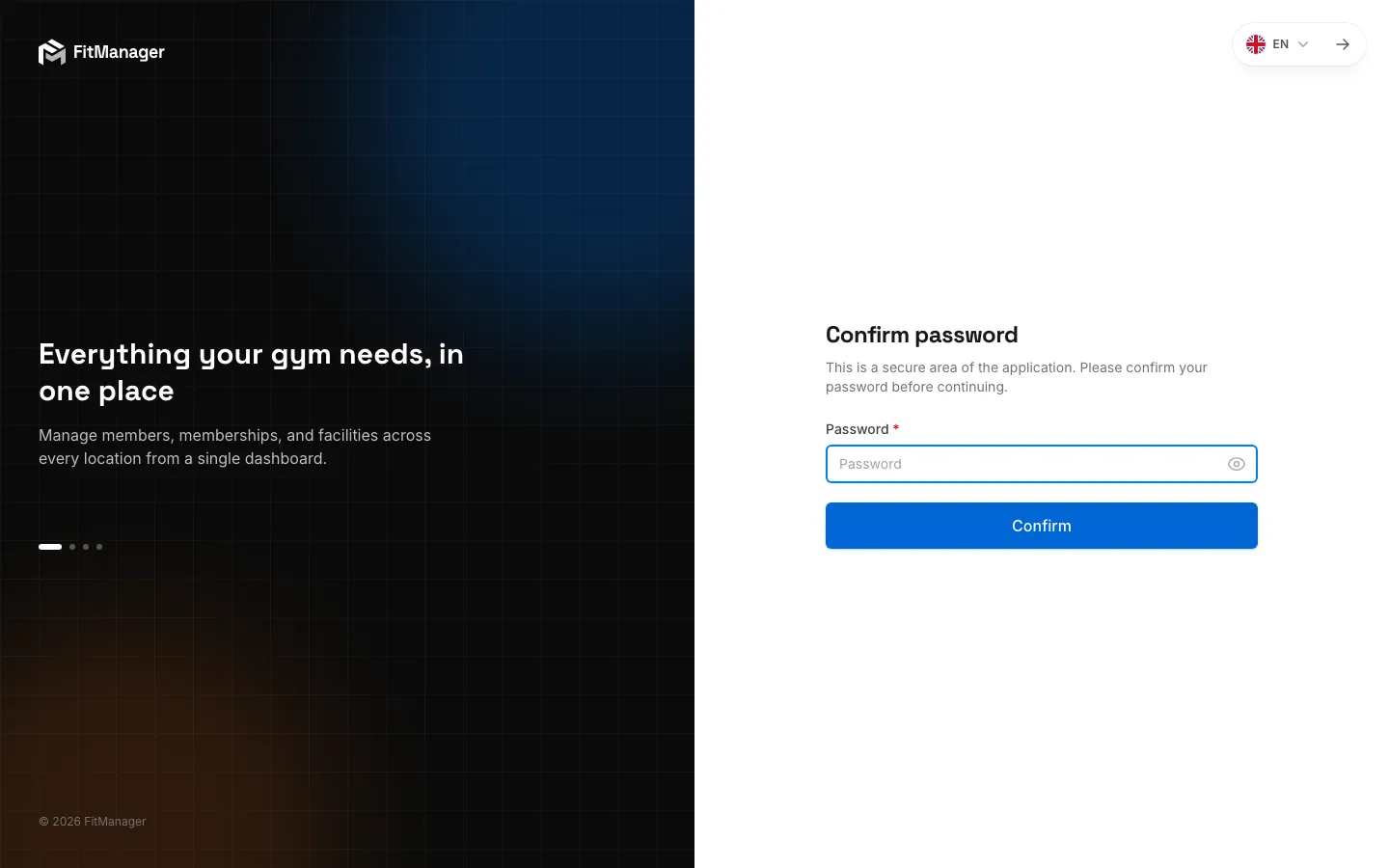
- Step 3: FitManager asks for your password once more before security changes.
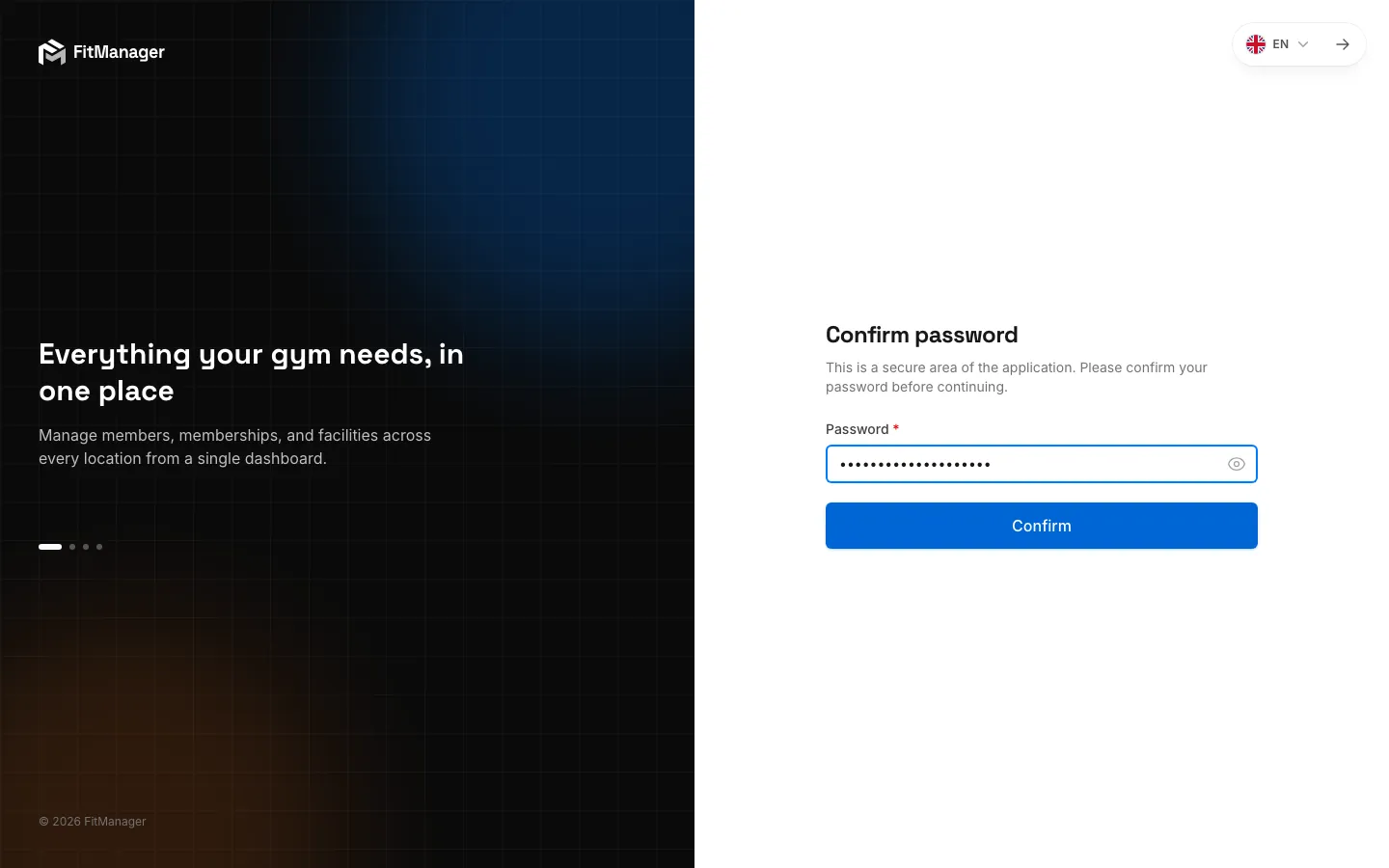
- Step 4: Click Confirm.
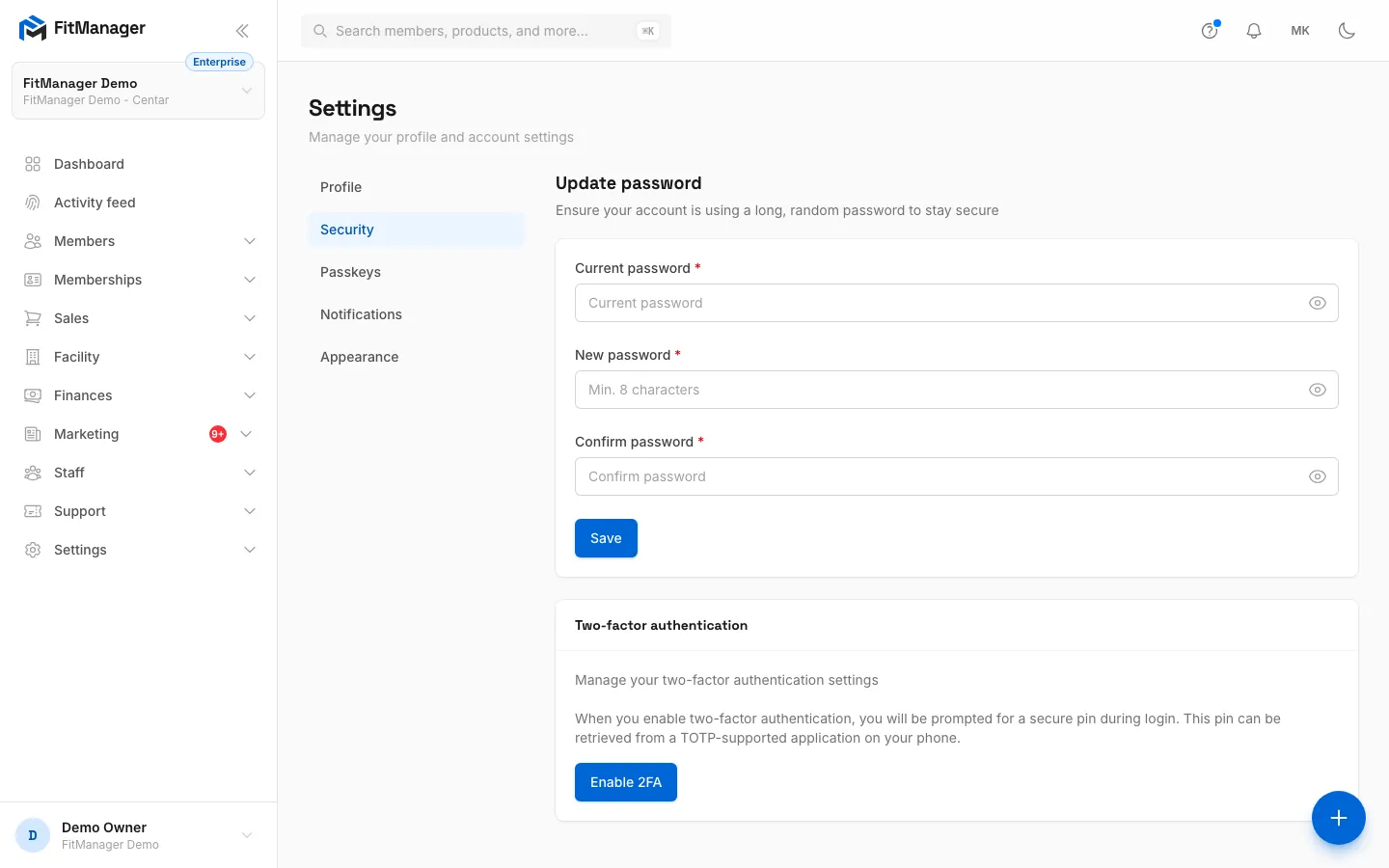
- Step 5: Change your password here. You need the current one.
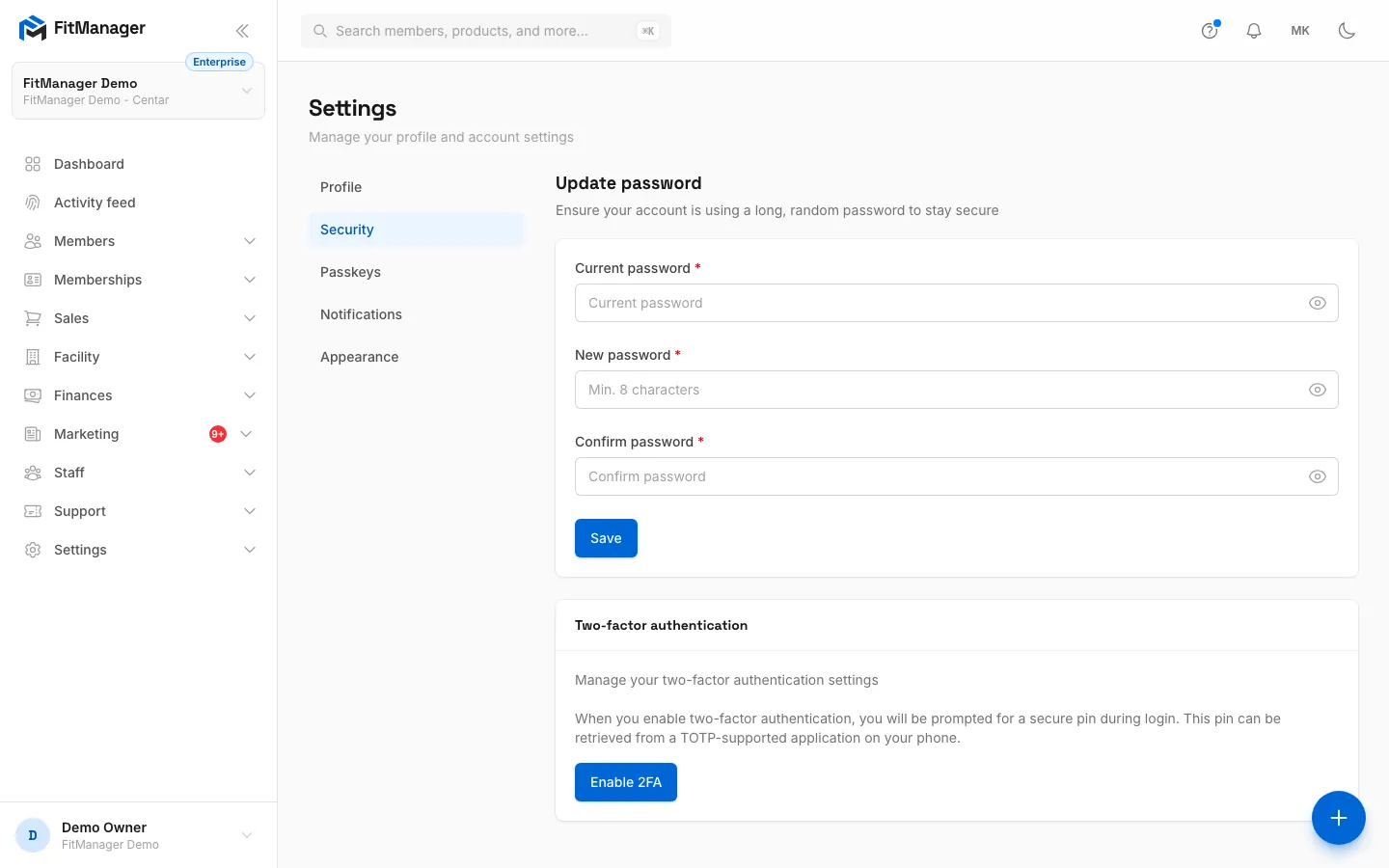
- Step 6: Click Enable 2FA and scan the QR code with an authenticator app.
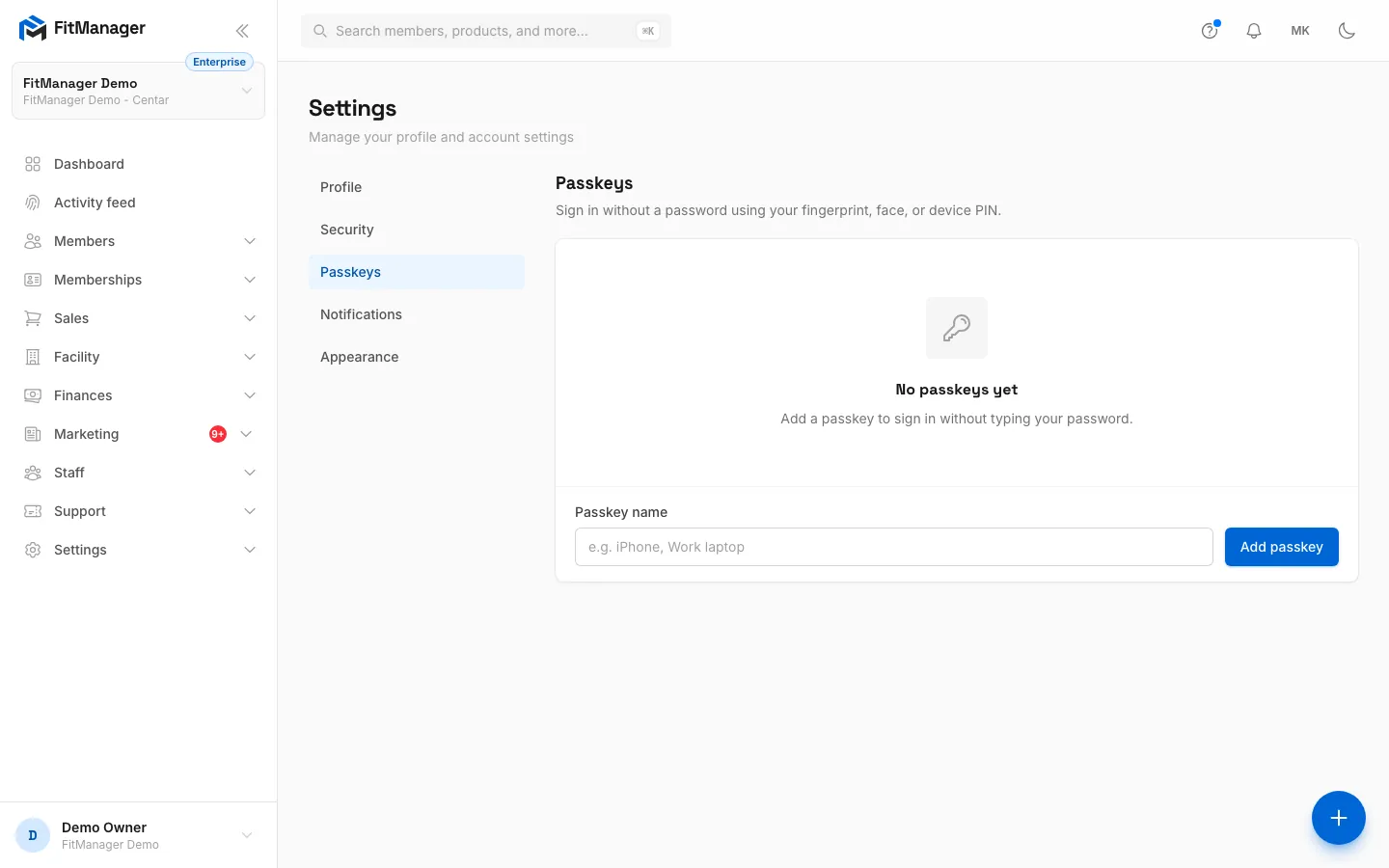
- Step 7: Open Passkeys to sign in with your fingerprint, face or device PIN.
- Step 8: Name the device, then click Add passkey and follow your browser's prompt.
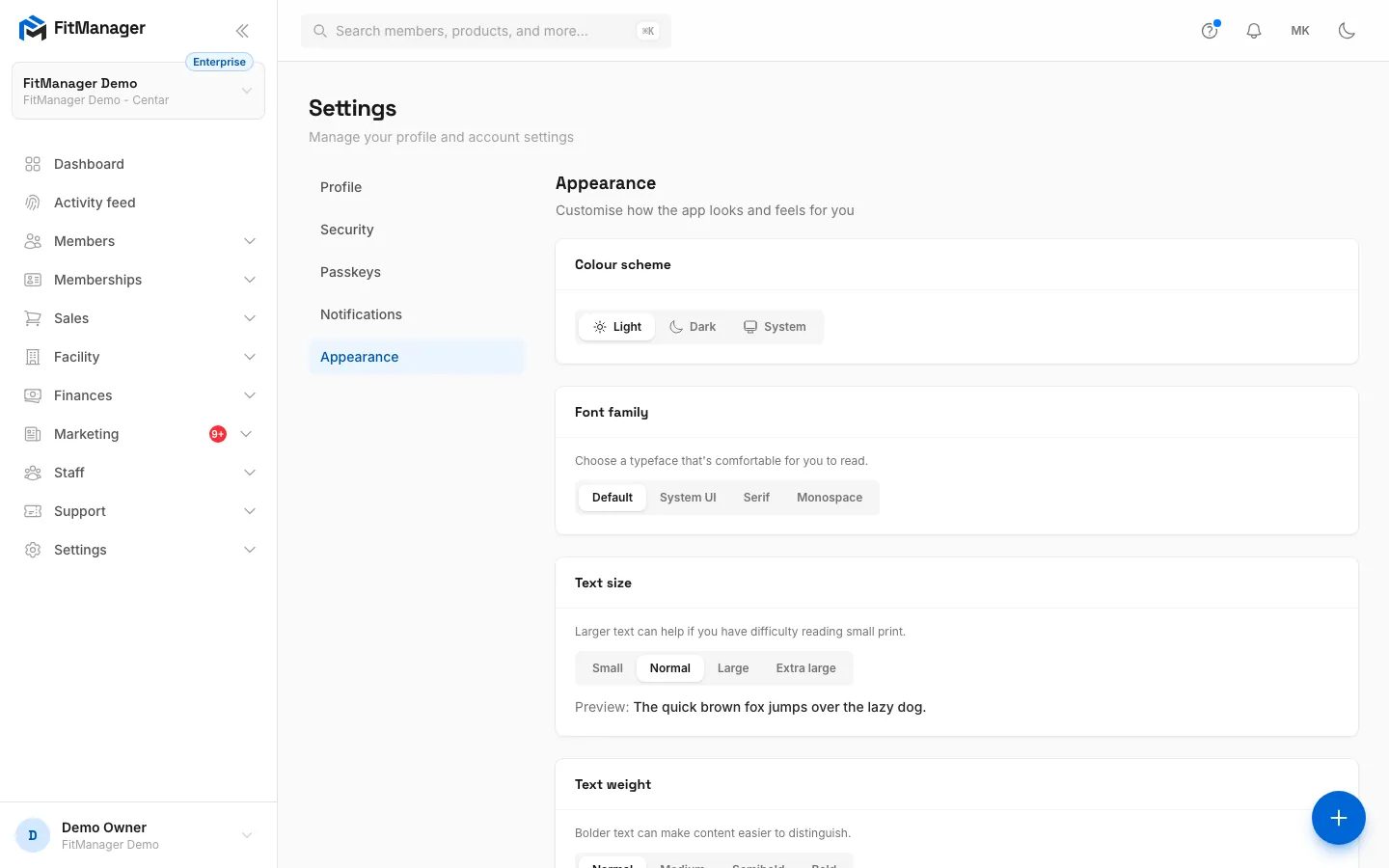
- Step 9: Appearance changes how the dashboard looks for you.
- Step 10: Pick a colour scheme, font, text size and weight. They apply on this browser only.
Profile
- Photo. Click Upload photo (or Change photo) and pick a JPG, PNG or GIF up to 2 MB. It shows in the sidebar and next to your actions. Remove photo takes it off.
- Name and Email. Click Save when you are done.
Changing your email
After you change your email address, FitManager sends a verification link to the new address, and the dashboard stays closed until you click it. If the email does not arrive, use Click here to re-send the verification email. on the Profile tab. Type the new address carefully.
Delete account
At the bottom of the Profile tab, Delete account permanently deletes your login after you confirm with your password. For an employee this removes their access. A gym owner must not delete their account: the gym belongs to the owner's account, so deleting it deletes the gym and its data with it. To hand a gym over to someone else, open a support ticket instead.
Security
FitManager asks for your password again before it opens this tab. That confirmation lasts a few hours.
Change your password
- Enter your Current password.
- Enter the New password and type it again in Confirm password.
- Click Save.
Use a long password that you do not use anywhere else. FitManager requires at least 12 characters with upper and lower case letters, numbers and symbols, and refuses passwords that are known from data breaches.
Forgot your password? Use Forgot your password? on the login page to get a reset link by email.
Turn on two-factor authentication (2FA)
With 2FA, signing in asks for your password and a 6-digit code from an authenticator app on your phone (Google Authenticator, Microsoft Authenticator, 1Password and similar). Anyone handling money or member data should turn it on.
- Click Enable 2FA.
- Scan the QR code with your authenticator app, or type the setup key shown under it.
- Click Continue, enter the 6-digit code from the app and click Confirm.
- Click View recovery codes and store them in a password manager or print them.
From now on the login asks for an Authentication code after your password.
Keep your recovery codes
If you lose your phone, sign in with Log in using a recovery code and one of your recovery codes. Each code works once. Regenerate codes makes a fresh set and cancels the old ones.
To switch 2FA off, click Disable 2FA.
Passkeys
A passkey lets you sign in with your fingerprint, face or device PIN instead of typing your password. It is stored on your phone, laptop or password manager and cannot be phished.
- Open the Passkeys tab.
- In Passkey name, type something you will recognise, like "Front desk PC" or "iPhone".
- Click Add passkey and confirm your password if asked.
- Follow your browser's prompt (Touch ID, Windows Hello, your phone).
Next time, choose Sign in with a passkey on the login page. Each passkey in the list shows when it was last used; Remove deletes one you no longer use, for example on a lost device. If you see "Passkeys are not supported in this browser.", use an up-to-date Chrome, Safari, Edge or Firefox.
Notifications
Choose the channels (Email, SMS) and the topics you want to hear about: New member sign-ups, Membership renewals and expirations, Payments and receipts, Weekly summary and Product updates and announcements. SMS needs a phone number on your profile. Click Save.
These switches record your preferences on your account. Today they do not yet change which messages FitManager sends you: support ticket replies and alerts about offline doors arrive by email and in the bell regardless. Reminders that go to members are set up separately, see Member notifications.
Appearance
These choices are saved in the browser you make them in, so set them again on another computer or phone.
| Setting | Options |
|---|---|
| Colour scheme | Light, Dark, or System to follow your device |
| Font family | Default, System UI, Serif, Monospace |
| Text size | Small, Normal, Large, Extra large |
| Text weight | Normal, Medium, Semibold, Bold |
Larger and bolder text can make the dashboard easier to read at a busy front desk. Reset to defaults puts the font settings back.
Field help tips is saved on your account instead: switch off Show help tips to hide the small question mark icons beside form fields everywhere in the dashboard.
Language
Click MK or EN in the top bar (on a phone, at the bottom of the menu) to switch the dashboard between Macedonian and English. The choice lasts until you close the browser session.
Signing in with Google or Apple
If the login page shows Continue with Google or Continue with Apple, you can use them instead of your password, as long as the Google or Apple account uses the same email address as your FitManager account. There is nothing for the gym to set up.
Common questions
I am locked out after turning on 2FA
Use a recovery code. If you have none left, ask the gym owner, or if you are the owner, open a support ticket from another account or contact FitManager support.
The dashboard says my IP address is not allowed
Your gym restricts the dashboard to known addresses. See IP allowlist.
My font size changed back
Appearance settings live in the browser. Clearing the browser data, using a private window or another device resets them.
Was this page helpful?
Related articles
Still stuck?
Write to us and we will get back to you within one working day.