A tour of the dashboard
Find your way around the gym dashboard, the sidebar, search, notifications, quick actions, the Overview page and the monthly report.
The gym dashboard is where you and your team work every day. It looks the same on every page: a sidebar on the left, a top bar with search and alerts, and the page itself in the middle. This tour shows what each part does.
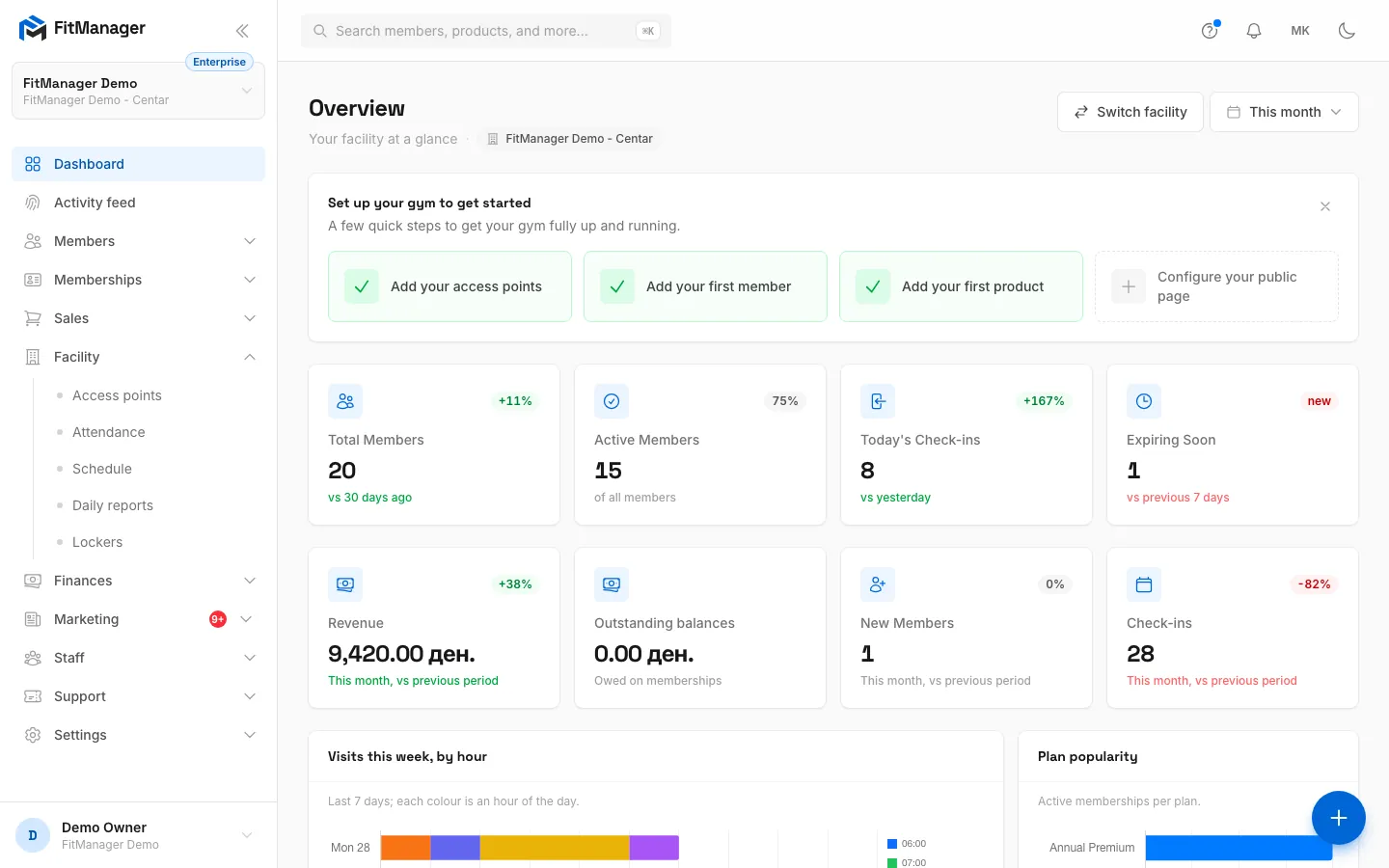
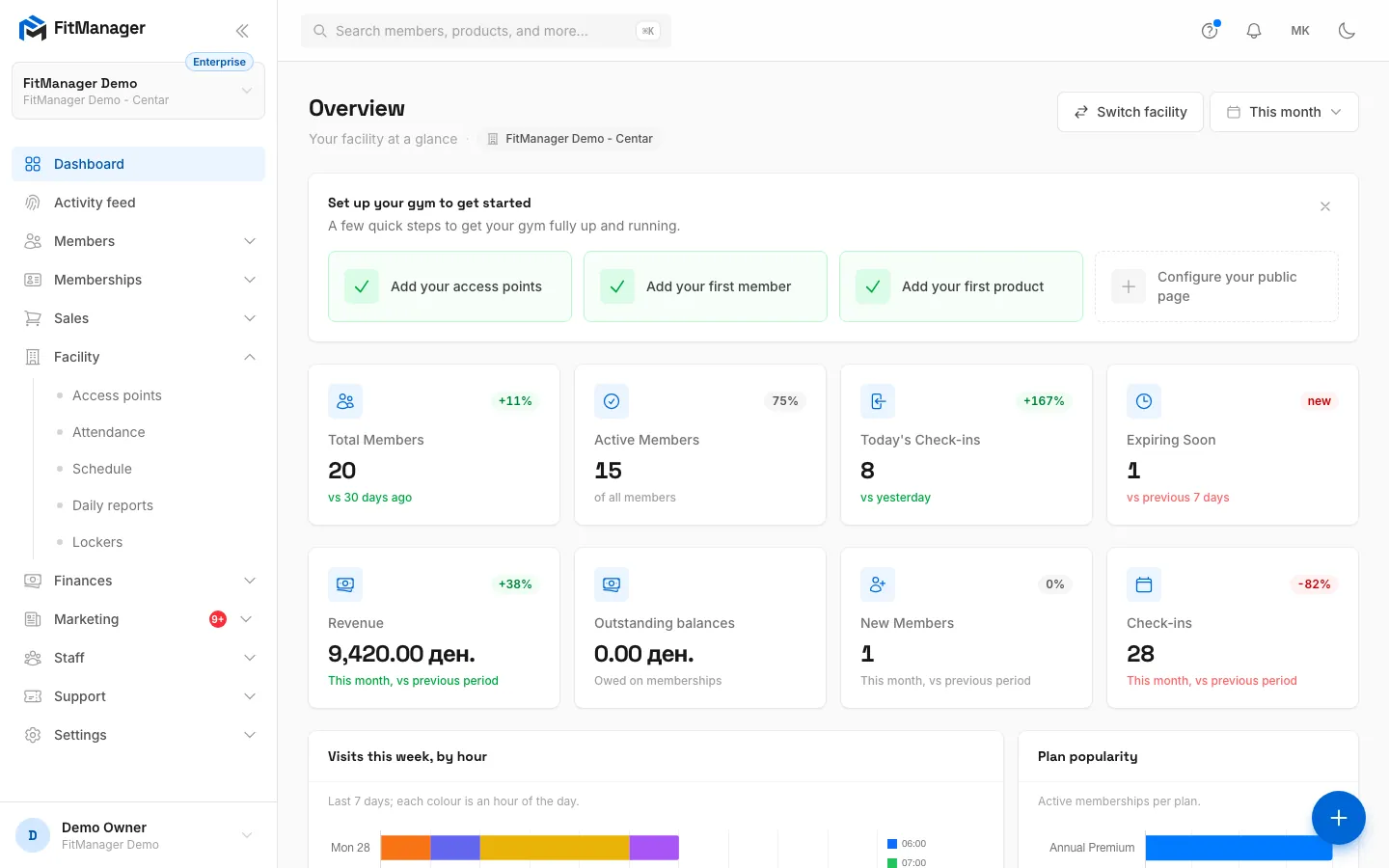
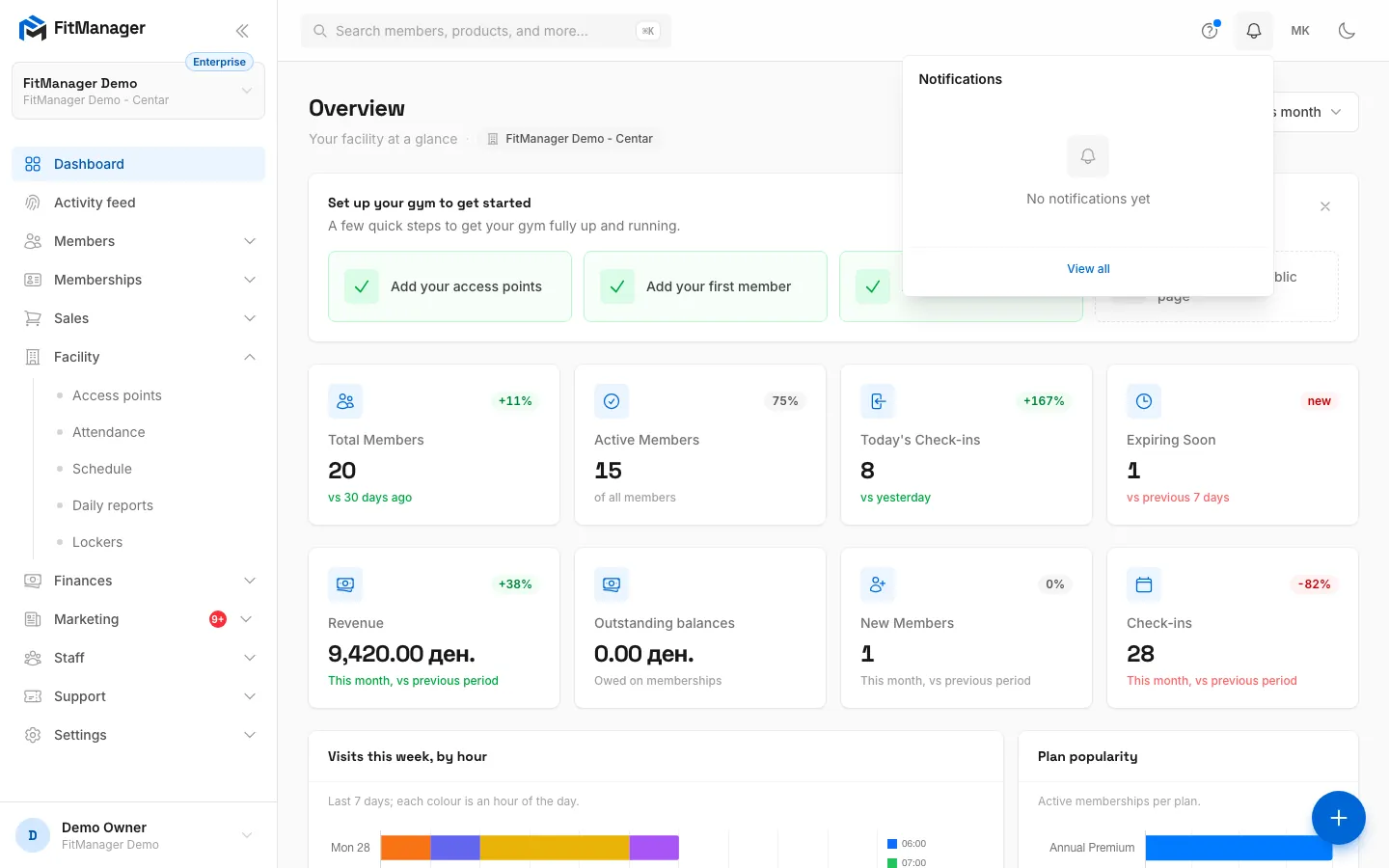
- Step 1: This card names your gym, the location you are working in and your plan. Click it to switch location.
- Step 2: The sidebar groups every module. You only see what your plan and your permissions allow.
- Step 3: The Overview opens with today's key numbers, each compared with an earlier period.
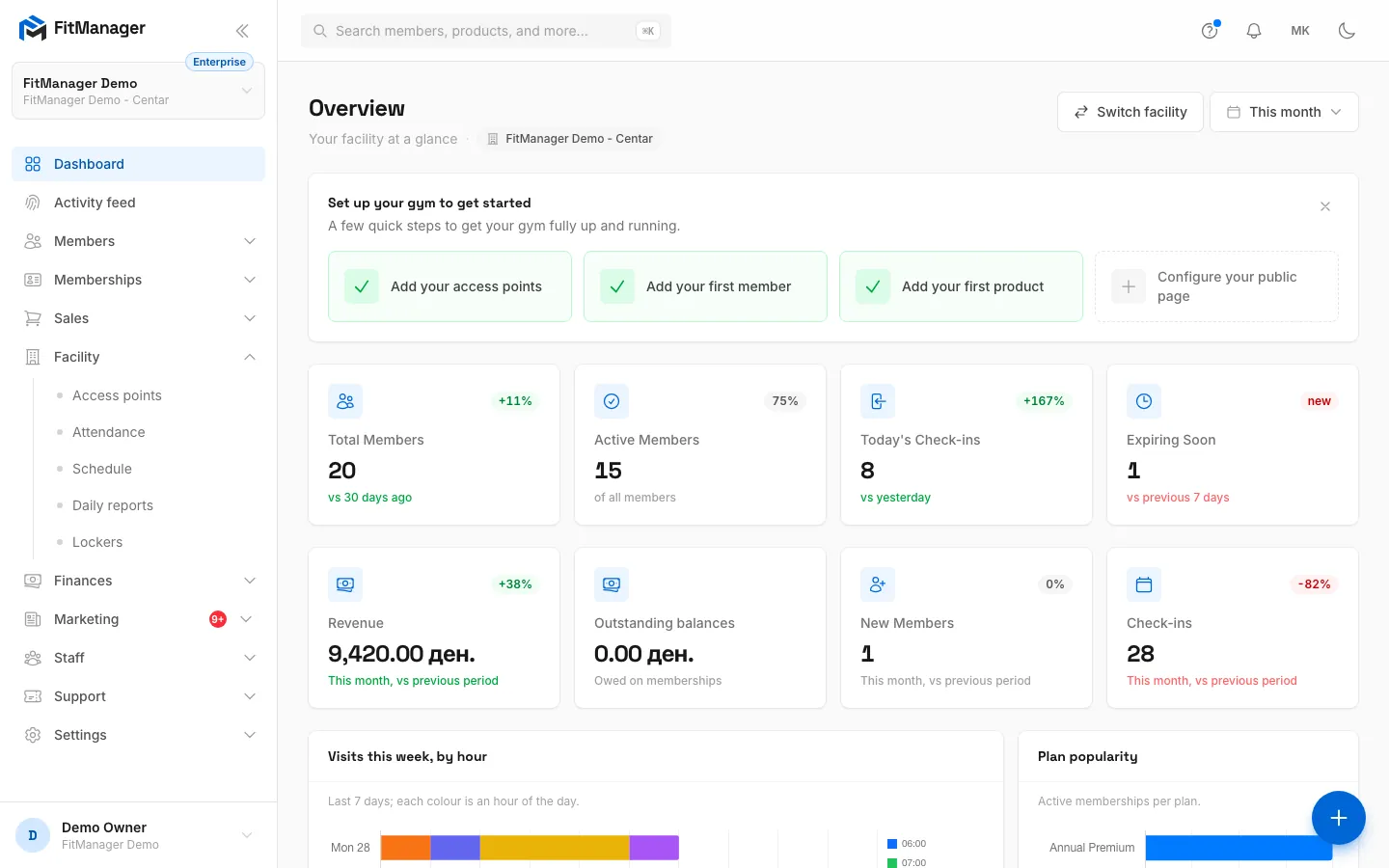
- Step 4: Pick Today, This week, This month or your own dates for the revenue and visit cards.
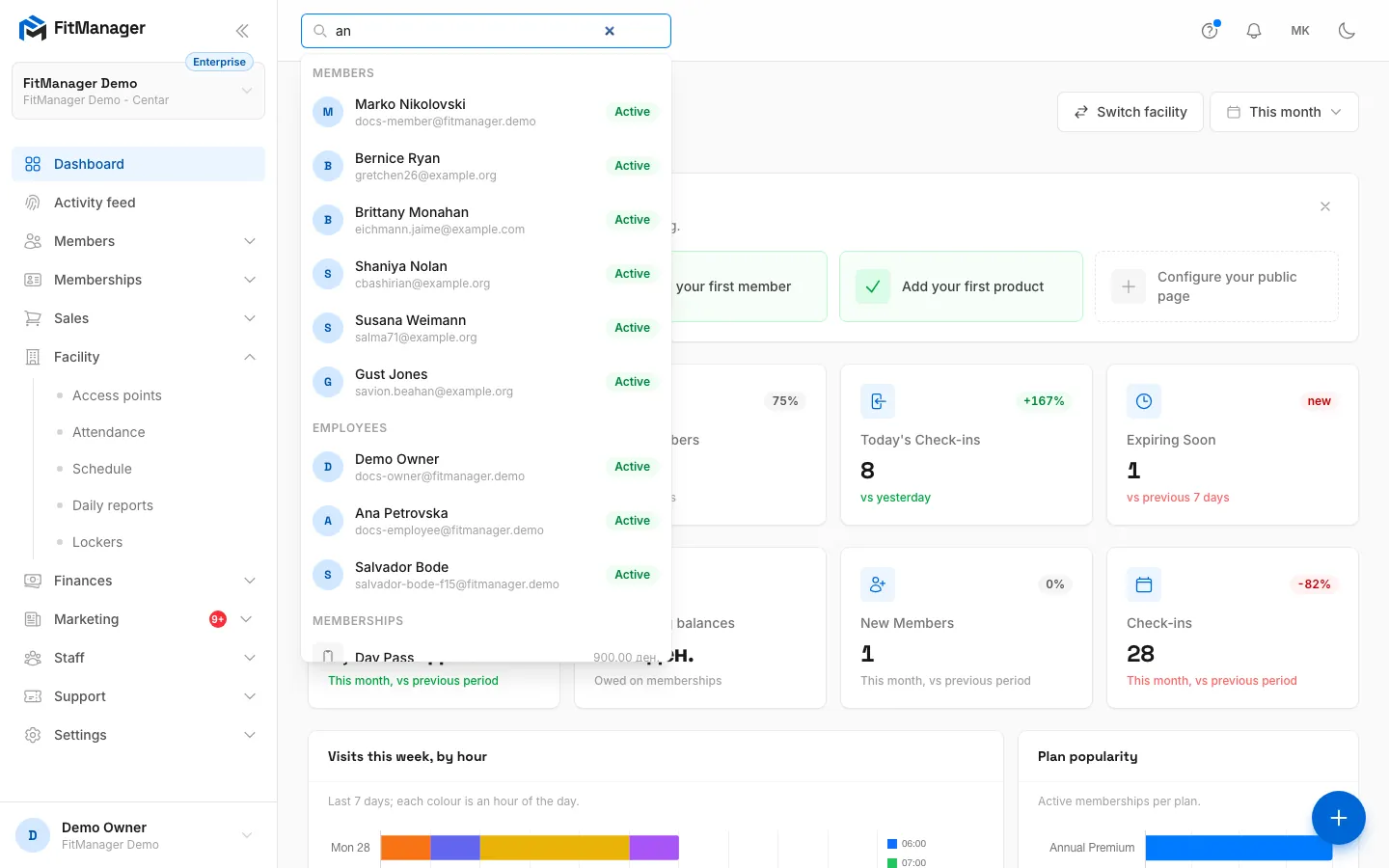
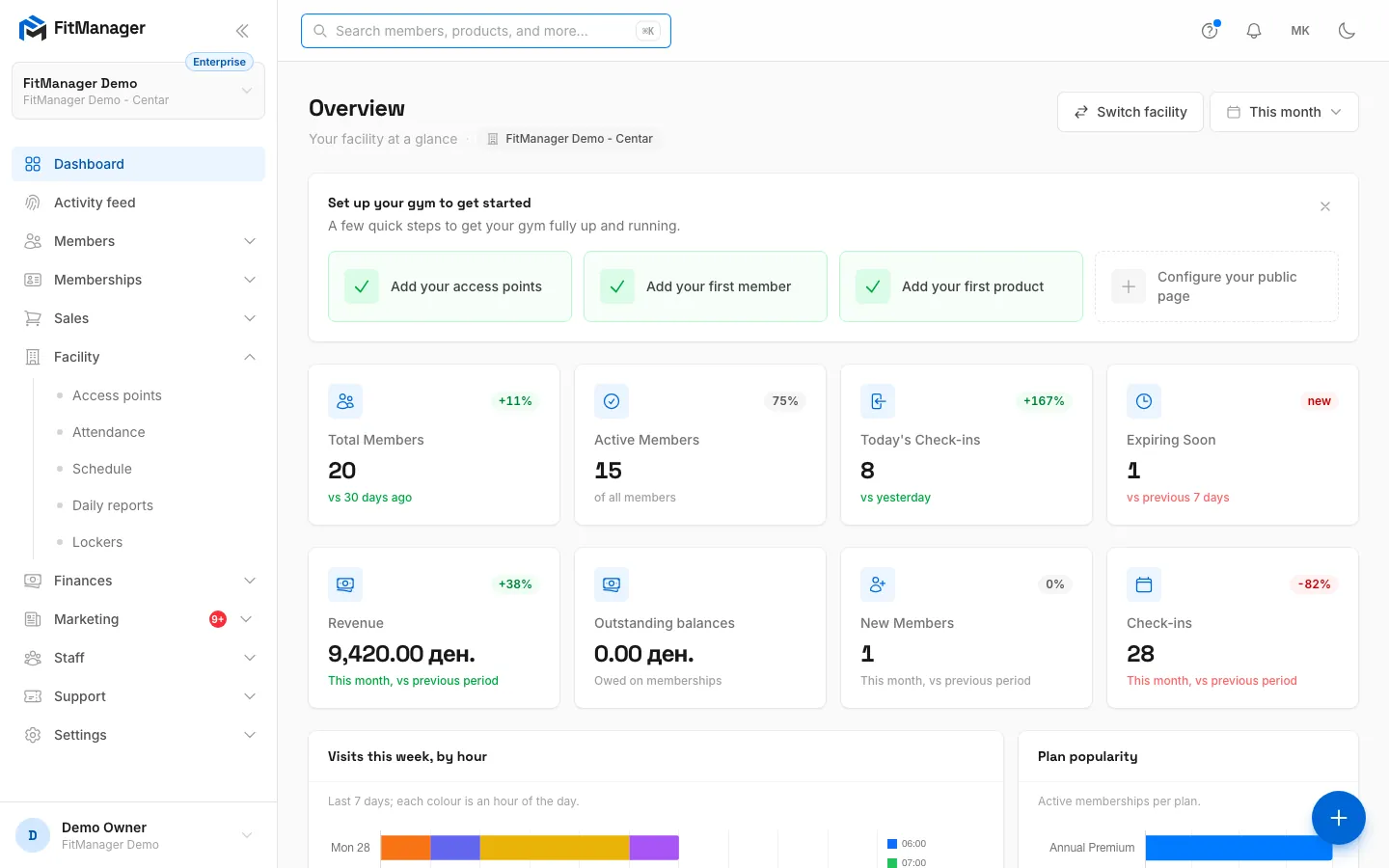
- Step 5: Search members, products, plans and more from any page. Ctrl K jumps here.
- Step 6: Results are grouped by type. Use the arrow keys and Enter, or click one.
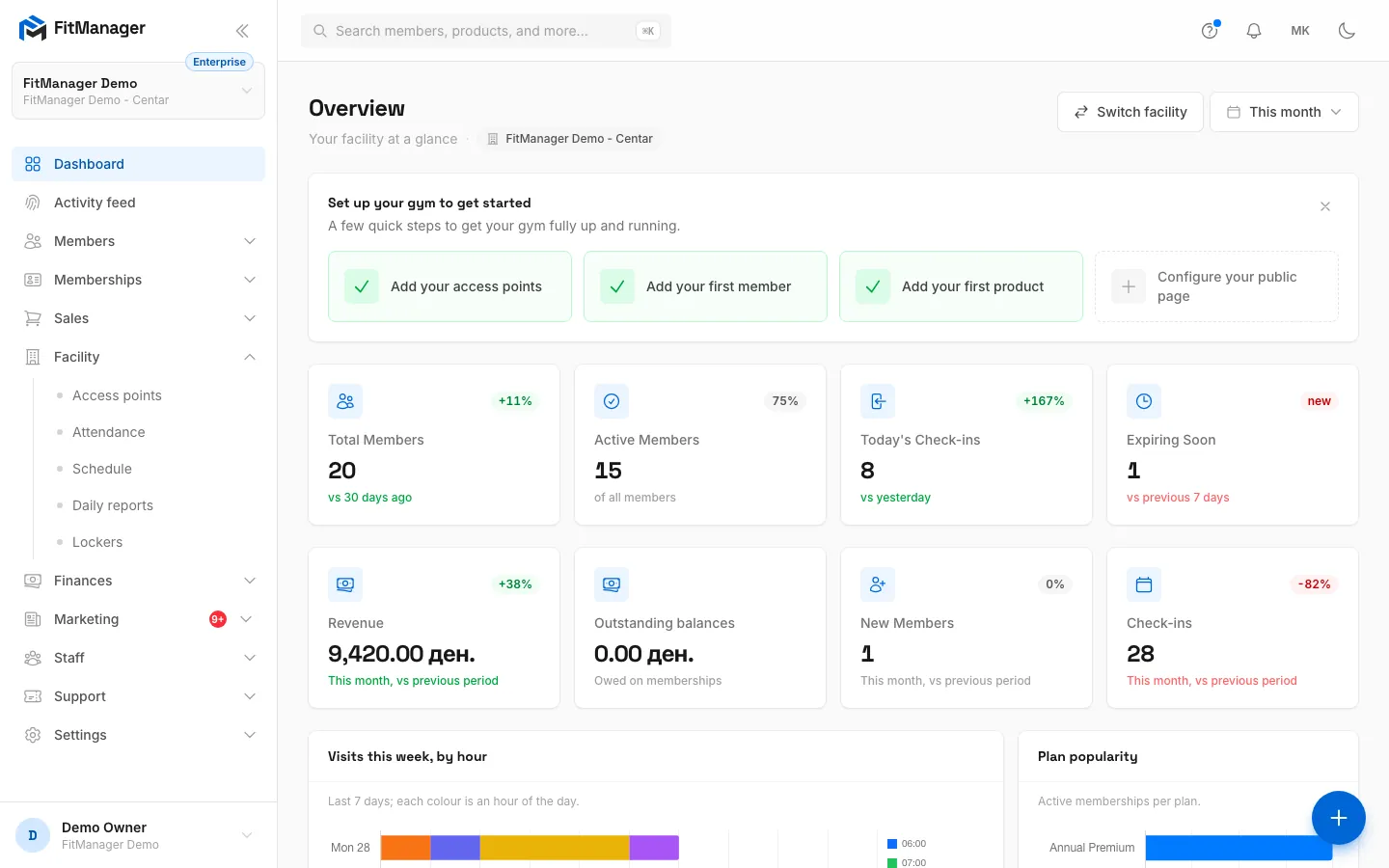
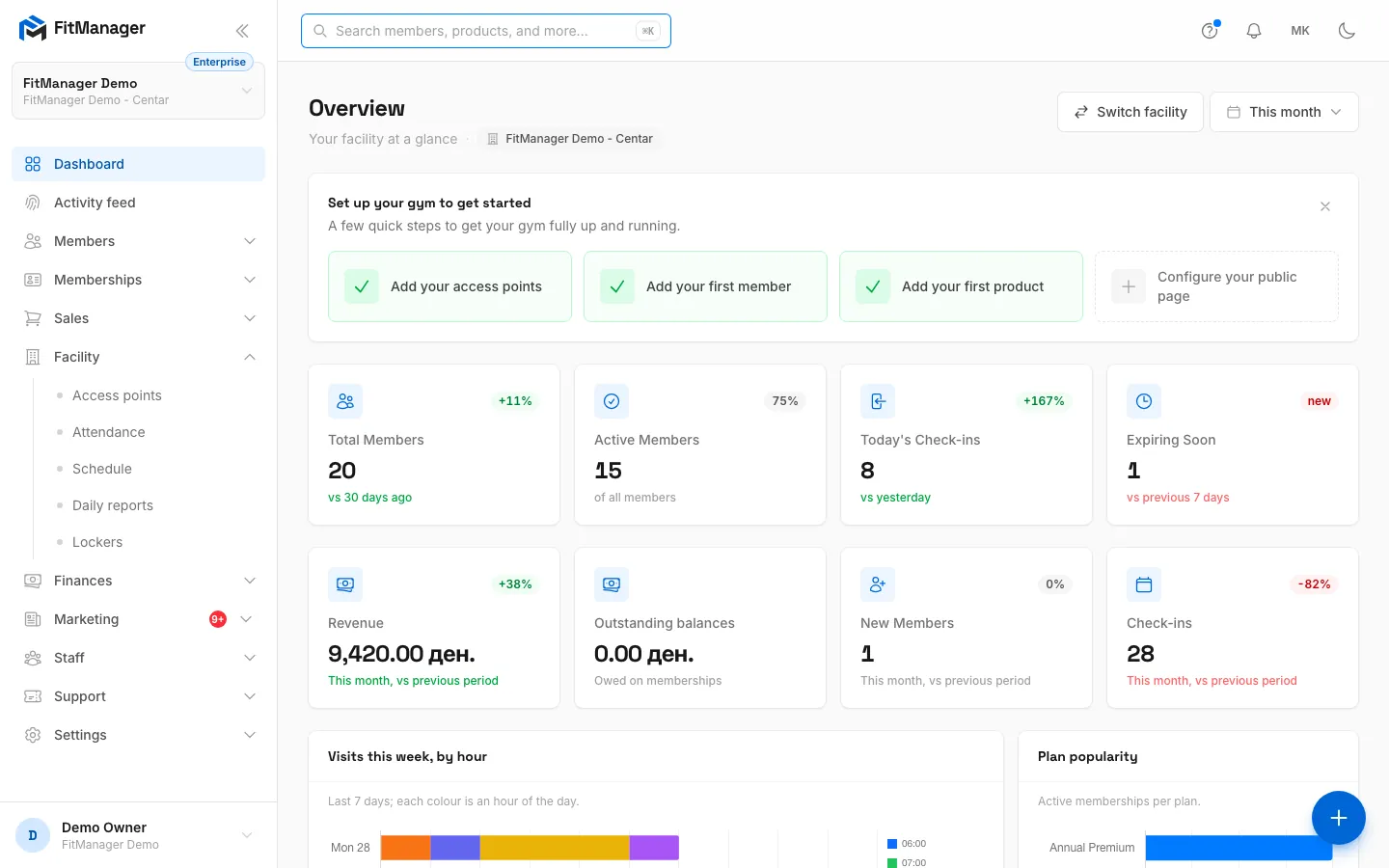
- Step 7: The question mark opens the help articles for the page you are on.
- Step 8: The bell collects notifications, such as support replies and doors that went offline.
- Step 9: Switch between English and Macedonian here, and light or dark mode next to it.
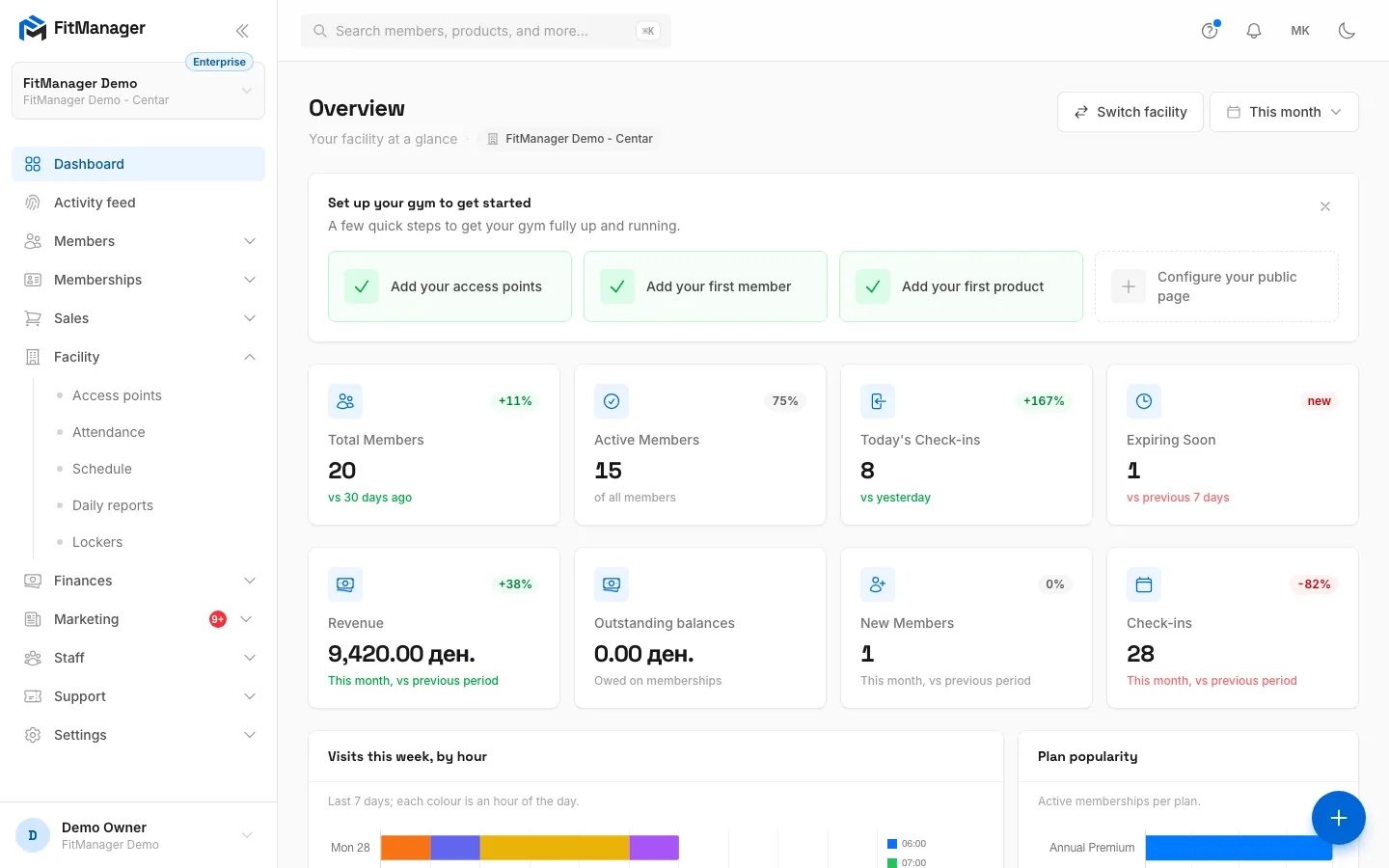
- Step 10: The round button opens quick actions, New member, New sale and Check-in.
The sidebar
At the top of the sidebar is your gym's logo and name, and under it the workspace card. It names the facility you are working in and shows your plan as a small badge. Click it to:
- switch to another facility (see Work with several facilities),
- switch gym, if your account owns more than one,
- add a facility (owners only),
- open Preview website in a new tab.
Below it are the modules, grouped:
| Group | What is inside |
|---|---|
| Dashboard | The Overview page |
| Activity feed | Live door activity |
| Members | All members, Add member, Import members |
| Memberships | Plans, Categories, Subscriptions |
| Sales | Point of Sale, Products, Categories, Purchases, Gift cards |
| Facility | Access points, Attendance, Schedule, Daily reports, Lockers |
| Finances | Earnings, Partners, Expenses |
| Marketing | Inquiries, Coupons, Newsletter, Push notifications, Blog |
| Staff | Employees, Reports, Monthly report |
| Support | New ticket, All tickets, Help centre |
| Settings | Gym, facility, website and integration settings, Prepaid balance, Billing |
You only see the groups and pages your plan includes and your permissions allow, so an employee's sidebar is usually shorter than the owner's. An owner can also hide whole groups the gym does not use in Settings, Gym settings, Sidebar; hidden pages still open from a link. A small number next to a group (for example Marketing or Support) counts new items waiting for you.
The arrow button at the top of the sidebar minimises it to icons on a desktop screen. Click it again to expand.
At the bottom of the sidebar is your name. Click it for Account (your profile, password and appearance, see Your account) and Log out.
The top bar
From left to right:
- Search. Type at least two characters to search members, employees, plans, products, purchases, coupons, lockers, access points, blog posts, tickets and more in the current facility. Press Ctrl K (Cmd K on a Mac) from anywhere to jump into it, use the arrow keys and Enter to open a result, and Esc to close. You only get results from areas you have permission to see.
- Help for this page (the question mark). Opens the help articles written for the page you are on, with their walkthroughs. A blue dot means there is an article for this page.
- Doorbell. With access control, this lights up and plays a chime when someone presses the doorbell on a door controller. Click Clear once someone has answered.
- Notifications (the bell). Shows your latest notifications, such as replies to your support tickets and an access point going offline. Click one to mark it read, Mark all as read, or View all for the full Notifications page, where you can search and filter by All, Unread and Read.
- MK / EN. Switches the dashboard language. The choice lasts for your browser session.
- Theme. Switches between light and dark mode. To follow your device setting instead, choose System in Appearance.
Quick actions
The round + button at the bottom right opens shortcuts to New member, New sale and Check-in. You only see the ones your plan and permissions allow.
On a phone
On a small screen the sidebar slides in from the menu button at the top right, next to search, help and notifications. Language and theme switches sit at the bottom of that menu. A bar along the bottom links to Overview, Members, POS and Finances, with the quick actions + button in the middle.
The Overview page
Dashboard opens the Overview, a summary of the facility you are working in. What you see depends on your permissions.
| Card | What it shows |
|---|---|
| Total Members, Active Members | All members of the facility and how many are active, with the change against 30 days ago |
| Today's Check-ins | Check-ins so far today, against yesterday |
| Expiring Soon | Active memberships that end in the next 7 days |
| Revenue, New Members, Check-ins | Totals for the period picked at the top right, against the period before |
| Outstanding balances | What members still owe on their memberships |
| Visits this week, by hour | A heat map of the last 7 days |
| Plan popularity | Active memberships per plan |
| Monthly Check-ins | Attendance over the last 6 months |
| Member Status | Active, inactive, frozen and other statuses |
| Attendance calendar | Unique visitors per day for a month, with the busiest day |
| Peak Hours | Check-ins by time of day |
| Live entries | The latest door scans today |
| Recent Members | The newest members, with a link to all |
| Monthly Revenue | Paid sales over the last 6 months |
| Recent Activity | The latest changes from the activity log, for owners |
The period picker at the top offers Today, This week and This month, or your own start and end dates. Next to it, Switch facility opens a list of your facilities.
The monthly report
With the View reports permission, the Monthly Revenue card has a Monthly report button. Pick one or more Months, then either Open report to read it on screen, or choose a Format (PDF document or Excel workbook) and click Export. See Reports for what the report contains.
Common questions
A page I used yesterday is missing from the sidebar
Three things hide a page: your plan does not include it, your permissions do not allow it, or an owner hid the group in Gym settings. If you open a page your plan does not include, you land back on the Overview with a message naming the feature and the plan. See What is on my plan?
Everything is greyed out and the Overview asks me to choose a plan
The gym has no active FitManager subscription, or the last payment failed. The Overview shows Choose a plan to unlock your dashboard or Payment failed - dashboard locked. Settings, billing and the help centre still work. See Missed payments.
The numbers look wrong for today
Check the timezone of your facility in Settings, Facility settings. "Today" starts at midnight in that timezone.
Was this page helpful?
Related articles
Still stuck?
Write to us and we will get back to you within one working day.