Earnings
See what your facility took in at the POS and the kiosk for any period, next to your expenses, with the latest sales underneath.
Finances, Earnings is the quick money view of your facility: what came in through sales, what is still pending, and what you spent, for the period you choose. Money you pay FitManager for your own subscription is separate, under Billing.
Before you start
You need the Finances feature on your plan and the View earnings permission. Owners have it. Employees do not by default.
Read the page
- Open Finances, Earnings.
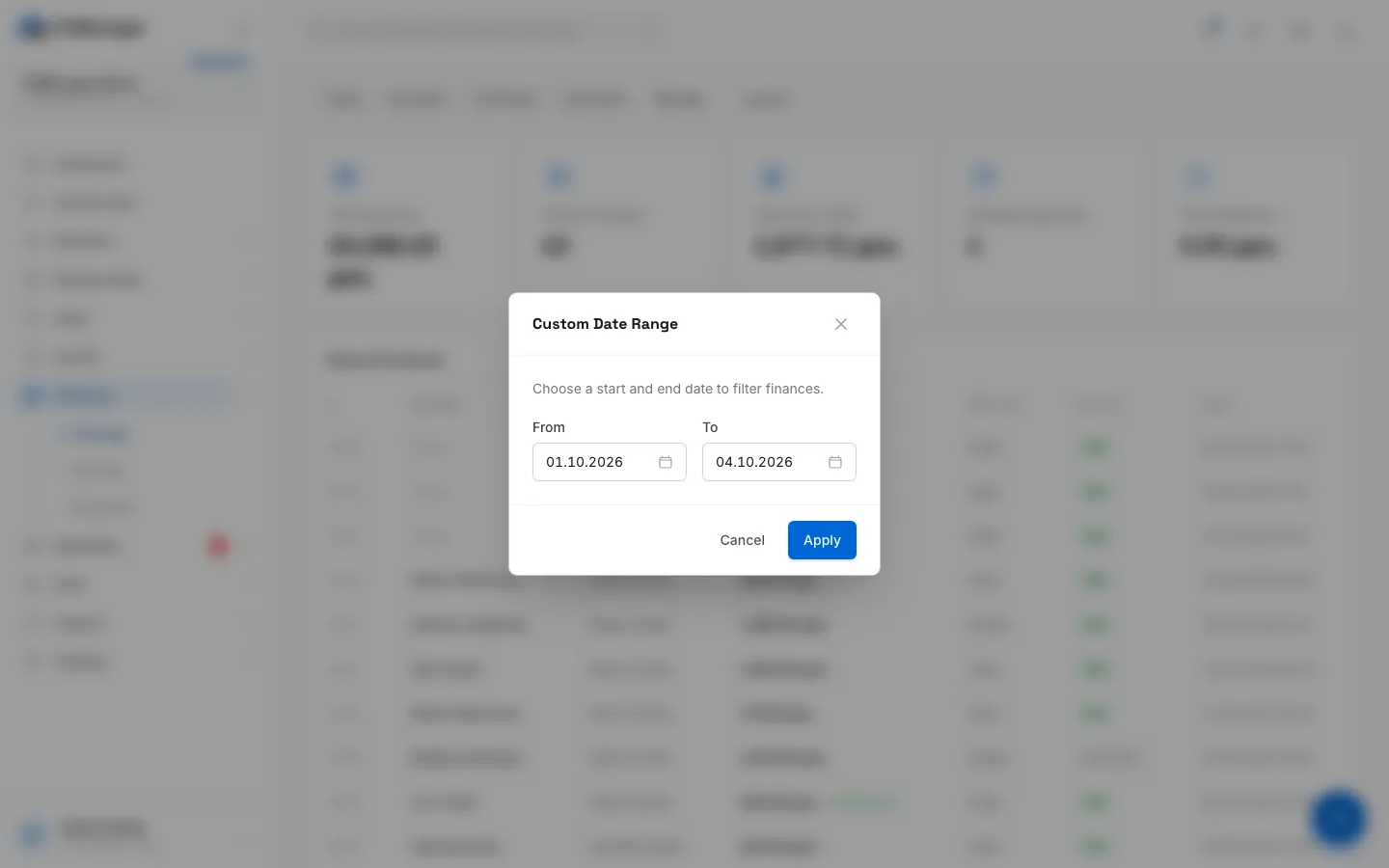
- Pick a period at the top: Today, This Week, This Month, Last Month or This Year. Custom opens a window where you choose From and To and click Apply.
The figures update for that period:
| Figure | What it counts |
|---|---|
| Total Revenue | The total of sales marked Paid in the period. |
| Total Purchases | How many paid sales there were. |
| Avg Order Value | Total Revenue divided by Total Purchases. |
| Pending Payments | How many sales in the period are still Pending, for example a card sale waiting for the terminal. |
| Total Expenses | The expenses whose expense date falls in the period, not the day you entered them. |
Below the figures, Recent Purchases lists the last ten sales of the facility, whatever the period, with the member (or Guest), cashier, amount, method, source and status.
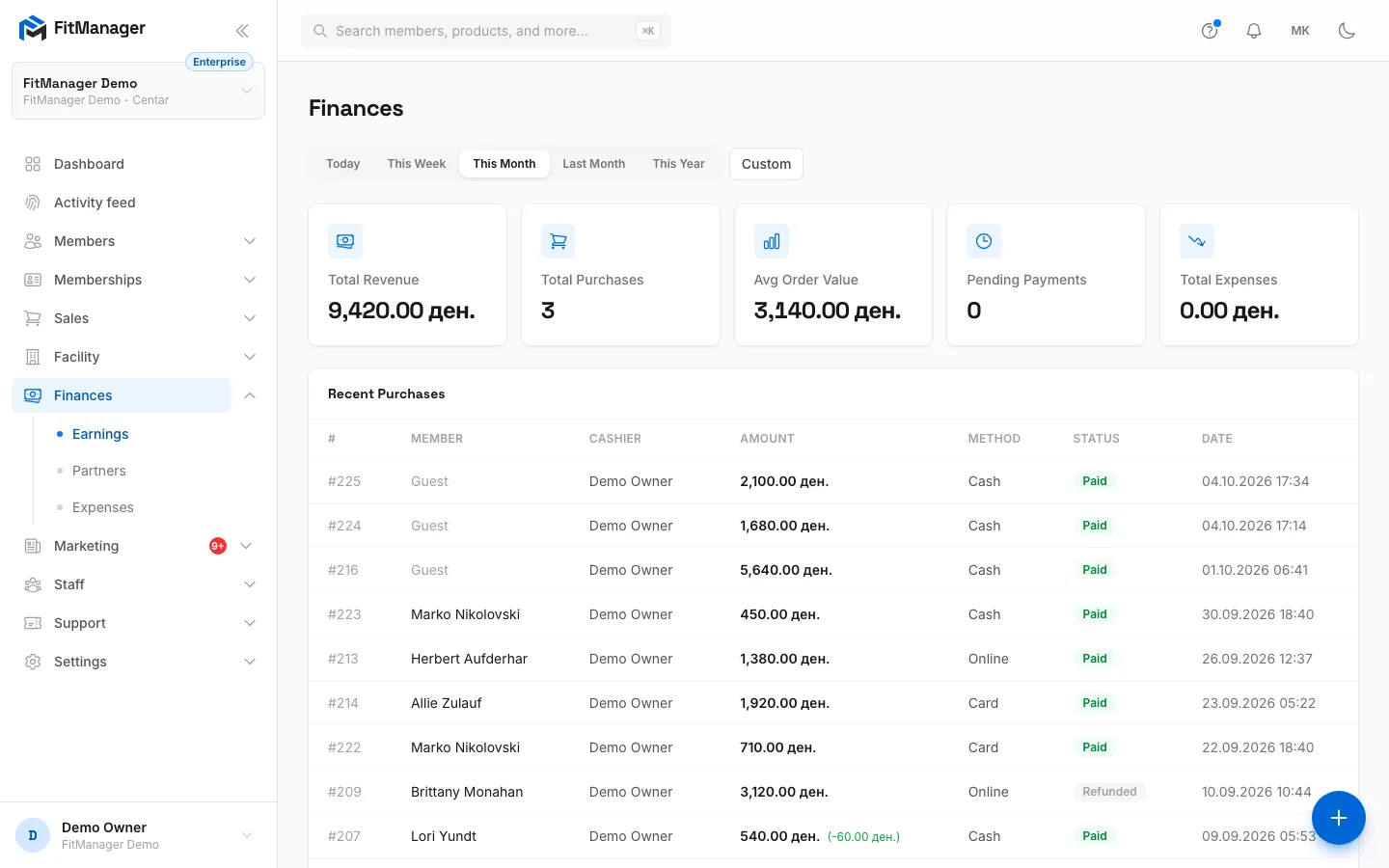
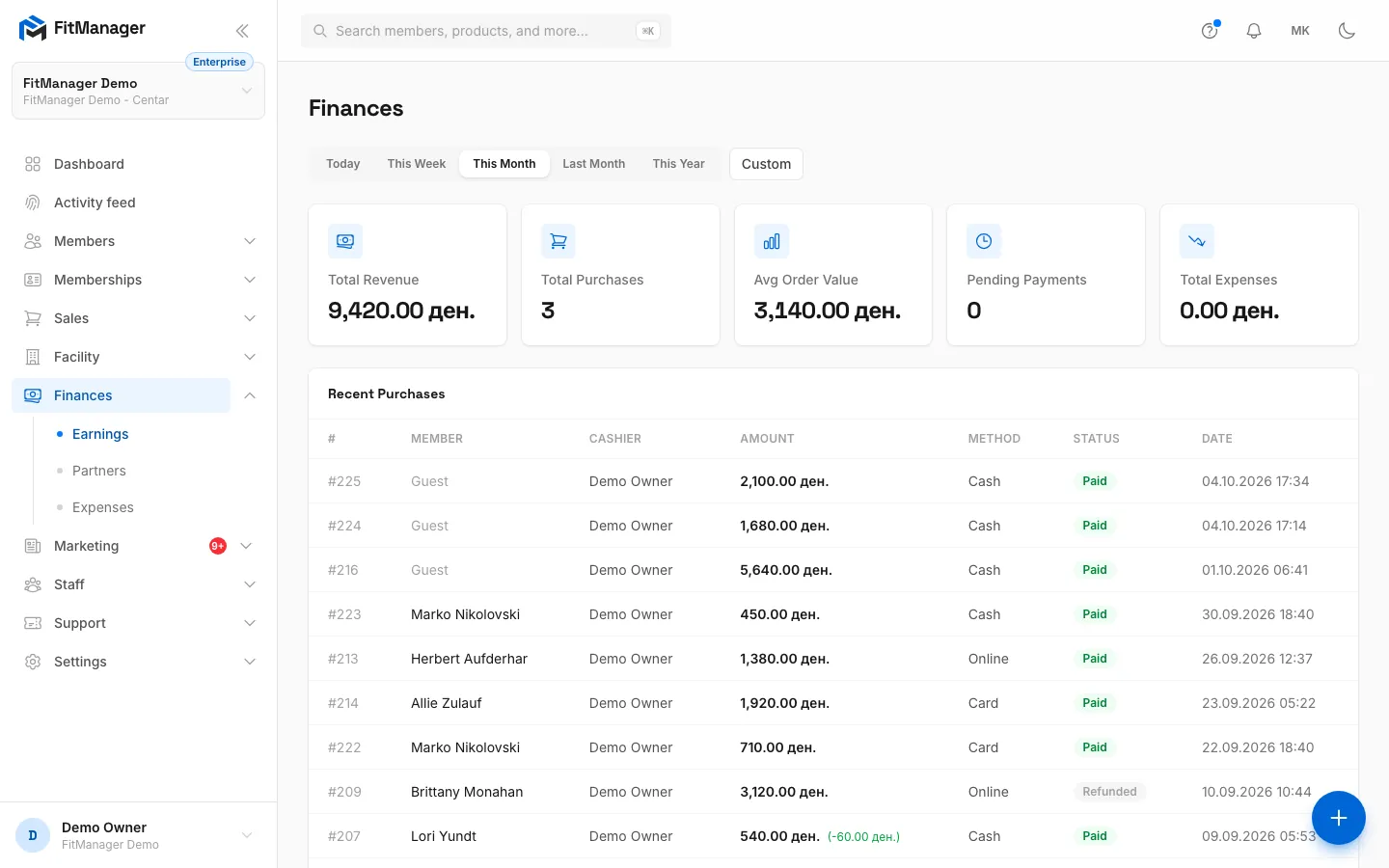
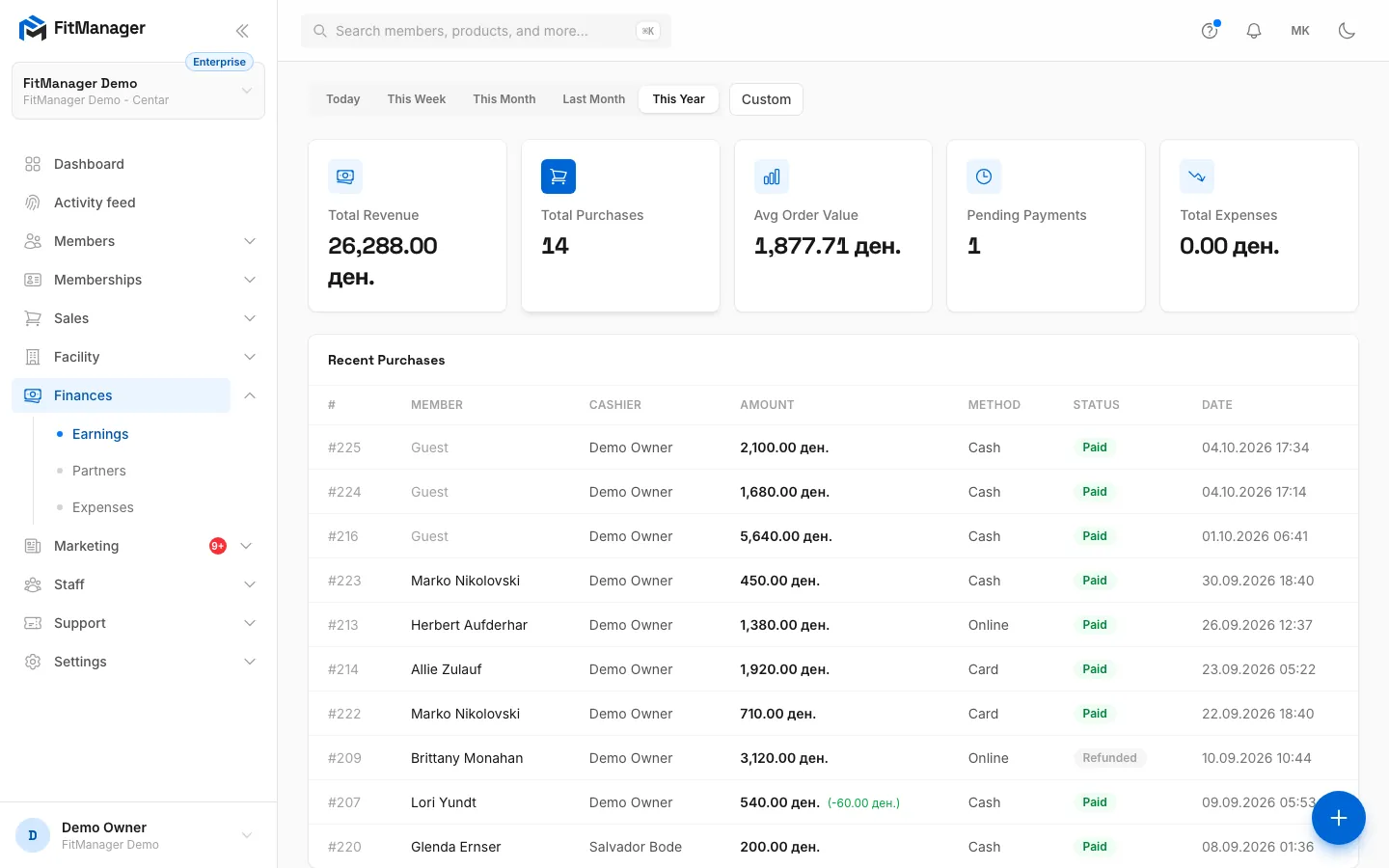
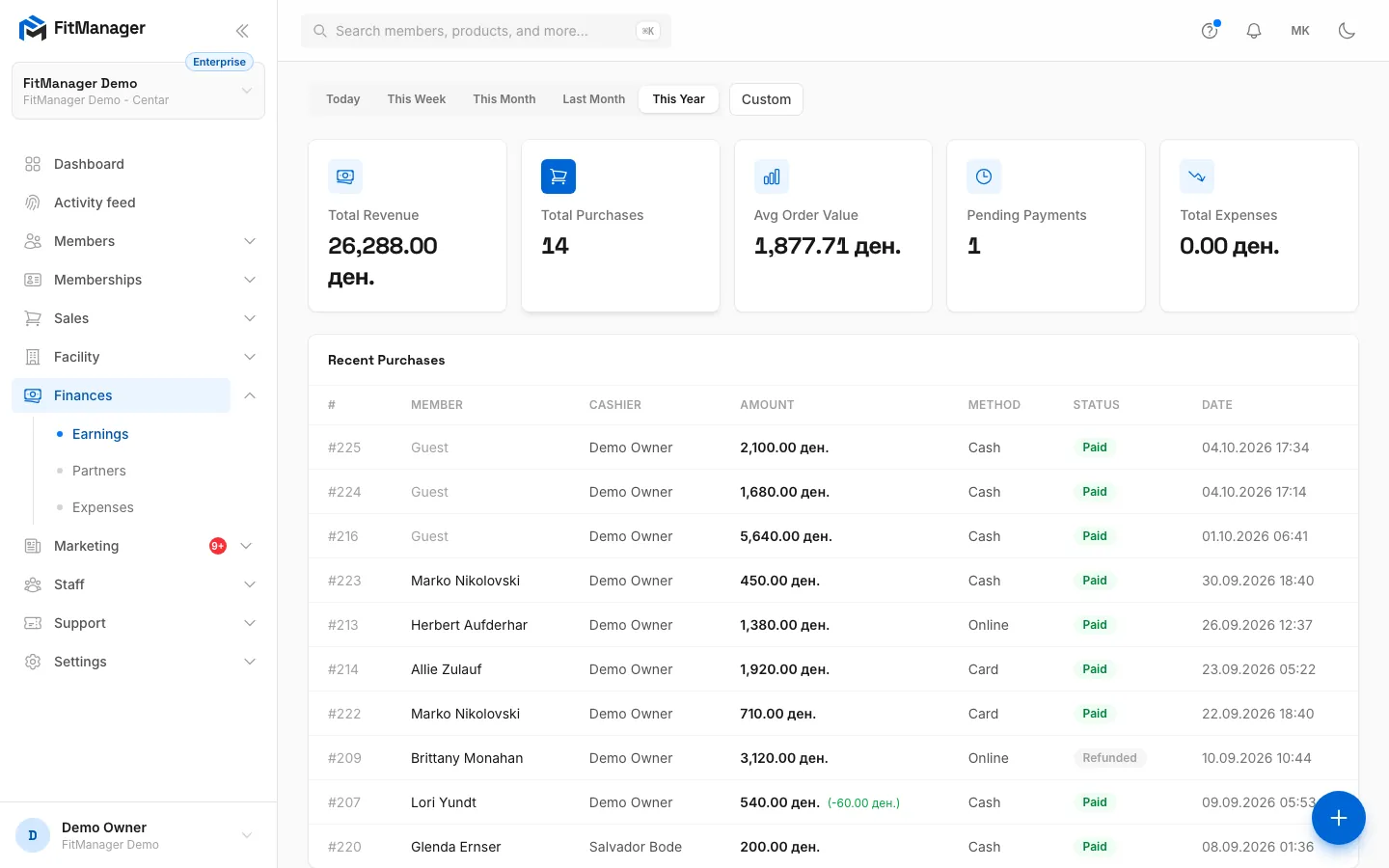
- Step 1: On the Earnings page, the buttons at the top set the period. This Month is selected first.
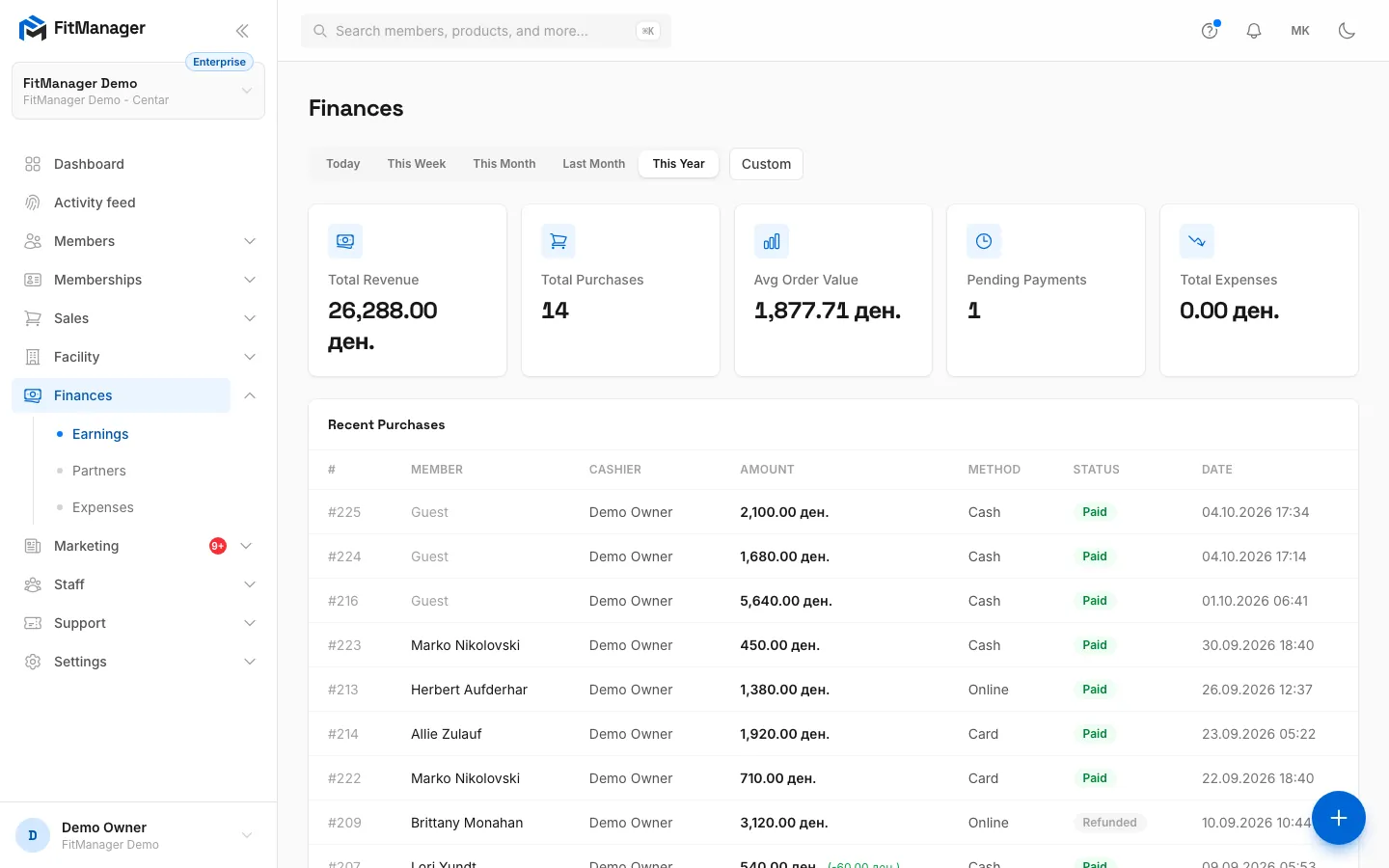
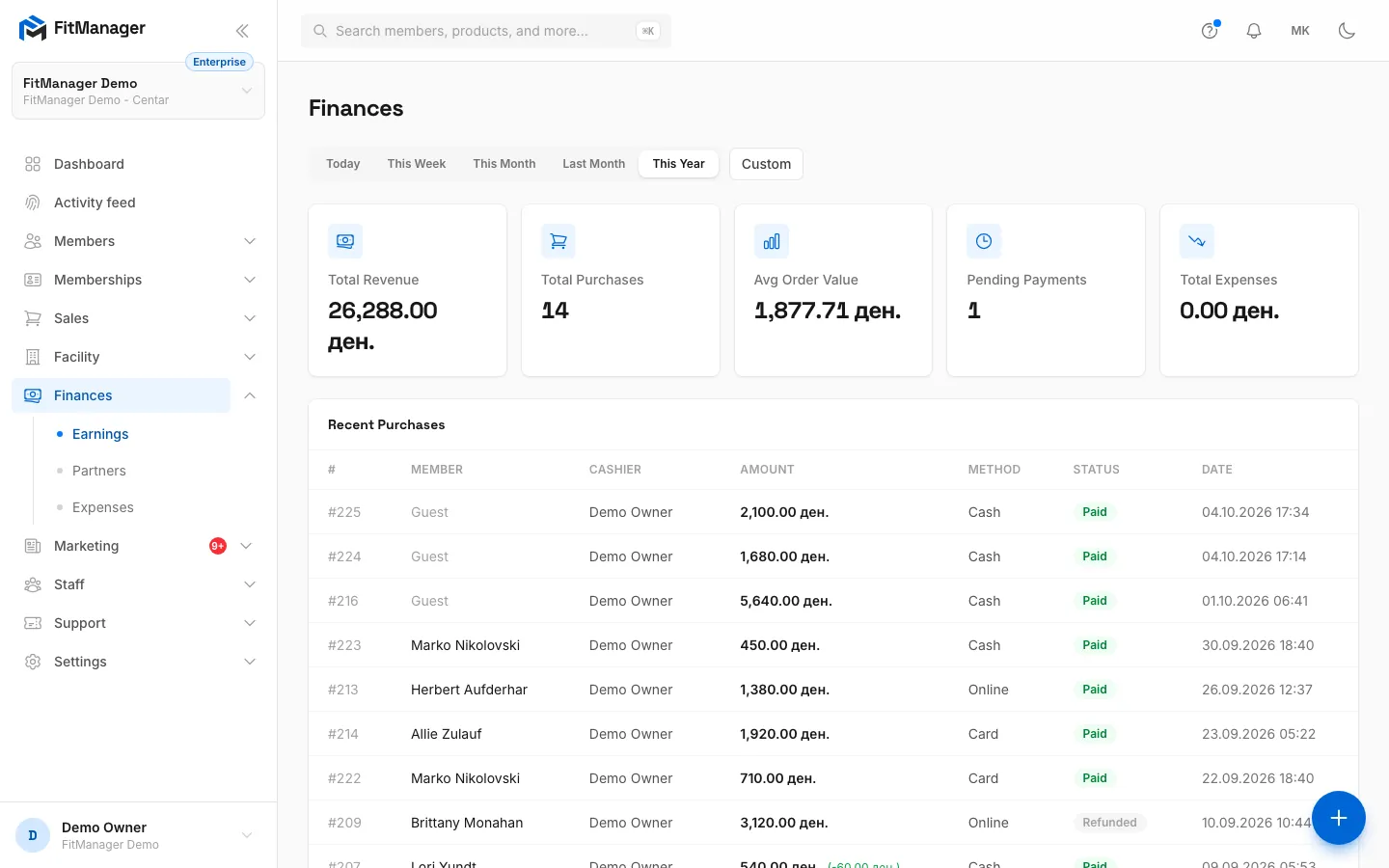
- Step 2: Click This Year to see the whole year so far.
- Step 3: Total Revenue counts paid sales in the period. Next to it are the number of sales, the average sale and pending payments.
- Step 4: Total Expenses adds up the expenses dated in the same period.
- Step 5: Recent Purchases lists the last ten sales, whatever the period, with member, cashier, method and status.
- Step 6: For any other dates, click Custom.
- Step 7: Choose From and To, then click Apply.
What counts as earnings
Earnings are built from sales, the same records you see under Purchases:
- Sales at the Point of Sale, including memberships sold there.
- Sales at the self-service kiosk.
- Sales brought in when your data was imported.
Not included here:
- Refunded sales. A storno takes the sale out of the revenue.
- Memberships assigned from a member's profile with a payment recorded there.
- Online payments from your website or member portal.
- Partner settlements.
Those payments are recorded against the member's membership. To see all income together, memberships and products, use Reports and the monthly report. If the numbers on the two pages differ, that is the reason.
Common questions
Why is Total Revenue lower than I expected?
Check whether the missing money came from memberships paid on a member's profile or online. They appear in Reports as Membership income, not here.
Which currency is shown?
Your gym's member billing currency, set in Gym settings.
Can I see another facility?
Switch facility at the top of the dashboard. Earnings always shows the selected facility.
Was this page helpful?
Related articles
Still stuck?
Write to us and we will get back to you within one working day.