Send push notifications
Send a message straight to members' phones through the gym app, now or at a set time, to everyone, one location or a hand-picked list.
A push notification pops up on a member's phone like a message from any other app. Use it for news that cannot wait: a cancelled class, a holiday opening time, a weekend event. It reaches every member who has signed in to your gym through the app on their phone.
Before you start
- Push notifications must be included in your plan.
- To see the page you need the View push history permission; to write and send you also need Send push notifications.
- Members only get push if they have the app. Point them to Install the app, and see The FitManager app for how your gym appears in it.
Who receives it
A member receives your notification when:
- their member status is active,
- they are in the audience you chose, and
- they have signed in through the app on at least one phone and allowed notifications.
One member can have several devices; each gets the message. Members cannot mute news from the gym in their portal settings, only the automatic reminders. The notification goes to phones only and is not added to the portal inbox.
Send a notification
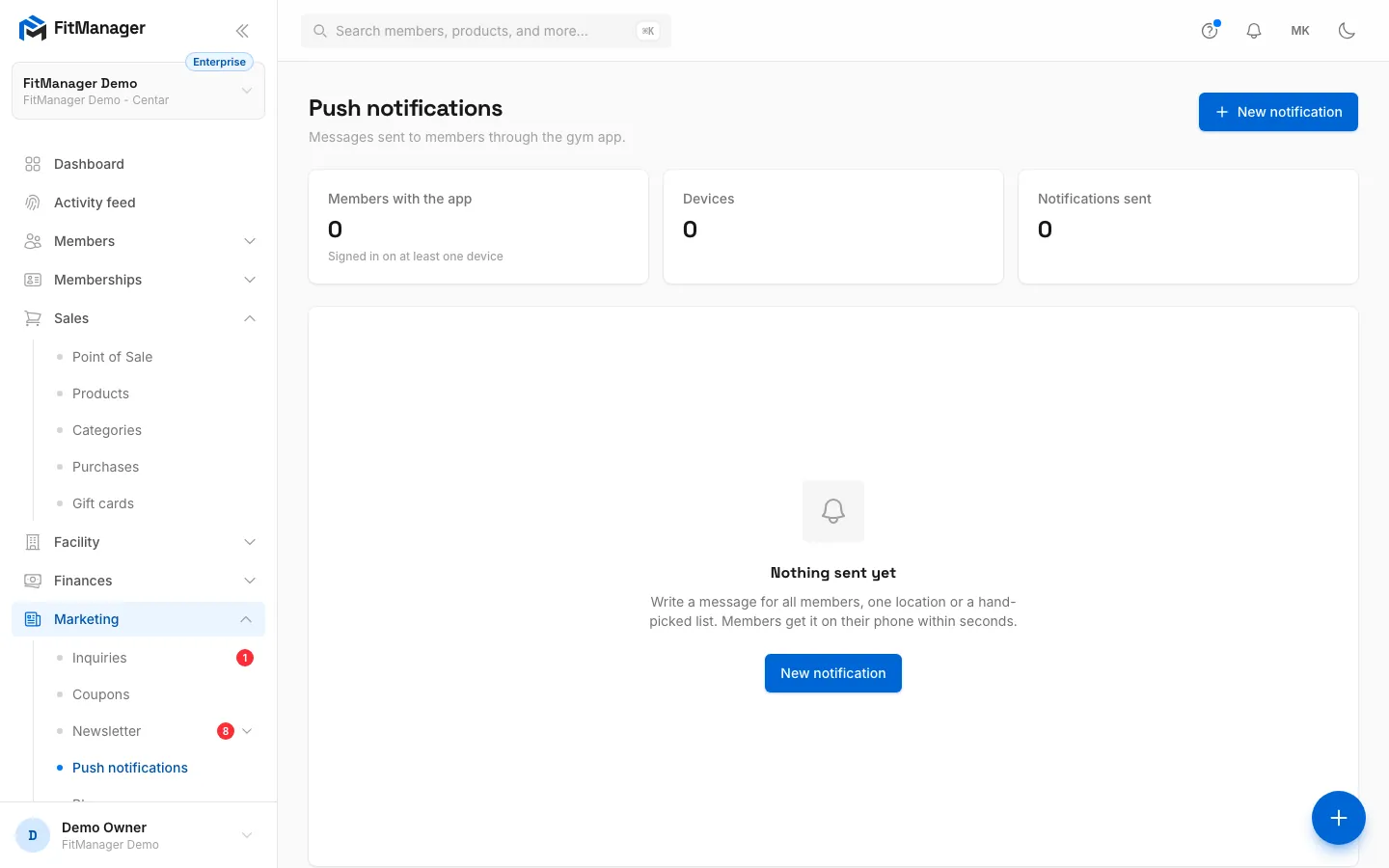
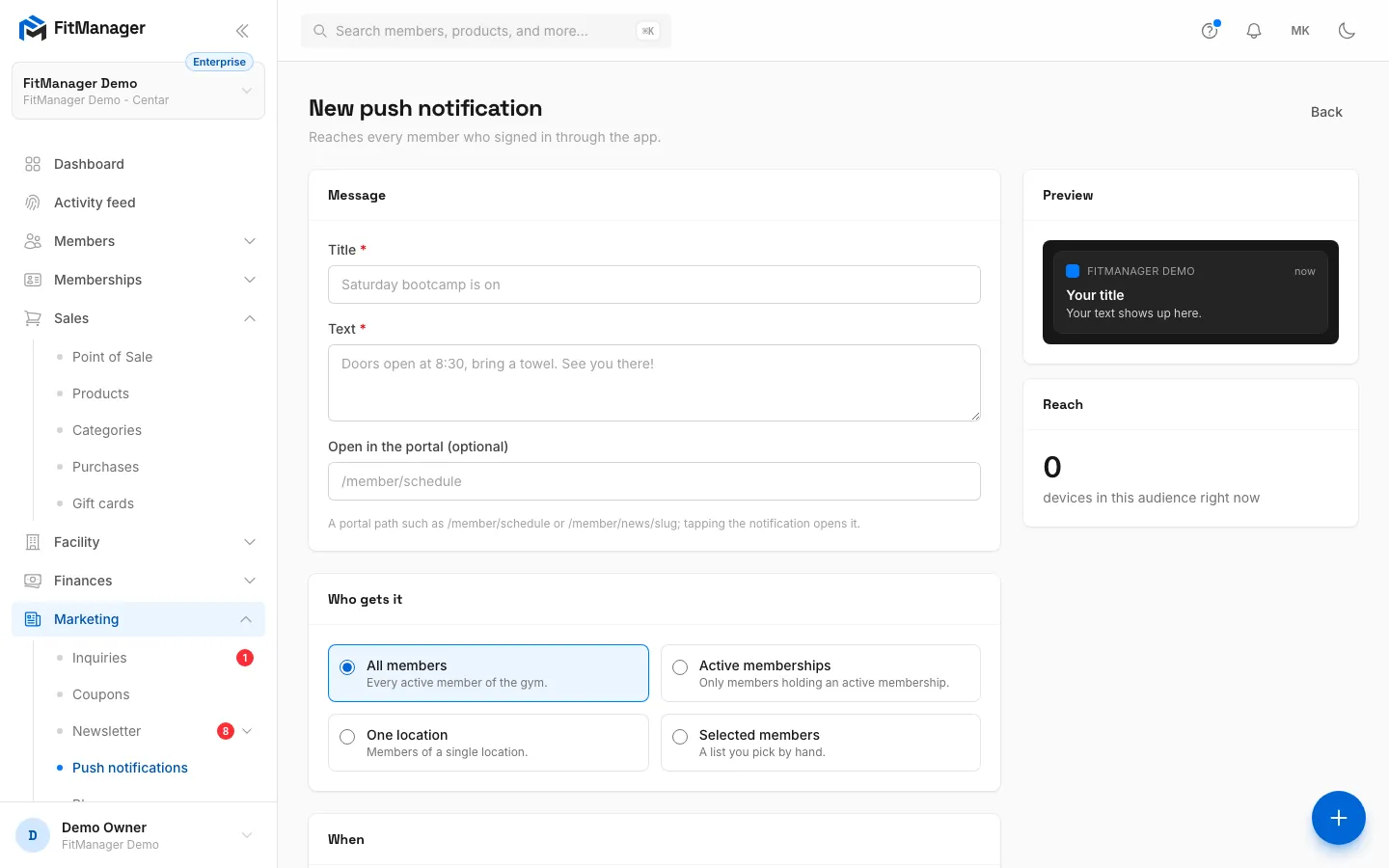
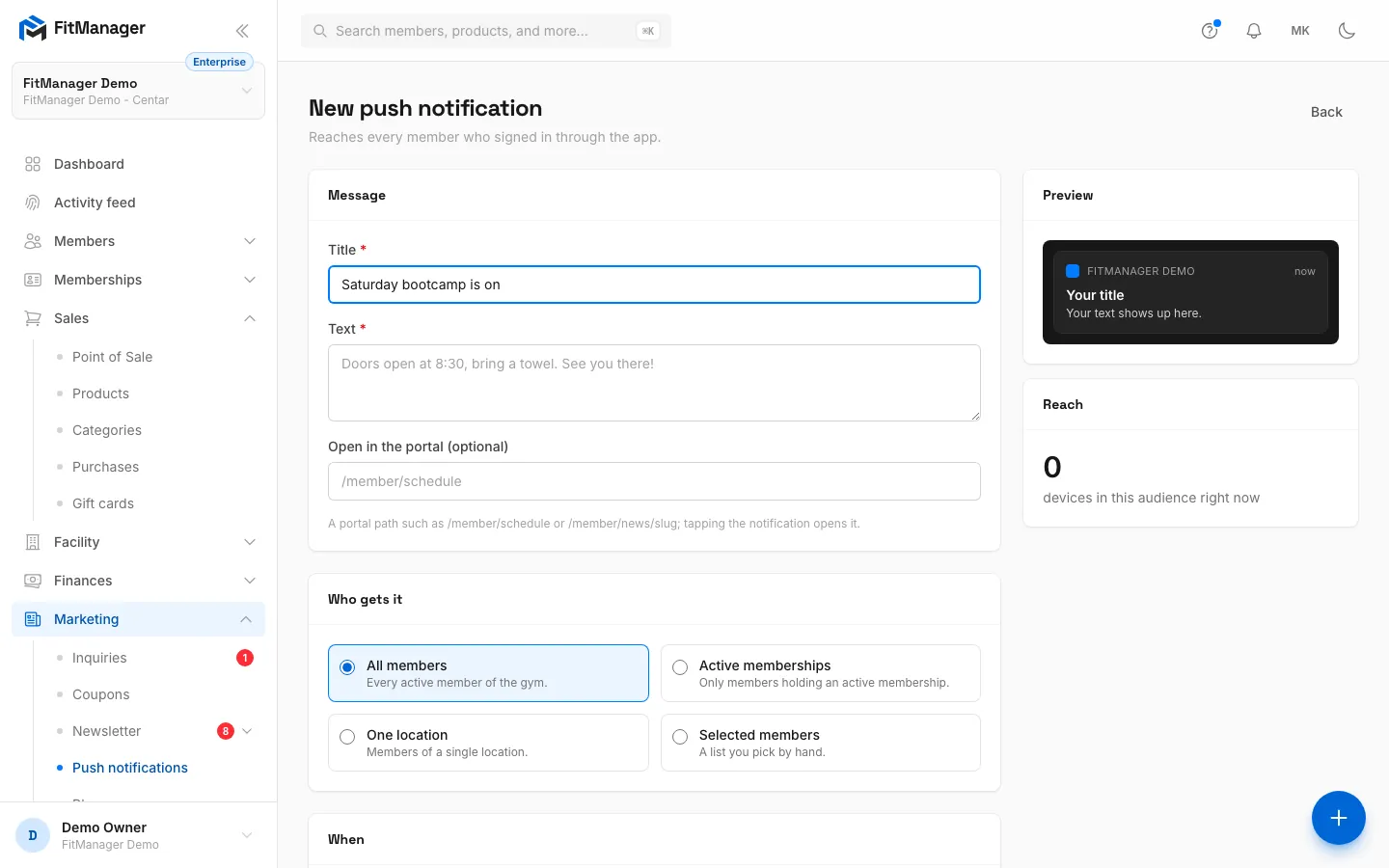
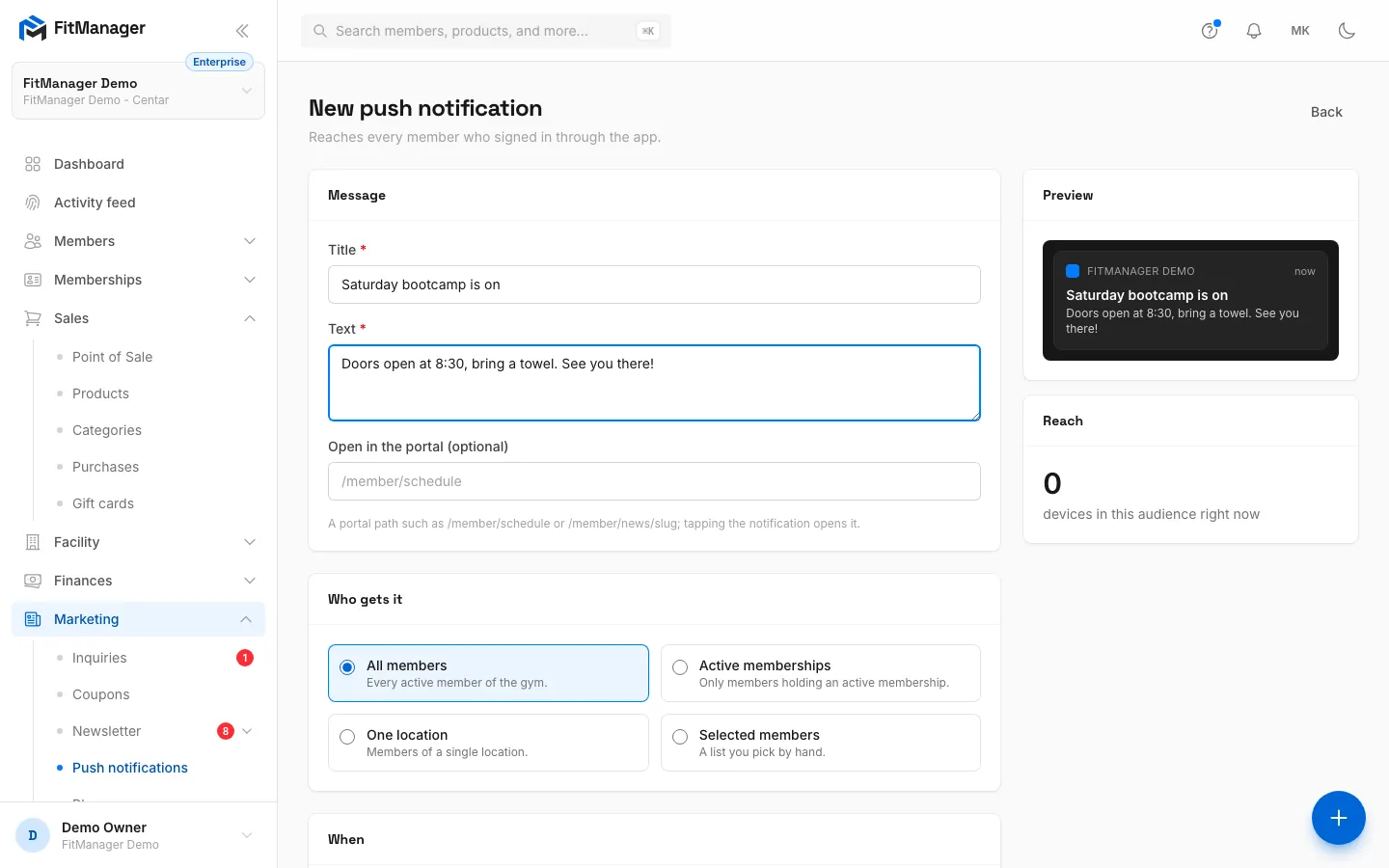
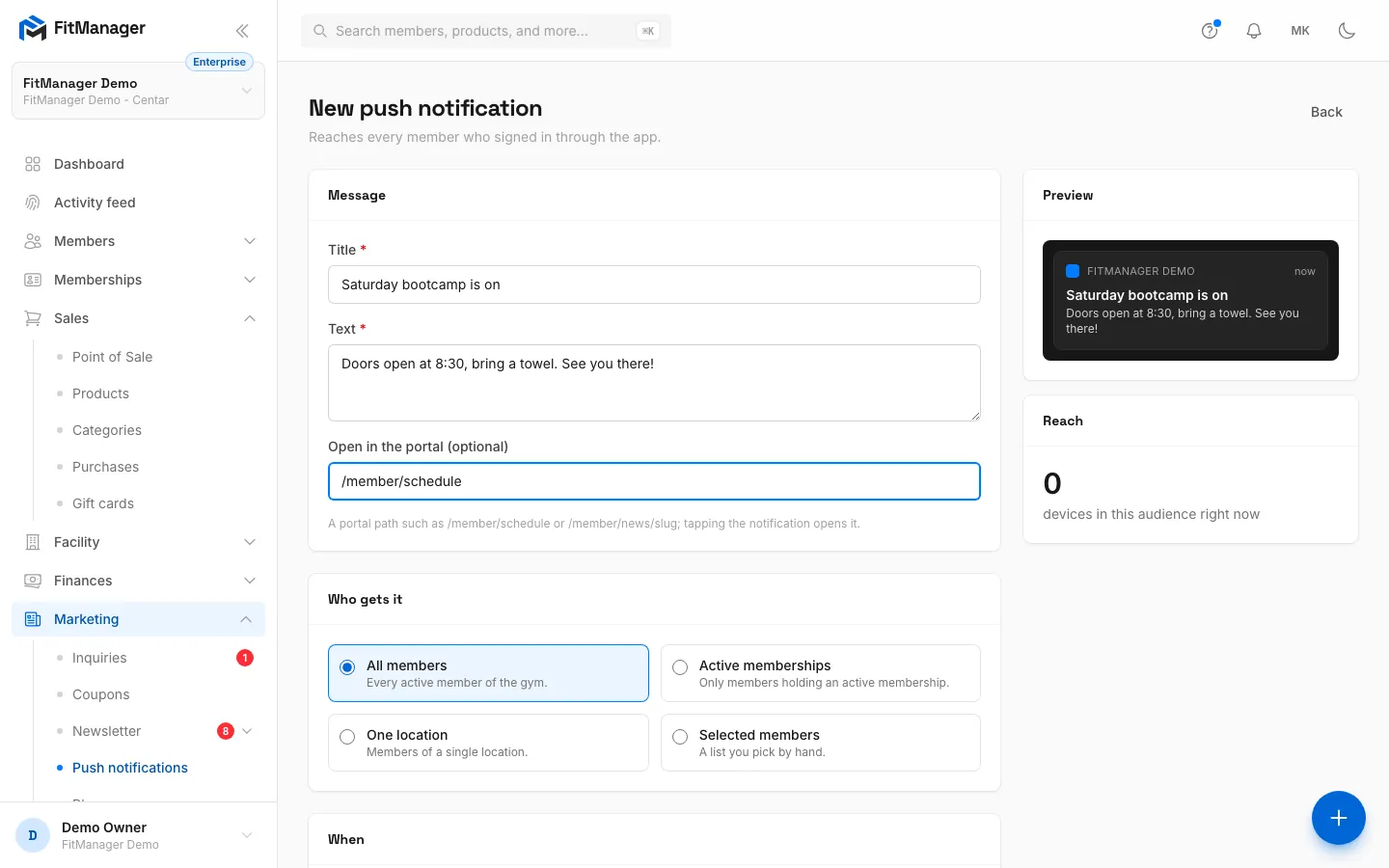
- Step 1: On the Push notifications page, click New notification.
- Step 2: Write a short title. It is the bold line on the lock screen.
- Step 3: Add the text, up to 300 characters.
- Step 4: Optionally, add a portal page that opens when the member taps it.
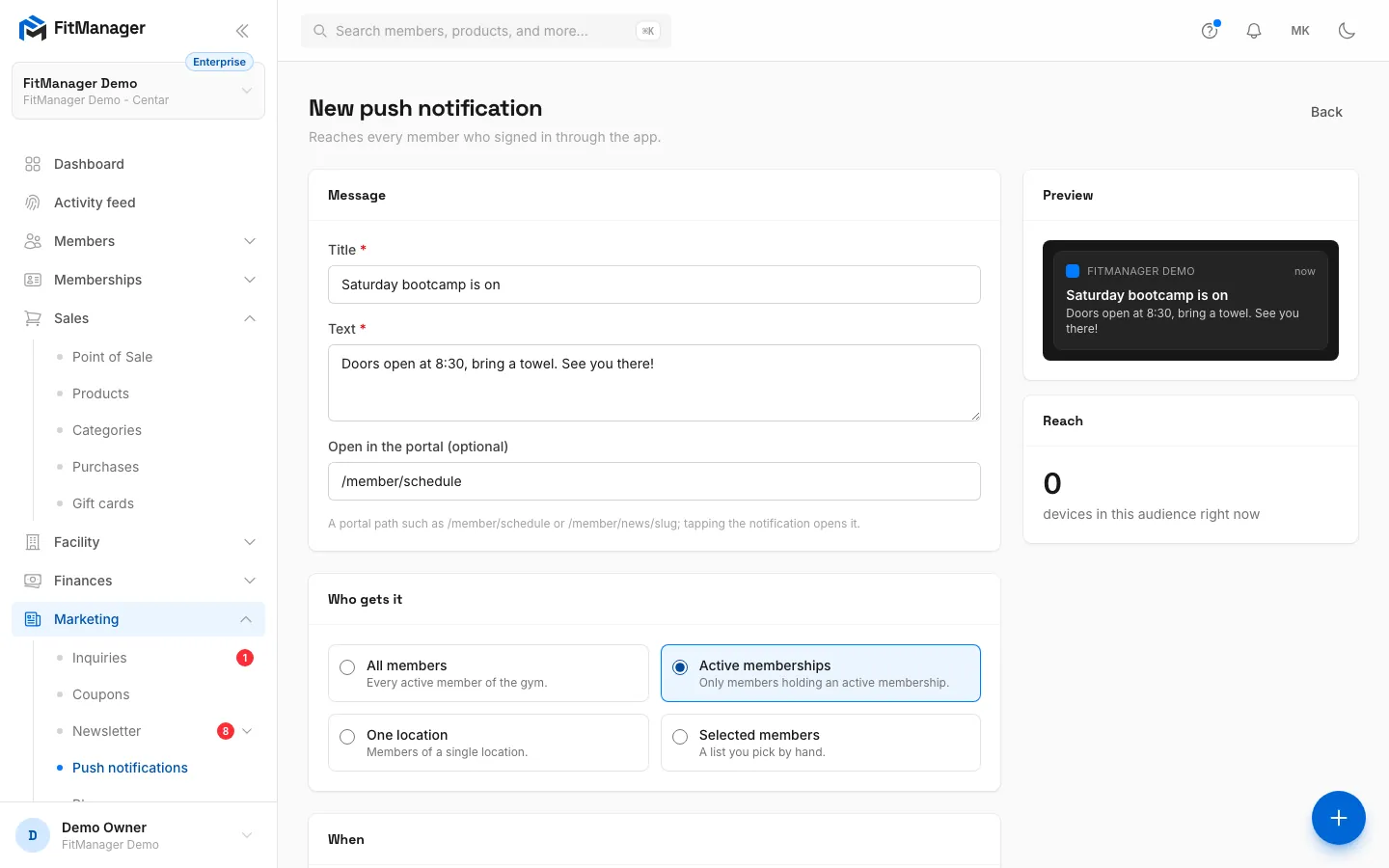
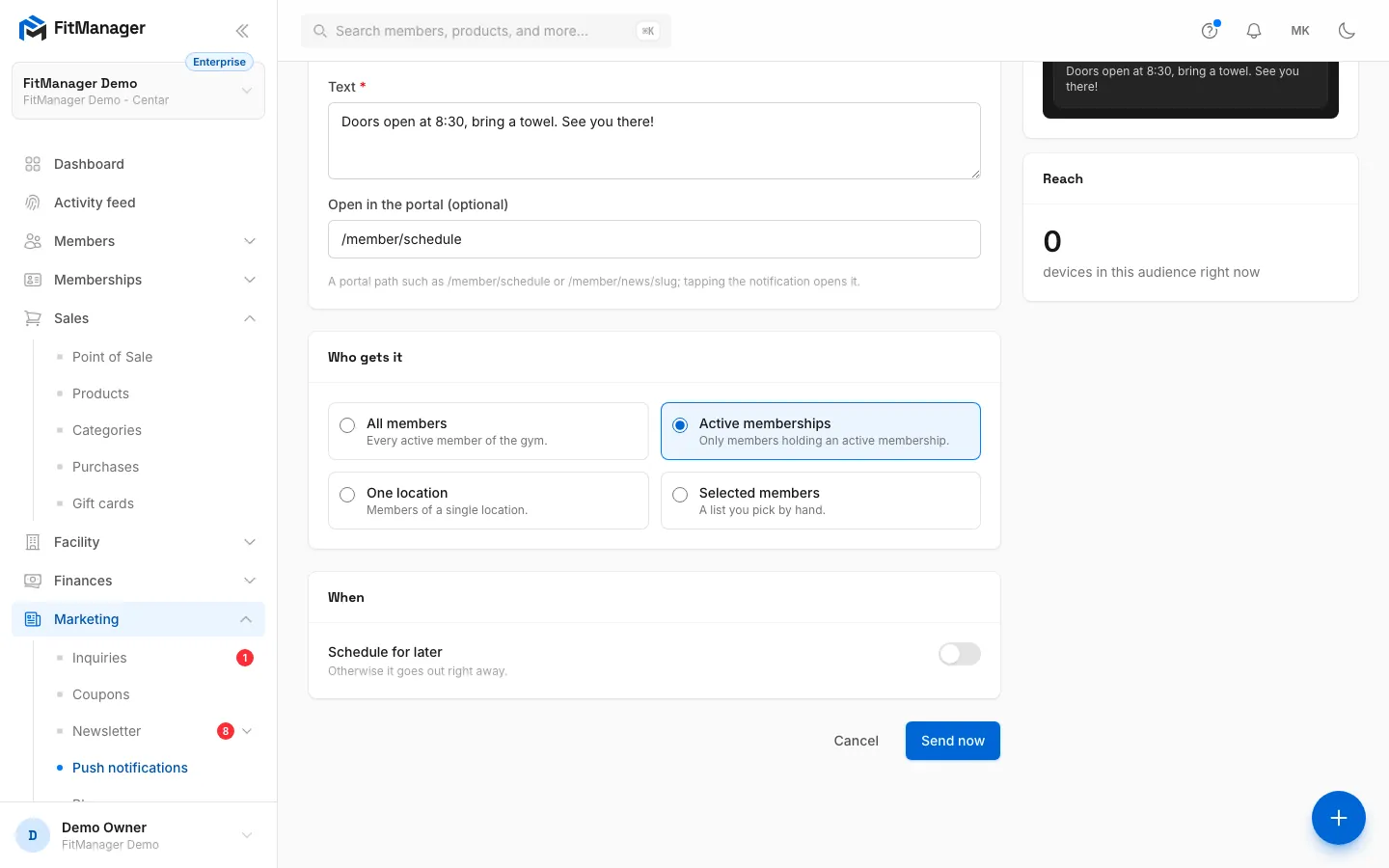
- Step 5: Choose who gets it, here only members with an active membership.
- Step 6: Reach shows how many devices this audience has right now, the preview shows how it looks.
- Step 7: Click Send now, or switch on Schedule for later and pick a time.
- Go to Marketing, Push notifications.
- Click New notification.
- In Title, write a short headline, up to 100 characters.
- In Text, write the message, up to 300 characters.
- Optionally, in Open in the portal (optional), enter a portal page that opens when the member taps the notification, such as
/member/schedule. - Under Who gets it, choose the audience.
- Under When, leave Schedule for later off to send right away, or switch it on and pick the date and time in Send at.
- Check Preview and Reach on the right, then click Send now (or Schedule).
You return to the list with the message on its way. Delivery to phones usually takes a few seconds.
Audiences
| Audience | Who gets it |
|---|---|
| All members | Every active member of the gym, at every location. |
| Active memberships | Only members holding an active membership. |
| One location | Members of the location you pick in Location. |
| Selected members | A list you build by searching members by name, code or email (type at least 2 characters) and clicking them. Up to 500 members. |
Reach shows how many devices the chosen audience has right now. If it says 0, nobody in that audience has the app yet and nothing will be delivered.
The history
The Push notifications page shows totals for Members with the app, Devices and Notifications sent, and every notification your gym has sent:
| Column | What it shows |
|---|---|
| Message | Title and text. |
| Audience | Who it was for. |
| Status | Scheduled, Sending, Sent or Failed. |
| Delivered | How many devices accepted it, out of how many, and how many members that was. |
| When | When it was sent or is due. |
A scheduled notification goes out within a minute of its time. It cannot be edited or cancelled from the list, so check the time before you schedule.
Troubleshooting
"The link has to point at your member portal."
The link must be a path in your portal, starting with /, such as /member/schedule, or a full address on your own portal. Links to other websites are not allowed.
A member says they did not get it
Check that the member has the app, is signed in on that phone and has allowed notifications in the phone's settings. Members who are not active are skipped.
A yellow banner says push delivery is switched off
FitManager has paused push delivery on the platform. Notifications you send are recorded but not delivered. Contact support if this lasts.
Was this page helpful?
Related articles
Still stuck?
Write to us and we will get back to you within one working day.