Newsletter subscribers and campaigns
Collect newsletter sign-ups on your website, design reusable email templates and send campaigns to every subscriber.
The newsletter lets visitors of your gym website sign up for news, and lets you email all of them at once. You build the look of your emails once as a template, then send a campaign with a subject line whenever you have something to share.
Before you start
- The newsletter must be included in your plan.
- View subscribers lets an employee see the subscriber list and past campaigns. Send campaigns is needed to send campaigns and to create or edit templates.
- Subscribers are shared by the whole gym, not per location.
How people subscribe
Visitors subscribe with their email address:
- in the Newsletter box in the footer of every page of your gym website,
- on your blog page, and
- through the Site API, if you run your own website on top of FitManager.
A sign-up is subscribed straight away, without a confirmation email. Someone who unsubscribed earlier and signs up again is subscribed again. Members are not added automatically: they subscribe like any other visitor.
Subscribers
Go to Marketing, Newsletter, Subscribers.
- The cards at the top count Total, Subscribed, Unsubscribed and Unseen. New sign-ups are unseen until you click Mark all seen; the number next to Newsletter in the sidebar counts them.
- Search by name or email, and filter by status, source (where they signed up, such as
footerorblog) and the date they subscribed. - Click Remove to delete a subscriber, for example on request. They no longer receive campaigns.
There is no way to add or import subscribers by hand.
Build a template
A template is the design of your email: header with your logo, images, text, buttons and footer. Templates are optional, but they make every campaign look like your gym.
- Go to Marketing, Newsletter, Templates and click New Template.
- In Template name, type a name such as
Monthly Newsletter. - Next to Add section:, click the sections you need, in order: Header, Hero, Content, Button, Divider, Spacer and Footer.
- Open each section to fill in its text, images, links, colours, background and spacing. Drag a section by its handle to reorder it.
- Watch the Live Preview as you go.
- Click Save template.
The Header shows your gym logo automatically. Always add a Footer with Show unsubscribe link switched on: a template email only carries an unsubscribe link when its footer has one.
On the Templates page, Deactivate hides a template from the campaign screen without deleting it, and Activate brings it back.
Send a campaign
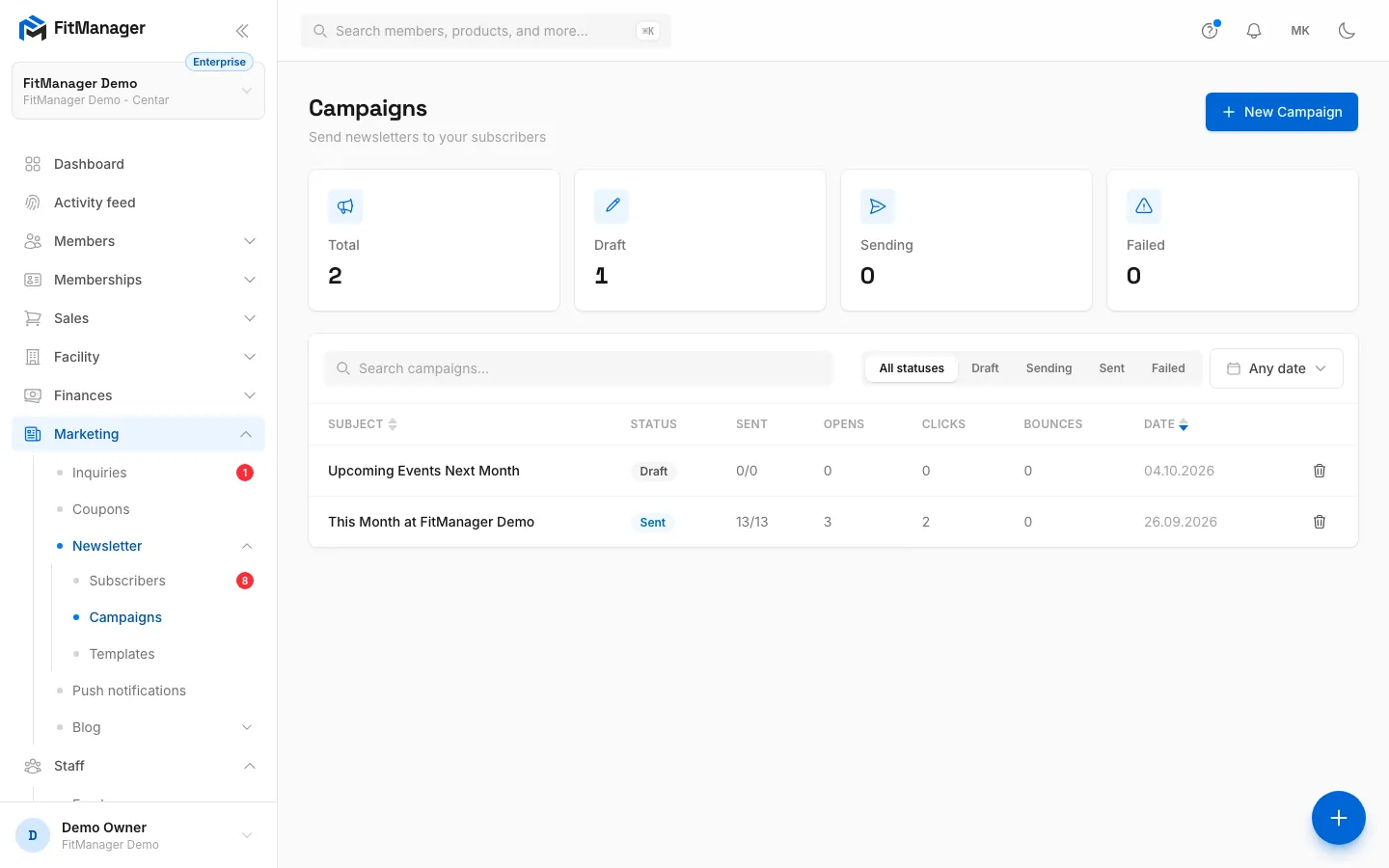
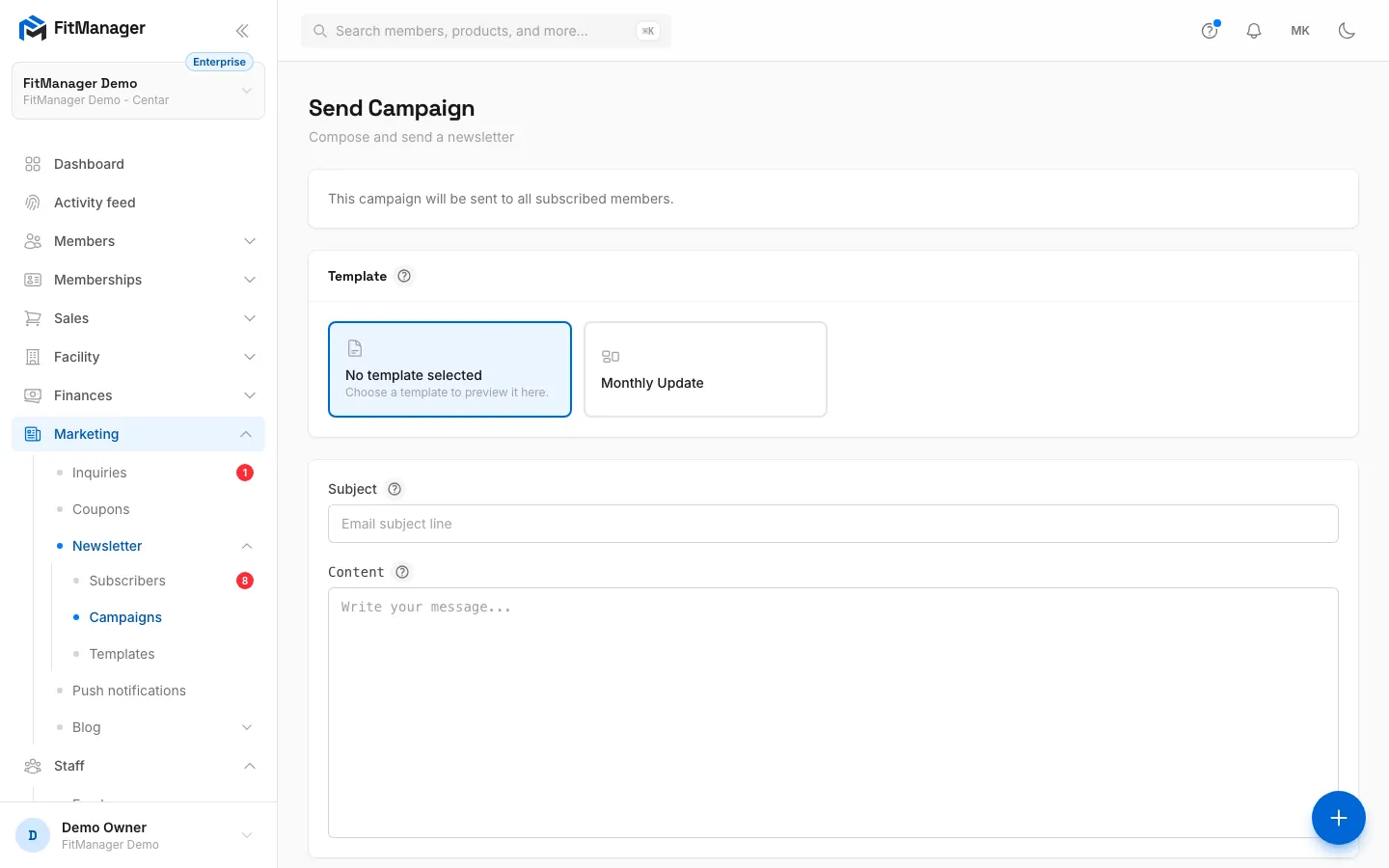
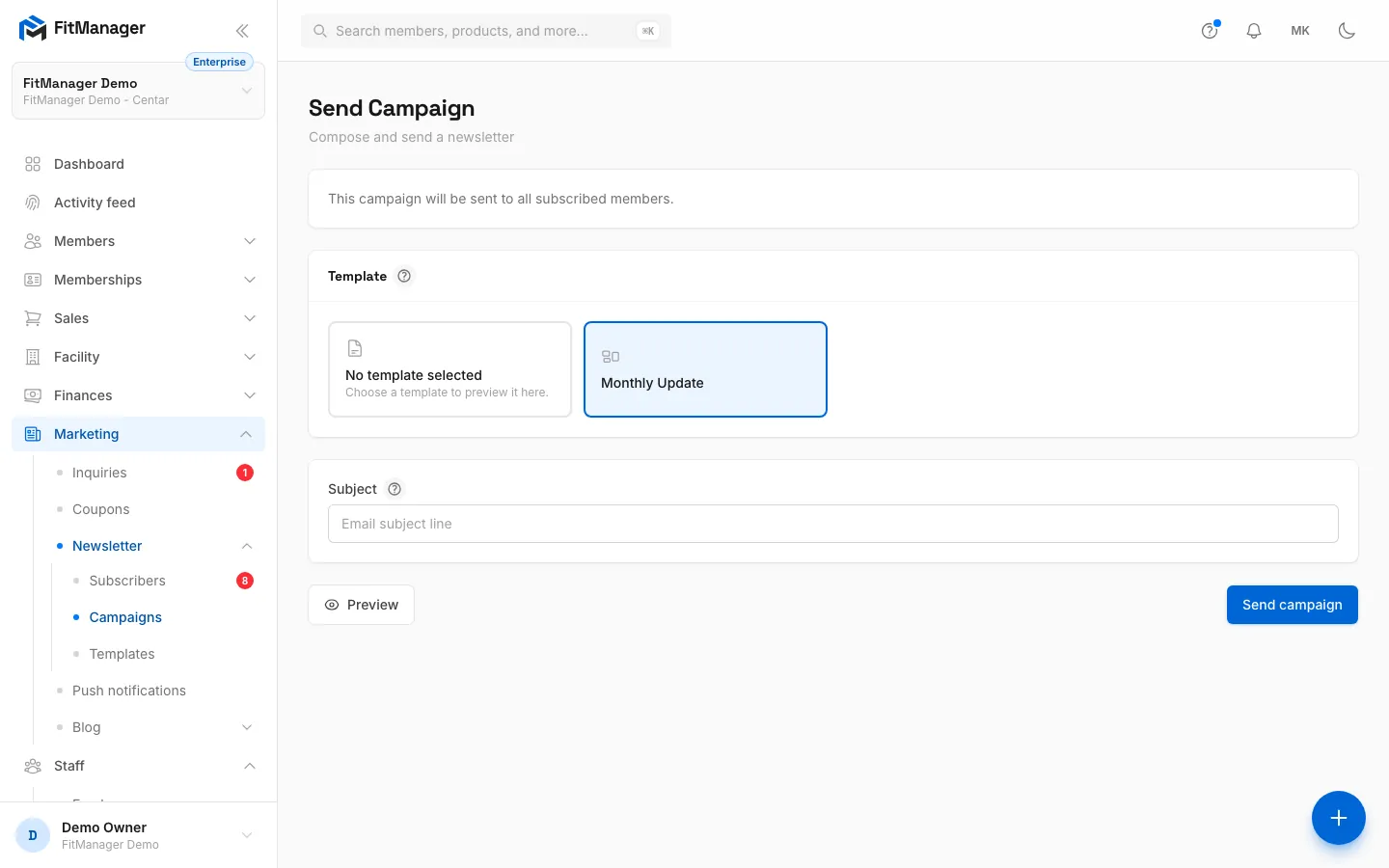
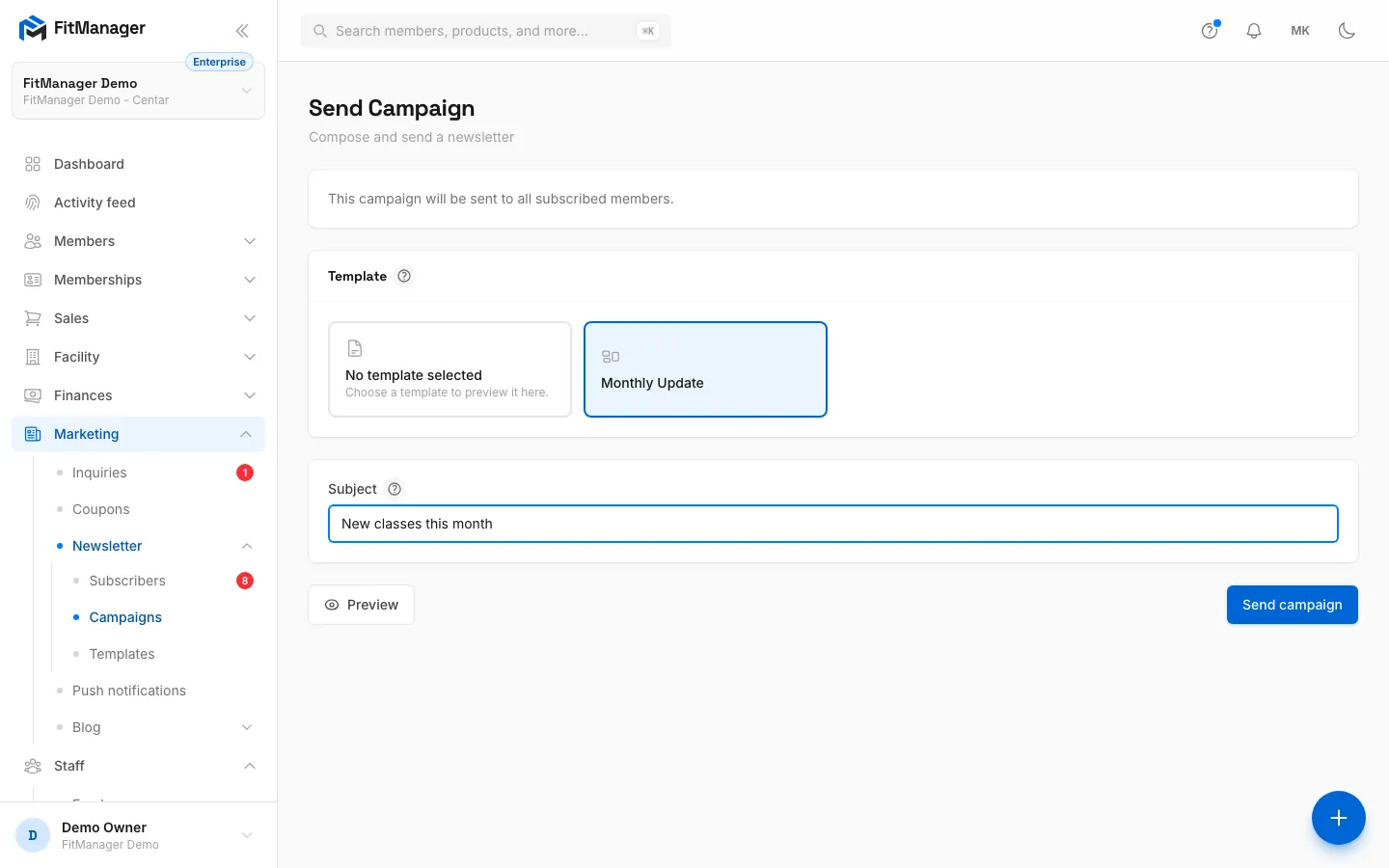
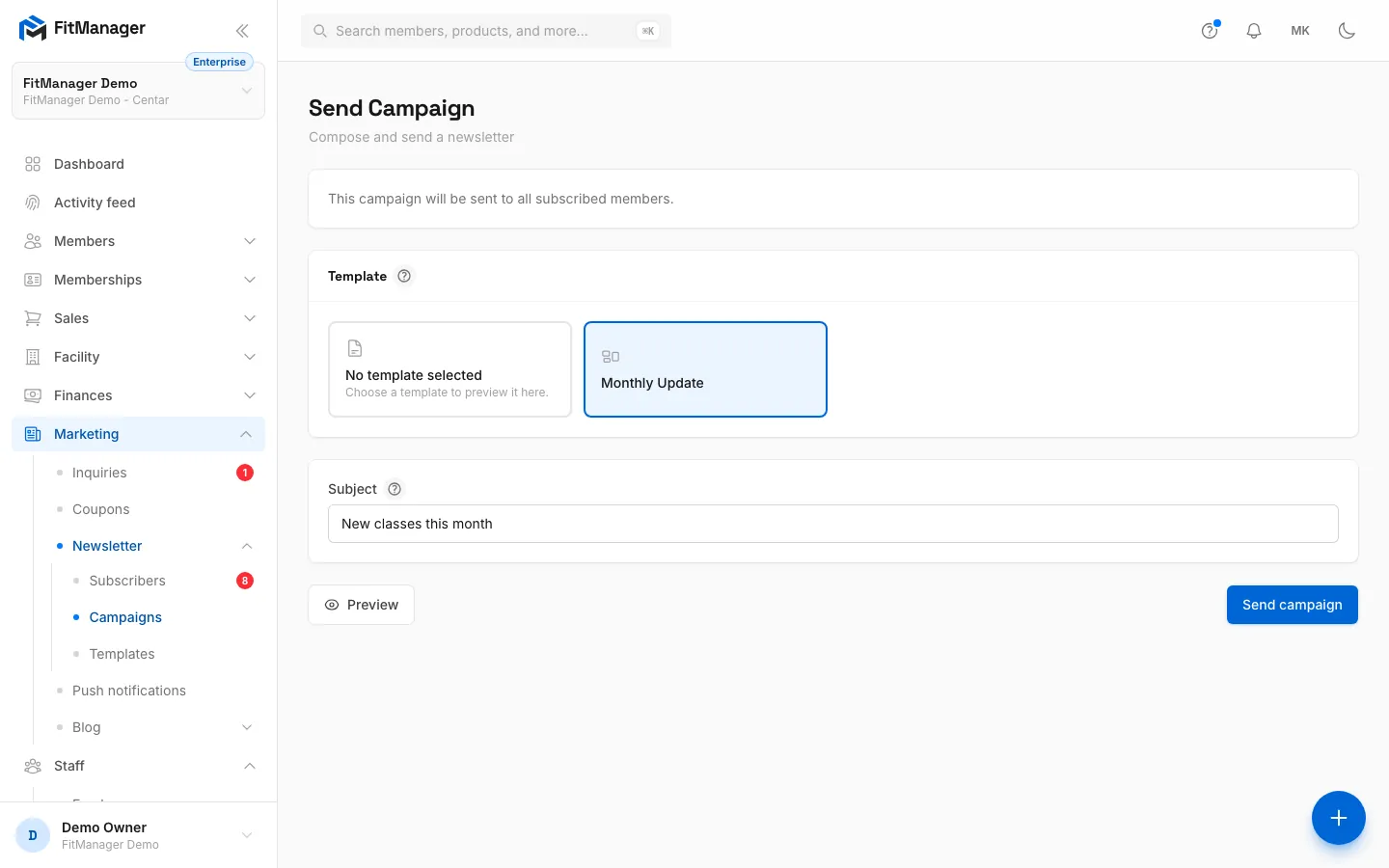
- Step 1: Under Marketing, Newsletter, Campaigns, click New Campaign.
- Step 2: Pick one of your templates, or keep No template selected and write the content yourself.
- Step 3: Write the subject line subscribers see in their inbox.
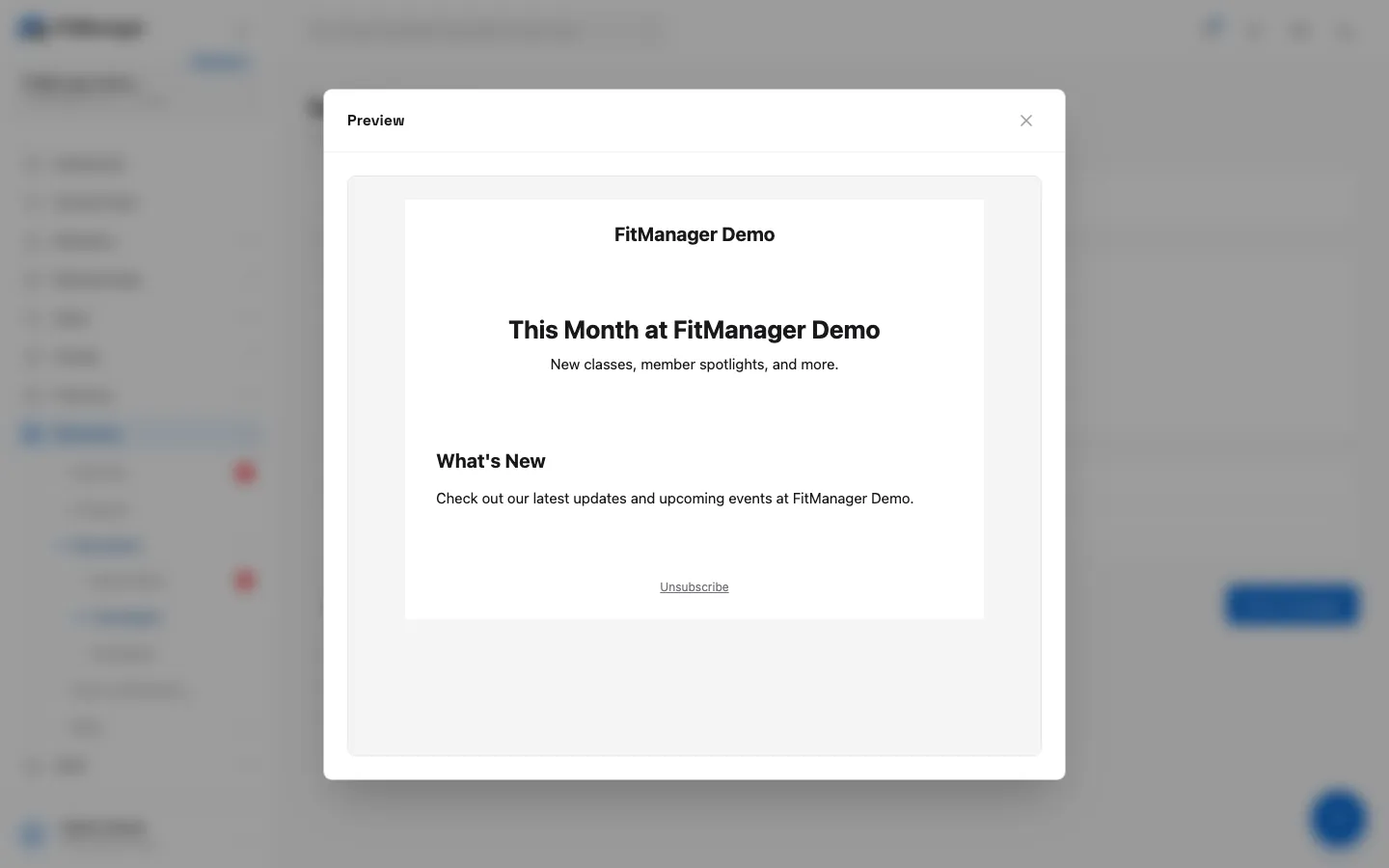
- Step 4: Click Preview to see the email as it will arrive.
- Step 5: Check the layout, then close the preview.
- Step 6: Click Send campaign to send it to every subscribed address straight away.
- Go to Marketing, Newsletter, Campaigns and click New Campaign.
- Under Template, pick a template, or keep No template selected to write the email yourself.
- In Subject, write the subject line.
- Without a template, write the email in Content. Content is HTML, so wrap paragraphs in
<p>tags and use<a href="...">for links. - Click Preview to see the email as it will arrive, then close the preview.
- Click Send campaign.
Send campaign sends immediately to every subscribed address. There is no confirmation step, no draft and no scheduling, so check the preview first.
When a template is selected, the campaign uses the template exactly as it is, so put this month's text into the template before sending.
After sending you return to Campaigns with a message such as "Campaign sent to 120 subscribers". If every recipient failed, the message gives the reason.
Campaign results
The Campaigns list shows each campaign's Subject, Date, status and the Sent, Opens, Clicks and Bounces counts, which fill in as the email is delivered and read. The cards on top count Total, Draft, Sending and Failed campaigns. Use the delete button to remove a campaign from the list; a campaign that is still sending cannot be deleted.
Unsubscribing
Every campaign email has an unsubscribe link (with a template, through its footer). It opens a page on your gym website that unsubscribes the address at once. The subscriber stays in your list as Unsubscribed and gets no more campaigns until they sign up again.
Common questions
Which address are campaigns sent from?
Campaigns are sent by FitManager's own email service from the platform address. Connecting your Brevo account changes the sender of member email such as receipts and reminders, not of newsletter campaigns.
"No active subscribers to send to."
Nobody in your list is currently subscribed. Check the Subscribed count on the Subscribers page.
"Add at least one section."
A template needs at least one section before it can be saved. Add one from the Add section: row.
Can I send to my members instead of subscribers?
Campaigns go to newsletter subscribers only. To reach members who use the app, send a push notification.
Was this page helpful?
Related articles
Still stuck?
Write to us and we will get back to you within one working day.