Answer website inquiries
Read the messages people send through the contact form on your gym website, keep track of which ones are handled and note your reply.
When someone fills in the contact form on your gym website, the message lands in Inquiries in your dashboard. From there you read it, see how to reach the person and mark it as answered, so the whole team knows which questions are still open.
Before you start
- Contact forms must be included in your plan. The Contact page of your gym website only exists with it.
- You need the View members permission to see inquiries.
Where inquiries come from
- The Contact page of your gym website. Visitors give their name, email and message, and optionally a phone number and subject. The message must be between 10 and 2,000 characters.
- Your own website, if it sends its contact form to FitManager through the Site API. See Website API.
Inquiries from your gym website are filed under your gym's first location. If you run several locations, switch to that location in the top bar to see them. Through the Site API, your website can send each inquiry to a specific location.
FitManager does not email you about a new inquiry. The number next to Marketing and Inquiries in the sidebar shows how many are new, so check it regularly.
The inquiry list
Go to Marketing, Inquiries. The page shows:
- Total, New, Read and Replied counts at the top.
- A search box for name, email and subject.
- Filters for Status, Replied and Submitted between.
- A table with Name, Email, Subject, Status and Date, newest first.
| Status | Meaning |
|---|---|
| New | Nobody has opened it yet. |
| Read | Someone opened it. Opening an inquiry marks it read automatically. |
| Replied | A reply has been saved on it. |
Answer an inquiry
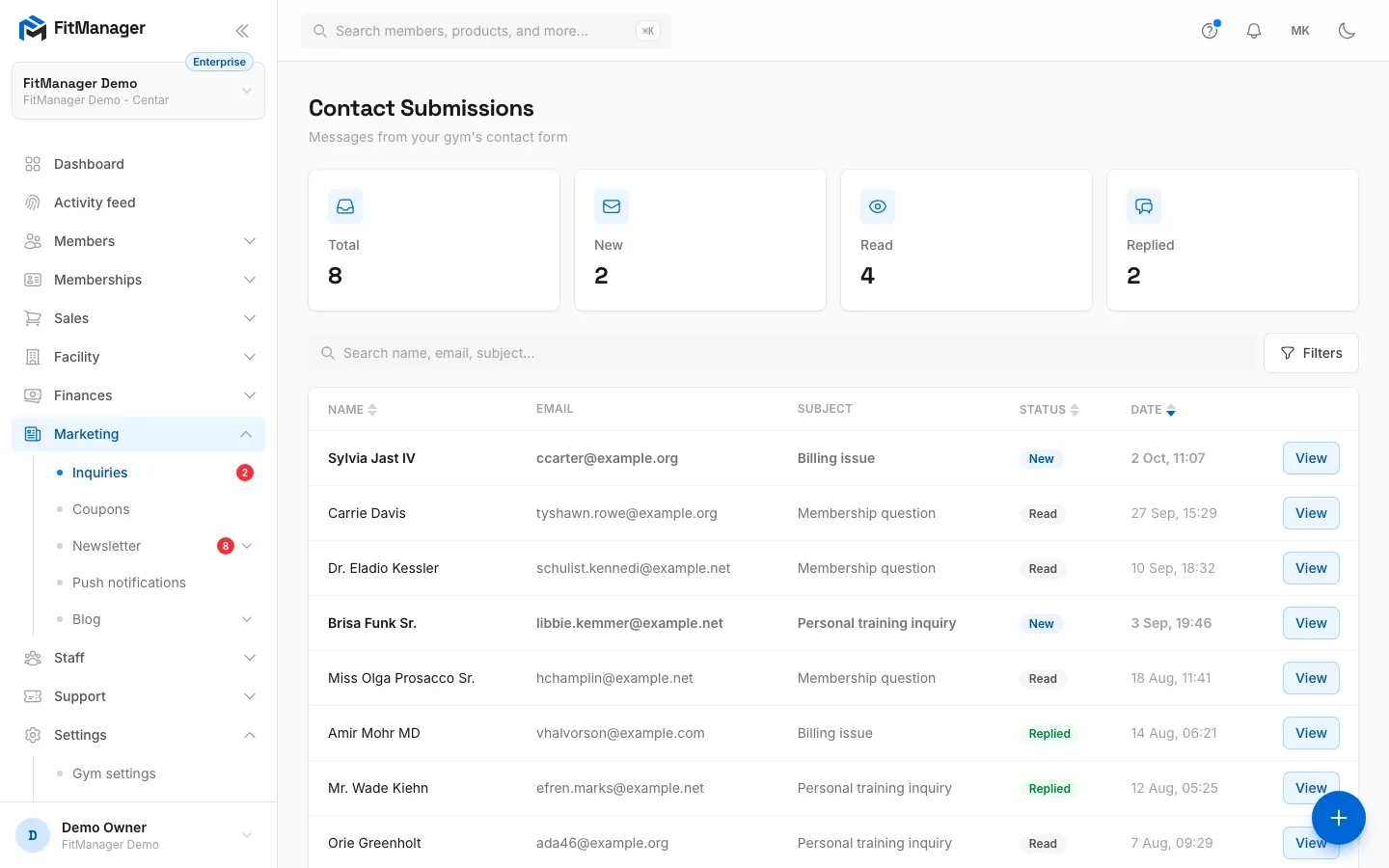
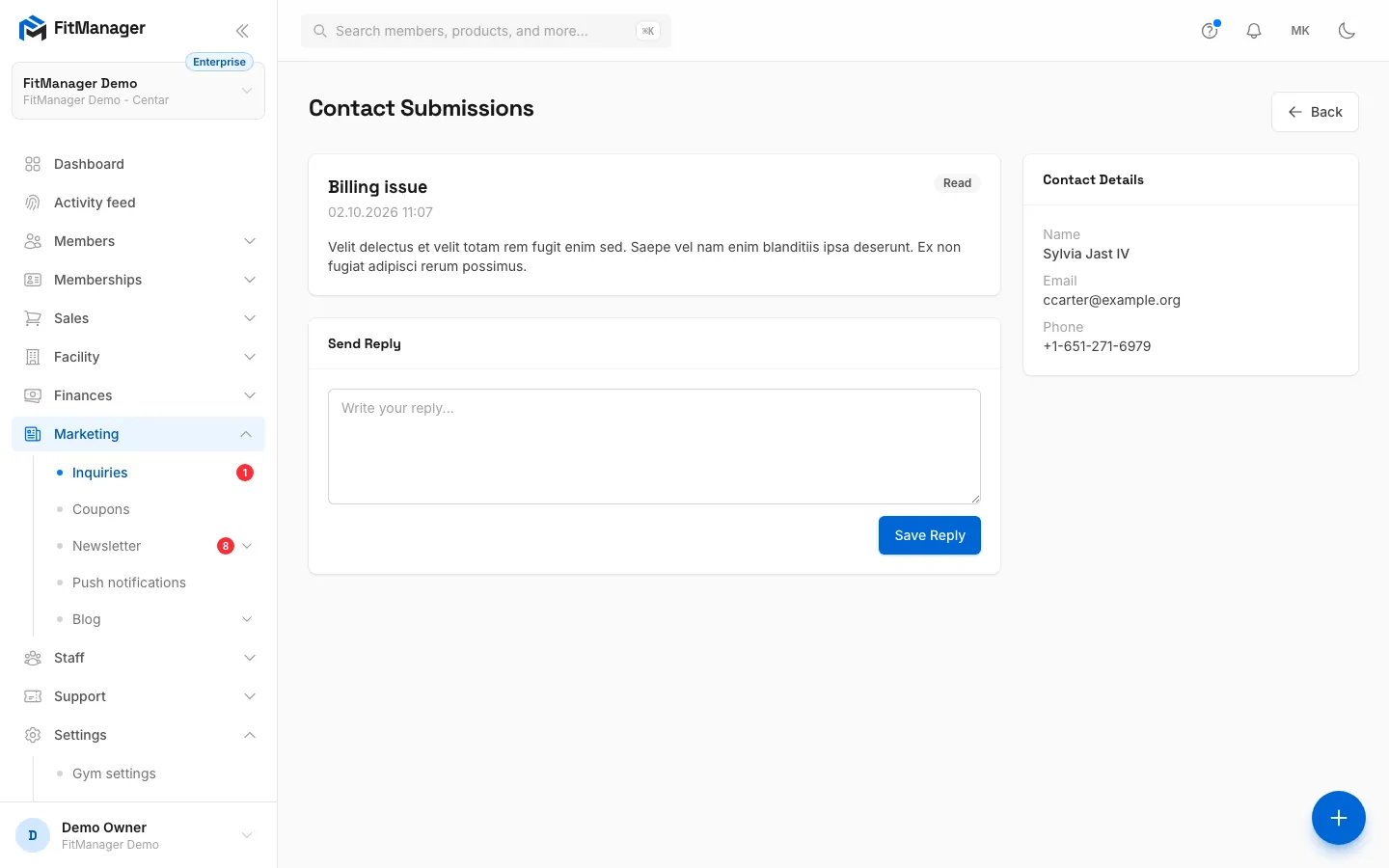
- Step 1: On the Inquiries page, click View next to a message.
- Step 2: The sender's name, email and phone are on the right. Click the email to write back from your mail app.
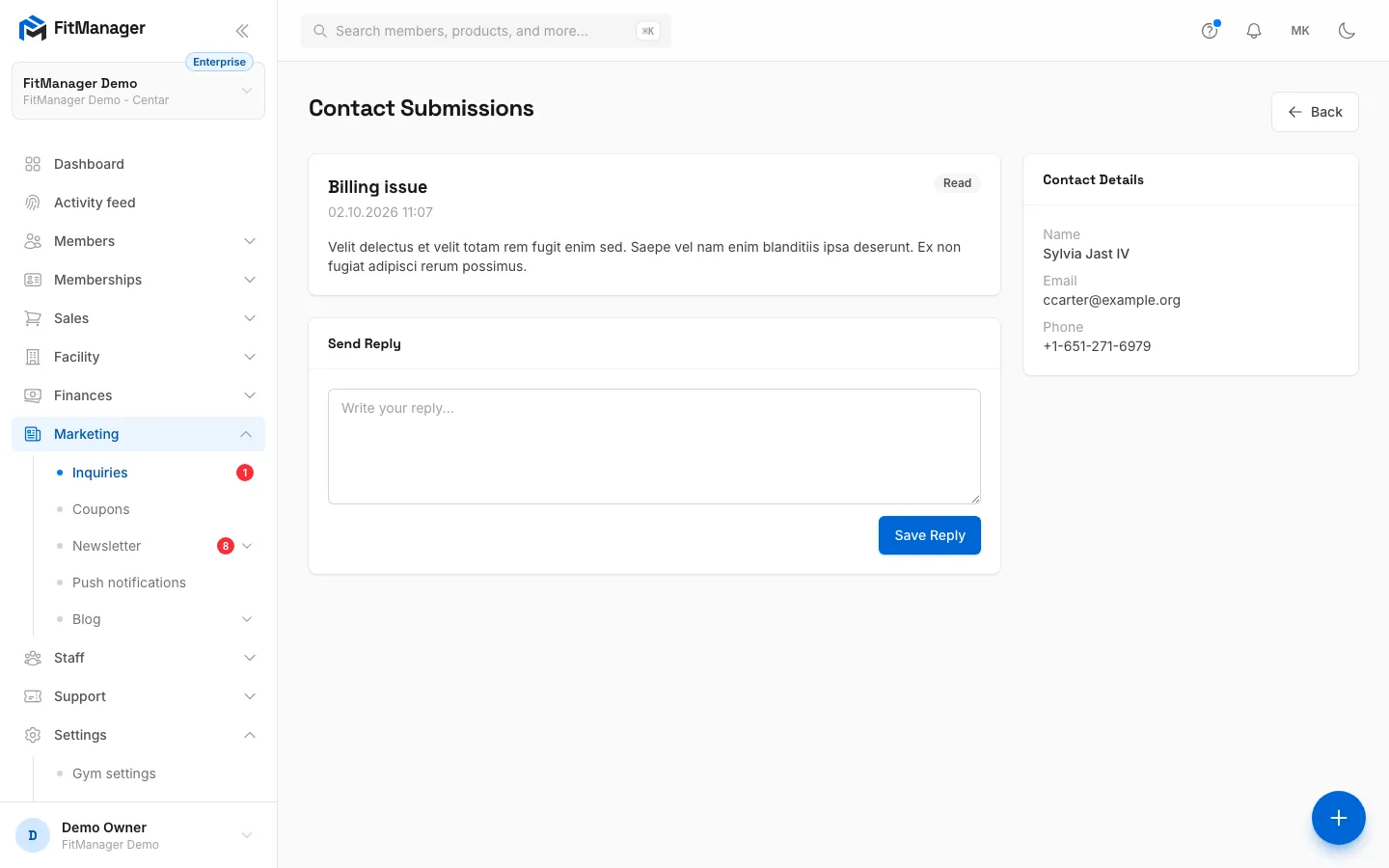
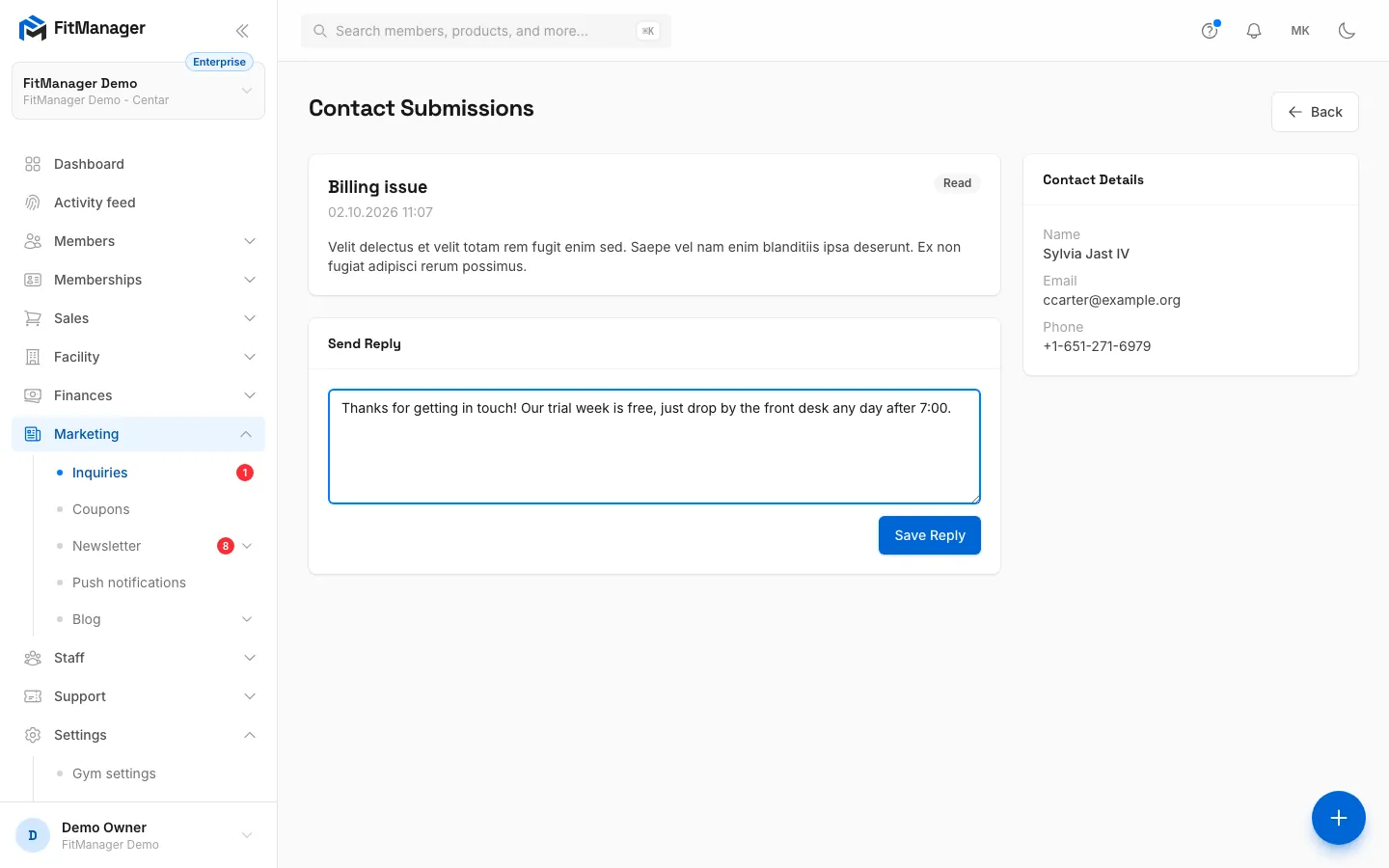
- Step 3: Note down what you answered so the team can see the inquiry is handled.
- Step 4: Click Save Reply. The inquiry is marked Replied. Saving does not email the sender.
- Click View next to the inquiry. It changes from New to Read.
- Read the message. Contact Details on the right shows the sender's name, email and phone.
- Answer the person: click their email address to write from your own mail app, or call the phone number.
- In Send Reply, type what you answered.
- Click Save Reply.
The inquiry is marked Replied and your text shows under Your Reply with the date and time.
Save Reply records your answer in FitManager only. It does not email the sender, even though the confirmation says "Reply sent." Always answer through your own email or by phone as in step 3.
A saved reply cannot be edited, and the reply box disappears once an inquiry is Replied.
Common questions
I cannot see an inquiry someone says they sent
Check that you are on your gym's first location, where website inquiries are filed, and clear the search and filters. Also ask the sender whether the form showed a confirmation: if the message was shorter than 10 characters, the form refused it.
Can an inquiry become a member?
Not automatically. If the person signs up, add them on the Members page. See Add a member.
Can I delete inquiries?
No, inquiries stay in the list. Use the Status and Replied filters to hide the ones you have handled.
Was this page helpful?
Related articles
Still stuck?
Write to us and we will get back to you within one working day.