Check members in and out
Record visits at the desk, see who is inside right now and follow attendance by day and hour on the Attendance page.
The Attendance page is the record of every visit to your facility: who came in, when they left and through which door. Most visits are recorded automatically when a member scans at a door, and the desk can check anyone in by hand when a card is forgotten or a reader is down.
Before you start
- You need the attendance.view permission to open the page and attendance.manage to check members in or out. Owners have both.
- Only members with the status Active can be checked in by hand.
- For automatic check-ins you need at least one door set up, see Access points.
How visits get recorded
| How | What happens |
|---|---|
| Door scan | The member scans the door's QR code from the member portal, or taps their card on a reader connected through FitManager Control. If the scan is granted, a visit opens (or closes, on an exit door). |
| Manual check-in | Someone at the desk checks the member in from this page. The visit is marked as a manual check-in with the name of the staff member who did it. |
| Check out | Scanning at an Exit door, scanning again at a Both door, clicking Check out on this page, or the automatic close described below. |
Check a member in by hand
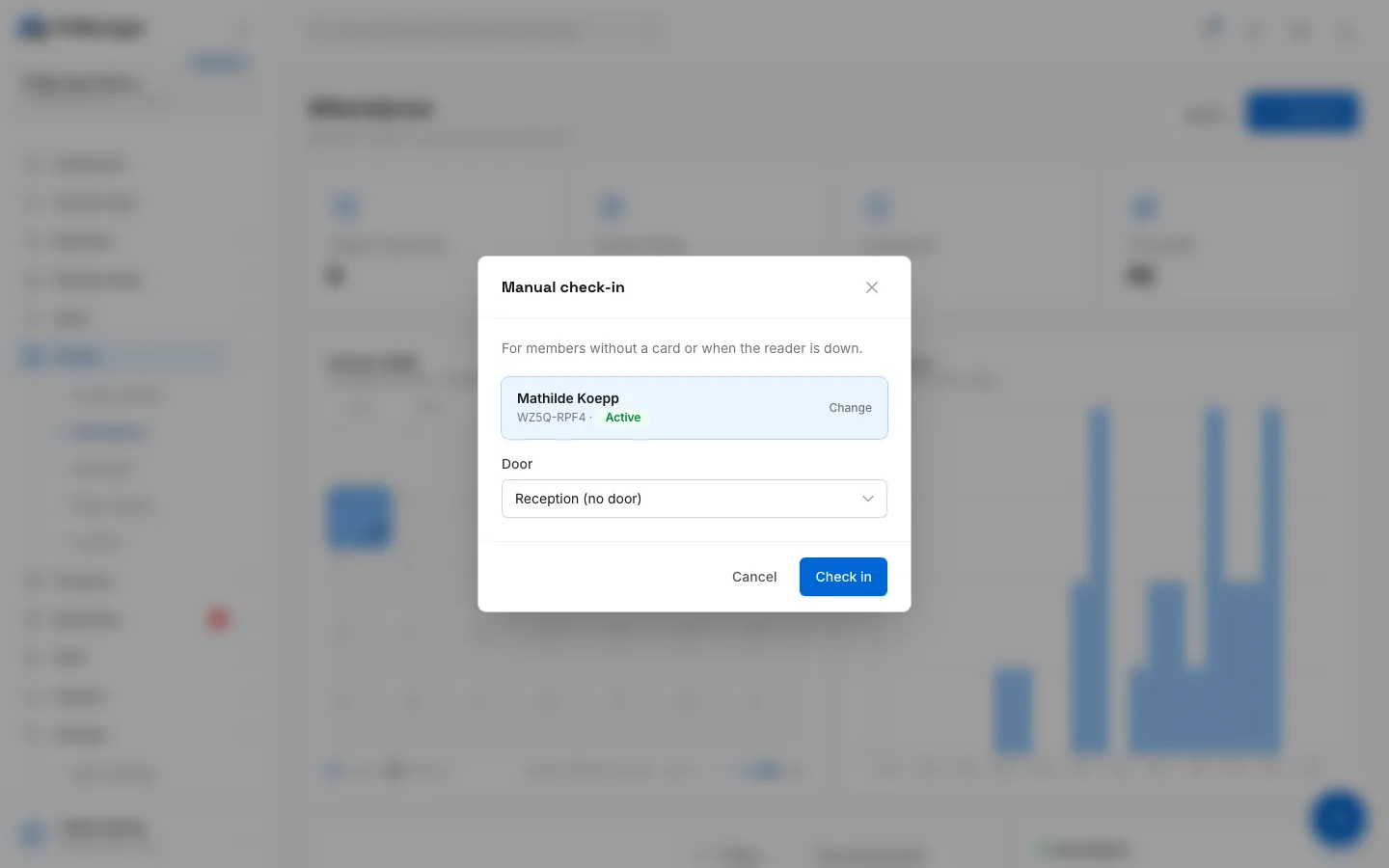
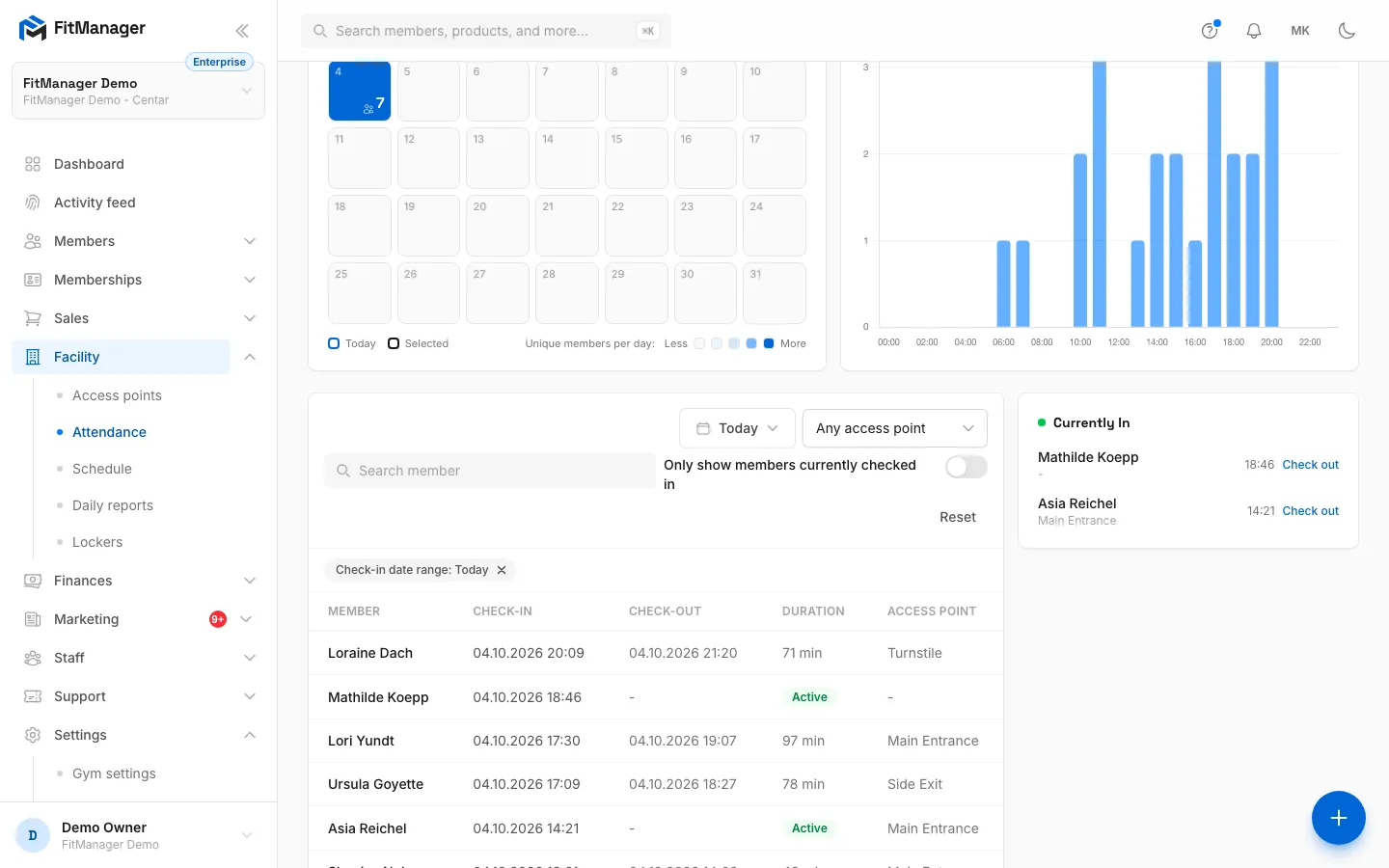
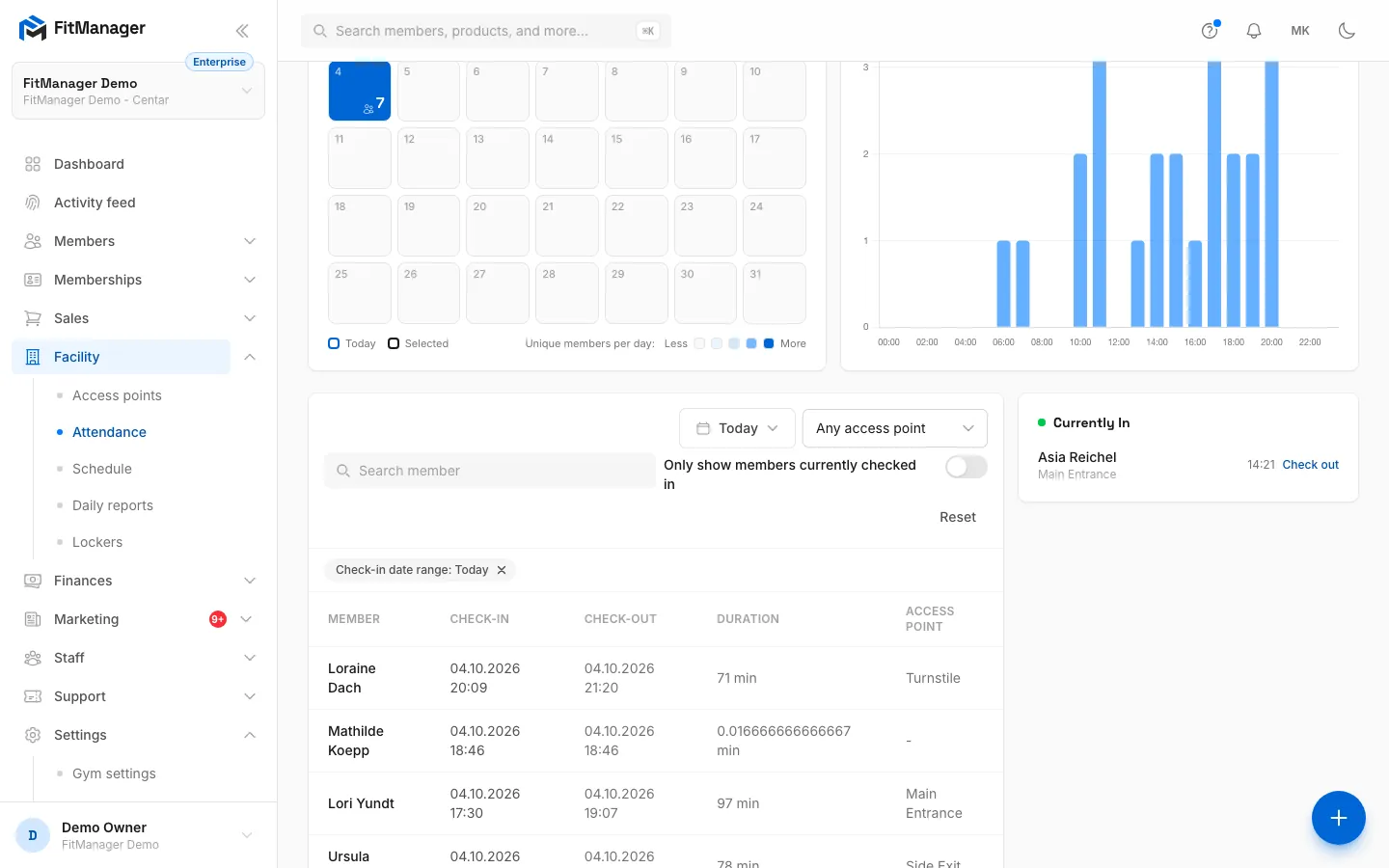
- Step 1: On the Attendance page, click Check in.
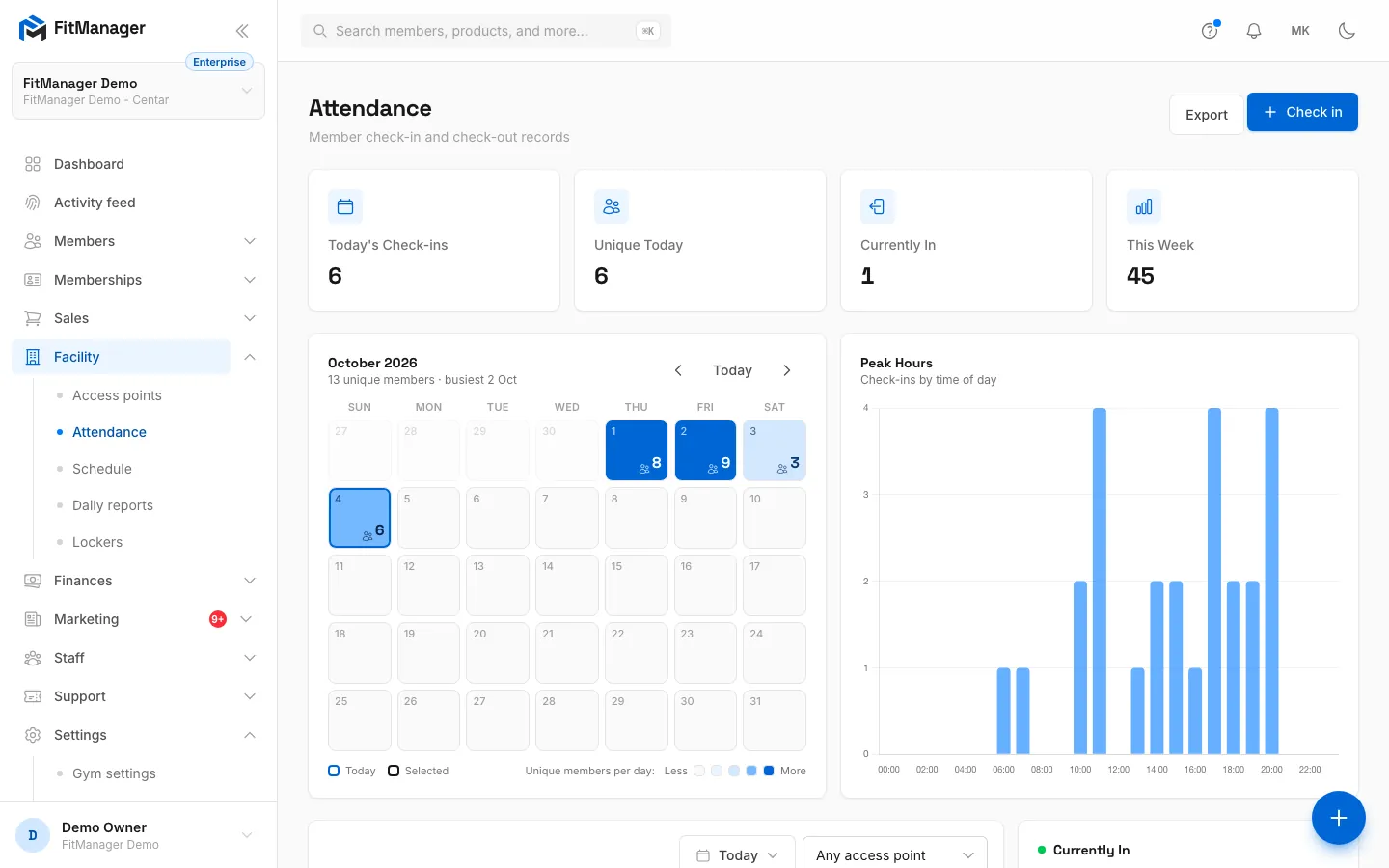
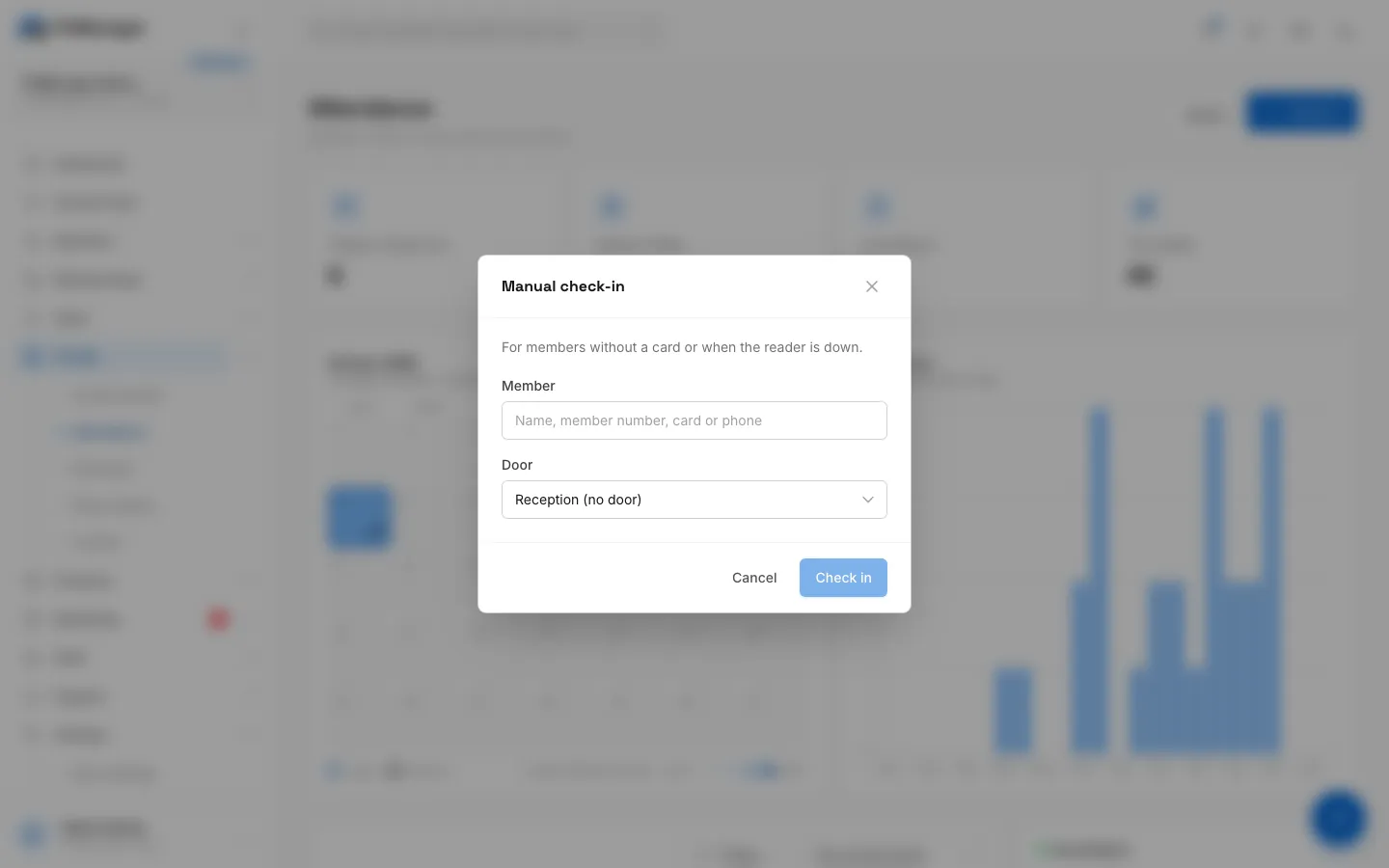
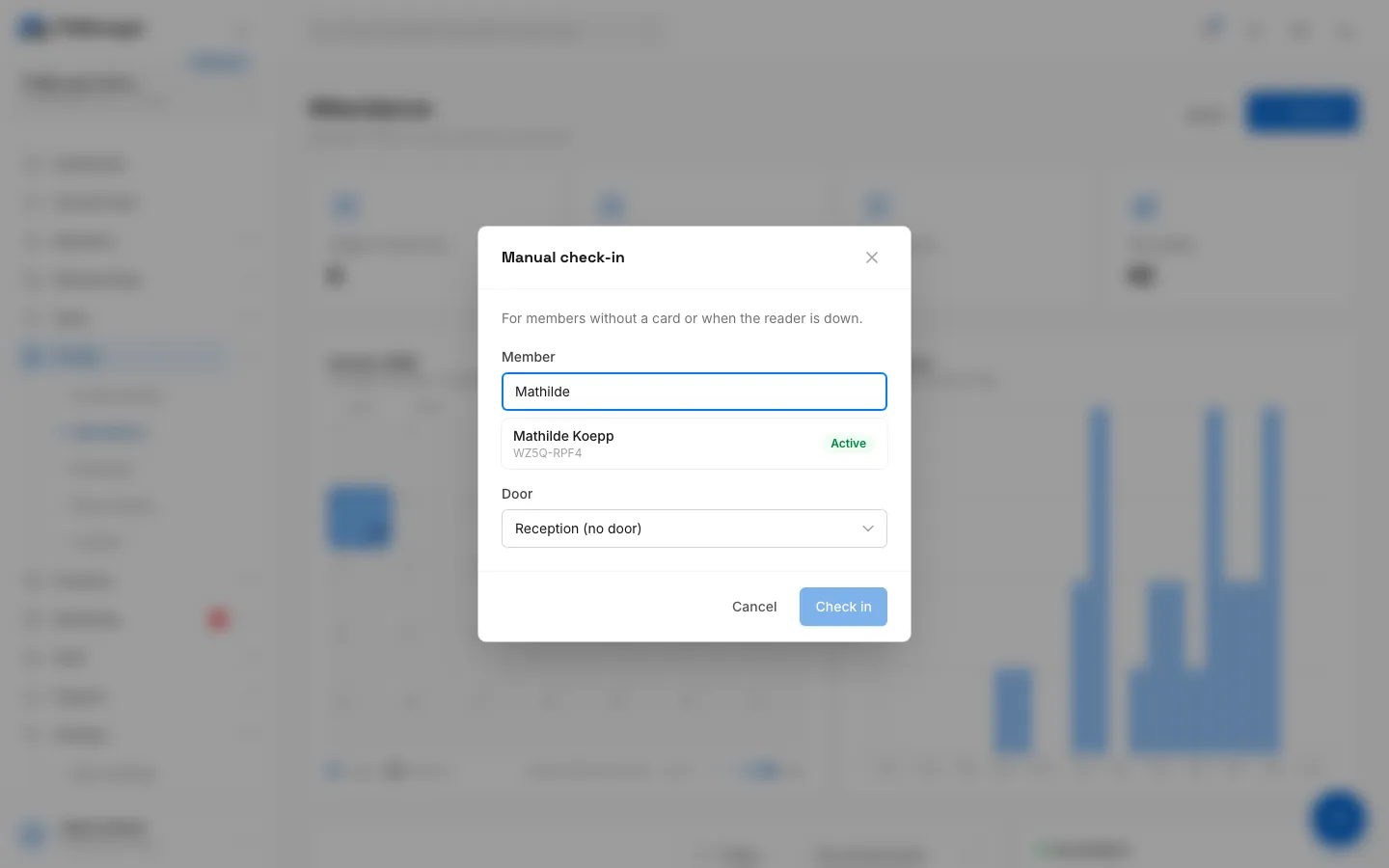
- Step 2: Search by name, member number, card or phone. Only active members are listed.
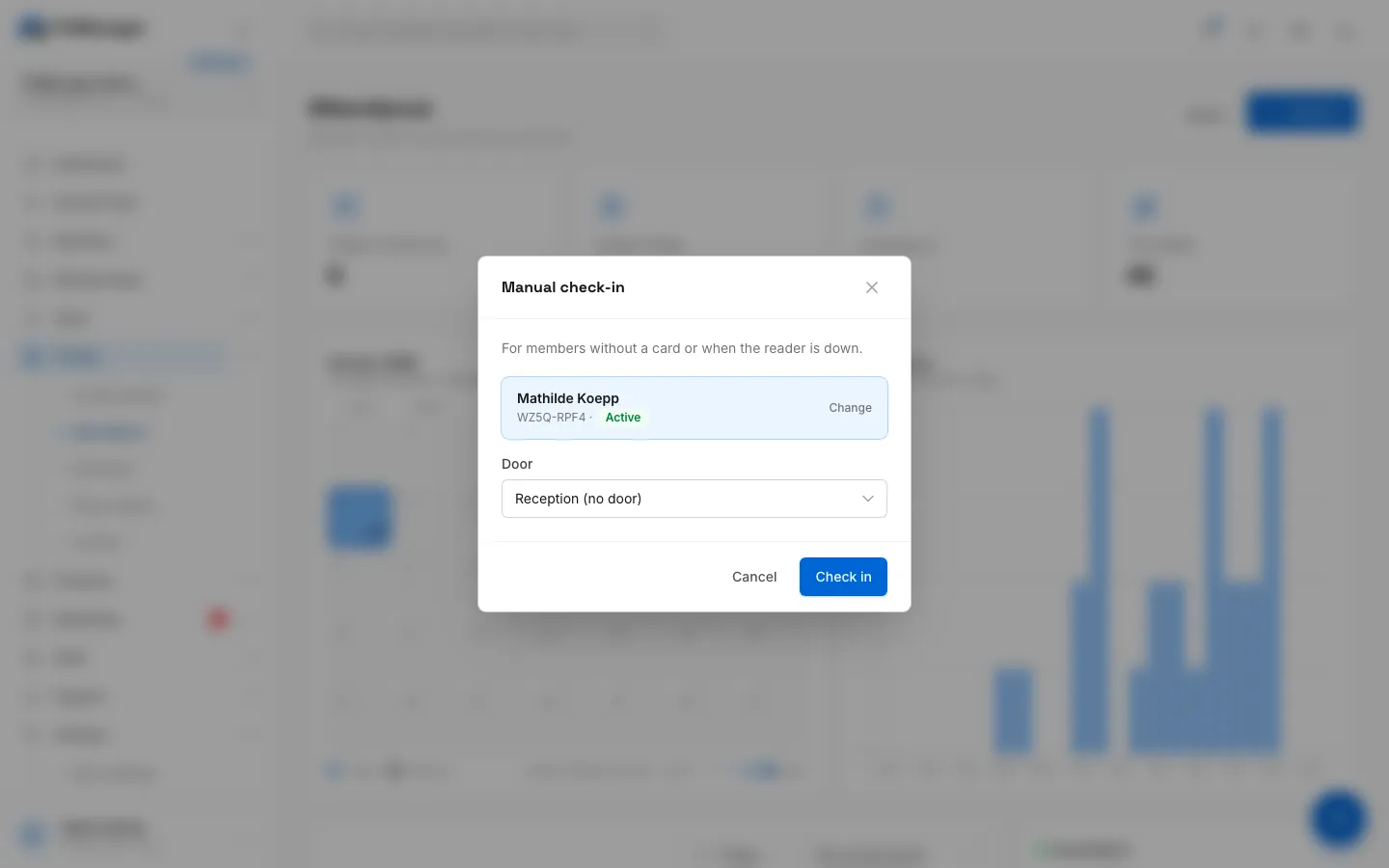
- Step 3: Pick the member. The badge shows the state of their membership.
- Step 4: Choose the door they came through, or keep Reception (no door).
- Step 5: Click Check in to record the visit.
- Step 6: The member now shows under Currently In. Click Check out when they leave.
- Step 7: Every visit stays in the list with its check-in, check-out and duration.
- Open Attendance and click Check in at the top of the page. The Check-in quick action in the dashboard opens the same window from anywhere.
- In Member, type at least two characters of the name, member number, card or phone.
- Click the member in the list. The badge next to them shows the state of their membership, so you can see at a glance if it has expired.
- In Door, pick the door they came through, or keep Reception (no door).
- Click Check in. The member now appears under Currently In.
A manual check-in does not open the door
It only records the visit. To let someone through a locked door, use the open door button on the Access points page.
A manual check-in also does not check the membership the way a door scan does, and it does not use up a visit from a visit pack. Check the badge before you let the member in.
Check a member out
In the Currently In panel, click Check out next to the member. The visit gets its check-out time and its duration appears in the list.
You rarely need to do this by hand:
- An Exit door closes the open visit when the member scans out.
- A Both door closes the open visit if there is one, and opens a new one otherwise.
- Visits left open for more than 4 hours are closed automatically. FitManager checks every 15 minutes, so a member who forgot to scan out does not stay in Currently In all night.
What the page shows
- Today's Check-ins, Unique Today, Currently In and This Week at the top.
- A calendar of the month that shades each day by how many members came in, with the busiest day. Click a day to filter the list to it, and use the arrows or Today to move between months.
- Peak Hours: check-ins by time of day for the month, so you can plan staff and classes around the rush.
- The list of visits with Member, Check-in, Check-out, Duration and Access Point. A visit that is still open shows Active.
- Currently In: everyone inside right now.
Search and filters
Search by member, and filter by Check-in date range (Today, This week, This month or your own dates), by Access point, or with Only show members currently checked in. The page opens on today.
Export
Click Export to download the visits that match your filters, with check-in and check-out times, member number, member, access point and method.
How busy is the gym?
The number of members currently inside also drives the busyness meter members see in the portal. They never see a head count, only one of five levels, from Quiet to Packed. You set where each level ends under Busyness meter in Facility settings.
Troubleshooting
"... is already checked in"
The member already has an open visit. Check them out first in Currently In, or leave the open visit as it is.
The member does not appear in the search
Only active members are listed. If the member is inactive or banned, change their status on their profile first. You also need at least two characters in the search.
I do not see the Check in button
Your account does not have the attendance.manage permission. Ask the owner, see Permissions.
A member was let in at the door but has no visit
Staff cards open doors without creating a visit, and a scan only opens a visit when it is granted. Look the scan up in the Activity feed. If it was denied, the reason is shown there, see Troubleshooting doors.
Was this page helpful?
Related articles
Still stuck?
Write to us and we will get back to you within one working day.