Follow the activity feed
See door scans, payments and sales as they happen, answer the doorbell and look up why a scan was denied.
The Activity feed is the reception's live view of the facility. Every door scan, membership payment, online payment and sale lands here the moment it happens, newest first, so the desk can see who just walked in and act on it. It replaces the old access log page.
Before you start
- You need the access_logs.view permission. Owners have it.
- Door events need at least one door, see Access points.
Open the feed
Click Activity feed in the sidebar. The Live dot next to the title means the page refreshes on its own every few seconds, so you can leave it open on the reception screen. It stops refreshing after you click Load older, so the list does not jump while you read history. Reload the page to go live again.
The Live entries card on the dashboard home shows today's latest scans. Its Access log link opens this page.
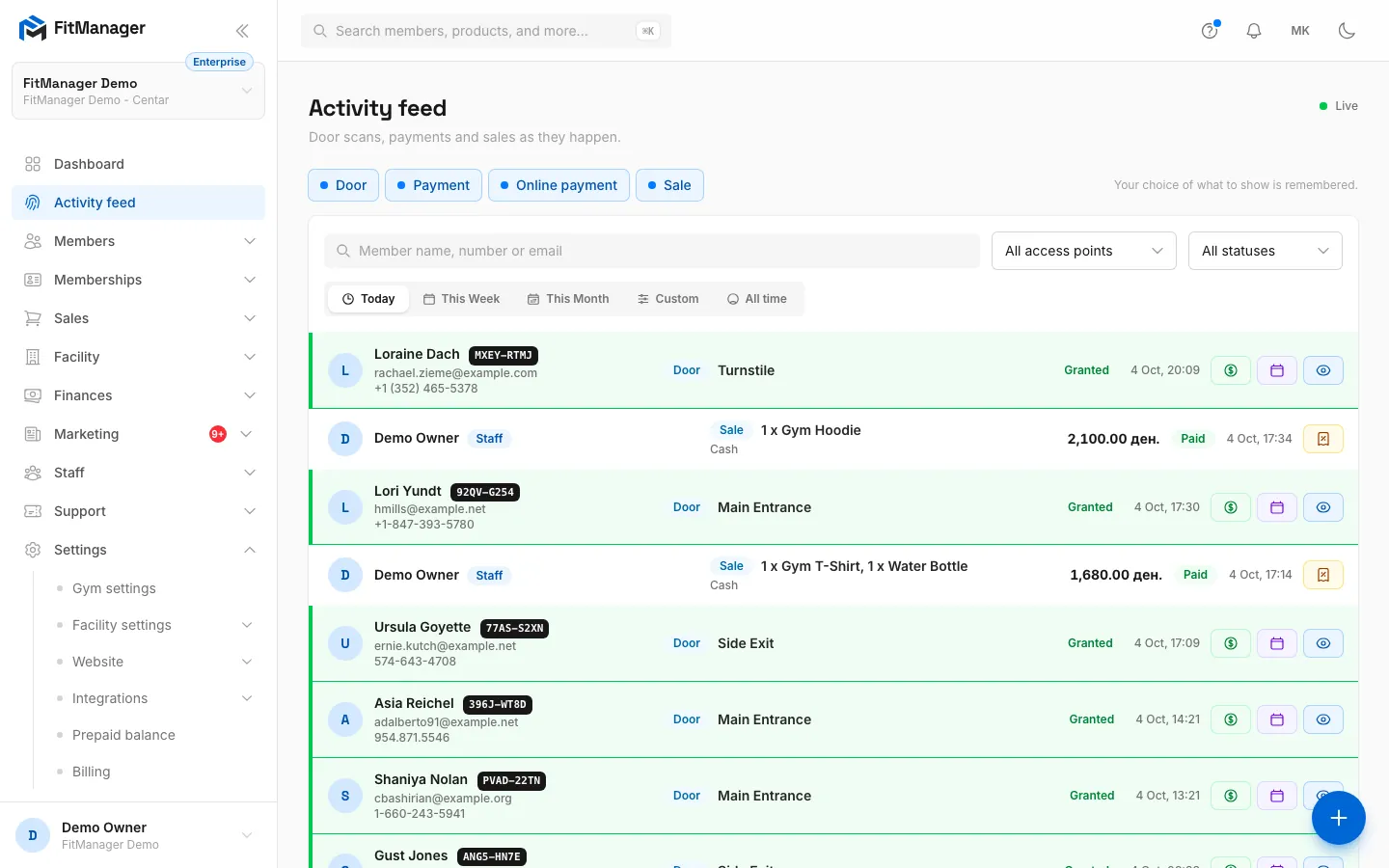
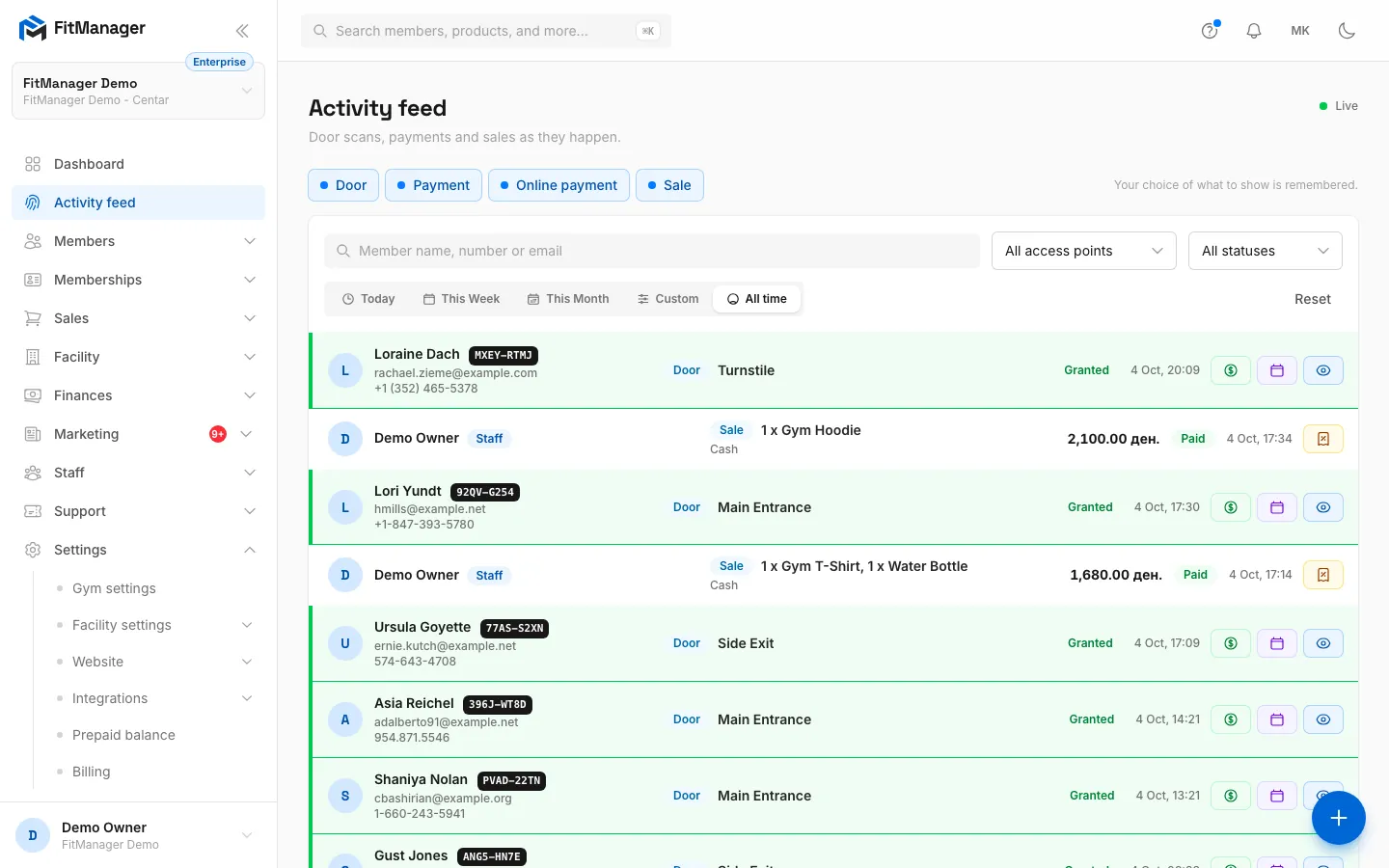
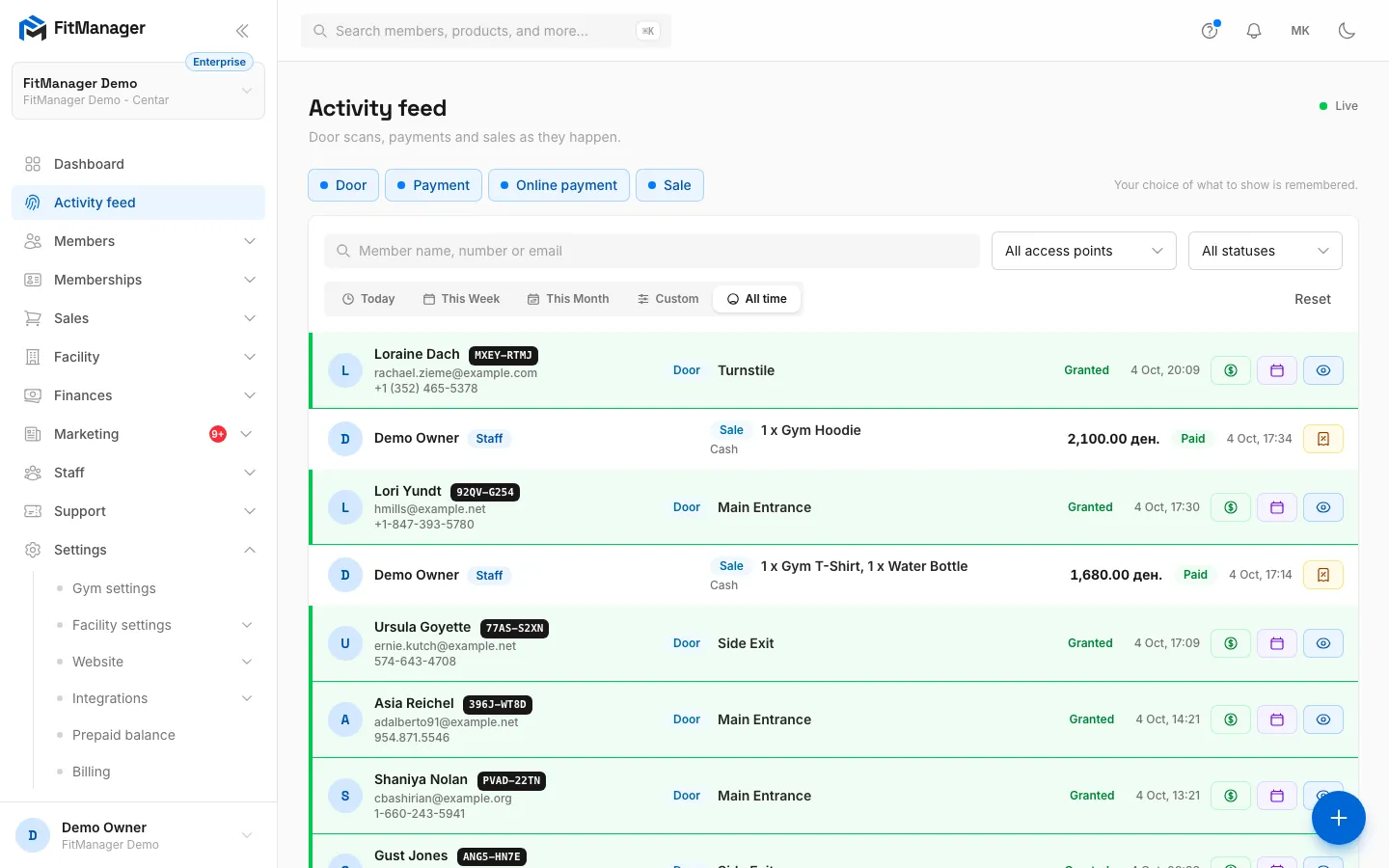
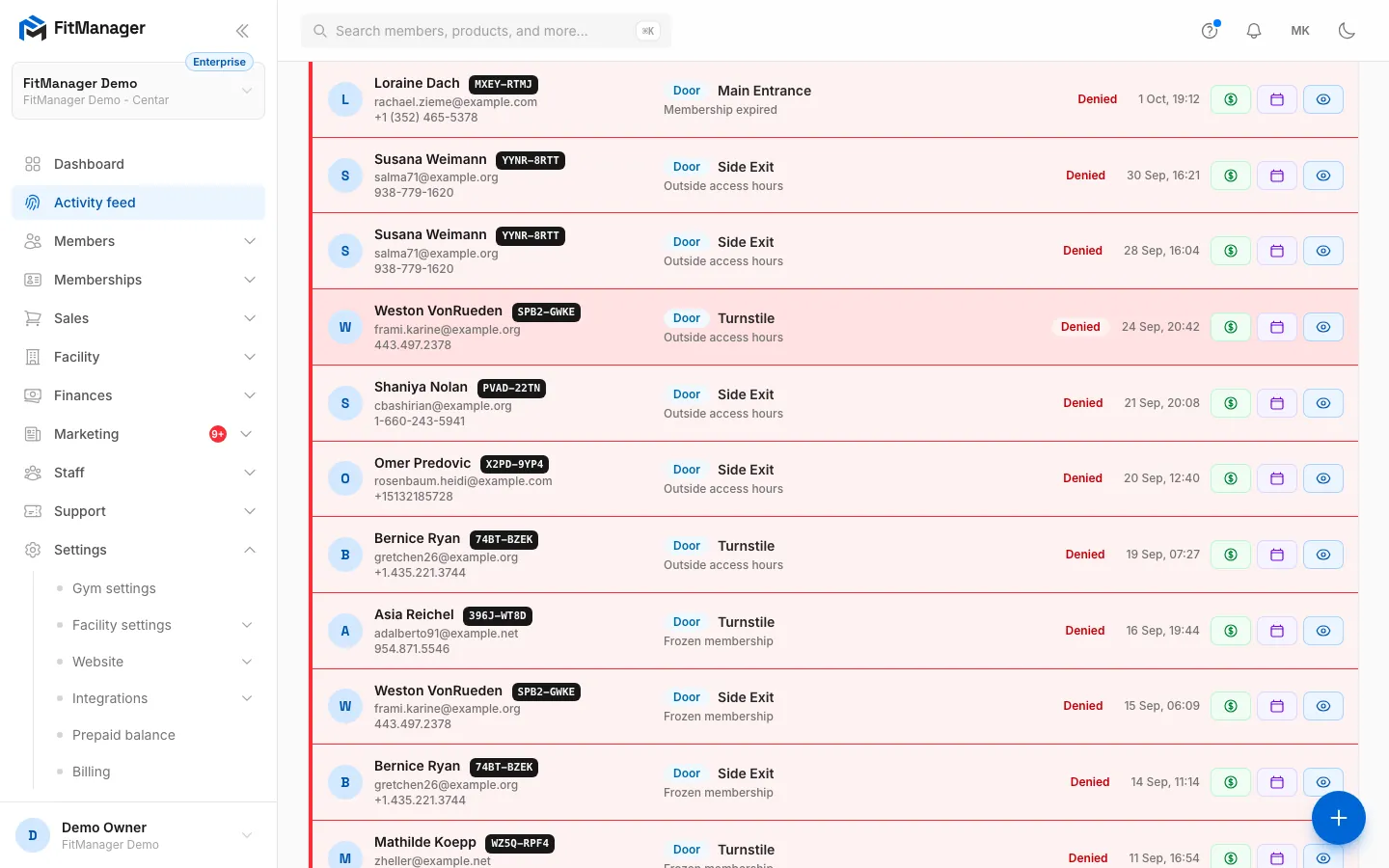
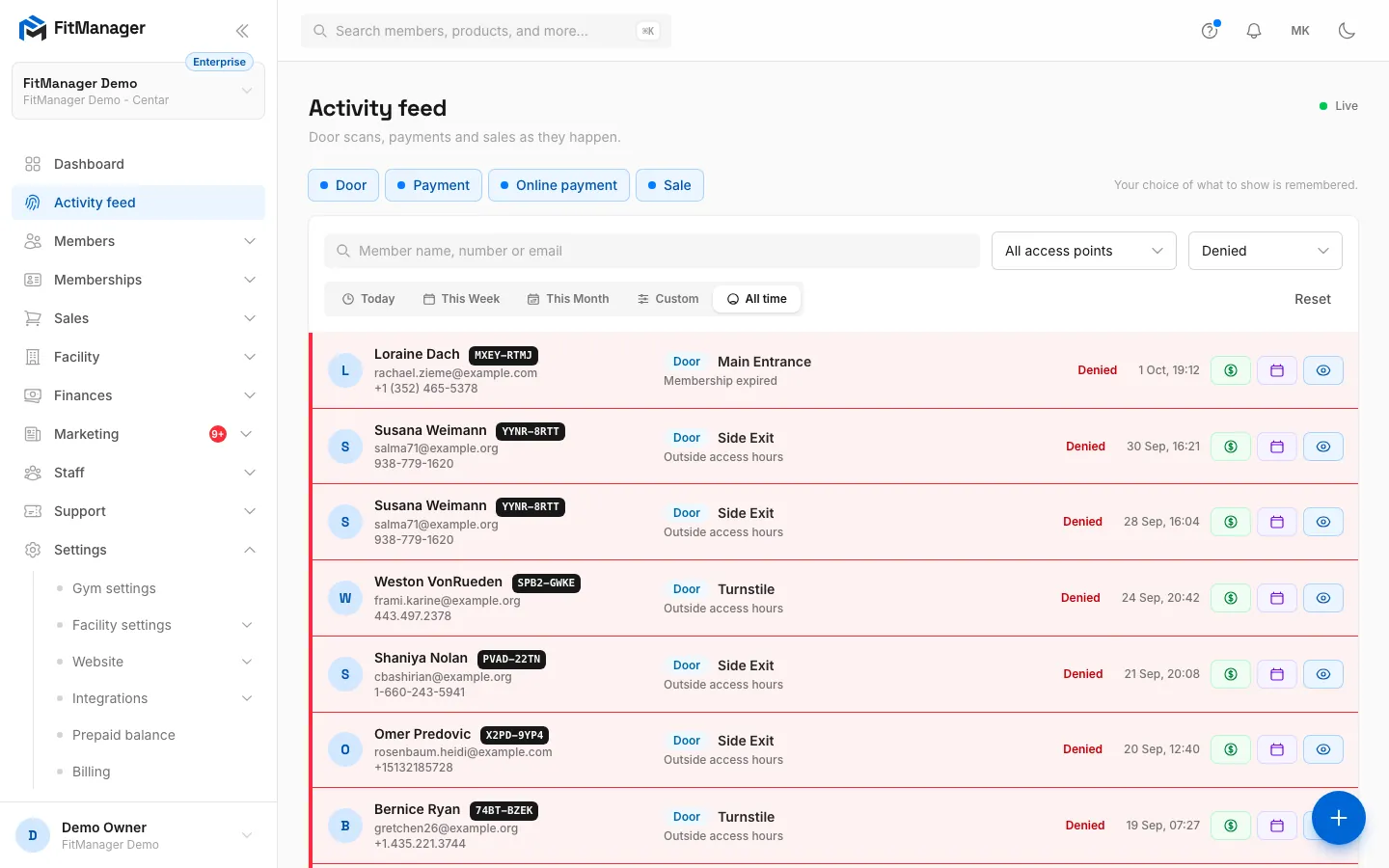
- Step 1: Open Activity feed in the sidebar. Live means it refreshes on its own, so you can leave it open at reception.
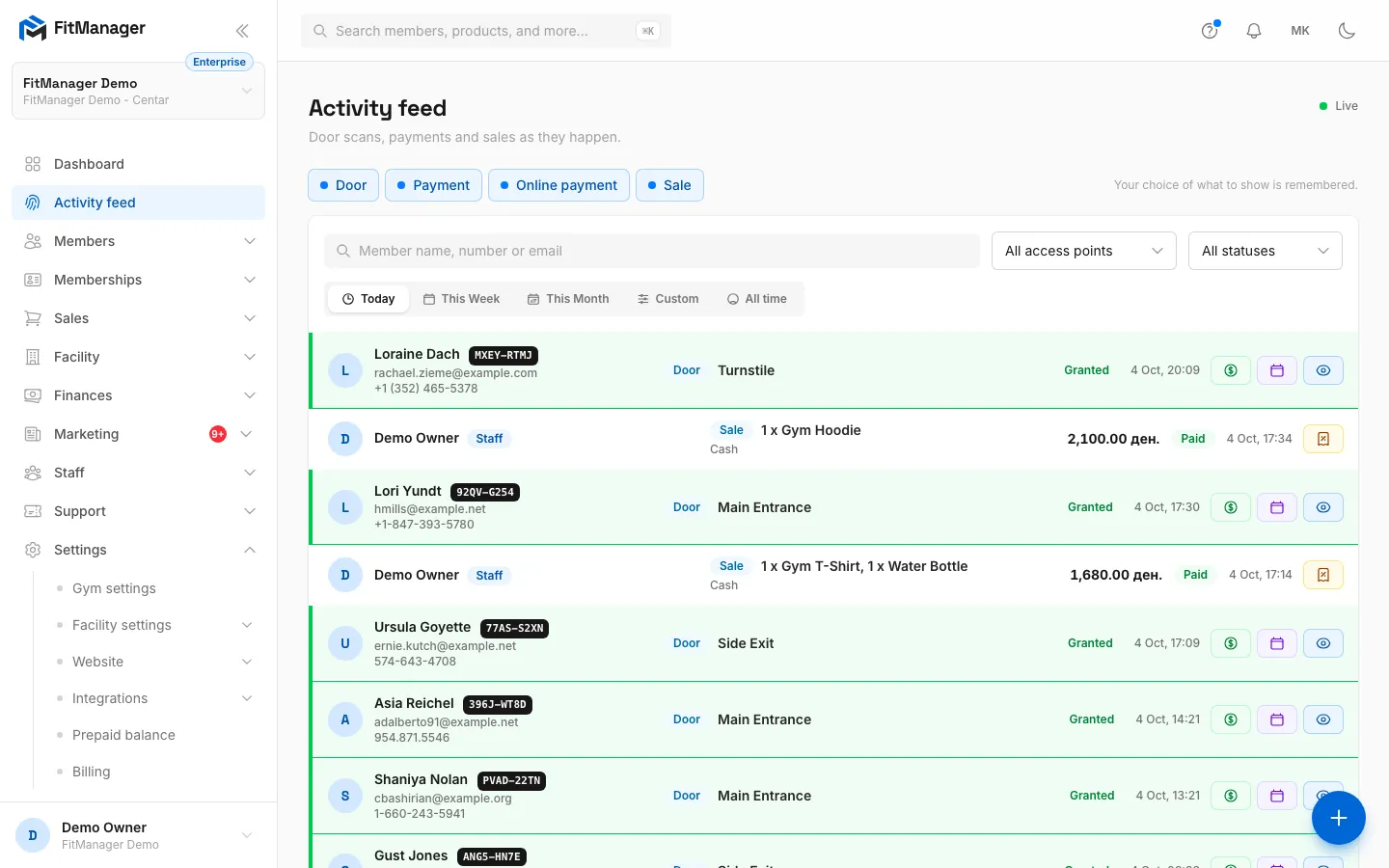
- Step 2: These toggles switch door scans, payments, online payments and sales on or off. Your choice is remembered.
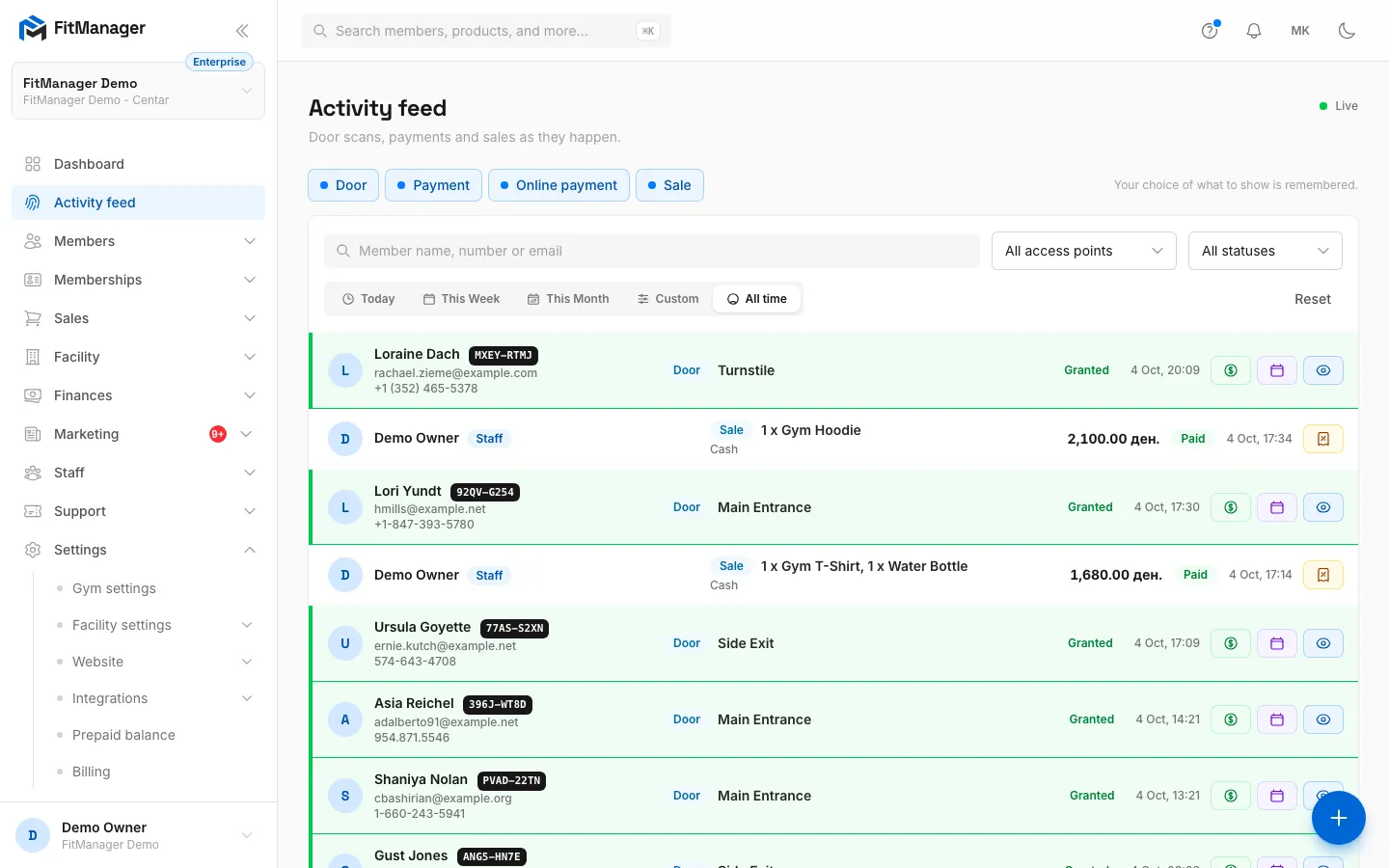
- Step 3: The feed starts at Today. Pick another period, here All time.
- Step 4: Each row shows the member, the event, the door or what was bought, the status and the time. Pay, Visits and View are one click away.
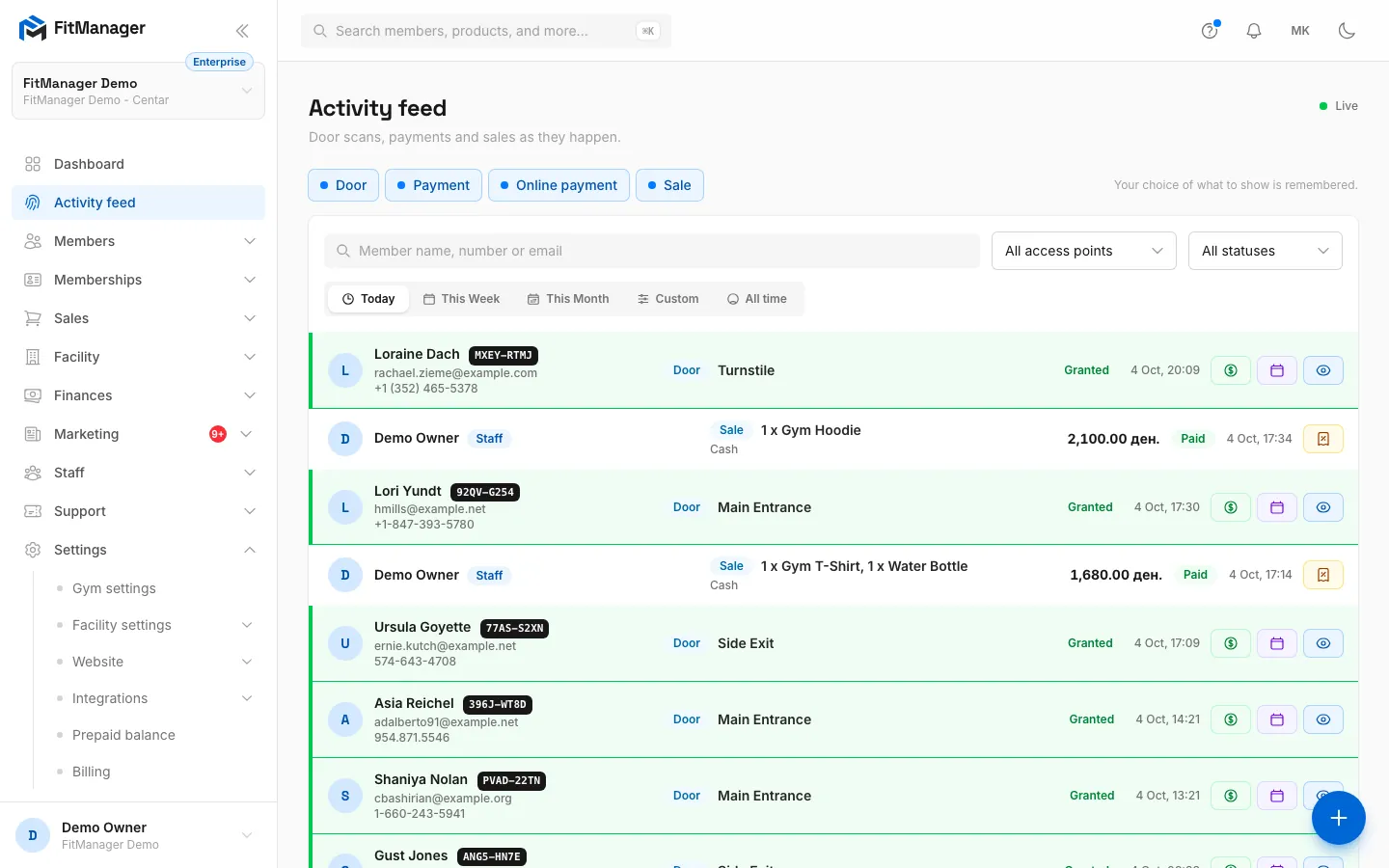
- Step 5: Search by a member's name, number or email.
- Step 6: To see who was turned away, set All statuses to Denied.
- Step 7: Denied scans are tinted and show the reason, for example an expired membership.
- Step 8: Reset takes you back to today with no filters.
Choose what to show
The four toggles at the top switch each kind of event on or off:
| Toggle | What it shows |
|---|---|
| Door | Every scan at every door, granted or denied, plus doors opened from the dashboard and manual check-ins with a door. |
| Payment | Membership payments taken at the desk. |
| Online payment | Payments members made online. |
| Sale | Sales from the Point of sale, with the items sold. |
Your choice is remembered for your account, so the feed looks the same the next time you open it.
Filter the feed
- Period: Today (the default), This Week, This Month, Custom with your own dates, or All time.
- Search: a member's name, number or email.
- All access points: pick one door to see only its events.
- All statuses: pick Granted or Denied. This filter only applies to door events, so payments and sales are hidden while it is set.
Click Reset to go back to today with no filters.
Read a row
Each row shows the member (or a staff member with a Staff badge, or Unknown when the card or code did not match anyone), the type of event, the door or what was bought, the amount, the status and the time.
For door events the second line explains the result:
- A deny reason such as Membership expired, Outside opening hours or Minor after curfew. The full list and what to do about each one is in Troubleshooting doors.
- Opened from the dashboard when someone used the open door button.
- Manual check-in when the desk checked the member in by hand and picked a door.
Next to a member you get shortcuts to take a payment (Pay), see their visit calendar (Visits) and open their profile (View). Next to a sale you can open the purchase.
Denied scans are tinted so they stand out. A member who was refused at the door is usually standing at the desk a minute later, and the reason is already on screen.
The doorbell
If a door has a bell button wired to FitManager Control, a press shows up in the top bar of every dashboard page:
- The bell icon pulses, a chime plays and a message says Doorbell at and the door's name.
- Click the icon to see the presses that are waiting.
- Open the door with the open door button on Access points if you want to let the person in.
- Click Clear next to a press, or Clear all, to stop the alert.
Presses older than 15 minutes drop off the list on their own. The bell icon is visible to everyone who can see the feed.
Common questions
Why does a scan show Unknown?
The card number or QR code did not belong to any member or staff member of this facility. Check the card number on the member's profile, see Codes, cards and QR.
Can I export the feed?
Not from this page. To export visits, use Export on the Attendance page.
Where did the Access logs page go?
It is now the Door toggle of the activity feed. Old links to the access log open the feed.
Was this page helpful?
Related articles
Still stuck?
Write to us and we will get back to you within one working day.