Set up doors and access points
Add the doors, turnstiles and exits members scan at, limit them to certain plans, print their QR codes and open them remotely.
An access point is one door, turnstile or gate in your facility. Every scan happens at an access point, and the access point decides who may pass, whether the scan opens or closes a visit, and during which hours it lets people in.
Before you start
- You need access_logs.view to see the Access points page and access_points.manage to add, edit, delete or open doors. Owners have both.
- To limit a door to certain plans, create the plans first, see Create a membership plan.
- A door can work in two ways, and you can use both at once:
- QR code on the wall. Members scan the door's printed QR code with the Scan page of the member portal. Nothing else to install.
- Card reader and lock. A reader and relay connected to a reception PC running FitManager Control read the member's card and open the lock.
Add an access point
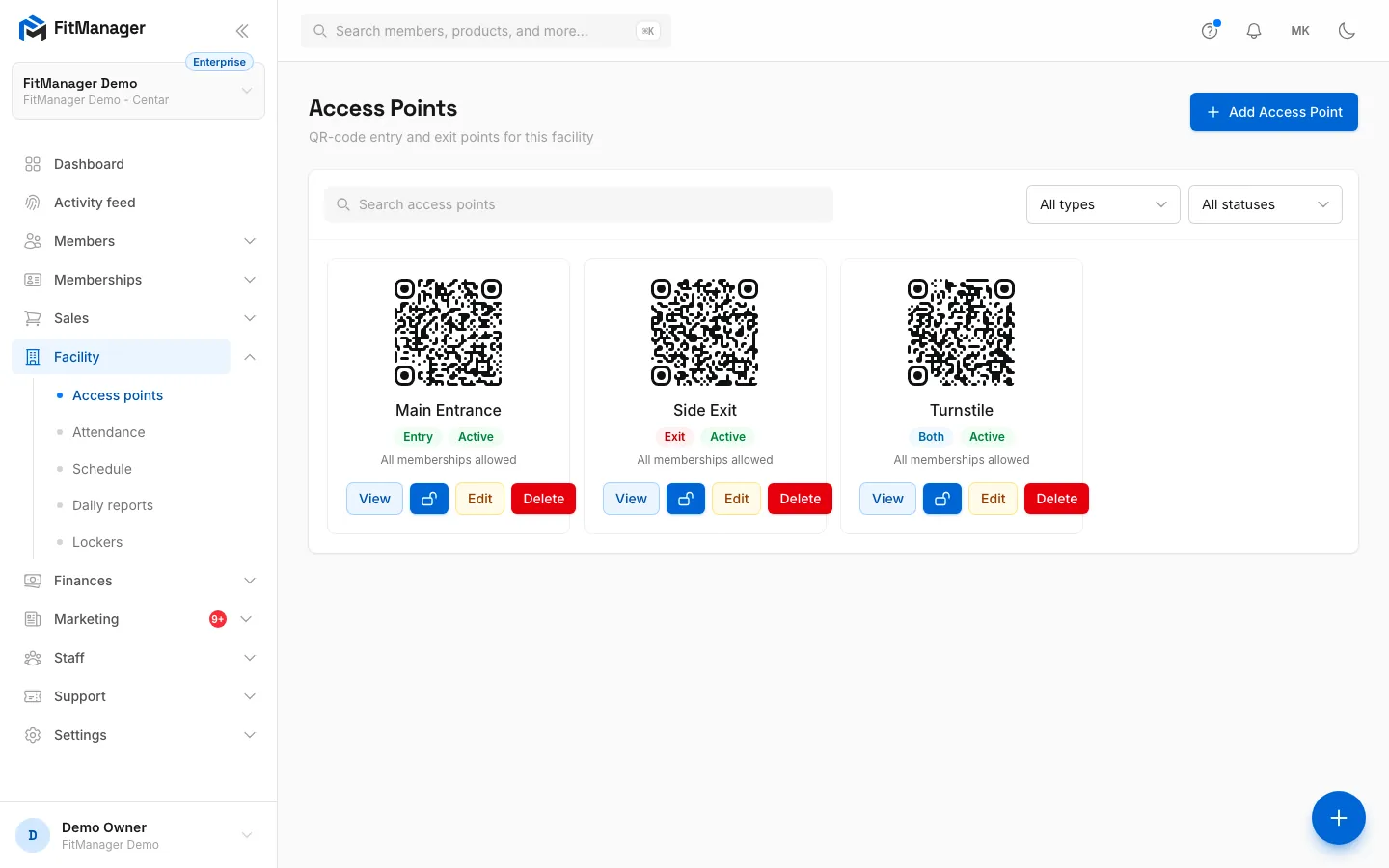
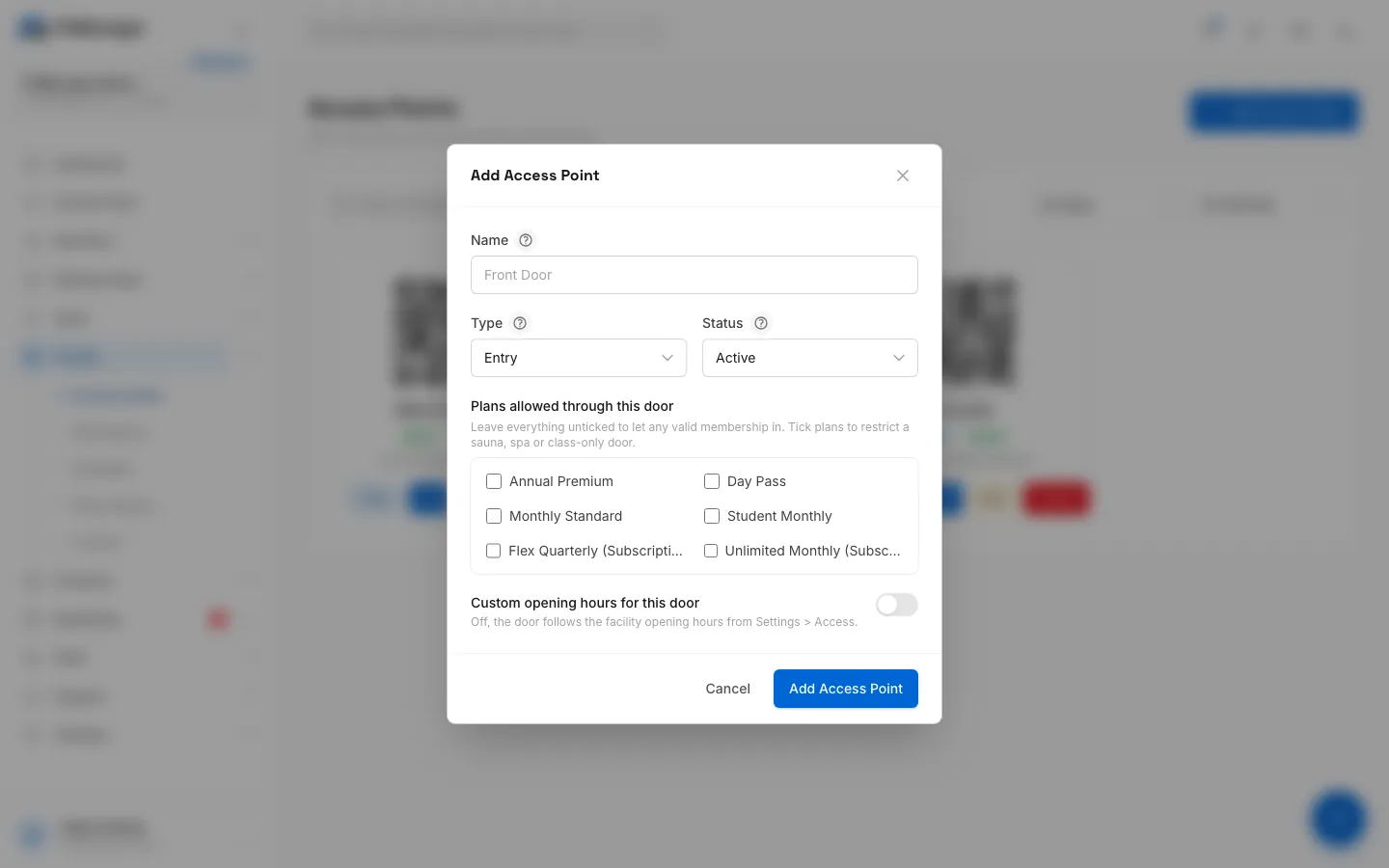
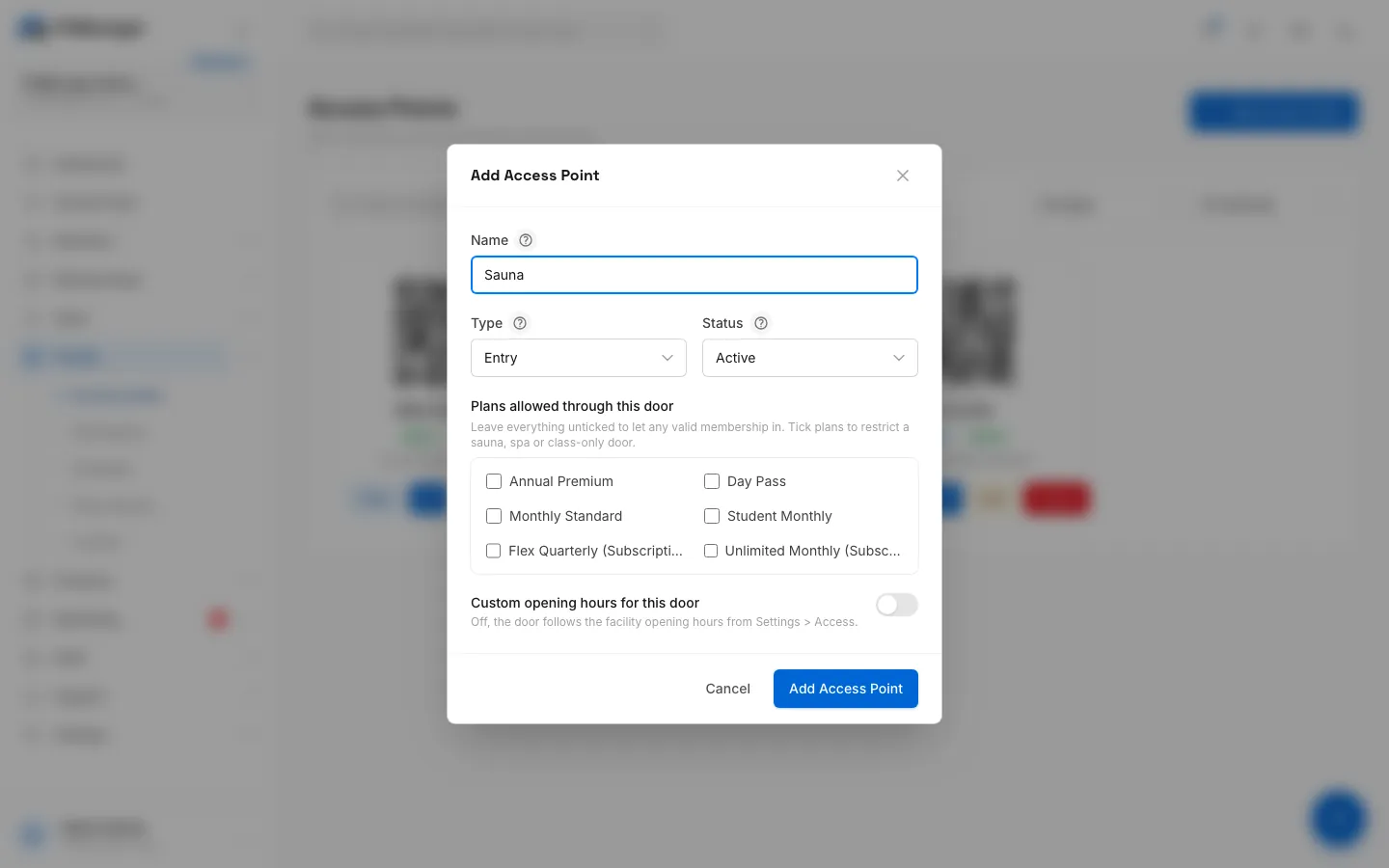
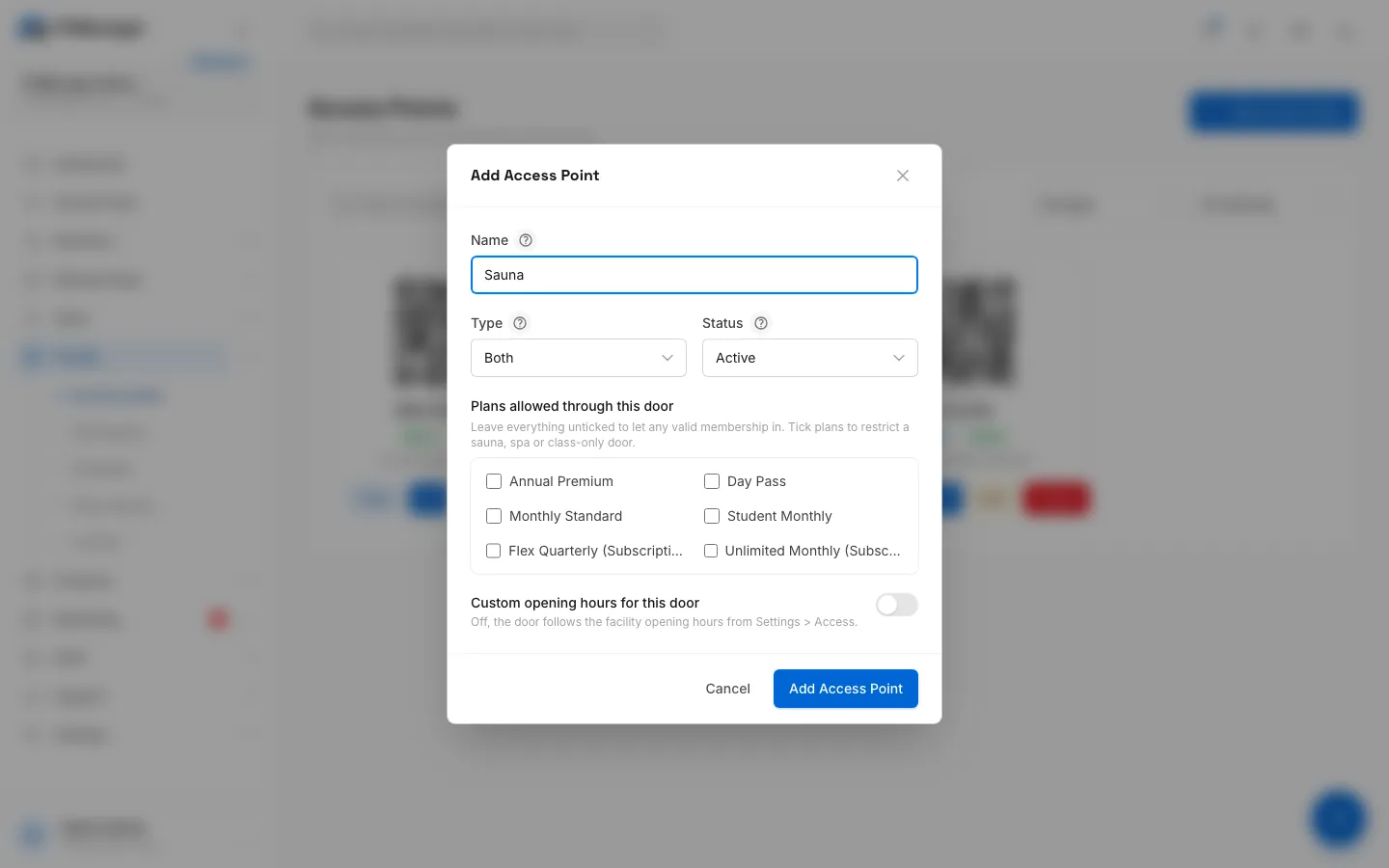
- Step 1: On the Access points page, click Add Access Point.
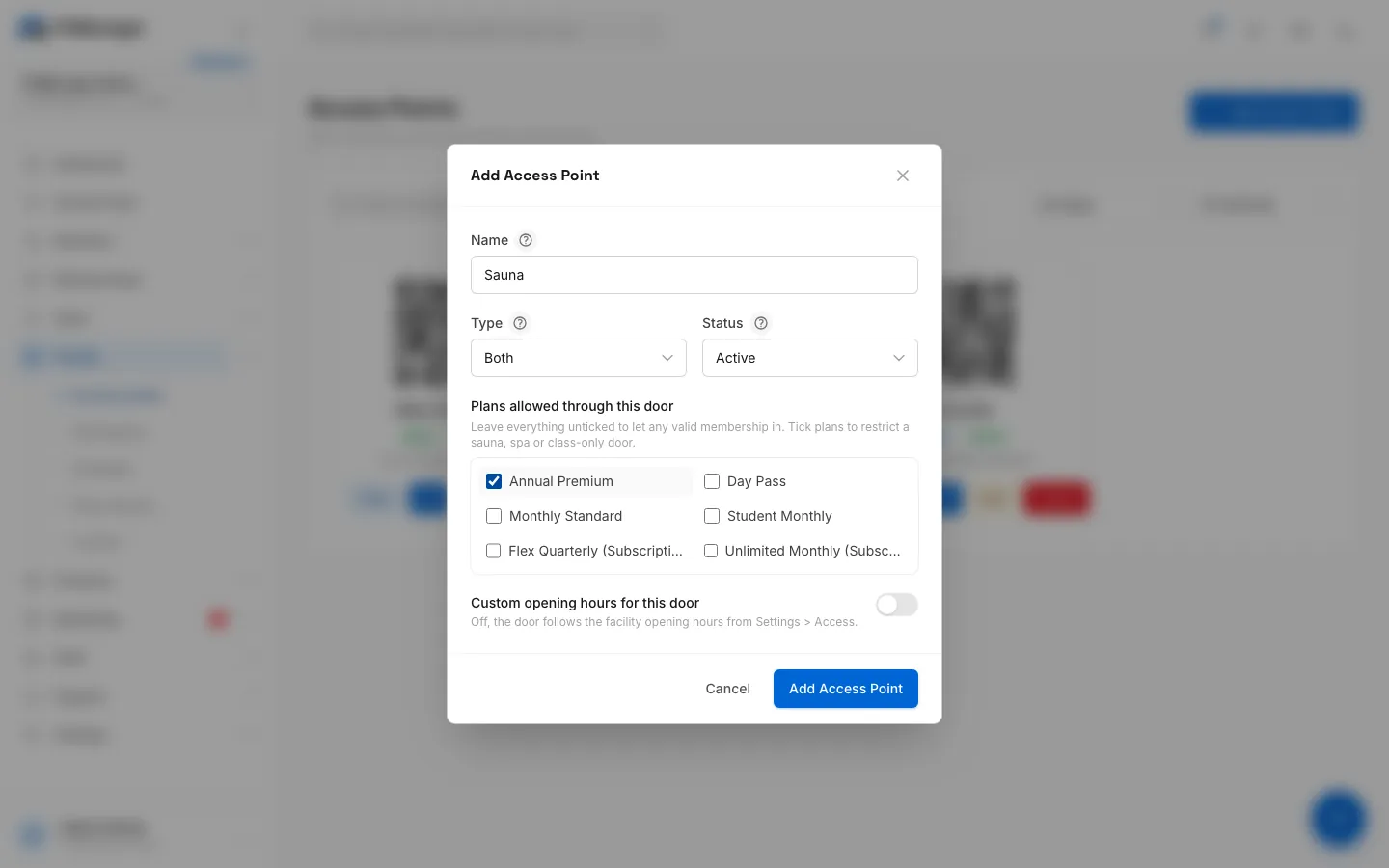
- Step 2: Give the door a name staff will recognise in the logs.
- Step 3: Pick the type. Entry opens a visit, Exit closes it, Both does either.
- Step 4: Tick plans to let only those members through. Leave all unticked to allow any valid membership.
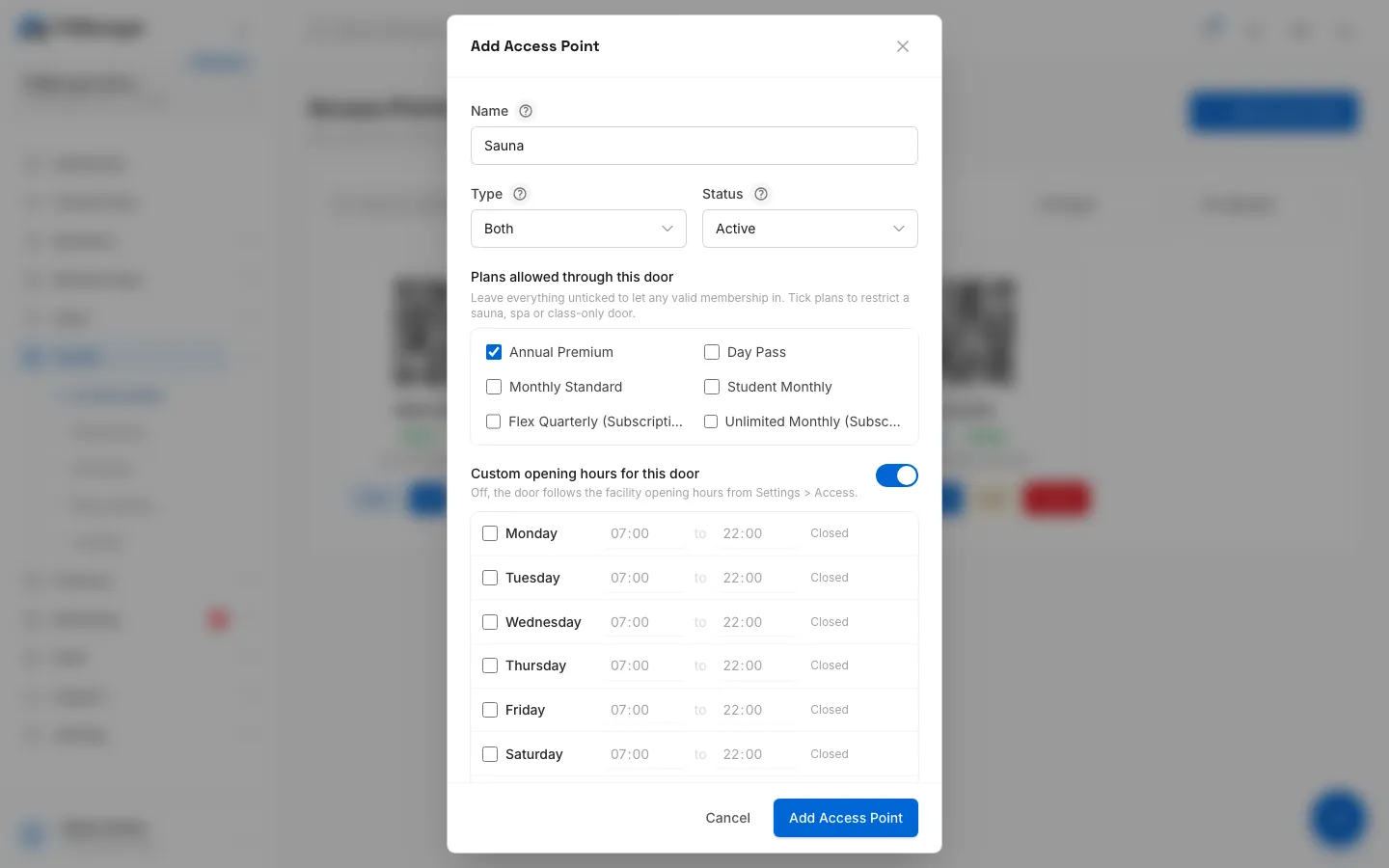
- Step 5: Turn on custom opening hours if this door keeps different hours from the facility.
- Step 6: Click Add Access Point to save.
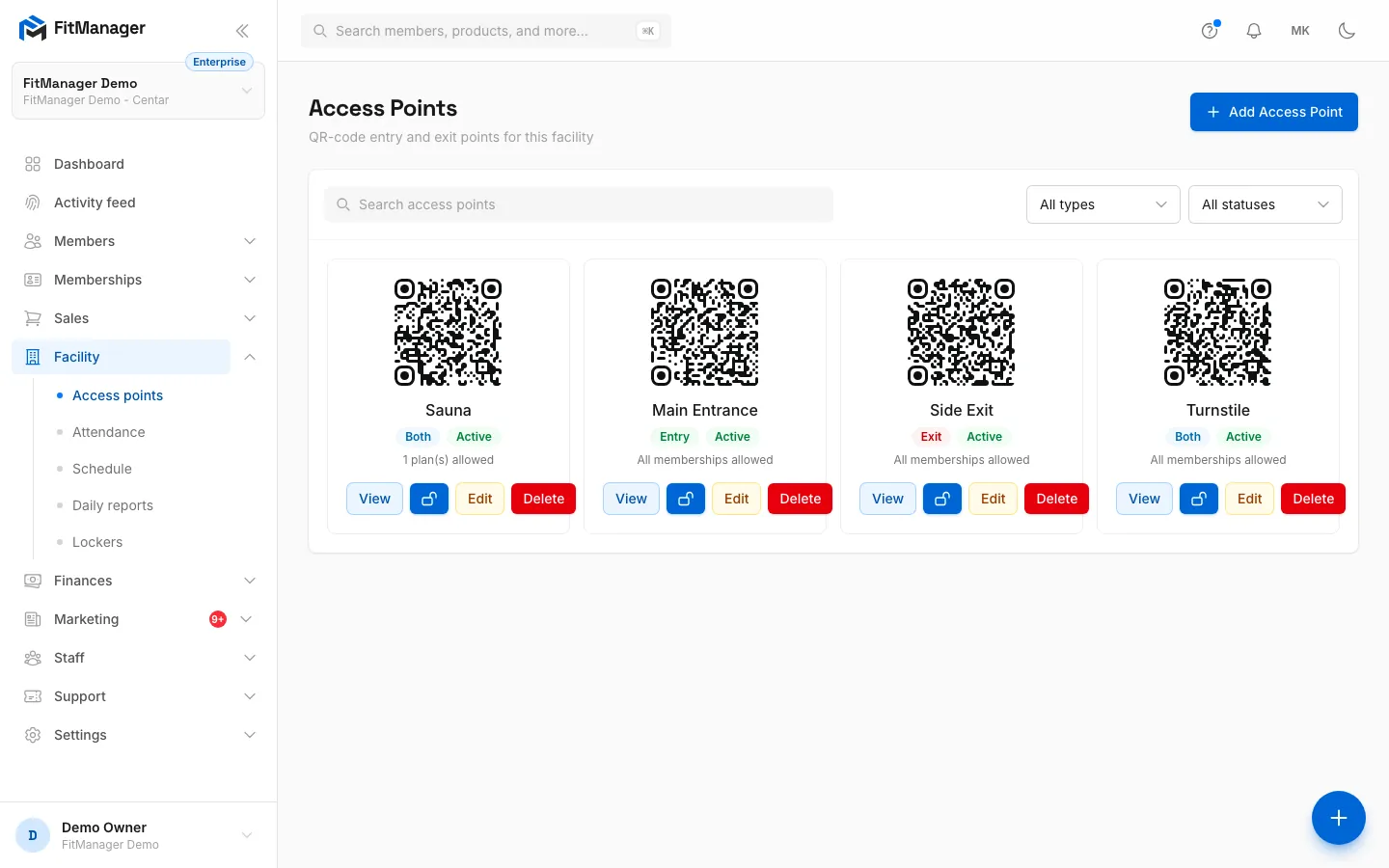
- Step 7: The door appears with its QR code, type, status and the plans it allows.
- Step 8: The lock button opens the door remotely on the controller's next poll.
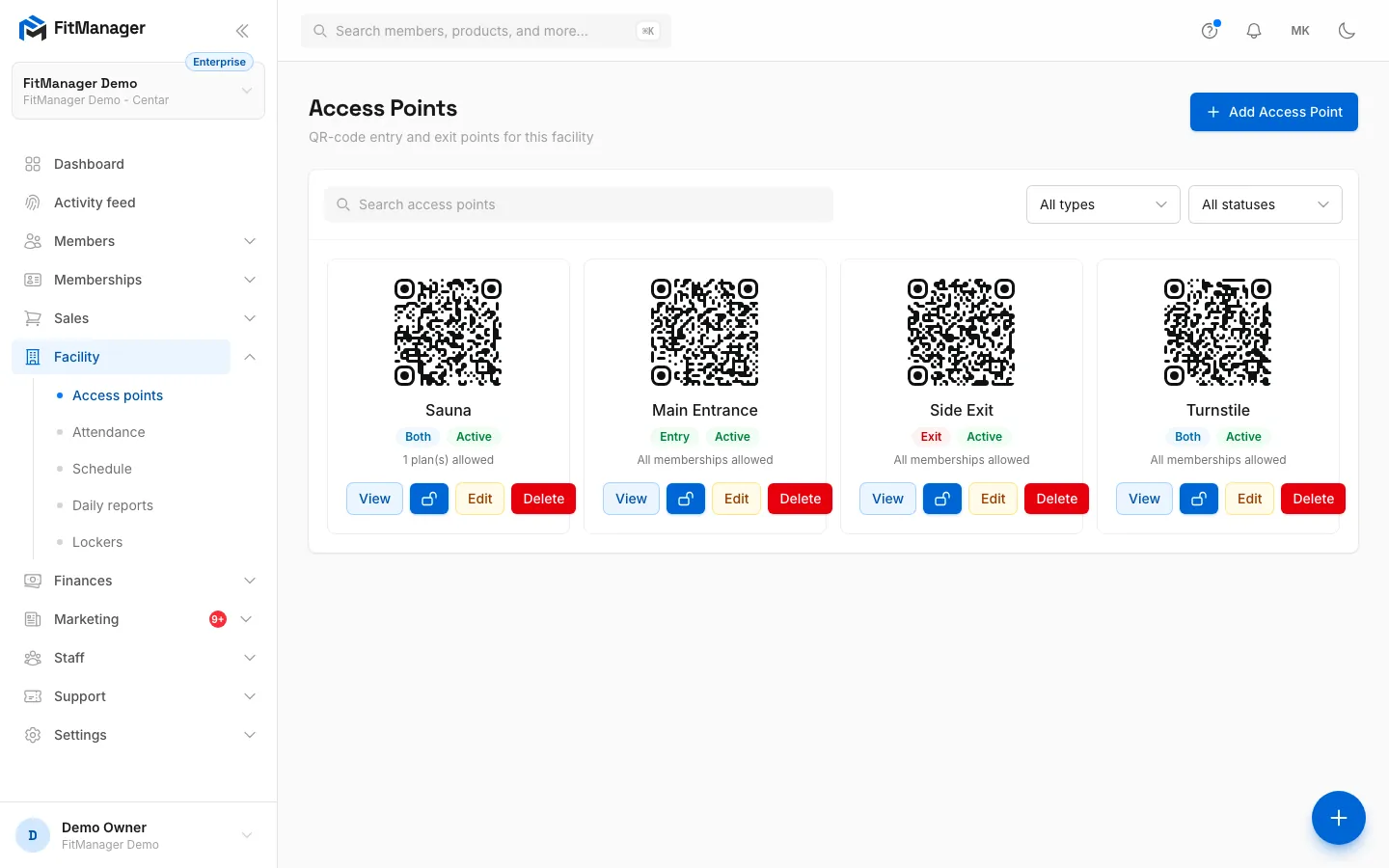
- Go to Facility > Access points and click Add Access Point.
- Enter a Name, for example "Front Door" or "Sauna".
- Choose the Type and Status (see the table below).
- Under Plans allowed through this door, tick plans to let only members on those plans through. Leave everything unticked to let any valid membership in.
- Turn on Custom opening hours for this door if this door keeps different hours from the facility, and set the hours for each day.
- Click Add Access Point.
The new door appears as a card with its QR code, its type and status, and either All memberships allowed or how many plans it allows.
Fields
| Field | What it does |
|---|---|
| Name | How the door appears in the activity feed, on the attendance list and in offline alerts. |
| Type | Entry opens a visit when a member scans. Exit closes the member's open visit. Both closes an open visit if there is one and opens a new one otherwise, so one reader can serve as entrance and exit. |
| Status | Inactive refuses every scan at this door with the reason Door inactive, without deleting the door or its history. |
| Plans allowed through this door | Membership plans and subscriptions (marked as subscriptions) that may pass. A member on any other plan is refused with No valid membership for this door. Use it for a sauna, spa or a class-only studio. |
| Custom opening hours for this door | Off, the door follows the facility opening hours from Access rules. On, it uses its own hours. A day that is not ticked is closed all day. |
To change a door later, click Edit on its card. Delete removes it for good. Any reader or printed QR code using that door stops working immediately, so print a new code if you recreate the door.
The access point page
Click View on a card to open the door's page. It shows:
- The name, type, status and when the controller last checked in (Last seen, or No controller yet if no FitManager Control has ever connected).
- The QR Token the controller uses to identify this door.
- The allowed plans and the working hours.
- Scan QR Code with Download PNG, to print and put up at the door.
- Recent Access Logs: the last 50 scans, with Granted or Denied and the Deny Reason.
Open a door remotely
Click the lock button on a door's card, or Open door on its page. The door opens on the controller's next poll, which normally takes a second. The open is written to the Activity feed as Opened from the dashboard with your name.
Only active doors can be opened, and only by staff with access_points.manage. The door must be connected through FitManager Control: a door that only has a printed QR code has no lock to open.
Online and offline
Once a FitManager Control has connected to a door, its card shows an Online or Offline badge. Hover it to see when the door was last seen.
FitManager Control checks in every second. If a door has not been seen for 5 minutes (you can change this in Access rules), it counts as offline, and every staff member with access_points.manage gets a notification and an email: Door controller offline with the door's name. You get one alert per outage; the next one comes only after the door has been back online.
Troubleshooting
The door shows Offline
Members cannot scan with a card at that door until it is back. Check that the reception PC is on and online, that FitManager Control is running and that the reader and relay are plugged in. More in Troubleshooting doors.
"Create a membership plan first to restrict this door"
You have no plans yet, so there is nothing to tick. The door lets any valid membership in until you add plans and restrict it.
I do not see Add Access Point or the lock button
Your account has access_logs.view but not access_points.manage. See Permissions.
Was this page helpful?
Related articles
Still stuck?
Write to us and we will get back to you within one working day.